
In the dynamic landscape of technology, where software compatibility can often feel like a digital barrier, the ability to run Windows applications on non-Windows operating systems is a sought-after solution. For users of Linux and macOS, the dream of seamlessly integrating their favorite Windows programs into their daily workflow is made possible by a remarkable piece of software called Wine. The very title, “how to install Wine,” hints at a practical guide, but beneath this straightforward query lies a deeper exploration of how this innovative tool empowers users, expands their digital capabilities, and ultimately contributes to a more open and flexible technological ecosystem.
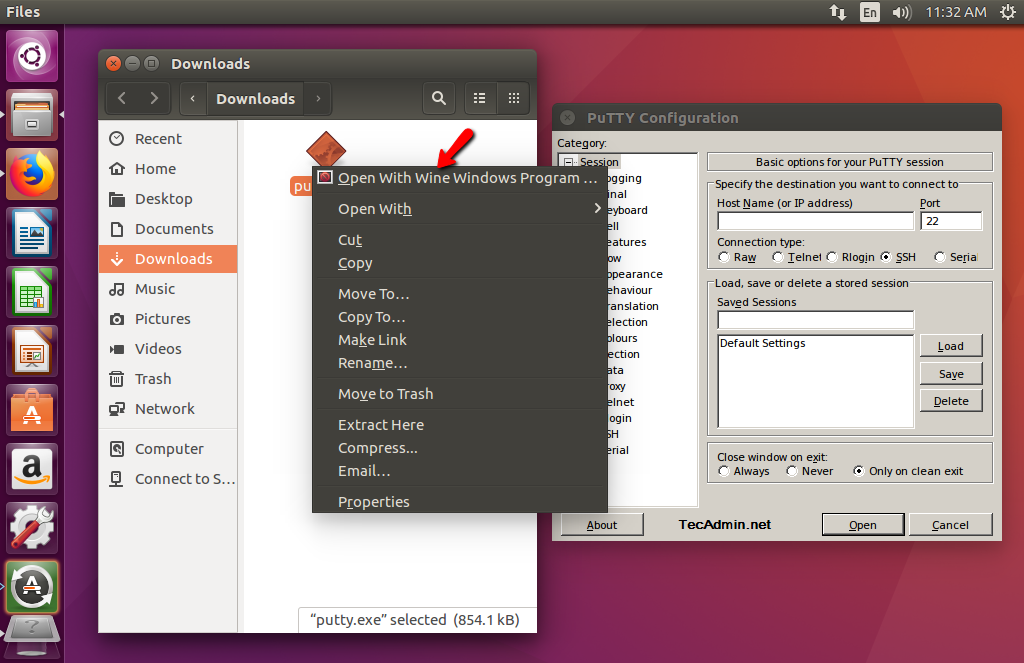
Wine, an acronym for “Wine Is Not an Emulator,” is a free and open-source compatibility layer that allows users to run Windows applications on Unix-like operating systems, most notably Linux and macOS. Unlike traditional emulators, which simulate an entire computer system, Wine translates Windows API calls directly into POSIX calls on the fly. This fundamental difference makes Wine significantly lighter, faster, and less resource-intensive than emulators, offering a more native-like experience for supported applications.
The appeal of Wine extends across various domains. For the tech-savvy individual, it unlocks access to a vast library of Windows software without the need to purchase or maintain a separate Windows license or hardware. This is particularly relevant for developers who might need to test applications across different platforms, gamers who wish to play their favorite Windows titles on Linux, or professionals who rely on specific Windows-based software for their work. In the realm of personal finance, while many financial tools are cross-platform, some specialized applications might still be Windows-only. Wine can offer a solution, ensuring users aren’t locked out of critical financial management tools. Similarly, for those exploring online income opportunities or side hustles that might involve Windows-specific software, Wine can be an invaluable asset.
This article will delve into the practicalities of installing and configuring Wine, exploring its advantages, common challenges, and tips for maximizing its performance. We will navigate the installation process, discuss different versions and configurations, and provide guidance on troubleshooting common issues, all within the context of enhancing your technological freedom and productivity.
Understanding Wine: More Than Just an Installer
Before diving into the installation steps, it’s crucial to grasp what Wine truly is and what it aims to achieve. As mentioned, Wine is not an emulator. This distinction is key to understanding its functionality and its limitations. Emulators create a virtualized environment that mimics the hardware and software of another operating system. This can be resource-intensive and sometimes leads to compatibility issues. Wine, on the other hand, acts as a translator. It intercepts the requests that a Windows application makes to the Windows operating system and translates them into commands that your Unix-like system can understand and execute.
The Power of Compatibility: Why Install Wine?
The primary motivation behind installing Wine is to expand the software choices available on non-Windows platforms. Consider these scenarios:
- Gaming: The Windows gaming ecosystem is vast and often leads the way in terms of new releases. Wine, particularly through projects like Proton (which integrates Wine with Steam for Linux), has opened the doors for many Windows games to be played on Linux with varying degrees of success. This empowers gamers to choose their preferred operating system without sacrificing their gaming library.
- Productivity Software: While many essential productivity tools are now cross-platform (e.g., Microsoft Office 365 via web, LibreOffice), some niche or older professional applications remain Windows-exclusive. For graphic designers, engineers, or specific business professionals, Wine can be the bridge that allows them to continue using their preferred tools.
- Software Development and Testing: Developers often need to ensure their applications function correctly on multiple operating systems. Wine provides a convenient way to test Windows versions of their software on a Linux development environment, streamlining the debugging and quality assurance process.
- Cost Savings and Software Freedom: By allowing users to run Windows software on their existing Linux or macOS hardware, Wine can significantly reduce the need for purchasing additional Windows licenses or dedicated Windows machines. This aligns with the principles of open-source software and user empowerment.
Navigating the Wine Landscape: Versions and Configurations
Wine is under constant development, with new versions released regularly that improve compatibility and performance. Understanding the different versions and how they impact your experience is essential:
- Stable Releases: These are the most thoroughly tested versions and are generally recommended for users who prioritize stability and reliability. They might not support the very latest Windows applications but offer a robust experience for a wide range of software.
- Development Releases (or Staging Releases): These versions incorporate the latest features and bug fixes but are less tested. They are ideal for users who want to experiment with newer applications or are willing to report bugs to help improve Wine’s development.
- WineHQ: The official Wine website (winehq.org) is the primary source for downloading Wine and accessing its extensive database of application compatibility. The “AppDB” (Application Database) is an invaluable resource where users report on the success or failure of specific applications, along with configuration tips.
Beyond the core Wine installation, several companion tools and concepts enhance its functionality:
- Winetricks: This is a helper script that simplifies the installation of various redistributable components required by many Windows applications, such as .NET frameworks, DirectX, Visual C++ runtimes, and specific fonts. Often, an application won’t run correctly without these dependencies, and Winetricks automates their installation.
- Wine Prefix: A Wine prefix is essentially a virtual C: drive and associated registry that Wine creates for each application or group of applications. This isolation prevents conflicts between different applications and allows for customized configurations for each. For example, you might have one prefix for your gaming needs with specific graphics drivers and another for a productivity suite.
- PlayOnLinux/Lutris: These are graphical front-ends that manage Wine installations and application configurations. They simplify the process of installing and running Windows applications by providing automated scripts and pre-configured Wine prefixes for many popular programs. They are excellent choices for users who prefer a more user-friendly experience.
Installing Wine: A Step-by-Step Guide
The installation process for Wine varies slightly depending on your Linux distribution or macOS version. However, the general principles remain consistent. We’ll outline the most common methods.
Installing Wine on Linux Distributions
Most modern Linux distributions provide Wine packages in their official repositories, making installation straightforward.
Method 1: Using Your Distribution’s Package Manager (Recommended for Beginners)
This is the easiest and most recommended method for most users.
-
Update Your Package Lists: Before installing any new software, it’s good practice to update your system’s package lists to ensure you’re getting the latest available versions.
- Debian/Ubuntu and derivatives:
bash

sudo apt update

sudo apt upgrade
- Fedora:
bash

sudo dnf update
- Arch Linux:
bash

sudo pacman -Syu
- Debian/Ubuntu and derivatives:
-
Install Wine: Now, install the Wine package.
- Debian/Ubuntu and derivatives:
bash

sudo apt install wine64 wine32
(Thewine32package is often included for compatibility with 32-bit Windows applications, which are still prevalent.) - Fedora:
bash

sudo dnf install wine
- Arch Linux:
bash

sudo pacman -S wine
- Debian/Ubuntu and derivatives:
-
Initial Configuration: The first time you run a Windows application or any Wine command, Wine will prompt you to install additional components, such as Mono and Gecko. These are Wine’s equivalents to Microsoft’s .NET Framework and Internet Explorer, respectively, which are required by many Windows applications. Click “Install” when prompted.
Method 2: Adding the WineHQ Repository (For Latest Versions)
If you need the absolute latest Wine version or a specific development release not yet in your distribution’s repositories, you can add the official WineHQ repository. This is a more advanced method.
-
Enable 32-bit Architecture (if on a 64-bit system): Many Wine applications still require 32-bit libraries.
- Debian/Ubuntu:
bash

sudo dpkg --add-architecture i386
- Debian/Ubuntu:
-
Download and Add the Repository Key:
- Debian/Ubuntu:
bash

wget -nc https://dl.winehq.org/wine-builds/winehq.key

sudo mv winehq.key /usr/share/keyrings/winehq-archive-keyring.gpg
- Fedora: (This is more complex and often involves downloading specific RPMs for your Fedora version. Refer to the WineHQ website for precise instructions.)
- Debian/Ubuntu:
-
Add the WineHQ Repository:
- Debian/Ubuntu:
bash

sudo apt install software-properties-common

sudo apt-add-repository 'deb [signed-by=/usr/share/keyrings/winehq-archive-keyring.gpg] https://dl.winehq.org/wine-builds/ubuntu/ $(lsb_release -sc) main'
(Replace$(lsb_release -sc)with your Ubuntu version code if it doesn’t auto-detect correctly, e.g.,jammy,focal).
- Debian/Ubuntu:

- Update and Install:
- Debian/Ubuntu:
bash

sudo apt update

sudo apt install --install-recommends winehq-stable  # Or winehq-devel, winehq-staging
- Debian/Ubuntu:
Installing Wine on macOS
While macOS is built on a Unix-like foundation, Wine’s primary focus has historically been Linux. However, there are ways to install and run Wine on macOS.
Using Homebrew
Homebrew is a popular package manager for macOS, similar to apt or dnf on Linux.
-
Install Homebrew (if you don’t have it):
Open your Terminal and run:/bin/bash -c "$(curl -fsSL https://raw.githubusercontent.com/Homebrew/install/HEAD/install.sh)"Follow the on-screen instructions.
-
Install Wine:
brew install --cask wine-stableOr for the development version:
brew install --cask wine-devel -
Initial Configuration: Similar to Linux, the first time you attempt to run a Windows application, macOS will prompt you to install XQuartz, a necessary component for Wine’s graphical interface. Install it when prompted.
Configuring and Using Wine
Once Wine is installed, you’re ready to start running Windows applications.
Running Your First Windows Application
- Download a Windows Executable: Obtain a
.exefile of the Windows application you wish to install. - Open the Terminal: Navigate to the directory where you saved the
.exefile. - Run Wine: Use the
winecommand followed by the name of the executable.
bash

wine your_application.exe
For example, to run a hypothetical installer namedsetup.exe:
bash

wine setup.exe
Wine will create a default Wine prefix (~/.wine) and attempt to run the installer. Follow the on-screen prompts of the Windows installer as you would on a Windows system.
Managing Wine Prefixes and Winetricks
For more advanced users or when dealing with applications that have specific requirements, managing Wine prefixes and using Winetricks is crucial.
Creating and Using Separate Wine Prefixes
This is highly recommended to avoid conflicts and to customize environments for different applications.
-
Create a new prefix:
WINEPREFIX=~/my_app_prefix winecfgThis command creates a new Wine prefix located at
~/my_app_prefix. Thewinecfgcommand will open the Wine configuration tool, which allows you to set compatibility settings (e.g., Windows version), graphics, audio, and drives for this specific prefix. -
Run applications within that prefix:
bash

WINEPREFIX=~/my_app_prefix wine your_application.exe
Using Winetricks
Winetricks simplifies installing common Windows components.
-
Install Winetricks:
- Debian/Ubuntu:
sudo apt install winetricks - Fedora:
sudo dnf install winetricks - Arch Linux:
sudo pacman -S winetricks - macOS:
brew install winetricks
- Debian/Ubuntu:
-
Install components for a specific prefix:
bash

WINEPREFIX=~/my_app_prefix winetricks dotnet48  # Install .NET Framework 4.8

WINEPREFIX=~/my_app_prefix winetricks vcrun2019 # Install Visual C++ 2019 runtime

WINEPREFIX=~/my_app_prefix winetricks d3dx9    # Install DirectX 9 components
You can list available components withwinetricks list-all.
Troubleshooting Common Issues
-
Application won’t launch:
- Check the Wine AppDB for compatibility reports and specific workarounds.
- Ensure all necessary dependencies are installed using Winetricks.
- Try running the application with a different Wine prefix or a different Wine version.
- Look at the terminal output for error messages; they can be very informative.
-
Graphics or audio problems:
- Ensure your system’s graphics drivers are up to date.
- Experiment with different graphics settings in
winecfg. - Some games might require specific libraries (e.g.,
d3d9,dxvkvia Proton).
-
Performance issues:
- Wine’s performance is highly dependent on the application and hardware.
- Ensure you are using the latest stable Wine version.
- For gaming, consider using tools like Lutris or Proton (if using Steam).
- Close unnecessary applications running on your system.

Conclusion: Embracing Software Freedom
Installing Wine is more than just a technical procedure; it’s a step towards embracing greater software freedom and flexibility. It empowers users to break free from proprietary ecosystems and leverage the vast software resources available across different platforms. Whether you’re a gamer looking to expand your library, a professional needing access to specific Windows tools, or simply a Linux enthusiast eager to explore new possibilities, Wine offers a robust and evolving solution.
By understanding its principles, following the installation guides, and utilizing its configuration tools like Winetricks, you can effectively bridge the Windows-Linux divide. The journey of installing and configuring Wine might involve some trial and error, but the reward is a more capable and versatile computing experience. As technology continues to evolve, tools like Wine remain vital in ensuring that users have the power to choose, adapt, and innovate, unhindered by artificial software barriers. So, dive in, experiment, and unlock the full potential of your operating system with Wine.
aViewFromTheCave is a participant in the Amazon Services LLC Associates Program, an affiliate advertising program designed to provide a means for sites to earn advertising fees by advertising and linking to Amazon.com. Amazon, the Amazon logo, AmazonSupply, and the AmazonSupply logo are trademarks of Amazon.com, Inc. or its affiliates. As an Amazon Associate we earn affiliate commissions from qualifying purchases.