
The landscape of digital content consumption has dramatically shifted towards mobile platforms. With streaming giants like Twitch leading the charge, millions now engage with their favorite creators, communities, and content directly from their smartphones or tablets. Among the myriad ways to support these creators, the Twitch Prime Subscription stands out as a unique and widely appreciated benefit for Amazon Prime members. This guide will walk you through the entire process of utilizing your free monthly Prime Sub on mobile, ensuring you can seamlessly support your cherished streamers wherever you are.
A Prime Sub, fundamentally, is a free channel subscription offered to Amazon Prime members as part of their Prime Gaming (formerly Twitch Prime) benefits. This benefit allows you to subscribe to one Twitch channel each month without any additional cost, granting you access to subscriber-only perks like custom emotes, ad-free viewing (if offered by the streamer), and exclusive chat badges. While the initial setup might occasionally require a desktop, the act of actually deploying your monthly Prime Sub is perfectly optimized for mobile devices, making it an essential skill for any avid mobile Twitch user.
Understanding the Prime Gaming Ecosystem for Mobile Users
Before diving into the step-by-step process of subscribing, it’s crucial to grasp the foundational elements that enable the Prime Sub functionality. This understanding ensures a smoother experience and helps troubleshoot any potential issues that may arise.
What is Twitch Prime / Prime Gaming?
Prime Gaming is Amazon’s premium gaming experience included with an Amazon Prime membership. It offers a variety of benefits designed to enhance the gaming experience, not just on Twitch but across various platforms. For Twitch users, the standout feature is undoubtedly the free monthly channel subscription. Beyond this, Prime Gaming often provides:
- Free PC Games: A rotating selection of full PC games available for download and permanent ownership.
- In-Game Content: Exclusive items, skins, characters, and boosts for popular games.
- Emotes & Chat Badges: Special Twitch emotes and exclusive chat badges.
- Ad-Free Viewing: While not universally applied, some channels offer ad-free viewing for Prime subscribers.
For mobile users, the most direct benefit is the ability to easily activate that free subscription within the Twitch app, directly impacting the support for their favorite content creators.
Prerequisites for a Mobile Prime Sub
To successfully Prime Sub on your mobile device, you need two core components to be active and linked:
- An Active Amazon Prime Membership: This is the bedrock. Ensure your Amazon Prime subscription is current and in good standing. This includes any free trials, as they often grant Prime Gaming benefits.
- An Active Twitch Account: You’ll need a registered Twitch account to interact with streamers and utilize the subscription.
Crucially, these two accounts must be linked. Without this connection, Twitch cannot verify your Prime eligibility, and the Prime Sub option will not appear. While linking can sometimes be initiated on mobile browsers, the most reliable and recommended method for the initial linking process is typically via a desktop or laptop, which we’ll detail next.
Establishing the Connection: Linking Your Amazon Prime and Twitch Accounts
The foundational step for any Prime Sub, regardless of the device, is successfully linking your Amazon Prime account to your Twitch account. While subsequent Prime Subs are mobile-friendly, the initial setup is often best executed on a desktop for clarity and ease.
Initial Setup: Linking Amazon Prime to Twitch (Desktop Recommended)
Even though our focus is mobile, establishing this link is a prerequisite that greatly benefits from a desktop interface. If you haven’t linked your accounts yet, follow these steps:
- Access Prime Gaming: Open a web browser on your computer and navigate to gaming.amazon.com.
- Sign In: Click “Sign In” at the top right corner and enter your Amazon Prime account credentials.
- Link Twitch Account: Once signed in, look for an option that says “Link Twitch Account” or “Connect Your Twitch Account.” This is usually prominently displayed.
- Authorize Twitch: You will be prompted to sign in to your Twitch account. Ensure you’re logging into the correct Twitch account you wish to link. After signing in, you’ll be asked to authorize Amazon to connect with your Twitch account. Confirm this authorization.
- Confirmation: You should receive a confirmation message that your accounts are successfully linked. You can also verify this by checking your Prime Gaming dashboard, where your Twitch username should now be displayed.
This one-time linking process securely connects your Prime benefits to your Twitch identity, paving the way for mobile subscriptions.
Verifying the Link on Mobile
Once you’ve completed the initial linking (preferably on desktop), it’s a good idea to quickly verify that the connection is recognized within the Twitch mobile app itself.
- Open the Twitch Mobile App: Launch the Twitch app on your smartphone or tablet.
- Access Your Profile: Tap on your profile icon, usually located in the top-left corner.
- Navigate to Prime Gaming: From your profile menu, look for an option like “Prime Gaming” or “Go to Prime Gaming.” Tapping this should either take you to a dedicated Prime Gaming section within the app or open a browser window to your Prime Gaming dashboard, confirming your linked status.
- Check Subscription Status: Alternatively, if you go to a channel you follow, the “Subscribe” button should eventually show an option related to Prime Gaming if your link is active.
If you encounter issues here, double-check your Amazon Prime status and the linking process on the desktop. Sometimes, logging out and back into both Amazon and Twitch accounts can refresh the connection.
Step-by-Step: Priming a Sub Through the Twitch Mobile App
With your accounts linked and verified, you’re ready for the main event: deploying your free Prime Sub directly from the Twitch mobile app. This is the most common and convenient method for mobile users.
Navigating to Your Chosen Channel
The first step is to find the streamer you wish to support.
- Open the Twitch App: Launch the Twitch application on your device.
- Search or Browse:
- If you know the streamer’s name, use the “Search” icon (magnifying glass) at the bottom or top of the app to find their channel.
- If you’re browsing, navigate through the “Following” tab for channels you follow, or the “Browse” tab to discover new content.
- Access the Channel Page: Once you locate your desired streamer, tap on their stream or their channel icon to navigate to their dedicated channel page.

Initiating the Prime Subscription
Once you’re on the streamer’s channel page, look for the subscription options.
- Locate the “Subscribe” Button: On the streamer’s channel page, usually below the video player (if they’re live) or below their channel banner, you’ll find a prominent “Subscribe” button. Tap this button.
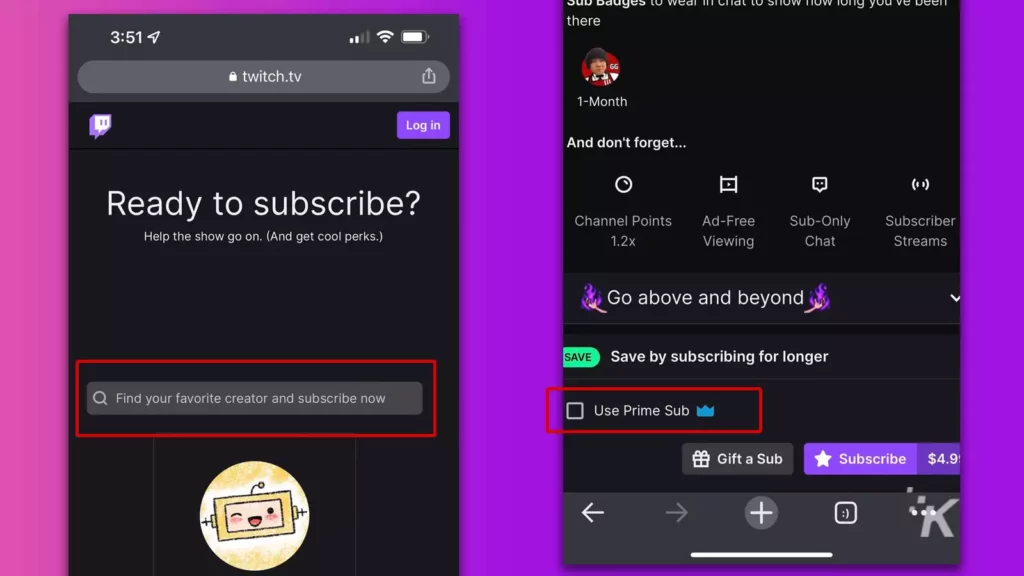
- Select “Subscribe with Prime”: A pop-up or new screen will appear, presenting various subscription tiers (Tier 1, Tier 2, Tier 3) and an option specifically for “Subscribe with Prime” or “Use Prime Sub.” This option is typically clearly labeled and distinct from the paid subscription tiers. Tap on the “Subscribe with Prime” button.
- Confirm Subscription: You’ll likely see a confirmation prompt asking you to confirm that you want to use your Prime Gaming subscription for this channel. Review the details and tap “Confirm” or “Subscribe.”
- Success! Upon successful completion, you’ll receive a confirmation message within the app, and you’ll immediately gain access to the channel’s subscriber benefits. The “Subscribe” button on that channel will likely change to indicate you are now a subscriber (e.g., “Subscribed” or show your resubscription date).
Remember, this Prime Sub is valid for one month. You’ll need to manually re-subscribe each month if you wish to continue supporting the same streamer or choose a different one.
Post-Subscription Actions
After successfully priming a sub, you’ll instantly unlock a new set of interactions:
- Emotes: Access to the streamer’s custom subscriber emotes, which you can use in any Twitch chat.
- Chat Badge: A unique badge will appear next to your name in that streamer’s chat, signifying your subscriber status.
- Ad-Free Viewing: If the streamer offers it, your viewing experience on their channel will now be ad-free.
- Direct Support: Your Prime Sub contributes revenue directly to the streamer, providing crucial support for their work.
- Announce Your Sub: Many streamers appreciate it when you share your Prime Sub in chat, as it helps build community and allows them to thank you directly.
Alternative Method: Priming a Sub via Mobile Browser
While the Twitch app is the most direct route, some users may prefer or require using a mobile web browser. This can be useful if the app is experiencing issues or if you simply prefer a browser-based interface.
Accessing Twitch Through a Mobile Web Browser
- Open Your Mobile Browser: Launch your preferred web browser on your mobile device (e.g., Chrome, Safari, Firefox).
- Navigate to Twitch.tv: In the address bar, type twitch.tv and hit enter.
- Log In: If you’re not already logged in, tap the login button (usually in the top right corner or accessible via a menu icon) and enter your Twitch credentials.
- Request Desktop Site (Optional but Recommended for Some): While Twitch’s mobile web interface is good, sometimes accessing the “desktop site” can provide a more familiar layout for finding subscription options. In Chrome, tap the three-dot menu; in Safari, tap the ‘AA’ icon; look for “Request Desktop Site.” This will load the full desktop version of the Twitch website, scaled for your mobile screen.
Following the Subscription Process on Mobile Web
The process on the mobile web is largely similar to the app, with minor UI differences:
- Find the Channel: Use the search bar or navigate through your “Following” list to find the desired streamer’s channel.
- Locate the “Subscribe” Button: On the channel page, the “Subscribe” button will be present, typically near the top of the page or below the video player. Tap this button.
- Select “Subscribe with Prime”: A pop-up window or overlay will appear, showcasing the different subscription options. Look for the “Subscribe with Prime” or “Use Prime Sub” banner/button. Tap on it.
- Confirm: Review the details and confirm your subscription.
The mobile browser method offers a robust alternative, ensuring that even if the app isn’t cooperating, you can still deliver your monthly support.
Managing and Troubleshooting Your Prime Sub
Prime Subs are a fantastic benefit, but understanding their monthly nature and knowing how to troubleshoot common issues is key to a smooth experience.
Reminders and Re-subscribing
A common point of confusion for new Prime Sub users is its monthly cadence.
- Monthly Re-activation: Unlike paid subscriptions that often auto-renew, Prime Subs require manual re-activation each month. You get one free sub per 30-day cycle.
- Twitch Notifications: Twitch often sends reminders (via email or app notifications) when your current Prime Sub is about to expire, prompting you to re-subscribe.
- Re-subscribing: To continue supporting the same streamer, simply follow the steps in Section 3 again when your current sub expires. The “Subscribe” button will reappear with the Prime option available. You can also choose to sub to a different streamer each month if you wish.
Common Issues and Solutions
While generally straightforward, you might occasionally encounter hiccups:
- “Prime Sub not available” or “Already used this month”:
- Check Prime Membership: Ensure your Amazon Prime membership is active and hasn’t expired.
- Verify Account Link: Go to gaming.amazon.com on a desktop to confirm your Twitch account is still linked. Sometimes, accounts can become unlinked, or you might be logged into the wrong Twitch account.
- Wait for Cooldown: Remember, it’s one sub per 30 days. If you just used it, you might need to wait a few more days for it to refresh.
- Incorrect Account Linked: If you accidentally linked the wrong Twitch or Amazon account, you’ll need to unlink them via gaming.amazon.com and then re-link the correct ones.
- App Glitches: If the Twitch app isn’t behaving, try these standard tech solutions:
- Restart the App: Force close and reopen the Twitch app.
- Clear Cache (Android): Go to your device’s app settings, find Twitch, and clear its cache.
- Reinstall App: As a last resort, uninstall and reinstall the Twitch app.
- Try Mobile Browser: If the app consistently fails, revert to the mobile browser method.
- Region Restrictions: Ensure Prime Gaming is available in your region. Amazon Prime benefits can vary by country.
Benefits for the Streamer and Community
Beyond the personal perks, using your Prime Sub is a powerful way to engage with and contribute to the streaming ecosystem:
- Direct Financial Support: Prime Subs generate revenue for streamers, providing them with resources to improve their content, equipment, and overall production quality.
- Community Growth: A growing subscriber count signifies community support and helps streamers attract more viewers and potential sponsors.
- Enhanced Interaction: Your subscriber status often grants you access to subscriber-only chat modes, exclusive Discord channels, and special events, deepening your connection with the streamer and their community.

Conclusion
The ability to Prime Sub on mobile has democratized streamer support, making it incredibly accessible for Amazon Prime members. By following the steps outlined in this guide, you can confidently navigate the Twitch app or a mobile browser to deploy your free monthly subscription, empowering your favorite creators and enhancing your own viewing experience. From the initial account linking to the monthly re-activation, understanding this process ensures you can consistently contribute to the vibrant world of live streaming, directly from the palm of your hand. Embrace the power of your Prime membership and become an active, supportive member of the Twitch community, wherever your mobile device takes you.
aViewFromTheCave is a participant in the Amazon Services LLC Associates Program, an affiliate advertising program designed to provide a means for sites to earn advertising fees by advertising and linking to Amazon.com. Amazon, the Amazon logo, AmazonSupply, and the AmazonSupply logo are trademarks of Amazon.com, Inc. or its affiliates. As an Amazon Associate we earn affiliate commissions from qualifying purchases.