
In an increasingly mobile and data-driven world, the ability to access entertainment on your own terms is paramount. Amazon Prime Video, a leading streaming service, understands this need implicitly, offering its vast library not just for streaming but also for offline viewing through its robust download feature. This capability transforms how subscribers interact with their entertainment, empowering them to bypass connectivity issues, conserve mobile data, and ensure a seamless viewing experience regardless of location or network availability.
This comprehensive guide delves into the nuances of downloading movies and TV shows from Amazon Prime Video. We’ll explore the ‘why’ behind this invaluable feature, walk you through the precise steps to build your offline entertainment library, provide insights into managing your downloaded content, and offer practical tips to troubleshoot common issues. Whether you’re a frequent flyer, a daily commuter, or simply someone who appreciates uninterrupted viewing, mastering Prime Video downloads is an essential skill for maximizing your subscription.
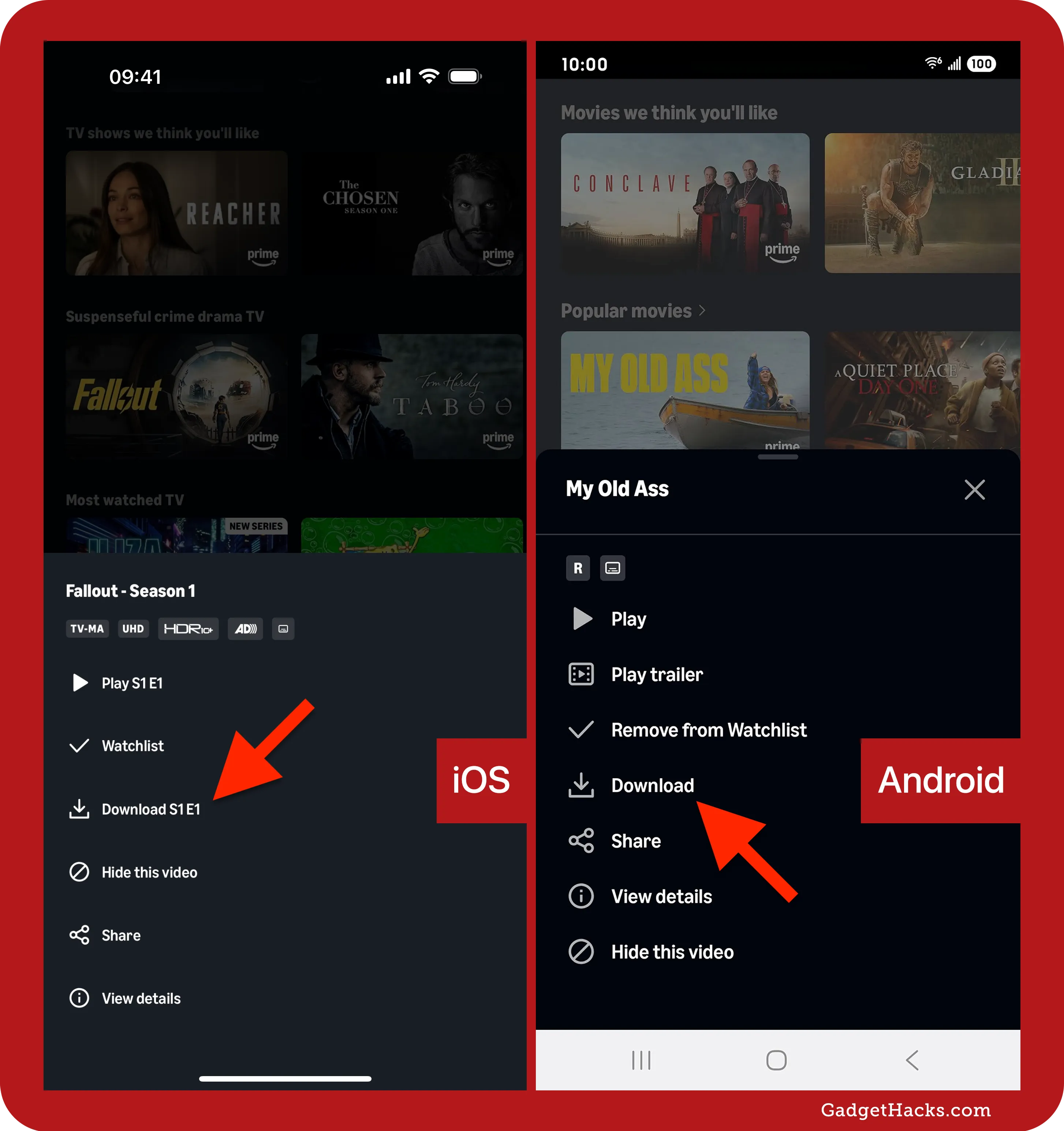
The Undeniable Benefits of Offline Viewing
The convenience of streaming has revolutionized how we consume media, but it’s not without its caveats. Dependence on a stable internet connection, fluctuating data costs, and the frustration of buffering can often detract from the viewing experience. This is where the download feature of Amazon Prime Video steps in, offering a compelling solution that enhances user satisfaction and extends the service’s utility far beyond the confines of Wi-Fi.
Uninterrupted Entertainment On-the-Go
Imagine being on a long flight, a remote road trip, or a daily commute through areas with spotty cellular reception. Without the ability to download content, these periods become entertainment deserts. Amazon Prime Video’s download functionality ensures that your favorite movies and TV shows are available at your fingertips, regardless of network availability. This means no more buffering, no more dropped connections, and no more missed plot points, guaranteeing a consistent, high-quality viewing experience even in the most connectivity-challenged environments. It transforms downtime into entertainment time, making journeys more enjoyable and waits more bearable.
Conserving Mobile Data and Battery Life
Streaming high-definition video consumes significant amounts of mobile data, quickly eating into monthly allowances and potentially incurring expensive overage charges. By downloading content over a Wi-Fi connection before heading out, users can dramatically reduce their reliance on cellular data, leading to substantial cost savings. Furthermore, continuous streaming also drains device batteries faster due to the constant data transfer and processing required. Playing downloaded content, on the other hand, is less resource-intensive, extending your device’s battery life and allowing for longer periods of uninterrupted entertainment without needing to hunt for a power outlet. This strategic approach to content consumption offers both financial and practical advantages, making your device more efficient.
Beating Connectivity Challenges
Even in urban environments, reliable internet access isn’t always a given. Public Wi-Fi can be notoriously unreliable, slow, or insecure, while cellular signals can vary wildly from one location to another. The download feature acts as a robust contingency plan against these connectivity challenges. By proactively saving content to your device, you create a personal, secure, and reliable media library that is immune to external network disruptions. This is particularly valuable for critical viewing situations, like catching up on a show’s season finale during a power outage or ensuring your kids have their favorite cartoons during a long doctor’s visit. It empowers users with absolute control over their viewing environment, ensuring entertainment is always just a tap away.
Prerequisites for Seamless Prime Video Downloads
Before you embark on building your offline entertainment library, it’s essential to ensure you meet a few fundamental requirements. Adhering to these prerequisites will guarantee a smooth downloading process and prevent common frustrations, allowing you to maximize the utility of your Amazon Prime Video subscription.
Active Amazon Prime or Prime Video Membership
The download feature is an exclusive benefit for subscribers of Amazon Prime or Prime Video. If you have a full Amazon Prime membership, Prime Video is included, giving you access to thousands of movies and TV shows, many of which are available for download. Alternatively, you can subscribe to Prime Video as a standalone service. Without an active subscription, the download option will not be available. It’s crucial to ensure your membership is current and in good standing to unlock this and other premium features. Always double-check your subscription status within your Amazon account settings if you encounter any issues.
Compatible Devices and Sufficient Storage
Amazon Prime Video allows downloads on a range of compatible devices, primarily mobile phones and tablets running iOS (iPhone, iPad) and Android, as well as select Fire tablets. Laptops and desktop computers typically stream content via web browsers and do not usually support direct downloads for offline viewing in the same manner as mobile apps, though the Amazon Prime Video app for Windows does offer this functionality.
Regardless of your device, sufficient internal storage is a non-negotiable requirement. High-definition movies and lengthy TV series can consume a significant amount of space. A typical full-length movie in standard definition might be a few hundred megabytes, while an HD version could easily exceed 1GB. Before downloading, it’s wise to check your device’s available storage and ensure you have ample room. You can usually find this information in your device’s settings under “Storage” or “About Phone/Tablet.” Regularly clearing old files, photos, or unwatched downloads can help maintain adequate space.
A Stable Internet Connection (for downloading)
While the goal of downloading is to watch offline, the initial download process itself absolutely requires a stable and reasonably fast internet connection. For optimal speed and to avoid excessive mobile data consumption, it is highly recommended to download content over a reliable Wi-Fi network. Downloading large files over a slow or intermittent connection can lead to corrupted downloads, prolonged wait times, and unnecessary data charges if using cellular data. For the best experience, connect to a strong Wi-Fi signal when initiating downloads. Once the download is complete, the internet connection is no longer needed until you decide to delete the content or if the download license expires and needs to be refreshed (which usually happens when you briefly connect to the internet while in the app).
A Step-by-Step Guide to Downloading Your Favorite Titles
Once you’ve confirmed your eligibility and prepared your device, the process of downloading movies and TV shows from Amazon Prime Video is straightforward. Follow these steps to begin building your personal offline entertainment library.
Navigating the Prime Video Interface
The journey begins within the Amazon Prime Video app on your compatible mobile device (iOS, Android, or Fire Tablet) or the dedicated Windows app. Upon opening the app, you’ll be greeted by the home screen, featuring various carousels of recommended content, genres, and trending titles. You can browse through these sections, use the search bar (magnifying glass icon, usually at the top or bottom of the screen) to find a specific title, or explore categories to discover new content. The interface is designed to be intuitive, allowing you to quickly pinpoint what you want to watch.
Identifying Downloadable Content
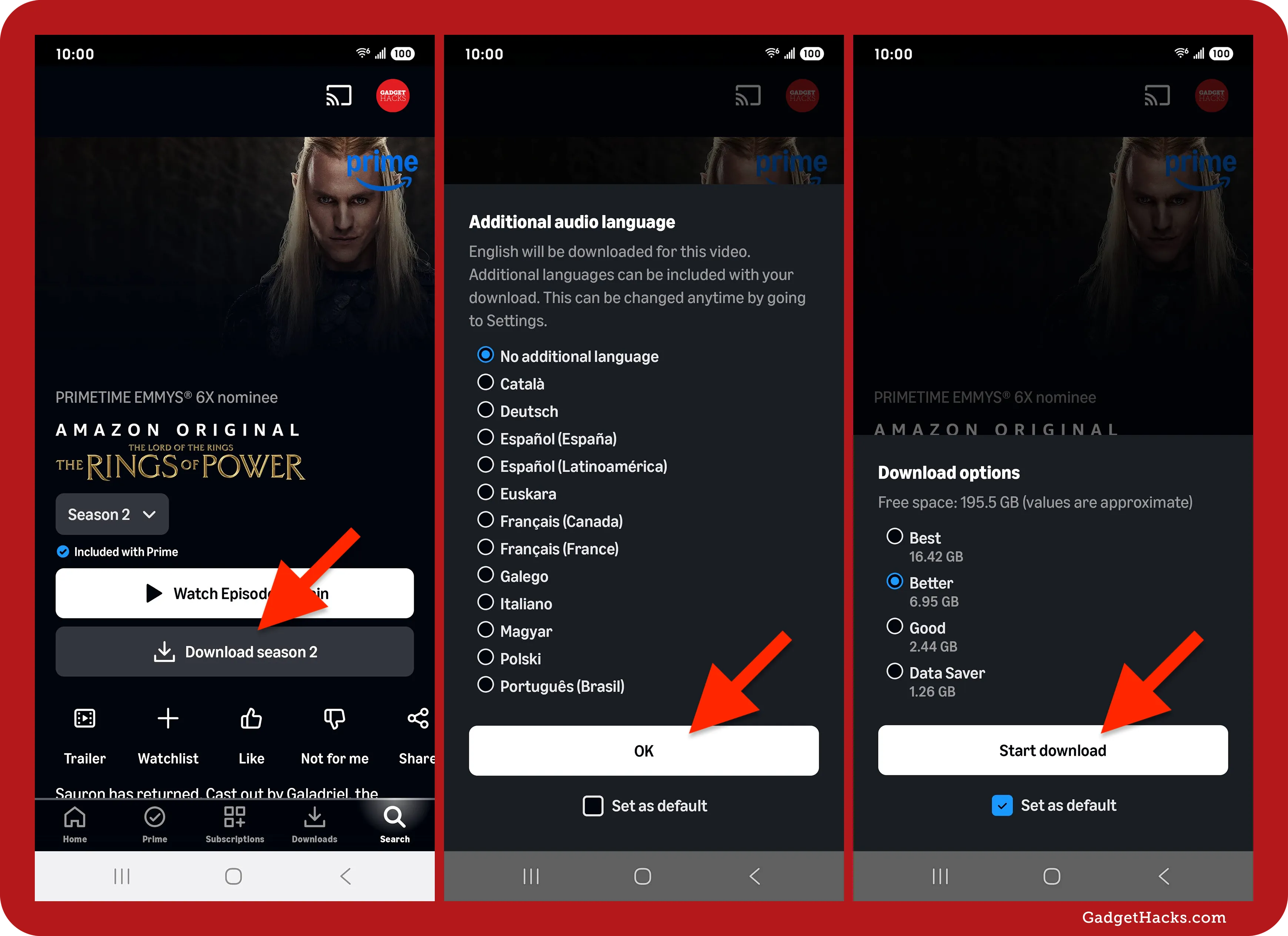
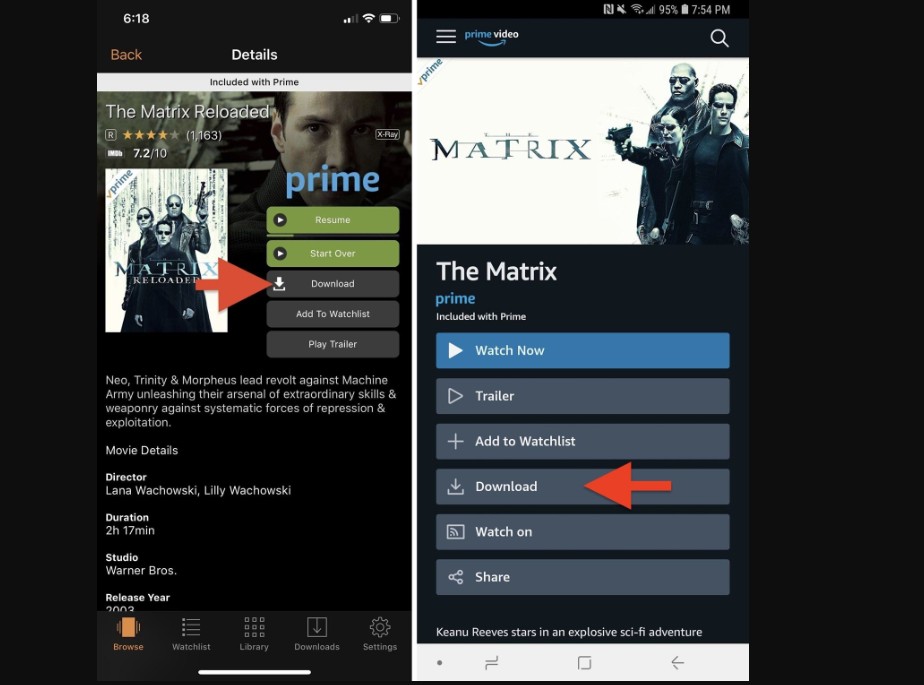
Not all content on Amazon Prime Video is available for download, and some titles may have specific download restrictions based on licensing agreements. To identify downloadable content, look for a prominent “Download” button or icon (often an arrow pointing downwards) on the title’s detail page. When you tap on a movie or a TV show episode, you’ll be taken to its dedicated page, which displays information like synopsis, cast, ratings, and available viewing options. If the download icon is present and active, it means the content can be saved to your device. For TV series, you usually have the option to download individual episodes or, in some cases, an entire season with a single tap.
Initiating and Monitoring Your Downloads
Once you’ve found a downloadable title, simply tap the “Download” button. For TV series, you’ll be prompted to select which episodes you wish to download. After initiating the download, you’ll typically see a progress indicator, either on the download button itself or in a dedicated “Downloads” section of the app (often found under the “My Stuff” or “Downloads” tab in the bottom navigation). This progress bar will show you the percentage complete and, sometimes, an estimated time remaining.
You can usually continue browsing the app or even use other applications on your device while downloads are in progress. For larger files or multiple downloads, it’s advisable to keep your device connected to Wi-Fi and ensure it has enough battery life or is plugged into a charger. The app will usually notify you once a download is complete.
Managing Your Downloaded Library Effectively
Downloading content is only half the battle; knowing how to manage your offline library is key to a seamless experience. This involves understanding where your content is stored, how long it’s available, and how to make space for new titles.
Locating Your Offline Content
Once downloaded, your content isn’t scattered randomly across your device. Amazon Prime Video conveniently stores all your offline movies and TV shows within the app itself, usually accessible through a dedicated “Downloads” or “My Stuff” tab. Tapping on this section will display a neatly organized list of all the titles you’ve saved. From here, you can tap on any title to begin watching it without needing an internet connection. This centralized location makes it incredibly easy to find and play your downloaded entertainment, ensuring a consistent user experience.
Understanding Download Expiration and Limits
It’s important to be aware that downloaded content on Prime Video isn’t permanent. Due to licensing agreements, downloads come with certain expiration rules:
- Viewing Window: Once you start watching a downloaded title, you typically have a limited window (e.g., 48 hours) to finish it before it expires.
- Storage Duration: Even if you haven’t started watching, downloaded titles have an overall storage limit (e.g., 30 days) from the date of download. After this period, the download will expire and you’ll need to re-download it.
- Device Limits: There’s also a limit to the number of devices you can have the same title downloaded on simultaneously (e.g., 2 or 3 devices). If you reach this limit, you’ll need to delete it from one device before downloading it on another.
- Total Downloads: Amazon may also impose a limit on the total number of unique titles you can have downloaded across all your devices at any given time (e.g., 15 or 25 titles).
Always check the details section for a specific title to understand its download restrictions. While a brief internet connection might sometimes refresh an expiring download license, it’s generally best to be mindful of these limits.
Freeing Up Storage: Deleting Watched Content
Given the storage demands of downloaded content and the expiration rules, regularly managing your library is crucial. To free up space on your device or simply declutter your “Downloads” section, you can easily delete titles you’ve finished watching or no longer need. In the “Downloads” or “My Stuff” section, you’ll usually find an “Edit” or “Delete” option (often represented by a pencil icon or three dots next to the title). Tapping this will allow you to select and remove unwanted content. This practice not only keeps your device tidy but also ensures you always have enough space for new downloads, optimizing your Prime Video experience.
Troubleshooting and Advanced Tips for Optimal Downloads
Even with a smooth process, technical glitches can occasionally occur. Knowing how to troubleshoot common issues and apply advanced tips can significantly enhance your Prime Video download experience.
Common Download Issues and Solutions
- Download Button Missing/Greyed Out: This usually means the title is not available for download due to licensing restrictions, or your subscription isn’t active. Double-check your membership status and the title’s details page.
- Downloads Failing/Stalling:
- Internet Connection: Ensure you have a stable Wi-Fi connection. Try resetting your router or switching to another Wi-Fi network.
- Device Storage: Verify you have enough free space on your device. Delete old files or apps if necessary.
- App Cache: Clear the Amazon Prime Video app’s cache (via your device settings > Apps > Prime Video > Storage > Clear Cache). This can resolve minor data corruption issues.
- App Update: Make sure your Prime Video app is updated to the latest version. Outdated apps can lead to compatibility problems.
- Restart Device: A simple device restart can often resolve temporary software glitches.
- Playback Issues with Downloaded Content:
- App Reinstall: If a downloaded video won’t play correctly, try deleting the download, uninstalling, and then reinstalling the Prime Video app. Then, re-download the title.
- Device Compatibility: Ensure your device meets the minimum system requirements for the Prime Video app.
Optimizing Download Quality and Storage
Amazon Prime Video offers options to adjust download quality, allowing you to balance video fidelity with storage consumption:
- Download Quality Settings: Within the Prime Video app settings (usually under “Downloads” or “Stream & Download”), you’ll find options like “Good,” “Better,” and “Best” (or similar terminology).
- “Good” (Standard Definition) uses the least data and storage, ideal for saving space or for smaller screens.
- “Best” (High Definition) offers superior video quality but consumes significantly more data and storage.
- Smart Selection: For many users, selecting “Better” offers a good balance between quality and file size. Adjust these settings based on your device’s screen size and your available storage. Opting for lower quality when storage is tight ensures you can still download more content.
Device Limitations and Regional Availability
It’s important to remember that download availability can vary.
- Regional Restrictions: While you can watch downloaded content anywhere, the ability to download new content might be restricted when you’re outside your home country due to geo-licensing. If you plan to travel internationally, download your desired content before you leave.
- Device Support: As mentioned, downloads are primarily supported on mobile devices (phones, tablets) and the Windows app. Console apps, Smart TV apps, and web browsers typically do not offer a direct download feature for offline viewing. Always confirm your device’s capabilities to avoid disappointment.
By understanding these nuances, you can proactively manage your expectations and ensure a smoother, more reliable Prime Video download experience.
In conclusion, the ability to download movies and TV shows from Amazon Prime Video is a powerful feature that liberates your entertainment from the constraints of internet connectivity. By following the outlined steps, understanding the underlying requirements, and effectively managing your downloaded library, you can transform your commuting, traveling, or even just your everyday viewing habits into a consistently enjoyable, buffer-free experience. Embrace the freedom of offline viewing and take your favorite Prime Video content with you, wherever life may lead.
aViewFromTheCave is a participant in the Amazon Services LLC Associates Program, an affiliate advertising program designed to provide a means for sites to earn advertising fees by advertising and linking to Amazon.com. Amazon, the Amazon logo, AmazonSupply, and the AmazonSupply logo are trademarks of Amazon.com, Inc. or its affiliates. As an Amazon Associate we earn affiliate commissions from qualifying purchases.