
In an increasingly digital world, the ability to access your favorite entertainment offline is no longer a luxury but a fundamental expectation. Amazon Prime Video, a titan in the streaming industry, understands this need, offering its subscribers a robust feature for downloading movies and TV shows. This capability transforms how we consume media, unshackling us from the constraints of constant internet connectivity. Whether you’re embarking on a long flight, commuting through areas with spotty signal, or simply looking to conserve mobile data, mastering the art of downloading on Amazon Prime Video is an invaluable tech skill. This guide will walk you through every step, ensuring you can enjoy your Prime content anytime, anywhere.
The Imperative of Offline Access in a Connected World
The paradox of our hyper-connected age is the persistent presence of connectivity gaps. From bustling subways to remote cabins, and even within our own homes, Wi-Fi dead zones or data limits can abruptly halt our viewing experience. This is where the technological brilliance of offline content playback truly shines, offering a seamless escape into entertainment regardless of your network status.
Why Downloading Matters: Uninterrupted Entertainment at Your Fingertips
The benefits of downloading Prime Video content are manifold, touching upon convenience, cost-efficiency, and user experience.
Firstly, uninterrupted viewing is paramount. Imagine being engrossed in a thrilling series only for your train to enter a tunnel, or your flight’s Wi-Fi to cut out. Downloads eliminate this frustration, guaranteeing a smooth playback experience from start to finish. This is particularly crucial for travelers, ensuring entertainment during long journeys without relying on often unreliable or expensive in-flight/on-train Wi-Fi.
Secondly, data conservation is a significant advantage. Streaming high-definition video over a cellular network can quickly deplete data allowances, leading to unexpected charges or throttled speeds. By downloading content over Wi-Fi at home or a public hotspot, users can save their mobile data for other essential tasks, thereby optimizing their data plans and potentially reducing monthly bills.
Thirdly, accessibility in remote areas becomes a reality. For those who frequent areas with limited or no internet access—be it a camping trip, a remote holiday, or simply a power outage—downloaded content provides a lifeline to entertainment. It ensures that your Amazon Prime subscription remains valuable even when you’re off the grid.
Finally, downloading can lead to a superior viewing experience. Streaming quality can fluctuate based on network congestion and speed. A downloaded file, however, guarantees the quality you selected at the time of download, free from buffering delays or resolution downgrades. This ensures the cinematic integrity of your chosen content remains intact.
Understanding Amazon Prime Video’s Offline Playback Feature
Amazon Prime Video’s download feature is a core component of its service, designed with user convenience in mind. It allows Prime subscribers to temporarily save a vast selection of movies and TV show episodes directly to their compatible devices. The key technological components enabling this include:
- DRM (Digital Rights Management): This technology protects copyrighted content, ensuring that downloaded files can only be played within the authorized Prime Video app and expire after a set period, preventing unauthorized sharing.
- Adaptive Bitrate Streaming: While primarily for streaming, the download process often uses similar encoding techniques, allowing users to select different download qualities (e.g., Good, Better, Best) to balance file size with visual fidelity.
- Device Compatibility: The feature is broadly available across various operating systems and devices, including iOS and Android smartphones and tablets, Amazon Fire tablets, and the dedicated Amazon Prime Video app for Windows and macOS. This broad support ensures a wide user base can leverage the functionality.
By understanding these underpinnings, users can better appreciate the robustness and careful design behind Amazon Prime Video’s offline access capabilities.
Step-by-Step Guide to Downloading Prime Video Content
The process of downloading content from Amazon Prime Video is remarkably user-friendly, designed to be intuitive across various platforms. While the core steps remain consistent, there are slight variations depending on the device you’re using.
On Mobile Devices (iOS & Android): The Go-To for Portability
For most users, smartphones and tablets are the primary vehicles for on-the-go entertainment. The Prime Video app on iOS and Android platforms offers a seamless download experience.
- Install and Log In: First, ensure you have the Amazon Prime Video app installed on your device from the App Store (iOS) or Google Play Store (Android). Open the app and log in with your Amazon Prime account credentials.
- Navigate and Select Content: Browse or search for the movie or TV show you wish to download. Once you’ve found your desired title, tap on its cover to open its details page.
- Initiate Download:
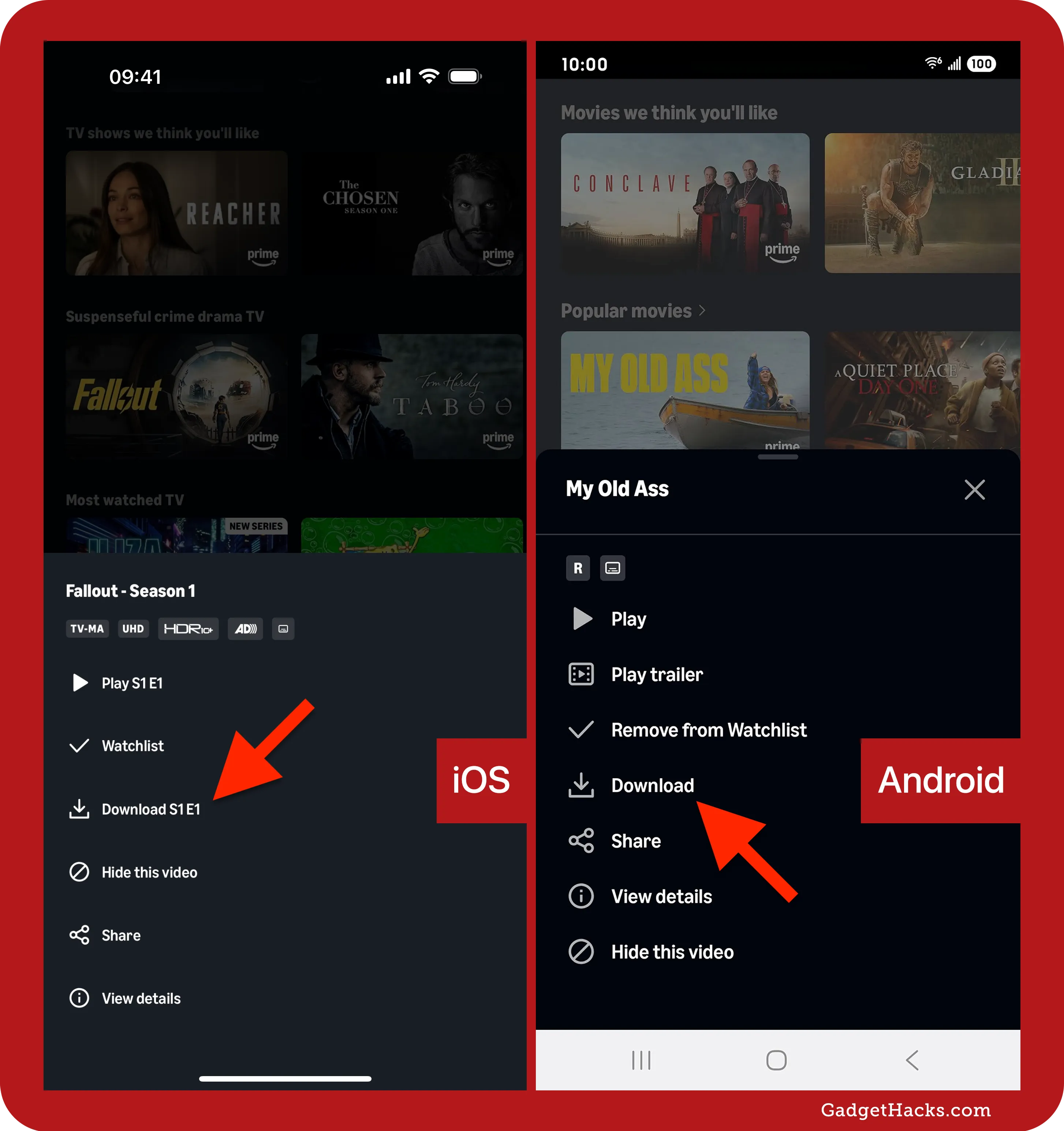
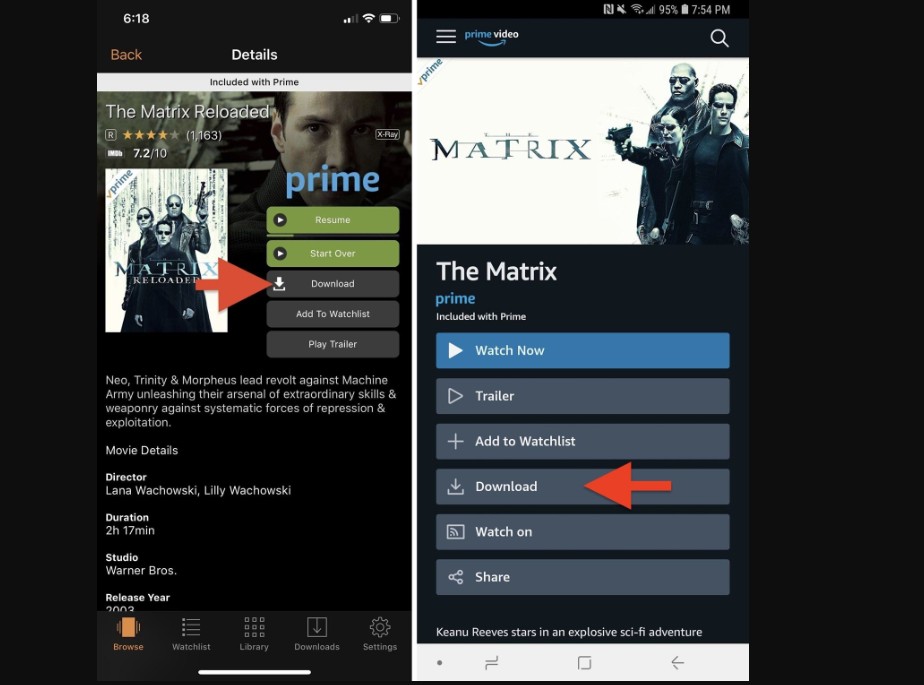
- For Movies: You’ll typically see a “Download” button directly below the “Watch Now” or “Resume” button. Tap it.
- For TV Shows: Navigate to the specific season and then the episode you want. Each episode will have a download icon (a down arrow with a line underneath) next to its title. Tap this icon for each episode you wish to download.
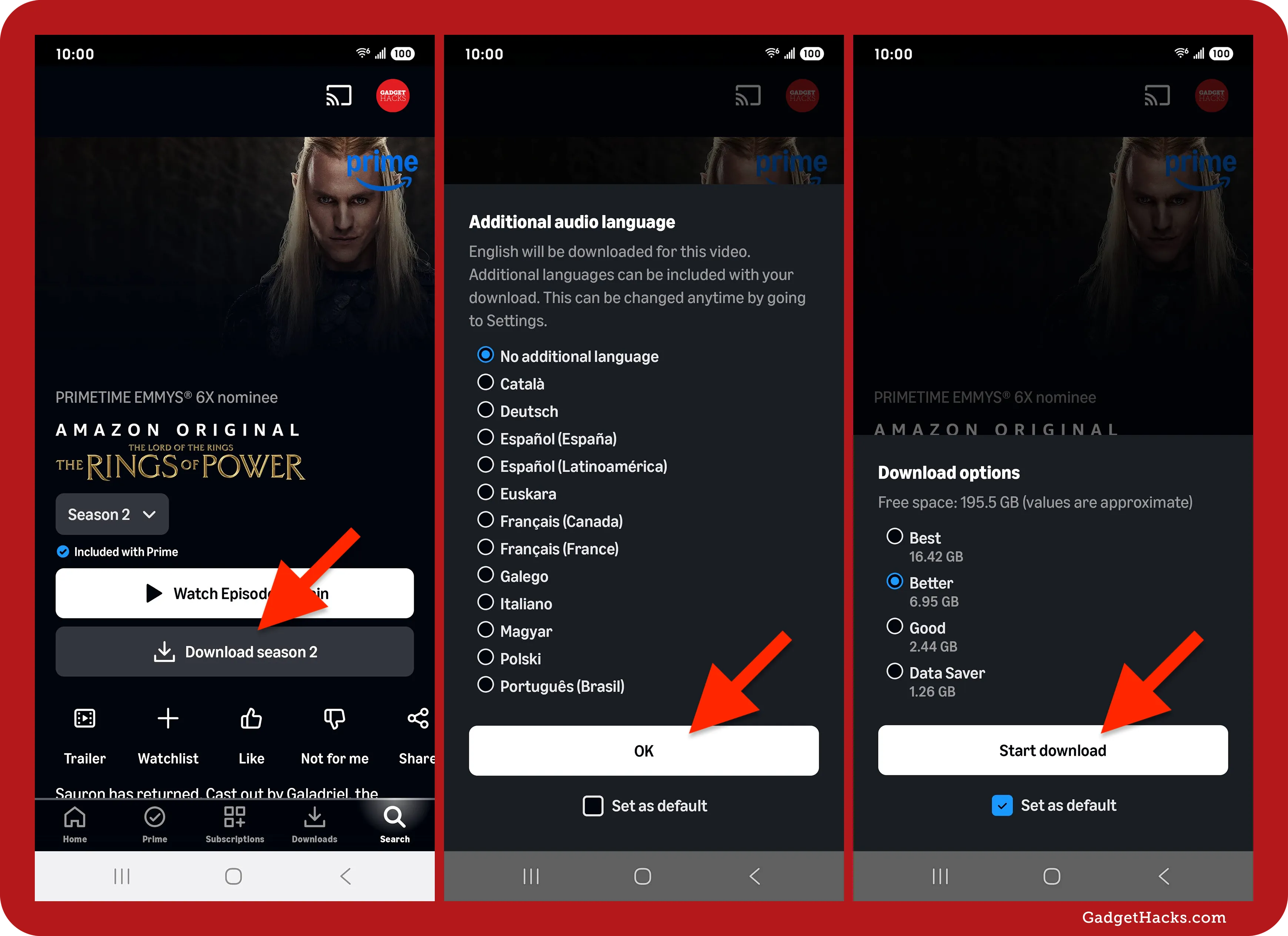
- Choose Download Quality (Optional): Before the download begins, the app may prompt you to select the download quality (e.g., Good, Better, Best). “Good” offers a smaller file size, ideal for limited storage, while “Best” provides the highest resolution and a larger file. Make your selection, and the download will commence. You can also set a default download quality in the app’s settings (Profile Icon > Settings icon > Stream & Download > Download Quality).
- Monitor Progress: You can monitor the download progress by tapping the “Downloads” icon (often represented by a down arrow or a list icon) in the bottom navigation bar. Once complete, the title will be available for offline viewing.
Utilizing the Prime Video App on Windows & Mac: Desktop Convenience
While web browsers allow streaming, downloading requires the dedicated Amazon Prime Video app for Windows or macOS. This app bridges the gap between mobile convenience and desktop power.
- Download and Install the App:
- For Windows: Search for “Amazon Prime Video” in the Microsoft Store and click “Get” or “Install.”
- For macOS: The Prime Video app can be found in the Mac App Store.
- Log In: Open the installed app and sign in with your Amazon Prime account.
- Browse and Select: Navigate through the app’s interface to find your desired movie or TV show.
- Download Content:
- For Movies: On the movie’s detail page, locate and click the “Download” button.
- For TV Shows: Select the season and then click the download icon next to each individual episode you wish to save.
- Quality Selection: Similar to mobile, you may be prompted to select a download quality. Choose your preferred setting.
- Access Downloads: Your downloaded content will appear under the “Downloads” section within the app, ready for offline playback.
For Amazon Fire Tablets and Echo Show Devices: Seamless Integration
Amazon’s own ecosystem offers the most integrated experience for Prime Video downloads. Fire tablets, in particular, are designed with Prime content consumption in mind.
- Access Prime Video: On a Fire tablet, the Prime Video app is pre-installed and often prominently featured. On Echo Show devices, you can access video content through voice commands or the touchscreen interface.
- Search and Select: Use the search function or browse through the Prime Video section to find your desired content.
- Download: On the content detail page, you’ll find a clear “Download” option. Tap it. For TV shows, navigate to the specific episode and tap the download icon.
- Manage: Downloads will automatically save to your device’s internal storage. You can manage them via the “Downloads” section within the Prime Video app. The tight integration ensures a smooth and optimized experience.
Managing Your Downloaded Library Effectively
Once you’ve started downloading content, managing your library becomes crucial, especially given device storage limitations and the temporary nature of downloads. Efficient management ensures you always have space for new content and can easily find what you’ve saved.
Locating and Accessing Your Offline Content
Finding your downloaded movies and shows is straightforward across all platforms:
- Mobile Apps (iOS & Android): In the bottom navigation bar, tap the “Downloads” icon. This section displays all your downloaded titles, ready for offline playback.
- Desktop Apps (Windows & Mac): Within the Prime Video app, look for a “Downloads” section or tab in the left-hand navigation panel or main menu. Clicking this will reveal your library of offline content.
- Fire Tablets: Similar to mobile apps, there’s usually a dedicated “Downloads” section within the Prime Video app or often a “Library” section that segregates downloaded content.
Simply tap or click on a title in your Downloads section to begin watching it without an internet connection.
Deleting Downloads and Freeing Up Storage
Device storage is finite, and downloaded videos can consume significant space, especially in higher qualities. Regularly deleting watched content is good practice.
- Mobile Devices (iOS & Android):
- Go to the “Downloads” section.
- Tap the “Edit” or “Manage” button (often represented by a pencil icon or three dots) usually located at the top right.
- Select the titles you wish to delete by tapping the checkbox next to them.
- Tap the “Delete” or “Remove” button.
- Alternatively, you can tap the three dots next to an individual downloaded title and select “Delete Download.”
- Desktop Apps (Windows & Mac):
- Navigate to the “Downloads” section.
- Hover over the downloaded title you want to remove.
- A “…” (three dots) or a “Delete” option should appear. Click it and confirm deletion.
- Fire Tablets: The process is similar to mobile devices. Access “Downloads” in the Prime Video app, select the items, and choose to delete them.
Remember that deleting a download only removes it from your device; it does not affect your ability to re-download it later (within its availability period) or stream it.
Optimizing Download Quality Settings
Amazon Prime Video offers different download quality options to give users control over file size versus visual fidelity.
- Accessing Quality Settings:
- Mobile/Fire Tablets: Tap your profile icon, then the settings gear icon. Look for “Stream & Download” and then “Download Quality.”
- Desktop Apps: Go to the app’s settings (often accessible via a gear icon or through a menu option like “Preferences”).
- Understanding the Options:
- Good: Smallest file size, lowest resolution. Ideal for devices with limited storage or when watching on a small screen where high detail isn’t critical.
- Better: A balance between file size and quality. Good for most scenarios.
- Best: Largest file size, highest available resolution. Provides the best visual experience, recommended for larger screens or for users who prioritize image quality and have ample storage.
By adjusting these settings, you can tailor your download strategy to your device’s capacity and your personal viewing preferences. For instance, downloading a long movie in “Best” quality can consume several gigabytes, so careful consideration is advised.
Navigating Common Download Limitations and Troubleshooting
While the download feature is robust, users might encounter specific limitations or issues. Understanding these aspects is key to a smooth experience.
Understanding Download Limits and Expiration
Amazon, like other streaming services, implements certain restrictions on downloaded content due to licensing agreements and technical considerations.
- Number of Titles: There’s typically a limit to the total number of titles you can download across all devices at any given time. This can vary by region and specific content, but generally, it’s around 15 to 25 titles.
- Number of Devices: Downloads are tied to your Amazon Prime account and can be simultaneously active on a limited number of devices (e.g., up to two or three at once). If you try to download on more devices, you might be prompted to remove downloads from another device.
- Expiration Period: Downloaded titles are not permanent.
- Viewing Window: Once you start watching a downloaded movie or episode, you typically have 48 hours to finish it before it expires.
- Storage Window: If you haven’t started watching, a downloaded title usually remains available for 30 days. After this period, it will expire and need to be re-downloaded if you still wish to watch it.
- Subscription Status: If your Prime subscription ends, all your downloaded content will become inaccessible.
- Content Availability: Not all titles on Prime Video are available for download. This is entirely dependent on licensing agreements with studios and distributors. A missing download button usually indicates this restriction.
Regional Restrictions and Content Availability
Geolocation plays a significant role in content accessibility. Due to licensing complexities, the Prime Video library varies by country.
- Geo-blocking: A movie or TV show available for download in one country might not be available or downloadable in another. This is known as geo-blocking.
- Traveling Abroad: If you download content in your home country and then travel, you might still be able to watch those downloads. However, you generally cannot download new content that isn’t licensed for your current geographical location. This is why planning downloads before international travel is crucial.
Common Issues and Quick Fixes
Even with the best technology, occasional glitches can occur. Here are some common download issues and their resolutions:
- “Not Enough Storage” Error:
- Fix: Delete old downloads, clear app cache, uninstall unused apps, or move photos/videos to cloud storage or an external drive (if your device supports it). Adjust your download quality to “Good” or “Better” for smaller file sizes.
- “Download Failed” or “Error During Download”:
- Fix: Check your internet connection. Ensure it’s stable and strong (ideally Wi-Fi for downloads). Restart the Prime Video app. Clear the app’s cache (in device settings). Ensure your device’s operating system is up to date. Sometimes, simply retrying the download resolves the issue.
- “Content Not Available for Download”:
- Fix: As mentioned, this is usually a licensing restriction. There’s no workaround for this. You’ll only be able to stream such content online. Look for alternative titles that do offer download options.
- Downloads Disappearing Prematurely:
- Fix: Check the expiration dates. If you’ve started watching, remember the 48-hour window. If you haven’t, the 30-day window applies. Ensure your Prime membership is active. Sometimes a device update or app reinstallation can cause issues, requiring re-downloading.
Enhancing Your Amazon Prime Video Offline Experience
Beyond the basic mechanics, there are strategic approaches and practical tips that can significantly enhance your overall offline viewing experience with Amazon Prime Video.
Strategic Planning for Downloads
Thinking ahead can save you from connectivity woes.
- Pre-download Before Travel: This is perhaps the most critical tip. Before long flights, train rides, or road trips, identify all the content you might want to watch and download it while you have a stable Wi-Fi connection.
- Anticipate Connectivity Issues: If you know you’re heading to an area with poor signal or a place where you’ll want to avoid using mobile data, make sure your devices are loaded with content.
- Batch Downloading: If you’re watching a TV series, download several episodes at once (or an entire season if storage allows) rather than one by one. This streamlines the process and ensures continuity.
Maximizing Device Storage
Downloaded content, especially in high quality, can quickly consume a significant portion of your device’s storage.
- Regular Purging: Make it a habit to delete content immediately after watching.
- Utilize SD Cards (Android/Fire Tablets): Many Android phones and Fire tablets support expandable storage via microSD cards. Ensure your Prime Video app is configured to save downloads to the SD card to preserve internal storage for apps and system files. This setting can usually be found within the Prime Video app’s download settings or your device’s storage settings.
- Clear App Cache: Over time, the Prime Video app can accumulate a cache that takes up space. Periodically clearing the app’s cache (via your device’s app settings) can free up minor but useful amounts of space without affecting your downloads.
Parental Controls and Downloaded Content
For families, it’s essential to understand how parental controls interact with downloaded content. Amazon Prime Video offers robust parental control features, allowing parents to set viewing restrictions based on ratings and PIN protection.
- Download Restrictions: While the controls primarily govern what can be streamed or purchased, they can also influence what content children might download if they have access to the device and the app.
- PIN Protection: Ensure that a PIN is set for purchases and viewing restrictions. This prevents unauthorized downloads or access to age-restricted content, even if it’s downloaded. Always supervise children’s access to downloaded content, as the controls primarily function during the initial access and playback, not necessarily during the download process itself for all types of content.
The Future of Offline Viewing
The technology behind offline viewing is continuously evolving. We can anticipate further enhancements, such as:
- More Granular Quality Control: Potentially more nuanced options beyond “Good,” “Better,” “Best” for even finer control over file size.
- Smarter Expiration Management: Automated reminders or clearer indicators of expiring content.
- Expanded Downloadable Library: As licensing agreements mature, hopefully, a broader array of titles will become available for offline access.
- Seamless Cross-Device Sync: Improved sync capabilities where download progress or even the download itself can be seamlessly transitioned between devices.
Mastering the download feature on Amazon Prime Video is more than just a convenience; it’s a strategic embrace of modern tech to optimize your entertainment consumption. By following this comprehensive guide, you’re now equipped to enjoy a world of movies and TV shows, entirely on your terms, without the tether of an internet connection.
aViewFromTheCave is a participant in the Amazon Services LLC Associates Program, an affiliate advertising program designed to provide a means for sites to earn advertising fees by advertising and linking to Amazon.com. Amazon, the Amazon logo, AmazonSupply, and the AmazonSupply logo are trademarks of Amazon.com, Inc. or its affiliates. As an Amazon Associate we earn affiliate commissions from qualifying purchases.