
Chromebooks, lauded for their simplicity, speed, and affordability, have become a staple for students and professionals alike. Their core functionality revolves around web-based applications and Google’s Chrome OS. However, for many users, the allure of a full-fledged desktop operating system, with its vast software ecosystem and unparalleled customization potential, remains a strong desire. This is precisely where installing Linux on a Chromebook enters the picture. Far from being a niche pursuit, this process unlocks a new dimension of functionality, transforming your lightweight laptop into a powerful, versatile machine capable of tackling a much wider range of tasks.
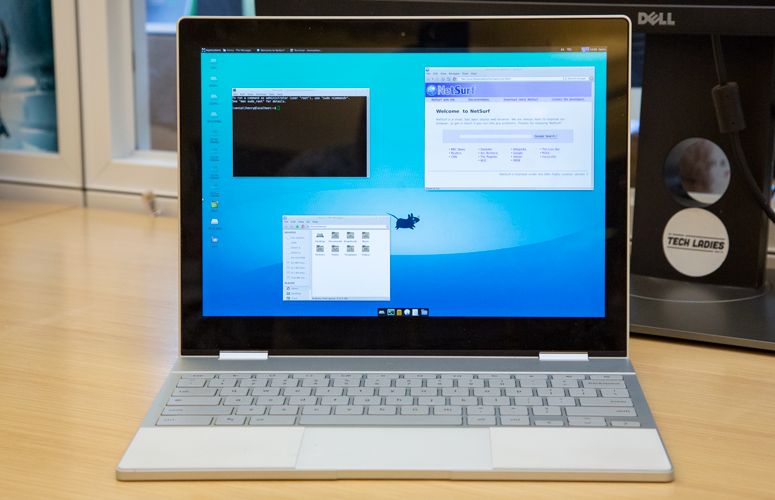
The idea of running Linux on a Chromebook might initially sound daunting, conjuring images of complex command-line interfaces and arcane configurations. However, the modern approach to this endeavor is surprisingly user-friendly, thanks to built-in features and excellent third-party tools. This guide aims to demystify the process, offering a clear, step-by-step walkthrough that empowers you to bring the power of Linux to your Chromebook, whether you’re a seasoned Linux enthusiast or a curious newcomer.
Why Install Linux on Your Chromebook?
Before diving into the “how,” let’s explore the compelling “why.” The decision to install Linux on a Chromebook is driven by a desire for enhanced capabilities and a more flexible computing experience. While Chrome OS excels at web browsing, cloud-based productivity, and Android app integration, it has its limitations. Linux, on the other hand, offers a gateway to a world of powerful desktop applications, robust development tools, and deep system control that Chrome OS simply cannot provide.
Unlocking a Universe of Software
One of the most significant advantages of installing Linux is the sheer breadth of software available. Chrome OS is primarily an app-centric platform, and while the Google Play Store offers a good selection of Android apps, it’s not a substitute for the comprehensive desktop application libraries found in Linux distributions.
- Development Tools: For aspiring or seasoned programmers, Linux is the de facto standard. You gain access to a vast array of programming languages (Python, Java, C++, Ruby, Node.js, etc.), integrated development environments (IDEs) like VS Code, Atom, and PyCharm, version control systems like Git, and powerful command-line utilities for software development and system administration. This makes Chromebooks an attractive and affordable platform for learning to code or for professional developers on the go.
- Creative Applications: Beyond coding, Linux boasts a rich ecosystem of creative software. Think powerful image editors like GIMP (a free and open-source alternative to Photoshop), video editors like Kdenlive and Shotcut, audio workstations like Audacity and Ardour, and 3D modeling software like Blender. These applications are often free, open-source, and incredibly capable, offering a professional-grade creative suite without the hefty price tag.
- Productivity and Utility Software: While Google Workspace is excellent for collaboration, sometimes you need specialized desktop applications. Linux provides access to powerful document editors, spreadsheet programs, presentation software, and a plethora of utility tools for system management, file manipulation, and data analysis that go beyond what Chrome OS natively offers.
- Customization and Control: Linux is synonymous with customization. You can tailor every aspect of your operating system, from the look and feel of your desktop environment (like GNOME, KDE Plasma, or XFCE) to the core system services. This level of control allows you to optimize your system for specific tasks, improve performance, and create a computing environment that perfectly suits your workflow.
Bridging the Gap Between Web and Desktop
For a long time, Chromebooks were perceived as purely web-based devices. While they’ve evolved significantly with Android app support and even some Linux app support via Crostini, installing a full Linux distribution offers a more integrated and powerful experience. You can seamlessly switch between your familiar Chrome OS environment and the full Linux desktop, leveraging the strengths of both. This allows you to, for example, browse the web on Chrome OS and then dive into a complex coding project within your Linux environment without missing a beat.
Reviving Older or Less Powerful Hardware
Even if you have a more powerful desktop or laptop, a Chromebook, especially an older or more budget-friendly model, can be an excellent candidate for a Linux installation. Linux distributions are known for their efficiency and ability to run smoothly on less powerful hardware. This can breathe new life into older devices, transforming them into capable secondary machines for specific tasks, or even as a primary daily driver for those who prioritize lightweight computing.
Methods for Installing Linux on Your Chromebook
Fortunately, installing Linux on a Chromebook has become significantly more accessible. Google itself has recognized the demand and integrated a robust solution into Chrome OS, making it the primary and most recommended method for most users.
The Official and Easiest Path: Crostini (Linux Development Environment)
Crostini is Google’s official Linux development environment for Chrome OS. It allows you to run Linux applications directly within Chrome OS through a virtual machine. This method is integrated, secure, and doesn’t require you to make any drastic changes to your Chromebook’s core operating system.
How it Works:
Crostini utilizes a lightweight virtual machine to run a Debian-based Linux distribution. This VM is managed by Chrome OS, ensuring that your Linux environment is sandboxed and doesn’t interfere with your Chrome OS system. When you launch a Linux app, it appears as a regular window on your desktop, much like an Android app or a Chrome browser tab.
Steps to Enable and Use Crostini:
- Check for Compatibility: Most modern Chromebooks support Crostini. Ensure your Chromebook is running the latest version of Chrome OS.
- Enable Linux Development Environment:
- Open Settings on your Chromebook.
- In the left-hand menu, select Advanced.
- Under “Developers,” find “Linux development environment” and click “Turn on.”
- A setup wizard will guide you through the process. You’ll be asked to choose a username and disk size for your Linux environment. A default of 10 GB is usually sufficient for basic use.
- Click “Install.”
- Accessing the Linux Terminal: Once installed, a Linux terminal window will appear. This is your gateway to the Linux command line. You can also find the “Terminal” app in your app launcher.
- Installing Applications:
- Inside the Linux terminal, you can use the
aptpackage manager to install software. For example, to install the GIMP image editor, you would type:
bash

sudo apt update

sudo apt install gimp
- After installation, the application will appear in your Chromebook’s app launcher, ready to be launched.
- Inside the Linux terminal, you can use the
Advantages of Crostini:
- Ease of Use: It’s the most straightforward method, requiring minimal technical expertise.
- Seamless Integration: Linux apps run alongside your Chrome OS and Android apps, offering a unified experience.
- Security: The virtual machine sandbox protects your Chrome OS system from potential issues within the Linux environment.
- No Data Loss: It doesn’t erase your existing Chrome OS data or require developer mode.
- Official Support: Google actively maintains and improves this feature.
Limitations of Crostini:
- Performance: While generally good, performance can be slightly impacted by the virtualization layer compared to a native installation.
- Hardware Access: Direct access to some hardware components might be limited.
- Limited Customization of the Linux Environment: You are typically installing a Debian-based distribution, and while you can customize it heavily, you can’t easily swap out the entire underlying Linux distribution without more advanced techniques.
Alternative Methods: Crouton and Dual Booting (More Advanced)
While Crostini is the recommended path for most, there are other methods that offer more control and different use cases, though they come with higher complexity and potential risks.
Crouton: Running Linux Alongside Chrome OS
Crouton (Chromium OS Universal Toolkit) is a set of scripts that allows you to install and run a Linux distribution (like Ubuntu, Debian, or Fedora) alongside Chrome OS. It doesn’t use a virtual machine; instead, it installs Linux in a chroot environment. This means Linux runs directly on your hardware, offering better performance but requiring you to switch between Chrome OS and your Linux desktop.
Key Characteristics of Crouton:
- Performance: Generally offers better performance than Crostini due to direct hardware access.
- Full System Access: Provides more direct access to system resources.
- Requires Developer Mode: This is the major hurdle. Enabling Developer Mode on a Chromebook wipes all local data and reduces its security posture, as it bypasses some of Chrome OS’s built-in protections.
- Manual Switching: You need to use keyboard shortcuts to switch between Chrome OS and your Linux environment.
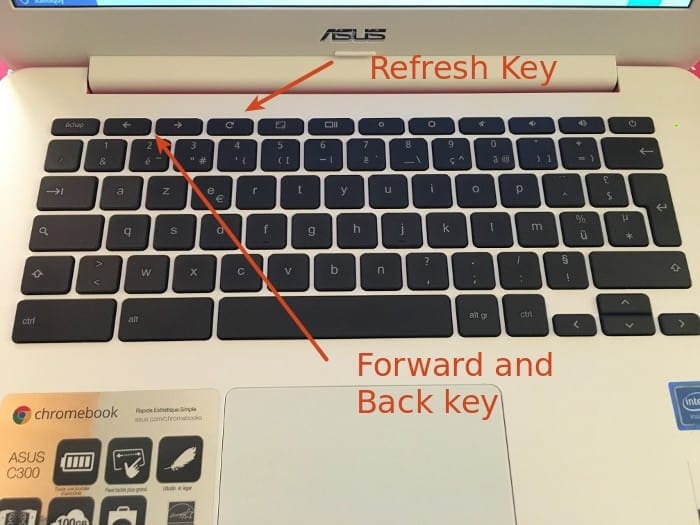
General Steps for Crouton (Highly Simplified – Requires detailed research):
- Enable Developer Mode: This is a critical step that involves a specific key combination during boot and will wipe your device. Back up all your data before proceeding.
- Download Crouton: Obtain the Crouton script from its official GitHub repository.
- Enter Crosh: Open the Chrome OS shell (Crosh) by pressing
Ctrl + Alt + T. - Run Crouton Commands: Execute commands in Crosh to download and install your chosen Linux distribution into a chroot. For example:
bash

sudo crouton -r xenial -t xfce
(This example installs Ubuntu 16.04 (xenial) with the XFCE desktop environment.) - Start Your Linux Environment: Use specific commands to enter your chroot.
Considerations for Crouton:
- Not for Beginners: Crouton is for users comfortable with the command line and understanding the implications of Developer Mode.
- Security Risks: Developer Mode compromises some security features of Chrome OS.
- Updates: Managing updates for both Chrome OS and your Linux environment can be more involved.
Dual Booting (Rare and Highly Technical)
Dual booting, the traditional method of installing operating systems side-by-side where you choose which OS to boot into at startup, is extremely difficult and generally not recommended for Chromebooks. Chromebook hardware is designed with Chrome OS in mind, and modifications to the bootloader and firmware are often required, which can be risky and may permanently damage your device if not performed correctly. This is a path for highly experienced Linux users and developers who understand the risks involved.
Recommendation:
For the vast majority of users, Crostini is the clear and recommended choice. It offers the best balance of functionality, ease of use, and security. Crouton is an option for those who prioritize performance and have a deeper understanding of Linux and its implications on Chrome OS security. Dual booting is best avoided unless you are an expert with a specific, advanced use case and are prepared for the potential consequences.
Getting Started with Your New Linux Environment
Once you have Linux up and running on your Chromebook, the real fun begins! You can start exploring the vast capabilities of your new operating system.
Navigating the Linux Terminal
The Linux terminal, also known as the command-line interface (CLI), is a powerful tool. While it might seem intimidating at first, it’s where much of the magic happens.
- Basic Commands: Familiarize yourself with essential commands like
ls(list files),cd(change directory),pwd(print working directory),mkdir(make directory),rm(remove files),cp(copy), andmv(move). - Package Management: As mentioned,
aptis your primary tool for installing, updating, and removing software.sudo apt update: Refreshes the list of available packages.sudo apt upgrade: Installs updates for existing packages.sudo apt install <package_name>: Installs a new application.sudo apt remove <package_name>: Uninstalls an application.
- Superuser Privileges (
sudo): Thesudocommand allows you to execute commands with administrative privileges, which are often required for system-level operations like installing software or modifying system files. You’ll be prompted for your Linux password.
Installing Your First Linux Applications
The beauty of Linux is its diverse software repository. Here are some popular categories and examples of applications you might want to install:
- Productivity:
- LibreOffice: A comprehensive office suite with word processing, spreadsheets, and presentation tools.
bash

sudo apt install libreoffice
- VLC Media Player: For playing virtually any audio or video format.
bash

sudo apt install vlc
- LibreOffice: A comprehensive office suite with word processing, spreadsheets, and presentation tools.
- Development:
- VS Code: A highly popular and powerful free code editor. You’ll likely need to add a repository or download a
.debfile for this. - Git: Essential for version control.
bash

sudo apt install git
- Python and Pip: For Python development.
bash

sudo apt install python3 python3-pip
- VS Code: A highly popular and powerful free code editor. You’ll likely need to add a repository or download a
- Creativity:
- GIMP: Powerful image manipulation.
bash

sudo apt install gimp
- Inkscape: Vector graphics editor.
bash

sudo apt install inkscape
- Blender: For 3D creation, animation, and rendering. This can be a large download.
bash

sudo apt install blender
- GIMP: Powerful image manipulation.
Customizing Your Linux Desktop
Once you have a distribution installed, you can start personalizing your experience.
- Desktop Environments: If you’ve installed a more complete Linux distribution (e.g., via Crouton, though less common with Crostini’s default Debian), you might have options to choose or install different desktop environments. These change the entire look and feel of your operating system. Popular choices include GNOME, KDE Plasma, XFCE, and LXQt, each offering different levels of features, resource usage, and visual aesthetics.
- Themes and Icons: Most desktop environments allow you to customize themes, icon sets, fonts, and desktop wallpapers to create a unique look.
- System Settings: Explore the settings applications within your Linux environment to adjust display, sound, network, and user preferences.
Troubleshooting Common Issues
While the process is generally smooth, you might encounter occasional hiccups.
“Linux is not available on your Chromebook”
This message indicates that your Chromebook either doesn’t meet the hardware requirements for Crostini or the feature is not yet enabled. Ensure your Chromebook is up-to-date, and try the steps in the “Enable Linux Development Environment” section again. If the option is still missing, your device might not be compatible.
Applications Not Launching or Crashing
- Check for Updates: Ensure both Chrome OS and your Linux environment are fully updated. Run
sudo apt updateandsudo apt upgradein the Linux terminal. - Resource Constraints: If your Chromebook has limited RAM or storage, running complex Linux applications might strain its resources. Try closing other applications or reducing the complexity of what you’re running.
- Installation Errors: Reinstall the problematic application. Sometimes, the initial installation might have been corrupted.
- Terminal Errors: If you’re encountering errors in the terminal, carefully read the error messages. They often provide clues about what went wrong. Searching the internet for specific error messages can lead to solutions.
Slow Performance
- Resource Usage: Monitor your CPU and RAM usage within the Linux environment. Tools like
htop(installable viasudo apt install htop) can help identify resource-hungry processes. - Virtualization Overhead (Crostini): Remember that Crostini involves virtualization. For highly demanding tasks, a native Linux installation (like Crouton) might offer better performance, but with the associated security implications.
- Background Processes: Ensure no unnecessary background processes are running in your Linux environment.

Network Connectivity Issues
- Crostini: Network connectivity within the Crostini VM is usually handled automatically by Chrome OS. If you have network issues, try restarting your Chromebook and ensuring your Wi-Fi is working correctly.
- Crouton: Network configuration in Crouton can be more manual. Ensure your network interfaces are correctly set up within your Linux distribution.
By following these guidelines and embracing the learning process, you can successfully install and leverage the power of Linux on your Chromebook, transforming it into a significantly more versatile and capable computing device.
aViewFromTheCave is a participant in the Amazon Services LLC Associates Program, an affiliate advertising program designed to provide a means for sites to earn advertising fees by advertising and linking to Amazon.com. Amazon, the Amazon logo, AmazonSupply, and the AmazonSupply logo are trademarks of Amazon.com, Inc. or its affiliates. As an Amazon Associate we earn affiliate commissions from qualifying purchases.