
In an era defined by convenience and on-demand entertainment, streaming devices like the Amazon Firestick have revolutionized how we consume media. Compact, powerful, and incredibly versatile, the Firestick transforms any standard television into a smart entertainment hub. While Amazon’s ecosystem offers a plethora of official apps, the true power of the Firestick often lies in its capacity to host third-party applications, opening up a world of content far beyond mainstream subscriptions. Among these, Cinema HD stands out as a popular choice for movie and TV show enthusiasts seeking a vast library of free content. This comprehensive guide will walk you through every step of installing Cinema HD on your Firestick, ensuring a smooth and successful setup. We’ll delve into the necessary preparations, the installation process itself, and essential optimizations to enhance your streaming experience, all while emphasizing digital security and best practices.
Unlocking a World of Entertainment: Why Cinema HD on Firestick?
The allure of Cinema HD lies in its promise: a massive, constantly updated library of films and television series, often available shortly after their theatrical release or broadcast. For many, this represents an attractive alternative to numerous paid streaming subscriptions, consolidating content that might otherwise be scattered across different platforms.
What is Cinema HD?
Cinema HD is a third-party Android application designed to aggregate streaming links from various online sources. It doesn’t host any content itself; instead, it acts as a sophisticated search engine, scanning the internet for publicly available streams and presenting them to the user in a neatly organized interface. Users can browse by genre, year, popularity, or search for specific titles, with new content being added regularly. Its user-friendly interface and extensive selection have made it a favorite among cord-cutters and streaming aficionados looking to expand their entertainment options without additional costs.
The Firestick Advantage: Seamless Integration
The Amazon Firestick is an ideal platform for apps like Cinema HD for several reasons. Firstly, its Android-based operating system makes it inherently compatible with Android Package Kit (APK) files, the format in which third-party apps are distributed. Secondly, its dedicated remote control provides a far more intuitive navigation experience than casting from a mobile device or using a web browser. Finally, the Firestick’s portability and relatively low cost make it an accessible entry point for anyone looking to upgrade their home entertainment system. Pairing Cinema HD with a Firestick means transforming your TV into a free, customizable cinema, all from the comfort of your couch. This seamless integration of powerful hardware and versatile software epitomizes modern tech productivity, offering entertainment on demand with minimal hassle.
Essential Preparations: Configuring Your Firestick for Unofficial Apps
Before you can dive into the installation of Cinema HD, there are a few crucial preparatory steps you need to take. These involve adjusting your Firestick’s security settings and installing a utility application that will facilitate the download process.
Security First: The Importance of a VPN
Before proceeding with any third-party application like Cinema HD, it’s imperative to address digital security. While Cinema HD itself is just an aggregator, the sources it pulls links from can sometimes be questionable. More importantly, streaming copyrighted content, even inadvertently, can expose your online activity to your Internet Service Provider (ISP) and potentially lead to legal issues. This is where a Virtual Private Network (VPN) becomes indispensable.
A VPN encrypts your internet connection and routes your traffic through a server in a different location, masking your IP address and online identity. This not only protects your privacy but also prevents your ISP from throttling your streaming speeds, which can happen if they detect heavy bandwidth usage associated with certain types of streaming. For serious streamers, a reliable VPN is not just an option; it’s a fundamental component of a secure and private streaming setup. Providers like ExpressVPN, NordVPN, or CyberGhost are popular choices, offering robust encryption and fast speeds crucial for a buffer-free experience. Setting up a VPN on your Firestick is usually straightforward and can be done by downloading the VPN app directly from the Amazon App Store. Ensure your VPN is active before you begin streaming with Cinema HD.
Enabling ‘Apps from Unknown Sources’
By default, Amazon Firesticks are configured to only allow installations from the official Amazon App Store. This is a security measure designed to protect users from potentially malicious software. However, to install Cinema HD, which is a third-party app, you’ll need to bypass this restriction by enabling ‘Apps from Unknown Sources’.
Here’s how to do it:
- From your Firestick’s home screen, navigate to the main menu at the top.
- Select “Settings.” This is typically represented by a gear icon.
- Scroll right and select “My Fire TV” (or “Device” on older Firestick models).
- Click on “Developer Options.” If you don’t see “Developer Options,” you might need to enable it first. To do this, go to “About” within “My Fire TV,” and then click on your “Fire TV Stick” (or specific model name) seven times repeatedly. You’ll see a message saying, “You are now a developer.” After this, “Developer Options” will appear.
- Inside “Developer Options,” toggle “Apps from Unknown Sources” to “ON.” You will receive a warning message about the risks of installing apps from unknown sources. Read it carefully and then select “Turn On” to confirm.
- Also, ensure “ADB debugging” is turned “ON” as some downloader apps or future tools might require it.
While this step is necessary for installing Cinema HD, remember to exercise caution when installing other apps from unknown sources, as they may not have undergone the same security vetting as those in official app stores.
Installing the Downloader App
Since you can’t directly download APK files from a web browser on your Firestick, you’ll need a dedicated application to handle this task. The “Downloader” app is the most popular and reliable choice for this purpose, acting as a browser and file downloader combined.
Follow these steps to install it:
- From the Firestick home screen, navigate to the “Find” section.
- Select “Search” (or click the microphone button on your remote and say “Downloader”).
- Type “Downloader” into the search bar.
- Select the “Downloader” app from the search results. It typically has an orange icon.
- Click the “Download” or “Get” button to install the application.
- Once the installation is complete, click “Open” to launch the app.
- When you launch Downloader for the first time, you might be asked to grant storage permissions. Select “Allow” to proceed. You may also see a quick start guide or release notes; simply dismiss these.
With Downloader installed and your Firestick settings adjusted, you are now ready for the core installation process.
Step-by-Step Installation: Getting Cinema HD onto Your Firestick
This section outlines the precise steps to use the Downloader app to fetch the Cinema HD APK and install it on your device. Accuracy in typing URLs and following prompts is key here.
Launching Downloader and Entering the URL
The Downloader app’s main function is to allow you to input a URL from which an APK file can be downloaded. You will need to find a trusted source for the Cinema HD APK. While URLs can change, reputable Android APK repositories often host the latest versions. A quick search for “Cinema HD APK download” on a separate device can help you find a current, stable URL. For the purpose of this guide, we’ll use a placeholder URL, but ensure you verify the actual current URL before proceeding.
- Launch the Downloader app from your Firestick’s home screen. You can usually find it under “Your Apps & Channels” or by holding down the home button on your remote and selecting “Apps.”
- In the Downloader app, ensure you are on the “Home” tab.
- You will see a text field where you can type a URL. Click into this field.
- Using your Firestick remote, carefully type the URL for the Cinema HD APK. For example, you might type
https://www.apksite.com/cinemahd.apk(Note: This is a placeholder URL. You will need to find a current, reliable source for the Cinema HD APK. Common reputable sites like APKMirror, Aptoide, or direct developer sites are usually good starting points for finding verified APKs for popular apps like Cinema HD). - Double-check the URL for any typos. Even a single incorrect character can prevent the download.
- Once the URL is entered correctly, click the “Go” button.
Downloading the Cinema HD APK
After clicking “Go,” the Downloader app will navigate to the provided URL and automatically detect the APK file.
- The download process will begin automatically. You will see a progress bar indicating the status of the download.
- Wait for the download to complete. The time it takes will depend on your internet speed and the size of the APK file.
- Once the download is finished, Downloader will automatically prompt you to install the application. This is the next crucial step.
Executing the Installation
With the APK file downloaded, the Firestick’s Android operating system is ready to install the application.
- A new screen will appear with the installation prompt. You will see a list of permissions the app requires.
- Scroll down to the bottom of this screen and click the “Install” button.
- The installation process will now begin. This usually takes a minute or two. You will see a progress bar.
- Once the installation is complete, you will see a message saying “App installed.”
- You will be presented with two options: “Done” and “Open.”
- “Done”: This closes the installation screen and allows you to proceed to the next step (deleting the APK).
- “Open”: This will launch Cinema HD immediately. While tempting, it’s generally best to click “Done” first to clean up the APK file, then launch the app later.
Cleaning Up: Deleting the APK File
After successfully installing Cinema HD, the APK file itself is no longer needed. It simply occupies valuable storage space on your Firestick, which typically has limited internal memory. Deleting it is good practice to keep your device clutter-free and running efficiently.
- After clicking “Done” on the installation complete screen, you will be returned to the Downloader app.
- Downloader will ask if you want to “Delete” the downloaded APK file.
- Select “Delete.”
- Confirm the deletion by selecting “Delete” again when prompted.
You have now successfully installed Cinema HD on your Firestick and freed up the storage space used by the installation file.
Enhancing Your Cinema HD Experience: Optimizing for Performance and Content
Installing Cinema HD is just the first step. To truly get the most out of this powerful streaming app, you’ll want to optimize its settings and potentially integrate other services. These steps can significantly improve link quality, reduce buffering, and offer a more tailored viewing experience.
Navigating and Using Cinema HD
Upon launching Cinema HD for the first time, you’ll be greeted by its intuitive interface.
- Locating Cinema HD: To find Cinema HD, go to your Firestick’s home screen, scroll to “Your Apps & Channels,” and click “See All.” Scroll to the bottom, and you’ll find Cinema HD. You can hold down the options button (three horizontal lines) on your remote and select “Move” to place it higher in your app list for easier access.
- Initial Setup: The app might prompt you for certain permissions or display a changelog. Grant necessary permissions and dismiss any informational pop-ups.
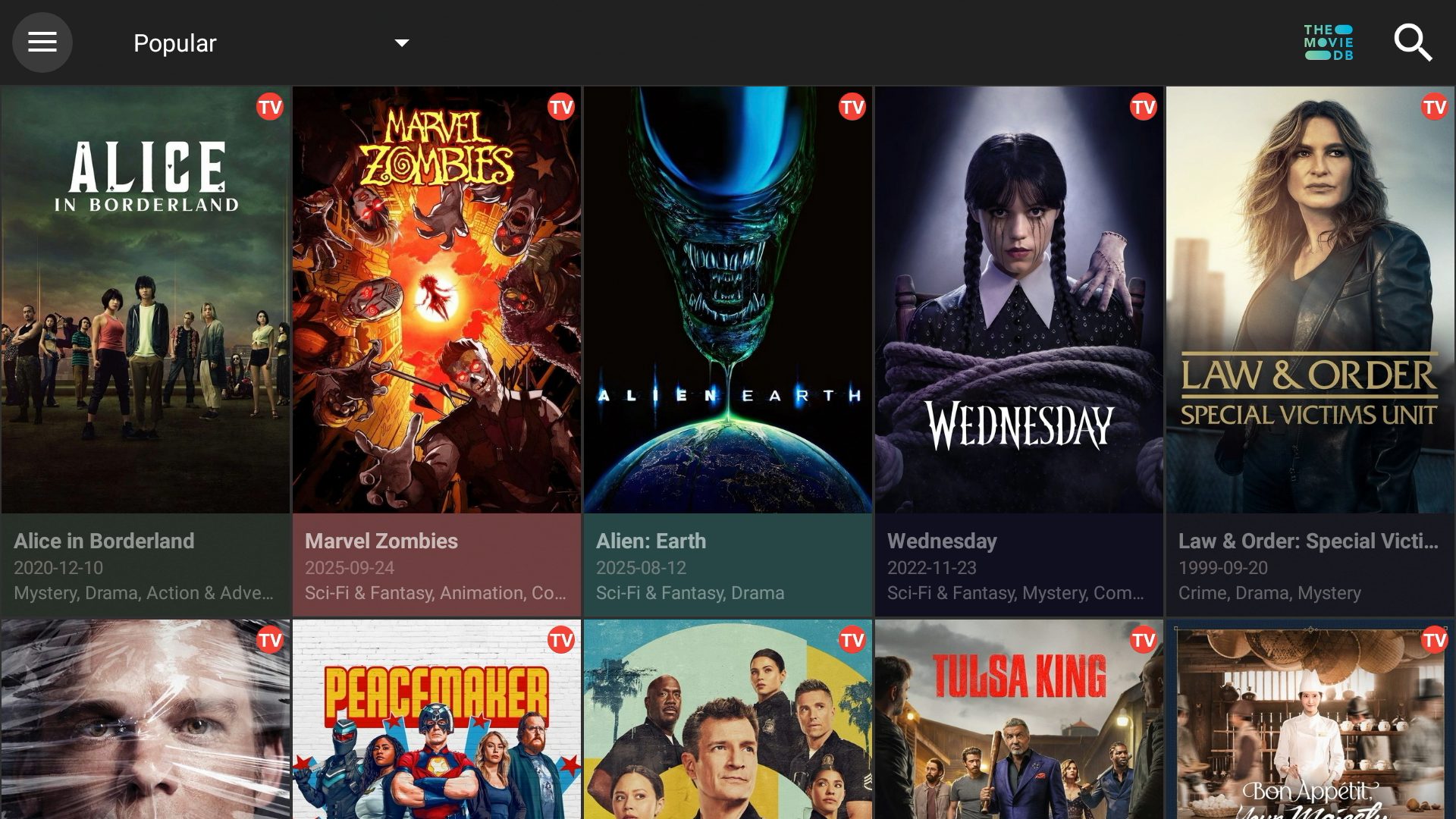
- Browsing Content: Use the remote to navigate through categories, genres, or search for specific titles. When you select a movie or TV show, Cinema HD will automatically scrape for available links.
- Selecting a Link: You’ll see a list of streaming links, often categorized by quality (e.g., SD, HD, FHD) and sometimes indicating the source. Higher-quality links typically require better internet speeds. If a link doesn’t work, simply try another one.
Integrating Real-Debrid for Premium Links
While Cinema HD provides many free links, they can sometimes be unreliable, slow, or low quality. For a significantly superior streaming experience, integrating a premium link aggregator service like Real-Debrid is highly recommended.
What is Real-Debrid?
Real-Debrid is a paid service that offers unrestricted access to premium hosters and cached torrents. When integrated with Cinema HD, it dramatically improves the number and quality of available links, often providing lightning-fast, buffer-free streams in high definition or even 4K. It essentially unlocks a “premium” layer of links that are more stable and reliable than the free ones.
How to Integrate Real-Debrid:
- Subscribe to Real-Debrid: First, you’ll need to create an account and purchase a subscription on the official Real-Debrid website using a separate device (computer or phone).
- Open Cinema HD on your Firestick.
- Navigate to the “Settings” menu within Cinema HD (usually found by clicking the menu icon or swiping left from the main screen).
- Scroll down and select “Login to Real-Debrid.”
- A code will appear on your Firestick screen.
- On your separate device, open your web browser and go to
real-debrid.com/device. - Enter the code displayed on your Firestick into the webpage and click “Continue.”
- Once authorized, Cinema HD will confirm that Real-Debrid has been successfully integrated.
- Restart Cinema HD for the changes to take effect. When you now search for content, you will see a significant number of “RD” or “Real-Debrid” links, which are usually superior.
Setting Up an External Player (e.g., MX Player)
Cinema HD comes with its own built-in media player, but for optimal performance and broader compatibility with various video codecs, it’s often beneficial to use an external player like MX Player or VLC Media Player. These players offer more advanced features, better playback controls, and can sometimes resolve issues like buffering or unsupported audio tracks.
How to Install and Configure MX Player:
- Install MX Player:
- Go back to the Downloader app on your Firestick.
- Type the URL for MX Player APK (e.g.,
https://www.apkmirror.com/apk/mx-media-mx-player/mx-player/mx-player-1-67-12-release/download/– verify current URL). - Download and install MX Player using the same method you used for Cinema HD.
- Delete the MX Player APK after installation.
- Configure Cinema HD to use MX Player:
- Open Cinema HD on your Firestick.
- Go to the “Settings” menu within Cinema HD.
- Scroll down and select “Choose default video player” (or similar wording).
- Select “MX Player” from the list of available players.
- You might also want to set it as the default for all links or just specific types.
Now, when you select a link in Cinema HD, it will launch through MX Player, providing a more robust playback experience.
Troubleshooting Common Issues and Maximizing Your Experience
Even with a perfect setup, you might encounter minor hiccups. Knowing how to troubleshoot common issues and utilize Cinema HD’s features effectively will ensure a consistently enjoyable streaming journey.
Addressing Buffering and Playback Problems
Buffering is one of the most frustrating issues for streamers. Here are common causes and solutions:
- Internet Speed: Ensure your internet connection is fast enough for the quality you’re trying to stream (e.g., 25 Mbps for 4K). Run a speed test on your Firestick if possible.
- Wi-Fi Signal: If your Firestick is far from your router, the Wi-Fi signal might be weak. Consider moving the Firestick closer, using a Wi-Fi extender, or an Ethernet adapter for a wired connection.
- Link Quality: Free links can be oversaturated or from unreliable servers. Using Real-Debrid dramatically reduces buffering by providing access to premium, less congested links.
- Firestick Storage: A full Firestick can slow down performance. Regularly clear caches of apps (Settings > Applications > Manage Installed Applications > Clear Cache) and uninstall unused apps.
- Firestick Overheating: Excessive use can cause the Firestick to overheat, leading to performance drops. Ensure it has good ventilation.
- VPN Issues: A slow VPN server can cause buffering. Try connecting to a different server location or switching VPN providers if the issue persists.
- Clear Cinema HD Cache: Sometimes the app’s own cache can become bloated. Go to Firestick Settings > Applications > Manage Installed Applications > Cinema HD > Clear Cache.
Keeping Cinema HD Updated
Developers frequently release updates for Cinema HD to fix bugs, add new features, improve link scraping, and keep up with changes in streaming sources.
- In-App Notification: Cinema HD will usually notify you directly within the app when a new update is available.
- Manual Update: If you see an update notification, it will typically provide an option to download and install the new version. The process is similar to the initial installation: the app downloads the new APK and then prompts you to install it over the existing version. You will still need ‘Apps from Unknown Sources’ enabled.
- Regular Checks: Periodically check the official Cinema HD website or reputable APK sites for the latest version if you don’t see an in-app update.
Exploring Cinema HD’s Advanced Features
Cinema HD offers more than just basic streaming:
- Subtitles: Most links support subtitles. You can often select from various languages and adjust timing within the player. Look for a “CC” or subtitle icon during playback.
- Favorites & Watchlist: Mark movies and shows as favorites or add them to your watchlist to easily keep track of what you want to watch or have watched.
- Download Feature: Some versions of Cinema HD allow you to download content directly to your device (if you have sufficient storage) for offline viewing, though this is less common on Firesticks with limited internal storage.
- Trakt Integration: Similar to Real-Debrid, you can integrate Trakt.tv to automatically scrobble your watched content, manage your watchlists, and sync across multiple devices. This is a great feature for serious content trackers. To integrate, navigate to Cinema HD settings, find the Trakt option, and follow the on-screen authorization process on a separate device.
Conclusion: Your Gateway to Limitless Streaming
Installing Cinema HD on your Firestick transforms your home entertainment setup, offering a vast, free library of movies and TV shows at your fingertips. By carefully following the steps outlined in this guide, from preparing your Firestick and installing the necessary tools to optimizing your streaming experience with Real-Debrid and external players, you can unlock a world of content. Remember the importance of digital security through a VPN, especially when dealing with unofficial applications, and always strive to keep your Firestick and apps updated for the best performance. With Cinema HD and a properly configured Firestick, you’re not just streaming; you’re building your personalized, powerful, and productive entertainment hub, bringing the cinema experience directly into your living room. Enjoy your journey into boundless entertainment!
aViewFromTheCave is a participant in the Amazon Services LLC Associates Program, an affiliate advertising program designed to provide a means for sites to earn advertising fees by advertising and linking to Amazon.com. Amazon, the Amazon logo, AmazonSupply, and the AmazonSupply logo are trademarks of Amazon.com, Inc. or its affiliates. As an Amazon Associate we earn affiliate commissions from qualifying purchases.