
In the contemporary era of digital consumption, the television has evolved from a passive display device into a sophisticated, integrated computing platform. Samsung, a global leader in display technology, has been at the forefront of this transformation with its Tizen-based Smart TV ecosystem. The ability to install, manage, and optimize applications is what distinguishes a modern “Smart” TV from its predecessors, turning a simple screen into a versatile portal for streaming, gaming, productivity, and smart home management. Understanding the technical nuances of the Samsung Smart Hub is essential for any user looking to maximize their hardware investment.

This guide provides an exhaustive technical walkthrough on how to install apps on a Samsung Smart TV, while also exploring system optimization and troubleshooting techniques to ensure a seamless user experience.
1. Laying the Foundation: Essential Pre-Installation Requirements
Before diving into the App Store, it is critical to ensure that the television’s infrastructure is properly configured. A Smart TV is only as capable as the network and software environment supporting it.
Stable Internet Connectivity and Bandwidth Management
The installation of high-definition streaming apps and modern games requires a robust internet connection. While Samsung TVs support both Wi-Fi and wired Ethernet connections, for optimal performance—especially when downloading large application packages—a wired connection is generally preferred to minimize latency and packet loss. If using Wi-Fi, ensuring the TV is connected to a 5GHz band (on compatible routers) can significantly reduce interference from other household devices.
Creating and Linking Your Samsung Account
A Samsung Account is the fundamental credential required to access the Samsung App Store. It serves as a repository for your download history, subscription management, and cross-device synchronization. To sign in or create an account, navigate to the Settings menu, select General, then System Manager, and finally Samsung Account. Without this link, the “Install” button on most premium and utility apps will remain inactive, as the Tizen OS requires user authentication to verify licensing and regional compatibility.
Ensuring Firmware and OS Compatibility
Samsung frequently releases firmware updates that improve the Tizen OS stability and security. Before installing new apps, it is a technical best practice to verify that your TV is running the latest software version. An outdated OS can lead to “Installation Failed” errors or compatibility issues where specific apps do not appear in the search results. Navigate to Settings > Support > Software Update and select Update Now to ensure your system architecture is ready for the latest application releases.
2. Navigating the Samsung Smart Hub: The Core Installation Process
The Samsung Smart Hub is the proprietary interface that facilitates interaction between the user and the Tizen operating system. It is designed to be intuitive, yet it houses deep layers of customization for power users.
Accessing the Samsung App Store
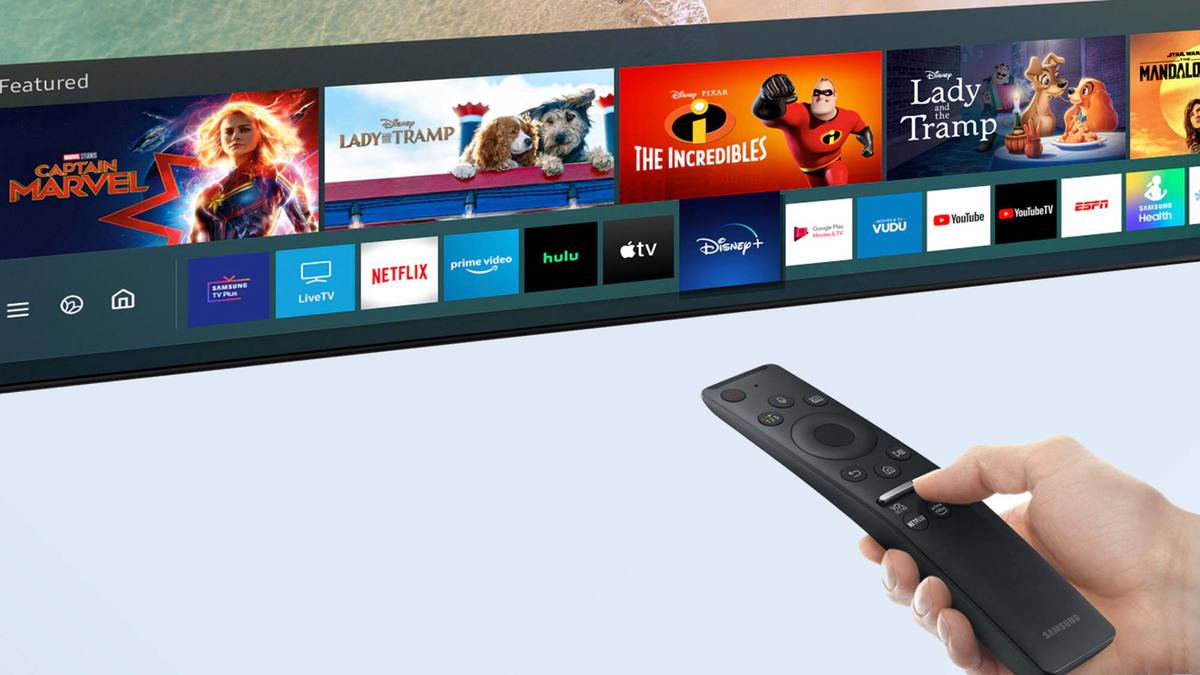
To begin the installation process, press the Home button on your Smart Remote. This brings up the Smart Hub ribbon at the bottom of the screen. Navigate to the left until you find the icon labeled “Apps” (represented by four small squares). Selecting this icon launches the full-screen application interface, which categorizes software into segments such as “Editor’s Choice,” “Most Popular,” and specific genres like “Video,” “Lifestyle,” and “Games.”
Using the Search and Category Functions
If you are looking for a specific utility—such as Netflix, YouTube, or a niche Plex media server—the magnifying glass icon in the top right corner is your primary tool. Samsung’s search algorithm is designed to index not just the app titles but also metadata descriptions. For users with voice-enabled remotes, utilizing Bixby, Alexa, or Google Assistant can bypass manual typing, allowing for a “Search for [App Name]” command that triggers the installation screen directly.
Executing the Installation and Managing Storage
Once you have selected an app, you will be taken to the specific product page. This page provides technical details, including the version number, file size, and last update date. Clicking Install initiates the download. During this phase, the Tizen OS allocates a portion of the TV’s internal flash storage to the application. It is important to monitor the storage bar (usually visible at the top of the Apps screen) to ensure the TV’s memory does not reach capacity, which can lead to system sluggishness or the inability to cache data for high-performance apps.
3. Advanced Customization and Application Management

Installing an app is only the first step. To create a truly efficient digital environment, users must understand how to manage these tools within the Tizen ecosystem.
Organizing the Home Screen Layout
Efficiency in a Smart TV interface is defined by how quickly a user can access their most-used tools. By highlighting an app in the Smart Hub ribbon and pressing “Down” on the directional pad, users can select “Move.” This allows you to drag the application to the front of the queue. For enthusiasts who utilize a wide array of streaming services, placing the primary apps (like Spotify or Disney+) at the beginning of the list minimizes navigational friction.
Automating App Updates and Background Refresh
Manual updates can be a bottleneck for performance. Within the Apps > Settings (the gear icon in the top right), users should enable “Auto Update.” This ensures that security patches and UI improvements are applied in the background. In the world of cybersecurity, keeping Smart TV apps updated is a critical defense mechanism against vulnerabilities that could potentially expose network data.
Deleting and Reinstalling for Resource Optimization
Smart TVs, unlike high-end PCs, have limited RAM and internal storage. If an application becomes unresponsive or “freezes” on the splash screen, the most effective technical solution is a clean reinstallation. Navigating to the Settings menu within the Apps interface allows you to select “Delete.” Removing an app clears its associated cache and temporary files. Reinstalling the app provides a fresh instance of the software, often resolving underlying database corruption issues within the app’s local storage.
4. Technical Troubleshooting and System Performance
Even with premium hardware, software conflicts can occur. Understanding the underlying causes of installation failures is key to maintaining a high-performing system.
Resolving Connection and Server-Side Errors
One of the most common issues users face is the “Unable to Download” prompt. This is often not a hardware fault but a DNS (Domain Name System) resolution error. If the TV cannot reach Samsung’s app servers, manually setting the DNS to a reliable provider (such as Google’s 8.8.8.8) in the Network Settings can often bypass regional routing issues. Additionally, checking the “Terms and Conditions” and “Privacy Policy” sections—and ensuring they are fully accepted—is a common fix, as the OS blocks downloads until these legal handshakes are completed.
Clearing System Cache and Cold Booting
Samsung Smart TVs utilize a “Deep Sleep” mode to allow for “Instant On” capabilities. However, this means the system RAM is rarely fully cleared. If the App Store is behaving erratically, performing a “Cold Boot” is recommended. This is done by holding the Power button on the remote until the Samsung logo appears on the screen, or by unplugging the TV from the wall for 30 seconds. This flushes the temporary cache and restarts the Tizen kernel, which can resolve memory leaks affecting the installation process.
Sideloading and Developer Mode (For Advanced Users)
For developers or tech enthusiasts looking to test custom applications not found in the official store, Samsung provides a “Developer Mode.” By navigating to the Apps panel and entering a specific sequence (1-2-3-4-5), users can toggle Developer Mode on and input the IP address of a host computer running the Tizen Studio SDK. While “sideloading” via USB is more restricted on Tizen than on Android TV, this method allows for the deployment of .wgt (Web Application) or .tpk (Tizen Native Application) files for testing purposes.
5. The Future of the Tizen Ecosystem and Smart Integration
As we look toward the future of home cinema, the installation of apps on a Samsung Smart TV is becoming part of a larger conversation regarding the “Internet of Things” (IoT).
Integration with SmartThings
Modern Samsung apps are increasingly integrated with the SmartThings framework. When you install a compatible app (such as a smart lighting controller or a security camera viewer), the TV acts as a dashboard for your entire home. The technical synergy between the TV’s processor and connected IoT devices means that installing an app is no longer just about entertainment; it is about centralizing home automation.
The Shift Toward Cloud Gaming and High-Performance Apps
With the introduction of the Samsung Gaming Hub, the “installation” process is evolving. Many high-end games are now streamed via the cloud (Xbox Game Pass, NVIDIA GeForce NOW), meaning the “app” you install is merely a thin client for a powerful remote server. This shift requires users to prioritize network stability over local storage capacity, marking a significant transition in how we perceive hardware limitations.
Security and Data Privacy in the App Era
Finally, as you install more applications, data privacy becomes paramount. Every app installed on a Tizen OS requests certain permissions. Users should periodically audit their installed apps and review the Privacy Choice app within the Samsung menu. This allows you to manage data sharing and voice recognition permissions, ensuring that your Smart TV remains a secure component of your digital life.
By mastering the installation and management of applications, users transform their Samsung Smart TV from a standard viewing device into a powerful, customized digital hub. Whether through standard store downloads or advanced developer tweaks, the Tizen OS offers a robust platform for the future of integrated technology.
aViewFromTheCave is a participant in the Amazon Services LLC Associates Program, an affiliate advertising program designed to provide a means for sites to earn advertising fees by advertising and linking to Amazon.com. Amazon, the Amazon logo, AmazonSupply, and the AmazonSupply logo are trademarks of Amazon.com, Inc. or its affiliates. As an Amazon Associate we earn affiliate commissions from qualifying purchases.