
In today’s increasingly interconnected world, the convenience of wireless technology extends beyond our smartphones and laptops. The ability to print documents and photos from any device on your network without the clutter of cables is a significant upgrade to any home or office setup. This guide will walk you through the process of installing a wireless printer, ensuring you can enjoy this freedom and efficiency. Whether you’re a tech novice or looking for a refresher, we’ll cover everything from initial setup to troubleshooting common issues, all within the context of our broader understanding of technology, branding, and financial implications.

The decision to adopt a wireless printer is often driven by a desire for a cleaner workspace, greater flexibility in device placement, and the ease of sharing a single printer across multiple users. This transition, while seemingly straightforward, involves a few key steps that, if followed correctly, will result in a smooth and reliable printing experience. We’ll delve into the technical aspects of connecting your printer to your Wi-Fi network, the software installations required, and how to optimize your setup for peak performance. Furthermore, we’ll touch upon the branding considerations of choosing a printer and how this seemingly simple device can indirectly impact your personal or corporate image, and even consider the financial implications of long-term printer ownership.
Understanding Wireless Printing: Beyond the Cable
Before we dive into the installation process, it’s essential to understand the fundamental principles of how wireless printing works. Unlike traditional printers that rely on USB cables for direct connection to a single computer, wireless printers connect to your home or office network via Wi-Fi. This network connection acts as the bridge, allowing any device on the same network to communicate with the printer.
The Technology Behind the Convenience
At its core, wireless printing utilizes your existing Wi-Fi router to transmit print commands. When you send a document to print, your computer or mobile device sends this data wirelessly to the router. The router then forwards this information to the printer, which is also connected to the network. This process is facilitated by specific network protocols and printer drivers that ensure seamless communication.
- Wi-Fi Network: The foundation of wireless printing is a stable and functional Wi-Fi network. Your printer will need to join this network, much like your other wireless devices.
- Printer Drivers: These are specialized software programs that act as translators between your operating system and your printer. They tell your computer how to communicate with the printer to send print jobs, manage ink levels, and access various printing options.
- Network Protocols: Printers use standard network protocols (like TCP/IP) to send and receive data over the network, ensuring compatibility with most devices and operating systems.
Benefits of Going Wireless
The advantages of a wireless printer are numerous and directly contribute to a more streamlined and modern workflow:
- Reduced Clutter: Eliminating USB cables frees up ports on your devices and creates a tidier workspace.
- Flexibility in Placement: You can position your printer in a convenient location, not dictated by proximity to a computer. This is particularly useful in shared office spaces or larger homes.
- Multi-Device Printing: Multiple computers, laptops, tablets, and smartphones on the same network can print to the same wireless printer. This is ideal for families or small businesses.
- Mobile Printing: Many modern wireless printers support mobile printing apps, allowing you to print directly from your smartphone or tablet, often even when you’re away from home (with the right setup).
- Easy Sharing: Setting up a wireless printer for multiple users is generally simpler than managing shared wired printers, as it avoids the need for physical cable connections to each device.
Setting Up Your Wireless Printer: A Step-by-Step Approach
The installation process for a wireless printer typically involves two main phases: connecting the printer to your Wi-Fi network and then installing the necessary software on your devices. While the exact steps may vary slightly depending on your printer brand and model, the general principles remain consistent.
Phase 1: Connecting the Printer to Your Wi-Fi Network
This is the most critical step. Your printer needs to “know” which Wi-Fi network to connect to and how to authenticate with it. Most modern wireless printers offer several methods for achieving this.
Method 1: Using the Printer’s Control Panel (On-Device Setup)
Many printers come with an LCD screen and buttons that allow you to navigate through menus and configure network settings directly on the printer itself.
- Power On: Ensure your printer is powered on and in its initial setup mode.
- Navigate to Network Settings: Use the printer’s control panel to find the network or Wi-Fi setup options. This is often under a “Settings,” “Setup,” or “Network” menu.
- Scan for Networks: Select the option to search for available Wi-Fi networks.
- Select Your Network: Choose your home or office Wi-Fi network (SSID) from the list.
- Enter Password: You will be prompted to enter your Wi-Fi password using the printer’s keypad or on-screen keyboard. Be careful to enter it accurately, as passwords are case-sensitive.
- Connect: Once the password is entered, the printer will attempt to connect to your Wi-Fi network. A confirmation message or an icon on the screen will indicate a successful connection.
Method 2: Using Wi-Fi Protected Setup (WPS)
WPS is a simplified method for connecting devices to a Wi-Fi network without needing to manually enter the password. Most routers and many printers support WPS.
- Locate WPS Buttons: Find the WPS button on your wireless router and the WPS option on your printer’s control panel or a dedicated WPS button on the printer itself.
- Initiate WPS on Printer: Access the network settings on your printer and select the WPS option. This might involve choosing “Push Button” or a similar setting. The printer will then start looking for a WPS signal.
- Press WPS Button on Router: Within a short timeframe (usually 30 seconds to 2 minutes), press the WPS button on your Wi-Fi router.
- Connection Confirmation: The printer and router will communicate, and the printer should automatically connect to your network. The printer’s display will confirm the successful connection.
Important Note on WPS: While convenient, WPS has been identified with potential security vulnerabilities. If security is a paramount concern, consider using the manual password entry method.
Method 3: Using a Manufacturer’s Setup Software or App
Many printer manufacturers provide dedicated software or mobile apps that guide you through the setup process.
- Download Software/App: Visit the printer manufacturer’s website or your device’s app store to download the specific setup utility or app for your printer model.
- Follow On-Screen Instructions: Launch the software/app and follow the prompts. It will typically guide you to connect your printer to your network, often by temporarily connecting it via USB to transfer Wi-Fi credentials or by having your computer “push” the network settings to the printer.
- Initial Connection: The software might instruct you to plug the printer in via USB temporarily to transfer your Wi-Fi network name (SSID) and password from your computer to the printer. Once transferred, you can disconnect the USB cable, and the printer will operate wirelessly.
Phase 2: Installing Printer Drivers and Software on Your Devices
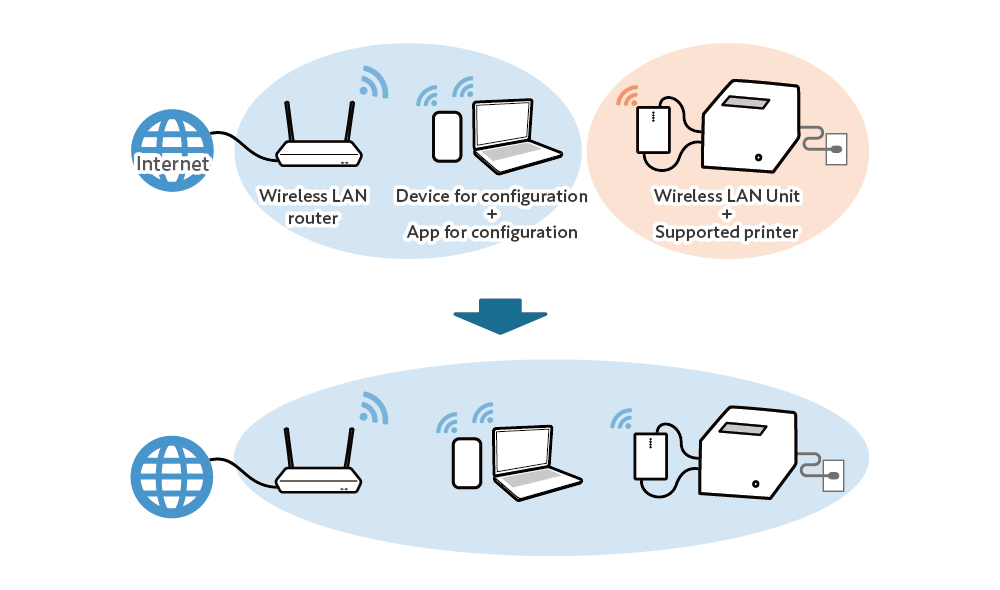
Once your printer is successfully connected to your Wi-Fi network, you need to install the necessary software on each device you want to print from. This software allows your device to recognize and communicate with the printer.
Installing on Windows Computers
- Access Printer Settings: Go to “Settings” > “Devices” > “Printers & scanners” on Windows 10/11.
- Add Printer: Click “Add a printer or scanner.” Windows will search for available printers on your network.
- Select Your Printer: If your printer appears in the list, select it and click “Add device.” Windows will attempt to install the driver automatically.
- Manual Driver Installation (If Needed): If Windows doesn’t find your printer or fails to install it, you may need to download the latest drivers from the printer manufacturer’s official website. Run the downloaded driver installer and follow the on-screen instructions. The installer will guide you to detect your network printer.
Installing on macOS Computers
- Access System Preferences: Go to the Apple menu > “System Preferences” (or “System Settings” on newer macOS versions) > “Printers & Scanners.”
- Add Printer: Click the “+” button to add a new printer.
- Select Your Printer: macOS will scan your network for available printers. Your wireless printer should appear in the list. Select it.
- Driver Selection: macOS will usually automatically select the correct driver. If not, you may need to choose “Select Software…” and find your printer model.
- Add: Click “Add” to install the printer.
Installing on Mobile Devices (iOS and Android)
Many modern wireless printers support mobile printing through:
- Manufacturer Apps: Download the official app from your printer manufacturer (e.g., HP Smart, Canon PRINT Inkjet/SELPHY, Epson iPrint). These apps usually guide you through connecting to the printer and offer enhanced printing features.
- AirPrint (iOS): If your printer supports AirPrint, it will automatically be discoverable by your iOS devices (iPhone, iPad). When you select the print option in an app, your AirPrint-enabled printer will appear in the list of available printers.
- Mopria Print Service (Android): Similar to AirPrint, Mopria certification allows many Android devices to print wirelessly to compatible printers without needing a specific manufacturer app. You might need to enable the “Mopria Print Service” in your Android device’s settings.
- Google Cloud Print (Deprecated): While Google Cloud Print has been discontinued, some older setups might still rely on it. However, it’s recommended to transition to newer mobile printing solutions.
Optimizing Your Wireless Printer Setup and Troubleshooting
Once your printer is installed, a few optimizations and troubleshooting tips can ensure a consistently smooth experience.
Ensuring Network Stability
A stable Wi-Fi connection is paramount for reliable wireless printing.
- Router Placement: Position your Wi-Fi router in a central location in your home or office, away from potential interference from other electronic devices (microwaves, cordless phones).
- Signal Strength: Ensure your printer is within a reasonable range of your router. If you experience dropped connections or slow printing, consider a Wi-Fi extender or mesh network system.
- Network Security: Use a strong, unique password for your Wi-Fi network. This not only protects your network but also enhances the security of your wireless printer.
Printing from Different Devices and Platforms
- Seamless Integration: With the correct drivers and network connection, printing from various devices should be straightforward. Familiarize yourself with the print dialog boxes on each operating system to access different print settings (paper size, quality, duplex printing).
- Cloud Printing Services: For printing from outside your local network, investigate cloud printing services offered by your printer manufacturer or third-party solutions. This allows you to send print jobs from anywhere with an internet connection.
Common Troubleshooting Steps
If you encounter issues, don’t panic. Most problems have straightforward solutions.
- Printer Not Found:
- Check Network Connection: Verify that both your computer/device and the printer are connected to the exact same Wi-Fi network.
- Restart Devices: Turn off your printer, router, and computer, wait for a minute, and then turn them back on in the following order: router, printer, computer.
- Firewall Issues: Your computer’s firewall might be blocking communication with the printer. Temporarily disable the firewall to test, and if that resolves the issue, re-enable it and configure it to allow printer communication.
- Reinstall Drivers: Uninstall existing printer drivers and reinstall the latest ones from the manufacturer’s website.
- Print Jobs Stuck in Queue:
- Clear Print Spooler: On Windows, search for “Services,” find “Print Spooler,” stop it, clear the contents of the
C:WindowsSystem32spoolPRINTERSfolder, and then restart the Print Spooler service. - Check Printer Status: Ensure the printer is powered on, has paper, and has sufficient ink or toner.
- Clear Print Spooler: On Windows, search for “Services,” find “Print Spooler,” stop it, clear the contents of the
- Poor Print Quality:
- Check Ink/Toner Levels: Low ink or toner is a common cause of faded or streaky prints.
- Run Print Head Cleaning: Most printers have a built-in utility for cleaning print heads.
- Update Drivers: Outdated drivers can sometimes lead to printing issues.
- Paper Type: Ensure you are using the correct paper type for the print job.
Beyond Installation: Branding and Financial Considerations
While the “how-to” of installing a wireless printer focuses on the technical aspects, it’s worth considering the broader implications related to branding and financial aspects of your printer choice and usage.
The Printer as a Brand Ambassador
The choice of printer brand can subtly influence perceptions. A well-regarded brand known for reliability and quality can contribute positively to your personal or corporate image. Conversely, a consistently problematic device might reflect poorly on your attention to detail or your choice of tools.
- Corporate Identity: For businesses, the consistent use of branded office equipment, including printers, can reinforce corporate identity and professionalism.
- Personal Branding: For individuals working from home, a reliable and efficient printer supports a professional workflow, contributing to a positive personal brand.
- Sustainability and Eco-Branding: Many brands now highlight their commitment to sustainability. Choosing a printer with eco-friendly features or a brand known for responsible manufacturing can align with your own branding efforts if this is a key aspect for you.
Financial Implications of Wireless Printing
While the upfront cost of a wireless printer is a consideration, so are the ongoing operational expenses and the long-term value.
- Total Cost of Ownership: This includes the initial purchase price, the cost of ink or toner cartridges, paper, electricity, and potential repair costs. Wireless printers don’t typically incur extra costs for networking itself, as they leverage your existing Wi-Fi.
- Ink vs. Toner: Understand the difference between inkjet and laser printers. Inkjet printers are generally cheaper to buy but have higher ink costs per page. Laser printers are more expensive upfront but have lower toner costs per page, making them more economical for high-volume printing.
- Energy Efficiency: Newer wireless printers are often designed with energy-saving features, which can contribute to lower electricity bills over time.
- Durability and Longevity: Investing in a reputable brand known for durability can save money in the long run by reducing the need for premature replacement.
By considering these aspects, you can make a more informed decision not only about how to install your wireless printer but also about which printer best suits your needs and aligns with your broader goals. Enjoy the freedom and efficiency that a well-installed wireless printer brings to your digital life.
aViewFromTheCave is a participant in the Amazon Services LLC Associates Program, an affiliate advertising program designed to provide a means for sites to earn advertising fees by advertising and linking to Amazon.com. Amazon, the Amazon logo, AmazonSupply, and the AmazonSupply logo are trademarks of Amazon.com, Inc. or its affiliates. As an Amazon Associate we earn affiliate commissions from qualifying purchases.