
In today’s rapidly evolving digital landscape, Python stands as an undisputed titan among programming languages. Its versatility, readability, and vast ecosystem have cemented its status as a go-to choice for an incredible array of applications, from web development and data science to artificial intelligence, machine learning, and automation. Whether you’re a budding programmer, a seasoned developer expanding your toolkit, or a professional looking to automate tasks and enhance productivity, installing Python on your Windows system is your foundational first step.
This comprehensive guide will walk you through the entire process, ensuring a smooth and successful installation. We’ll delve into the nuances of choosing the right version, setting up your environment, and equipping you with the best practices to kickstart your Python journey on Windows. By the end of this tutorial, you’ll not only have Python up and running but also understand the essential tools and configurations that will make your development workflow efficient and robust, aligning perfectly with the latest technology trends and enhancing your digital security and productivity.

Why Python? Understanding its Power and Versatility
Before we dive into the installation specifics, it’s worth taking a moment to appreciate why Python has become such a dominant force in the tech world. Understanding its core strengths provides context and motivation for embarking on this installation journey.
The Ubiquity of Python in Modern Tech
Python’s reach extends across nearly every facet of modern technology. Its powerful libraries and frameworks have made it the backbone for countless innovations:
- Artificial Intelligence and Machine Learning: Libraries like TensorFlow, Keras, and scikit-learn have made Python the de facto language for developing AI models, from predictive analytics to natural language processing and computer vision. The demand for AI tools continues to surge, and Python is at the forefront.
- Web Development: Frameworks such as Django and Flask empower developers to build robust, scalable, and secure web applications, powering everything from content management systems to social networks.
- Data Science and Analytics: With libraries like Pandas, NumPy, and Matplotlib, Python offers unparalleled capabilities for data manipulation, analysis, and visualization, making it an indispensable tool for data scientists extracting insights from vast datasets.
- Automation and Scripting: Python’s simplicity and extensive standard library make it excellent for automating repetitive tasks, managing system operations, and developing custom scripts that boost productivity across various domains.
- Cybersecurity: Its scripting capabilities are highly valued in digital security for tasks like network scanning, penetration testing, and forensic analysis, allowing security professionals to build custom tools and automate threat detection.
- DevOps: Python scripts are frequently used in DevOps environments for infrastructure automation, configuration management, and continuous integration/continuous deployment (CI/CD) pipelines.
This widespread adoption means that learning Python opens doors to numerous career paths and empowers individuals to tackle complex problems across diverse industries. It’s a skill that directly contributes to staying current with technology trends and enhancing personal and professional output.
Python’s Appeal: Simplicity Meets Robustness
What makes Python so universally loved? It boils down to a few key characteristics:
- Readability and Simplicity: Python’s syntax is designed to be clear and intuitive, resembling natural language more than many other programming languages. This low barrier to entry makes it an ideal language for beginners and significantly speeds up development time for experienced programmers. Its emphasis on readability promotes collaboration and maintainability, reducing the effort required for software updates and debugging.
- Cross-Platform Compatibility: Python code can run on various operating systems—Windows, macOS, Linux—without significant modifications. This “write once, run anywhere” philosophy is a massive advantage for developers targeting multiple platforms.
- Extensive Standard Library and Ecosystem: Python comes with a massive standard library, offering modules and functions for almost any task imaginable, from handling internet protocols to processing data. Beyond the standard library, its package index (PyPI) hosts hundreds of thousands of third-party libraries, providing pre-built solutions for virtually any problem. This rich ecosystem saves development time and allows developers to leverage existing, well-tested code.
- Large and Supportive Community: A vibrant global community means abundant resources, tutorials, forums, and active development. When you encounter a problem, chances are someone else has already faced it and a solution is readily available online. This community support is invaluable for both learning and problem-solving, contributing to better digital security practices through shared knowledge and peer review.
By understanding these benefits, it becomes clear why installing Python is not just a technical step, but an investment in your productivity, skill set, and ability to engage with cutting-edge technology.
The Core Installation Process: Getting Python onto Your System
Now that we’re clear on Python’s significance, let’s get down to the practical steps of installing it on your Windows machine. The process is straightforward, but paying attention to a few crucial details will ensure a hassle-free setup.
Downloading the Python Installer: Choosing the Right Version
The first step is to obtain the official Python installer. Always download Python from its official source to ensure you get a legitimate, secure version free from tampering.
- Navigate to the Official Python Website: Open your web browser and go to python.org/downloads/windows/. This is the most reliable source for Python installers.
- Choose the Latest Stable Python 3.x Version: Python 2.x is officially deprecated and no longer receives updates, including security patches. Therefore, you must download a Python 3.x version. At the time of writing, the latest stable release (e.g., Python 3.12.x) is usually recommended. It comes with the newest features, performance improvements, and security enhancements.
- You’ll see options for “Windows installer (64-bit)” and “Windows installer (32-bit)”. Most modern Windows systems are 64-bit. To check your system type:
- Press
Win + R, typemsinfo32, and press Enter. Look for “System Type” in the System Information window. If it says “x64-based PC,” download the 64-bit installer. If it says “x86-based PC,” download the 32-bit installer. Choosing the correct architecture ensures optimal performance and compatibility with other software and libraries you might use.
- Press
- You’ll see options for “Windows installer (64-bit)” and “Windows installer (32-bit)”. Most modern Windows systems are 64-bit. To check your system type:
Click on the link for the appropriate “Windows installer” to download the .exe file.
Step-by-Step Installation Walkthrough: The Crucial “Add to PATH” Option
Once the installer (.exe file) is downloaded, locate it in your Downloads folder or wherever you saved it and double-click to run it.
- Run the Installer as Administrator (Recommended): Right-click the installer
.exefile and select “Run as administrator.” This can help prevent permission-related issues during installation, ensuring all components are installed correctly. - The Initial Installation Screen – The Most Important Checkbox:
- The first screen of the installer is critical. At the very bottom, you will see a checkbox labeled “Add python.exe to PATH” (or similar, depending on the version). IT IS HIGHLY RECOMMENDED TO CHECK THIS BOX.
- What is PATH? The system’s PATH environment variable is a list of directories where the operating system looks for executable files. If Python is added to PATH, you can run Python commands (like
pythonorpip) directly from any Command Prompt or PowerShell window, regardless of your current directory. Without adding Python to PATH, you would need to navigate to Python’s installation directory every time you want to run a Python command, which is incredibly inconvenient and a major productivity hurdle. - Why is this important for productivity and digital security? Adding Python to PATH streamlines your workflow significantly. From a security standpoint, having Python accessible globally means you can quickly execute scripts and manage packages from a controlled environment, rather than having to manually navigate to potentially less secure temporary locations.
- Choose Your Installation Type:
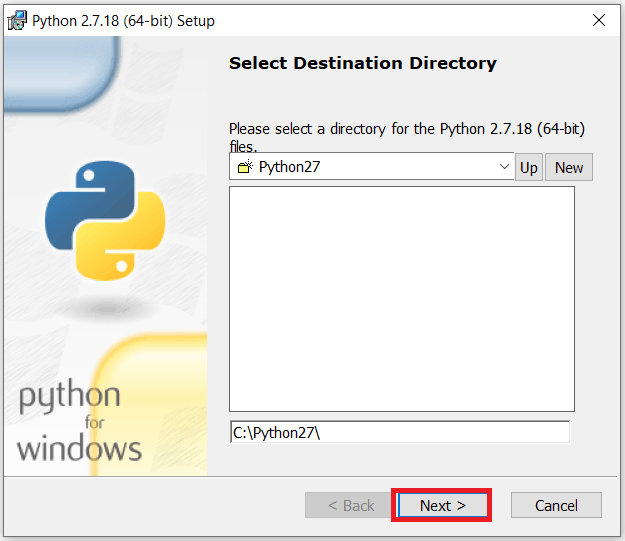
- “Install Now” (Recommended for most users): This option performs a default installation, typically placing Python in your user’s
AppDatadirectory and including standard features likepip(Python’s package installer), IDLE (Python’s integrated development environment), and documentation. This is generally sufficient for most beginners and developers. - “Customize installation”: If you need to change the installation location, select specific features (e.g., install only
pipand not IDLE), or install Python for all users on the machine, choose this option.- If you choose “Customize installation,” ensure that “pip,” “tcl/tk and IDLE,” “Py Launcher,” and “Add Python to environment variables” are all checked on the subsequent screens. The “Add Python to environment variables” option is equivalent to “Add python.exe to PATH” and is equally crucial.
- “Install Now” (Recommended for most users): This option performs a default installation, typically placing Python in your user’s
- Complete the Installation:
- Click “Install Now” (or “Install” after customization). The installer will proceed, copying files and configuring your system. This might take a few minutes.
- Once the installation is complete, you might see a screen indicating success. Sometimes, there’s an option to “Disable path length limit.” If you plan to work with very long file paths (common in some complex projects), clicking this is advisable. Otherwise, it’s optional.
- Click “Close” to exit the installer.
Congratulations! Python should now be installed on your Windows system. The next step is to confirm everything is working as expected.
Verifying Your Installation: Confirming Python is Ready to Go
Verification is a critical step to ensure Python and its associated tools are correctly set up and accessible from your command line.
- Open Command Prompt or PowerShell:
- Press
Win + R, typecmd, and press Enter to open Command Prompt. - Alternatively, press
Win + Xand select “Windows PowerShell” or “Windows Terminal (Admin)”. - Important: If you had a Command Prompt or PowerShell window open before installing Python, close it and open a new one. The environment variables (like PATH) are loaded when the shell starts, so an old window won’t reflect the changes.
- Press
- Check Python Version:
- In the Command Prompt/PowerShell, type:
python --versionand press Enter. - You should see output similar to
Python 3.12.x(where3.12.xis the version you installed). If you see this, Python is correctly installed and added to your PATH. - Troubleshooting: If you get an error like
'python' is not recognized as an internal or external command, operable program or batch file., it means Python was not successfully added to your PATH. You’ll need to manually add it or re-run the installer and ensure the “Add python.exe to PATH” checkbox is selected. (We’ll cover troubleshooting in more detail later).
- In the Command Prompt/PowerShell, type:
- Check Pip Version:
- Pip is Python’s package installer, essential for adding external libraries. It should be installed automatically with Python 3.4 and later.
- In the same Command Prompt/PowerShell, type:
pip --versionand press Enter. - You should see output similar to
pip 23.3.1 from C:Users[YourUser]AppDataLocalProgramsPythonPython312Libsite-packagespip (python 3.12). This confirms Pip is also installed and accessible.
- Run a Simple Python Script:
- This step confirms Python is fully functional.
- Open Notepad or any text editor.
- Type:
print("Hello, Python world! Installation successful.") - Save the file as
hello.pyto a location you can easily access (e.g., your Desktop or a new folder calledpython_projects). - Open your Command Prompt/PowerShell, navigate to the directory where you saved
hello.py(e.g., if on Desktop, typecd Desktop). - Type:
python hello.pyand press Enter. - You should see
Hello, Python world! Installation successful.printed in the console.
If all these checks pass, you’ve successfully installed Python on Windows! You’re now ready to move on to setting up a more robust development environment.
Elevating Your Python Experience: Essential Tools and Best Practices
While Python itself is installed, a productive development environment goes beyond just the interpreter. Adopting certain tools and practices will significantly enhance your coding efficiency, project management, and overall experience.
Setting Up Your Development Environment: Integrated Development Environments (IDEs) & Code Editors
For serious Python development, a plain text editor isn’t enough. You need tools that offer features like syntax highlighting, code completion, debugging, and project management. These are typically provided by Integrated Development Environments (IDEs) or advanced code editors. Using a well-configured IDE can dramatically boost your productivity, help you write cleaner code, and debug issues more effectively.
Here are some popular choices:
- VS Code (Visual Studio Code): A free, open-source, and extremely popular code editor developed by Microsoft. It’s lightweight, highly customizable with extensions, and supports many languages, including Python. Its robust Python extension provides excellent features like IntelliSense, debugging, linting, and virtual environment support. This is often the recommended starting point due to its balance of features, performance, and community support.
- PyCharm: A powerful, dedicated IDE for Python developed by JetBrains. It comes in two versions: Community (free, open-source) and Professional (paid, more features for web development, data science, etc.). PyCharm offers advanced features like intelligent code completion, sophisticated debugging, code analysis, and integrated tools for web frameworks and databases. It’s an excellent choice for larger, more complex Python projects.
- Sublime Text / Atom: These are general-purpose text editors that can be extended with Python-specific plugins to become powerful development tools. They are known for their speed and minimalist interfaces.
How to get started with VS Code (Recommended):
- Download VS Code: Go to code.visualstudio.com and download the Windows installer.
- Install VS Code: Run the installer and follow the prompts. The default options are usually fine.
- Install the Python Extension:
- Open VS Code.
- Click on the Extensions icon in the Activity Bar on the left (it looks like four squares).
- Search for “Python” and look for the official Microsoft Python extension. Click “Install.”
- Configure Python Interpreter:
- Once the extension is installed, open a Python file (
.py) in VS Code or create a new one. - In the bottom left corner of the VS Code window, you’ll see “Python x.x.x” (or “No Python Selected”). Click on it.
- A list of available Python interpreters will appear at the top. Select the Python 3.x version you just installed. This tells VS Code which Python interpreter to use for running and debugging your code.
- Once the extension is installed, open a Python file (
Now, VS Code is configured to provide an excellent environment for your Python development, offering features like syntax highlighting, code suggestions, and integrated terminal access, which are crucial for productivity.
Mastering Package Management with Pip: Unlocking Python’s Ecosystem
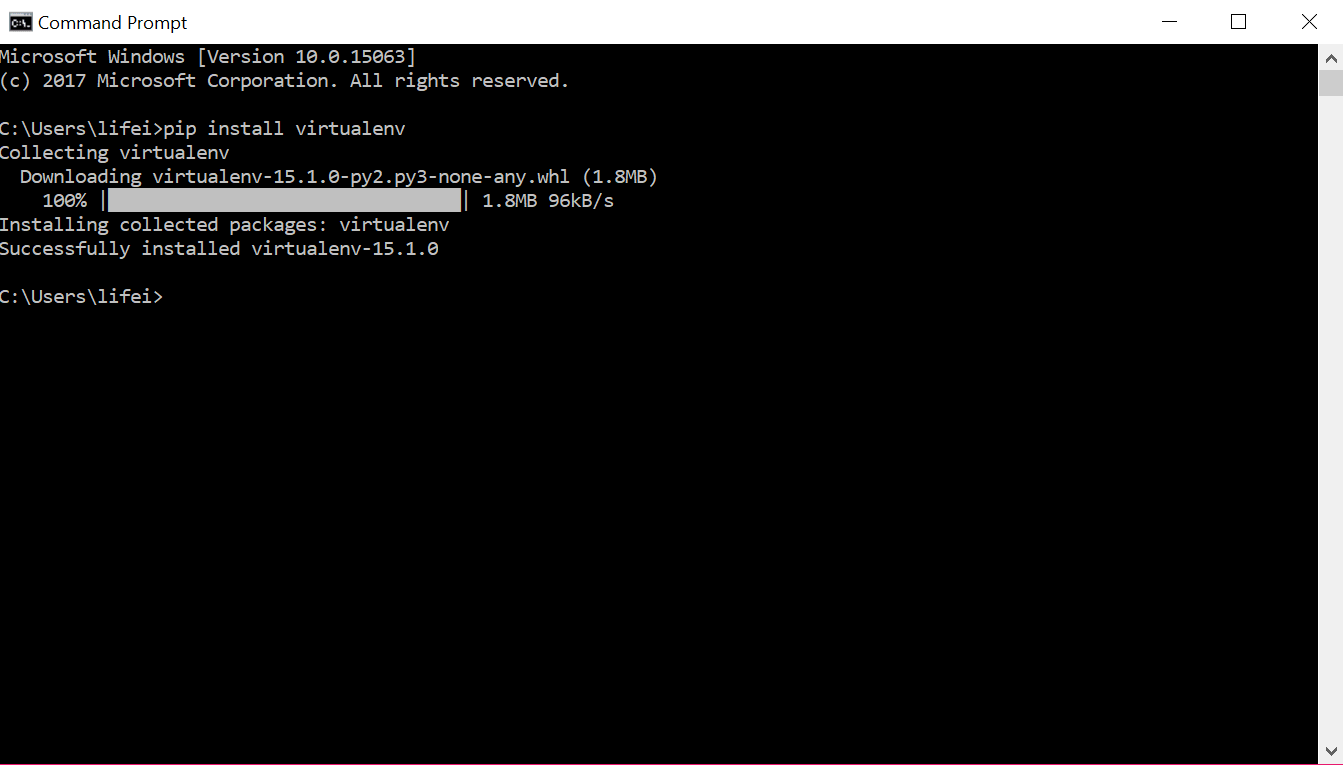
Python’s strength lies not just in its core language but in its vast ecosystem of third-party libraries and frameworks. pip (Package Installer for Python) is the standard package manager for Python and your gateway to this ecosystem. It simplifies the process of installing, managing, and upgrading these external packages.
- What is Pip? Pip allows you to download and install packages from the Python Package Index (PyPI), a repository of open-source Python projects. Think of it as an app store for Python libraries.
- Installing a Package:
- Open Command Prompt or PowerShell.
- To install a package, use the command:
pip install package_name - For example, to install the popular
requestslibrary (for making HTTP requests):pip install requests
- Upgrading Pip: It’s good practice to keep Pip itself updated.
python -m pip install --upgrade pip
- Listing Installed Packages: To see all the Python packages installed in your current environment:
pip list
- Uninstalling a Package:
pip uninstall package_name
- Managing Project Dependencies with
requirements.txt: For projects, it’s crucial to document dependencies. You can generate a file listing all installed packages and their versions:pip freeze > requirements.txt- Later, another developer (or you on a different machine) can install all necessary packages for the project with:
pip install -r requirements.txt
Mastering Pip is fundamental for any Python developer, as it enables you to leverage existing solutions, saving countless hours and ensuring that your projects are built upon robust, community-maintained code. This practice is also crucial for digital security, as it allows you to easily update packages to their latest versions, often incorporating security fixes.
Embracing Virtual Environments: Project Isolation for a Clean Workflow
One of the most important best practices in Python development is the use of virtual environments. This concept is vital for maintaining a clean, organized, and conflict-free development workflow, which directly contributes to productivity and reduces potential for errors.
-
Why Virtual Environments are Critical:
- Dependency Conflicts: Imagine you’re working on “Project A” that requires
requestslibrary version 2.20 and “Project B” that requiresrequestslibrary version 2.28. If you install both globally, one will overwrite the other, leading to breakage in one of your projects. - Project Isolation: A virtual environment creates an isolated Python installation for each project. All packages installed for “Project A” will only exist within Project A’s virtual environment, and similarly for Project B. This prevents conflicts and ensures each project has its own set of dependencies.
- Reproducibility: Virtual environments make your projects easily reproducible. By using a
requirements.txtfile generated from a virtual environment, anyone can set up the exact same environment and run your project without issues. - Cleanliness: Your global Python installation remains clean and free of project-specific packages.
- Dependency Conflicts: Imagine you’re working on “Project A” that requires
-
How to Use Virtual Environments (with
venvmodule): Python 3.x includes thevenvmodule in its standard library, making virtual environment creation straightforward.
- Navigate to Your Project Directory: Open Command Prompt/PowerShell and
cdinto the folder where you want to create your project (e.g.,cd C:UsersYourUserDocumentsmy_python_project). - Create a Virtual Environment:
- Type:
python -m venv myenv(You can namemyenvanything you like, butvenvor.venvare common conventions). - This command creates a new directory (e.g.,
myenv) within your project folder. Inside this directory are copies of the Python interpreter,pip, and other scripts.
- Type:
- Activate the Virtual Environment:
- For Command Prompt:
myenvScriptsactivate.bat - For PowerShell:
.myenvScriptsActivate.ps1 - After activation, your command prompt prompt will change to include the name of your virtual environment (e.g.,
(myenv) C:UsersYourUserDocumentsmy_python_project>). This indicates that you are now working within the isolated environment.
- For Command Prompt:
- Install Packages Within the Virtual Environment:
- While the virtual environment is active, any
pip installcommands will install packages only into this environment, not globally. - Example:
(myenv) C:UsersYourUserDocumentsmy_python_project> pip install requests
- While the virtual environment is active, any
- Deactivate the Virtual Environment:
- When you’re done working on the project, simply type:
deactivate - The prompt will return to its normal state.
- When you’re done working on the project, simply type:
Integrating virtual environments into your workflow is a hallmark of professional Python development. It’s a practice that saves time, prevents headaches, and ensures the long-term stability and maintainability of your projects, directly boosting your productivity and reducing potential for system conflicts.
Troubleshooting Common Installation Hurdles and Advancing Your Skills
While the Python installation process on Windows is generally smooth, you might occasionally encounter minor issues. Knowing how to troubleshoot these common problems will save you time and frustration. Beyond troubleshooting, we’ll also look at where to go next on your Python learning journey.
Addressing Installation Glitches: Common Problems and Solutions
- ‘python’ is not recognized as an internal or external command:
- Cause: This is the most common issue and means Python was not correctly added to your system’s PATH environment variable.
- Solution 1 (Re-run Installer): Re-run the Python installer, and this time, make absolutely sure to check the “Add python.exe to PATH” checkbox on the first screen. If you chose “Customize installation,” ensure “Add Python to environment variables” is checked.
- Solution 2 (Manual PATH Update):
- Search for “Environment Variables” in the Windows search bar and select “Edit the system environment variables.”
- Click “Environment Variables…”
- Under “System variables,” find the “Path” variable, select it, and click “Edit…”
- Click “New” and add the path to your Python installation’s
Scriptsdirectory (e.g.,C:UsersYourUserAppDataLocalProgramsPythonPython312Scripts) and the Python installation’s root directory (e.g.,C:UsersYourUserAppDataLocalProgramsPythonPython312). - Click “OK” on all windows to save changes. Close and reopen any Command Prompt/PowerShell windows.
- Permission Errors during Installation or
pip install:- Cause: Windows User Account Control (UAC) or insufficient administrative privileges.
- Solution:
- When running the Python installer, right-click and select “Run as administrator.”
- When using
pip install, if you encounter permission errors, try running your Command Prompt or PowerShell as an administrator (right-click on it and select “Run as administrator”). However, it’s generally better to use virtual environments to avoid global permission issues for project-specific packages.
- Multiple Python Versions Installed:
- Cause: You might have installed Python from the Microsoft Store, or installed different versions manually, leading to conflicts when you type
python. - Solution:
- Check which
pythonis being called: Typewhere pythonin Command Prompt to see the paths of allpython.exefiles found in your PATH. - Use
pyLauncher: The Python installer typically installspy.exe, a launcher that can distinguish between Python 2 and Python 3. You can usepyto explicitly call a version, e.g.,py -3.9to run Python 3.9. - Prioritize PATH: Reorder your PATH environment variables so your preferred Python installation path appears before others.
- Uninstall Unwanted Versions: If you have Python versions you don’t need, uninstall them via “Add or remove programs” in Windows settings.
- Check which
- Cause: You might have installed Python from the Microsoft Store, or installed different versions manually, leading to conflicts when you type
- Antivirus or Firewall Interference:
- Cause: Rarely, an overly aggressive antivirus or firewall might block parts of the Python installation or prevent
pipfrom downloading packages. - Solution: Temporarily disable your antivirus/firewall during installation, or create exceptions for Python and Pip in your security software settings. Remember to re-enable them immediately afterward for digital security.
- Cause: Rarely, an overly aggressive antivirus or firewall might block parts of the Python installation or prevent
By understanding these common pitfalls, you can quickly diagnose and resolve most installation-related issues, ensuring your development environment remains stable and secure.
Your Journey Beyond Installation: First Steps into Python Programming
With Python successfully installed and your development environment set up, you’re ready for the exciting part: writing code! Here are some recommended next steps to deepen your understanding and hone your skills:
- Explore Official Documentation: The official Python documentation (docs.python.org) is an invaluable resource. Start with “The Python Tutorial” for a structured introduction to the language.
- Online Courses and Tutorials: Websites like Codecademy,
Udemy, Coursera, and freeCodeCamp offer excellent interactive courses covering Python fundamentals, data science, web development, and more. - Practice with Small Projects: The best way to learn is by doing. Start with simple projects:
- A “Guess the Number” game.
- A simple calculator.
- A script to read and write to a text file.
- A program to fetch data from a public API (using the
requestslibrary you installed!).
- Join the Community: Engage with the Python community on platforms like Stack Overflow, Reddit (e.g., r/learnpython, r/Python), or local meetups. Asking questions and helping others is a great way to learn and stay motivated.
- Delve into Specific Domains: Once comfortable with the basics, explore areas that interest you:
- Web Development: Learn Django or Flask.
- Data Science: Dive into Pandas, NumPy, and Matplotlib.
- AI/ML: Explore TensorFlow or scikit-learn.
- Automation: Create scripts to automate tasks on your computer.
The journey of learning Python is continuous, but with a solid installation foundation and these recommended next steps, you are well-equipped to leverage Python’s immense power and contribute to the ever-expanding world of technology.
Conclusion
Installing Python on Windows is a fundamental rite of passage for anyone looking to engage with one of the most powerful and versatile programming languages available today. By following this comprehensive guide, you’ve not only successfully set up your Python environment but also gained insights into crucial best practices, such as leveraging pip for package management and employing virtual environments for robust project isolation. These steps are vital for maintaining an efficient, secure, and productive development workflow that aligns with contemporary tech standards.
From understanding Python’s ubiquitous role in AI, web development, and data science to mastering the nuances of its installation and environment setup, you are now well-prepared to embark on your coding journey. The ability to harness Python will undoubtedly empower you to automate tasks, solve complex problems, and innovate across various digital domains, cementing your place in the dynamic world of technology. Happy coding!
aViewFromTheCave is a participant in the Amazon Services LLC Associates Program, an affiliate advertising program designed to provide a means for sites to earn advertising fees by advertising and linking to Amazon.com. Amazon, the Amazon logo, AmazonSupply, and the AmazonSupply logo are trademarks of Amazon.com, Inc. or its affiliates. As an Amazon Associate we earn affiliate commissions from qualifying purchases.