
In today’s fast-paced digital world, whether you’re a student, a professional, or a home user, reliable productivity software is non-negotiable. Microsoft Office has long stood as the gold standard, offering an indispensable suite of applications like Word, Excel, PowerPoint, and Outlook that empower users to create, communicate, and collaborate with unparalleled efficiency. Far more than just individual programs, Office represents a cornerstone of digital literacy and an essential tool for personal and business success. Its robust features, widespread compatibility, and continuous evolution through Microsoft 365 ensure that it remains at the forefront of productivity solutions.

This comprehensive guide is designed to walk you through every step of installing Microsoft Office, ensuring a smooth and successful setup. We’ll cover everything from initial preparation and choosing the right version to the actual installation process, activation, and even common troubleshooting tips. By following these instructions, you’ll not only get Office up and running but also understand how to leverage its capabilities for maximum productivity and digital security, aligning perfectly with the core tenets of technology proficiency championed by our website.
Preparing for a Seamless Installation: Laying the Groundwork for Success
Before diving into the installation process, a little preparation goes a long way. Taking the time to understand your options and ensure your system is ready can save you significant headaches later on. This foundational step is critical for a smooth user experience and to avoid common installation pitfalls.
Understanding Microsoft Office Versions and Subscriptions
The landscape of Microsoft Office has evolved, offering various options tailored to different user needs and budgets. The primary distinction lies between perpetual licenses (one-time purchase) and subscription-based services (Microsoft 365). Understanding these differences is crucial for making an informed decision that impacts both your financial outlay and your access to features and updates.
- Microsoft 365 (Subscription-based): This is the most popular and recommended option for most users. Microsoft 365 operates on a subscription model (monthly or annually) and offers significant advantages. It includes the full desktop versions of Office applications (Word, Excel, PowerPoint, Outlook, OneNote, Publisher, Access – availability varies by plan), alongside cloud services like 1 TB of OneDrive storage per user, Skype minutes, and advanced security features. Crucially, Microsoft 365 constantly receives updates, new features, and security patches, ensuring you always have the latest version of the software. Plans include Microsoft 365 Personal (for one user), Microsoft 365 Family (for up to six users), and various Business and Enterprise plans with additional features like advanced security and administrative tools. For businesses, the recurring cost can be a manageable operational expense, often providing better long-term value due to continuous updates and support.
- Office Home & Student / Home & Business (Perpetual License): These are one-time purchases for a specific version of Office (e.g., Office 2021). You own the license indefinitely and can use the applications (typically Word, Excel, PowerPoint for Home & Student; plus Outlook for Home & Business) without a recurring fee. However, a significant drawback is that these versions do not receive feature updates; you only get security patches. If you want new features, you’ll need to purchase the next major version when it’s released. This option can be more cost-effective for users with very specific, unchanging needs who prefer to avoid subscriptions. From a “Money” perspective, weigh the upfront cost against the recurring cost and value of ongoing updates and cloud services.
Consider your usage patterns, the number of users, and your budget carefully. For most modern users who value up-to-date features, cloud integration, and cross-device access, Microsoft 365 offers superior flexibility and value.
Checking System Requirements and Compatibility
Just as you wouldn’t try to run cutting-edge AI software on a vintage computer, ensuring your system meets the minimum requirements for Microsoft Office is a vital pre-installation step. Running Office on an underpowered machine can lead to sluggish performance, crashes, and a frustrating user experience, undermining the very productivity you aim to achieve.
Before proceeding, verify that your computer meets the current system requirements for your chosen version of Office. These typically include:
- Operating System: Windows 10/11 or the three most recent versions of macOS. Older operating systems may not be supported or may only be compatible with older Office versions.
- Processor: 1.6 GHz or faster, 2-core.
- Memory (RAM): 4 GB RAM (64-bit); 2 GB RAM (32-bit). More RAM is always better for multitasking.
- Hard Disk Space: 4 GB available disk space for Windows; 10 GB for macOS.
- Display: 1280 x 768 screen resolution for Windows; 1280 x 800 for macOS.
- Graphics: DirectX 9 or later, with WDDM 2.0 or higher for Windows.
- Internet Connection: Required for Microsoft 365 activation, updates, and certain features.
You can usually find the most up-to-date system requirements on the official Microsoft Office website. Trying to install Office on an unsupported or underpowered system is a common source of installation failures and performance issues, directly impacting your digital productivity.
Disabling Antivirus Software (Temporarily)
While antivirus software is essential for digital security and protecting against malware, it can sometimes interfere with the installation process of large applications like Microsoft Office. The heuristics and real-time scanning features of some antivirus programs might misinterpret the Office installer’s actions (e.g., writing many files to system directories) as suspicious, leading to blocked files, corrupted installations, or incomplete setups.
To avoid potential conflicts, it’s a good practice to temporarily disable your antivirus software before initiating the Office installation.
- How to Disable: The method varies depending on your antivirus program. Typically, you can right-click the antivirus icon in your system tray (bottom-right corner of your screen on Windows) and look for an option like “Disable,” “Turn Off,” or “Exit.” Some programs allow you to disable protection for a specific duration.
- Re-enabling: Crucially, remember to re-enable your antivirus software immediately after the Office installation is complete. Running your computer without active antivirus protection, even for a short period, can expose it to security risks.
This step is a practical measure to ensure a clean and uninterrupted installation, safeguarding the integrity of your new software suite and, by extension, your ongoing digital security.
The Step-by-Step Installation Process: Getting Microsoft Office Up and Running
With your preparations complete, you’re ready to embark on the core process of installing Microsoft Office. This section breaks down the steps into easily digestible actions, guiding you from license acquisition to the final clicks of the setup wizard.
Purchasing or Redeeming Your Office License
The first step in acquiring Microsoft Office is to secure a valid license. This usually involves either purchasing a new subscription or product key, or redeeming one you’ve already obtained.
- Purchasing Directly from Microsoft: The most straightforward way to get Office is to purchase a Microsoft 365 subscription or a perpetual license (e.g., Office Home & Business) directly from the official Microsoft Office website. This ensures you receive a genuine product and gives you immediate access to your Microsoft account portal.
- Retail Purchase/Product Key: If you’ve purchased Office from a retail store or an authorized online reseller, you’ll typically receive a product key (a 25-character alphanumeric code). To redeem this key, you’ll usually visit
setup.office.com(orredeem.microsoft.com), sign in with your Microsoft account (or create one), and enter your product key. This links the license to your Microsoft account. - Employer/Educational Institution: Many organizations and educational institutions provide Microsoft Office licenses to their employees or students. Check with your IT department or academic advisor for instructions on how to access and install Office through your organizational account. This is often the most cost-effective solution for eligible individuals.
Regardless of how you acquire your license, it must be associated with a Microsoft account. This account acts as your digital hub for managing your subscription, downloading installers, and activating your software. If you don’t have one, you’ll be prompted to create one – it’s a simple process.
Downloading the Installer from Your Microsoft Account
Once your Office license is active and linked to your Microsoft account, the next step is to download the installation files.
- Go to your Microsoft Account Dashboard: Open your web browser and navigate to
account.microsoft.com/services. - Sign In: Use the Microsoft account associated with your Office license.
- Locate Your Office Product: Under “Products you’ve purchased” or “Subscriptions,” find your Microsoft 365 or Office perpetual license.
- Click “Install”: You’ll see an “Install” button next to your Office product. Clicking this button will usually reveal options to choose your language and whether you want the 32-bit or 64-bit version (64-bit is recommended for most modern systems).
- Download the Setup File: Click “Install” again (or a similar button) to download the Office setup file (
.exefor Windows,.pkgfor macOS) to your computer. Note the location where it’s saved, typically your “Downloads” folder.
This process ensures you download a legitimate, up-to-date installer directly from Microsoft, preventing issues with outdated or corrupted files from third-party sources.
Running the Setup File
With the installer downloaded, you’re now ready to initiate the installation.
- Locate the Downloaded File: Navigate to the folder where you saved the Office setup file (e.g., your “Downloads” folder).
- Run as Administrator (Windows): For Windows users, it’s best practice to right-click on the setup file (e.g.,
Setup.exe) and select “Run as administrator.” This provides the installer with the necessary permissions to make changes to your system, reducing the likelihood of permission-related errors. - Double-Click (macOS): For macOS users, simply double-click the downloaded
.pkgfile to start the installer.
A security prompt might appear asking for confirmation to run the file; confirm to proceed.
Following On-Screen Prompts for Installation
The Microsoft Office installer is designed to be user-friendly, guiding you through the process with clear on-screen instructions.
- Wait for Preparation: After launching the setup file, you might see a brief “Preparing to install” message.
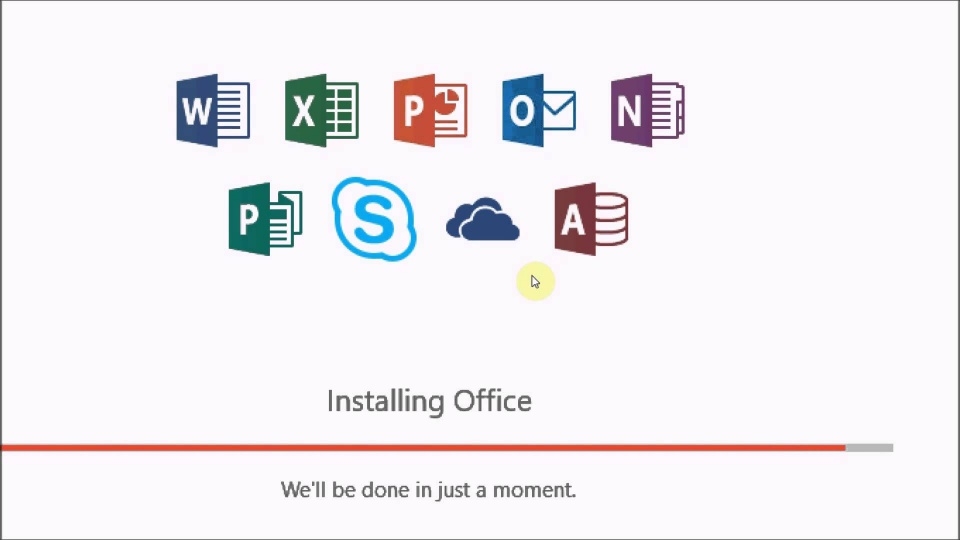
- Installation Progress: For Microsoft 365, the installer often performs a “click-to-run” installation, meaning it streams the installation files from Microsoft’s servers. You’ll see a progress bar and messages like “Getting things ready” or “We’re installing Office.” This process is usually fully automated.
- No Customization (Typically): Unlike older versions of Office, modern installers for Microsoft 365 typically don’t offer extensive customization options during the initial setup (e.g., choosing which applications to install or installation location). The entire suite is usually installed by default to the standard location.
- Completion Message: Once the installation is complete, you’ll see a message confirming that Office has been installed. Click “Close” or “Finish.”

The installation duration can vary depending on your internet speed (for streamed installations) and your computer’s performance. During this time, it’s generally best to let the installer run uninterrupted.
Activating and Optimizing Your Office Suite: Unleashing Full Functionality
Installation is only half the battle; activation is what truly unlocks the full power of your Office applications. This step links your installed software to your valid license, ensuring you can use all features without restrictions. Post-activation, a few optimization steps can enhance your experience.
Activating Microsoft Office
Activation typically happens automatically when you open an Office application for the first time after installation, but sometimes a manual step is required.
- Open an Office Application: Launch any Office application, such as Word or Excel.
- Sign In Prompt: You’ll likely be greeted with a “Let’s get started” or “Activate Office” window.
- Sign In with Your Microsoft Account: Click “Sign in” and enter the credentials for the Microsoft account that your Office license is associated with. This is the same account you used to download the installer.
- Confirm Activation: Once you sign in, Office will verify your subscription or product key online. You should receive a confirmation message indicating that Office is activated.
- Accept License Agreement: You may be prompted to accept the Microsoft Office End User License Agreement (EULA).
If activation fails, double-check that you’re signed in with the correct Microsoft account. For perpetual licenses, ensure the product key was correctly redeemed. If issues persist, Microsoft’s support website offers troubleshooting guides, and you can always contact their customer service. Proper activation is crucial for both functionality and maintaining digital security, as unlicensed software often lacks updates and support.
Initial Setup and Customization
After activation, you can personalize your Office experience to better suit your workflow and preferences.
- Theme and Background: Within any Office application (e.g., File > Options > General), you can change the Office Theme (e.g., Dark Gray, Black, White, Colorful) and Office Background. These aesthetic choices can reduce eye strain and make your workspace more inviting.
- Default File Locations: Configure where Office applications save your documents by default (File > Options > Save). This helps with organization, especially if you prefer to save to a cloud service like OneDrive or a specific project folder.
- Ribbon and Quick Access Toolbar: For advanced users, customizing the Ribbon (File > Options > Customize Ribbon) and the Quick Access Toolbar allows you to place your most frequently used commands within easy reach, significantly boosting your productivity.
- OneDrive Integration: If you have Microsoft 365, ensure OneDrive is integrated and syncing properly. This provides seamless cloud storage, automatic backups, and access to your files from any device, enhancing both productivity and data security.
Taking a few moments to tailor these settings can dramatically improve your daily interaction with Office, making it a more efficient and personalized tool.
Keeping Your Office Up-to-Date
One of the greatest advantages of Microsoft 365, and a critical aspect of digital security, is the continuous stream of updates. These updates not only introduce new features and improvements but also provide vital security patches that protect your system from vulnerabilities.
- Automatic Updates: By default, Microsoft Office is configured to update automatically. To verify or manually check for updates:
- Open any Office application (e.g., Word).
- Go to File > Account (or Office Account).
- Under “Product Information,” click “Update Options” > “Update Now.”
- Benefits of Updates: Regular updates ensure you have the latest features, improved performance, and, most importantly, the most current security protections against emerging threats. Neglecting updates can leave your system vulnerable and limit your access to the newest productivity tools.
Consistent updates are a cornerstone of maintaining a secure and efficient digital environment, tying directly into the “Digital Security” and “Productivity” aspects of our website’s focus.
Common Troubleshooting Tips: Overcoming Installation Hurdles
Even with careful preparation, unforeseen issues can sometimes arise during or after installation. Knowing how to approach common problems can save you time and frustration, getting you back to productivity faster.
Installation Errors
- Error Codes: If you encounter an error code, note it down. Microsoft’s support website has extensive documentation for common error codes, offering specific solutions.
- Internet Connection: For Microsoft 365 (click-to-run), a stable internet connection is vital. Intermittent connections can cause the installation to fail. Try restarting your router or switching to a more stable network.
- System Resources: Close all other applications before installing. Insufficient RAM or disk space can lead to installation failures. Verify your system meets the minimum requirements.
- Corrupted Download: If the installer file itself is corrupted, the installation will fail. Delete the downloaded setup file and download a fresh copy from your Microsoft account dashboard.
- Windows Installer Service: Ensure the Windows Installer service is running correctly. You can check this in the Windows Services manager (type
services.mscin the Run dialog). - Office Uninstall Tool: If previous Office versions are causing conflicts or if an installation is stuck, Microsoft offers an “Office Uninstall Support Tool” that can thoroughly remove all traces of Office installations from your system. This is a powerful tool for resolving stubborn installation issues.
Activation Issues
- Wrong Microsoft Account: The most common activation problem is signing in with the wrong Microsoft account. Ensure you use the account linked to your Office license.
- Internet Connectivity: Activation requires an active internet connection to communicate with Microsoft’s servers.
- Date and Time Settings: Incorrect system date and time settings can interfere with online activation. Ensure your computer’s date, time, and time zone are accurate.
- Too Many Installations: If you have a Microsoft 365 Personal/Family subscription, check your Microsoft account dashboard to ensure you haven’t exceeded the maximum number of allowed installations (e.g., 5 devices for Microsoft 365 Personal). You may need to deactivate an older installation.
- Product Key Issues: For perpetual licenses, ensure the product key was entered correctly during redemption. If bought from a third-party, verify its legitimacy.
Performance Problems
- Slow Launch/Responsiveness: Ensure your system meets or exceeds the recommended hardware requirements. Close unnecessary background applications.
- Outdated Graphics Drivers: Update your graphics drivers. Outdated drivers can impact the performance of graphically intensive Office applications like PowerPoint.
- Disable Add-ins: Faulty or incompatible add-ins can cause performance issues. Try starting Office applications in Safe Mode (hold Ctrl while launching the app) to see if performance improves. If so, disable add-ins one by one to identify the culprit (File > Options > Add-ins > Go).
- Repair Office: Windows offers a repair option for Office installations. Go to Control Panel > Programs and Features, select Microsoft Office, and click “Change,” then choose “Quick Repair” or “Online Repair.” Online Repair is more thorough but requires an internet connection.
By systematically addressing these common issues, you can often resolve problems quickly and efficiently, minimizing downtime and maintaining your productivity flow.
Maximizing Productivity with Microsoft Office: Beyond the Installation
Successfully installing and activating Microsoft Office is just the beginning. To truly leverage this powerful suite, it’s essential to integrate it into your daily workflow, embracing its full potential for productivity, organization, and collaboration. This connects directly to the “Productivity” aspect of our website’s focus, offering insights that transform a tool into a transformative asset.
Exploring Key Applications for Enhanced Workflow
Each application within the Office suite serves a distinct purpose, and mastering their core functionalities can dramatically enhance your workflow:
- Word: Beyond basic document creation, explore advanced features like Styles, Table of Contents generation, Track Changes for collaboration, Mail Merge for mass communications, and Citations for academic writing. These features streamline document production and review.
- Excel: More than just spreadsheets, Excel is a powerful data analysis tool. Learn about PivotTables for summarizing data, VLOOKUP/XLOOKUP for data retrieval, conditional formatting for visual insights, and various chart types for compelling data visualization. Excel’s ability to automate calculations and analyze large datasets is invaluable for financial planning (“Money”) and business intelligence.
- PowerPoint: Create dynamic and engaging presentations using design ideas, transition effects, animation panes, and speaker notes. Incorporate multimedia elements and learn to deliver impactful presentations that capture your audience.
- Outlook: Manage your emails, calendars, contacts, and tasks efficiently. Utilize rules to organize your inbox, categories for better task management, and shared calendars for seamless team coordination. Outlook is a hub for professional communication and time management.
- OneNote: A digital notebook for capturing and organizing information. Use it for meeting notes, project planning, research, or even personal journaling. Its freeform canvas and search capabilities make it incredibly versatile for knowledge management.
Utilizing Cloud Integration for Seamless Access and Collaboration
Microsoft 365’s deep integration with cloud services, particularly OneDrive, is a game-changer for modern productivity and digital security.
- OneDrive: With 1 TB of cloud storage per user, OneDrive allows you to store your files securely in the cloud, accessible from any device, anywhere. This eliminates the fear of losing data due to hardware failure and ensures your work is always available.
- Real-time Co-authoring: Work simultaneously with colleagues on the same document in Word, Excel, or PowerPoint. Changes are updated in real-time, drastically improving collaborative efficiency and reducing version control headaches.
- Version History: OneDrive automatically saves previous versions of your files, allowing you to revert to an older state if needed. This is an invaluable safety net for important documents.
- Sharing and Permissions: Easily share documents with specific individuals or groups, controlling their access levels (view-only, edit). This secure sharing mechanism is crucial for both internal team projects and external collaborations.
Embracing cloud integration not only boosts productivity but also reinforces your data’s integrity and accessibility, aligning with best practices for digital security.
Enhancing Digital Security and Compliance
Microsoft Office, especially with a Microsoft 365 subscription, comes with built-in features that contribute to your digital security posture:
- Regular Security Updates: As mentioned, continuous updates patch vulnerabilities and protect against malware.
- Advanced Threat Protection (ATP): Microsoft 365 Business and Enterprise plans often include ATP features for email, protecting against phishing, malware, and other advanced threats.
- Data Loss Prevention (DLP): For businesses, DLP policies can prevent sensitive information from leaving the organization through email or shared documents, adhering to compliance standards.
- Multi-Factor Authentication (MFA): Strongly recommended for your Microsoft account, MFA adds an extra layer of security, making it significantly harder for unauthorized users to access your account and, by extension, your Office documents.
By understanding and utilizing these aspects, you transform Microsoft Office from a mere collection of programs into a robust ecosystem that supports not just your daily tasks but also your broader strategies for digital safety and efficiency. Installing Microsoft Office is a step towards a more organized, productive, and secure digital life.
aViewFromTheCave is a participant in the Amazon Services LLC Associates Program, an affiliate advertising program designed to provide a means for sites to earn advertising fees by advertising and linking to Amazon.com. Amazon, the Amazon logo, AmazonSupply, and the AmazonSupply logo are trademarks of Amazon.com, Inc. or its affiliates. As an Amazon Associate we earn affiliate commissions from qualifying purchases.