
The allure of the cutting edge, the promise of revolutionary features, and the opportunity to shape the future of your digital experience often lead tech enthusiasts and early adopters to the beta versions of operating systems. Apple, with its meticulously crafted iOS, is no exception. As we look forward to future iterations, the question of how to install the latest beta, such as the hypothetical iOS 26 beta, becomes paramount for those eager to get a glimpse of what’s next. This guide will walk you through the process, demystify the jargon, and equip you with the knowledge to navigate the exciting, albeit sometimes unpredictable, world of beta software.
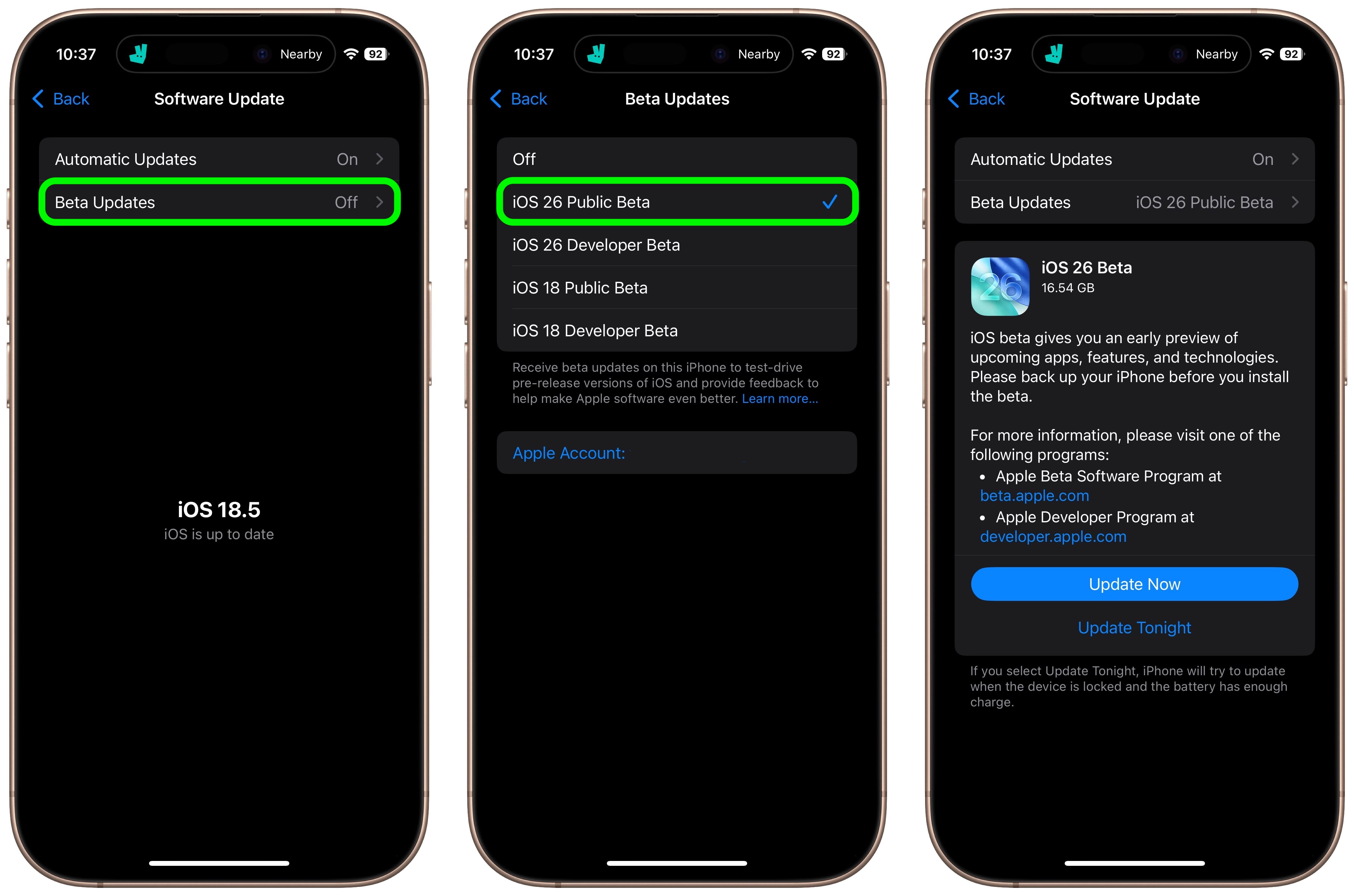
While the specific features and release timeline of iOS 26 are, at this point, speculative, the methodology for accessing and installing its beta versions has remained remarkably consistent across Apple’s development cycles. Understanding this process is not just about being among the first to experience new functionalities; it’s also about contributing to the refinement of the software by providing valuable feedback.
Understanding the Beta Program: Opportunities and Caveats
Before diving into the technicalities of installation, it’s crucial to grasp what a beta program entails. Beta software represents a pre-release version of an operating system or application. It’s designed for testing purposes, allowing developers and a selected group of users to identify and report bugs, usability issues, and potential performance enhancements before the final public release.
The Allure of Early Access
The primary draw of installing a beta OS is undeniably the early access to groundbreaking features. Imagine being one of the first to experience a new AI-powered productivity suite, a revolutionary approach to digital security, or a suite of intuitive apps designed to streamline your daily tasks. For individuals deeply invested in technology trends, this early exposure is invaluable. It allows for a hands-on understanding of emerging software capabilities, which can inform personal or professional strategies. For instance, marketing professionals might analyze how new app integrations could impact brand engagement, or small business owners could evaluate if new financial tools offer a competitive edge.
Furthermore, being a beta tester can offer a unique sense of contributing to the technological landscape. Your feedback, however small it may seem, directly influences the final product. This can be particularly empowering for those who see technology as a tool for societal progress.
The Inherent Risks of Beta Software
However, the excitement of early adoption comes with a significant caveat: instability and potential data loss. Beta software, by its very nature, is not fully tested or polished. You are likely to encounter bugs, crashes, and unexpected behavior. Apps that function perfectly on the stable release might be incompatible or unstable on the beta version. This can lead to frustrating user experiences and, in worst-case scenarios, the corruption or loss of your valuable data.
Therefore, it is strongly recommended that you do not install beta software on your primary device, especially if it’s your sole means of communication, work, or managing personal finances. A dedicated test device, a backup iPhone or iPad, is the safest route. If a beta version causes critical issues, you can simply switch back to your stable device without significant disruption.
For individuals in the “Money” sphere, the implications of beta software instability can be even more pronounced. Imagine relying on your device for online banking or investment transactions, only for a beta OS bug to interrupt a critical trade or payment. While the thrill of new features is tempting, safeguarding your financial assets and operational continuity must be the priority.
Preparing for the iOS 26 Beta Installation
A successful beta installation begins with meticulous preparation. Skipping these steps can lead to complications, frustration, and the potential for data loss.
The Cornerstone: Backing Up Your Data
Before you even consider downloading a beta profile, the most critical step is to back up your entire iPhone or iPad. This cannot be stressed enough. Think of this backup as your safety net, your insurance policy against any unforeseen issues that might arise during the installation or while using the beta software.
There are two primary methods for backing up your iOS device:
-
iCloud Backup: This is the most convenient option, as it happens wirelessly and automatically when your device is connected to Wi-Fi, locked, and charging. To initiate or check your iCloud backup:
- Go to Settings on your iPhone or iPad.
- Tap on your Apple ID at the top.
- Select iCloud.
- Tap on iCloud Backup.
- Tap Back Up Now. Ensure you have enough iCloud storage space for a complete backup.
-
Computer Backup (Finder on Mac or iTunes on Windows): This method creates a local backup on your computer, which can be faster and more reliable for very large backups.
- Connect your iPhone or iPad to your Mac using a USB cable.
- Open Finder (on macOS Catalina or later) or iTunes (on older macOS versions or Windows).
- Select your device when it appears in Finder or iTunes.
- Under the “General” tab (Finder) or “Summary” tab (iTunes), choose to back up all data from your iPhone/iPad to this Mac/PC.
- Crucially, select the option to “Encrypt local backup.” This ensures that sensitive data like saved passwords, health data, and HomeKit data are included in the backup. You’ll be prompted to create a password for your encrypted backup; remember this password, as you’ll need it to restore from this backup.
Once your backup is complete and verified, you can proceed with the next preparation steps.
Device Compatibility and Storage Requirements
While Apple strives for broad compatibility, not all devices may be eligible for the latest beta releases. Generally, Apple provides beta updates for devices that are still supported by the latest stable iOS versions. For iOS 26, this would likely include recent iPhone and iPad models.
Before downloading, ensure your device meets any specific requirements:
- Supported Device: Check Apple’s official developer documentation or reliable tech news sources for a confirmed list of devices compatible with the iOS 26 beta.
- Sufficient Storage Space: Beta operating systems, especially during their initial development phases, can be quite large. Ensure you have ample free storage space on your device – typically at least 10-15 GB, but it’s always wise to have more. Go to Settings > General > iPhone Storage (or iPad Storage) to check your available space. If you’re low, consider deleting unused apps, photos, or videos.
Enrolling in the Apple Beta Software Program
To access beta versions of iOS, you need to enroll your Apple ID in the Apple Beta Software Program. This program is free and open to anyone who wishes to participate.
- Visit the Apple Beta Software Program Website: On your iPhone or iPad, open a web browser and navigate to beta.apple.com.
- Sign In: Sign in with your Apple ID. This is the Apple ID you use for your iCloud and App Store.
- Agree to Terms and Conditions: Read and accept the Beta Software Program Agreement.
- Enroll Your Device: On the “Get Started” page, you’ll find options for iOS, iPadOS, macOS, etc. Select the iOS option and follow the on-screen instructions to enroll your device.

Installing the iOS 26 Beta: The Step-by-Step Process
With your device backed up and your Apple ID enrolled, you’re ready to install the beta. There are generally two primary methods: installing via a configuration profile or performing a clean install using a computer. The configuration profile method is more common for everyday users as it’s simpler and less disruptive.
Method 1: Installing via Configuration Profile (Recommended)
This is the most straightforward and commonly used method. It involves downloading a small configuration profile that tells your device to check for and download beta updates.
-
Download the Beta Profile:
- On your iPhone or iPad, go back to the Apple Beta Software Program website (beta.apple.com).
- Sign in with your Apple ID if prompted.
- Navigate to the “iOS” section and look for the “Enroll your iOS device” or a similar section.
- Tap on the “Download profile” button.
- Your device will prompt you to allow the download of a configuration profile. Tap Allow.
-
Install the Configuration Profile:
- After the download is complete, you’ll receive a message saying “Profile Downloaded.”
- Go to your device’s Settings app.
- At the top, you’ll see a new section called “Profile Downloaded.” Tap on it.
- Tap “Install” in the upper right corner.
- You may be asked to enter your device passcode.
- Read the consent screen and tap “Install” again.
- Tap “Install” one more time to confirm.
- Your device will restart.
-
Check for the Beta Update:
- Once your device has restarted, go to Settings > General > Software Update.
- Your device will now check for available updates. If the iOS 26 beta is available, you should see it listed here.
- Tap “Download and Install.”
- Enter your passcode if prompted.
- Tap “Agree” to the terms and conditions.
The download and installation process will begin. This can take a considerable amount of time, depending on the size of the update and your internet connection speed. Ensure your device is connected to Wi-Fi and has sufficient battery power or is plugged into a power source throughout the process.
Method 2: Clean Install using a Computer (More Advanced)
This method is more involved and typically used for a fresh installation or if you encounter issues with the profile method. It requires downloading the beta IPSW file and using Finder or iTunes. This method is more akin to restoring your device and will erase all data on it, hence the absolute necessity of a prior backup.
- Identify Your Device Model: Know the exact model of your iPhone or iPad (e.g., iPhone 15 Pro, iPad Air 5th Gen).
- Download the Correct IPSW File:
- You will need to find the specific iOS 26 beta IPSW file for your device model. These are usually available on Apple’s developer portal or through reputable tech news sites that track beta releases. Be extremely cautious about the source to avoid malware.
- Connect Your Device to Your Computer: Use a USB cable.
- Enter Device into Recovery Mode: The exact steps vary slightly by device model, but generally involve pressing and holding specific button combinations.
- For most modern iPhones and iPads: Quickly press and release the Volume Up button, quickly press and release the Volume Down button, then press and hold the Side button until you see the recovery mode screen.
- Use Finder or iTunes:
- On Mac (macOS Catalina or later): Open Finder. Your device will appear in the sidebar. Click on it.
- On Windows or older macOS: Open iTunes. Your device icon will appear near the top left. Click on it.
- Restore with IPSW File:
- Hold down the Option key (Mac) or Shift key (Windows) and click the “Restore iPhone” or “Restore iPad” button.
- A file browser window will open. Navigate to and select the iOS 26 beta IPSW file you downloaded.
- Click “Open.”
- Confirm and Install:
- Your computer will warn you that it will erase and restore your device. Click “Restore” to confirm.
- Your computer will download the beta software and install it on your device. This process can take a while.
Once the installation is complete, your device will restart. You’ll then go through the initial setup process as if it were a new device. You can then choose to restore from your previous backup.
Post-Installation: Managing and Reporting Beta Issues
Congratulations, you’ve successfully installed the iOS 26 beta! Now comes the phase of exploration and contribution.
Exploring New Features and Functionalities
Take your time to explore the new features and settings introduced in iOS 26. Pay attention to:
- Productivity Tools: How has Apple enhanced multitasking, app integrations, or note-taking capabilities? Are there new AI tools that could revolutionize workflows for tech professionals or creative individuals?
- Digital Security: Are there new privacy controls, authentication methods, or security features that could bolster your personal or corporate digital defenses?
- App Performance: How do your frequently used apps perform? Are there any apps that are crashing or behaving unexpectedly? This is crucial for app developers and businesses relying on specific software.
- User Interface Changes: Observe any subtle or significant shifts in the design language, navigation, or user experience.
Reporting Bugs and Providing Feedback
The primary purpose of the beta program is to gather feedback. Your reports help Apple identify and fix issues before the public release.
-
Using the Feedback Assistant App: Apple provides a dedicated app called “Feedback Assistant” pre-installed on beta devices.
- Open the Feedback Assistant app.
- Tap the “+” button to create a new bug report.
- Provide a detailed description of the issue. Be specific about what you were doing when the bug occurred, the steps to reproduce it, and any error messages you saw.
- Include screenshots or screen recordings if possible. This greatly helps developers understand the problem.
- Select the appropriate category for your feedback.
-
Other Reporting Channels: While Feedback Assistant is the primary tool, you can also contribute by discussing issues on Apple Developer forums or through other tech communities. However, for official bug tracking, Feedback Assistant is paramount.
When Things Go Wrong: Reverting to a Stable iOS Version
Despite best efforts, sometimes a beta version proves too unstable, or you might decide it’s not for you. Reverting to a stable iOS version is possible, but it requires using Finder or iTunes and will erase your device.
- Download the Latest Stable IPSW File: Visit Apple’s official website or reputable tech sources to download the IPSW file for the latest stable version of iOS.
- Connect Your Device to Your Computer.
- Enter Device into Recovery Mode: Follow the same steps as outlined in “Method 2: Clean Install using a Computer.”
- Use Finder or iTunes:
- Hold down the Option key (Mac) or Shift key (Windows) and click the “Restore iPhone” or “Restore iPad” button.
- Select the latest stable IPSW file you downloaded.
- Click “Open.”
- Restore: Your computer will erase your device and install the stable iOS version.
- Restore from Backup: After setup, you can choose to restore from the backup you created before installing the beta. Note: You generally cannot restore a backup made on a newer beta version onto an older stable version.

Conclusion: Embracing the Future with Calculated Risk
Installing an iOS beta, like the anticipated iOS 26 beta, offers a tantalizing peek into the future of Apple’s mobile ecosystem. It’s a journey for the curious, the tech-savvy, and those who wish to actively participate in the evolution of their digital tools. By understanding the risks, diligently preparing with backups, and following the installation steps carefully, you can successfully navigate this process.
Whether you are leveraging new productivity tools for your business, exploring the latest AI advancements, or simply enjoying a more streamlined user experience, beta testing is a rewarding endeavor. Remember, your feedback is invaluable, contributing to a more robust and refined final product for everyone. So, embrace the cutting edge, but do so with caution and a solid backup strategy. The future of iOS is in your hands, and with careful execution, you can be a part of shaping it.
aViewFromTheCave is a participant in the Amazon Services LLC Associates Program, an affiliate advertising program designed to provide a means for sites to earn advertising fees by advertising and linking to Amazon.com. Amazon, the Amazon logo, AmazonSupply, and the AmazonSupply logo are trademarks of Amazon.com, Inc. or its affiliates. As an Amazon Associate we earn affiliate commissions from qualifying purchases.