
In the vast and ever-evolving landscape of computing, Linux stands out as a powerful, flexible, and open-source operating system. For users of Debian-based distributions like Ubuntu, Linux Mint, or Pop!_OS, managing software is typically seamless thanks to robust package managers and extensive software repositories. However, there are instances when you’ll encounter software not readily available through official channels, or perhaps you need a specific, newer version of an application. This is where .deb files come into play.
A .deb file is the standard package format for Debian and its derivatives, much like an .exe on Windows or a .dmg on macOS. It contains all the necessary components for an application, including executables, libraries, documentation, and configuration files. While official repositories offer convenience and security, understanding how to manually install .deb files is a crucial skill for any power user looking to unlock the full potential of their Linux system. It allows for greater control, access to cutting-edge software, and the flexibility to tailor your environment precisely to your needs.

This comprehensive guide will walk you through everything you need to know about .deb files, from their fundamental nature to various installation methods, dependency management, and troubleshooting common issues. By the end, you’ll be equipped with the knowledge to confidently install any .deb package, enhancing your productivity and expanding your technological toolkit within the thriving world of open-source software. This skill not only empowers you as a tech-savvy individual but also strengthens your ability to customize and optimize your digital workspace, a valuable asset in today’s technology-driven world, contributing to your personal brand as a proficient system user.
Understanding .deb Files and Their Ecosystem
Before diving into the mechanics of installation, it’s essential to grasp what .deb files are and why you might opt for a manual installation over the standard repository approach. This foundational knowledge is key to navigating the Debian packaging ecosystem effectively and securely.
What are .deb Files? The Core of Debian Packaging
At its heart, a .deb file is an archive that contains all the files required to install a specific piece of software on a Debian-based Linux distribution. The .deb suffix signifies its origin from the Debian project. Inside a .deb package, you’ll typically find:
debian-binary: A text file indicating the version of the Debian binary package format.control.tar.xz(or similar compressed archive): This archive contains crucial metadata about the package. This includes information such as the package name, version, architecture, a brief description, and, most importantly, its dependencies (other packages it relies on to function correctly). It also contains scripts (likepreinst,postinst,prerm,postrm) that execute before/after installation or removal to handle specific system tasks.data.tar.xz(or similar compressed archive): This archive holds the actual application files – the binaries, libraries, documentation, icons, and other resources – which will be extracted to their respective locations within your file system (e.g.,/usr/binfor executables,/usr/libfor libraries).
When you install software from official repositories using tools like apt or the graphical Software Center, you are essentially downloading and installing these .deb files, but the entire process, including dependency resolution, is abstracted and handled automatically. Understanding this underlying structure helps demystify what happens when you click “install” or type a command in the terminal.
Why Install .deb Files Manually? Unlocking Flexibility and Specificity
While official repositories offer the most convenient and secure way to install software, there are several compelling reasons why you might choose or need to install a .deb file manually:
- Newer Software Versions: Official repositories sometimes maintain slightly older, more stable versions of applications. Developers often provide
.debpackages for immediate download, allowing users to access the latest features, performance improvements, or crucial bug fixes sooner. - Proprietary or Niche Software: Not all software is open-source, and some proprietary applications (e.g., specific drivers, media codecs, professional productivity suites) might not be included in standard repositories due to licensing restrictions or distribution policies. Developers frequently distribute these directly as
.debpackages. - Beta Releases and Development Builds: For early adopters, testers, or developers, installing beta versions or development builds allows for testing new functionalities or contributing feedback. These bleeding-edge versions are almost always distributed outside of stable repositories via
.debfiles. - Customized Software or Forked Projects: Occasionally, you might encounter custom-built versions of software, perhaps with specific patches, optimizations, or niche tools from smaller open-source projects that do not maintain their own dedicated APT repositories.
- Offline Installation: In scenarios where internet connectivity is limited or unavailable, having pre-downloaded
.debpackages can be invaluable for installing critical software on multiple machines or in isolated environments.
While these reasons offer significant flexibility, it’s crucial to exercise caution. Always ensure you download .deb files from trusted sources to avoid security risks, as manually installed packages bypass some of the automated security checks inherent in official repository management.
Preparing Your System for .deb Installation
Before you initiate any installation process, a few preparatory steps can ensure a smooth experience and mitigate potential issues. These steps focus on confirming system compatibility and the secure acquisition of your .deb package.
Ensuring System Compatibility: Debian-Based Distributions Only
The .deb package format is exclusive to Debian-based Linux distributions. This includes a wide array of popular operating systems:
- Debian itself
- Ubuntu (and its numerous official flavors like Kubuntu, Xubuntu, Lubuntu, Ubuntu MATE)
- Linux Mint
- Pop!_OS
- Deepin
- Elementary OS
- Many other distributions derived from Debian or Ubuntu.
Attempting to install a .deb file on a non-Debian-based system (like Fedora, Arch Linux, CentOS, or openSUSE) will not work and could potentially lead to system instability or errors. These distributions use entirely different package managers and formats (e.g., .rpm for Fedora/CentOS, pacman for Arch). Always confirm your operating system type before proceeding.
Furthermore, it is crucial to ensure the .deb package you’re downloading matches your system’s architecture. Most modern systems are 64-bit (often labeled as amd64 or x86_64). If you have an older 32-bit system (typically labeled i386), you’ll need a 32-bit .deb package. Installing an incorrectly architected package will result in an error during installation. You can check your system’s architecture by opening a terminal (Ctrl+Alt+T) and running:
dpkg --print-architecture
Safely Downloading Your .deb File
The internet is a vast place, and while convenience is paramount, security should always be your top priority, especially when downloading executable files.
- Source Reliability: Always download
.debfiles directly from the official website of the software developer or a reputable, well-known third-party repository. Avoid downloading from obscure or untrusted file-sharing sites, as these can host malicious, outdated, or tampered-with packages. - HTTPS Connection: Before downloading, ensure the website you’re on uses HTTPS (indicated by a padlock icon in your browser’s address bar). This ensures a secure, encrypted connection during the download process, protecting against eavesdropping and ensuring the file isn’t altered in transit.
- Checksum Verification (Recommended): Many reputable software sources provide MD5, SHA1, or SHA256 checksums for their
.debpackages. After downloading, you can compare the checksum of your downloaded file with the one provided by the developer. This verifies that the file hasn’t been corrupted during download and, more importantly, hasn’t been tampered with maliciously.- To get the SHA256 checksum of your downloaded file, open a terminal in the directory where the file is saved and run:
bash

sha256sum your_package_name.deb
- Compare the output string with the developer’s provided checksum. If they don’t match, delete the file and re-download it. If the issue persists, consider looking for an alternative download source or contacting the developer.
- To get the SHA256 checksum of your downloaded file, open a terminal in the directory where the file is saved and run:
Once you’ve safely downloaded the .deb file, make a mental or physical note of its location, typically your Downloads folder, as you’ll need the full path for command-line installations or to locate it graphically.
Methods to Install .deb Files
With your .deb file securely downloaded and your system ready, you can now proceed with the installation. There are primarily two approaches: using a graphical user interface (GUI) tool for simplicity or the command line interface (CLI) for greater control and automation.
Graphical User Interface (GUI) Methods: Simplicity for Everyday Users
GUI methods are generally the easiest for most users, especially if you’re new to Linux or prefer a visual workflow.
1. Using Your Default Software Center (Ubuntu Software / Gnome Software)
Many Debian-based distributions come with a default graphical software manager (e.g., “Ubuntu Software” or “Gnome Software”) that can handle .deb files. This is often the most straightforward method.
Steps:
- Locate the .deb file: Navigate to the folder where you downloaded the
.debfile (e.g.,~/Downloads) using your file manager. - Double-click the .deb file: In most cases, your file manager is pre-configured to automatically open
.debfiles with the default software center application. - Initiate Installation: The software center will open, displaying details about the package (name, version, description). You’ll usually see an “Install” or “Open” button. Click it.
- Authenticate: You’ll be prompted to enter your user password to authorize the installation, as this process modifies system files.
- Monitor Progress: The software center will download any minor, readily available dependencies and then install the package.
- Completion: Once the installation is finished, the button might change to “Remove” or disappear. You can then close the software center and launch the newly installed application from your applications menu.
Pros: Extremely user-friendly, familiar interface, and typically handles minor dependencies automatically.
Cons: Can sometimes struggle with complex or obscure dependency chains, and the feedback on specific installation issues might be less verbose than the command line.
2. Using GDebi Package Installer (Recommended for GUI)
GDebi is a lightweight, dedicated package installer for .deb files that is often preferred over the default software center for its superior dependency handling and clearer error messages. It’s not always pre-installed but is readily available in most Debian-based repositories.
Installation (if not present):
Open a terminal (Ctrl+Alt+T) and run the following commands to update your package list and install GDebi:
sudo apt update
sudo apt install gdebi
Steps to use GDebi:
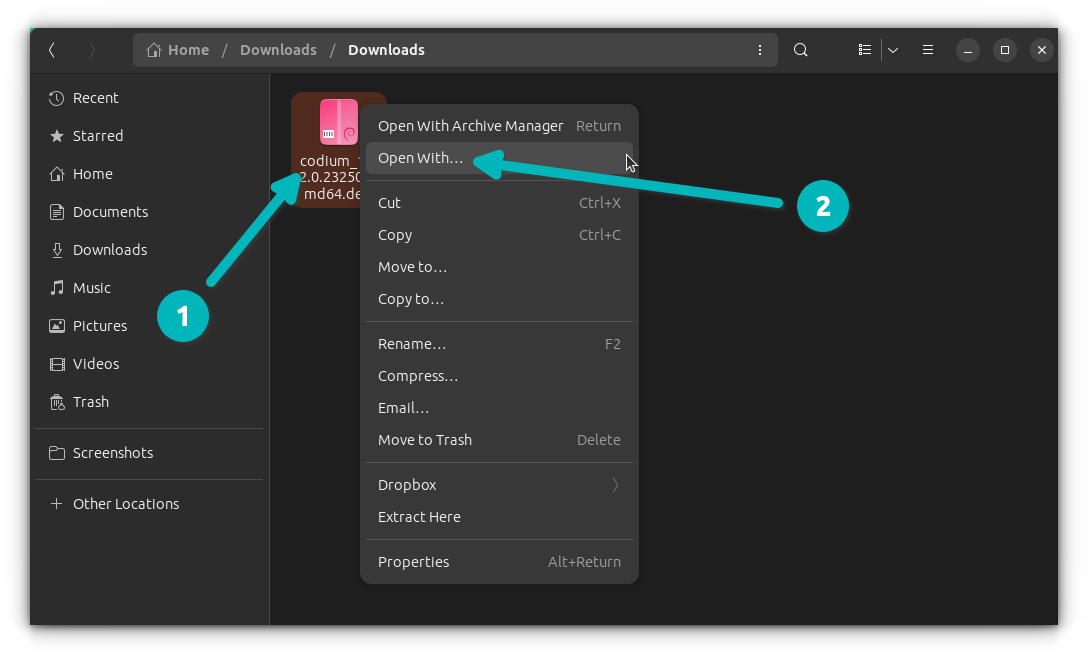
- Locate the .deb file: Navigate to your
.debfile in your file manager. - Right-click the .deb file: From the context menu, select “Open With Other Application” or “Open With…” and then choose “GDebi Package Installer.”
- Review Package Details: GDebi will open, showing you the package name, version, description, and, crucially, a list of required dependencies. It will clearly indicate if all dependencies are satisfied or if additional packages need to be installed.
- Click “Install Package”: If all looks good and GDebi can resolve the dependencies, click the “Install Package” button.
- Authenticate: Enter your user password when prompted.
- Monitor Installation: GDebi will proceed to install the package along with any identified and available dependencies.
- Completion: Once done, the “Install Package” button will typically change to “Reinstall Package” or “Remove Package.”
Pros: Excellent at identifying and resolving dependencies, provides clear information about what will be installed, and gives better feedback on potential issues compared to generic software centers.
Cons: Requires a separate installation if not already present on your system.
Command Line Interface (CLI) Methods: Power and Precision
For those comfortable with the terminal, CLI methods offer greater control, faster execution (especially on headless servers), and more detailed output, which is invaluable for diagnosing and troubleshooting issues.
1. Using dpkg: The Low-Level Package Manager
dpkg is the foundational package management system for Debian. It’s a low-level tool that directly handles .deb packages. However, its main drawback is that it does not automatically resolve dependencies. If a package has unmet dependencies, dpkg will fail the installation and report errors.
Installation Command:
Open a terminal and navigate to the directory where your .deb file is located (e.g., cd ~/Downloads). Then run:
sudo dpkg -i your_package_name.deb
sudo: Executes the command with superuser privileges (required for system-wide installations).dpkg: The core Debian package manager.-i(or--install): Instructsdpkgto install the specified package.your_package_name.deb: The full filename of your.debpackage.
Handling Dependencies with dpkg (Crucial Step!):
If dpkg reports dependency errors, it means the package requires other software that isn’t currently installed on your system. You must resolve these for the application to work. The easiest way to do this after a failed dpkg installation is to use apt:
sudo apt --fix-broken install
This command tells apt to find and install any missing dependencies for packages that are in a broken or partially installed state (like those left by a failed dpkg run). After apt finishes, the original .deb package will often be fully configured, or you might need to re-run the dpkg -i command for a final setup.
Pros: Direct control over package installation, fundamental tool for Debian-based systems.
Cons: Does not handle dependencies automatically, requiring an additional, often manual, step (apt --fix-broken install) which can be cumbersome.
2. Using apt: The Smarter Way (Recommended for CLI)
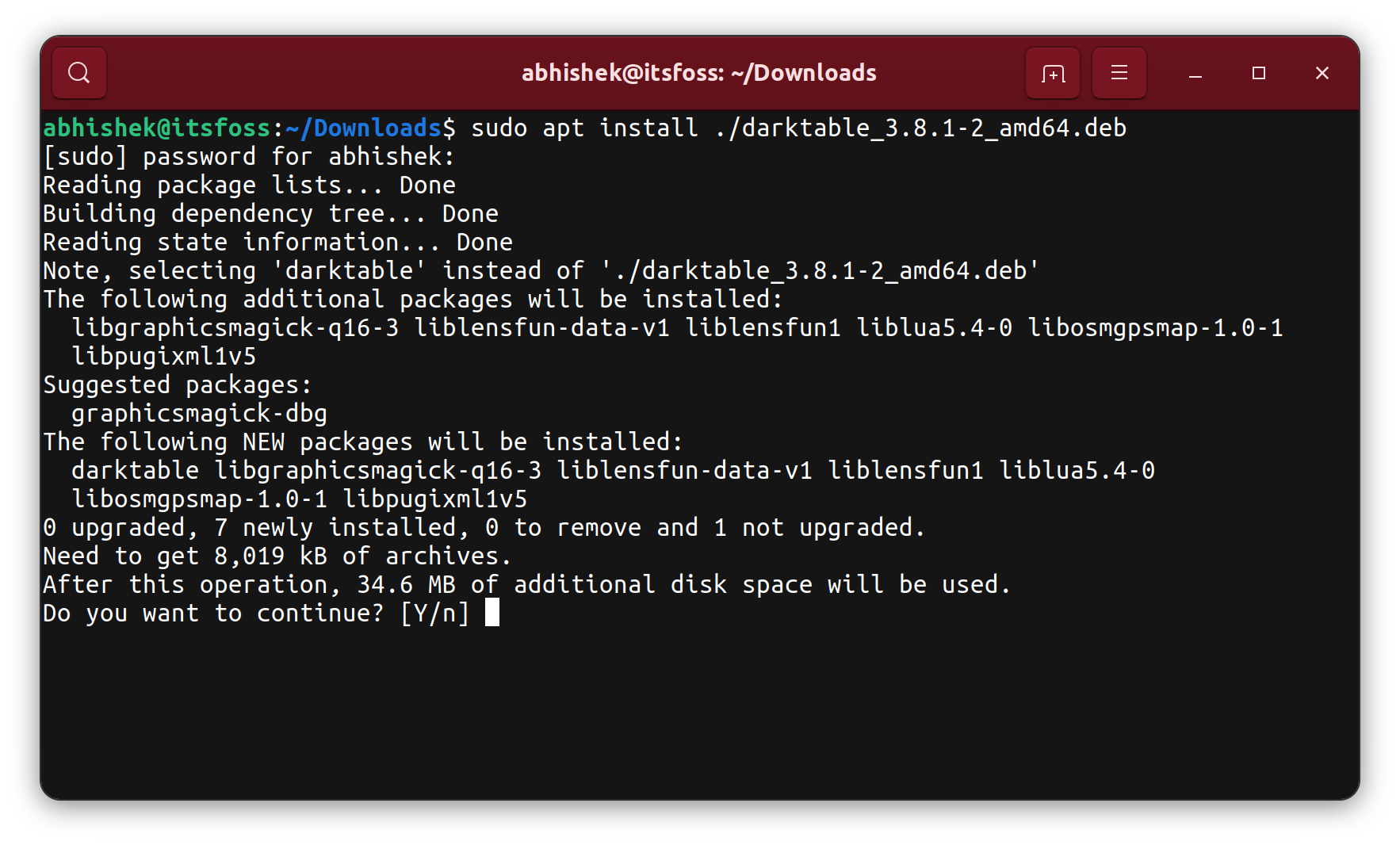
The apt (Advanced Package Tool) utility is a higher-level command-line tool built on top of dpkg. It is the preferred method for most CLI users because it automatically handles dependency resolution. This makes it significantly more convenient and less prone to errors than dpkg alone.
Installation Command (using apt):
Open a terminal and navigate to the directory containing your .deb file.
sudo apt install ./your_package_name.deb
sudo: Superuser privileges.apt install: The command to install packages../your_package_name.deb: The./before the filename is crucial. It tellsaptthat you are specifying a local.debfile, not a package that should be searched for in the online repositories. Without the./,aptwould attempt to find a package namedyour_package_name.debin your configured APT repositories, which would likely fail unless you specifically added a repository for that package name.
Pros: Automatically downloads and installs all necessary dependencies, provides clear output during the process, generally the most robust and convenient CLI method for .deb file installation.
Cons: Requires specifying the local path (./) to differentiate it from repository packages.
Handling Dependencies, Common Issues, and System Maintenance
Installing .deb files can sometimes throw a curveball, primarily due to unmet dependencies or other common installation snags. Knowing how to diagnose and resolve these issues is a hallmark of a proficient Linux user and essential for system stability.
Resolving Dependency Problems
Dependencies are other software packages that a particular application needs to function correctly. Think of them as building blocks; if one block is missing, the whole structure can’t be completed, and the application won’t install or run.
- Symptoms: Installation fails with explicit messages like “unmet dependencies,” “dependency problems,” or lists specific package names that are missing.
- Solution with
apt: As mentioned in thedpkgsection, if you’ve trieddpkg -iand encountered dependency issues, the commandsudo apt --fix-broken installis your best friend. It will scan your system for partially installed packages, identify their missing dependencies, and attempt to download and install them from your configured repositories. - Solution with
gdebi: GDebi automatically identifies and offers to install missing dependencies before proceeding with the main package. This makes it an excellent choice for avoiding dependency hell from the outset when using a GUI method. - Manual Resolution (Advanced): In rare, complex cases where automated tools struggle, you might need to manually identify and install missing dependencies one by one using
sudo apt install package_name. However, this is usually unnecessary whenapt --fix-broken installis available and effective.
Common Installation Errors and Their Solutions
Even with the right tools, you might encounter other issues during .deb installation:
- “No such file or directory”:
- Cause: You’ve misspelled the
.debfilename, or you are not in the correct directory. - Solution: Double-check the filename (it’s case-sensitive in Linux!) and use
lsto list files in your current terminal directory. Ensure you’re in the right place, or provide the full, absolute path to the.debfile (e.g.,sudo apt install ~/Downloads/your_package_name.deb).
- Cause: You’ve misspelled the
- “Architecture mismatch”:
- Cause: Attempting to install a 64-bit package on a 32-bit system or vice versa.
- Solution: Download the correct architecture version of the
.debfile. Re-confirm your system architecture withdpkg --print-architecture.
- “Insufficient disk space”:
- Cause: Your system partition (usually
/) is full, preventing the installation of new files. - Solution: Free up disk space by deleting unnecessary files, clearing old package caches (
sudo apt clean), or uninstalling unneeded software.
- Cause: Your system partition (usually
- “Permission denied”:
- Cause: You forgot to use
sudobefore the installation command, or your user account doesn’t have the necessary administrative privileges. - Solution: Always use
sudobefore installation commands that modify system files. Ifsudoitself doesn’t work, ensure your user is part of thesudogroup.
- Cause: You forgot to use
- Corrupted .deb file:
- Cause: The download was interrupted, the file transfer was incomplete, or the file was tampered with during transit.
- Solution: Delete the problematic file and re-download it from the trusted source. Use checksum verification if the source provides one to confirm file integrity.
Removing .deb Packages: Keeping Your System Tidy
Just as important as installing software is knowing how to cleanly remove applications you no longer need. This helps keep your system tidy, free up disk space, and perform efficiently.
- Finding the Package Name: The installed package name might differ slightly from the
.debfilename. You can list all installed packages and filter for your application’s name with:
bash

dpkg -l | grep package_name_part
(Replacepackage_name_partwith a unique part of your application’s name). - Removing the Package (Keeping Configuration):
bash

sudo apt remove package_name
This command removes the application’s executable files and libraries but often leaves behind configuration files. This can be useful if you plan to reinstall the application later, as your settings will be preserved. - Purging the Package (Removing Configuration Too):
bash

sudo apt purge package_name
This command provides a cleaner uninstall by removing the application files and its associated configuration files. Use this when you want a complete removal. - Cleaning Up Unused Dependencies: After removing packages, some dependencies that were installed specifically for that application might no longer be needed by any other software on your system. You can remove these orphaned packages with:
bash

sudo apt autoremove
This helps to reclaim disk space and keeps your system lean.
Regularly purging unused packages and running autoremove are good maintenance practices for any Debian-based Linux system, contributing significantly to its longevity, efficiency, and overall performance.
Conclusion: Empowering Your Linux Journey
Mastering the art of installing .deb files is a fundamental step in becoming a more confident and capable Linux user. This skill moves beyond the confines of official repositories, granting you the flexibility to explore a wider array of software, access cutting-edge versions, and tailor your operating system precisely to your unique requirements. Whether you’re a seasoned developer, a tech enthusiast, or someone venturing into the world of open source, understanding these package management techniques significantly enhances your control over your digital environment.
We’ve covered the crucial aspects: from deciphering the .deb package structure and understanding the various scenarios for manual installation, to preparing your system for secure installations. We then explored both user-friendly GUI methods (like the default Software Center and the highly recommended GDebi) and powerful CLI tools (dpkg and apt), each offering distinct advantages depending on your preference and situation. Furthermore, we delved into vital troubleshooting steps for common issues like dependency conflicts and architectural mismatches, ensuring you’re well-equipped to diagnose and resolve typical hurdles. Finally, knowing how to properly remove packages ensures your system remains streamlined and efficient, promoting good system hygiene.
Embrace these skills as part of your broader technology toolkit. In an era where digital agility is paramount, being able to efficiently manage your software not only boosts your personal productivity but also strengthens your problem-solving capabilities – a valuable trait that can indirectly contribute to professional growth and even explore new avenues for online income through optimized workflows and specialized software access. Always prioritize security by downloading from trusted sources and remember that the vibrant Linux community is a vast resource for ongoing learning and support. Happy installing!
aViewFromTheCave is a participant in the Amazon Services LLC Associates Program, an affiliate advertising program designed to provide a means for sites to earn advertising fees by advertising and linking to Amazon.com. Amazon, the Amazon logo, AmazonSupply, and the AmazonSupply logo are trademarks of Amazon.com, Inc. or its affiliates. As an Amazon Associate we earn affiliate commissions from qualifying purchases.