
In today’s digital landscape, personalization and efficiency are paramount. Web browsers, the gateway to our online lives, are no exception. Google Chrome, with its vast ecosystem of add-ons known as extensions, offers an unparalleled opportunity to tailor your browsing experience to your specific needs. Whether you’re a productivity enthusiast looking to streamline your workflow, a creative professional seeking new design tools, a diligent student aiming to improve your research, or simply someone who wants to make their online time more enjoyable and secure, Chrome extensions are your secret weapon.
This comprehensive guide will walk you through the straightforward process of installing Chrome extensions, exploring the diverse range of possibilities they unlock, and offering practical advice on managing and utilizing them effectively. We’ll delve into how these small but mighty pieces of software can revolutionize your productivity, enhance your creativity, bolster your digital security, and even help you manage your finances more intelligently.
Unlocking the Power of Chrome Extensions
Chrome extensions are small software programs that customize the browsing experience. They add functionality, modify website appearances, integrate with other services, and automate tasks that would otherwise require multiple steps. The beauty of extensions lies in their versatility and the ability to install only those that directly benefit your workflow or interests. Imagine a tool that automatically blocks distracting ads, another that helps you save articles for later reading, or a sophisticated AI assistant that can summarize web pages for you. All of this, and much more, is possible with Chrome extensions.
The Chrome Web Store serves as the central hub for these extensions. It’s a curated marketplace where developers from around the globe showcase their creations, categorized and searchable, ensuring you can find exactly what you’re looking for. From enhancing your productivity with task managers and note-taking apps to boosting your creativity with design tools and image editors, or even fortifying your digital security with password managers and ad blockers, the possibilities are virtually endless.
The Chrome Web Store: Your Gateway to Enhanced Browsing
The Chrome Web Store is the official repository for all Chrome extensions. It’s a user-friendly platform designed to help you discover, evaluate, and install these powerful add-ons. When you navigate to the Chrome Web Store, you’ll find a vast array of extensions categorized by their primary function. This categorization is crucial for efficient browsing, allowing you to quickly narrow down your search.
Key Categories to Explore:
- Productivity: This is arguably the most popular category, offering tools that help you manage your time, organize your tasks, improve focus, and streamline your workflow. Think of extensions that integrate with project management software, offer quick note-taking capabilities, manage your to-do lists, or even block distracting websites during work hours.
- Shopping: For avid online shoppers, extensions in this category can be a game-changer. They can help you find the best deals, compare prices across different retailers, track price drops, and even apply coupon codes automatically at checkout.
- Photos: These extensions cater to photographers and visual content creators, offering tools for image editing, retouching, color correction, and creative filters directly within your browser.
- Communication: Stay connected and manage your communications more effectively with extensions that integrate with email services, social media platforms, and messaging apps. You might find tools that enhance your email management, schedule social media posts, or provide quick access to your favorite communication channels.
- Developer Tools: For web developers and designers, this category is indispensable. It offers extensions that help with debugging code, inspecting website elements, testing responsiveness across different devices, and analyzing website performance.
- Fun: Not everything needs to be about work! This category offers extensions that add playful elements to your browsing, from custom themes and new tab page designs to games and entertainment widgets.
- Search: Enhance your search capabilities with extensions that offer advanced search operators, personalized search results, or tools that help you discover relevant information more efficiently.
- Social Networking: Manage your social media presence with extensions that simplify posting, monitoring, and interacting across various platforms.
- Utilities: This broad category encompasses a wide range of helpful tools that enhance various aspects of your browsing experience, from managing downloads and bookmarks to improving accessibility and security.
When you browse the Chrome Web Store, pay attention to reviews, ratings, and the number of users an extension has. These metrics can provide valuable insights into an extension’s popularity, reliability, and effectiveness.
Installing a Chrome Extension: A Step-by-Step Guide
The process of installing a Chrome extension is remarkably simple and can be accomplished in just a few clicks. Follow these steps to start enhancing your browser:
- Open Google Chrome: Ensure you are using the Google Chrome browser on your computer.
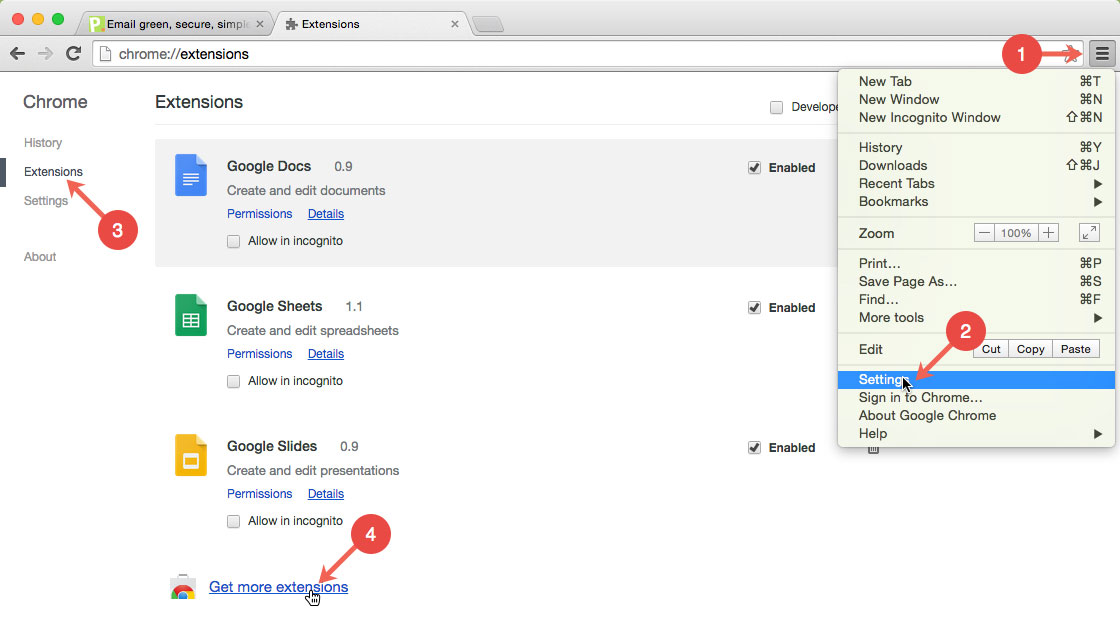
- Navigate to the Chrome Web Store: You can do this by typing
chrome.google.com/webstoreinto your address bar and pressing Enter, or by clicking the three vertical dots in the top-right corner of your Chrome window, selecting “Extensions,” and then clicking “Visit Chrome Web Store.” - Search for an Extension: Use the search bar at the top of the Chrome Web Store page to find an extension by its name or by a keyword related to its functionality. For example, if you’re looking for an ad blocker, you might search for “ad blocker” or “adblock.”
- Select an Extension: Click on the extension that interests you from the search results. This will take you to its dedicated page, where you can find a detailed description, screenshots, user reviews, and information about its permissions.
- Click “Add to Chrome”: On the extension’s page, you’ll see a prominent blue button that says “Add to Chrome.” Click this button.
- Review Permissions: A pop-up window will appear, detailing the permissions the extension requires to function. It’s crucial to review these permissions carefully to understand what data the extension will access or what actions it can perform. If you are comfortable with the permissions requested, click “Add extension.”
- Confirmation: Once added, the extension will typically appear as an icon next to your address bar (you might need to click the puzzle piece icon to see and manage all your extensions). A notification may also appear confirming the installation.
Congratulations! You have successfully installed a Chrome extension. You can now start using its features to enhance your browsing experience.
Leveraging Extensions for Productivity and Efficiency
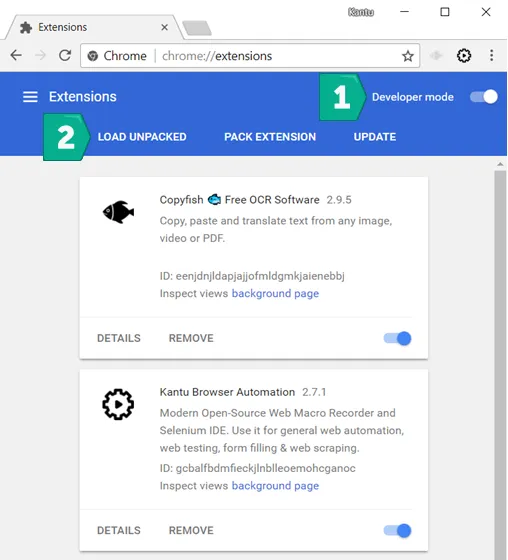
In the realm of technology, productivity is king. Chrome extensions offer a powerful and accessible way to boost your efficiency, streamline your daily tasks, and reclaim valuable time. By integrating specialized tools directly into your browser, you can automate repetitive actions, organize information more effectively, and maintain focus amidst the digital noise.
Enhance Your Workflow with Productivity Tools
Many extensions are designed to supercharge your productivity. Here are a few common and highly effective types:
- Task Management and To-Do Lists: Never miss a deadline or forget an important task again. Extensions like Todoist, Microsoft To Do, or Any.do allow you to create, organize, and track your tasks directly from your browser. Some even integrate with other productivity suites for seamless workflow management.
- Note-Taking and Information Capture: Instantly save articles, web pages, images, or snippets of text for later reference with extensions like Evernote Web Clipper or Notion Web Clipper. These tools allow you to organize your captured information into notebooks or databases, making it easily searchable and accessible.
- Focus and Distraction Blocking: In an age of constant notifications, maintaining focus can be a challenge. Extensions like Forest, StayFocusd, or Freedom can help by blocking access to distracting websites or applications for set periods, allowing you to concentrate on the task at hand.
- Time Management and Tracking: Understand where your time goes and optimize your schedule with time-tracking extensions like Toggl Track or Clockify. These tools can monitor the time spent on different websites and projects, providing valuable insights into your work habits.
- Email Management: Streamline your inbox with extensions that offer features like email templates, scheduling emails for later, and quick follow-up reminders. Services like Gmelius or Streak can significantly improve your email productivity.
- AI-Powered Assistants: The advent of AI has brought forth a new wave of powerful extensions. Tools like QuillBot can help you paraphrase, summarize, and improve your writing. Others can answer questions directly from web pages or help you draft emails and content.
Optimizing Your Online Shopping and Personal Finance
Beyond productivity, Chrome extensions can also bring significant benefits to your financial life and online shopping habits.
- Smart Shopping Companions: For online shoppers, extensions that automatically find and apply coupon codes, compare prices across different retailers, and track price drops can lead to substantial savings. Honey, Rakuten, and CamelCamelCamel are popular choices in this space.
- Budgeting and Expense Tracking: Manage your personal finances directly from your browser with extensions that connect to your bank accounts and credit cards, helping you categorize expenses, set budgets, and monitor your spending habits. Services like Personal Capital or PocketGuard offer robust features in this area.
- Investment Tracking: Keep a close eye on your investment portfolio with extensions that provide real-time stock prices, portfolio performance updates, and financial news from reputable sources.
By strategically choosing and utilizing these types of extensions, you can transform your Chrome browser into a powerful hub for both personal and professional efficiency, and even gain a better handle on your financial well-being.
Managing and Securing Your Chrome Extensions
As you accumulate more extensions, effective management and a strong emphasis on digital security become increasingly important. Just as you wouldn’t clutter your physical workspace unnecessarily, it’s wise to keep your digital workspace organized and protected.
Organizing and Utilizing Your Extensions Effectively
With numerous extensions installed, your browser might start to feel a bit crowded. Here’s how to keep things tidy:
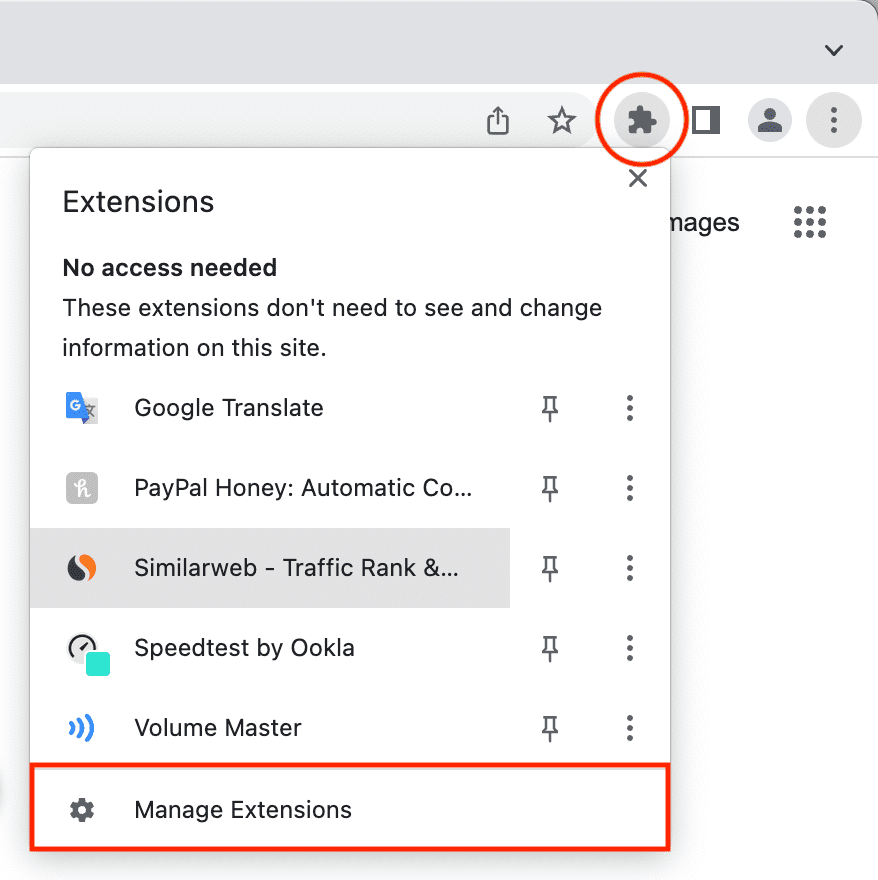
- The Puzzle Piece Icon: Most of your installed extensions will be accessible by clicking the puzzle piece icon located to the right of your Chrome address bar. This icon reveals a dropdown menu of all your active extensions.
- Pinning Extensions: For frequently used extensions, you can “pin” them to appear directly to the right of the address bar. This provides quick and easy access without needing to click the puzzle piece. Hover over an extension in the dropdown and click the pin icon.
- Managing Extensions: To remove or disable an extension, click the puzzle piece icon, then click “Manage extensions.” This will take you to a page where you can toggle extensions on or off, remove them entirely, or adjust their specific settings.
- Extension Settings: Many extensions offer individual settings that you can access from the “Manage extensions” page. This allows you to customize their behavior to better suit your needs. For example, you might configure which websites an ad blocker operates on, or set default preferences for a note-taking tool.
- Regular Review: Periodically review your installed extensions. Ask yourself: “Do I still use this? Is it providing value?” Removing extensions you no longer need can help improve browser performance and reduce potential security risks.
Prioritizing Digital Security with Extensions
While extensions can be incredibly beneficial, it’s vital to approach their installation and use with a mindful eye on security.
- Source Matters: The Chrome Web Store: Always install extensions directly from the official Chrome Web Store. This is the safest route, as Google has security measures in place to vet extensions before they are listed. Avoid downloading extensions from unofficial third-party websites, as these could contain malware.
- Read Reviews and Check Ratings: Before installing any extension, take a moment to read user reviews and check its overall rating. A consistently high rating and positive feedback from many users can indicate a reliable and safe extension. Be wary of extensions with very few reviews or a significant number of negative ones, especially those mentioning security concerns.
- Scrutinize Permissions: This is perhaps the most crucial step. When prompted to grant permissions, carefully read what the extension is asking for. Does a simple calculator extension really need access to your browsing history and all websites you visit? If the requested permissions seem excessive or unrelated to the extension’s stated purpose, it’s a red flag. Err on the side of caution and do not install extensions that ask for unnecessary access.
- Keep Extensions Updated: Developers often release updates to fix bugs and patch security vulnerabilities. Ensure your Chrome browser is set to automatically update extensions, or periodically check for updates yourself through the “Manage extensions” page.
- Be Wary of Unknown Developers: While many developers are legitimate, some might have malicious intent. If an extension comes from a developer you’ve never heard of and has limited information available, exercise extra caution.
- Privacy Policies: For extensions that handle sensitive data (like password managers or financial tools), take the time to review their privacy policy. Understand how your data is collected, stored, and used.
By following these best practices for managing and securing your Chrome extensions, you can harness their power to enhance your browsing experience without compromising your digital safety. They are powerful tools, and with a little diligence, they can become invaluable allies in your online journey.
aViewFromTheCave is a participant in the Amazon Services LLC Associates Program, an affiliate advertising program designed to provide a means for sites to earn advertising fees by advertising and linking to Amazon.com. Amazon, the Amazon logo, AmazonSupply, and the AmazonSupply logo are trademarks of Amazon.com, Inc. or its affiliates. As an Amazon Associate we earn affiliate commissions from qualifying purchases.