
The world of computing is vast and diverse, with operating systems acting as the fundamental bedrock upon which all our digital interactions are built. While Windows and macOS dominate the mainstream, a powerful and increasingly popular alternative exists: Linux. Perhaps you’ve heard whispers of its open-source nature, its robust security, or its prevalence in servers and cutting-edge technology. Whatever your curiosity, if you’re asking “how do you install Linux?”, you’re on the cusp of a transformative computing experience. This guide will demystify the process, catering to those with a keen interest in technology, from exploring new software and AI tools to understanding the underlying digital security principles that make Linux so appealing.

Understanding the “Why” Before the “How”: Linux’s Appeal in the Tech Landscape
Before we dive into the practical steps of installation, it’s crucial to understand why so many people are turning to Linux. Its appeal transcends mere technical prowess; it touches upon aspects of brand, control, and even financial savviness.
Linux: A Foundation for Innovation and Digital Security
Linux is more than just an operating system; it’s a philosophy. Its open-source nature means its code is freely available for anyone to inspect, modify, and distribute. This transparency fosters a collaborative environment that drives rapid innovation. From the vast majority of web servers powering the internet to the Android operating system on your smartphone, Linux is everywhere, often unseen.
- Unlocking Software Potential: For tech enthusiasts, Linux is a playground. You gain access to a wealth of free and open-source software (FOSS) that rivals, and in many cases surpasses, proprietary options. This includes powerful graphic design tools, advanced development environments, sophisticated AI and machine learning frameworks, and efficient productivity suites. Forget expensive licensing fees; with Linux, the software is often free, allowing you to experiment and learn without financial barriers.
- Fortifying Your Digital Defenses: In an era where digital security is paramount, Linux shines. Its robust permission system and the vigilance of its global community make it inherently more resistant to malware and viruses compared to its more widely targeted counterparts. Understanding how Linux manages user privileges and system access can significantly enhance your awareness of digital security best practices, empowering you to protect your data and privacy more effectively.
- A Gateway to Advanced Tech: If you’re interested in areas like artificial intelligence, data science, or cloud computing, Linux is often the de facto standard. Many of the cutting-edge tools and platforms in these fields are developed and primarily run on Linux environments. Learning to navigate and utilize Linux opens doors to understanding and contributing to these transformative technologies.
Branding and Control: Owning Your Computing Experience
Beyond its technical merits, Linux offers a unique proposition regarding control and personal branding.
- Tailoring Your Digital Identity: The ability to customize every aspect of your operating system is a powerful draw for those who value personal branding. Unlike pre-packaged systems, Linux distributions (distros) allow you to choose your desktop environment, window manager, and even the fundamental look and feel of your system. This level of personalization enables you to create a digital workspace that perfectly reflects your aesthetic and workflow, enhancing your productivity and making your computing experience truly your own.
- Beyond the Vendor Lock-in: In the commercial tech world, you’re often tied to a specific vendor’s ecosystem. Linux, however, breaks free from this constraint. You are not beholden to a single company for software updates, hardware compatibility, or future development paths. This freedom fosters independence and allows you to make informed decisions about your technology without the pressure of corporate agendas.
The Financial Advantages of Embracing Linux
For those mindful of their finances, Linux presents compelling opportunities.
- Cost-Effective Computing: The most immediate financial benefit is that most Linux distributions are entirely free to download and use. This eliminates the upfront cost of an operating system license, which can be a significant expense, especially when setting up multiple machines or seeking specialized software.
- Long-Term Value and Reduced Maintenance: Linux systems are renowned for their stability and longevity. This often translates to less need for frequent hardware upgrades solely due to software obsolescence. Furthermore, the abundance of free, high-quality software reduces ongoing expenses associated with purchasing or subscribing to applications. This makes Linux a highly cost-effective solution for both individuals and businesses looking to optimize their IT spending.
Embarking on Your Linux Journey: Choosing Your Distribution
The term “Linux” actually refers to the kernel, the core of the operating system. What most users interact with are Linux distributions, or “distros.” These are complete operating systems built around the Linux kernel, bundled with a specific set of software, a package management system, and a user interface. Choosing the right distro is your first major decision.
Popular Pathways for Newcomers: User-Friendly Distributions
For those new to Linux, the vast number of distros can be overwhelming. Fortunately, several are designed with beginners in mind, offering intuitive interfaces and extensive community support.
- Ubuntu: The Ever-Popular Choice: Often the first recommendation for new Linux users, Ubuntu is known for its ease of use, comprehensive documentation, and massive community. It provides a familiar desktop experience, making the transition from Windows or macOS smoother. Ubuntu offers a wide range of software readily available through its software center and supports a vast array of hardware.
- Linux Mint: A Polished and Familiar Experience: Building upon Ubuntu, Linux Mint aims to provide an even more refined and user-friendly desktop. It offers different desktop environments (like Cinnamon, MATE, and XFCE) that are designed to feel comfortable for users accustomed to traditional operating systems. Mint also includes many multimedia codecs out-of-the-box, simplifying the experience for new users.
- Fedora: Embracing the Latest Technologies: While slightly less beginner-focused than Ubuntu or Mint, Fedora is an excellent choice for those who want to experience the latest open-source technologies. It’s known for its rapid release cycle and commitment to free and open-source software. Fedora often serves as a testing ground for technologies that eventually make their way into other distributions, particularly Red Hat Enterprise Linux.
Exploring Specialized Distros for Specific Needs
Once you’re comfortable, you might explore distros tailored for specific purposes.
- Debian: The Foundation of Many: Debian is one of the oldest and most respected Linux distributions. It’s known for its stability, its commitment to free software principles, and its massive software repositories. Many other popular distros, including Ubuntu, are based on Debian.
- Arch Linux: For the Hardcore Customizer: Arch Linux follows a “KISS” (Keep It Simple, Stupid) philosophy, offering a minimalist base system that users build upon themselves. It’s highly customizable but has a steeper learning curve. It’s ideal for users who want complete control over their system.
- Kali Linux: For Security Professionals: Designed for penetration testing and digital forensics, Kali Linux comes pre-loaded with a vast array of security tools. It’s not recommended for everyday general-purpose computing due to its specialized nature.
Preparing for Installation: What You’ll Need
Before you can install Linux, a little preparation goes a long way. This ensures a smooth and successful installation process.
Gathering Your Tools: Hardware and Software Essentials
- A Computer: This is obvious, but it’s worth noting that most modern computers can run Linux. Older hardware can often be revitalized with lighter Linux distributions.
- A USB Drive (8GB or larger): This will be your installation media. You’ll use this to boot your computer into the Linux installer.
- An Internet Connection: While some distributions can be installed offline, an internet connection is highly recommended for downloading updates and additional software during and after the installation.
- A Backup of Your Important Data: This is critical! While installing Linux can be done without data loss, it’s always best to back up any important files from your current operating system to an external hard drive or cloud storage. Mistakes can happen, and having a backup ensures your precious data is safe.
- The Linux Distribution’s ISO File: This is a disk image file that contains the entire operating system. You’ll download this from the official website of your chosen Linux distribution.
Creating Your Bootable USB Drive: The Key to Installation
Once you have your ISO file, you need to “burn” it onto your USB drive. This process makes the USB drive bootable, allowing your computer to start from it instead of its internal hard drive.
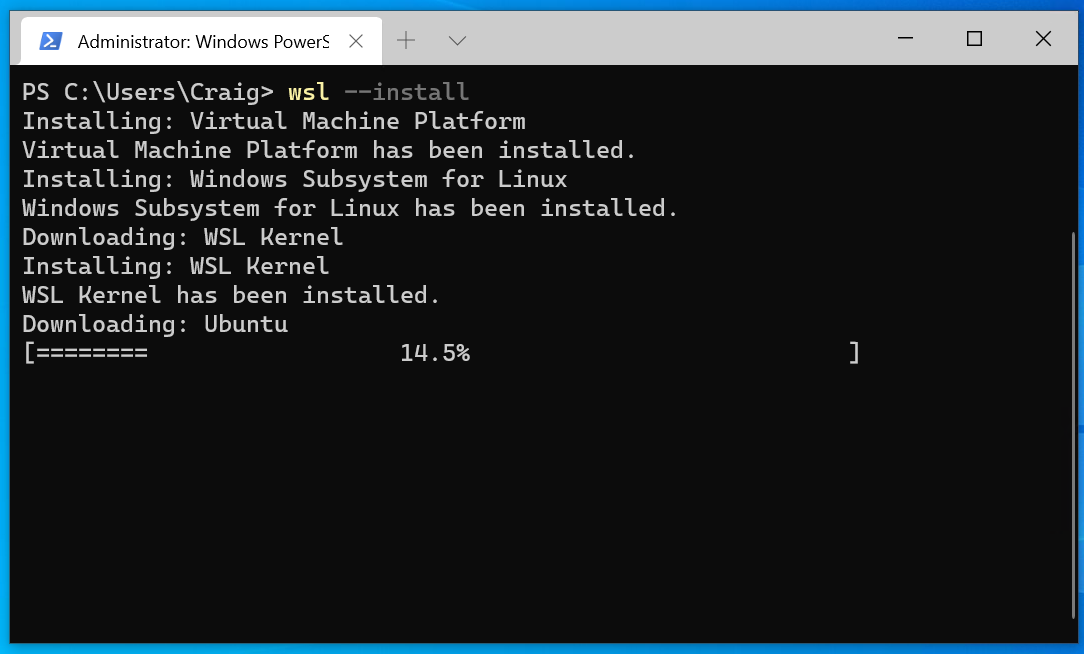
Tools for Crafting Your Bootable Media
- Rufus (Windows): A popular and straightforward utility for creating bootable USB drives. Simply select your ISO file, your USB drive, and Rufus handles the rest.
- Etcher (Windows, macOS, Linux): A cross-platform, open-source tool known for its simple, user-friendly interface. It’s highly reliable for creating bootable USB drives from ISO images.
- dd command (Linux/macOS): For the command-line enthusiast, the
ddcommand can be used, but it requires careful attention to detail to avoid accidentally overwriting the wrong drive.
The Process (using Etcher as an example):
- Download and install Etcher.
- Open Etcher.
- Click “Flash from file” and select your downloaded Linux ISO file.
- Click “Select target” and choose your USB drive. Double-check you’ve selected the correct drive!
- Click “Flash!” Etcher will write the ISO to the USB drive and verify the process. This can take several minutes.
The Installation Process: Step-by-Step
With your bootable USB drive ready, you’re now ready to install Linux. This involves booting your computer from the USB drive and following the on-screen prompts.
Booting Your Computer and Launching the Installer
- Insert the Bootable USB Drive: Plug your created bootable USB drive into a USB port on the computer where you want to install Linux.
- Restart Your Computer: Turn on or restart your computer.
- Access the Boot Menu or BIOS/UEFI Settings: As your computer starts up, you’ll see a message indicating which key to press to enter the BIOS/UEFI settings or the boot menu. Common keys include
F2,F10,F12,Del, orEsc. You may need to experiment to find the correct key for your specific computer.- Boot Menu: If you can access the boot menu, you’ll see a list of bootable devices. Select your USB drive from the list and press Enter.
- BIOS/UEFI Settings: If you enter the BIOS/UEFI settings, you’ll need to navigate to the “Boot” or “Boot Order” section. Change the boot order to make your USB drive the first boot device. Save your changes and exit the BIOS/UEFI. Your computer will then restart and boot from the USB drive.
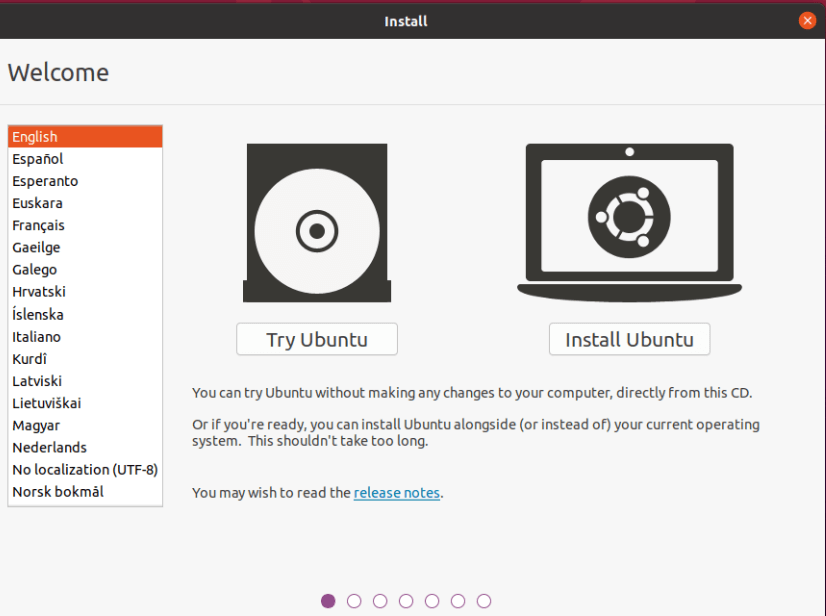
- Welcome Screen: Once your computer boots from the USB drive, you’ll typically be greeted with a welcome screen from your chosen Linux distribution. You’ll usually have the option to “Try [Distribution Name]” or “Install [Distribution Name].”
- “Try” Option: This is highly recommended for beginners. It allows you to run Linux directly from the USB drive without making any changes to your hard drive. You can explore the desktop, test hardware compatibility, and get a feel for the operating system before committing to an installation.
- “Install” Option: If you’re confident or have already tried the distro, select this to begin the installation process.
Partitioning Your Hard Drive: Where Linux Will Live
This is arguably the most critical step, as it determines how your hard drive will be organized.
-
Install Alongside Existing OS: Many installers offer an option to “Install Linux alongside your current operating system.” This is often the simplest option if you want to dual-boot (have both your old OS and Linux on the same computer). The installer will automatically resize your existing partitions to make space for Linux.
-
Erase Disk and Install Linux: This option will wipe your entire hard drive and install Linux as the sole operating system. Ensure you have backed up all your data before choosing this!
-
Something Else (Manual Partitioning): This option gives you complete control over your disk partitioning. You can create, delete, and resize partitions manually. This is for advanced users who understand file systems and partitioning schemes.
For a typical installation:
- Root Partition (
/): This is where the core operating system files will be installed. A minimum of 20-30GB is recommended, but more is better if you plan to install a lot of software. - Swap Partition (optional but recommended): This acts as virtual RAM. If your system runs out of physical RAM, it uses the swap space. A common recommendation is to make it equal to your RAM size, though this can vary.
- Home Partition (
/home): This is where your personal files, documents, music, and settings will be stored. Creating a separate/homepartition is beneficial because you can reinstall the operating system without affecting your personal data.
- Root Partition (
The Installation Journey: User Setup and Final Touches
Once you’ve decided on your partitioning scheme and confirmed the changes, the installer will begin copying files to your hard drive. This process can take anywhere from 15 minutes to over an hour, depending on your computer’s speed and the distribution.
- Location and Keyboard Layout: You’ll be asked to select your time zone and keyboard layout.
- User Account Creation: You’ll create your username, computer name, and a strong password. Remember your password! It’s essential for logging in and performing administrative tasks.
- Installation Complete: Upon completion, you’ll be prompted to restart your computer. Remove the USB drive when instructed to boot into your newly installed Linux system.
Post-Installation: Settling In and Exploring
Congratulations! You’ve successfully installed Linux. The journey doesn’t end here; it’s just beginning.
Updating Your System and Software
The first thing you should do after installation is to update your system. This ensures you have the latest security patches and software versions.
- Command Line (Terminal): Most distributions have a terminal application. For Debian/Ubuntu-based systems, you’d typically run:
bash

sudo apt update && sudo apt upgrade -y
For Fedora-based systems:
bash

sudo dnf upgrade -y
- Software Center/Package Manager GUI: Many distributions offer a graphical “Software Center” or “Package Manager” that allows you to update your system and install new applications with a few clicks, similar to an app store.
Discovering and Installing New Applications
Linux boasts a vast repository of free and open-source software.
- Software Center: Use your distribution’s software center to browse and install applications for web browsing, office productivity, multimedia, development, and more.
- Package Managers: For more advanced users or specific software, you can use package managers via the terminal (e.g.,
apt,dnf,pacman).
Embracing the Linux Ecosystem
- Online Communities and Forums: If you encounter issues or have questions, the Linux community is incredibly helpful. Websites like Ask Ubuntu, Reddit’s r/linuxquestions, and the forums for your specific distribution are invaluable resources.
- Learning Resources: Numerous websites, tutorials, and YouTube channels are dedicated to teaching Linux. Continue exploring and expanding your knowledge.
Installing Linux is an empowering experience that opens up a world of technological possibilities. Whether you’re drawn by the allure of cutting-edge tech, the desire for greater control over your digital life, or the smart financial benefits, taking the plunge into the Linux ecosystem is a rewarding endeavor. Welcome to a more open, flexible, and powerful computing future.
aViewFromTheCave is a participant in the Amazon Services LLC Associates Program, an affiliate advertising program designed to provide a means for sites to earn advertising fees by advertising and linking to Amazon.com. Amazon, the Amazon logo, AmazonSupply, and the AmazonSupply logo are trademarks of Amazon.com, Inc. or its affiliates. As an Amazon Associate we earn affiliate commissions from qualifying purchases.