
In the vast and ever-evolving landscape of computing, Linux stands as a beacon of open-source innovation, offering unparalleled flexibility and control to its users. For those operating within the Debian family of distributions—which includes popular choices like Ubuntu, Linux Mint, and Kali Linux—the .deb file format is a fundamental component of software management. Understanding how to correctly install these packages is not just a technical skill; it’s a gateway to customizing your system, enhancing your productivity, and harnessing the full power of the Linux ecosystem.
This guide will demystify the process of installing .deb files, transforming what might seem like a daunting technical task into a straightforward procedure. Whether you’re a newcomer to Linux seeking a user-friendly graphical approach or an experienced user looking to leverage the precision of the command line, we’ll cover all the essential methods. We’ll delve into the mechanics of these packages, explore both GUI-based and terminal-based installation techniques, and equip you with the knowledge to troubleshoot common issues and maintain a secure, efficient system. By the end of this article, you’ll be able to confidently manage software installations, ensuring your Linux environment is always optimized for your needs and aligned with best practices in digital security and software deployment.

Understanding .deb Files and Why They Matter
Before we dive into the “how-to,” it’s crucial to grasp “what” a .deb file is and “why” it holds such significance in the Linux world, particularly for Debian-based distributions. This foundational knowledge will not only help you understand the installation process but also appreciate the robust package management system that underpins these operating systems.
What is a .deb File?
A .deb file is essentially an archive file containing all the necessary components for a specific software package to be installed on a Debian-based Linux system. Think of it as a meticulously organized software installer, similar in concept to .exe files on Windows or .dmg files on macOS, but specifically designed for the Debian package management system. The .deb extension stands for “Debian,” reflecting its origin.
Inside a .deb file, you’ll typically find:
- The compiled program files: The actual executables, libraries, and other binaries that make up the application.
- Configuration files: Settings and parameters specific to the software.
- Documentation: User manuals, READMEs, and licensing information.
- Scripts: Pre-installation, post-installation, pre-removal, and post-removal scripts that handle tasks like creating directories, setting permissions, or registering the software with the system.
- Metadata: Crucially, this includes information about the package itself, such as its name, version, description, and, most importantly, its dependencies—a list of other packages that must be present on the system for the software to function correctly.
The Debian Package Management System
The .deb file format is the cornerstone of Debian’s powerful and highly efficient package management system. This system, primarily driven by tools like dpkg, apt, and apt-get, revolutionized how software is distributed, installed, updated, and removed on Linux. Its core benefits include:
- Dependency Resolution: It automatically tracks and manages dependencies, ensuring that all required libraries and components are installed alongside the primary application. This prevents “dependency hell,” a common headache in older, manual software installation methods.
- System Integrity: Packages are designed to integrate seamlessly with the system, preventing conflicts and maintaining stability.
- Easy Updates and Removal: The system keeps track of installed packages, making it simple to update them to newer versions or remove them cleanly without leaving behind orphaned files.
- Security: Packages from official repositories are signed, ensuring their authenticity and integrity, which is a critical aspect of digital security.
When Do You Need to Install a .deb File Manually?
While most software on Debian-based systems is installed directly from official repositories using apt (e.g., sudo apt install firefox), there are several common scenarios where you might need to download and install a .deb file manually:
- Proprietary Software: Many commercial or proprietary applications (e.g., Google Chrome, Microsoft Teams, Zoom) are not available in the open-source repositories but are provided by their developers as
.debpackages. - Newer Versions: Sometimes, you need a newer version of software than what’s available in your distribution’s stable repositories. Developers often release
.debpackages for cutting-edge versions before they are integrated into official channels. - Specialized Tools: Niche or specialized tools developed for specific purposes might only be distributed as standalone
.debfiles. - Offline Installation: If you’re setting up a system without internet access, you might download
.debfiles on another machine and transfer them for manual installation. - Testing and Development: Developers might use
.debfiles to distribute pre-release versions of their software for testing.
In these situations, knowing how to handle .deb files directly becomes an invaluable skill, allowing you to expand your software library beyond the standard repository offerings and customize your Linux experience to your exact specifications.
Graphical Methods: User-Friendly Installation
For many users, especially those transitioning from other operating systems or simply preferring a visual interface, graphical tools offer the most intuitive way to install .deb files. These methods abstract away the complexity of the command line, providing a straightforward click-and-install experience.
Using GDebi Package Installer (Recommended for Beginners)
GDebi is a fantastic, lightweight graphical tool specifically designed to install .deb packages and, crucially, to handle their dependencies automatically. It’s often considered the gold standard for GUI-based .deb installation because it bridges the gap between simplicity and efficiency. If GDebi isn’t pre-installed on your system (many Ubuntu-based distributions include it by default), you can easily add it:
- Open your terminal (Ctrl+Alt+T).
- Install GDebi:
bash

sudo apt update

sudo apt install gdebi
This command updates your package lists and then installs the GDebi package installer.
Once GDebi is installed, the process is incredibly simple:
- Locate your
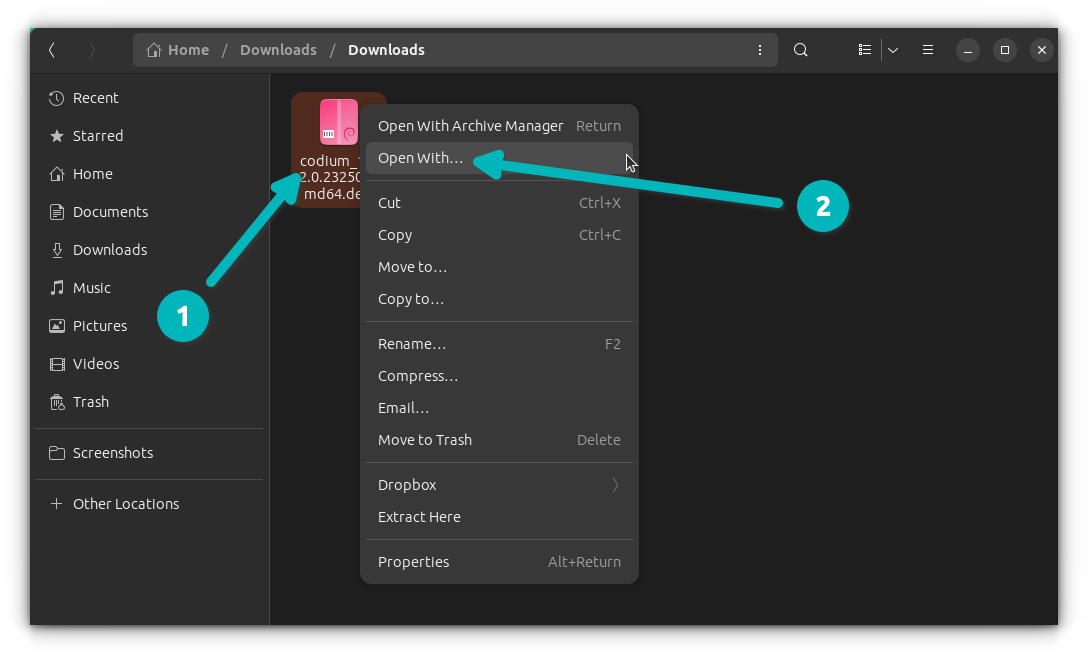
.debfile: Navigate to the folder where you downloaded the.debfile using your file manager (e.g., Nautilus for GNOME, Dolphin for KDE). - Right-click the
.debfile: A context menu will appear. - Select “Open with GDebi Package Installer” (or similar wording).
- Review the details: GDebi will open, displaying information about the package, including its name, version, description, and, importantly, a list of any required dependencies. It will also indicate if any dependencies are missing and offer to install them for you.
- Click “Install Package”: If all looks good and GDebi confirms it can resolve dependencies, click the “Install Package” button.
- Enter your password: You will be prompted to enter your administrator password to authorize the installation.
- Wait for completion: GDebi will proceed with the installation, displaying a progress bar. Once finished, the button will change to “Reinstall Package” or “Remove Package.”
- Close GDebi: You can now close the GDebi window. Your new software should be available in your applications menu.
GDebi’s ability to fetch and install missing dependencies automatically makes it incredibly user-friendly and highly recommended for ensuring a smooth, conflict-free installation. This approach not only saves time but also significantly reduces the chances of encountering system instability due to unresolved package requirements.
Other GUI Tools (Software Center/Store)
Many modern Debian-based distributions come with their own “Software Center” or “Software Store” application. These tools are designed to be a one-stop shop for finding, installing, and managing software from official repositories. In some cases, these software centers also support direct installation of .deb files.
The process is often similar to GDebi:
- Locate your
.debfile in your file manager. - Double-click the
.debfile: By default, your system might be configured to open.debfiles with its native Software Center. - Review the details: The Software Center will open, displaying information about the package.
- Click “Install”: An “Install” button will typically be present.
- Authenticate: Provide your password if prompted.
- Wait for installation: The software center will handle the installation and dependency resolution.
While convenient, the capabilities of different software centers vary. Some might be as robust as GDebi in handling dependencies, while others might simply call dpkg in the background without comprehensive dependency resolution, potentially leading to errors if required packages are missing. If you encounter issues with your distribution’s default software center, reverting to GDebi or moving to the command-line methods is a reliable fallback.
The graphical methods emphasize ease of use and accessibility, making them ideal for new users or for situations where a quick, visual installation is preferred. However, for those who seek greater control, diagnostic information, or simply enjoy the power of the terminal, command-line methods offer a robust alternative.
Command-Line Methods: Power and Precision
For many seasoned Linux users, the command line is the preferred environment for software installation. It offers unparalleled control, provides detailed feedback, and allows for scripting and automation, which significantly boosts productivity for those who frequently manage system resources. Understanding these methods is key to truly mastering your Linux system.
Installing with dpkg (The Core Tool)
dpkg is the foundational package management system on Debian-based distributions. It directly handles the installation, removal, and querying of .deb packages. While powerful, dpkg has a notable limitation: it does not automatically resolve dependencies. This means if a package you’re trying to install requires other packages that aren’t already on your system, dpkg will fail.
Here’s how to use dpkg:
- Open your terminal.
- Navigate to the directory where your
.debfile is located using thecdcommand. For example, if it’s in your Downloads folder:
bash

cd ~/Downloads
- Install the package using
dpkg:
bash

sudo dpkg -i package-name.deb
Replacepackage-name.debwith the actual name of your.debfile (e.g.,google-chrome-stable_current_amd64.deb).sudo: Grants administrative privileges, which are necessary for installing software.dpkg: The Debian package manager command.-i: Stands for “install.”
What happens if there are dependencies?
If the installation fails due to missing dependencies, dpkg will typically output an error message listing the unfulfilled requirements. For example:
dpkg: dependency problems prevent configuration of package-name:
 package-name depends on dependency-package-1; however:
  Package dependency-package-1 is not installed.
 package-name depends on dependency-package-2; however:
  Package dependency-package-2 is not installed.
This is where dpkg‘s limitation becomes apparent. You would then have to manually identify and install each missing dependency, which can be tedious and prone to error. Fortunately, there’s a better way, often used in conjunction with dpkg.
Leveraging apt with dpkg (The Recommended Approach)
The apt (Advanced Package Tool) command is a higher-level package manager that works on top of dpkg. One of its most valuable features is its robust dependency resolution. When you combine apt with dpkg, you get the best of both worlds: the ability to install specific .deb files directly, coupled with apt‘s intelligence in handling dependencies.
This is the recommended command-line method for installing .deb files, especially if you suspect there might be missing dependencies.
- Open your terminal.
- Navigate to the directory where your
.debfile is located:
bash

cd ~/Downloads
- Install the package using
aptwithdpkg:
bash

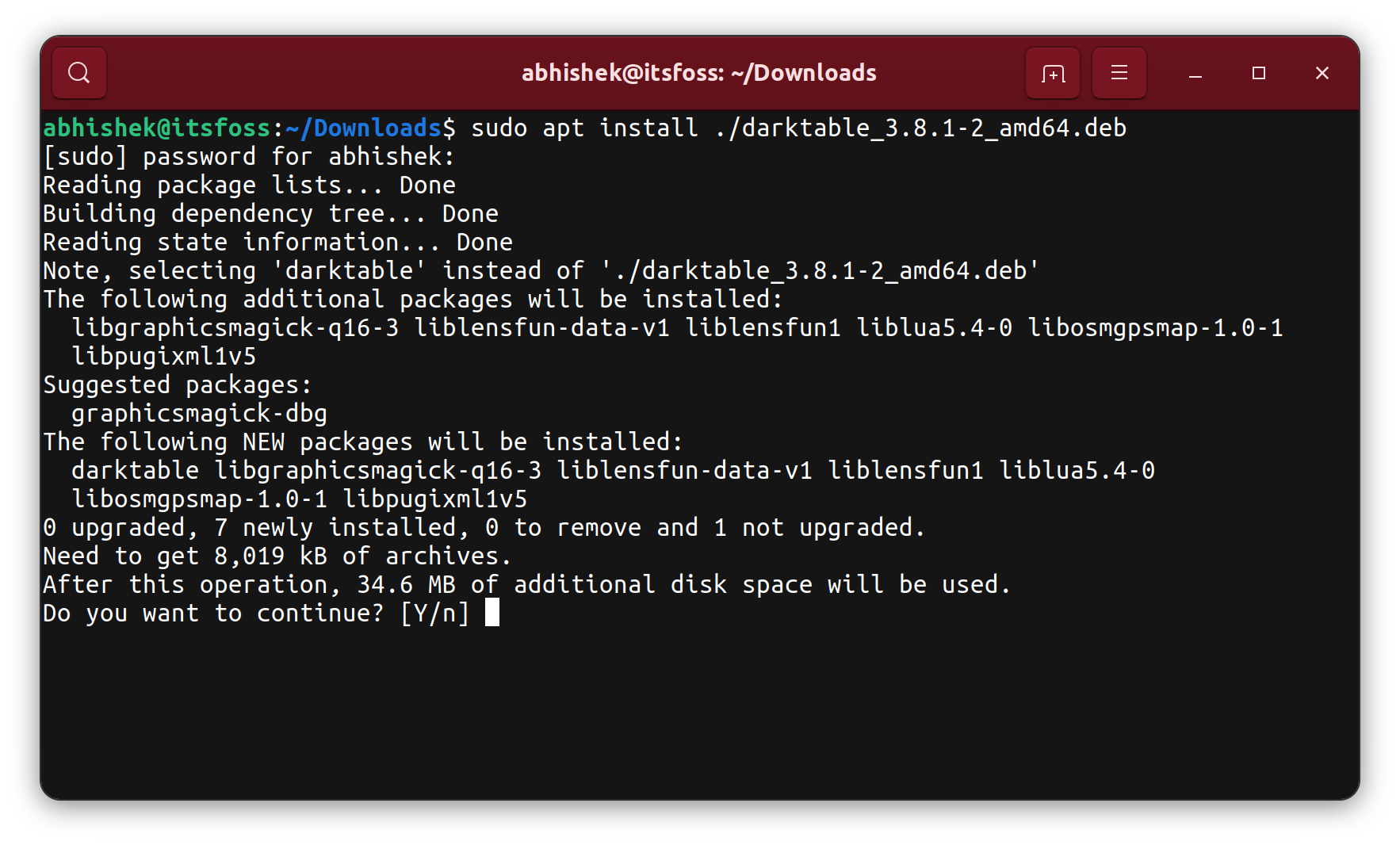
sudo apt install ./package-name.deb
The./beforepackage-name.debis crucial. It tellsaptthat you are referring to a local file in the current directory, not a package from a repository.sudo: Administrative privileges.apt install: The command to install packages../package-name.deb: The path to your local.debfile.
Why this is better:
When you use sudo apt install ./package-name.deb, apt first calls dpkg to install the package. If dpkg encounters missing dependencies, apt steps in. It will then automatically identify and fetch all necessary dependencies from the official repositories (or any configured third-party repositories) and install them, ensuring a complete and functional setup.
This method effectively automates the dependency resolution process that dpkg alone leaves to the user, saving you from manual dependency tracking and potential installation failures.
Handling Dependencies Automatically Post-dpkg Failure
Sometimes, you might have already tried sudo dpkg -i package-name.deb and it failed due to dependency issues. Instead of trying to install the .deb file again with apt, you can tell apt to fix the broken dependencies of any packages currently in an “unconfigured” state.
- Open your terminal.
- Run the following command:
bash

sudo apt install -f
or, the more verbose alternative,
bash

sudo apt --fix-broken install
sudo: Administrative privileges.apt install -forapt --fix-broken install: These commands tellaptto scan for any packages with unresolved dependencies (often left in a broken state after a faileddpkginstallation) and attempt to download and install all missing dependencies.
This command is incredibly useful for cleaning up after a dpkg failure and ensuring your package management system is in a consistent state. It will resolve the dependencies for the .deb package you initially tried to install, completing its configuration.
Mastering these command-line tools provides a powerful toolkit for managing software on your Debian-based system. It not only streamlines installations but also enhances your ability to diagnose and resolve package-related issues, leading to a more stable and productive Linux environment.
Best Practices and Troubleshooting
Installing .deb files is generally straightforward, but like any technical process, it can sometimes encounter hiccups. Understanding common issues and adopting best practices will ensure a smooth experience and help you maintain a healthy, secure system.
Resolving Dependency Issues
Dependency issues are the most common problem when installing .deb files. As discussed, dpkg won’t resolve them, but apt will.
Symptoms:
dpkgerror messages likedependency problems prevent configuration of...- Packages being reported as “unconfigured” or “broken.”
Solutions:
- Use
sudo apt install ./package-name.deb: Always prefer this method for local.debfiles, asaptwill proactively handle dependencies. - Use
sudo apt --fix-broken install: If you’ve already attempteddpkg -iand failed, this command is your go-to for cleaning up and installing missing dependencies. - Check the package source: If
aptcan’t find the dependencies, it might mean they aren’t available in your configured repositories. In rare cases, you might need to manually add a repository that contains the dependencies or track down the missing.debfiles yourself (though this should be a last resort). - Google the error: Copy-pasting specific error messages into a search engine often leads to community solutions, especially for common software.
Uninstalling .deb Packages
Just as important as installing software is knowing how to remove it cleanly.
- Identify the package name: If you installed
google-chrome-stable_current_amd64.deb, the actual package name installed might begoogle-chrome-stable. You can find this out by queryingdpkg:
bash

dpkg -l | grep chrome
Look for the package name in the output (the second column). - Remove the package (keeping configuration files):
bash

sudo apt remove package-name
This command removes the package’s binaries and most files but leaves configuration files behind, which can be useful if you plan to reinstall it later or for troubleshooting. - Purge the package (removing configuration files):
bash

sudo apt purge package-name
This command removes the package and all its associated configuration files, leaving no trace. This is often preferred for a complete removal. - Clean up unused dependencies: After removing packages, some dependencies that were installed solely for that package might become orphaned. You can remove them with:
bash

sudo apt autoremove
This command is excellent for keeping your system lean and free of unnecessary software, contributing to better system performance and digital security by reducing the attack surface.
Security Considerations
When installing .deb files from external sources, digital security should be paramount. Unlike packages from official repositories (which are rigorously vetted and signed), manually downloaded .deb files come with inherent risks.
- Trust the Source: Only download
.debfiles from reputable and official sources (e.g., the official website of the software vendor). Avoid third-party mirrors or unverified sites, as they could host malicious packages. - Verify Integrity (if possible): Some developers provide GPG signatures or checksums (MD5, SHA256) for their
.debfiles. If available, verify these to ensure the file hasn’t been tampered with during download. For example:
bash

sha256sum package-name.deb
Compare the output with the checksum provided by the developer. - Understand What You’re Installing: Be cautious about installing packages from unknown developers or those that demand unusual permissions. While
.debfiles generally won’t “break” your system without admin privileges, malicious code can be executed upon installation. - Regular Updates: Ensure your system and its packages are regularly updated (
sudo apt update && sudo apt upgrade) to patch known vulnerabilities, a cornerstone of maintaining strong digital security.
Keeping Your System Healthy
Beyond installation and removal, a few general practices will ensure your Linux system remains robust and responsive:
- Regularly Update and Upgrade:
bash

sudo apt update       # Fetches new package lists

sudo apt upgrade      # Upgrades installed packages

sudo apt full-upgrade # Upgrades with smart dependency handling
- Clean Up Unnecessary Packages:
bash

sudo apt autoremove   # Removes automatically installed packages that are no longer needed

sudo apt clean        # Clears out the local repository of retrieved package files

sudo apt autoclean    # Clears out old retrieved package files
- Monitor Disk Usage: Regularly check your disk space to prevent slowdowns.
- Backup Important Data: Always back up your critical files, regardless of your operating system.
By adhering to these best practices, you not only ensure successful .deb installations but also contribute to the overall health, security, and productivity of your Linux environment. This proactive approach to software management is a key aspect of making your technology work for you, rather than against you.
Conclusion: Mastering Your Linux Software Installation
Navigating the world of Linux software can seem daunting at first, but with a clear understanding of tools and techniques, it becomes an empowering experience. Installing .deb files, a common task for users of Debian-based distributions like Ubuntu and Linux Mint, is a prime example of how you can take direct control over your system’s capabilities. We’ve explored everything from the fundamental structure of a .deb package to the various methods of installation, both graphical and command-line, ensuring you have the flexibility to choose the approach that best suits your comfort level and specific needs.
Whether you opt for the simplicity of GDebi or the precise control of apt install ./package-name.deb, the underlying principle remains the same: efficient and secure software deployment. By understanding dependency resolution, knowing how to troubleshoot common issues, and adopting best practices for security and system maintenance, you not only expand your software library but also cultivate a more stable, secure, and productive computing environment.
The ability to confidently install, manage, and remove software is a cornerstone of effective technology usage. It frees you from relying solely on official repositories, allowing you to access a wider array of applications, integrate proprietary tools, and experiment with the latest software versions. This level of autonomy is a defining characteristic of the Linux experience, fostering a deeper connection with your operating system and enabling you to tailor it precisely to your workflow.
As you continue your journey with Linux, remember that continuous learning and cautious exploration are key. The skills gained from mastering .deb installation will serve you well, enhancing your technical proficiency and empowering you to make the most of your open-source journey. Embrace the power of the command line, appreciate the convenience of graphical installers, and always prioritize the security and health of your system. With these principles in mind, you’re not just installing software; you’re building a more capable and personalized digital workspace.