
The title “how to install .py” might seem a little misleading at first glance. You don’t “install” a .py file in the same way you’d install a traditional application like Microsoft Word or Adobe Photoshop. Instead, you install the Python interpreter, which is the engine that allows your computer to understand and execute the code written in .py files. Think of .py files as blueprints for actions, and the Python interpreter as the skilled craftsman who can read those blueprints and bring them to life.

This guide will demystify the process, covering everything from understanding what a .py file is to setting up your environment and running your first Python script. We’ll explore the core concepts, the practical steps, and even touch upon how this relates to the broader tech landscape, branding, and even financial implications. Whether you’re a complete beginner looking to dip your toes into coding, or a seasoned professional seeking a refresher, this article will equip you with the knowledge to confidently work with Python.
Understanding the Fundamentals: What is a .py File and Why Install Python?
Before we dive into the installation process, it’s crucial to grasp the foundational concepts. This understanding will not only make the installation smoother but also empower you to troubleshoot effectively and appreciate the versatility of Python.
The Essence of a .py File
A .py file is simply a plain text file that contains source code written in the Python programming language. These files are the building blocks of Python applications, scripts, and programs. They can range from a few lines of code that perform a simple task to thousands of lines that power complex software.
When you write code in a .py file, you’re essentially giving your computer a set of instructions. These instructions can be anything from performing mathematical calculations, manipulating text, interacting with the internet, analyzing data, or even controlling hardware. The beauty of Python lies in its readability and its extensive libraries, making it a popular choice for a wide array of applications.
Why You Need the Python Interpreter
As mentioned earlier, your computer doesn’t inherently understand Python code. It needs a special piece of software – the Python interpreter – to read, parse, and execute the instructions within your .py files. The interpreter acts as a translator, converting your human-readable Python code into machine code that your computer’s processor can execute.
Installing Python means installing this interpreter. Once installed, your operating system will know how to associate .py files with the Python interpreter, allowing you to run them directly from your command line or through integrated development environments (IDEs).
The Power of Python in Today’s Tech Landscape
Python’s popularity is no accident. It has become a cornerstone of modern technology for numerous reasons:
- Versatility: Python is used in web development (frameworks like Django and Flask), data science and machine learning (libraries like NumPy, Pandas, Scikit-learn, TensorFlow, PyTorch), automation, scripting, game development, and much more.
- Ease of Learning: Its clear syntax and readability make it an excellent choice for beginners.
- Vast Ecosystem: A massive collection of libraries and frameworks extends Python’s capabilities, allowing developers to leverage pre-written code for almost any task.
- Strong Community Support: A vibrant and active community means ample resources, tutorials, and help are readily available.
- Cross-Platform Compatibility: Python runs on Windows, macOS, and Linux, making your code portable across different operating systems.
Understanding these benefits highlights why learning to run .py files is a valuable skill in the current tech environment.
Installing Python: A Step-by-Step Guide
The installation process for Python is generally straightforward and varies slightly depending on your operating system. We’ll cover the most common platforms: Windows, macOS, and Linux.
Installing Python on Windows
-
Download the Python Installer:
- Visit the official Python website: https://www.python.org/downloads/
- You’ll typically see a prominent button to download the latest stable release. Click it. The installer will be tailored for your operating system.
-
Run the Installer:
- Locate the downloaded
.exefile (e.g.,python-3.10.x-amd64.exe). - Double-click the file to launch the installer.
- Locate the downloaded
-
Crucial Installation Options:
- “Add Python X.X to PATH”: This is the most important step. Make sure to check the box that says “Add Python X.X to PATH” or “Add Python to environment variables”. This will allow you to run Python commands from any directory in your command prompt. If you miss this, you’ll have to manually configure your system’s PATH environment variable, which is more complex.
- “Install Now” vs. “Customize installation”: For most users, “Install Now” is sufficient. It will install Python with default settings, including IDLE (Python’s integrated development environment), pip (Python’s package installer), and documentation. If you want to choose a specific installation directory or include/exclude certain features, select “Customize installation”.
-
Complete the Installation:
- Follow the on-screen prompts. The installer will guide you through the rest of the process.
- Once finished, you’ll see a “Setup was successful” message.
-
Verify the Installation:
- Open the Command Prompt: Press
Windows Key + R, typecmd, and press Enter. - In the Command Prompt, type:
python --version - You should see the installed Python version (e.g.,
Python 3.10.7). - Also, type:
pip --version - This should display the version of pip, confirming that the package installer is also set up.
- Open the Command Prompt: Press
Installing Python on macOS
macOS usually comes with a version of Python pre-installed, but it’s often an older version (Python 2.x). It’s highly recommended to install the latest Python 3.x.
-
Download the Python Installer:
- Go to the official Python downloads page: https://www.python.org/downloads/
- Download the latest macOS installer (
.pkgfile).
-
Run the Installer:
- Locate the downloaded
.pkgfile and double-click it. - Follow the installer prompts, agreeing to the license and choosing the installation location.
- Locate the downloaded
-
Add Python to your PATH (Automatic):
- The macOS installer usually handles adding Python to your system’s PATH automatically.
-
Verify the Installation:
- Open the Terminal application (you can find it in Applications > Utilities, or search using Spotlight with
Cmd + Space). - In the Terminal, type:
python3 --version - You should see the installed Python 3 version. Note that on macOS, you’ll often use
python3to invoke the Python 3 interpreter to avoid conflicts with the system’s olderpythoncommand. - To verify pip for Python 3, type:
pip3 --version
- Open the Terminal application (you can find it in Applications > Utilities, or search using Spotlight with
Installing Python on Linux
Most Linux distributions come with Python pre-installed. However, it’s good practice to update to the latest stable version or install it if it’s missing. The method for installation can vary depending on your distribution.
Using Package Managers (Recommended for most Linux users)
-
Debian/Ubuntu-based systems (e.g., Ubuntu, Mint):
sudo apt update sudo apt install python3 python3-pip -
Fedora/CentOS/RHEL-based systems:
sudo dnf update
sudo dnf install python3 python3-pip
(For older CentOS/RHEL, you might use
yuminstead ofdnf) -
Arch Linux:
bash

sudo pacman -Syu python python-pip
Verifying the Installation (Linux)
After installation via a package manager, open your Terminal and type:
python3 --version
pip3 --version
Using Virtual Environments (Advanced but Highly Recommended)
While not strictly part of the core Python installation, understanding and using virtual environments is crucial for any serious Python development. Virtual environments create isolated Python installations for specific projects. This prevents dependency conflicts between different projects that might require different versions of libraries.
-
Creating a virtual environment (Python 3.3+):
python3 -m venv myenv(Replace
myenvwith your desired environment name) -
Activating the virtual environment:
- Windows:
myenvScriptsactivate - macOS/Linux:
source myenv/bin/activate
- Windows:
Once activated, your terminal prompt will usually show the environment name (e.g., (myenv)), and any packages you install using pip will be installed only within this environment.
Running Your First .py File
With Python installed, you’re ready to execute your first script. This involves writing a simple Python program and then running it from your command line.
Writing a Simple Python Script
-
Open a Text Editor: Use any plain text editor. For Windows, Notepad is fine. On macOS, TextEdit (in plain text mode) or any code editor like VS Code or Sublime Text works. On Linux,
nano,vim, or a GUI editor like gedit or VS Code. -
Write Your Code: Type the following simple Python code:
# hello_world.py print("Hello, Python World!") -
Save the File: Save this code in a file named
hello_world.py. Make sure the file extension is.py. It’s good practice to save your Python files in a dedicated folder for your projects.
Executing the .py File from the Command Line
-
Open Your Terminal/Command Prompt:
- Windows: Open Command Prompt (
cmd). - macOS/Linux: Open Terminal.
- Windows: Open Command Prompt (
-
Navigate to Your File’s Directory: Use the
cdcommand to change your current directory to where you savedhello_world.py. For example, if you saved it inC:UsersYourUsernameDocumentsPythonProjectson Windows, you’d type:cd C:UsersYourUsernameDocumentsPythonProjectsOn macOS/Linux, it might look like:
cd ~/Documents/PythonProjects -
Run the Script: Once you are in the correct directory, use the
python(orpython3on macOS/Linux) command followed by the name of your.pyfile:python hello_world.pyor
python3 hello_world.py -
See the Output: If everything is set up correctly, you will see the following output in your terminal:
Hello, Python World!
Congratulations! You’ve successfully installed Python and run your first .py file.
Beyond the Basics: Next Steps and Considerations
Running a simple script is just the beginning. Python’s power lies in its extensive capabilities and the vast ecosystem of tools and libraries.
Exploring Integrated Development Environments (IDEs)
While you can write and run Python code using simple text editors and the command line, an Integrated Development Environment (IDE) or a code editor significantly enhances your productivity. IDEs offer features like:
- Syntax Highlighting: Makes code easier to read.
- Code Completion: Suggests code as you type.
- Debugging Tools: Helps you find and fix errors efficiently.
- Built-in Terminals: Allows you to run commands directly within the IDE.
- Version Control Integration: Seamlessly works with Git.
Popular choices include:
- Visual Studio Code (VS Code): Free, highly extensible, and very popular.
- PyCharm: A powerful IDE specifically for Python development (offers a free Community Edition).
- Spyder: Often used in scientific and data analysis contexts.
- IDLE: Comes bundled with Python, a good starting point for beginners.
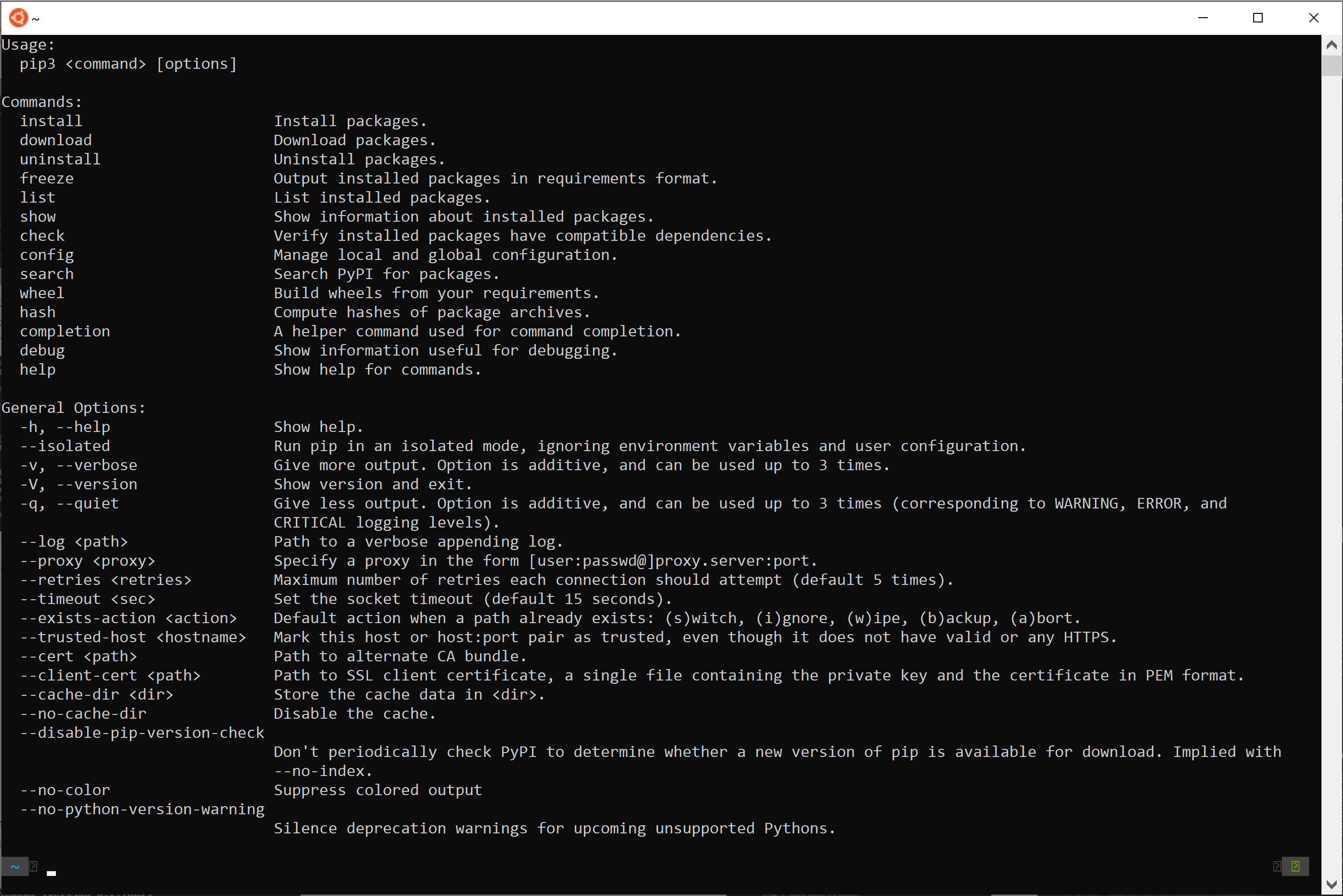
Package Management with pip
pip is the standard package installer for Python. It allows you to install third-party libraries and modules that extend Python’s functionality. You’ve already used it to verify your installation.
To install a package, you use the command:
pip install package_name
For example, to install the popular requests library for making HTTP requests:
pip install requests
Remember to use pip3 if your system defaults to pip for Python 2.
The Role of Python in Branding and Business
Understanding Python isn’t just about technical skills; it has implications for branding and business.
- Personal Branding: Developing proficiency in Python can significantly enhance your personal brand as a tech professional. It demonstrates a valuable, in-demand skill.
- Corporate Identity: Companies leverage Python for internal tools, automation, data analytics, and product development. A strong Python presence can be a differentiator.
- Marketing and Design: While not directly a design tool, Python’s data analysis capabilities can inform marketing strategies, campaign optimization, and even personalize user experiences on websites, indirectly impacting brand perception.
- Efficiency and ROI: Automating tasks with Python scripts can save businesses significant time and resources, directly impacting their bottom line and financial health.
Financial Considerations and Python
The financial aspect of Python is multifaceted:
- Online Income and Side Hustles: Many freelance opportunities involve Python development, data analysis, or creating automation tools. Building skills in Python can open doors to online income streams.
- Investing and Data Analysis: Python is indispensable for financial analysts and investors who use it to analyze market data, build trading algorithms, and create financial models.
- Business Finance: Companies use Python for financial reporting, forecasting, risk management, and optimizing operational costs through automation.
Conclusion
The question “how to install .py” ultimately leads to understanding the installation of the Python interpreter. By following the steps outlined for your specific operating system, you’ll be well on your way to harnessing the power of Python. Whether you’re aiming to build the next big app, analyze groundbreaking data, automate mundane tasks, or simply expand your technical skillset, Python provides a robust and accessible platform. As you delve deeper, remember to explore virtual environments, leverage pip for its vast library ecosystem, and consider how these technical skills can positively impact your personal brand and professional endeavors, even in the realms of marketing and finance. The journey of learning Python is a continuous one, filled with exciting possibilities.