
The Amazon Fire TV Stick has revolutionized the way we consume entertainment, transforming any television into a smart hub brimming with streaming services, apps, and endless content. Whether you’re a seasoned tech enthusiast or a complete beginner looking to upgrade your viewing experience, this comprehensive guide will walk you through the straightforward process of installing and setting up your Firestick. We’ll cover everything from the initial unboxing to navigating the interface and troubleshooting common issues, ensuring you’re ready to stream your favorite shows and movies in no time.
The core appeal of the Firestick lies in its affordability and ease of use. For a relatively small investment, you gain access to a vast library of content from popular platforms like Netflix, Hulu, Disney+, Prime Video, and many more. Beyond streaming, the Firestick also offers a gateway to a multitude of apps, from fitness and gaming to news and productivity tools. This article, drawing inspiration from the dynamic intersection of Tech, Brand, and Money, aims to empower you with the knowledge to not only set up your device but also to understand its potential and how it fits into your digital lifestyle.

Getting Started: Unboxing and Initial Setup
The journey to Firestick-powered entertainment begins the moment you open the box. Amazon has designed the Firestick with simplicity in mind, ensuring that even the least tech-savvy individuals can get it up and running quickly.
What’s Inside the Box?
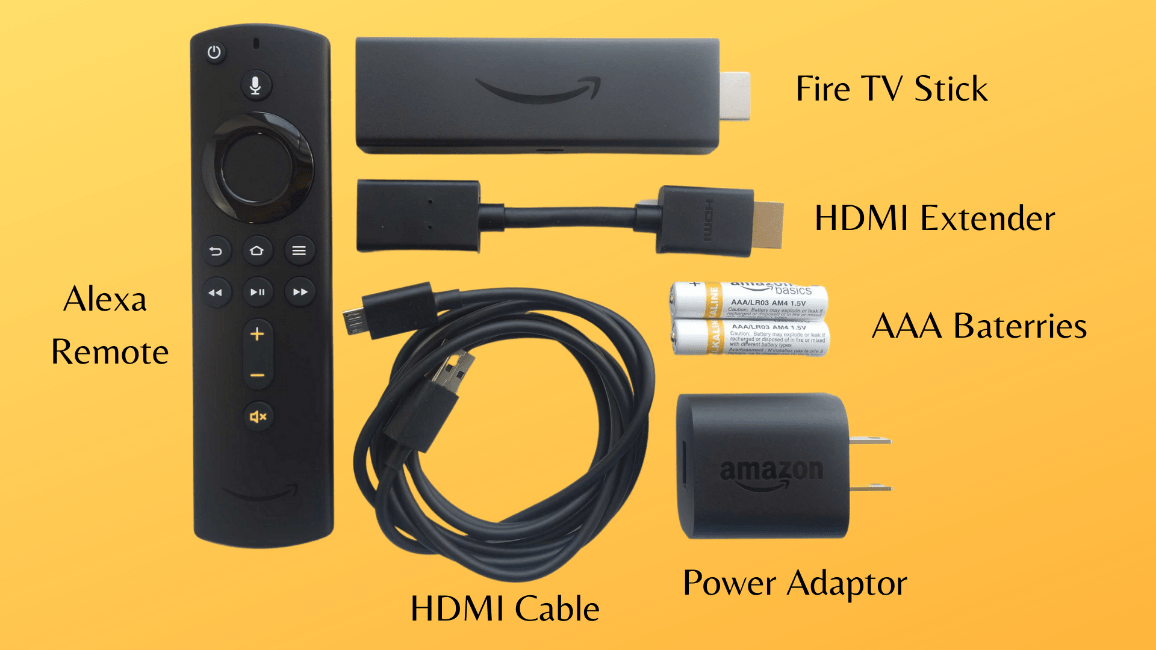
Upon opening your Fire TV Stick package, you’ll typically find the following essential components:
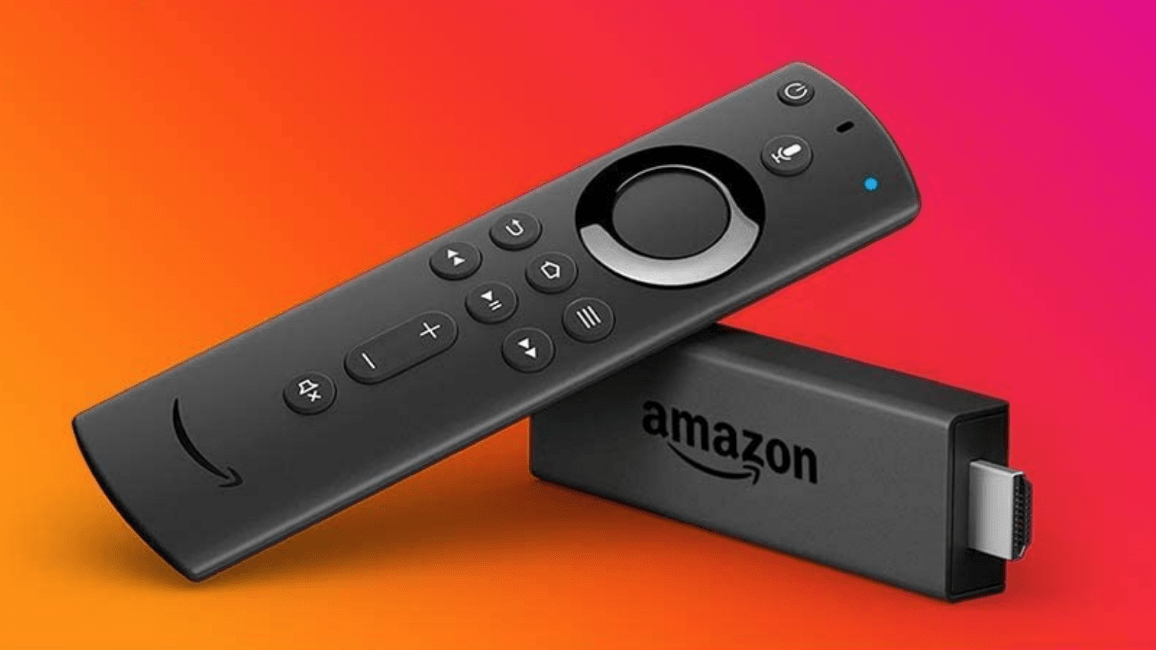
- The Fire TV Stick Device: This compact, USB-like device is the heart of your setup. It plugs directly into an HDMI port on your television.
- Amazon Fire TV Remote: This sleek and intuitive remote controls your Firestick and, in many cases, your TV’s power and volume.
- HDMI Extender Cable: While not always strictly necessary, this cable can be beneficial if your TV’s HDMI port is in a tight spot or if it helps improve Wi-Fi reception.
- Power Adapter and USB Cable: The Firestick requires power to operate. You’ll use the included adapter and cable to plug it into a wall outlet.
- Quick Start Guide: This leaflet provides a basic overview of the setup process.
Connecting the Firestick to Your TV
The physical connection is incredibly simple:
- Locate an HDMI Port: Find an available HDMI port on the back or side of your television.
- Plug in the Firestick: Insert the Fire TV Stick directly into the HDMI port. If the port is difficult to access or you prefer a slightly different positioning, you can use the provided HDMI extender cable.
- Connect the Power: Plug the USB cable into the Firestick and connect the other end to the power adapter. Then, plug the adapter into a wall outlet. For optimal performance, it’s recommended to use the wall outlet directly rather than a USB port on your TV, as TV USB ports may not provide sufficient power.
- Power On Your TV: Turn on your television and switch the input source to the HDMI port where you connected the Firestick. You should now see the Amazon Fire TV logo appear on your screen.
Initial Configuration and Account Login
Once the Firestick boots up, you’ll be guided through a series of on-screen prompts. This is where the magic begins.
- Language Selection: Choose your preferred language.
- Wi-Fi Connection: The Firestick will scan for available Wi-Fi networks. Select your home network and enter your Wi-Fi password. A stable internet connection is crucial for streaming, so ensure you have a strong signal.
- Amazon Account Login: This is a critical step. You’ll be prompted to log in with your Amazon account credentials.
- If you have an Amazon account: Enter your email address and password. This account is linked to your purchases, subscriptions, and app downloads.
- If you don’t have an Amazon account: You’ll have the option to create one. This is also an opportunity to consider how your Amazon account ties into your broader digital identity and purchasing habits, a key aspect of Personal Branding and Digital Security.
- Pairing the Remote: The Fire TV remote should automatically pair with the Firestick. If it doesn’t, you’ll be given instructions on how to pair it manually, usually by pressing and holding the Home button.
- Device Options: You might be asked about parental controls, Alexa features, and whether to allow app usage tracking. Take a moment to configure these settings according to your preferences and security needs.
Navigating the Firestick Interface and Discovering Content
After the initial setup, you’ll be greeted by the Fire TV home screen. This is your central hub for accessing all the features and content the Firestick has to offer. Understanding the interface is key to maximizing your entertainment experience.
The Fire TV Home Screen Explained
The home screen is divided into several key sections:
- Your Apps: This section displays all the apps you have installed. You can pin your most frequently used apps here for quick access.
- Categories/Genres: Browse content by category, such as Movies, TV Shows, Prime Video, Netflix, Hulu, and more.
- Recommended Content: The Firestick will suggest movies and shows based on your viewing history and preferences. This is a powerful feature of its recommendation engine, showcasing how AI Tools are integrated into everyday technology.
- Search Bar: Use the search bar to find specific titles, actors, directors, or apps. You can also use voice search by pressing the microphone button on your remote and speaking your query.
- Settings: Access the device’s settings menu to manage Wi-Fi, display, sound, applications, parental controls, and more.
Installing and Managing Apps
The Firestick’s true power lies in its vast app store. From streaming giants to niche applications, there’s something for everyone.
Finding and Installing Apps
- Navigate to the Appstore: From the home screen, go to “Find” and then select “Appstore.”
- Browse or Search: You can browse through various categories or use the search function to find specific apps. Popular streaming apps like Netflix, Hulu, Disney+, YouTube, and Peacock are readily available.
- Select and Install: Click on the app you wish to install. You’ll see an app description, screenshots, and user reviews. Click “Get” or “Download” to begin the installation.
- Launch the App: Once installed, you can launch the app directly from the Appstore or find it in your “Your Apps” section on the home screen.
Managing Your Apps
It’s good practice to manage your installed apps regularly to keep your Firestick running smoothly.
- Uninstalling Apps: If you no longer use an app, you can uninstall it to free up storage space. Go to “Settings” > “Applications” > “Manage Installed Applications.” Select the app you want to remove and choose “Uninstall.”
- Clearing App Cache and Data: Sometimes, apps can become slow or unresponsive. Clearing their cache or data can resolve these issues. In the same “Manage Installed Applications” menu, select an app and then choose “Clear Cache” or “Clear Data.” Be aware that clearing data will reset the app to its default state, meaning you might need to log in again.
Leveraging Voice Control with Alexa
The Amazon Fire TV Stick comes with Alexa integrated, offering a hands-free way to control your device and access information.
- Voice Search: Press and hold the microphone button on your remote and speak what you want to find. You can search for movies, TV shows, actors, or even ask for recommendations.
- Controlling Playback: Use voice commands to play, pause, rewind, or fast-forward content.
- Information Queries: Ask Alexa questions about weather, sports scores, trivia, or even control smart home devices if they are linked to your Amazon account.
Advanced Tips and Troubleshooting
While the Firestick is designed for ease of use, there are a few advanced tips and common issues you might encounter. Understanding these can enhance your experience and ensure uninterrupted streaming.
Optimizing Performance and Storage
As you install more apps and download content, your Firestick’s storage can fill up. Here are some tips to keep it running efficiently:
- Regularly Uninstall Unused Apps: As mentioned earlier, this is the most effective way to free up space.
- Clear App Cache: Periodically clearing the cache of frequently used apps can help improve their performance.
- Restart Your Firestick: A simple restart can often resolve minor glitches and refresh the device’s memory. You can do this by going to “Settings” > “My Fire TV” > “Restart.”
- Consider External Storage (if applicable): Some Fire TV models support external storage devices. Check your specific model’s capabilities if you require significant storage expansion.
Addressing Common Firestick Issues
- No Internet Connection:
- Check your Wi-Fi: Ensure your router is powered on and your internet connection is working on other devices.
- Restart your router and modem: Power cycle your network equipment.
- Re-enter Wi-Fi password: Sometimes, a simple password re-entry can fix connection issues.
- Move the Firestick closer to the router: Signal strength can be a factor.
- Buffering or Slow Streaming:
- Check your internet speed: Run a speed test on another device connected to the same network.
- Reduce the video quality: Some apps allow you to adjust streaming quality in their settings.
- Close background apps: Ensure no other bandwidth-intensive activities are running on your network.
- Restart your Firestick and router: This often resolves temporary network congestion.
- Remote Not Working:
- Check the batteries: Replace the batteries with fresh ones.
- Re-pair the remote: Go to “Settings” > “Controllers & Bluetooth Devices” > “Amazon Fire TV Remotes” > “Add New Remote” and follow the on-screen instructions to re-pair.
- Check for interference: Ensure there are no other devices interfering with the remote’s signal.
Security and Privacy Considerations
While enjoying the convenience of the Firestick, it’s important to be mindful of digital security and privacy.
- Amazon Account Security: Use a strong, unique password for your Amazon account and enable two-factor authentication. This is a crucial step in protecting your Digital Security.
- App Permissions: Be cautious about the permissions you grant to apps. Review them during installation and periodically afterwards.
- Parental Controls: Utilize the parental control features to restrict access to certain content or apps, especially if children use the device. This is also relevant when considering how to manage your household’s Brand image and values for younger family members.
- VPN Usage: For users concerned about online privacy or accessing geo-restricted content, consider using a Virtual Private Network (VPN) with your Firestick. A VPN encrypts your internet traffic and masks your IP address. This is an area where Tech and Digital Security intersect significantly.
The Firestick in Your Digital Ecosystem: Beyond Entertainment
The Amazon Fire TV Stick is more than just a gateway to movies and TV shows; it’s a versatile device that can integrate into your broader digital life, impacting how you interact with technology, manage your Brand, and even your Money.
Enhancing Your Home Entertainment Brand
The Firestick contributes to your personal Brand as someone who is tech-savvy and enjoys staying current with entertainment trends. A well-configured Firestick, with curated apps and personalized recommendations, can elevate your home entertainment experience, making it a focal point for family gatherings or personal relaxation. Consider how the visual interface and the content you choose reflect your personal tastes and interests.
Potential for Side Hustles and Online Income
While not its primary function, the Firestick can indirectly contribute to Online Income opportunities. For instance:
- Content Creation: If you’re a content creator, the Firestick allows you to easily test and showcase your content on a large screen, potentially reaching a wider audience.
- App Development & Testing: For aspiring developers, the Firestick provides a cost-effective platform to develop and test applications that can be distributed through the Amazon Appstore.
- Affiliate Marketing: Reviewing Firestick apps or accessories on a blog or YouTube channel, and using affiliate links, can generate passive income. This combines Tech reviews with a Money-making strategy.
Smart Home Integration and Productivity
The Alexa integration on the Firestick opens up possibilities for smart home control. You can use voice commands to:
- Control smart lights, thermostats, and security cameras.
- View live feeds from compatible security cameras.
- Receive notifications and reminders.
This integration streamlines daily tasks and contributes to a more efficient and connected home environment, demonstrating how Tech can enhance everyday productivity.
In conclusion, installing a Firestick is a remarkably simple process that unlocks a universe of entertainment possibilities. By following these steps, understanding the interface, and exploring advanced features, you’ll be well-equipped to transform your television into a dynamic media center. Whether you’re looking for the latest blockbusters, binge-worthy series, or simply a new way to unwind, your Firestick is ready to deliver. Remember to keep security and privacy in mind as you explore the vast digital landscape it offers.
aViewFromTheCave is a participant in the Amazon Services LLC Associates Program, an affiliate advertising program designed to provide a means for sites to earn advertising fees by advertising and linking to Amazon.com. Amazon, the Amazon logo, AmazonSupply, and the AmazonSupply logo are trademarks of Amazon.com, Inc. or its affiliates. As an Amazon Associate we earn affiliate commissions from qualifying purchases.