
The Apple Watch has evolved far beyond a simple time-telling device on your wrist. It has transformed into a sophisticated companion, a personal assistant, a health monitor, and even a fashion statement, thanks in large part to its vibrant ecosystem of applications. For many, the true power and utility of the Apple Watch unlock the moment you begin customizing it with apps tailored to your lifestyle, needs, and preferences. Whether you’re aiming to track your fitness, manage your daily schedule, stay connected with loved ones, monitor your finances, or simply get directions without pulling out your phone, there’s an app for it.
In an era defined by rapid technological advancement, gadgets like the Apple Watch stand at the forefront of personal tech, merging convenience with cutting-edge functionality. For enthusiasts and casual users alike, understanding how to effectively install and manage apps is fundamental to maximizing the device’s potential. This comprehensive guide will walk you through every method of adding applications to your Apple Watch, from automatic installations to direct downloads, alongside essential tips for management, troubleshooting, and optimizing your experience. We’ll also explore how these apps not only enhance your productivity and digital security but also subtly integrate into the broader technological and financial landscapes we navigate daily.
Unlocking Your Apple Watch’s Full Potential: Why Apps Matter
The Apple Watch, a prominent gadget in the tech landscape, distinguishes itself through its seamless integration and user-centric design. At the core of this experience lies its robust app ecosystem, which transforms a sophisticated piece of hardware into a truly personalized device. Understanding why apps are crucial to this experience helps set the stage for how to best utilize your smartwatch.
The Ecosystem Advantage: Seamless Integration and Brand Experience
Apple’s greatest strength lies in its meticulously crafted ecosystem. When you install apps on your Apple Watch, you’re not just adding a standalone program; you’re often extending the functionality of an existing iPhone app, creating a unified and fluid user experience. This seamless integration means that data, notifications, and settings often sync effortlessly between your iPhone, iPad, and Apple Watch. This level of cohesion is a testament to Apple’s brand strategy – delivering an intuitive, reliable, and premium experience across all its devices. It fosters a sense of trust and loyalty, knowing that your digital life is interconnected and consistently accessible, whether from your pocket or your wrist. This advantage significantly enhances productivity, reducing friction in daily tasks and ensuring critical information is always at your fingertips.
From Fitness to Finance: A World of Possibilities on Your Wrist
The sheer diversity of apps available for the Apple Watch is astonishing, catering to virtually every aspect of modern life.
- Fitness and Health: Perhaps the most iconic use case, apps like Apple’s native Activity and Workout apps, along with third-party options such as Strava or MyFitnessPal, turn your watch into a powerful health and fitness tracker. They monitor heart rate, steps, calories burned, sleep patterns, and even ECG readings, empowering users to take control of their well-being. This investment in personal health through technology is a tangible return on both time and, potentially, future healthcare costs.
- Communication: Stay connected with messaging apps like Messages, WhatsApp, and Telegram, allowing you to respond to texts with dictation, scribbles, or quick replies, without pulling out your phone.
- Productivity and Organization: Apps like Reminders, Calendar, Todoist, or Bear Notes keep you organized, providing glanceable access to your schedule, to-do lists, and quick notes. Imagine getting a gentle tap on your wrist for an upcoming meeting or an urgent task – it’s a subtle yet powerful boost to daily efficiency.
- Navigation: Apple Maps, Google Maps, and Citymapper offer turn-by-turn directions directly on your wrist, vibrating to signal upcoming turns, which is invaluable when navigating unfamiliar cities or cycling.
- Smart Home Control: Control your lights, thermostat, or security systems directly from your watch using apps like HomeKit or Philips Hue.
- Finance and Payments: Apps like Apple Pay allow for secure, contactless payments with a double-tap of the side button. Other financial tools can provide quick glances at stock prices, bank balances, or even crypto market trends, making micro-decisions and staying informed about your money easier than ever. This integration of finance into wearable tech exemplifies how technology trends are making financial management more immediate and accessible.
Productivity on Your Wrist: Streamlining Digital Workflows
The Apple Watch is more than just a convenience; it’s a productivity powerhouse. By bringing essential notifications and quick actions to your wrist, it minimizes distractions from your phone, allowing for more focused work periods. Checking a message, dismissing an email, or setting a timer can be done in seconds, without disrupting your workflow or succumbing to the temptation of other phone apps. This capability saves precious minutes throughout the day, which, when compounded, can significantly boost overall output. For professionals managing tight schedules or individuals striving for better work-life balance, the ability to triage information quickly and discreetly is invaluable. The watch serves as a filter, presenting only the most critical information and actions, thereby enhancing digital security by reducing unnecessary phone interactions in public spaces and keeping your attention on the task at hand.
Your Guide to Installing Apps on Apple Watch
Installing apps on your Apple Watch is a straightforward process, but Apple provides a few different methods to suit various preferences and scenarios. Understanding each approach ensures you can always get the apps you need onto your wrist.
Automatic Installation: The Seamless Sync
For many users, installing apps on the Apple Watch happens almost imperceptibly in the background. When you pair your Apple Watch with your iPhone, certain compatible iPhone apps that also have a WatchOS counterpart will automatically install onto your watch. This is the default setting and is designed to provide a hassle-free, out-of-the-box experience, extending the functionality of your favorite iPhone apps directly to your wrist.
To verify or change this setting:
- Open the Watch app on your iPhone.
- Tap the My Watch tab.
- Scroll down to General.
- Toggle Automatic App Install on or off.
Keeping this setting on ensures that as you download new apps on your iPhone that have a WatchOS extension, they will appear on your watch without any additional effort on your part. This approach is excellent for maintaining a consistent user experience and leveraging the integrated nature of Apple’s ecosystem.
Manual Installation via iPhone: The Control Center
While automatic installation is convenient, the Watch app on your iPhone serves as the primary control center for managing and manually installing apps. This method gives you fine-tuned control over which apps reside on your Apple Watch, allowing you to curate your experience precisely.
Step-by-Step Guide:
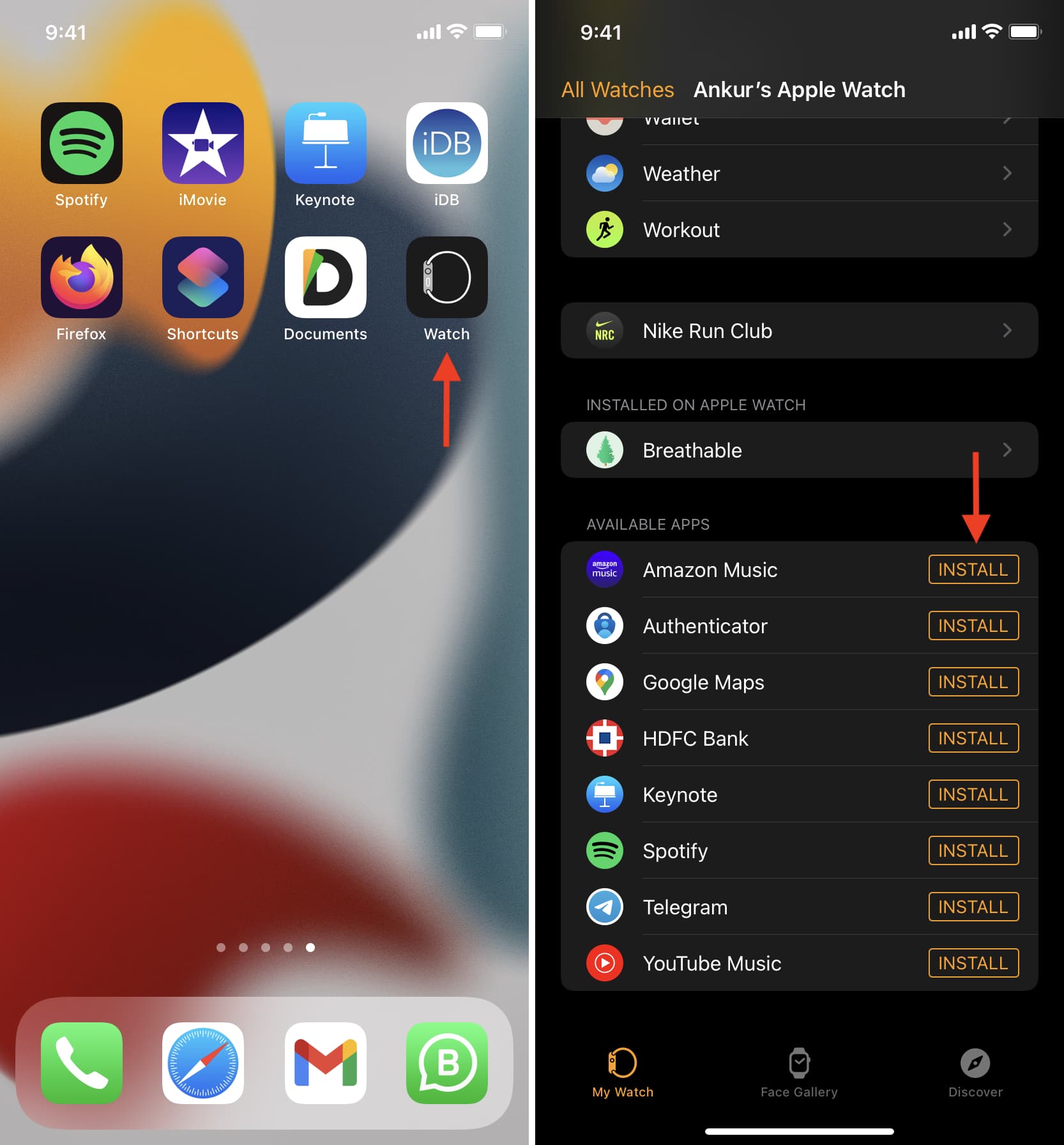
- Open the Watch app on your iPhone: This is the dedicated application for managing all aspects of your Apple Watch.
- Navigate to the “My Watch” tab: This tab displays all settings and installed apps for your connected Apple Watch.
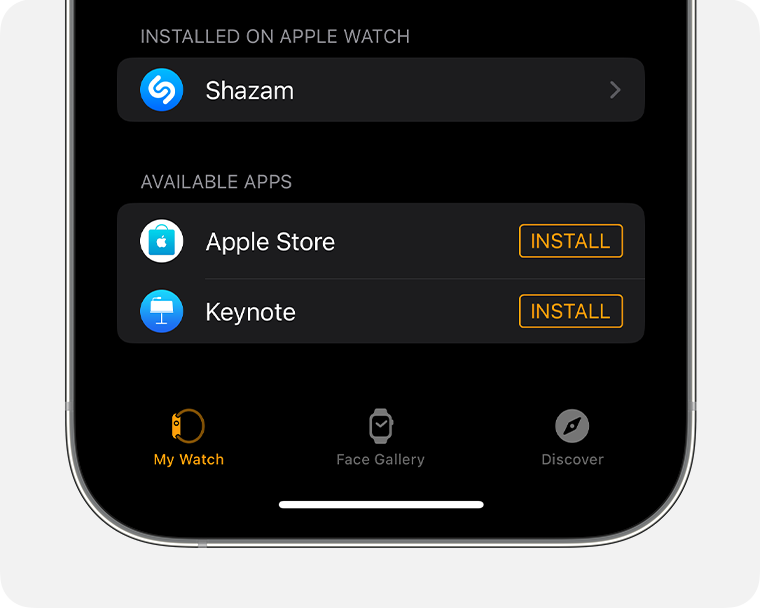
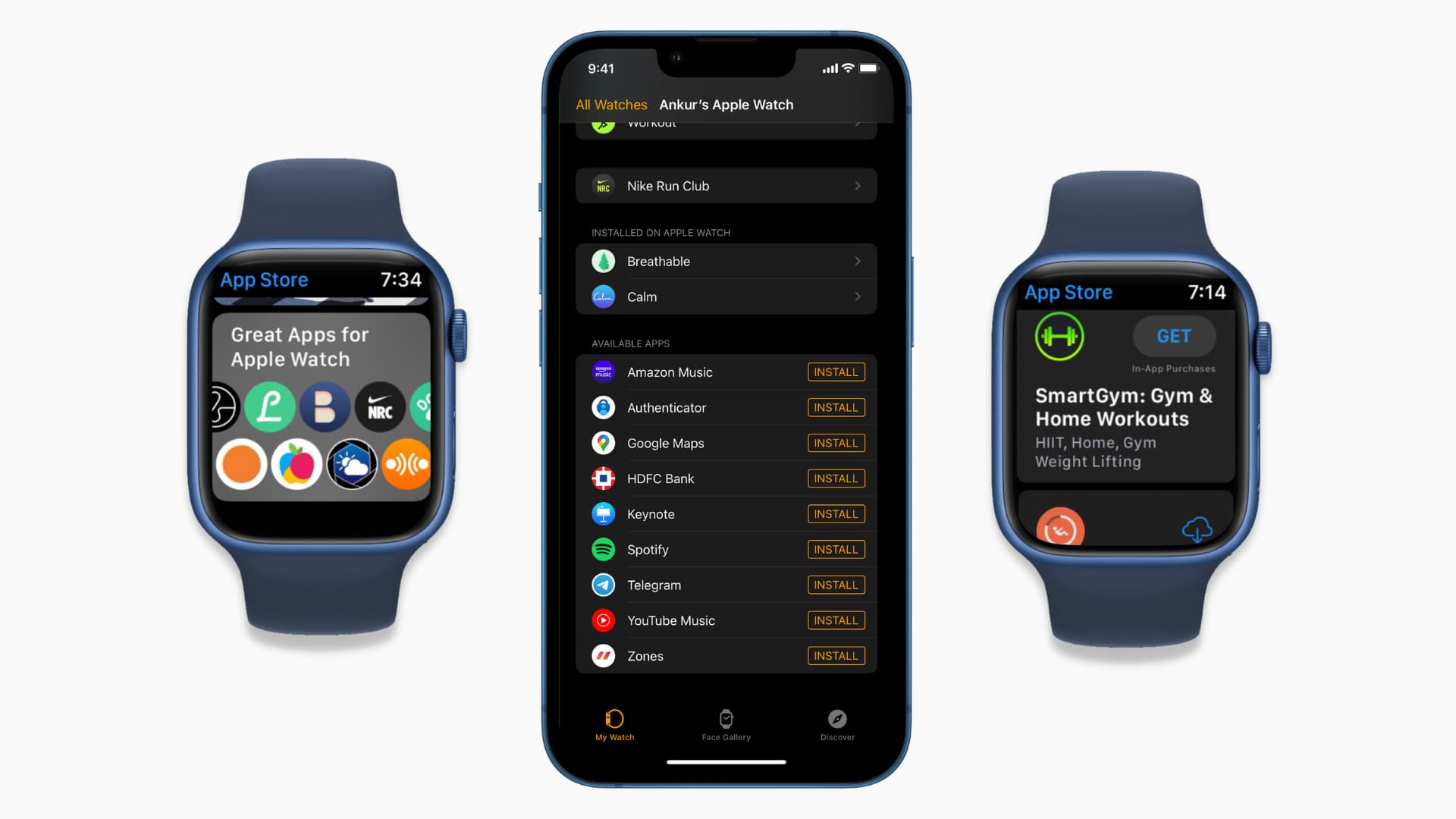
- Scroll down to “Available Apps”: Below the list of “INSTALLED ON APPLE WATCH,” you’ll find a section dedicated to compatible iPhone apps that are not yet on your watch.
- Find the desired app and tap “Install”: Browse through the list. When you find an app you want, simply tap the “Install” button next to its name.
- Monitor installation: The app icon will appear on your Apple Watch’s home screen, and a circular progress indicator will show its installation status. Depending on the app size and your Wi-Fi connection, this process usually takes a few moments.
Discovering New Apps:
Within the Watch app, you can also access a dedicated App Store designed specifically for the Apple Watch.
- From the Watch app, tap the App Store tab at the bottom.
- Here, you can browse featured apps, explore categories (e.g., fitness, productivity, communication, finance), or use the search function to find specific apps.
- Once you find an app you like, tap “Get” (for free apps) or the price (for paid apps). You might need to authenticate with your Apple ID password, Face ID, or Touch ID.
- After purchase or download, the app will automatically install on your Apple Watch. This highlights the importance of Apple’s curated App Store, which ensures a level of quality and security for all available software, impacting both user experience and developer brand reputation.
Installing Directly from Your Apple Watch: On-Wrist Convenience
For ultimate convenience, you can bypass your iPhone entirely and install apps directly from the App Store on your Apple Watch itself. This is particularly useful when you’re away from your iPhone or simply prefer to manage your apps directly from your wrist.
Step-by-Step Guide:
- Open the App Store on your Apple Watch: Press the Digital Crown to go to your app grid or list view, then tap the App Store icon (a blue icon with an ‘A’ made of lines).
- Browse or Search for apps:
- Browse: The App Store on your watch presents curated collections, categories, and popular apps. You can scroll through these recommendations using the Digital Crown or by swiping on the screen.
- Search: Tap the search icon (magnifying glass) at the top of the App Store. You can use Siri (by speaking), Scribble (drawing letters on the screen), or tap the microphone icon for dictation to enter your search query.
- Select an app: Tap on an app to view its description, screenshots, reviews, and compatibility information.
- Tap “Get” or the price: Just like on the iPhone, tap “Get” for free apps or the listed price for paid apps. You may be prompted to authenticate with your Apple ID password via your iPhone or by double-clicking the side button on your Watch.
- Installation: The app will begin downloading and installing directly onto your Apple Watch. A progress circle around the app icon will indicate its status.
This method exemplifies the Apple Watch’s increasing independence and enhances the user experience by putting control directly on the gadget. It’s a testament to the ongoing evolution of wearable technology and the shift towards more self-sufficient devices.
Managing and Optimizing Your Apple Watch Apps
Installing apps is just the first step. Effective management and optimization are crucial for maintaining performance, preserving battery life, and ensuring your Apple Watch remains a productive tool rather than a cluttered distraction.
Arranging and Organizing Your Apps
Once you have several apps installed, you might want to organize them for easier access. The Apple Watch offers two primary ways to view your apps: Grid View (a honeycomb layout) and List View (an alphabetical scrollable list).
To switch views:
- Open the Settings app on your Apple Watch.
- Tap App View.
- Select either Grid View or List View.
To arrange apps in Grid View (via iPhone):
- Open the Watch app on your iPhone.
- Tap the My Watch tab.
- Tap App Layout.
- Tap and drag app icons to rearrange them as desired. This offers a visual way to group frequently used apps together.
To arrange apps in Grid View (on Apple Watch):
- From the Grid View on your Watch, touch and hold an app icon until all icons begin to jiggle.
- Drag the app icon to your desired location.
- Press the Digital Crown once to save the new arrangement.
Organizing your apps thoughtfully, perhaps by category or frequency of use, can significantly enhance your productivity by reducing the time spent searching for specific tools.
Deleting Unnecessary Apps: Freeing Up Space and Streamlining
Just like on your iPhone, periodically reviewing and deleting unused or redundant apps on your Apple Watch is good practice. This frees up storage space, can improve performance, and declutters your digital workspace.
Deleting via Apple Watch:
- From the app view (Grid or List), touch and hold an app icon until it jiggles (in Grid View) or you see a delete option (in List View).
- In Grid View, tap the “X” icon that appears on the app you wish to delete.
- In List View, swipe left on the app and tap the red “Delete” button.
- Confirm the deletion when prompted.
Deleting via iPhone:
- Open the Watch app on your iPhone.
- Tap the My Watch tab.
- Scroll down to the “INSTALLED ON APPLE WATCH” section.
- Tap on the app you wish to remove.
- Toggle off “Show App on Apple Watch.” This removes the app from your watch but keeps the iPhone version. If you want to delete the app entirely from both devices, you must delete it from your iPhone first.
Updating Apps: Staying Current and Secure
Keeping your apps updated is crucial for several reasons:
- New Features: Developers frequently release updates with new functionalities and improvements.
- Performance Enhancements: Updates can fix bugs, improve speed, and optimize battery usage.
- Digital Security: Many updates include security patches that protect against vulnerabilities, safeguarding your personal data and enhancing the overall digital security of your device.
To update apps:
- Updates for Apple Watch apps are typically handled via the Watch app on your iPhone.
- Open the Watch app on your iPhone.
- Tap the App Store tab.
- Scroll down and look for available updates. You can also turn on automatic updates here.
- Individual app updates are often bundled with iPhone app updates, so ensuring your iPhone apps are current often updates their Watch counterparts too.
App Settings and Permissions: Customizing Your Experience
Many Apple Watch apps offer granular control over their behavior, notifications, and permissions. Taking the time to adjust these settings can significantly impact your experience, from battery life to privacy.
To adjust settings:
- Open the Watch app on your iPhone.
- Tap the My Watch tab.
- Scroll down to the “INSTALLED ON APPLE WATCH” section and tap on the specific app you want to configure.
- Here, you’ll find various options, which may include:
- Notifications: Customize how and when you receive alerts from the app.
- Background App Refresh: Control whether the app can refresh its content in the background, which can impact battery life.
- Location Services: Manage whether the app can access your location.
- Complications: Choose what information the app can display on your watch face.
Carefully managing these settings not only optimizes the app’s performance but also enhances your digital security by limiting data access and preventing unwanted background activity.
Troubleshooting Common Apple Watch App Issues
Even with the seamless integration Apple provides, you might occasionally encounter issues with apps on your Apple Watch. Knowing how to troubleshoot common problems can save you time and frustration.
Apps Not Installing or Syncing
If an app isn’t appearing on your watch or isn’t syncing data, consider the following:
- Check Connectivity: Ensure your iPhone and Apple Watch are close together, both have Wi-Fi or cellular connectivity, and Bluetooth is enabled on your iPhone.
- Restart Devices: A simple restart of both your Apple Watch and iPhone can often resolve minor connectivity glitches.
- Check Storage: Verify that your Apple Watch has enough available storage space for new apps. You can check this in the Watch app on your iPhone (My Watch tab > General > Usage).
- Software Updates: Ensure both your iPhone and Apple Watch are running the latest version of iOS and WatchOS, respectively. Outdated software can cause compatibility issues.
- Automatic App Install Setting: Double-check that “Automatic App Install” is enabled in the Watch app settings if you expect apps to transfer automatically.
- Re-pair Apple Watch: As a last resort, unpairing and then re-pairing your Apple Watch with your iPhone can fix stubborn syncing problems, though this is a more time-consuming process.
Apps Crashing or Freezing
An app that frequently crashes or freezes can be frustrating.
- Force Quit the App: On your Apple Watch, press and hold the side button until the power options appear. Then, press and hold the Digital Crown until the app quits. Reopen the app to see if the issue is resolved.
- Restart Apple Watch: A full restart of your watch can clear temporary glitches affecting app stability.
- Update the App: Ensure the problematic app is updated to its latest version. Developers often release patches for stability issues.
- Reinstall the App: Delete the app from your Apple Watch (and iPhone if necessary) and then reinstall it. This can resolve corrupted app files.
Battery Drain Concerns
Some apps, particularly those with frequent background activity, GPS usage, or complex animations, can contribute to faster battery drain.
- Identify Problematic Apps: Observe your battery usage. If you notice a significant drop after installing a new app or using a particular one heavily, that app might be the culprit.
- Adjust App Settings:
- Disable Background App Refresh: For apps that don’t need real-time updates, turn off Background App Refresh in the Watch app (My Watch > General > Background App Refresh).
- Limit Location Services: For apps that use GPS, set their location access to “While Using” or “Never” if full-time tracking isn’t necessary (My Watch > Privacy > Location Services).
- Manage Notifications: Excessive notifications can wake your screen frequently, draining battery. Prioritize essential notifications and disable others.
- Restart Watch Regularly: Periodic restarts can clear background processes that might be unnecessarily consuming power.
- Software Updates: Apple frequently releases WatchOS updates that include battery optimizations. Keep your watch updated.
By systematically addressing these common issues, you can maintain a smooth and efficient experience with your Apple Watch apps, ensuring that this powerful gadget remains a reliable tool for productivity and well-being.
Elevating Your Experience: Best Practices and Advanced Tips
Beyond basic installation and management, there are several ways to truly elevate your Apple Watch experience and harness its full potential. These practices connect directly with getting the most out of your technology and enhancing your personal brand through efficient gadget usage.
Curating Your Watch Face Complications: Instant Access to Information
Watch face complications are small widgets that display information from apps directly on your watch face, offering glanceable data without needing to open the app. This is a cornerstone of Apple Watch productivity.
- Choose Wisely: Select complications for apps you use most frequently or for information you need at a glance (e.g., activity rings, calendar events, weather, a specific stock quote, a timer).
- Experiment with Watch Faces: Different watch faces offer varying numbers and types of complication slots. Explore faces like Infograph, Modular, or Contour to find one that suits your informational needs.
- Customize: To add or change complications, firmly press your watch face, tap “Edit,” then swipe to the “Complications” screen. Tap a slot and turn the Digital Crown to choose an app.
Strategic use of complications streamlines your daily interactions, saving you taps and time, and presenting your Apple Watch as a highly personalized and efficient tool.
Discovering Must-Have Apps: A Curated Selection
While personal preference plays a huge role, some app categories and specific apps consistently receive high praise for their utility and ability to enhance the Apple Watch experience.
- Fitness & Health: Workouts (Apple’s native, comprehensive tracker), AutoSleep (for detailed sleep tracking), Heart Analyzer (in-depth heart rate data).
- Productivity & Organization: Fantastical (a powerful calendar with natural language input), Things 3 or Todoist (robust to-do list managers), Just Press Record (for quick voice memos).
- Communication: WhatsApp (full messaging on your wrist), Walkie-Talkie (Apple’s own real-time voice chat).
- Travel & Navigation: Google Maps (reliable directions), Citymapper (public transport guidance), LoungeBuddy (airport lounge access).
- Finance & Payments: Apple Pay (contactless payments), StockTile (quick stock market glances), banking apps (for checking balances).
- Smart Home: Home (Apple’s native smart home control), Hue Essentials (for Philips Hue lights).
Exploring these popular apps and similar ones in the App Store can introduce you to new ways to leverage your Apple Watch as a versatile personal assistant and a smart investment in your daily efficiency.
The Power of Standalone Apps: Unchaining Your Watch
With cellular models of the Apple Watch, some apps offer full standalone functionality, meaning they can operate without your iPhone nearby. This capability is a game-changer for freedom and convenience.
- Truly Independent Workouts: Go for a run with GPS tracking, music streaming, and emergency calling, leaving your iPhone at home.
- On-the-Go Communication: Make calls, send messages, and stream music directly from your watch, even when your iPhone is miles away.
- Mobile Payments Anywhere: Use Apple Pay for purchases without needing your phone or wallet.
When evaluating new apps, check if they offer standalone functionality, especially if you have a cellular Apple Watch. This capability highlights the Apple Watch’s evolution from an accessory to a powerful, independent gadget, greatly enhancing its value and aligning with the trend of self-sufficient technology.
Embracing the Apple Watch Ecosystem: Brand Loyalty and Innovation
The continuous innovation in Apple Watch apps is a testament to Apple’s brand commitment to delivering cutting-edge technology and a superior user experience. By actively exploring the App Store, keeping apps updated, and utilizing features like complications and standalone functionality, you’re not just using a device; you’re engaging with a carefully curated ecosystem. This engagement fosters a strong connection with the Apple brand, benefiting from its consistent focus on design, security, and integration.
The ability to personalize your watch with apps that enhance your productivity, safeguard your digital security, and even offer insights into your financial health reinforces the idea that technology is most powerful when it seamlessly integrates into and improves our lives. Your Apple Watch, powered by its diverse app library, becomes a personal statement of efficiency and a smart investment in your technological future.
Conclusion
The Apple Watch, propelled by its extensive and ever-growing app ecosystem, stands as a premier example of how technology can genuinely augment our daily lives. From the moment you unbox this sleek gadget, the potential for personalized utility is immense. By mastering the various methods of app installation—whether through the intuitive automatic sync, the comprehensive control offered by the iPhone’s Watch app, or the direct convenience of the on-watch App Store—you unlock a world of possibilities.
Beyond simply adding apps, proactive management, including thoughtful organization, timely updates for digital security and new features, and diligent troubleshooting, ensures your Apple Watch remains a high-performing and reliable companion. Optimizing settings, curating watch face complications, and embracing the power of standalone apps further refines your experience, transforming your device into an indispensable tool for productivity, health, and connectivity.
In an age where technology trends constantly reshape our interactions with the world, the Apple Watch exemplifies how smart design and a rich software library can create a cohesive and empowering user experience. It’s more than just a time teller; it’s a personal hub for managing your digital life, a subtle brand statement, and a tangible investment in your personal efficiency and well-being. So, go forth, explore the App Store, and truly make your Apple Watch your own – a testament to how intelligent software on innovative hardware can enhance every facet of modern living.
aViewFromTheCave is a participant in the Amazon Services LLC Associates Program, an affiliate advertising program designed to provide a means for sites to earn advertising fees by advertising and linking to Amazon.com. Amazon, the Amazon logo, AmazonSupply, and the AmazonSupply logo are trademarks of Amazon.com, Inc. or its affiliates. As an Amazon Associate we earn affiliate commissions from qualifying purchases.