
For decades, the divide between macOS and Windows was a fundamental choice for computer users. You were either a “Mac person” or a “PC person.” However, as hardware has evolved and software ecosystems have become increasingly interconnected, that line has blurred significantly. The short answer to whether you can install Windows on a Mac is a resounding yes, but the “how” and the “why” have changed dramatically with the transition from Intel processors to Apple’s proprietary Silicon (M1, M2, and M3 chips).
Understanding the technical landscape of cross-platform installation is essential for professionals, gamers, and software developers who admire Apple’s hardware but require the specific utility of the Windows environment. This guide explores the various methods of running Windows on a Mac, the hardware implications, and the best practices for achieving a stable, high-performance setup.

1. The Architectural Shift: Intel vs. Apple Silicon
Before diving into installation methods, it is vital to identify which type of Mac you own. The method you use to install Windows depends entirely on the processor under the hood.
Understanding the Intel Legacy
From 2006 until 2020, Apple used Intel processors. Because these chips shared the same x86 architecture as most Windows PCs, running Windows was relatively straightforward. Apple even provided a native utility called Boot Camp that allowed Windows to run directly on the hardware. On these machines, Windows performs exactly as it would on a Dell or HP laptop, with full access to the CPU and GPU resources.
The Rise of Apple Silicon (M-Series Chips)
Starting in late 2020, Apple began transitioning to its own “Apple Silicon”—the M1, M2, and M3 families of chips. These are based on the ARM architecture, similar to what you find in iPhones and iPads. Because Windows was traditionally designed for x86 (Intel/AMD) processors, you cannot use Boot Camp on an M-series Mac. Instead, users must rely on virtualization software and the “Windows on ARM” version of the operating system. While this adds a layer of complexity, modern software has made the experience surprisingly fluid.
Why Run Windows on a Mac?
The motivation for this setup varies. Software developers often need to test applications across different environments without owning multiple machines. Gamers may want access to the vast library of Windows-only titles that are not ported to macOS. Additionally, many specialized enterprise tools—such as specific CAD software, accounting packages like the desktop version of QuickBooks, or legacy database tools—only exist in the Windows ecosystem.
2. Boot Camp: Native Performance for Intel Macs
If you own an Intel-based Mac, Boot Camp is the most robust way to run Windows. It is a multi-boot utility included with macOS that assists users in installing Microsoft Windows operating systems on Intel-based Macintosh computers.
How Boot Camp Works
Boot Camp works by partitioning your hard drive. It carves out a specific section of your SSD or HDD dedicated solely to Windows. When you turn on your Mac, you hold down the Option (Alt) key to choose whether you want to boot into macOS or Windows. Because the OS runs natively, there is no “overhead.” Every bit of your Mac’s processing power is dedicated to the OS you are currently using.
The Installation Process
To use Boot Camp, you need a 64-bit version of Windows 10 (or Windows 11 on supported later Intel Macs) and an ISO file from Microsoft. The Boot Camp Assistant in macOS handles the heavy lifting: it downloads the necessary drivers (for your Mac’s keyboard, trackpad, and graphics card) and helps you format the partition. Once installed, the experience is seamless, though you must restart the computer to switch between the two operating systems.
Pros and Cons of the Dual-Boot Approach
The primary advantage of Boot Camp is performance. It is the best choice for resource-heavy tasks like video rendering or high-end gaming. However, the downside is the lack of integration. You cannot access your Mac apps while in Windows, and moving files between the two partitions can be cumbersome without third-party software or cloud storage. Furthermore, as Apple moves further away from Intel, Boot Camp is effectively a “legacy” feature.
3. Virtualization: The Seamless Solution for Modern Macs
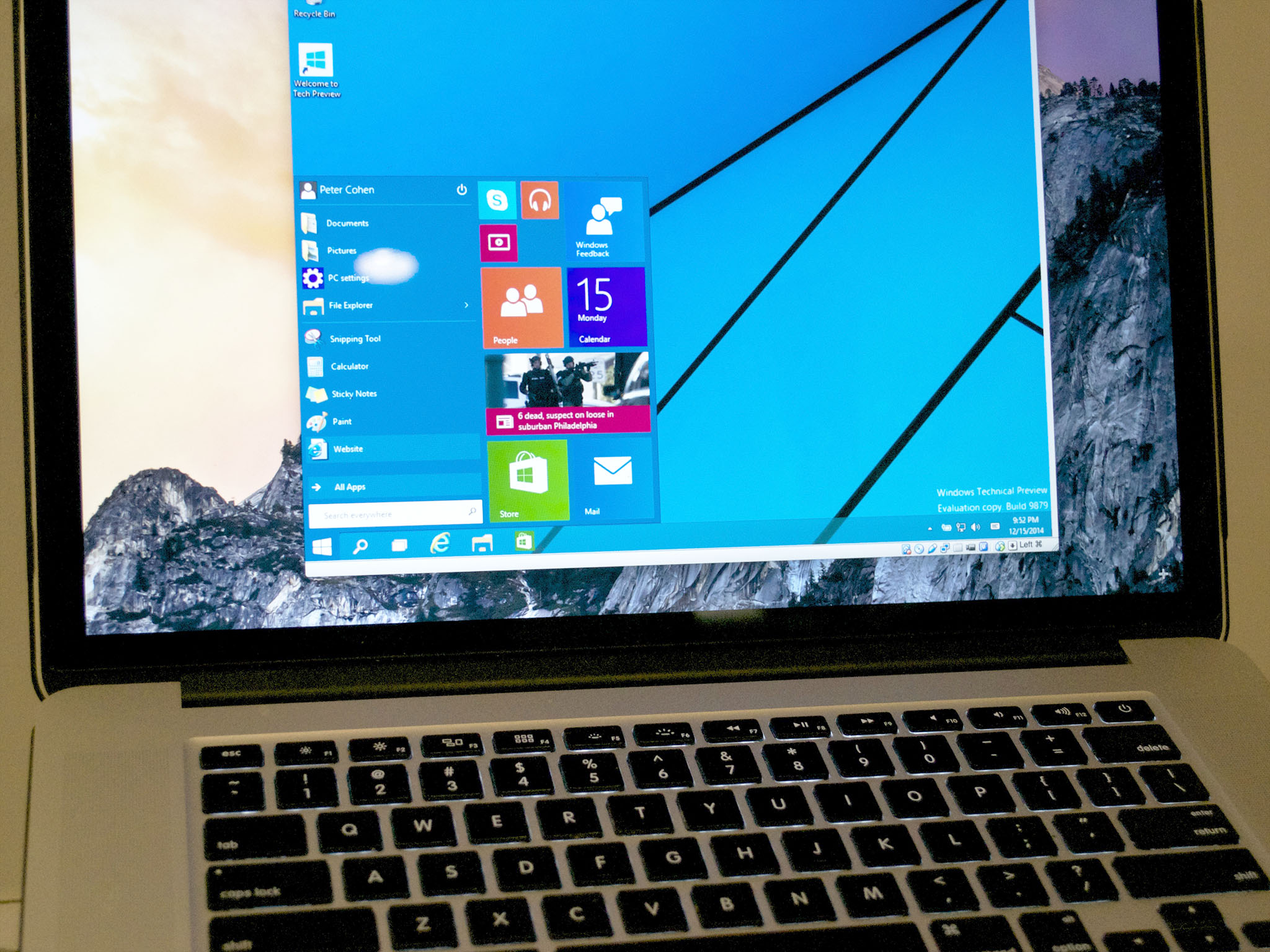
For users with Apple Silicon (M1/M2/M3) or those who don’t want to restart their computers to switch systems, virtualization is the gold standard. Virtualization software creates a “Virtual Machine” (VM) that runs Windows as if it were just another app inside macOS.
Parallels Desktop: The Industry Leader
Parallels Desktop is currently the most popular and optimized solution for running Windows on a Mac, especially for Apple Silicon users. It allows for “Coherence Mode,” where Windows applications appear on your Mac desktop right next to Mac apps. You can drag and drop files between Windows Excel and Mac Mail seamlessly. On M-series chips, Parallels runs the ARM version of Windows 11, which includes an emulation layer to run traditional x86 Windows apps with impressive speed.
VMware Fusion and UTM
VMware Fusion is another powerful professional-grade virtualization tool. While it was traditionally aimed at enterprise users, it now offers a free version for personal use. For those who are tech-savvy and prefer open-source solutions, UTM is a great choice. UTM uses the QEMU framework to emulate different architectures, making it a highly flexible, albeit more complex, way to run Windows or even older operating systems on a modern Mac.
The Trade-offs of Virtualization
The main benefit is convenience; you can run Windows and Mac apps side-by-side. However, virtualization requires a significant amount of RAM. Since you are essentially running two operating systems simultaneously, your Mac needs at least 16GB of RAM for a smooth experience. Additionally, because the hardware is being “shared” or “virtualized,” you may see a slight dip in performance in high-end 3D applications compared to a native Boot Camp installation.
4. Specialized Solutions and Cloud Computing
Beyond traditional installations, there are “lighter” ways to get Windows functionality on a Mac without installing the entire operating system. These are ideal for users who only need one or two specific Windows programs.
Wine and CrossOver
CrossOver (developed by CodeWeavers) is a polished version of the open-source Wine project. It is not an operating system; rather, it is a compatibility layer that translates Windows commands into Mac commands in real-time. This allows you to run Windows applications (.exe files) directly on macOS without a Windows license and without the overhead of a virtual machine. While not every app is compatible, it is an excellent resource for many popular games and productivity tools.
Windows 365 and Cloud PCs
As high-speed internet becomes ubiquitous, many users are moving toward Cloud PCs. Microsoft’s Windows 365 service allows you to stream a full Windows 11 desktop through a web browser or a Remote Desktop app. This removes the hardware burden from your Mac entirely. The processing happens on Microsoft’s servers, and the image is streamed to your screen. This is an ideal solution for corporate environments where security and centralized management are priorities.
Gaming via Game Porting Toolkit
Recently, Apple introduced the Game Porting Toolkit (GPTK) to help developers bring Windows games to Mac. While primarily a developer tool, enthusiasts have used it to run high-end Windows games on macOS with surprising efficiency. It leverages the power of Apple Silicon’s GPU to translate DirectX 12 calls into Apple’s Metal graphics language, signaling a future where Windows-to-Mac software translation is more efficient than ever.
5. Performance Optimization and Best Practices
Installing Windows is only half the battle; ensuring it runs efficiently requires careful management of your Mac’s resources.
Allocating Resources
When using a Virtual Machine, you must decide how much of your Mac’s CPU and RAM to “give” to Windows. A common mistake is allocating too much or too little. For a Mac with 16GB of RAM, allocating 8GB to Windows usually provides a balanced experience. If you allocate 12GB, macOS may become sluggish; if you allocate 4GB, Windows might struggle with modern updates and multitasking.
Storage Management
Windows installations are storage-hungry. A standard Windows 11 installation with basic updates can easily consume 30GB to 60GB of space. When using Boot Camp, you cannot easily resize your partition later without deleting it and starting over. Therefore, it is wise to allocate at least 100GB to your Windows partition if you plan on installing any substantial software or games.
Maintaining Security
One of the most overlooked aspects of running Windows on a Mac is security. When you run Windows, you are susceptible to Windows-based viruses and malware, even if the host machine is a Mac. If you are using Boot Camp or a Virtual Machine, you should treat the Windows side as a separate entity. This means keeping Windows Defender active, installing regular security patches, and using a VPN if you are accessing sensitive data.
Conclusion
Can Windows OS be installed on a Mac? Absolutely. For users with older Intel Macs, Boot Camp offers a powerful, native experience that maximizes hardware performance. For those with the newer, faster Apple Silicon Macs, virtualization through tools like Parallels Desktop offers a level of integration and convenience that was previously unthinkable.
The choice ultimately depends on your specific needs. If you are a heavy gamer or an engineer, a dedicated Intel-based Boot Camp setup or a high-end Cloud PC might be best. If you are a general professional who needs occasional access to Windows-specific apps, virtualization provides the perfect bridge. As technology continues to evolve, the wall between these two operating systems continues to crumble, allowing users to enjoy the premium build quality of Apple hardware with the versatile software library of Microsoft Windows.
aViewFromTheCave is a participant in the Amazon Services LLC Associates Program, an affiliate advertising program designed to provide a means for sites to earn advertising fees by advertising and linking to Amazon.com. Amazon, the Amazon logo, AmazonSupply, and the AmazonSupply logo are trademarks of Amazon.com, Inc. or its affiliates. As an Amazon Associate we earn affiliate commissions from qualifying purchases.