
For many users, the command line can feel like a daunting frontier, a place where cryptic commands and unexpected errors lurk. While the terminal is an incredibly powerful tool, particularly for developers and system administrators, it’s not always the most intuitive interface for those new to Linux or simply preferring a visual approach. If you’ve ever found yourself needing to install software on your Ubuntu system but hesitant to dive into the terminal, you’re not alone. This article addresses a common question: “How to install Vim on Ubuntu without the terminal?”
Vim, a highly configurable and efficient text editor, is a favorite among programmers and power users due to its extensive features, speed, and extensibility. However, the traditional method of installing it on Ubuntu involves using the apt package manager via the terminal. For those who prefer a graphical user interface (GUI), this can be a roadblock. Fortunately, Ubuntu provides user-friendly graphical package managers that allow you to install software, including Vim, without ever opening a terminal window. This guide will walk you through the process, ensuring that even the most terminal-averse user can get Vim up and running on their Ubuntu desktop.
Understanding Ubuntu’s Graphical Package Management
Ubuntu, like many modern Linux distributions, offers a dual approach to software installation: the command line and graphical interfaces. The terminal provides direct access to the system’s package management tools, offering unparalleled flexibility and control. However, for everyday software installations and updates, Ubuntu’s desktop environment comes equipped with intuitive GUI applications designed to simplify the process. These graphical tools act as front-ends to the underlying package managers, translating your clicks and searches into the necessary commands behind the scenes.
The primary graphical tool for software management in Ubuntu is the Ubuntu Software Center (or simply “Software” in newer versions). This application is designed to be as user-friendly as possible, featuring a searchable catalog of applications, categories, ratings, and reviews. It allows you to browse, install, update, and remove software with a few clicks. For our purpose of installing Vim without the terminal, the Ubuntu Software Center is our main ally.
The Ubuntu Software Center: Your Visual Gateway to Applications
The Ubuntu Software Center is a curated marketplace for applications available for your Ubuntu system. It integrates with Ubuntu’s repositories, which are collections of software packages maintained by the Ubuntu developers and the community. When you search for an application in the Software Center, it queries these repositories. Once you find what you’re looking for, the Software Center handles the download and installation process, including managing any dependencies – other software packages that Vim requires to function correctly.
While the Software Center is excellent for most common applications, it’s worth noting that not every single piece of software might be readily available or perfectly up-to-date in the main repositories. However, for a widely used and fundamental tool like Vim, it’s almost certainly present and well-supported.
Step-by-Step Guide: Installing Vim with the Ubuntu Software Center
Let’s get straight to the practical steps of installing Vim using the graphical interface. This process is designed to be straightforward and requires no prior knowledge of command-line operations.
Finding and Installing Vim
-
Launch the Ubuntu Software Center:
- Look for the Ubuntu Software icon on your dock (the bar of icons usually on the left side of your screen). It typically looks like a shopping bag or a stylized “A” for applications.
- If you can’t find it on the dock, click on the “Show Applications” button (usually in the bottom-left corner, often represented by a grid of dots) and search for “Software.” Click on the Ubuntu Software application to open it.
-
Search for Vim:
- Once the Ubuntu Software Center is open, you’ll see a search bar at the top. Click on it and type “Vim.”
- As you type, the Software Center will begin to show search results. Look for an entry that clearly states “Vim” or “Vim – Vi IMproved.” You might see different versions or related packages; the standard Vim package is usually the one you want.
-
Select and Install Vim:
- Click on the Vim entry from the search results. This will take you to its dedicated page, where you can often see a description, screenshots, and user reviews.
- On the Vim page, you should see an “Install” button. Click this button.
-
Authentication:
- After clicking “Install,” Ubuntu will likely prompt you for your user password. This is a security measure to ensure that only authorized users can install software on the system.
- Enter your password carefully and click “Authenticate” or press Enter.
-
Installation Process:
- The Ubuntu Software Center will now download and install Vim and any necessary dependencies. You’ll usually see a progress indicator showing the status of the installation.
- This process typically takes only a few moments, depending on your internet connection speed.
-
Verification:
- Once the installation is complete, the “Install” button will likely change to an “Uninstall” or “Launch” button, indicating that Vim is now installed.
- You can close the Ubuntu Software Center.
Launching Vim
Now that Vim is installed, you can launch it.
- Using the Applications Menu:
- Click on the “Show Applications” button again (the grid of dots).
- In the search bar, type “Vim.”
- The Vim icon should appear. Click on it to launch the text editor.
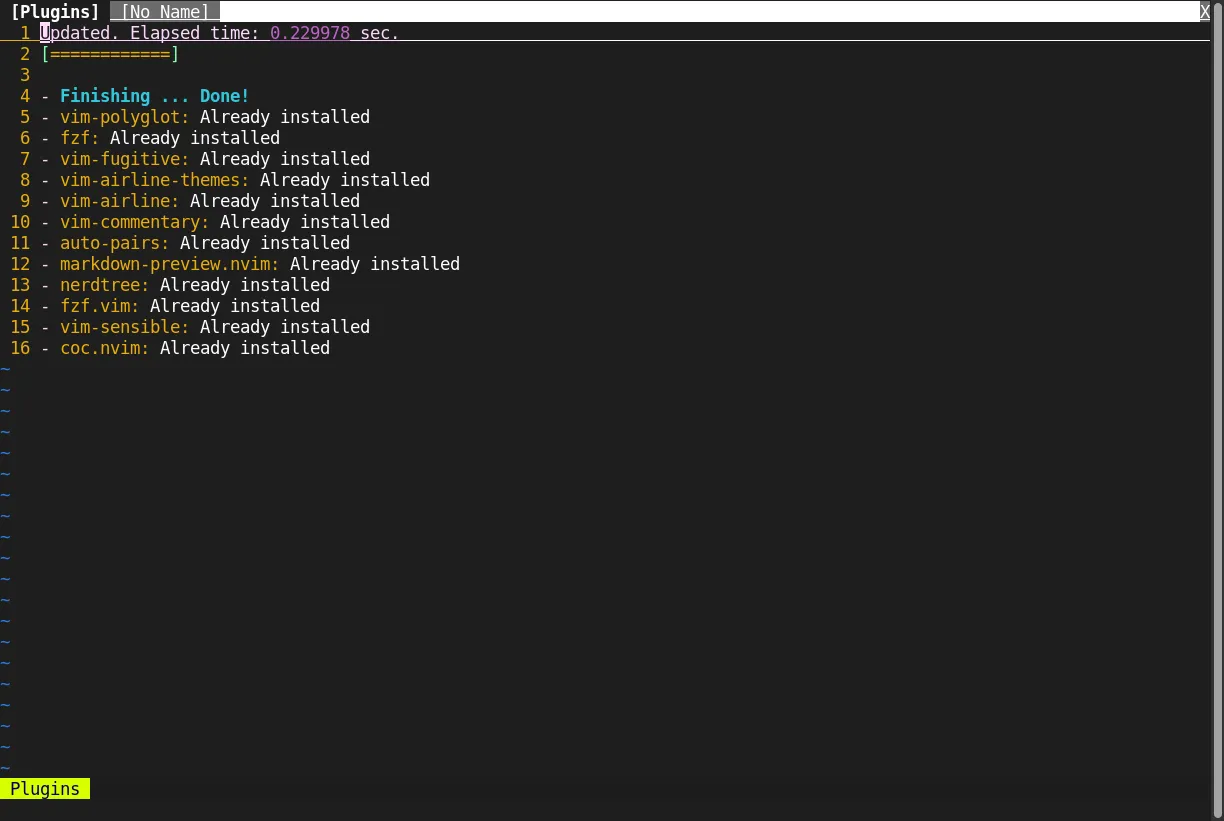
- Exploring Vim:
- When Vim launches, you’ll be presented with its distinctive interface. Don’t be alarmed by the lack of obvious buttons or menus. Vim operates primarily through keyboard commands.
- To exit Vim immediately, you can type
:q!and press Enter. This is a common command to quit without saving any changes.
Alternative Graphical Tools (Less Common for Vim Installation)
While the Ubuntu Software Center is the primary and most recommended method for graphical software installation, it’s worth being aware of other potential tools or scenarios.
Synaptic Package Manager
Synaptic is a more traditional, advanced package management tool that provides a more detailed view of installed packages and repositories. It’s not installed by default on all Ubuntu versions but can be installed through the Ubuntu Software Center itself (ironically, using the GUI to install a more advanced GUI tool).
To Install and Use Synaptic:
- Open the Ubuntu Software Center.
- Search for “Synaptic Package Manager” and install it.
- Once installed, launch Synaptic from your applications menu.
- You’ll see a list of all installed packages. Use the search function within Synaptic to find “vim.”
- Select Vim, then click “Mark for Installation” and finally click the “Apply” button to install it.
Synaptic offers more granular control but is generally less user-friendly than the Ubuntu Software Center for basic installations. For installing Vim, it’s an overkill but a valid graphical alternative if you prefer its interface.
Software & Updates (for adding repositories)
While not directly for installing Vim, the “Software & Updates” application is a crucial GUI tool for managing your software sources. If you ever needed to install software not found in the default repositories (which is unlikely for Vim), you would use this tool to add external repositories. However, for the standard Vim installation, you won’t need to interact with “Software & Updates.”
Why Install Vim? Exploring its Benefits Beyond Installation
Having successfully installed Vim graphically, you might wonder what makes this text editor so popular and why you might want to use it. Vim isn’t just another text editor; it’s a philosophy of efficient text manipulation.
Efficiency and Speed
Vim’s core strength lies in its modal nature. It has different modes, such as “normal mode” (for navigation and commands), “insert mode” (for typing text), and “visual mode” (for selecting text). This separation allows for incredibly fast and precise editing once you learn the commands. Instead of reaching for your mouse to select text or cut and paste, you can do it all with keystrokes, significantly speeding up your workflow, especially for repetitive tasks.
Customization and Extensibility
Vim is renowned for its extensibility. Through a configuration file (.vimrc), you can customize almost every aspect of the editor, from key mappings and color schemes to behavior and appearance. Furthermore, a vast ecosystem of plugins exists for Vim, adding features for programming, version control, file management, and much more. You can tailor Vim to become an all-encompassing development environment.
Universality and Portability
Vim is available on virtually every operating system, from Linux and macOS to Windows and even some embedded systems. This ubiquity means that once you learn Vim, you can be productive on any machine, regardless of its operating system. Its lightweight nature also makes it incredibly fast to start up, even on older or less powerful hardware.
Learning Curve and Rewards
It’s undeniable that Vim has a steep learning curve. The initial experience can be frustrating as you try to figure out how to simply exit the editor. However, for those who persevere, the rewards are immense. The efficiency and power gained from mastering Vim can transform how you interact with text and code, making you a more productive and proficient user.
Conclusion
Installing Vim on Ubuntu without touching the terminal is not only possible but also a straightforward process thanks to the user-friendly Ubuntu Software Center. This graphical application provides a seamless way to discover, install, and manage software, making your Ubuntu experience more accessible. Whether you’re a seasoned developer or a new computer user, you can now enjoy the power and efficiency of Vim with just a few clicks. While the terminal remains a vital tool for many advanced tasks, it’s heartening to know that essential software like Vim can be integrated into your system through intuitive graphical interfaces, opening up powerful computing tools to a wider audience. Now that Vim is installed, take the time to explore its capabilities and discover the productivity boost it can offer.
aViewFromTheCave is a participant in the Amazon Services LLC Associates Program, an affiliate advertising program designed to provide a means for sites to earn advertising fees by advertising and linking to Amazon.com. Amazon, the Amazon logo, AmazonSupply, and the AmazonSupply logo are trademarks of Amazon.com, Inc. or its affiliates. As an Amazon Associate we earn affiliate commissions from qualifying purchases.