
In the rapidly evolving landscape of survival-crafting games, Obsidian Entertainment’s Grounded has carved out a unique niche by shrinking players down to the size of an ant and forcing them to navigate the perils of a suburban backyard. While the base game offers a robust experience, the PC gaming community thrives on the technical customization provided by mods. One of the most sought-after enhancements for this title is the “Tiny Tidbits” mod—a collection of quality-of-life improvements and gameplay tweaks that streamline the user experience.
However, for those unaccustomed to the intricacies of game file manipulation and scripting engines, the installation process can seem daunting. This guide serves as a technical deep dive into the installation, configuration, and optimization of the Tiny Tidbits mod, ensuring your transition into the backyard is as seamless as possible.
Understanding the Technical Framework of Grounded Modding
Before diving into the installation, it is crucial to understand the architectural foundation of Grounded. Built on Unreal Engine 4 (UE4), the game utilizes a specific file structure that requires external “hooks” to allow third-party scripts to run. Unlike games with native workshop support, Grounded often necessitates the use of the Unreal Engine 4 Scripting System (UE4SS).
The Role of UE4SS in Modern Modding
UE4SS is a powerful tool used by modders to inject C++ and Lua scripts into games built on Unreal Engine. The Tiny Tidbits mod relies on this framework to override default game parameters without permanently altering the core game files (the .pak files). By using a scripting loader, users can toggle features, adjust UI elements, and modify resource spawn rates dynamically. Understanding this relationship is key: if UE4SS is not configured correctly, the Tiny Tidbits mod simply will not initialize.
Version Compatibility and Game Updates
In the tech world, software versioning is everything. Grounded receives frequent updates from Obsidian, which can often “break” mods by changing the underlying code addresses that scripts target. Before proceeding, always ensure that your version of Tiny Tidbits and UE4SS aligns with the current version of the game. Typically, the Steam version and the Xbox Game Pass (PC) version have slightly different directory structures, which we will address in the installation steps.
Pre-Installation Procedures: Safeguarding Your Digital Environment
Modding is essentially an act of software modification, and like any technical endeavor, it carries a risk of file corruption or save-game loss. Establishing a baseline of security and redundancy is a professional necessity.
Creating a Secure Backup
Before moving any files, navigate to your save game directory. For most users, this is located in %USERPROFILE%Saved GamesGrounded. Copy this folder to an external drive or a cloud-service directory. In the event of a critical script error that prevents the game from loading, having a clean backup ensures you don’t lose hundreds of hours of progress in the backyard.
Optimizing System Permissions
Modern Windows environments (specifically Windows 10 and 11) have strict User Account Control (UAC) settings for the Program Files directory. If your game is installed in the default Steam or Xbox folder, you may encounter “Permission Denied” errors when trying to inject mod files. It is often recommended to run your file explorer as an Administrator or ensure your user profile has “Full Control” over the Grounded installation folder.
Step-by-Step Installation of Tiny Tidbits
The installation of Tiny Tidbits is a two-part process: setting up the loader and then deploying the mod files themselves. Follow these technical steps precisely to avoid the common “Black Screen” or “Crash on Startup” errors.

Step 1: Installing the Scripting Framework
- Download UE4SS: Navigate to the official GitHub repository for UE4SS and download the latest stable release (usually a .zip file named
UE4SS_vX.X.X.zip). - Locate the Binary Folder: Open your Grounded installation directory.
- Steam:
SteamLibrarysteamappscommonGroundedMainBinariesWin64 - Game Pass: The path is usually hidden within the
XboxGamesfolder, requiring you to enable “Modding” within the Xbox App to access the files.
- Steam:
- Extract Files: Copy the contents of the UE4SS zip directly into the
Win64folder. You should seeUE4SS-settings.iniand aModsfolder appear in this directory.
Step 2: Deploying the Tiny Tidbits Mod
- Acquire the Mod: Visit a reputable modding repository like Nexus Mods to download the Tiny Tidbits package. Ensure you are downloading the latest version compatible with the current game patch.
- Unpack the Assets: Extract the Tiny Tidbits folder. Inside, you will typically find a folder named after the mod and perhaps a
scriptsorenabled.txtfile. - Placement: Move the
TinyTidbitsfolder into theModsdirectory created by UE4SS in the previous step. - Activation: Open the
mods.txtfile located in the UE4SS root folder. Add a new line that readsTinyTidbits : 1. This tells the scripting engine to load the mod upon game initialization.
Optimizing Mod Settings and Configuration
One of the greatest advantages of the Tiny Tidbits mod is its modular nature. It doesn’t just change one thing; it offers a suite of adjustments ranging from stack size increases to stamina consumption tweaks. To truly leverage this tool, you must engage with its configuration files.
Editing the Configuration Scripts
Within the TinyTidbits folder, you will often find a .lua or .json configuration file. Opening this in a text editor like Notepad++ or Visual Studio Code allows you to fine-tune the experience.
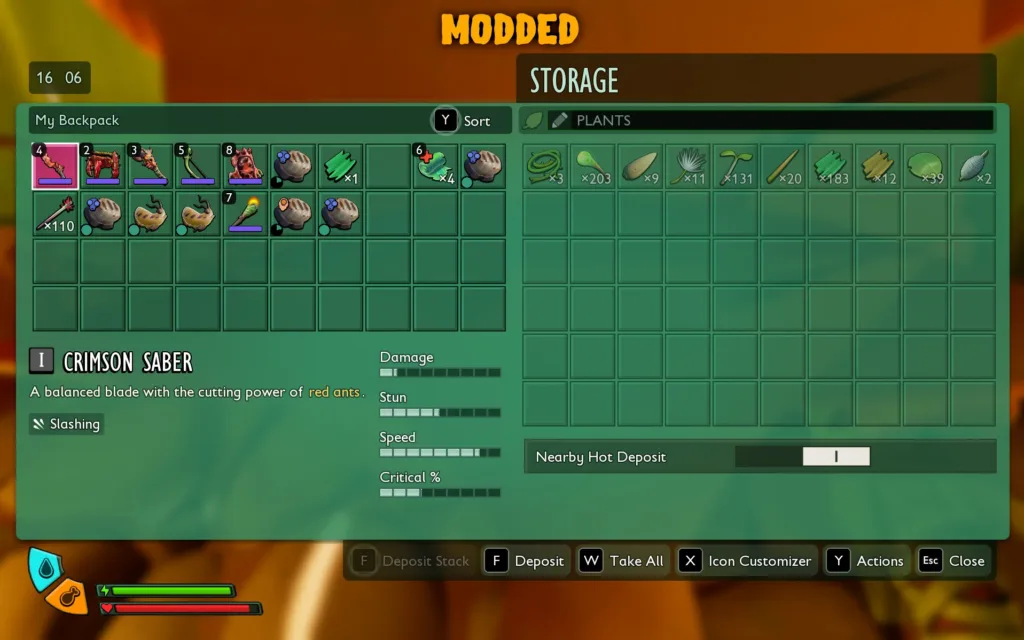
- Stack Sizes: You can technically increase the amount of grass planks or insect parts you can carry. Be cautious: setting these values too high can occasionally lead to UI clipping.
- Durability Toggles: If you prefer a focus on exploration over resource management, you can adjust the degradation rate of tools and armor.
Performance Impact and Resource Allocation
While Tiny Tidbits is a “lightweight” mod, adding any layer of scripting to a game increases the CPU overhead. Every time the game calculates an inventory change or a stamina drain, the UE4SS layer must intercept and modify that value. On high-end systems, this impact is negligible. However, on mid-range or budget rigs, you should monitor your frame timings. If you experience micro-stuttering, consider disabling specific “tidbits” within the config file that require constant polling, such as real-time HUD updates.
Advanced Troubleshooting and Digital Security
In the world of software customization, troubleshooting is an inevitable skill. If the mod fails to load, or the game crashes, a systematic approach to debugging is required.
Identifying Conflict Signatures
The most common cause of failure is a mod conflict. If you are running other mods that modify the UI or inventory systems (like “Better Sorting”), they may be fighting over the same memory addresses as Tiny Tidbits. To diagnose this:
- Disable all other mods in the
mods.txtfile by changing their values to0. - Launch the game with only Tiny Tidbits enabled.
- If it works, re-enable other mods one by one until the crash recurs. This “binary search” method is the standard for isolating software conflicts.
Verifying File Integrity and Security
Whenever downloading third-party scripts, digital security should be a priority. Always scan .dll and .exe files using updated antivirus software. Furthermore, if a mod causes persistent instability, use the “Verify Integrity of Game Files” feature in Steam. This will compare your local files against the official server versions and redownload any corrupted binaries, effectively providing a “factory reset” for your game’s technical stack.
Log File Analysis
If the game crashes, UE4SS generates a UE4SS.log file in the Win64 directory. This log is a treasure trove of technical data. Look for lines labeled [ERROR] or [FATAL]. Often, the log will explicitly state if a specific script line in Tiny Tidbits failed to compile, allowing you to search for specific fixes in the modding community forums.
Conclusion: The Future of Your Backyard Experience
Installing the Tiny Tidbits mod for Grounded is more than just a simple file drag-and-drop; it is an exercise in managing a software environment. By understanding the UE4SS framework, ensuring proper file placement, and fine-tuning the configuration, you transform a standard survival game into a personalized technical showcase.
As you continue to explore the backyard, remember that modding is an iterative process. Stay active in the community, keep your software updated, and always maintain your backups. With the Tiny Tidbits mod successfully integrated into your Grounded installation, you are now equipped with the technical edge needed to conquer the giants of the garden with efficiency and style. Whether you are optimizing your resource loops or simply looking for a smoother gameplay flow, the technical mastery of your game’s directory is the first step toward a superior gaming experience.
aViewFromTheCave is a participant in the Amazon Services LLC Associates Program, an affiliate advertising program designed to provide a means for sites to earn advertising fees by advertising and linking to Amazon.com. Amazon, the Amazon logo, AmazonSupply, and the AmazonSupply logo are trademarks of Amazon.com, Inc. or its affiliates. As an Amazon Associate we earn affiliate commissions from qualifying purchases.