
In the modern digital landscape, the concept of “installing” software is undergoing a radical transformation. Traditionally, using a robust office suite like LibreOffice meant downloading a heavy installer, navigating a multi-step setup wizard, and granting the application deep permissions within your operating system’s registry. However, as we move toward a more mobile, secure, and cloud-centric tech environment, many users are looking for ways to access these powerful tools without the “baggage” of a standard installation.
Whether you are working on a restricted guest computer, managing a lightweight system with limited storage, or simply practicing high-level digital hygiene by avoiding system bloat, learning how to deploy LibreOffice without a traditional software installation is a vital skill. This guide explores the most effective methods to achieve a fully functional LibreOffice experience through portable versions, cloud integration, and virtualization.

The Shift Toward Installation-Free Productivity
The traditional software model—where an application is tethered to a single machine’s hardware and OS—is increasingly viewed as a bottleneck. Tech-savvy professionals and privacy enthusiasts are leading a shift toward modularity. Using software without “installing” it in the conventional sense offers several distinct advantages that align with current technology trends.
Overcoming Administrative and Hardware Limitations
One of the most common reasons users seek “no-install” solutions is the lack of administrative privileges. In corporate or educational environments, IT departments often restrict the ability to run .exe or .msi installers to prevent malware and maintain system stability. By using methods that bypass the Windows Registry or macOS Applications folder, users can maintain productivity without violating security protocols or needing a help-desk ticket for a simple software update.
Furthermore, on devices with limited Solid State Drive (SSD) capacity, such as budget netbooks or older hardware, a full LibreOffice installation can consume nearly a gigabyte of precious space. Using external media or cloud-based alternatives allows users to keep their local storage lean while still having access to professional-grade word processing, spreadsheets, and presentations.
Enhancing Digital Security and Privacy
Every time software is installed, it leaves a footprint. From temporary files to registry keys and background update services, traditional software can become a liability for digital privacy. By utilizing “installation-free” methods, you effectively “sandbox” the application. This ensures that when the application is closed or the external drive is removed, the host system remains untouched. For users concerned with digital security, this minimized footprint is a critical component of a hardened workflow.
Method 1: Leveraging LibreOffice Portable for On-the-Go Productivity
The most popular way to use LibreOffice “without software” installation is through the PortableApps format. This version of the suite is re-engineered to run entirely from a folder, whether that folder is on a USB flash drive, a cloud-synced directory, or an external hard drive.
What is LibreOffice Portable?
LibreOffice Portable is a full-featured version of the suite, including Writer, Calc, Impress, and Draw, packaged in a way that all its dependencies are contained within its own directory. Unlike the standard version, it does not write to the host computer’s registry or leave files in the user’s system folders. This makes it the ultimate “stealth” productivity tool. It supports all standard Open Document Formats (ODF) and remains fully compatible with Microsoft Word, Excel, and PowerPoint files.
Step-by-Step Deployment on External Media
To get started, you don’t “install” the software so much as “unpack” it.
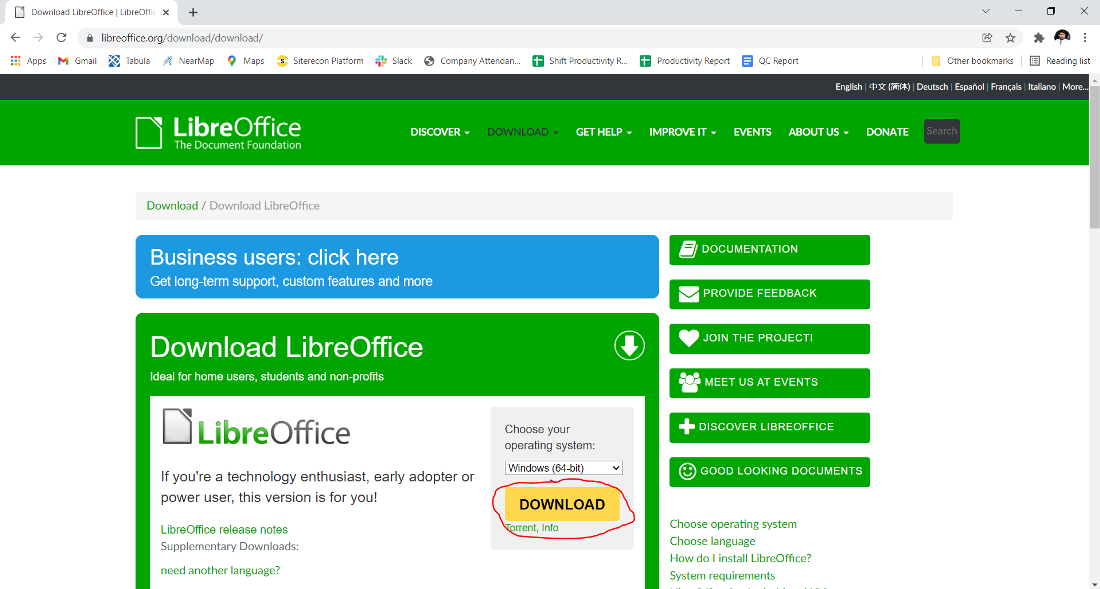
- Download the Package: Visit the official LibreOffice or PortableApps website to download the
.paf.exefile. - Select Destination: Instead of selecting
C:Program Files, point the destination to your USB drive or a dedicated folder on your desktop. - Execution: Once unpacked, you simply navigate to the folder and run
LibreOfficePortable.exe.
The beauty of this method lies in its persistence. Your settings, custom dictionaries, and extensions stay within that specific folder. If you move the USB drive from a home PC to a library computer, your entire workspace remains exactly as you left it, without ever having “installed” a single byte on the library’s hard drive.
Benefits for Cross-Platform Syncing
Advanced users often combine LibreOffice Portable with cloud storage services like Dropbox or Proton Drive. By placing the portable folder inside a synced directory, you can run LibreOffice on any machine that has your cloud drive mapped. This creates a “virtual installation” that follows you across devices, ensuring version parity and eliminating the need to manage multiple software updates across different computers.
Method 2: Accessing LibreOffice via Web-Based and Cloud Solutions
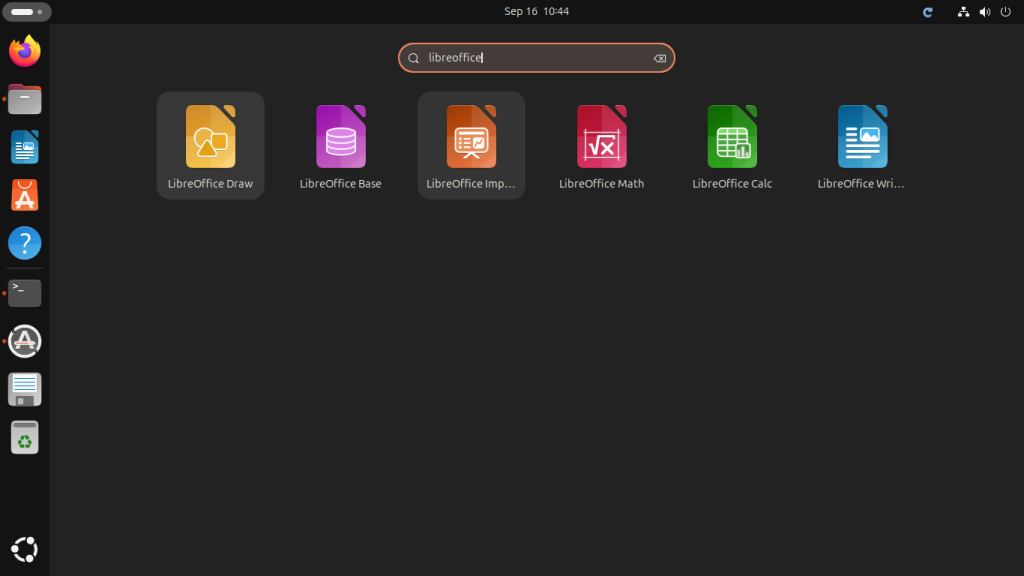
If you prefer not to carry a physical drive or manage local folders, the most effective way to use LibreOffice “without software” is through the browser. This method utilizes server-side power to render the office suite, meaning your local machine only needs to handle the web display.
Collabora Online: The Web-Based Powerhouse
Collabora Online is effectively the “LibreOffice in the Cloud.” It is built on the LibreOffice core but designed specifically for web browsers. It provides a high-fidelity experience that rivals Google Docs or Microsoft 365, but with the added benefit of being open-source and highly compatible with complex document layouts.
For the individual user, accessing this “no-install” version usually happens through an integration. Many privacy-focused email providers and cloud hosts now offer Collabora as a built-in feature. When you open a .docx or .odt file in these environments, you are using LibreOffice technology without having any office software on your physical hardware.
Integration with Personal Cloud Storage (Nextcloud)
For those who want to maintain control over their data (the “Libre” philosophy), setting up a Nextcloud instance is the gold standard. Nextcloud offers a “Hub” that integrates Collabora Online.
- The User Experience: You log into your private cloud URL from any browser (Chrome, Firefox, Safari).
- The Functionality: You create, edit, and save documents directly in the browser interface.
- The Tech: The heavy lifting is done by the server hosting the Nextcloud instance. Your laptop or tablet remains cool, quiet, and free of heavy software installations.
Virtualization Platforms: RollApp
Another ingenious method to run LibreOffice without installation is through virtualization services like RollApp. This platform runs the actual desktop version of LibreOffice on their servers and “streams” the interface to your browser via HTML5. This is particularly useful for users on Chromebooks or tablets where installing desktop Linux/Windows software is impossible. You simply connect your cloud storage (like Google Drive or Box) to RollApp, and you can open LibreOffice Writer in a browser tab as if it were locally installed.
Method 3: Using Containerization and Virtualized Environments
For users who are more technically inclined, “installing” software can be replaced by “running a container.” This is a popular trend in DevOps and system administration that is trickling down to power users.
Dockerizing LibreOffice for Server-Side Use
Docker allows you to wrap LibreOffice in a complete filesystem that contains everything it needs to run: code, runtime, system tools, and system libraries. This is not an “installation” in the traditional sense because it doesn’t modify your base operating system’s configuration.
By pulling a LibreOffice Docker image, you can run the suite in an isolated environment. This is particularly useful for automated tasks, such as converting thousands of documents from PDF to Word via the command line without cluttering your workstation with UI-based software. When the task is done, you simply stop the container, and the system returns to its original state.
Sandboxing for Enhanced Security
Using Flatpak or AppImage on Linux systems is another way to use LibreOffice “without installation” in the traditional sense. While these are technically downloaded files, they are “sandboxed.” They do not scatter files across your system directories. An AppImage, for example, is a single file that you make executable. You double-click it, the software runs, and when you’re done, you can move that single file to a different drive or delete it, knowing no “ghost” files remain in your system’s library folders.
Maximizing Efficiency with “Installation-Free” LibreOffice
Transitioning to a no-install workflow requires a slight shift in how you manage your digital assets. To make the most of this tech-forward approach, consider the following best practices.
Best Practices for File Management
When your software is portable or cloud-based, your saving habits must be intentional.
- Always use ODF by default: Ensure your portable or web-based version is set to save in
.odtand.odsformats to maintain the highest level of compatibility with the LibreOffice engine. - Centralized Storage: If using the portable version on a USB, create a “Documents” folder within the USB drive itself. This ensures that the application and its data are always together, preventing “broken link” errors when switching between computers.
Ensuring Compatibility Across Different Systems
One common tech hurdle with no-install software is font compatibility. Because the software isn’t “installed” on the host OS, it may not have access to the system’s fonts (like Calibri or Times New Roman).
- Tip: In LibreOffice Portable, you can create a
Fontsfolder within theDatadirectory. By placing your preferred.ttfor.otffiles there, the portable version will load them automatically, regardless of which computer you are plugged into. This ensures your document formatting remains pixel-perfect across different hardware.
The Future of LibreOffice and Software Deployment
The “install-less” movement is more than just a convenience; it represents the future of software consumption. As browsers become more powerful and containerization becomes more accessible, the need to “install” software will likely fade into obsolescence. By adopting these methods today, you are not only saving disk space and maintaining a cleaner system but also future-proofing your workflow against a rapidly changing technological landscape.
In conclusion, “installing Libre without software” is a paradox that is easily solved through modern tech solutions. Whether you choose the portability of a flash drive, the accessibility of the cloud, or the isolation of a container, you can enjoy a world-class office suite while keeping your primary operating system pristine, secure, and fast.
aViewFromTheCave is a participant in the Amazon Services LLC Associates Program, an affiliate advertising program designed to provide a means for sites to earn advertising fees by advertising and linking to Amazon.com. Amazon, the Amazon logo, AmazonSupply, and the AmazonSupply logo are trademarks of Amazon.com, Inc. or its affiliates. As an Amazon Associate we earn affiliate commissions from qualifying purchases.