
In the era of smart living, our televisions have evolved far beyond mere displays for broadcast channels. Samsung Smart TVs stand at the forefront of this revolution, transforming living rooms into dynamic entertainment hubs, interactive fitness studios, and even central points for managing smart home devices. The key to unlocking this incredible potential lies in one crucial feature: apps. Just like smartphones, your Samsung Smart TV thrives on a rich ecosystem of applications that deliver streaming content, games, social media, productivity tools, and much more directly to your biggest screen.
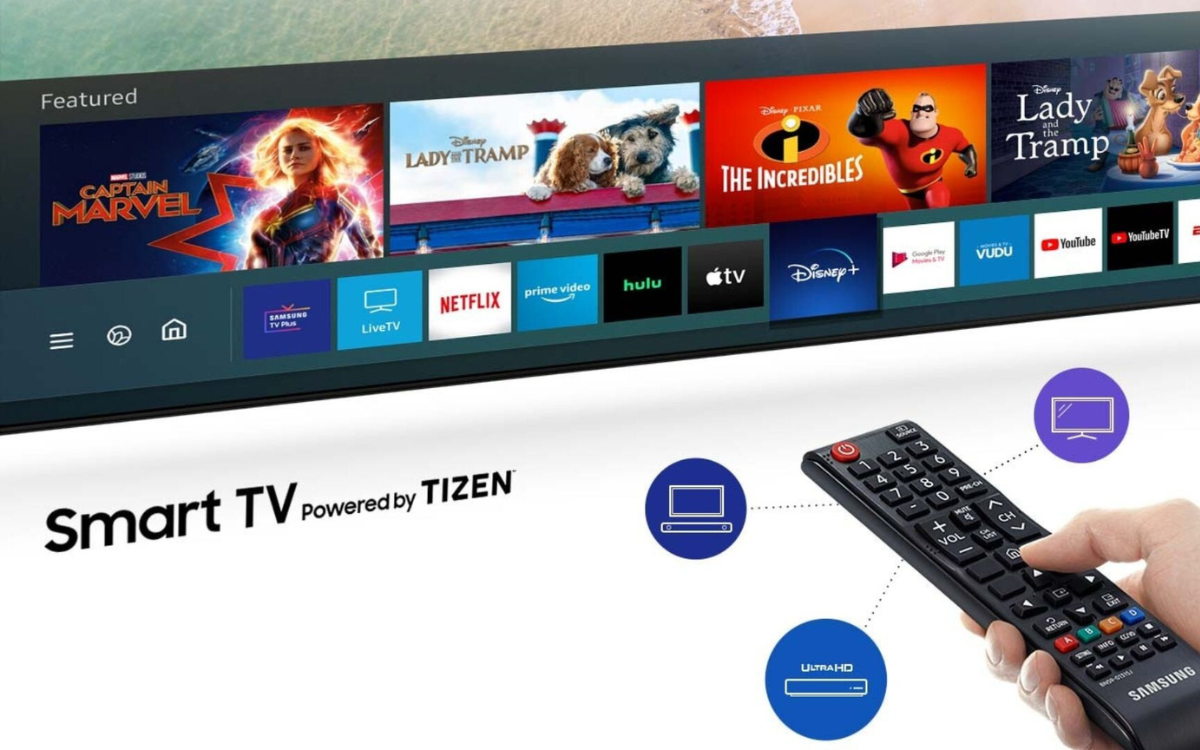
For many, the sheer convenience of having Netflix, Disney+, YouTube, Spotify, or a myriad of other services integrated directly into their TV experience is a primary reason for choosing a smart TV. Gone are the days of fumbling with multiple remotes, switching inputs, and connecting external devices for every entertainment need. With a few clicks, you can dive into a world of on-demand movies, catch up on the latest series, immerse yourself in a gaming session, or even browse the web. This guide will walk you through everything you need to know about installing, managing, and troubleshooting apps on your Samsung Smart TV, ensuring you harness its full capabilities.
I. Unlocking the Potential of Your Samsung Smart TV
The journey into seamless smart entertainment begins with understanding the power that apps bring to your television. Samsung, a leader in consumer electronics, has meticulously crafted its Smart TV platform, known as Tizen OS, to offer an intuitive and expansive user experience.
A. The Evolution of Smart Entertainment
For decades, the television was a passive receiver of content, dictated by broadcast schedules. The advent of the internet and digital content delivery services dramatically shifted this paradigm. Smart TVs, particularly those powered by robust operating systems like Samsung’s Tizen, brought the internet directly to the big screen. This evolution wasn’t just about accessing new content; it was about personalized, on-demand experiences. Viewers gained the power to choose what they watch, when they watch it, and often, how they watch it, from high-definition streams to interactive content. Apps are the conduits through which this vast ocean of digital content flows into your living room, transforming your TV into a truly versatile digital appliance. They are no longer just an add-on but the very core of the modern TV experience.
B. Why Apps Are Essential for Your Samsung TV
Without apps, your Samsung Smart TV, despite its stunning display and powerful processor, would be little more than a high-definition monitor. Apps are the software programs that enable specific functionalities, turning your TV into a multi-purpose device. Here’s why they are indispensable:
- Diverse Entertainment: Access to countless streaming services (Netflix, Hulu, Amazon Prime Video, Disney+, Apple TV+, Max, etc.), live TV alternatives (Sling TV, YouTube TV), music platforms (Spotify, Pandora), and even niche content providers.
- Gaming: Play casual games or even stream console-quality games directly through cloud gaming apps like Xbox Cloud Gaming or NVIDIA GeForce NOW.
- Productivity & Lifestyle: Browse the web, check social media, follow fitness routines with dedicated workout apps, or even manage smart home devices from your TV screen.
- Information & News: Stay updated with news apps, weather forecasts, and sports scores.
- Personalization: Tailor your TV experience to your preferences by installing only the apps you use, creating a custom content library.
- Future-Proofing: As new services and technologies emerge, apps allow your TV to adapt and remain relevant, often receiving updates that introduce new features or improve performance.
Understanding this foundational importance sets the stage for effectively navigating the app installation process and maximizing your Samsung Smart TV’s capabilities.
II. The Official Way: Installing Apps from the Samsung Smart Hub
The primary and most recommended method for installing apps on your Samsung Smart TV is through its integrated app store, accessible via the Smart Hub. This ensures you’re downloading verified, compatible, and secure applications designed specifically for your television.
A. Navigating the Samsung Smart Hub Interface
The Smart Hub is the central nervous system of your Samsung Smart TV, providing quick access to all your apps, connected devices, settings, and other smart features. Getting familiar with its layout is the first step to becoming a master of your TV’s capabilities.
1. Accessing the Smart Hub
To open the Smart Hub, simply press the Home button (often depicted with a house icon) on your Samsung remote control. This action will typically bring up a horizontal bar at the bottom of your screen, showcasing a carousel of your most frequently used apps, inputs, and the dedicated “Apps” section. The design is intuitive, prioritizing ease of access and quick navigation. Depending on your TV model and software version, the exact layout may vary slightly, but the core functionality remains consistent. You might see recent apps, a ‘Live TV’ option, input selections, and then an icon labeled ‘Apps’ or ‘APPs’, often accompanied by a distinct app store logo.
2. Discovering the ‘Apps’ Section
Once the Smart Hub bar appears, use the directional pad (up, down, left, right arrows) on your remote to navigate. Move the focus to the left until you highlight the “Apps” icon. This icon usually looks like a grid of four squares or has the word “Apps” clearly displayed. Selecting this icon will open the Samsung App Store, a dedicated portal where you can browse, search for, and download new applications. This store is curated by Samsung, ensuring that the apps available are optimized for their TV platform and undergo a certain level of vetting for security and functionality.
B. Finding and Installing Your Desired Applications
With the Smart Hub’s ‘Apps’ section open, you’re now ready to explore the vast library of available applications. The process is designed to be user-friendly, allowing you to quickly find and install what you need.
1. Browsing and Searching for Apps
The Samsung App Store is organized to help you discover new content. You’ll typically find:
- Featured Apps: Highlighted applications that are popular, new, or recommended by Samsung.
- Categories: Apps grouped by genre, such as “Video,” “Games,” “Lifestyle,” “Information,” etc., making it easier to find specific types of content.
- Search Function: This is your most powerful tool. Look for a magnifying glass icon or a “Search” bar within the App Store interface. Select it and use the on-screen keyboard (or voice control, if your remote supports it) to type in the name of the app you’re looking for (e.g., “Netflix,” “YouTube,” “Spotify”). As you type, the TV might offer predictive text suggestions, speeding up the process.
Once you’ve found an app that piques your interest, select it to view its details page. This page typically provides a description of the app, screenshots, user ratings, and sometimes information about its size and compatibility. This is a good opportunity to ensure the app meets your expectations before committing to the installation.
2. Step-by-Step Installation Process
Installing an app is straightforward once you’ve selected it from the App Store:
- Select the App: Navigate to the desired app’s details page within the App Store.
- Find the “Install” Button: On the app’s details page, you will see an “Install” button. It might also be labeled “Download” or “Add to Home.”
- Initiate Installation: Select the “Install” button. Your TV will then begin downloading and installing the app. The time this takes will depend on the app’s size and the speed of your internet connection. A progress bar or percentage indicator will usually show the installation status.
- Launch the App: Once the installation is complete, the “Install” button will usually change to an “Open” or “Launch” button. You can select this to immediately open the app. Alternatively, the newly installed app will appear in your Smart Hub’s app list, typically at the end of the list, from where you can launch it anytime.
3. Account Log-ins and Subscriptions
Most streaming, music, or social media apps will require you to log in with an existing account or sign up for a new one upon their first launch. If it’s a subscription-based service (like Netflix or Hulu), you’ll need to have an active subscription to access premium content. Be prepared to enter your username and password using the on-screen keyboard, which can sometimes be a bit tedious with a TV remote. Some apps offer a more convenient activation method, such as providing a code to enter on a website via your smartphone or computer, which simplifies the login process significantly. Always ensure you’re using strong, unique passwords for your accounts to maintain digital security.
III. Managing Your App Ecosystem for Optimal Performance
Installing apps is just the beginning. To ensure your Samsung Smart TV remains fast, organized, and tailored to your needs, effective app management is crucial. This involves organizing your apps, keeping them updated, and knowing when to remove them.
A. Organizing Your Apps for Easy Access
A cluttered app list can make finding your favorite services a chore. Samsung Smart TVs provide tools to customize your app layout, putting your most-used applications front and center.
1. Moving and Reordering Apps
Once you have several apps installed, you’ll likely want to arrange them in an order that makes sense to you.
- Access the Smart Hub: Press the Home button on your remote.
- Navigate to ‘Apps’: Move to the ‘Apps’ section, then scroll through your installed apps.
- Enter Edit Mode: Hover over an app you wish to move. On most Samsung TVs, pressing and holding the ‘Enter’ or ‘Select’ button on the app icon will bring up a contextual menu. From this menu, select “Move.”
- Rearrange: Once in “Move” mode, use the directional pad to drag the app to your desired position in the Smart Hub bar. You can place it among other apps or even move it to the beginning of the list for quick access.
- Confirm: Press ‘Enter’ or ‘Select’ again to confirm the new position. Repeat this for any other apps you wish to rearrange.
2. Creating Folders (if available/applicable on specific models)

Some newer Samsung Smart TV models or specific software versions may offer the ability to group apps into folders. This is incredibly useful for organizing similar apps (e.g., all streaming services in one folder, all gaming apps in another). If this feature is available:
- Enter Edit Mode: Follow the steps to enter edit mode for an app.
- Look for “Create Folder” or “Add to Folder”: In the contextual menu, you might see an option to create a new folder or add the app to an existing one.
- Drag and Drop: Alternatively, you might be able to drag one app onto another to automatically create a folder.
If this feature isn’t explicitly available, focusing on reordering remains the best way to keep your Smart Hub tidy.
B. Keeping Your Apps Updated and Secure
App developers frequently release updates to introduce new features, improve performance, and, crucially, patch security vulnerabilities. Keeping your apps updated is vital for a smooth and secure experience.
1. Automatic Updates vs. Manual Checks
Samsung Smart TVs typically have an option for automatic app updates. This is generally the recommended setting, as it ensures your apps are always running the latest version without requiring manual intervention.
- To check or enable automatic updates:
- Go to the Smart Hub (Home button).
- Navigate to the ‘Apps’ section.
- Look for a ‘Settings’ icon (often a gear icon) within the App Store.
- Within the App Settings, you should find an option for ‘Auto Update’ or similar. Ensure it is turned ON.
If automatic updates are off, or if you suspect an app isn’t updating correctly, you can manually check for updates:
- Access the ‘Apps’ section in the Smart Hub.
- Highlight the app you want to update.
- Press and hold the ‘Enter’ or ‘Select’ button on the app icon to bring up the contextual menu.
- Look for an “Update” or “Check for Updates” option. If an update is available, you will be prompted to install it.
2. The Importance of Regular Updates
Beyond new features, updates often contain critical security patches. Outdated apps can be vulnerable to exploits, potentially compromising your data or the TV’s security. Regular updates also improve app stability, fix bugs, and optimize performance, leading to a smoother and more enjoyable user experience. Think of it as preventative maintenance for your digital entertainment system.
C. Freeing Up Space: Uninstalling Unwanted Apps
Over time, you might install apps you no longer use, or you might find yourself running low on storage space. Uninstalling unneeded apps is a quick way to reclaim storage and keep your Smart Hub clean.
1. How to Remove Applications
- Access the Smart Hub: Press the Home button.
- Navigate to the ‘Apps’ section: Select the ‘Apps’ icon.
- Enter Edit Mode: Highlight the app you wish to uninstall. Press and hold the ‘Enter’ or ‘Select’ button on its icon.
- Select “Delete” or “Uninstall”: From the contextual menu that appears, choose the “Delete” or “Uninstall” option.
- Confirm: The TV will ask for confirmation. Confirm your decision, and the app will be removed from your TV.
Note that pre-installed system apps, such as the web browser or certain core Samsung services, often cannot be completely uninstalled but can sometimes be hidden from your main app list.
2. When to Consider a Factory Reset
While uninstalling individual apps is usually sufficient, in rare cases, if your TV is experiencing persistent software issues, constant crashes, or severe performance degradation that cannot be resolved by other means, a factory reset might be considered. This will wipe all installed apps, settings, and user data, returning the TV to its out-of-the-box state. It’s a drastic measure and should be considered a last resort after trying all other troubleshooting steps. Always back up any important settings or notes you might have before performing a factory reset.
IV. Troubleshooting Common App Installation and Usage Issues
Even with an intuitive system like Samsung’s Tizen OS, you might occasionally encounter hiccups during app installation or usage. Understanding common problems and their solutions can save you a lot of frustration.
A. Connectivity Conundrums: Ensuring a Stable Internet Connection
The vast majority of app-related issues on a Smart TV stem from an unstable or non-existent internet connection.
- Check Wi-Fi/Ethernet: Go to your TV’s Settings > General > Network > Network Status. Ensure your TV is connected to the internet. If using Wi-Fi, check the signal strength.
- Restart Router/Modem: A simple power cycle of your home router and modem can resolve many network issues. Unplug them for 30 seconds, then plug them back in.
- Test Connection: Try accessing the internet via the TV’s built-in web browser or another working app (like YouTube) to confirm the connection.
B. Smart Hub Malfunctions: Refreshing and Resetting
Sometimes, the Smart Hub itself might become unresponsive or glitched, preventing app access or installation.
- Soft Reset Smart Hub:
- Go to Settings > Support > Device Care > Self Diagnosis > Smart Hub Reset.
- You may need to enter your TV’s PIN (default is 0000).
This process refreshes the Smart Hub without affecting other TV settings or user data.
- Restart TV: A full power cycle of the TV can also clear temporary glitches. Unplug the TV from the wall socket for a minute, then plug it back in.
C. Storage Scarcity: Addressing Insufficient Space
Just like smartphones, Smart TVs have a finite amount of internal storage. If you’re unable to install new apps, or if existing apps are running slowly, you might be out of space.
- Uninstall Unused Apps: As detailed in Section III.C.1, remove any applications you no longer use.
- Check Storage: Go to Settings > Support > Device Care > Manage Storage (or similar path depending on model) to see how much space is left.
- Clear Cache (if applicable): While not universally available for all apps on Tizen, some apps might have an option to clear their cache within their individual settings to free up temporary data.
D. App Availability: Regional Restrictions and Model Compatibility
Not all apps are available in all regions, and some older TV models might not support the latest versions of certain applications.
- Check Region Settings: Ensure your TV’s region settings match your physical location. Go to Settings > General > System Manager > Time > Clock > Region or Settings > General > Smart Hub > Samsung Account > Smart Hub Terms & Conditions > Country Selection (the path can vary significantly). Incorrect region settings can prevent access to regional app stores.
- Verify Compatibility: Check the app developer’s website or Samsung’s support pages to confirm if the app is compatible with your specific TV model and firmware version. Some older TVs may simply not support newer apps due to hardware or software limitations.
- Firmware Update: Ensure your TV’s firmware is up to date. Go to Settings > Support > Software Update > Update Now. New firmware can sometimes bring compatibility for more apps.
E. The Last Resort: Performing a Factory Reset
If all other troubleshooting steps fail, and you’re still experiencing major, persistent issues with app functionality or system stability, a factory reset might be necessary.
- Navigate to Settings > General > Reset.
- Enter your PIN (default 0000).
- Confirm the reset.
Be aware that this will delete all personal data, settings, and installed apps, returning your TV to its original factory state. You will need to set up your TV from scratch again.
V. Maximizing Your Samsung Smart TV Experience
With the knowledge of how to install, manage, and troubleshoot apps, you’re now equipped to fully harness the power of your Samsung Smart TV. The true value lies in how you curate your app selection to create a personalized and enriched entertainment and lifestyle hub.
A. Essential Apps for Every User
While personal preferences vary, some apps are virtually indispensable for any Smart TV owner:
- Streaming Giants: Netflix, YouTube, Amazon Prime Video, Disney+, Hulu, Max – these are the pillars of on-demand entertainment.
- Music: Spotify, Pandora, Apple Music – turn your TV into a powerful sound system.
- Browsers: The built-in web browser or any alternative allows you to access websites not covered by specific apps.
- News & Weather: Stay informed with local and global updates.
B. Beyond Basic Streaming: Productivity and Lifestyle Apps
Don’t limit your TV to just movies and shows. Explore apps that enhance your daily life:
- Fitness Apps: Follow guided workouts or yoga sessions on the big screen.
- Smart Home Control: If you have Samsung’s SmartThings hub, control your smart devices directly from your TV.
- Photo & Video Viewers: Display your personal media from connected devices or cloud storage.
- Cloud Gaming: Services like Xbox Cloud Gaming or NVIDIA GeForce NOW can turn your TV into a gaming console without needing dedicated hardware (though a compatible controller is usually required).

C. Embracing the Future of Home Entertainment
The app ecosystem on Samsung Smart TVs is constantly evolving. New services emerge, existing ones get updates, and the TV’s capabilities expand with each firmware release. By actively managing your apps, keeping them updated, and exploring new options, you ensure your TV remains a cutting-edge device. From cinematic experiences to interactive fitness, productivity tools to casual gaming, your Samsung Smart TV, powered by its robust app library, stands ready to deliver an unparalleled home entertainment experience. Dive in, experiment, and customize your screen to perfectly fit your digital lifestyle.
aViewFromTheCave is a participant in the Amazon Services LLC Associates Program, an affiliate advertising program designed to provide a means for sites to earn advertising fees by advertising and linking to Amazon.com. Amazon, the Amazon logo, AmazonSupply, and the AmazonSupply logo are trademarks of Amazon.com, Inc. or its affiliates. As an Amazon Associate we earn affiliate commissions from qualifying purchases.