
The Apple Watch has evolved far beyond a mere notification delivery device. Today, it stands as a sophisticated extension of your iPhone, a powerful fitness tracker, a communication hub, and even a fashion statement. Its true potential, however, is unlocked through its vibrant ecosystem of applications. From tracking your sleep and monitoring your heart rate to controlling smart home devices and making contactless payments, apps transform your Apple Watch into an indispensable tool tailored to your lifestyle.
In the fast-paced world of technology, understanding how to effectively manage and install apps on your Apple Watch is key to maximizing its utility and ensuring a seamless digital experience. This guide will walk you through every method of app installation – automatic, manual via your iPhone, and direct from your watch – alongside essential tips for managing your apps, troubleshooting common issues, and discovering new functionalities that align with the core pillars of technology, productivity, and digital security that define our platform.
The Power of Apps on Your Wrist: Why They Matter
At its heart, the Apple Watch is a testament to convenience and accessibility. Apps are the conduits through which this convenience flows. Imagine receiving real-time navigation directions on your wrist without pulling out your phone, or instantly checking stock prices with a glance. For fitness enthusiasts, apps offer detailed workout tracking, recovery insights, and motivation. For the busy professional, they provide quick access to calendars, reminders, and communication tools, boosting productivity.
The seamless integration of apps between your iPhone and Apple Watch is a hallmark of Apple’s ecosystem design. Many iPhone apps come with a companion Watch app, extending their functionality to your wrist, making the transition between devices smooth and intuitive. This synergy not only enhances user experience but also opens up new avenues for interaction with your digital world, often in ways that are more immediate and less distracting than constantly reaching for your phone. Understanding how to leverage this ecosystem is fundamental to getting the most out of your investment in Apple’s wearable technology.
Method 1: Automatic App Installation – The Default Experience
For many users, the most straightforward way to get apps onto their Apple Watch is through automatic installation. This method leverages the close relationship between your iPhone and your Apple Watch, ensuring that many of your favorite apps are instantly available on your wrist without any manual intervention.
How Automatic Installation Works
When you first set up your Apple Watch, or when you download a new app on your iPhone that has an Apple Watch companion app, the system is designed to automatically install the Watch version if the “Automatic App Install” setting is enabled. This is often the default setting, making it incredibly convenient.
Here’s a breakdown of the process:
- iPhone App Download: You download an app from the App Store on your iPhone.
- Watch App Companion: If that iPhone app has a corresponding Apple Watch app (many do, especially well-known apps like Starbucks, Spotify, or fitness trackers), your iPhone recognizes this.
- Automatic Transfer: With “Automatic App Install” enabled, your iPhone will then push the Watch version of the app to your paired Apple Watch in the background. This typically happens wirelessly over Bluetooth or Wi-Fi.
- Appearance on Watch: Within a short period, the app icon will appear on your Apple Watch’s home screen, ready for use.
This method is designed for simplicity and convenience, ensuring that your Apple Watch stays updated with relevant apps without you having to manage each one individually. It’s particularly useful for those who want a consistent app experience across their devices.
When Automatic Installation Might Not Happen
While automatic installation is convenient, there are times when it might not occur, or when you might prefer to disable it:
- Setting is Disabled: If you’ve previously turned off “Automatic App Install” in your Apple Watch settings on your iPhone, new apps won’t automatically transfer.
- No Watch Companion: Not all iPhone apps have a dedicated Apple Watch app. If an app doesn’t have a companion, it simply won’t appear on your watch.
- Storage Limitations: Your Apple Watch has finite storage. If it’s running low on space, new apps might fail to install automatically.
- Connectivity Issues: A stable connection between your iPhone and Apple Watch (Bluetooth and/or Wi-Fi) is crucial for app transfers.
- Selective Installation: Many users prefer to manually curate the apps on their Apple Watch to save space and reduce clutter, consciously disabling automatic installation. This leads us to our next method.
Method 2: Manual Installation via the iPhone Watch App
For greater control over what appears on your wrist, manual installation through the iPhone’s Watch app is the preferred method. This allows you to selectively choose which companion apps from your iPhone you want on your Watch, as well as discover new Watch-specific applications.
Taking Control: Selective Installation
Disabling automatic installation (found in the Watch app on your iPhone: My Watch tab > General > Automatic App Install) gives you the power to decide exactly which apps consume space and battery on your Apple Watch. This is a smart approach for optimizing performance and personalizing your wrist experience. You might have dozens of apps on your iPhone, but only a handful truly benefit from a Watch interface.
Step-by-Step Guide: Installing Apps from Your iPhone
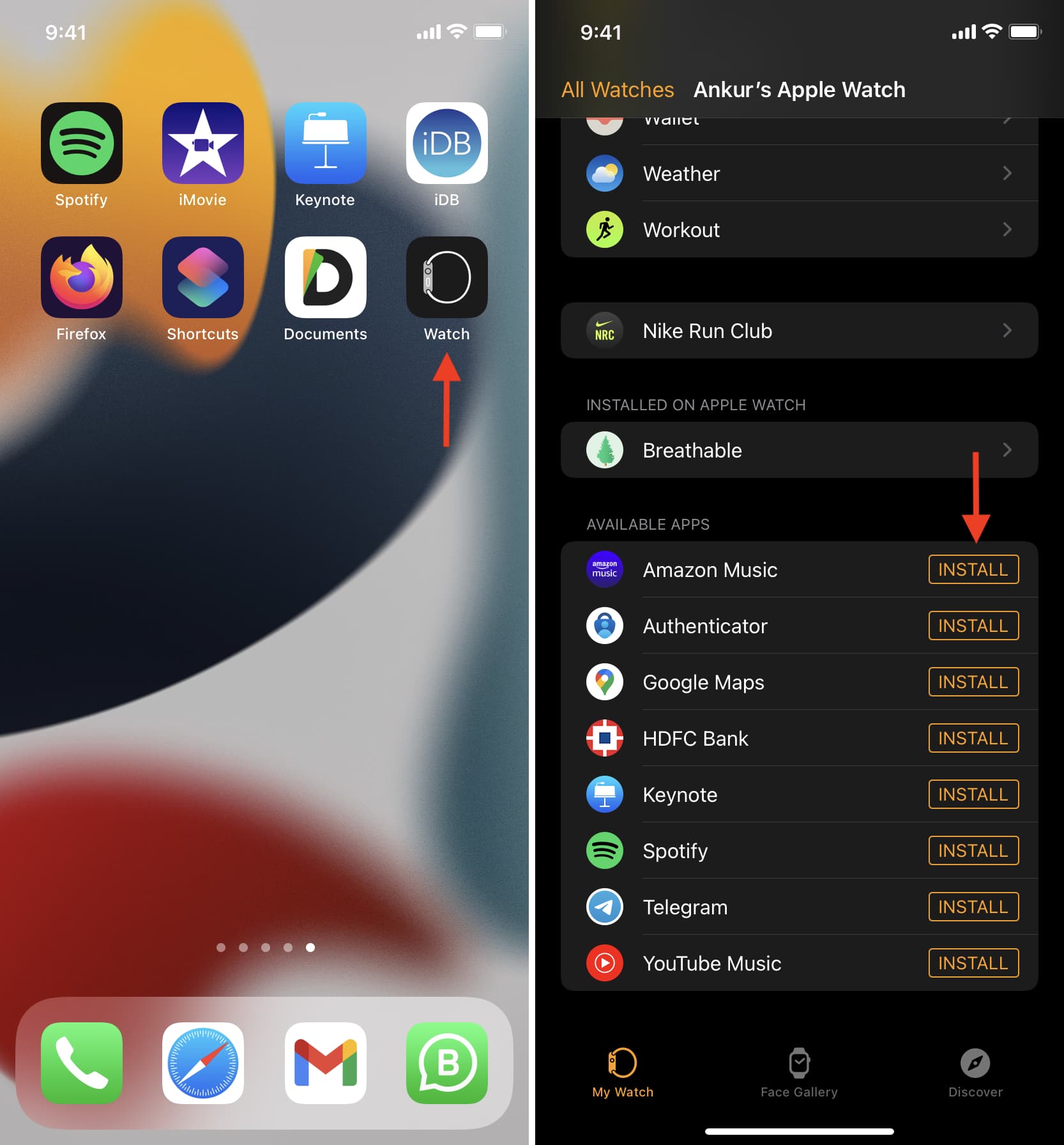
- Open the Watch App on Your iPhone: This is the primary control center for your Apple Watch.
- Navigate to the “My Watch” Tab: At the bottom of the screen, tap “My Watch.”
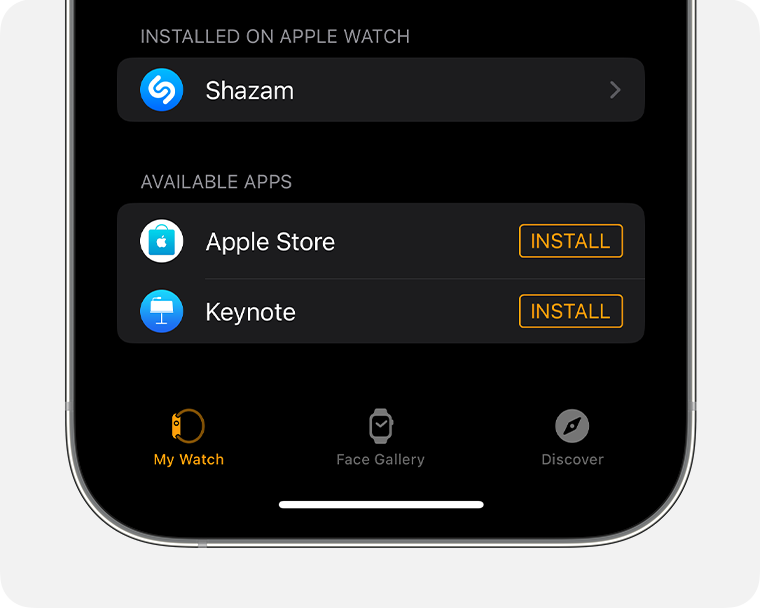
- Scroll Down to “Available Apps”: As you scroll, you’ll see a section labeled “Available Apps.” This list displays all the iPhone apps you currently have installed that also have an Apple Watch companion app, but are not yet installed on your watch.
- Tap “INSTALL” Next to the Desired App: Find the app you wish to install on your Apple Watch and tap the “INSTALL” button located next to its name.
- Monitor Installation: The “INSTALL” button will change to “Installing…” and then to “OPEN” once the app has successfully transferred to your Apple Watch. The app icon will simultaneously appear on your Watch’s home screen.
This method provides a clear overview of what’s available and allows you to make conscious decisions about your watch’s app ecosystem.
Finding New Apps in the Watch App Store Tab
Beyond installing companion apps, the Watch app on your iPhone also hosts a dedicated App Store specifically for the Apple Watch. This is where you can discover brand new applications, including Watch-only apps, that can enhance your device’s functionality.
- Open the Watch App on Your iPhone.
- Tap the “App Store” Tab: This tab is usually located at the bottom of the screen, next to “My Watch.”
- Browse or Search for Apps: You’ll find curated collections, categories (e.g., “Health & Fitness,” “Productivity,” “Entertainment”), and a search bar to look for specific apps.
- Select an App: Tap on an app to view its details, screenshots, and reviews.
- Tap “GET” (or the price) to Download: Just like on the iPhone App Store, you’ll see a “GET” button for free apps or the price for paid apps. Tap it to initiate the download and installation process. You may need to authenticate with Face ID, Touch ID, or your Apple ID password.
- The App Installs Directly to Your Watch: Once downloaded, the app will automatically install on your Apple Watch.
This approach offers the widest selection of apps and is crucial for exploring the full breadth of what your Apple Watch can do. It’s a prime example of how the “Tech” and “Productivity” pillars converge, allowing users to find innovative tools to streamline their daily lives.
Method 3: Direct Installation from Your Apple Watch
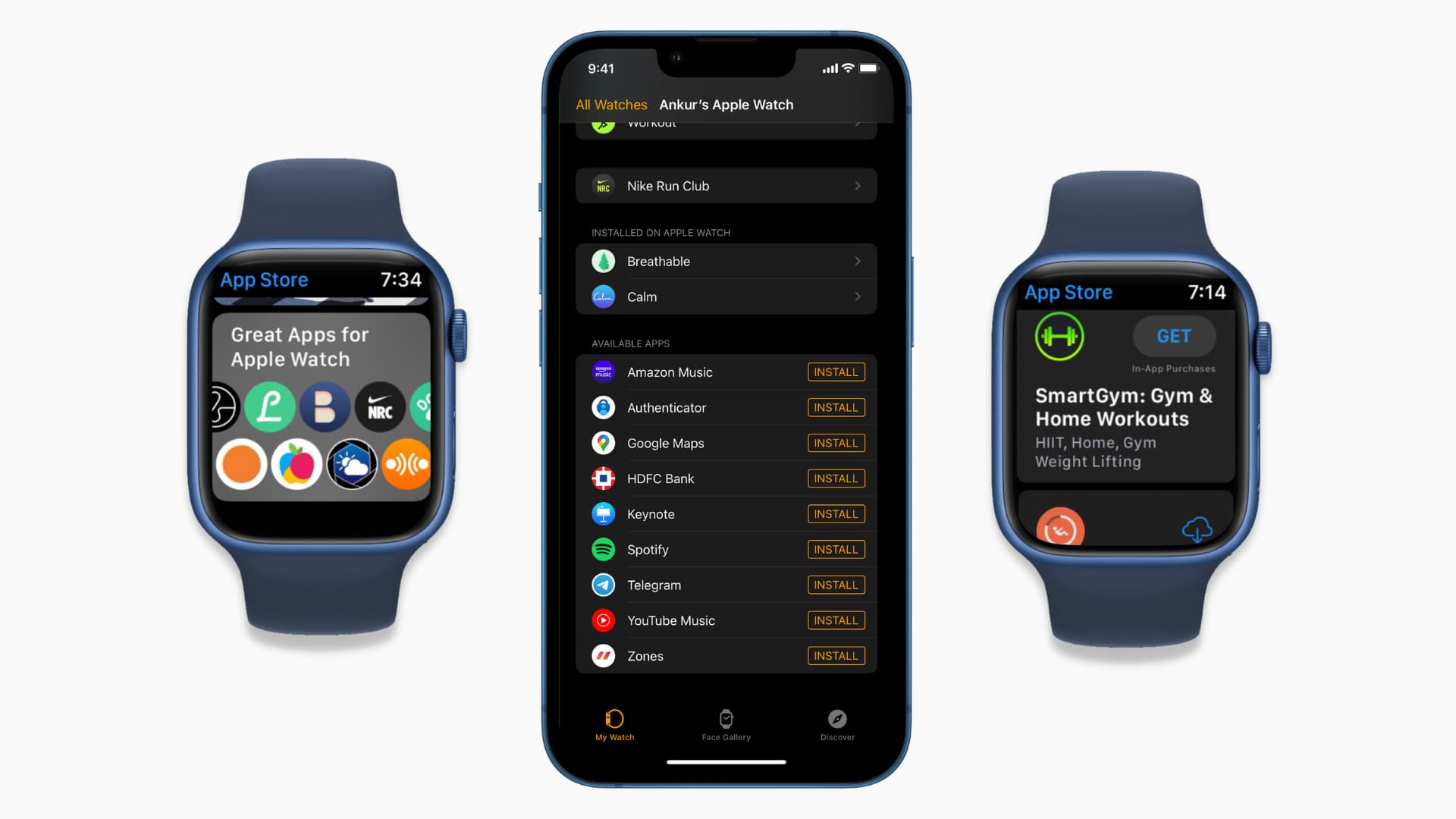
With watchOS 6 and later, Apple introduced the ability to browse and install apps directly from your Apple Watch, independent of your iPhone. This feature significantly enhances the autonomy of your device, making it a more self-sufficient gadget.
Unleashing Independence: On-Device App Store
The App Store on your Apple Watch offers a streamlined experience, optimized for the smaller screen. It allows for quick app discovery and installation when you don’t have your iPhone immediately to hand, or simply prefer to manage your apps directly from your wrist. This is particularly useful for new Watch users setting up their device, or for quickly grabbing a recommended app while on the go.
Step-by-Step Guide: Browsing and Installing Directly on Your Watch
- Open the App Store on Your Apple Watch: From your Watch’s home screen (the app cluster), find and tap the blue App Store icon.
- Browse Featured Apps or Search:
- The App Store will display curated sections, featured apps, and categories relevant to Watch users. You can scroll through these recommendations.
- To search for a specific app, tap the “Search” button at the top of the screen. You can then use the QWERTY keyboard (on supported Watch models), Scribble (draw letters), or Siri voice input to enter your search query.
- Select an App: Tap on an app listing to view its details, including descriptions, screenshots, and reviews (if available).
- Tap “GET” (or the price) to Download: Similar to the iPhone App Store, tap the “GET” button for free apps or the price for paid apps.
- Authenticate Purchase/Download: You may be prompted to double-click the side button on your Watch to confirm the download or purchase.
- App Installs: The app will download and install directly onto your Apple Watch, and its icon will appear on your home screen.
Using Siri for App Discovery
Siri can be a powerful assistant for finding and installing apps directly on your Watch. Simply raise your wrist and say, “Hey Siri, open the App Store,” or “Hey Siri, search the App Store for [app name].” Once you’re in the App Store, you can further use Siri to search, or browse manually. This hands-free approach further emphasizes the convenience and intuitive interaction Apple strives for in its wearable technology.
Managing Your Apple Watch Apps
Installing apps is only half the battle; effectively managing them is crucial for maintaining performance, optimizing battery life, and ensuring your Watch remains a useful tool rather than a cluttered distraction. This involves organizing your apps and knowing how to remove those you no longer need.
Organizing Your Digital Wrist Space
The Apple Watch offers two primary ways to view your apps: Grid View and List View. Each has its advantages for organization.
-
Grid View: This is the default, visually iconic view where app icons are arranged in a honeycomb pattern.
- On the Watch:
- From the home screen, tap and hold an app icon until all icons begin to jiggle.
- Drag the app icon to rearrange its position. You can even drag it to a new “page” by moving it to the edge of the screen.
- Press the Digital Crown to stop jiggling and save your arrangement.
- On the iPhone Watch App:
- Open the Watch app on your iPhone.
- Go to the “My Watch” tab.
- Tap “App Layout.”
- You’ll see a representation of your Watch’s home screen. Tap and drag icons to reposition them exactly as you wish. This offers a larger, more precise canvas for organization.
- On the Watch:
-
List View: This view presents your apps in an alphabetical list, which some users find easier to navigate, especially if they have many apps.
- On the Watch:
- From your Watch’s home screen, firmly press on the screen (Force Touch, on older models) or long-press on an empty space (newer models with watchOS 7+).
- Tap “List View.”
- To switch back to Grid View: Repeat the process and select “Grid View.”
- On the Watch:
Choosing between Grid and List View, and then carefully arranging your most-used apps to be easily accessible, significantly enhances the “Productivity” aspect of your Apple Watch. Placing essential apps like Activity, Workout, Wallet, or your favorite messaging app in prime positions ensures they’re always just a tap away.
Uninstalling Apps: Freeing Up Space and Decluttering
Just as important as installing apps is knowing how to remove them. Deleting unused apps can free up storage space, potentially improve performance, and reduce visual clutter, leading to a more focused and efficient experience.
-
From the Watch Itself:
- In Grid View: From the app home screen, tap and hold an app icon until all icons begin to jiggle. Tap the small “X” icon that appears on the app you wish to delete. Confirm by tapping “Delete App.”
- In List View: From the app list, swipe left on the app you wish to delete. Tap the red “Delete” button that appears. Confirm by tapping “Delete App.”
- Note: Built-in Apple apps like Activity or Heart Rate usually cannot be deleted.
-
From the iPhone Watch App:
- Open the Watch app on your iPhone.
- Go to the “My Watch” tab.
- Scroll down to the “Installed on Apple Watch” section. This lists all apps currently on your Watch.
- Tap on the app you wish to uninstall.
- Toggle off the “Show App on Apple Watch” switch.
- Note: For apps that don’t have this toggle (often third-party apps with no iPhone companion or deeply integrated system apps), you might only see an “Uninstall App” button at the bottom of the screen.
- Confirm by tapping “Delete App” if prompted.
Regularly reviewing and uninstalling apps you no longer use is a good digital hygiene practice. It contributes to better overall performance and ensures your valuable storage space is used efficiently, aligning with smart “Tech” management.
Troubleshooting Common App Installation Issues
Even with the best instructions, technology can sometimes be temperamental. If you encounter problems installing or running apps on your Apple Watch, here are some common troubleshooting steps.
- Connectivity Checks:
- iPhone and Watch Connection: Ensure your iPhone and Apple Watch are paired and within Bluetooth range. Check for the green connected icon at the top of your Watch face.
- Wi-Fi and Cellular: Verify both your iPhone and Watch (if it has cellular) have a stable internet connection. Apps download faster over Wi-Fi.
- Software Updates: Ensure both your iPhone and Apple Watch are running the latest version of iOS and watchOS, respectively. Outdated software can cause compatibility issues.
- iPhone: Settings > General > Software Update.
- Apple Watch: Open Watch app on iPhone > My Watch tab > General > Software Update.
- Restarting Devices: The age-old tech solution often works wonders. Try restarting both your iPhone and your Apple Watch.
- iPhone: Hold the side button and volume down button, then slide to power off.
- Apple Watch: Hold the side button until the power off slider appears.
- Storage Limitations: Check if your Apple Watch has enough available storage.
- Open Watch app on iPhone > My Watch tab > General > Usage. If space is critically low, delete some unused apps, music, or photos.
- Re-pairing Your Watch: As a last resort, if issues persist, you might consider unpairing and then re-pairing your Apple Watch with your iPhone. This often resolves deeper software glitches but requires re-syncing your data. Make sure to back up your Watch first.
- Open Watch app on iPhone > My Watch tab > All Watches > Tap the ‘i’ next to your Watch > Unpair Apple Watch.
Enhancing Your Apple Watch Experience: Tips for App Discovery and Productivity
With a firm grasp on app installation and management, the next step is to truly personalize and optimize your Apple Watch experience. This involves thoughtful app discovery and an understanding of how apps can genuinely boost your productivity and even enhance your digital security.
Finding the Best Apps for You
- Leveraging App Categories: Both the iPhone Watch app’s App Store tab and the App Store on your Watch itself categorize apps. Explore categories relevant to your interests, such as “Health & Fitness,” “Productivity,” “Travel,” “Finance,” or “Utilities.”
- Reading Reviews and Editor’s Picks: Pay attention to user reviews and ratings. Apps featured in “Editor’s Picks” or “Our Favorites” sections are often high-quality and well-integrated. Tech blogs and review sites also frequently highlight excellent Apple Watch apps.
- Consider Your Needs: Before downloading, think about whether an app truly enhances your Watch experience. Does it provide quick, glanceable information? Does it simplify a task you frequently perform? Does it offer unique Watch-specific functionality? Avoid cluttering your Watch with apps that are better suited for your iPhone.
- Focusing on Productivity and Utility Apps: For those focused on efficiency, look for apps that streamline daily tasks:
- Task Managers: Bring your to-do lists to your wrist.
- Calendar & Reminders: Stay on top of your schedule with quick alerts.
- Communication: Respond to messages, answer calls, or send quick voice notes.
- Financial Tools: Quickly check balances, track expenses, or make payments via Wallet. These apps embody the synergy between “Tech” and “Money” by providing immediate financial insights and control.
- Considering Digital Security Implications: When downloading any app, especially those requesting access to sensitive data (health, location, contacts), always consider the privacy implications.
- Permissions: Be mindful of the permissions an app requests during installation or first use. Only grant access to what’s truly necessary for the app’s function.
- Reputable Developers: Stick to apps from well-known and reputable developers whenever possible, particularly for apps dealing with personal information.
- Updates: Keep your apps updated. Developers frequently release updates that include security patches and privacy enhancements. This practice aligns perfectly with maintaining robust “Digital Security” in your personal tech ecosystem.
Conclusion
Your Apple Watch is a powerful and versatile piece of technology, and its app ecosystem is what truly brings it to life. By understanding the different methods of app installation—automatic, manual via the iPhone Watch app, and direct from the Watch itself—you gain complete control over your wrist-worn companion. Furthermore, mastering app management, including organization and uninstallation, ensures your device remains optimized, clutter-free, and perfectly tailored to your individual needs.
Whether you’re a fitness enthusiast, a busy professional, or simply looking to streamline your digital interactions, the right apps can transform your Apple Watch into an indispensable tool. By following the advice in this guide, you’re not just installing software; you’re actively curating a personalized experience that enhances your productivity, connectivity, and overall engagement with the world, all from the convenience of your wrist. Embrace the full potential of your Apple Watch and let its apps empower your daily life.
aViewFromTheCave is a participant in the Amazon Services LLC Associates Program, an affiliate advertising program designed to provide a means for sites to earn advertising fees by advertising and linking to Amazon.com. Amazon, the Amazon logo, AmazonSupply, and the AmazonSupply logo are trademarks of Amazon.com, Inc. or its affiliates. As an Amazon Associate we earn affiliate commissions from qualifying purchases.