
In the evolving landscape of personal computing, Chromebooks have carved out a significant niche. Renowned for their simplicity, speed, and robust security, these devices, powered by Google’s Chrome OS, offer a refreshing alternative to traditional Windows laptops and Apple MacBooks. However, a question frequently arises from users accustomed to the vast software ecosystem of Microsoft Windows: “Can I install Windows on a Chromebook?” The allure of a lightweight, affordable Chromebook paired with the familiarity and expansive application library of Windows is undeniably strong. This comprehensive guide delves into the feasibility, methods, challenges, and ultimate wisdom of embarking on such an endeavor, helping you decide if this hybrid path is right for you.

The Chromebook Ecosystem: A World Built for the Cloud
To understand the complexities of running Windows on a Chromebook, it’s crucial to first grasp the fundamental differences in their operating philosophies.
Chrome OS: A Cloud-First Philosophy
Chrome OS is designed from the ground up to be a fast, secure, and easy-to-use operating system that primarily operates within the Chrome web browser. Its core strength lies in its tight integration with Google’s suite of web services, cloud storage, and Android apps. Chromebooks are optimized for online activities, streaming, document creation in the cloud, and running web-based applications. This architecture keeps the OS lightweight, contributing to quick boot times, extended battery life, and minimal maintenance.
The simplicity of Chrome OS also extends to its hardware requirements. Chromebooks often feature more modest specifications compared to Windows machines, including less internal storage (relying heavily on cloud storage), and sometimes ARM-based processors rather than the more common x86/x64 Intel or AMD chips found in most Windows PCs. While modern Chromebooks are becoming increasingly powerful, this hardware divergence plays a significant role in the challenges of introducing a different operating system.
Hardware Considerations for Chromebooks
The hardware specifications of a Chromebook are deliberately chosen to support Chrome OS efficiently.
- Processors: While many newer, higher-end Chromebooks now use Intel or AMD x86/x64 processors, a substantial number of older or more budget-friendly models utilize ARM-based chipsets. This distinction is critical because standard versions of Windows are primarily designed for x86/x64 architecture. Windows on ARM exists, but it has specific hardware requirements and software compatibility limitations.
- Storage: Chromebooks typically come with limited local storage (e.g., 32GB, 64GB, 128GB eMMC or SSD). This is ample for Chrome OS, which doesn’t require much space, but Windows 10/11 demands significantly more storage for its installation and updates, often starting at 32-64GB just for the OS itself, not including applications.
- Firmware: Chromebooks use a specialized firmware that is different from the standard BIOS/UEFI found in most Windows PCs. This firmware is optimized for Chrome OS and includes robust security features, such as verified boot, which makes installing an alternative OS a non-trivial task.
The Short Answer: Yes, But It’s Complicated
So, can you install Windows on a Chromebook? The definitive answer is: yes, for certain models and with significant effort and compromise. It’s not a straightforward process like installing Windows on a regular PC, nor is it officially supported by Google or Microsoft. The difficulty largely depends on your Chromebook’s specific hardware and your technical proficiency.
The Windows-on-ARM Challenge
If your Chromebook is powered by an ARM processor (like many MediaTek or older Snapdragon models), your options are severely limited. While Microsoft does offer a version of Windows designed for ARM (Windows 10/11 on ARM), it’s typically pre-installed on devices specifically designed for it, like the Surface Pro X. Getting this version to run on an unsupported ARM Chromebook often involves overcoming proprietary drivers, firmware limitations, and potentially significant performance issues due to emulation layers for x86 applications. For most users, this path is largely impractical.
The Legacy x86/x64 Barrier
For Chromebooks equipped with Intel or AMD x86/x64 processors, the situation is more promising, but still far from simple. These devices are physically capable of running a standard version of Windows, but the hurdle lies in the firmware and driver compatibility. This is where the more “hacky” methods come into play, requiring a deep dive into the underlying hardware.
Methods for Running Windows on a Chromebook
There are a few primary approaches one might consider for getting Windows functionality on a Chromebook, each with its own level of complexity, risk, and performance implications.
Dual-Booting with Custom UEFI Firmware (MrChromebox.tech)
This is perhaps the most direct, yet also the most technically demanding and riskiest, method for running Windows natively on a Chromebook. It’s primarily applicable to Chromebooks with Intel or AMD x86/x64 processors.
- Developer Mode: The first step involves enabling Developer Mode on your Chromebook. This disables Chrome OS’s verified boot, allowing you to make changes to the system. Be aware that this process wipes your local data and compromises some of Chrome OS’s inherent security features.
- Custom Firmware: The core of this method relies on replacing the Chromebook’s stock firmware with a custom UEFI firmware, often provided by community projects like MrChromebox.tech. This custom firmware allows the Chromebook to recognize and boot from an external operating system like Windows. This step is irreversible without reinstalling the original firmware and carries a significant risk of “bricking” your device if not performed correctly.
- Windows Installation: Once the custom firmware is in place, you can then proceed to install Windows 10 or 11 from a USB drive, much like you would on any other PC. You’ll need to partition your internal storage to accommodate both Chrome OS and Windows, or completely replace Chrome OS.
- Driver Hunting: This is often the biggest challenge. Because Chromebook hardware isn’t designed for Windows, you’ll likely face issues with drivers for Wi-Fi, Bluetooth, audio, trackpad, touchscreen, and power management. Community efforts often provide generic drivers or workarounds, but full functionality is rarely guaranteed. Many peripherals might not work at all, or only with limited features.
This method results in a “dual-boot” setup, where you can choose between Chrome OS and Windows upon startup. It provides the closest experience to a native Windows laptop but comes with considerable caveats regarding effort, risk, and potential hardware limitations.
Virtualization (Parallels Desktop for Chrome Enterprise)
For a more integrated and less risky approach, virtualization offers a way to run Windows within Chrome OS.
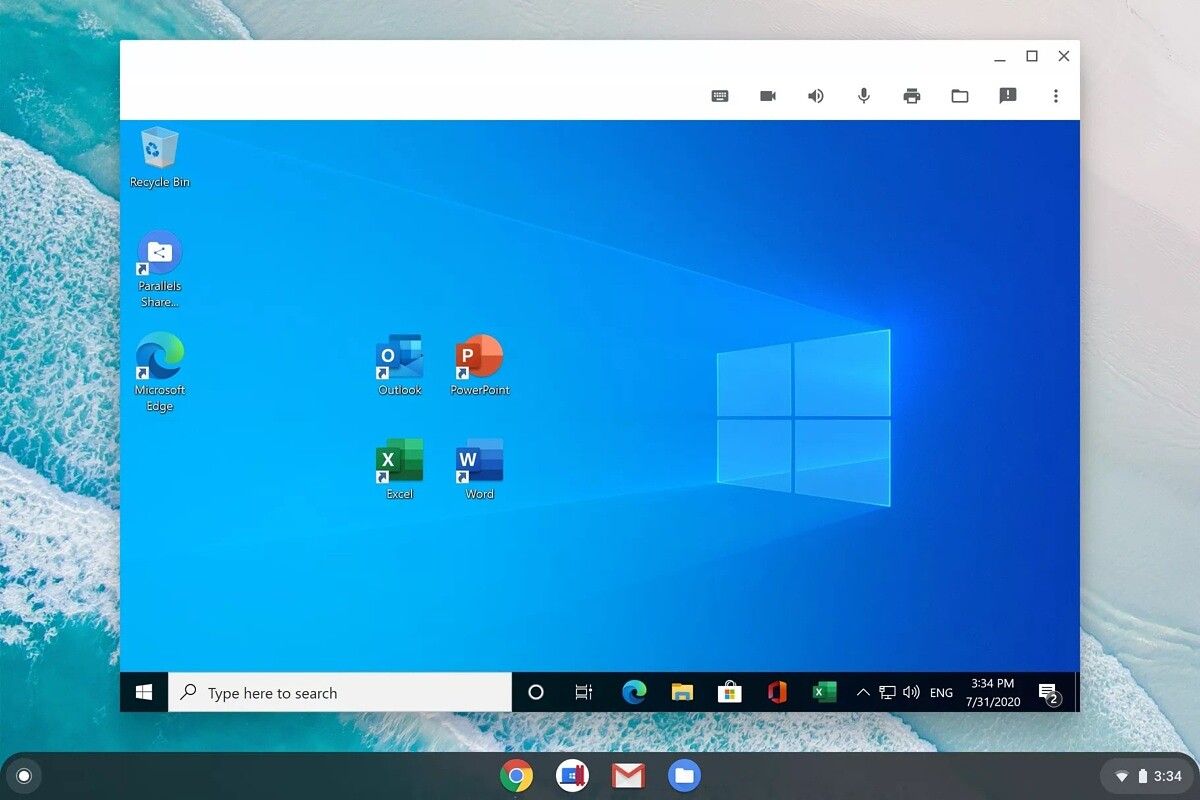
- Parallels Desktop for Chrome Enterprise: This is the most robust and officially supported virtualization solution for Chromebooks, but it comes with significant limitations. It’s designed for enterprise users and requires specific, powerful Chrome Enterprise devices (often with Intel i5/i7 processors and ample RAM/storage). It allows users to run a full version of Windows 10/11 virtually on their Chromebook, complete with file sharing and copy-paste integration. While excellent for its target audience, it’s not a consumer-friendly or free solution.
- Linux-based Virtualization (Advanced Users): For some advanced users on Chromebooks that support Linux (via Project Crostini), it might be theoretically possible to install virtualization software like QEMU or VirtualBox within the Linux container and then run Windows. However, this is highly experimental, extremely resource-intensive, and unlikely to provide a usable Windows experience, especially given the already virtualized nature of the Linux environment itself. Performance would be abysmal, and driver support within the virtualized Windows instance would still be a major hurdle.
Cloud-Based Solutions (Remote Desktop, Cloud PCs)
Perhaps the most practical and least intrusive way to access Windows software from a Chromebook is not to install Windows directly on the device, but to access it remotely.
- Remote Desktop: If you already own a Windows PC, you can use remote desktop software (like Microsoft’s Remote Desktop, TeamViewer, Chrome Remote Desktop, or AnyDesk) to connect to it from your Chromebook. This effectively turns your Chromebook into a thin client, allowing you to control and interact with your Windows machine as if you were sitting in front of it. All the processing power and software run on the host Windows PC, with the display simply streamed to your Chromebook.
- Cloud PCs / Desktop as a Service (DaaS): Services like Microsoft 365 (formerly Windows 365), Azure Virtual Desktop, Amazon WorkSpaces, or other Desktop as a Service providers allow you to rent a virtual Windows desktop running in the cloud. You connect to this virtual machine from your Chromebook via a web browser or a dedicated client app. This offers a full Windows experience without any local installation, hardware modifications, or performance compromises on your Chromebook itself. It’s often a subscription-based model, making it a recurring cost, but it’s arguably the most reliable and secure way to get Windows functionality on a Chromebook for most users, especially for business-critical applications.
What to Consider Before You Start
Before attempting any method, particularly the dual-boot approach, it’s crucial to understand the implications.
Performance Expectations
Even if you successfully install Windows, don’t expect it to run like a dedicated Windows laptop. Chromebook hardware, while optimized for Chrome OS, may struggle with the demands of Windows, leading to sluggish performance, especially with resource-intensive applications. Storage will likely be a bottleneck, and fan noise might increase significantly as the system works harder.
Driver Compatibility and Support
This is the Achilles’ heel of installing Windows on a Chromebook. Manufacturers do not provide Windows drivers for Chromebook components. You’ll be relying on generic drivers or community-developed solutions, which are often incomplete or unstable. This can lead to non-functional Wi-Fi, Bluetooth, audio, touchpads, webcams, or even critical system components. For many, this alone makes the endeavor impractical.
Data Backup and Recovery
Enabling Developer Mode and flashing custom firmware are inherently risky operations that will erase your local data. Always back up everything important to Google Drive or another external storage solution before you begin. Have a plan for recovery, including a Chrome OS recovery image on a USB drive, in case something goes wrong and you need to revert your Chromebook to its original state.
The Risk of Bricking Your Device
The process of flashing custom firmware carries a non-zero risk of permanently damaging your Chromebook, rendering it unusable. This is not for the faint of heart or those unwilling to accept the possibility of losing their device. Your device’s warranty will also be immediately voided.
Is It Worth the Effort? Weighing the Pros and Cons
The decision to install Windows on a Chromebook ultimately boils down to your specific needs and tolerance for technical challenges.
Advantages of a Hybrid Setup (Limited)
- Access to Windows-Exclusive Software: This is the primary driver for most users. If you need specific Windows applications (e.g., specialized CAD software, legacy business programs, advanced photo/video editing suites) that don’t have web, Android, or Linux equivalents, then a native Windows installation might be your only option besides buying a dedicated Windows machine.
- Familiarity: For users deeply ingrained in the Windows ecosystem, having the option to boot into a familiar OS can be comforting.
Disadvantages and Alternatives
- Significant Effort and Risk: The setup process is complex, time-consuming, and carries a real risk of damaging your device.
- Subpar Performance and Compatibility: Expect compromises in speed, battery life, and hardware functionality. Many features might not work as expected.
- No Official Support: Neither Google nor Microsoft supports this configuration, meaning you’re entirely on your own for troubleshooting.
- Cost vs. Benefit: For the effort involved, often the result is a less-than-ideal Windows experience on hardware not designed for it. For the same amount of effort (and potentially less money in the long run), purchasing a refurbished Windows laptop might provide a much better experience.
- Alternative Solutions Often Suffice:
- Linux: Many powerful desktop applications are available for Linux, which can be run in a container on most modern Chromebooks, offering a much safer and officially supported alternative to Windows.
- Android Apps: Chromebooks support millions of Android apps, expanding their utility significantly.
- Web Apps: The vast majority of productivity and entertainment needs can be met through web applications, which is what Chromebooks excel at.
- Cloud PCs/Remote Desktop: As discussed, these offer a seamless Windows experience without touching your Chromebook’s core OS.
The Future of Chromebooks and Windows Integration
As technology evolves, the lines between operating systems continue to blur. Powerful Chromebooks are emerging, some even specifically designed to run Parallels Desktop for Chrome Enterprise, indicating a growing demand for hybrid solutions in specific market segments. Microsoft’s continued development of Windows on ARM, while currently niche, could eventually lead to more compatible solutions for ARM-based Chromebooks.
However, for the average consumer, the core philosophy of Chrome OS—simplicity, security, and cloud-centricity—remains its primary appeal. While installing Windows directly on a Chromebook is technically possible for some models, it’s generally an advanced project best left to enthusiasts who understand the inherent risks and limitations. For most users seeking Windows functionality, cloud-based solutions or simply opting for a dedicated Windows laptop will offer a far more reliable, efficient, and frustration-free experience. The beauty of the Chromebook lies in its optimized Chrome OS experience; attempting to force it into another operating system’s mold often diminishes its inherent strengths without fully realizing the benefits of the alternative.
aViewFromTheCave is a participant in the Amazon Services LLC Associates Program, an affiliate advertising program designed to provide a means for sites to earn advertising fees by advertising and linking to Amazon.com. Amazon, the Amazon logo, AmazonSupply, and the AmazonSupply logo are trademarks of Amazon.com, Inc. or its affiliates. As an Amazon Associate we earn affiliate commissions from qualifying purchases.