
The Apple Watch has evolved far beyond a mere time-telling device; it’s a sophisticated wrist-mounted computer, a personal health companion, a communication hub, and a productivity enhancer. At the core of this transformation lies its robust app ecosystem. Just as apps define the utility of your iPhone, they unlock the true potential of your Apple Watch, tailoring it to your unique needs and lifestyle. Whether you’re a fitness enthusiast tracking every stride, a busy professional managing your schedule, or simply seeking convenient access to information, installing the right apps is the gateway to a more integrated and efficient digital experience right from your wrist. This guide will walk you through everything you need to know about seamlessly installing, managing, and optimizing applications on your Apple Watch.
Why Apps Are Essential for Your Apple Watch Experience
While the Apple Watch comes packed with impressive native features, its true power blossoms when you tap into the vast App Store. Apps transform your watch from a mere accessory into a personalized, indispensable tool that integrates effortlessly into your daily routine. Understanding this fundamental shift is the first step toward maximizing your device’s capabilities.
Extending Functionality Beyond Time-Telling
Imagine a device that not only tells you the time but also monitors your heart rate, guides your workouts, lets you pay for groceries, controls your smart home, and even translates conversations on the fly. This is the promise of the Apple Watch, realized through its diverse app library. From health and fitness trackers like Strava and MyFitnessPal to productivity tools such as Things 3 and Bear, and communication apps like Telegram or Walkie-Talkie, apps dramatically extend the watch’s capabilities. They allow you to receive crucial notifications, interact with your favorite services, and perform quick tasks without ever needing to pull out your iPhone. This direct, at-a-glance interaction streamlines countless daily activities, saving you time and enhancing convenience. For tech enthusiasts, this means constantly discovering new ways to interact with information and control their digital lives from their wrist.
Seamless Integration into the Apple Ecosystem
A significant advantage of the Apple Watch app experience is its deep integration within the broader Apple ecosystem. Apps on your watch don’t operate in a vacuum; they often work in tandem with their iPhone counterparts, sharing data, settings, and notifications effortlessly. This interconnectedness ensures a consistent user experience and simplifies data management across your devices. For example, a workout started on your watch is seamlessly logged in the Health app on your iPhone, and a task added via your watch app instantly syncs to your To-Do list on your Mac and iPad. This robust integration is a cornerstone of Apple’s brand philosophy, focusing on user-centric design and intuitive functionality. It means less friction, more automation, and a more cohesive digital life, making the Apple Watch an even more powerful extension of your personal tech arsenal. This synergy not only simplifies usage but also enhances productivity, allowing you to stay connected and productive even when your phone isn’t readily accessible.
Navigating the Installation Process: Your Two Key Pathways
Installing apps on your Apple Watch is a straightforward process, but understanding the nuances of the two primary methods – through your iPhone or directly on the watch – can help you manage your app library more efficiently. Each approach offers distinct advantages, catering to different preferences and situations.
The iPhone-Centric Approach: Your Primary Control Hub
For most users, the iPhone serves as the main gateway for installing and managing Apple Watch apps. This method offers the most control, a larger interface for browsing, and the convenience of automatic installations.
Automatic App Installation (Mirroring Your iPhone Apps)
One of the most user-friendly features of the Apple Watch is its ability to automatically install companion apps for many of the applications already on your iPhone. When you download an app to your iPhone that has a compatible Apple Watch version, the Watch app on your iPhone often prompts you to install it on your wrist device. By default, this feature is usually enabled.
To check or manage this setting:
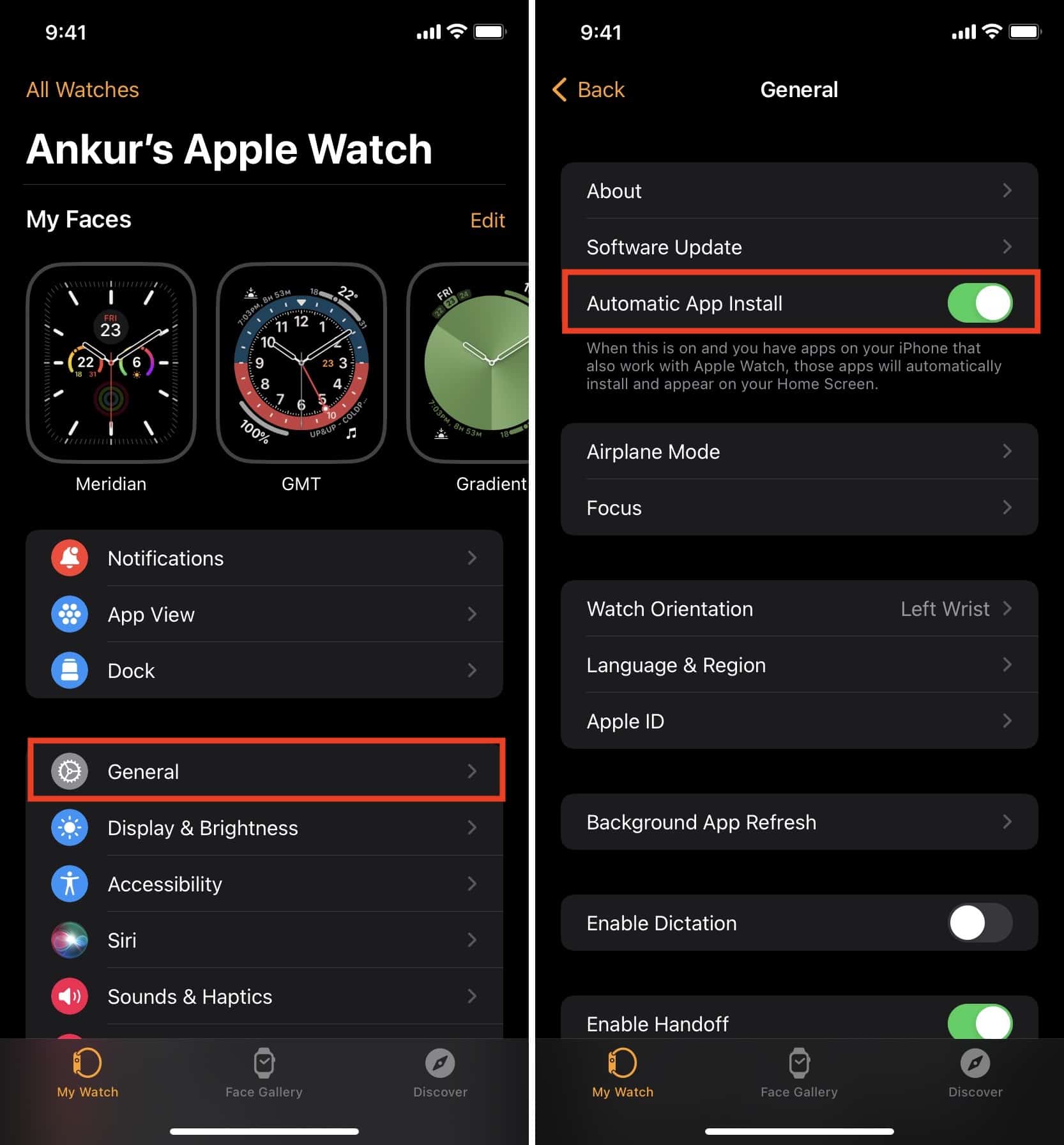
- Open the Watch app on your iPhone.
- Tap on the “My Watch” tab at the bottom.
- Scroll down to the “General” section.
- Toggle “Automatic App Install” on or off.
When enabled, any new iPhone app with a watch counterpart will automatically appear on your Apple Watch, provided there’s enough storage. This streamlined process saves you from manually searching for and installing every app, ensuring your watch is always equipped with the wrist-friendly versions of your favorite iPhone applications. This aligns with Apple’s brand strategy of providing a seamless, integrated user experience across devices.
Manual Installation via the Watch App on iPhone
Even with automatic installation, there will be times when you want to specifically browse for, select, or manually install apps on your Apple Watch. This is done primarily through the App Store section within the iPhone’s Watch app.
Here’s a step-by-step guide:
- Open the Watch app on your iPhone. This is your central control panel for everything related to your Apple Watch.
- Navigate to the “App Store” tab. At the bottom of the screen, you’ll see several tabs; tap on “App Store.”
- Browse or Search for Apps.
- You’ll see featured apps, collections, and categories specifically curated for the Apple Watch. This is an excellent place to discover new applications that enhance your watch’s utility, whether you’re looking for fitness trackers, meditation guides, or even tools for managing personal finance on the go.
- If you have a specific app in mind, use the “Search” bar at the top right corner of the App Store screen.
- Select an App. Tap on any app to view its details, including screenshots, description, reviews, and compatibility information. Pay attention to user reviews and ratings, as they can offer valuable insights into an app’s performance and usefulness on the watch.
- Install the App. Once you’ve found an app you want, tap the “Get” button (for free apps) or the price button (for paid apps). You might need to authenticate with Face ID, Touch ID, or your Apple ID password.
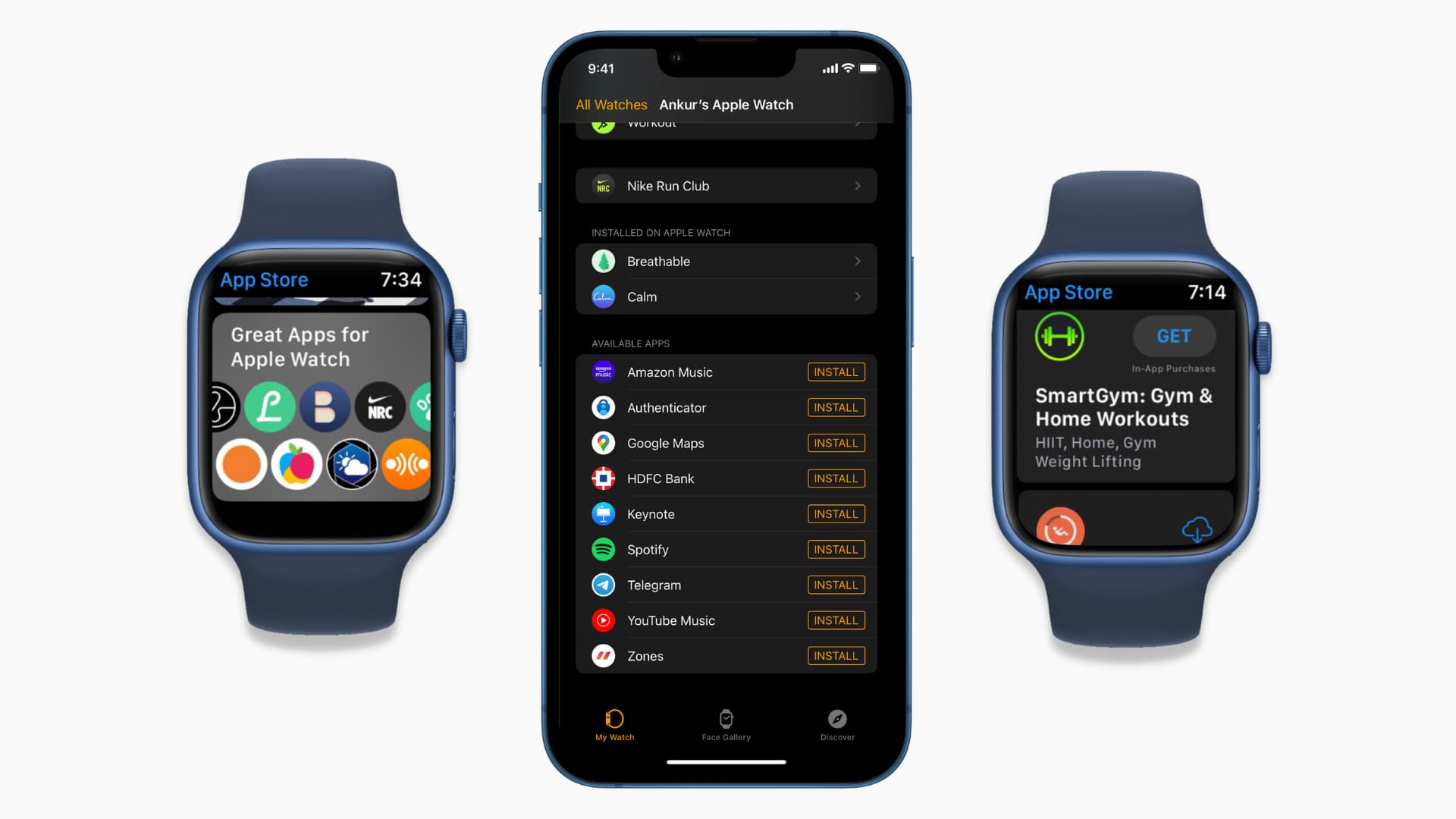
- Monitor Installation. The app will begin downloading and installing on your Apple Watch. You can usually see its progress on your watch’s home screen or within the “My Watch” tab under “Installed on Apple Watch.”
Exploring “My Watch” for Available and Installed Apps
The “My Watch” tab within the iPhone’s Watch app is a crucial management area.
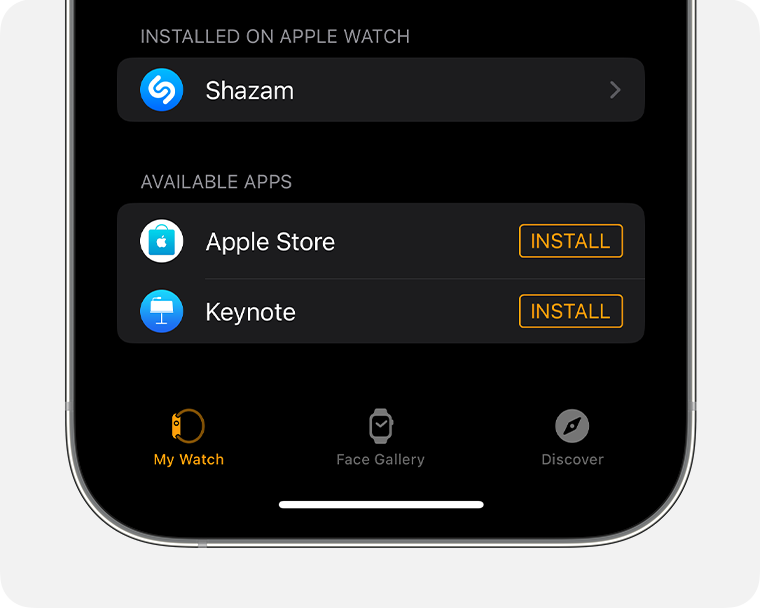
- “INSTALLED ON APPLE WATCH” section: This lists all the apps currently on your watch. You can tap on any app here to adjust its specific settings, such as notifications, complications, or whether it can refresh in the background. If you want to delete an app installed on your watch, you can also do it from here by tapping the app and then selecting “Delete App on Apple Watch.”
- “AVAILABLE APPS” section: This lists all the iPhone apps you have installed that also have an Apple Watch counterpart but are not yet installed on your watch. To install one, simply tap the “Install” button next to its name. This is particularly useful if you’ve previously uninstalled a watch app or if automatic installation was off.
This iPhone-centric method offers a familiar and comprehensive way to control your Apple Watch app ecosystem, leveraging the larger screen and keyboard of your phone for a more comfortable experience.
Direct from Your Wrist: The On-Watch App Store
While the iPhone-centric method is dominant, modern Apple Watch models (running WatchOS 6 or later) provide the convenience of installing apps directly from your wrist, without needing your iPhone nearby. This is especially handy when you’re on the go and discover a new app you want to try.
Here’s how to access and use the App Store on your Apple Watch:
- Open the App Store on your Apple Watch. From your watch face, press the Digital Crown to open the app view (either Grid View or List View). Look for the App Store icon (a blue icon with three white triangles forming an “A”). Tap it to open.
- Browse or Search.
- The App Store on your watch offers curated selections, categories, and trending apps, similar to the iPhone version but optimized for the smaller screen. You can scroll through these recommendations.
- To search for a specific app, tap the “Search” button at the top (it looks like a magnifying glass).
- Inputting Your Search Query. This is where the watch’s unique input methods come into play:
- Scribble: Tap the Scribble icon and draw letters on the screen one by one to spell out your search term. The watch’s handwriting recognition is surprisingly good.
- Dictation: Tap the microphone icon and speak your search query. This is often the quickest and easiest method.
- Keyboard (Series 7 and newer): If you have an Apple Watch Series 7 or newer, you’ll have access to a full QWERTY keyboard, which makes typing much faster and more accurate, especially if you have slim fingers.
- Select and Install the App. Once you’ve found the app, tap on it to view its details. Then, tap the “Get” button (for free apps) or the price button (for paid apps). You’ll typically be prompted to double-click the side button to confirm the purchase or download, similar to how you use Apple Pay.
- Monitor Installation. The app will appear on your watch’s home screen with a progress indicator until it’s fully installed and ready to use.
The on-watch App Store empowers you with independence from your iPhone, making your Apple Watch a more self-sufficient device. This can be particularly useful for those who want to quickly enhance their device’s capabilities without interrupting their workflow on another device.
Mastering Your App Library: Management and Optimization
Installing apps is just the beginning. To truly get the most out of your Apple Watch, you need to be adept at managing your app library, keeping apps updated, and strategically configuring them to suit your needs. Effective management ensures your watch runs smoothly, your battery life is preserved, and you only have the tools you truly use readily available.
Efficiently Managing Installed Apps
A cluttered app screen can be frustrating and counterproductive. Regular management of your installed apps ensures a streamlined and efficient experience.
Deleting Apps (From iPhone and Watch)
Just as you might declutter your iPhone, it’s good practice to remove apps you no longer use from your Apple Watch. This frees up storage space and reduces visual clutter.
Deleting via iPhone:
- Open the Watch app on your iPhone.
- Go to the “My Watch” tab.
- Scroll down to the “INSTALLED ON APPLE WATCH” section.
- Tap on the app you wish to delete.
- Toggle off “Show App on Apple Watch.” This will remove the app from your watch but keep the companion app on your iPhone.
- Alternatively, for a complete removal, tap “Delete App on Apple Watch.” This will uninstall the app from your watch and also remove its data, but the iPhone app will remain.
Deleting Directly from Apple Watch:
- From your watch face, press the Digital Crown to go to the app view.
- If you’re in Grid View, tap and hold an app icon until all icons begin to jiggle. If you’re in List View, swipe left on the app you want to delete.
- Tap the “X” (for Grid View) or the “Delete” button (for List View) that appears on the app icon.
- Confirm your decision by tapping “Delete App.” Not all pre-installed Apple apps can be deleted.
Rearranging Apps (Grid View vs. List View)
The Apple Watch offers two ways to view your apps, and you can organize them within each view.
Grid View (the default, honeycomb layout):
- On your iPhone, open the Watch app.
- Go to the “My Watch” tab.
- Tap “App View.”
- Ensure “Grid View” is selected.
- Then, tap “Arrangement” (under the “App View” option on the “My Watch” tab).
- You can now drag app icons around the grid to your preferred layout. Place your most frequently used apps centrally for easy access.
List View (alphabetical list):
- On your iPhone, open the Watch app.
- Go to the “My Watch” tab.
- Tap “App View.”
- Select “List View.” In List View, apps are always displayed alphabetically, so you cannot manually rearrange them. You simply scroll to find what you need.
You can also switch between Grid and List View directly on your watch by going to Settings > App View. Many users find List View faster for quickly finding an app by its name, while Grid View offers a more visual and customizable layout.
Keeping Apps Up-to-Date and Configured
Maintaining updated apps and configuring their settings is crucial for security, performance, and a personalized user experience.
Automatic and Manual App Updates
Just like iPhone apps, Apple Watch apps receive updates to introduce new features, fix bugs, and improve security.
Automatic Updates:
- On your iPhone, open the Watch app.
- Go to the “My Watch” tab.
- Tap on “General.”
- Toggle “Automatic App Updates” on or off.
When enabled, your watch apps will update in the background, typically when connected to Wi-Fi and charging.
Manual Updates (if automatic is off):
- On your Apple Watch, open the App Store.
- Scroll down to the bottom and tap “Account.”
- Tap “Updates.”
- Tap “Update All” or update individual apps.
Keeping apps updated ensures you benefit from the latest improvements and maintain compatibility with the latest WatchOS versions.
Configuring App-Specific Settings
Many apps offer specific settings that can be adjusted to optimize their functionality and your privacy.
- Notifications: On your iPhone, open the Watch app, go to “My Watch” > “Notifications.” Here you can choose whether to mirror iPhone alerts or customize notifications for each app directly on your watch. Managing notifications effectively prevents your watch from becoming a constant source of distraction.
- Background App Refresh: On your iPhone, open the Watch app, go to “My Watch” > “General” > “Background App Refresh.” You can toggle this feature for individual apps. Turning off background refresh for less critical apps can significantly save battery life.
- Complications: Complications are small widgets on your watch face that display information from apps (e.g., weather, activity rings, calendar events). To add or remove complications, force touch your watch face, tap “Edit,” and swipe to the “Complications” screen. Then, tap a position and scroll the Digital Crown to select an app. Smart use of complications can provide at-a-glance access to your most important data, directly contributing to your productivity and personal finance management if you use apps for these purposes.
- Privacy Settings: Many apps, especially health and fitness ones, require access to sensitive data. Always review an app’s privacy policy and manage its access to your health data, location, and other personal information via the iPhone’s Settings app > Privacy & Security > Health or Location Services.
Strategic App Selection for Enhanced Productivity and Health
With thousands of apps available, choosing the right ones can be daunting. A strategic approach ensures your Apple Watch genuinely enhances your life.
- Identify Your Needs: Are you primarily interested in fitness tracking, communication, productivity, health monitoring, or entertainment? Focus on apps that fill specific gaps in your daily routine. For example, a busy professional might prioritize apps that offer quick access to calendar events, email, or a task manager to boost productivity, potentially even saving time which can indirectly be linked to monetary value.
- Prioritize Performance and Battery Life: Apps that constantly refresh in the background or heavily utilize GPS can drain your watch’s battery quickly. Read reviews and look for apps optimized for the Apple Watch’s hardware and battery constraints.
- Evaluate Value (Free vs. Paid): Many excellent apps are free, while others offer premium features through one-time purchases or subscriptions. Consider the value an app brings versus its cost. Some paid apps offer significant returns in terms of efficiency or health benefits, making them a worthwhile investment.
- Check for Complication Support: Apps that offer useful complications can be more valuable as they provide information at a glance without needing to open the app.
- Consider Data Integration: For health and fitness, choose apps that integrate well with Apple Health to consolidate your data in one place. For productivity, ensure they sync with your other devices and cloud services.
- Personal Branding: While not directly related to corporate branding, the apps you choose can subtly reflect your personal brand. Opting for reliable, well-designed apps that support your goals (e.g., mindfulness apps for well-being, news apps for staying informed) enhances your overall digital persona.
By carefully selecting and configuring your apps, you transform your Apple Watch into a highly personalized and efficient tool that perfectly complements your tech ecosystem and lifestyle.
Common Hurdles and How to Overcome Them
Despite its user-friendly design, you might occasionally encounter issues when installing or using apps on your Apple Watch. Knowing how to troubleshoot these common problems can save you frustration and ensure a smooth experience.
Addressing Installation and Performance Issues
Apps not installing, crashing, or performing poorly are common complaints that usually have straightforward solutions.
Apps Not Installing or Stuck in “Loading” State
- Check Connectivity: Ensure both your iPhone and Apple Watch are connected to Wi-Fi or have a cellular connection (for cellular models). Sometimes a weak or unstable connection can prevent downloads. Try turning Wi-Fi off and on again, or switching to cellular.
- Restart Devices: A classic troubleshooting step, but often effective. Restart your Apple Watch (hold the side button until the power off slider appears) and your iPhone.
- Check Storage Space: On your iPhone, open the Watch app, go to “My Watch” > “General” > “Usage.” If your watch is nearly full, you might need to delete some apps, photos, or music to free up space.
- Check for WatchOS Updates: Ensure your Apple Watch is running the latest version of WatchOS. Outdated software can sometimes cause compatibility issues. On your iPhone, open the Watch app > “My Watch” > “General” > “Software Update.”
- Re-authenticate Apple ID: Go to your iPhone’s Settings > [Your Name] > Media & Purchases > Sign Out, then sign back in. Sometimes a stale authentication token can prevent app downloads.
- Delete and Re-install: If an app is stuck, try deleting it from both your iPhone and Apple Watch (if it’s partially installed), then restart both devices and attempt to install it again.
Apps Crashing or Not Opening
- Force Quit and Reopen: On your Apple Watch, double-press the Digital Crown to see your recently used apps. Swipe left on the problematic app and tap the “X” to force quit it. Then try opening it again.
- Restart the App: If force-quitting doesn’t work, restart your Apple Watch.
- Check for App Updates: Ensure the app itself is updated to its latest version. Developers frequently release updates to fix bugs and improve stability.
- Reinstall the App: If the issue persists, delete the app from your Apple Watch and reinstall it. This can clear out corrupted data.
- Reset Sync Data: On your iPhone, open the Watch app > “My Watch” > “General” > “Reset” > “Reset Sync Data.” This will resync contacts and calendar data, which can sometimes resolve issues with related apps.
- Contact Developer Support: If none of the above work, the issue might be specific to the app. Check the App Store listing for developer contact information and report the problem.
Optimizing for Battery Life and Storage
A common concern with smartwatches is battery life. Many app-related settings can impact how long your watch lasts on a single charge, and managing storage is key to smooth operation.
- Manage Background App Refresh: As mentioned earlier, go to “My Watch” > “General” > “Background App Refresh” and turn off this feature for apps you don’t need constantly updated data from. This is one of the biggest battery savers.
- Limit Notifications: Excessive notifications constantly wake your watch screen, draining battery. Customize notifications in “My Watch” > “Notifications” to only receive alerts from essential apps.
- Reduce Complications: While useful, complications that constantly update (like weather or stock trackers) use more power. Limit the number of active complications on your watch face.
- Manage Photos and Music: If you sync a large photo album or extensive music library to your watch, it can quickly fill up storage and consume battery during syncing. Consider syncing only essential albums or playlists. On your iPhone, open the Watch app > “My Watch” > “Photos” or “Music” to manage synced content.
- Automatic Downloads: If “Automatic App Install” is enabled, your watch might be downloading apps you don’t even plan to use, wasting storage and battery during the download process. Consider turning it off and manually installing only what you need.
- Monitor Battery Usage: You can check your Apple Watch’s battery usage on your iPhone. Open the Watch app > “My Watch” > “Battery.” This gives you an overview of recent battery performance and insights into which apps might be contributing to drain.
By proactively managing your apps and settings, you can ensure your Apple Watch operates efficiently, maintaining optimal battery life and sufficient storage for your most important applications. This intelligent approach to tech management ultimately contributes to a better user experience and makes your investment in the Apple ecosystem more rewarding.
Conclusion
The Apple Watch is a marvel of wearable technology, and its true power is unleashed through its expansive and ever-growing app ecosystem. From transforming your fitness routine to streamlining your daily tasks and keeping you connected, apps are the key to personalizing your watch experience. By understanding the straightforward installation processes, mastering app management techniques, and proactively troubleshooting common issues, you can ensure your Apple Watch remains a seamless, efficient, and indispensable extension of your digital life. Embrace the power of apps, explore the App Store, and tailor your Apple Watch to perfectly complement your unique lifestyle, making every tap and glance on your wrist more meaningful and productive.
aViewFromTheCave is a participant in the Amazon Services LLC Associates Program, an affiliate advertising program designed to provide a means for sites to earn advertising fees by advertising and linking to Amazon.com. Amazon, the Amazon logo, AmazonSupply, and the AmazonSupply logo are trademarks of Amazon.com, Inc. or its affiliates. As an Amazon Associate we earn affiliate commissions from qualifying purchases.