
The Mac has long been celebrated for its elegant design, intuitive user interface, and robust ecosystem. However, for a variety of reasons, many users find themselves needing to run Windows applications or access Windows-specific functionalities that are simply unavailable on macOS. Whether you’re a gamer, a developer, a professional needing legacy software, or simply curious to explore both worlds, installing Windows on your Mac is a powerful way to unlock unparalleled versatility. This comprehensive guide will walk you through the primary methods, essential preparations, and critical post-installation steps to successfully run Windows on your Apple hardware.
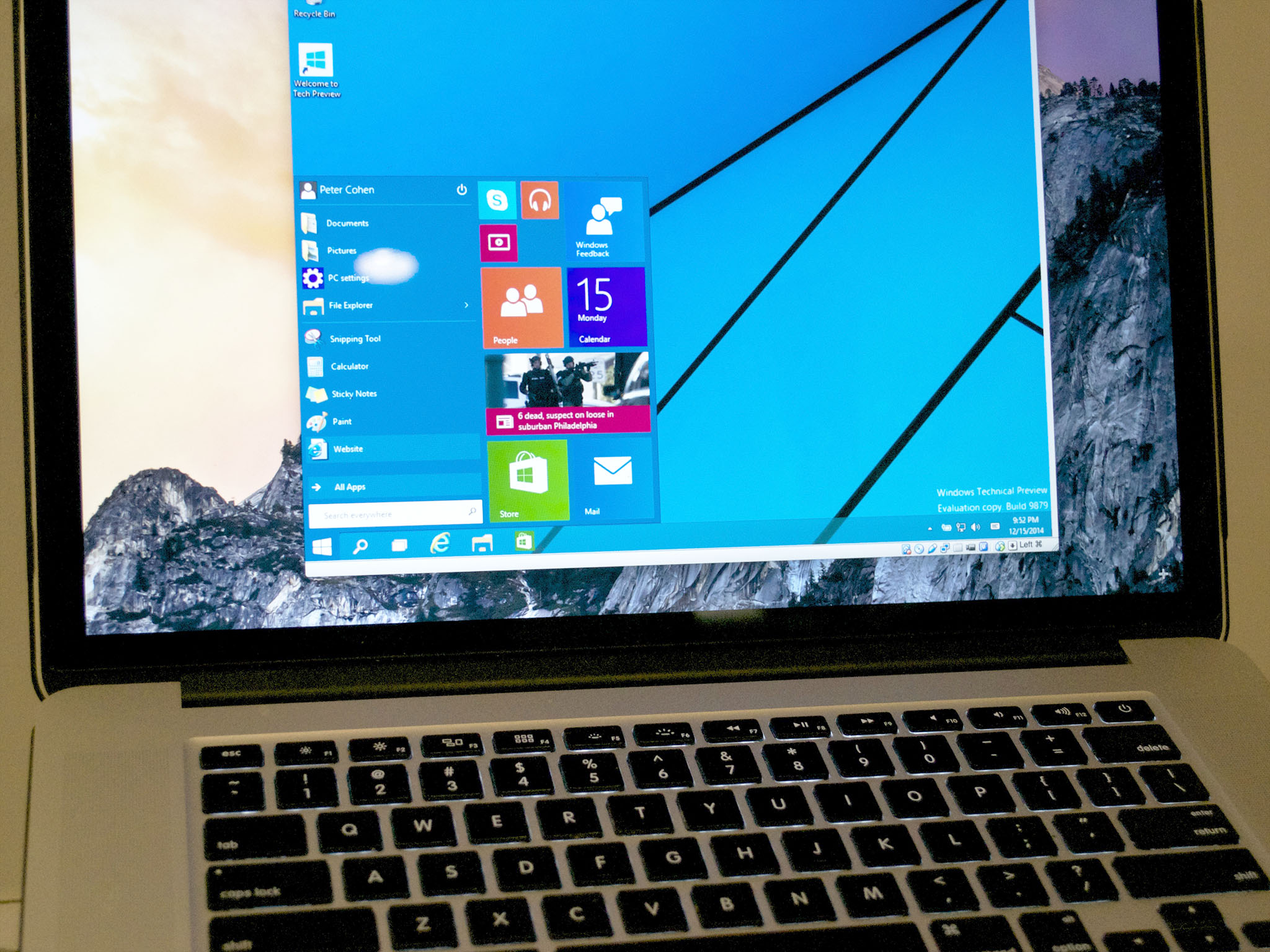
In the realm of tech, the ability to adapt and leverage different operating systems on a single machine is a testament to flexibility and productivity. For Mac users, bridging the gap to Windows can open doors to a vast library of software, specific hardware compatibility, and even a different computing experience. This article delves into the “how-to” with a focus on practical tutorials, ensuring you gain digital security awareness through proper setup, and ultimately boost your productivity by having the best of both operating systems at your fingertips.
Why Run Windows on Your Mac? Unlocking Dual Functionality
The decision to install Windows on a Mac isn’t just a technical exercise; it’s often driven by specific needs and a desire for enhanced functionality. Understanding the motivations behind this move can help you determine if it’s the right path for you.
Bridging the OS Gap: Use Cases and Benefits
One of the most compelling reasons to run Windows on a Mac is software compatibility. Many industries rely on Windows-exclusive applications for design, engineering, finance, and various specialized tasks. For instance:
- Gaming: While macOS has its share of games, the vast majority of AAA titles are developed primarily for Windows, often offering better performance and wider availability.
- Professional Software: Certain CAD programs, enterprise resource planning (ERP) systems, and specialized development tools are often Windows-only. Professionals can use their sleek Mac hardware while still accessing critical, industry-standard applications.
- Web Development & Testing: Developers might need to test websites or applications in a native Windows environment, particularly for Internet Explorer or Edge compatibility.
- Hardware Peripherals: Some older or niche hardware devices come with drivers and software exclusively designed for Windows.
- Familiarity and Training: For users transitioning from a Windows environment, having access to Windows on their Mac can ease the learning curve, especially for tasks that feel more natural on the Microsoft OS.
- Security Research & Testing: Cybersecurity professionals might need a Windows sandbox environment for analyzing malware or testing network vulnerabilities.
By installing Windows, your Mac transforms into a truly versatile machine, capable of running virtually any software, regardless of its native operating system. This dual functionality means you don’t have to compromise on hardware preference for software necessity.
Understanding Compatibility: Intel vs. Apple Silicon
Before embarking on the installation journey, it’s crucial to understand the fundamental difference in architecture between older Intel-based Macs and newer Apple Silicon (M-series) Macs. This distinction dictates which installation methods are viable for your specific device.
- Intel-based Macs (2006-2020): These Macs, featuring Intel processors, are fully compatible with Boot Camp Assistant. Boot Camp is Apple’s native utility that allows you to install a full version of Windows alongside macOS on separate partitions. When you turn on your Mac, you can choose whether to boot into macOS or Windows, giving you native performance in both operating systems. This method is generally preferred for maximum Windows performance, especially for gaming or resource-intensive applications.
- Apple Silicon Macs (M1, M2, M3, etc. – 2020-Present): Macs powered by Apple’s custom-designed M-series chips use an ARM-based architecture, which is fundamentally different from the x86 architecture used by Intel and standard Windows installations. As a result, Boot Camp Assistant is NOT available for Apple Silicon Macs. To run Windows on these newer machines, you must use virtualization software. Virtualization allows you to run a full operating system (like Windows ARM) within a window on macOS, treating it like another application. While highly functional, virtualized Windows shares resources with macOS, meaning performance might not be as raw as a native Boot Camp installation, but modern Apple Silicon chips are powerful enough to provide an excellent experience for most users.
Knowing your Mac’s processor type is the first and most critical step in planning your Windows installation. You can find this information by clicking the Apple menu () in the top-left corner of your screen and selecting “About This Mac.”
Essential Preparations Before You Begin
Regardless of whether you choose Boot Camp or virtualization, thorough preparation is paramount. Skipping these steps can lead to data loss, frustrating installation errors, or suboptimal performance. Think of it as laying a solid foundation for your new dual-OS setup.
Back Up Your Mac: A Crucial First Step
This cannot be stressed enough: Always back up your entire Mac before making significant system changes like installing another operating system. While the processes outlined are generally safe, unforeseen issues can arise, from power outages during partitioning to software glitches.
- Time Machine: Apple’s built-in backup utility is the easiest and most recommended method. Connect an external hard drive (at least twice the size of your Mac’s internal storage) and let Time Machine perform a full backup.
- Cloud Services: For critical documents and personal files, ensure they are synced with iCloud, Dropbox, Google Drive, or similar cloud storage.
- Cloning Software: For advanced users, tools like Carbon Copy Cloner or SuperDuper! can create bootable clones of your macOS partition, offering an additional layer of safety.
Protecting your data should be your top priority.
Gathering Your Arsenal: Windows ISO and Product Key
To install Windows, you’ll need two core components:
- Windows 10/11 ISO File: This is the installation image for Windows. You can legally download the official Windows 10 or Windows 11 ISO file directly from Microsoft’s website. For Apple Silicon Macs, you will specifically need the ARM version of Windows 11 (often referred to as Windows 11 for ARM). Microsoft offers an Insider Preview ISO for ARM, and virtualization software like Parallels often simplifies obtaining it. Ensure you download the correct edition (Home, Pro, etc.) that you intend to use.
- Windows Product Key: While you can install Windows without immediate activation, a valid product key is required to unlock all features and receive ongoing updates. If you don’t have one, you can purchase one directly from Microsoft or an authorized retailer.
System Requirements and Storage Allocation
Ensure your Mac meets the minimum requirements for the version of Windows you plan to install. More importantly, consider storage:
- Storage Space: Windows 10/11 requires a significant amount of space. For Boot Camp, a minimum of 64GB is recommended, but 100-150GB or more is ideal, especially if you plan to install games or large applications. For virtualization, allocate at least 60GB for the virtual disk. Ensure your Mac’s internal drive has enough free space before you begin partitioning or creating a virtual machine.
- RAM: Windows generally runs smoothly with 8GB of RAM, but 16GB or more will provide a much smoother experience, especially when running demanding applications or using virtualization.
- Processor: Modern Intel and Apple Silicon Macs are more than capable, but older Intel Macs might struggle with the latest Windows versions, particularly in a virtualized environment.
Power and Connectivity Checks
- Power Adapter: Plug your Mac into its power adapter. Interruptions during installation, especially partitioning, can corrupt your drive.
- Stable Internet Connection: A reliable internet connection is necessary for downloading the Windows ISO, obtaining updates, and installing drivers during and after the setup process.
- External USB Drive (for Boot Camp on some Intel Macs): Older Intel Macs might require a USB drive (at least 16GB, formatted as MS-DOS (FAT)) to create a bootable Windows installer. Newer Intel Macs often do this automatically without needing a separate USB drive. Check Apple’s support documentation for your specific model.
With these preparations complete, you are ready to choose your installation method.
Method 1: Installing Windows via Boot Camp Assistant (Intel Macs Only)
Boot Camp Assistant is Apple’s built-in utility for installing Windows natively on Intel-based Macs. This method provides the best possible performance for Windows because it runs directly on the hardware, without macOS running in the background.
Step-by-Step Guide to Boot Camp Installation
This process will guide you through partitioning your drive and installing Windows.
Launching Boot Camp Assistant
- Close all open applications.
- Open Boot Camp Assistant: Navigate to
Applications > Utilities > Boot Camp Assistant. - Introduction Screen: Read the introduction and click “Continue.” Boot Camp Assistant will automatically check your system for compatibility and gather necessary information.
Partitioning Your Hard Drive
- Select ISO Image: The assistant will prompt you to select the Windows ISO image you downloaded earlier. Click “Choose…” and locate your
Windows.isofile. - Adjust Partition Size: A slider will appear, allowing you to allocate space for both macOS and Windows.
- Recommendation: Drag the slider to give Windows at least 100-150GB, especially if you plan to install games or large applications. Remember, you cannot easily change this partition size later without reinstalling Windows.
- Caution: Do not select “Install Windows 7 or later version” on older versions if you are installing Windows 10/11. Boot Camp Assistant usually detects the ISO version automatically.
- Click “Install”: Boot Camp Assistant will now begin partitioning your drive and downloading necessary Windows support software (drivers) from Apple. This process can take some time.
- Restart: Once partitioning is complete and the support software is downloaded, your Mac will restart into the Windows installer.
Installing Windows and Initial Setup
- Windows Setup: When your Mac restarts, it will boot directly into the Windows installation process.
- Choose BOOTCAMP Partition: Follow the on-screen prompts. When asked “Where do you want to install Windows?”, select the partition labeled “BOOTCAMP”. Do NOT select any other partition, as this could erase your macOS installation. If prompted, format the BOOTCAMP partition (it should already be formatted as NTFS by Boot Camp Assistant).
- Continue Installation: Proceed with the standard Windows installation, selecting your language, region, keyboard layout, and entering your product key if you have one (you can often skip this step and activate later).
- User Account Setup: Create a local user account, set a password, and configure privacy settings.
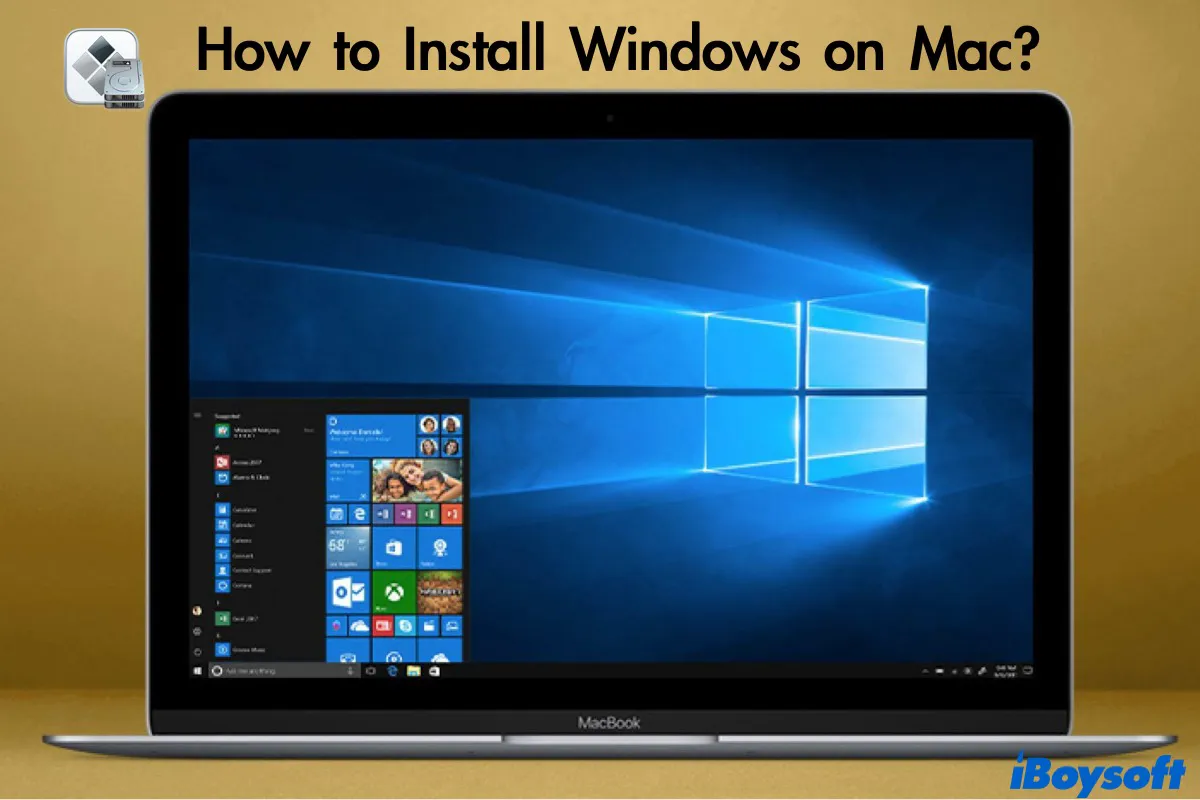
- Initial Windows Boot: Once the installation is complete, Windows will boot up for the first time.
Installing Boot Camp Drivers
Immediately after Windows boots, you’ll notice that the screen resolution might be off, and some hardware (like Wi-Fi, trackpad gestures, audio) might not be working correctly. This is because Windows needs Apple-specific drivers.
- Driver Installation: The Boot Camp installer (which was copied to the Windows partition by Boot Camp Assistant) should automatically launch. If it doesn’t, navigate to File Explorer, find the
BootCampfolder on your C: drive, and runsetup.exefrom within it. - Follow Prompts: Install all the Apple-provided drivers. This is crucial for proper functioning of your Mac’s hardware (graphics, audio, Wi-Fi, Bluetooth, keyboard backlight, trackpad, etc.) within Windows.
- Restart: Your system will likely need to restart multiple times during the driver installation process. Allow it to complete fully.
Switching Between macOS and Windows on Intel Macs
Once both operating systems are installed, switching between them is straightforward:
- From macOS to Windows: Restart your Mac, and immediately hold down the Option (Alt) key. This will bring up the Startup Manager, where you can select either “macOS” or “Windows” (or “Boot Camp”).
- From Windows to macOS: Click the “Show Hidden Icons” arrow in the Windows taskbar, find the Boot Camp icon (a gray diamond), click it, and choose “Restart in macOS.”
You can also set a default startup disk in both macOS (System Settings > General > Startup Disk) and Windows (Boot Camp Control Panel) to avoid holding the Option key every time.
Method 2: Virtualization for All Macs (Intel & Apple Silicon)
Virtualization offers a flexible alternative to Boot Camp, especially for Apple Silicon Macs where Boot Camp is not available. This method allows you to run Windows as a “guest” operating system within macOS, appearing as an application window on your desktop.
Exploring Virtualization Software: Parallels Desktop, VMware Fusion, and UTM
Several excellent virtualization solutions are available, each with its strengths:
Parallels Desktop: Performance and Ease for M-Series
- Overview: Parallels Desktop is arguably the most popular and user-friendly virtualization software for Mac. It’s known for its seamless integration with macOS, excellent performance, and easy setup, especially for Windows 11 on ARM for Apple Silicon Macs.
- Key Features: Coherence mode (runs Windows apps directly on macOS desktop), shared folders, copy-paste between OS, USB device passthrough, optimized for M-series chips, regular updates.
- Pros: Easiest to use, best performance on M-series for most users, feature-rich integration.
- Cons: Commercial software (requires a subscription or one-time purchase).
- Ideal for: Users who want the best balance of performance, features, and ease of use, especially on M-series Macs.
VMware Fusion: A Robust Alternative
- Overview: VMware Fusion is another highly respected virtualization platform, offering powerful features and robust performance. It caters to a slightly more technical user base but is also very capable.
- Key Features: Snapshots (save VM state), unity mode (similar to Parallels’ Coherence), advanced networking options, support for various guest OS, now offers free personal use for Fusion Player.
- Pros: Powerful, highly configurable, stable, free for personal use (Fusion Player), strong enterprise reputation.
- Cons: Interface might be slightly less intuitive than Parallels for beginners, performance on M-series might vary compared to Parallels in certain benchmarks (though still very good).
- Ideal for: Power users, IT professionals, developers, or budget-conscious users seeking a robust free option for personal use.
UTM: Open-Source Flexibility for ARM and x86
- Overview: UTM is a free, open-source virtualization solution built on QEMU. It’s incredibly versatile and allows you to emulate or virtualize various operating systems, including Windows (both ARM and x86) on both Intel and Apple Silicon Macs.
- Key Features: Wide range of OS support, emulates different architectures, customizable virtual hardware, supports SPICE tools for better integration.
- Pros: Free, open-source, highly flexible, supports older x86 Windows on M-series (through emulation, which is slower).
- Cons: Can be more complex to set up, performance for x86 emulation on M-series can be slow, less polished integration than commercial options.
- Ideal for: Users who prioritize open-source solutions, want maximum control, need to emulate older x86 Windows on M-series, or are comfortable with a more hands-on approach.
Setting Up a Virtual Machine: A General Workflow
While steps vary slightly between applications, the general process for creating a Windows VM is similar. We’ll outline a common workflow applicable to most solutions.
Installation of Virtualization Software
- Download and Install: Download your chosen virtualization software (e.g., Parallels Desktop, VMware Fusion Player, UTM) from its official website.
- Follow Installer: Run the installer and follow the on-screen instructions to install the application on your macOS. This is typically a straightforward drag-and-drop process or a guided installer.
Creating a New Virtual Machine
- Launch Software: Open the virtualization application.
- New VM Wizard: Look for an option like “Create New Virtual Machine,” “New,” or “Add VM.” This will usually launch a wizard.
- Select OS and ISO: The wizard will prompt you to:
- Choose Operating System: Select “Windows” or “Microsoft Windows.”
- Select Installation Source: Point to your downloaded Windows ISO file. For Apple Silicon Macs, ensure this is the Windows 11 ARM ISO. Some software (like Parallels) can even download the Windows ARM ISO for you.
- Configure Resources: Allocate virtual hardware resources for your Windows VM.
- RAM: Assign at least 4GB, but 8GB or more is recommended if your Mac has sufficient RAM.
- CPU Cores: Allocate 2-4 CPU cores, depending on your Mac’s processor and planned usage.
- Virtual Disk Size: Set the size of the virtual hard drive (e.g., 60GB for basic use, 100GB+ for more software). This file will grow on your Mac’s drive as Windows uses more space, up to the maximum you set.
- Name and Location: Give your VM a descriptive name (e.g., “Windows 11 Pro”) and choose where to save its files on your Mac’s hard drive.
- Create VM: Confirm settings and let the software create the virtual machine.
Installing Windows within the VM
- Start VM: Power on your newly created virtual machine. It will boot from the Windows ISO image, launching the standard Windows installation process within the VM window.
- Follow Windows Setup: The steps are identical to a physical Windows installation:
- Select language, time, and keyboard input.
- Enter your product key (or skip).
- Select the “Custom: Install Windows only (advanced)” option.
- Choose the virtual disk you allocated (it will likely be the only unallocated space shown).
- Proceed with the installation.
- Initial Boot: After installation, Windows will boot up inside the VM window.
Installing Guest Tools for Enhanced Integration
This is a critical step for virtualization software:
- Mount Guest Tools: Your virtualization software will provide “Guest Tools” (e.g., Parallels Tools, VMware Tools, SPICE Guest Tools for UTM). These are usually installed from a virtual CD/DVD drive that the software mounts automatically. Look for a menu option like “Install Parallels Tools” or “Install VMware Tools.”
- Run Installer: Within Windows, open File Explorer, find the virtual CD/DVD drive (it might be labeled with the virtualization software’s name), and run the installer.
- Benefits: Guest Tools install specific drivers and utilities that vastly improve the VM’s performance and integration:
- Enhanced graphics and display resolution.
- Shared clipboard (copy-paste between macOS and Windows).
- Drag-and-drop file transfer.
- Shared folders (access macOS files from within Windows).
- Seamless mouse and keyboard integration.
- USB device passthrough.
- Restart: Restart the Windows VM after installing Guest Tools for changes to take full effect.
Post-Installation & Optimizing Your Windows Experience on Mac
Once Windows is up and running, whether through Boot Camp or virtualization, there are a few essential steps to ensure optimal performance, security, and a smooth user experience.
Driver Installation and Updates for Optimal Performance
- Boot Camp: Ensure you’ve installed all drivers provided by Boot Camp Assistant. After initial setup, regularly check for updates through Apple Software Update (available in Windows for Boot Camp) and Windows Update. Also, consider manually updating graphics drivers directly from AMD or NVIDIA if you have a dedicated GPU and are experiencing issues with gaming.
- Virtualization: The guest tools you installed provide the core drivers. However, always run Windows Update within your VM to ensure Windows itself and its generic drivers are up to date. Occasionally, your virtualization software might release updates to its guest tools, so keep the main application updated on macOS.
Activating Windows and Essential Software Installation
- Activate Windows: If you skipped entering your product key during installation, activate Windows as soon as possible. This ensures you receive all updates and access all features. Go to
Settings > Update & Security > Activation(Windows 10) orSettings > System > Activation(Windows 11). - Install Antivirus/Security Software: Windows is a primary target for malware. Install reputable antivirus software immediately. Windows Defender is built-in and offers basic protection, but many users prefer third-party solutions for enhanced security.
- Browser of Choice: While Edge is included, you’ll likely want to install your preferred web browser (Chrome, Firefox, Brave, etc.).
- Productivity Suites: Install Microsoft Office, Adobe Creative Cloud apps, or any other productivity software you require.
- Utilities: Consider installing common utilities like file archivists (7-Zip, WinRAR), a PDF reader, and any specific tools needed for your workflow.
Troubleshooting Common Issues and Performance Tips
Even with careful setup, you might encounter minor issues. Here are some common problems and solutions:
- Performance Lags:
- Boot Camp: Ensure all Apple drivers are installed. Check for background processes in Task Manager. If gaming, lower graphics settings. Ensure your Mac isn’t overheating.
- Virtualization: Increase allocated RAM and CPU cores (if your Mac has spare resources). Ensure Guest Tools are installed. Close unnecessary macOS applications. Allocate more virtual disk space if it’s nearing full. Check if your Mac’s fan is running constantly, indicating high CPU usage.
- No Wi-Fi/Bluetooth (Boot Camp): Re-run the Boot Camp driver installer. Ensure you’ve downloaded the correct drivers for your Mac model from Apple’s support site if the automatic process failed.
- Sound Not Working: Check volume levels in both Windows and macOS (for virtualization). Ensure audio drivers are installed (Boot Camp) or guest tools are updated (virtualization).
- Incorrect Screen Resolution:
- Boot Camp: Update graphics drivers via Apple Software Update or directly from the GPU manufacturer.
- Virtualization: Ensure Guest Tools are fully installed and updated. The resolution should adapt automatically.
- Boot Camp Not Showing as Startup Disk: In macOS, go to
System Settings > General > Startup Diskand select your Boot Camp partition. Alternatively, restart and hold the Option key.
General Performance Tips:
- Keep both macOS and Windows updated.
- Regularly free up disk space in Windows using Disk Cleanup or similar tools.
- Defragment your Windows partition (Boot Camp, though modern SSDs don’t strictly require this and it can reduce their lifespan).
- Limit startup programs in Windows to speed up boot times and reduce background resource usage.

Conclusion
Installing Windows on your Mac transforms it into a powerhouse of versatility, bridging the gap between two of the world’s most popular operating systems. Whether you opt for the native performance of Boot Camp on an Intel Mac or the flexible convenience of virtualization on any Mac, the ability to access Windows-exclusive software and features significantly expands your computing horizons.
By following the detailed steps for preparation, installation, and post-setup optimization, you can ensure a smooth, secure, and productive experience. Your Mac is more than just a macOS machine; it’s a gateway to a world of software and possibilities, empowering you to tackle any task, game, or application with confidence. Embrace the best of both worlds and unlock the full potential of your Apple hardware.
aViewFromTheCave is a participant in the Amazon Services LLC Associates Program, an affiliate advertising program designed to provide a means for sites to earn advertising fees by advertising and linking to Amazon.com. Amazon, the Amazon logo, AmazonSupply, and the AmazonSupply logo are trademarks of Amazon.com, Inc. or its affiliates. As an Amazon Associate we earn affiliate commissions from qualifying purchases.