
The allure of a massive content library, familiar app interfaces, and seamless integration with your Google ecosystem makes the prospect of installing Google Play Store on your smart TV incredibly appealing. While most smart TVs come with their own app stores, they often fall short in terms of the sheer volume and diversity of applications available compared to the Google Play Store. This desire to expand beyond pre-installed options and unlock a world of entertainment, productivity, and utility directly on your television screen is a common one among tech-savvy users.
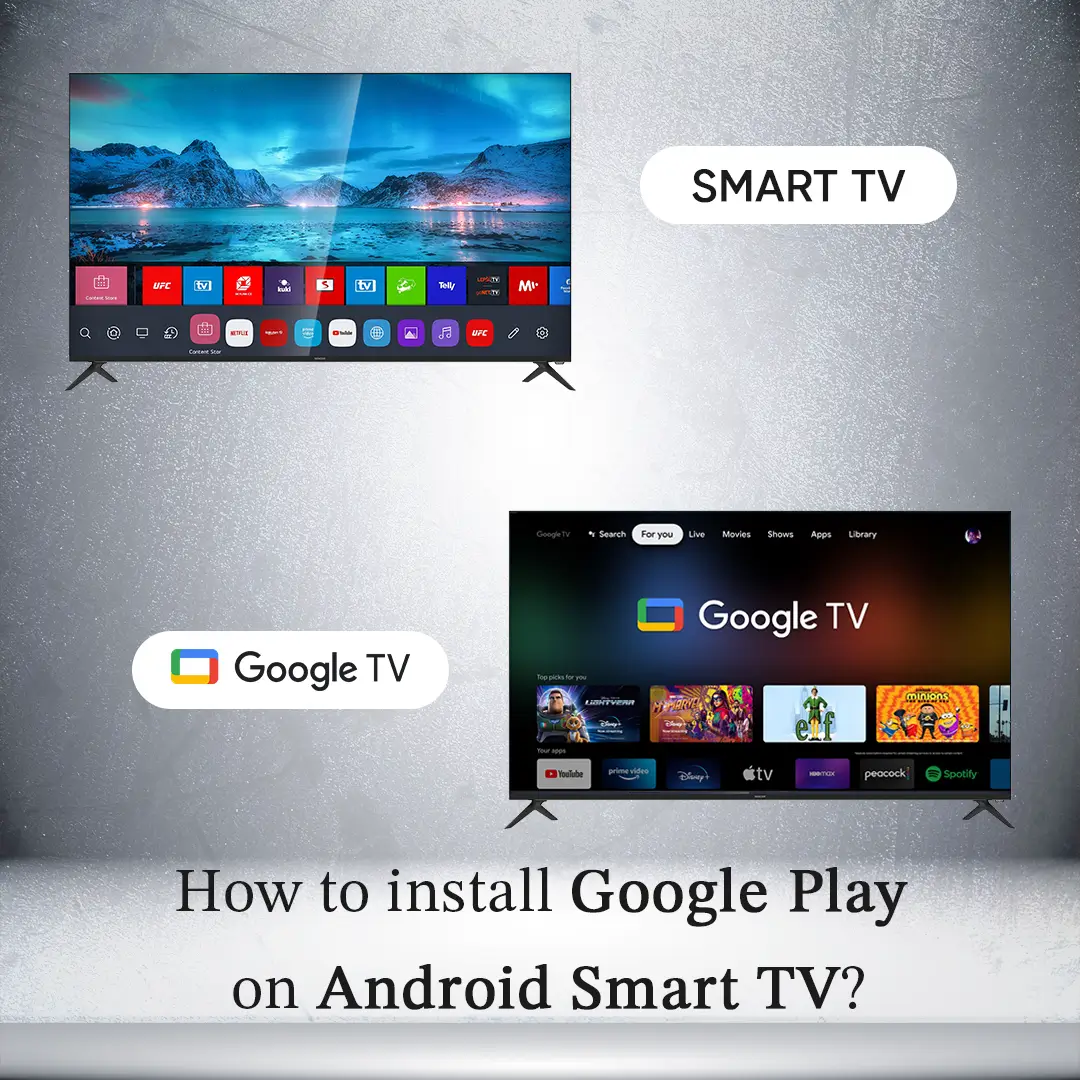
However, the reality of getting the full Google Play Store experience on your smart TV isn’t always a straightforward plug-and-play affair. Unlike Android phones and tablets, smart TVs run on a variety of operating systems, some of which are not natively designed to host the Google Play Store. This means that achieving this goal often involves workarounds, specific device compatibilities, and a willingness to explore different methods.
This comprehensive guide will delve into the various approaches you can take to install Google Play on your smart TV, addressing the complexities and providing actionable steps. We’ll navigate through the nuances of different smart TV platforms, explore the advantages and disadvantages of each method, and offer practical advice to help you achieve your goal of a more versatile and feature-rich television experience.
Understanding Smart TV Platforms and App Stores
Before diving into the installation process, it’s crucial to understand the technological landscape of smart TVs. The term “smart TV” is broad, encompassing devices from numerous manufacturers, each often employing different operating systems. This diversity is the primary reason why a universal method for installing Google Play doesn’t exist.
The Dominance of Android TV and Google TV
For a significant portion of the smart TV market, the solution is already built-in. Android TV and its successor, Google TV, are Google’s operating systems specifically designed for televisions. If your smart TV runs on Android TV or Google TV, you’re in luck. The Google Play Store is an integral part of these platforms.
- Android TV: This operating system provides a familiar Android interface optimized for a large screen. It allows for easy navigation with a remote and offers access to a vast array of apps, games, and streaming services through its dedicated Play Store. Manufacturers like Sony, TCL, Hisense, and others frequently use Android TV as their smart platform.
- Google TV: This is Google’s latest iteration, built upon Android TV. It aims to provide a more personalized and curated content discovery experience. While the underlying operating system is still Android, Google TV places a stronger emphasis on recommending content from various apps and services, making the Play Store an even more central hub for your entertainment.
If your TV runs on either of these operating systems, the process of accessing Google Play is as simple as finding the “Google Play Store” icon on your home screen and launching it. You can then browse, download, and install apps just as you would on an Android smartphone or tablet.
Other Smart TV Operating Systems and Their Limitations
The challenge arises when your smart TV operates on a different platform. Many manufacturers develop their own proprietary operating systems to differentiate their products and control the user experience. Some of the common ones include:
- Roku TV: Roku OS is known for its user-friendly interface and a wide selection of streaming channels, but it does not natively support the Google Play Store. Roku has its own “Roku Channel Store” which offers a curated selection of apps and games, but it’s a closed ecosystem.
- webOS (LG): LG’s webOS is a slick and intuitive interface with its own app store. While it’s a capable platform, it’s not based on Android, and therefore, direct Google Play Store installation is not supported.
- Tizen (Samsung): Samsung’s Tizen OS offers a robust smart TV experience with its own app store. Similar to webOS, Tizen is a proprietary system and does not natively support the Google Play Store.
- Fire TV (Amazon): While Fire TV is based on Android, it is heavily customized by Amazon and comes with the Amazon Appstore, not the Google Play Store. While there are methods to sideload Google Play on Fire TV devices, it can be a complex process and may not always be stable.
For these non-Android TV/Google TV platforms, installing the official Google Play Store is generally not possible without significant technical intervention. However, there are alternative routes to consider, which we’ll explore later.
Methods for Installing Google Play on Smart TVs
Given the varied operating systems, the approach to getting Google Play on your smart TV depends heavily on your specific device. Here are the primary methods, ranging from the simplest to the more involved.
Method 1: If Your TV Runs on Android TV or Google TV
As established, if your smart TV is already running Android TV or Google TV, you already have access to the Google Play Store.
- Locate the Google Play Store Icon: On your TV’s home screen or within the apps menu, look for an icon that says “Play Store” or displays the Google Play Store logo (a colorful triangle).
- Launch the App: Select the icon and press “OK” or “Enter” on your remote to open the Play Store.
- Sign In: You will likely be prompted to sign in with your Google account. Use the same Google account you use on your Android phone or tablet for a seamless experience, especially if you plan to sync apps or purchases.
- Browse and Install: Once signed in, you can browse through categories, search for specific apps, and install them directly onto your TV.
Important Considerations:
- App Compatibility: While the Play Store offers millions of apps, not all of them are optimized for a TV interface or a remote control. Some apps designed for touchscreens might be difficult to navigate or use with a remote.
- Performance: The performance of apps will depend on your TV’s processing power and RAM. Games or demanding applications might not run smoothly on lower-end smart TVs.
Method 2: Using a Streaming Device (The Most Recommended Workaround)
For smart TVs that do not run on Android TV or Google TV, the most reliable and user-friendly way to get the Google Play Store experience is by using an external streaming device that does. These devices connect to your TV via HDMI and effectively “turn” your non-smart or differently-smart TV into an Android TV or Google TV device.
Popular Streaming Devices:

- NVIDIA SHIELD TV / SHIELD TV Pro: These are high-end Android TV boxes known for their powerful performance, excellent upscaling capabilities, and robust gaming features. They offer a full Google Play Store experience and are ideal for users who want the best.
- Chromecast with Google TV: This is a more affordable and accessible option from Google. It plugs into your TV’s HDMI port and provides the full Google TV interface, including the Google Play Store. It’s a fantastic way to upgrade an older or non-Android smart TV.
- Amazon Fire TV Stick / Cube: While these run on Amazon’s ecosystem, it’s possible to sideload the Google Play Store onto them. However, this process can be technically challenging, may not always be stable, and can sometimes be overwritten by Amazon updates. For a native Google Play experience, a Chromecast with Google TV or NVIDIA SHIELD is a better choice.
- Various Android TV Boxes: The market is flooded with generic Android TV boxes. While some can be very capable, it’s crucial to research reviews and ensure they run a clean version of Android TV with access to the Play Store.
How to Use a Streaming Device:
- Purchase a Compatible Device: Choose one of the streaming devices mentioned above (Chromecast with Google TV is a great entry point).
- Connect to Your TV: Plug the streaming device into an available HDMI port on your smart TV. You may also need to connect it to a power source.
- Follow On-Screen Setup: Turn on your TV and switch to the correct HDMI input. The streaming device will guide you through its initial setup process, which typically involves connecting to your Wi-Fi network and signing in with your Google account (for Chromecast with Google TV) or Amazon account (for Fire TV).
- Access the Google Play Store: Once set up, you’ll be presented with the streaming device’s operating system (e.g., Google TV). Navigate to the Google Play Store and start downloading your desired apps.
Advantages of Using a Streaming Device:
- Full Google Play Access: You get the complete, official Google Play Store experience.
- Improved Performance: Streaming devices often have more powerful processors than built-in smart TV systems, leading to smoother app performance and faster loading times.
- Regular Updates: These devices receive regular software updates from Google or Amazon, ensuring you have the latest features and security patches.
- Future-Proofing: If your current smart TV becomes outdated or unsupported, your streaming device will continue to provide a modern smart TV experience.
Method 3: Sideloading Apps (Advanced and Not Recommended for Beginners)
Sideloading refers to the process of installing applications on an Android device (including Android TV) from sources other than the official app store. While it’s technically possible to sideload apps, including an APK file for the Google Play Store itself (or individual app APKs), this method comes with significant caveats and is generally not recommended for the average user.
Why Sideloading is Complex and Risky:
- Not All TVs Support Sideloading: You need to have an Android TV or Google TV platform that allows for the installation of APK files. Even then, you often need to enable developer options and grant permissions.
- Finding the Right APKs: Locating reliable and up-to-date APK files for the Google Play Store and your desired apps can be challenging. Downloading from untrusted sources can expose your device to malware.
- App Compatibility Issues: Even if you successfully install an app, it may not function correctly on a TV interface. Apps designed for touchscreens often require special adaptations for remote control navigation.
- Instability and Updates: Sideloaded apps, especially the Play Store itself, can be unstable and may not receive automatic updates. This can lead to crashes or functionality issues. Amazon has also actively worked to block Google Play Services on Fire TV devices, making sideloading more difficult over time.
- Security Risks: Installing apps from unofficial sources bypasses Google’s security checks, increasing the risk of installing malicious software.
If you’re determined to explore sideloading:
- Enable Developer Options: On your Android TV, go to Settings > About > Build Number and tap it repeatedly until you see a message indicating developer options are enabled.
- Enable App Installation from Unknown Sources: In Developer Options, find and enable “Install unknown apps” or a similar setting. You’ll need to grant this permission to the app that will be used to open the APK files (e.g., a file manager).
- Download APK Files: Find and download the necessary APK files for Google Play Store, Google Play Services, and Google Services Framework. Exercise extreme caution and only download from reputable sources.
- Install APKs: Use a file manager app to navigate to the downloaded APK files and install them in the correct order (usually Google Services Framework, then Google Play Services, then Google Play Store).
- Restart and Sign In: Reboot your TV and attempt to launch the Play Store and sign in with your Google account.
Again, this method is intricate, prone to errors, and carries security risks. The streaming device method is a far superior and safer alternative for most users.
Optimizing Your Smart TV Experience with Google Play
Once you have access to the Google Play Store, either natively or through a streaming device, you can unlock a wealth of possibilities to enhance your smart TV experience.
Essential Apps to Consider
Beyond standard streaming services, the Google Play Store offers a diverse range of applications that can transform your TV into a more versatile hub:
- Gaming: Whether it’s casual games for the family or more demanding titles for enthusiasts, Android TV offers a growing library of games. Many can be played with a compatible game controller for an immersive experience.
- Productivity and Utilities: While not as common as on mobile devices, you can find apps for web browsing, cloud storage access, media players (like VLC for playing local files), and even basic office suite viewers.
- Educational Apps: For families, there are educational apps for children, language learning platforms, and documentary streaming services.
- Fitness Apps: Many services offer guided workouts and fitness programs that can be streamed directly to your TV, turning your living room into a personal gym.
- Customization and Launchers: For advanced users on Android TV, custom launchers can offer alternative home screen experiences, better app organization, and enhanced customization options.
Beyond the Play Store: Complementary Tech Trends
The desire to install Google Play on a smart TV often stems from a broader interest in leveraging technology for a more connected and entertaining lifestyle. This ties into several overarching tech trends:
- The Smart Home Ecosystem: Integrating your smart TV with other smart home devices (like smart speakers for voice control, smart lighting for ambiance, or security cameras for display) can create a truly connected living space. Google Assistant, integrated with Android TV and Google TV, plays a pivotal role here.
- Personalized Content Discovery: Google TV’s emphasis on content curation is a prime example of how AI is being used to personalize user experiences. The Play Store’s recommendations further contribute to this by suggesting apps and content based on your usage patterns.
- Digital Security on the Big Screen: As you download more apps and connect more services, digital security becomes increasingly important. Ensure your Google account is secured with two-factor authentication, and be mindful of app permissions.

Conclusion
The aspiration to install Google Play on your smart TV is a testament to the universal appeal of Google’s vast app ecosystem. While the path to achieving this varies significantly depending on your TV’s operating system, the options are increasingly accessible.
For users with Android TV or Google TV, the Google Play Store is already a core component, offering a seamless and integrated experience. For those with other smart TV platforms, the most practical and effective solution is to invest in an external streaming device like a Chromecast with Google TV or an NVIDIA SHIELD TV. These devices effectively bridge the gap, bringing the full power of Google Play to any television with an HDMI port.
While sideloading offers a more direct, albeit complex and risky, route for advanced users on Android TV devices, it’s crucial to weigh the potential downsides against the benefits. For most, the ease of use, stability, and security of a dedicated streaming device far outweigh the complexities of sideloading.
By understanding your TV’s platform and choosing the right method, you can unlock a world of entertainment, productivity, and utility, transforming your smart TV into a truly versatile digital hub. Embrace the power of the Google Play Store and enjoy a richer, more personalized television experience.
aViewFromTheCave is a participant in the Amazon Services LLC Associates Program, an affiliate advertising program designed to provide a means for sites to earn advertising fees by advertising and linking to Amazon.com. Amazon, the Amazon logo, AmazonSupply, and the AmazonSupply logo are trademarks of Amazon.com, Inc. or its affiliates. As an Amazon Associate we earn affiliate commissions from qualifying purchases.