
The Nintendo 3DS, a beloved handheld console, continues to hold a special place in the hearts of many gamers. While its official online services have ceased, the vibrant homebrew community has ensured its longevity and expanded its capabilities far beyond its original design. One of the most essential tools in this thriving ecosystem is FBI, a powerful and versatile homebrew application that acts as a gateway to managing your 3DS’s software, installing games, and much more. This guide will walk you through the process of installing FBI on your Nintendo 3DS, unlocking a new world of possibilities for your device.
Understanding FBI and Its Importance in the 3DS Homebrew Scene
Before diving into the installation process, it’s crucial to understand what FBI is and why it’s considered indispensable for any 3DS owner looking to explore beyond official means. FBI, named after the Federal Bureau of Investigation (a nod to its ability to “investigate” and manage your system’s files), is a versatile homebrew application that serves multiple critical functions.
At its core, FBI is a package manager for your Nintendo 3DS. This means it allows you to install, uninstall, and manage various types of software on your console. This includes:
- CIAs: These are the file format for installed applications on the 3DS, similar to
.exefiles on a PC or.ipafiles on an iPhone. FBI is the primary method for installing these custom-made applications, which can range from games and emulators to utility tools. - Tickets: These are essentially licenses for your installed software. FBI can manage your software tickets, which is important for ensuring your installed applications are recognized correctly by your 3DS.
- Other Files: FBI can also be used to browse and manage files on your 3DS’s SD card, offering a more robust file explorer than the native system.
The importance of FBI cannot be overstated within the 3DS homebrew community. It’s the tool that allows you to:
- Install Custom Games and Applications: This is the most common use. Want to play games from other systems emulated on your 3DS? Or perhaps try out fan-made titles and utilities? FBI is how you get them onto your console.
- Manage Your Software Library: Keep your installed applications organized and free up space by uninstalling what you no longer need.
- Access Homebrew Content: Many homebrew developers distribute their creations in CIAs, making FBI the gateway to accessing this creative output.
- Troubleshoot and Maintain: In some cases, FBI can be used for advanced troubleshooting and system maintenance.
Given its central role, having FBI installed is a prerequisite for anyone serious about customizing their Nintendo 3DS experience.
Prerequisites for Installing FBI
Embarking on the journey to install FBI requires a few essential components and a foundational understanding of your 3DS’s current state. It’s important to note that the process of installing custom firmware (CFW) on your 3DS is a prerequisite for running homebrew applications like FBI. If your 3DS is not already running CFW, you will need to complete that process first. The most popular and recommended CFW for the Nintendo 3DS is Luma3DS.
Here’s a breakdown of what you’ll need and what you should be aware of:
1. A Nintendo 3DS Family System
This guide is applicable to all Nintendo 3DS models, including the original 3DS, 3DS XL, New 3DS, New 3DS XL, 2DS, and New 2DS XL. The core principles remain the same across all these devices.
2. An SD Card
A microSD card is essential for storing your 3DS system files, homebrew applications, and game data. A card with a decent capacity (16GB or larger is recommended) will provide ample space. Ensure it is formatted correctly, typically to FAT32.
3. Custom Firmware (CFW) – Luma3DS
As mentioned, FBI is a homebrew application, and running homebrew requires your 3DS to be modified with custom firmware. Luma3DS is the de facto standard for CFW on the Nintendo 3DS. If you haven’t installed Luma3DS yet, you will need to follow a comprehensive guide for that process. This typically involves exploiting a vulnerability to gain initial access and then installing Luma3DS onto your system.
- Important Note on CFW Installation: Installing CFW involves modifying your system and carries a small risk of bricking your device if done incorrectly. Always follow reputable and up-to-date guides meticulously. The official 3ds.hacks.guide is the most recommended and safest resource for installing Luma3DS. Do not proceed with FBI installation if your 3DS is not already running Luma3DS or another compatible CFW.
4. A Computer with an SD Card Reader
You’ll need a computer to download the necessary FBI files and transfer them to your 3DS’s SD card. A built-in SD card reader or an external USB adapter will be required.
5. Internet Connection
An internet connection is necessary for downloading the FBI application files and any other required software.
6. A Way to Transfer Files to the SD Card
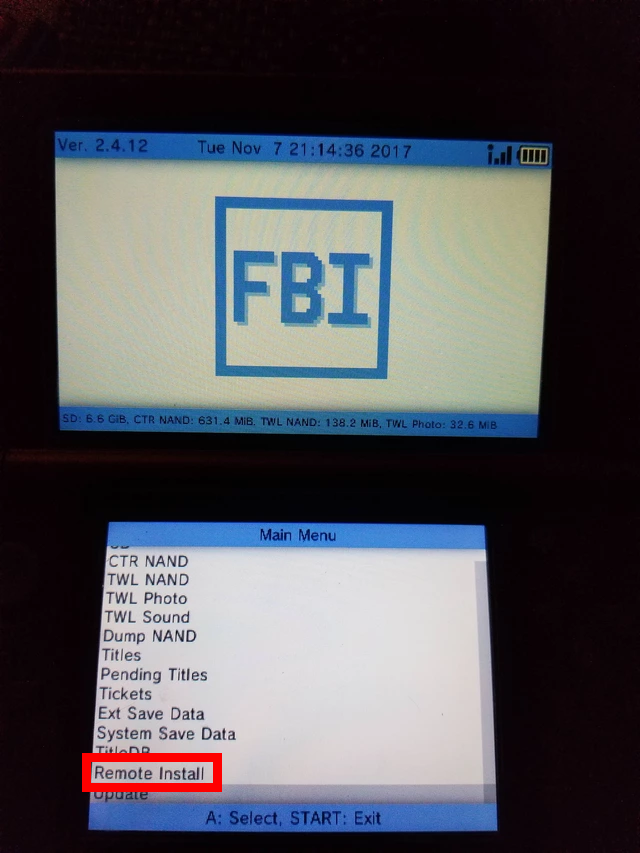
Once downloaded, the FBI files need to be placed on your 3DS’s SD card. This is typically done by removing the SD card from your 3DS, inserting it into your computer, copying the files, and then reinserting the SD card into your 3DS.
Double-checking your CFW installation is crucial. If you are unsure about your CFW status, it’s best to revisit the 3ds.hacks.guide to ensure your system is properly set up before proceeding. Attempting to install FBI without a functional CFW will not work and could potentially lead to confusion.
Step-by-Step Installation of FBI
With your Nintendo 3DS equipped with custom firmware (Luma3DS) and all the necessary prerequisites in place, you’re ready to install FBI. This process involves downloading the FBI application, placing its files in the correct locations on your SD card, and then launching it from your 3DS’s home menu.
Downloading the FBI Application
The first step is to obtain the latest version of FBI. Homebrew applications are typically distributed as .zip or .7z archives containing the necessary files.
- Visit the Official FBI GitHub Repository: The most reliable source for FBI downloads is its official GitHub repository. Search for “FBI 3DS GitHub” or navigate directly to the releases page. You’re looking for a link that typically says something like “Releases” or “Tags.”
- Download the Latest Release: On the releases page, you’ll find different versions of FBI. Look for the latest stable release. You’ll usually want to download a file with a
.zipextension (or.7zif that’s the only option provided). This file contains all the components of the FBI application. - Extract the Downloaded Archive: Once the download is complete, use your computer’s built-in file extraction tool or a program like 7-Zip or WinRAR to extract the contents of the downloaded archive. You should find a folder containing several items, most importantly a
ciasfolder and potentially a3dsfolder.
Placing FBI Files on Your SD Card
Now, you need to transfer the extracted FBI files to the correct locations on your Nintendo 3DS’s SD card.
- Insert Your SD Card into Your Computer: Safely remove the microSD card from your Nintendo 3DS and insert it into your computer using an SD card reader.
- Locate the
ciasFolder: Inside the extracted FBI archive, you will find a folder namedcias. This folder contains the FBI installer itself in CIAs format. - Copy the FBI CIAs File: Open the
ciasfolder from the extracted archive. You should see a file namedFBI.cia(or something very similar). Copy thisFBI.ciafile. - Navigate to the
ciasFolder on Your SD Card: On your 3DS’s SD card, look for a folder namedciasin the root directory. If this folder doesn’t exist, you can create it. - Paste the FBI CIAs File: Paste the
FBI.ciafile you copied into theciasfolder on your SD card. - Locate the
3dsFolder (if present): Some FBI releases might also include files for a3dsfolder. If you find a3dsfolder within the extracted FBI archive, it likely contains the executable for running FBI directly from the Homebrew Launcher. - Copy the Contents of the
3dsFolder: If a3dsfolder is present in the FBI archive, copy its entire contents. - Navigate to the
3dsFolder on Your SD Card: On your 3DS’s SD card, look for a folder named3dsin the root directory. If this folder doesn’t exist, create it. - Paste the FBI Executable Files: Paste the contents of the
3dsfolder from the FBI archive into the3dsfolder on your SD card. This usually involves copying a folder namedFBIinto the SD card’s3dsfolder.
Summary of File Placement:
[Your SD Card]/cias/FBI.cia[Your SD Card]/3ds/FBI/[FBI executable files](if applicable)
Launching FBI on Your 3DS
With the files correctly placed on your SD card, you can now launch FBI on your Nintendo 3DS.
- Safely Eject and Reinsert Your SD Card: Eject the SD card from your computer and reinsert it into your Nintendo 3DS.
- Power On Your 3DS: Turn on your Nintendo 3DS system.
- Launch the Homebrew Launcher: How you launch the Homebrew Launcher depends on your Luma3DS setup. Common methods include:
- Pressing Select when booting: Hold down the
SELECTbutton as your 3DS powers on. This should bring up the Luma3DS configuration menu. From there, you can select “Rosalina Menu” and then launch the Homebrew Launcher. - Using a specific app shortcut: You might have configured a specific application (like a game or system setting) to launch the Homebrew Launcher when accessed.
- Through the Sound Player: Some methods involve using the sound player or other built-in applications to trigger the Homebrew Launcher.
- Refer to your CFW installation guide: If you’re unsure, consult the specific guide you used to install Luma3DS.
- Pressing Select when booting: Hold down the
- Locate and Launch FBI: Once you are in the Homebrew Launcher menu, navigate through the list of available applications. You should see an entry for “FBI.” Select it and press the
Abutton to launch it.
Upon successful launch, you will be greeted by the FBI interface. This is your new command center for managing your 3DS’s software. You can now use it to install other CIA files, browse your SD card, and explore the full potential of your modified Nintendo 3DS.
Utilizing FBI for Software Management and Installation
Now that FBI is installed, it’s time to explore its primary functions: managing your existing software and installing new applications. FBI’s intuitive interface, while text-based, is straightforward to navigate once you understand its core features.
Installing New Applications (CIAs)
The most frequent use of FBI is installing new applications, games, or utilities that are distributed in the CIA format.
- Download CIA Files: Obtain the
.ciafiles for the applications you wish to install. These can be found on various homebrew websites, forums, and communities dedicated to the 3DS. Always ensure you are downloading from reputable sources to avoid malware or corrupted files. - Transfer CIAs to Your SD Card: Copy the downloaded
.ciafiles onto your Nintendo 3DS’s SD card. It’s a good practice to create a dedicated folder on your SD card (e.g.,CIAs_to_Install) to keep these files organized. - Launch FBI: Boot into your 3DS, launch the Homebrew Launcher, and then start FBI.
- Navigate to Your CIAs Folder: Within FBI, use the directional pad and buttons to navigate your SD card. Find the folder where you stored the
.ciafiles you want to install. - Select the CIA File: Highlight the
.ciafile you wish to install and press theAbutton. - Choose “Install CIA”: FBI will present you with options. Select “Install CIA” and press
A. - Confirm Installation: The application will display information about the CIA. If you wish to proceed, select “Install” (or a similar confirmation prompt) and press
A. - Wait for Installation: FBI will then install the application. This process can take anywhere from a few seconds to a minute or two, depending on the size of the application.
- Confirmation: Once completed, FBI will inform you that the installation was successful. You can then press
Bto go back to the file browser orHometo exit FBI and return to the Homebrew Launcher or the 3DS Home Menu. - Find Your New App: Your newly installed application should now appear on your Nintendo 3DS Home Menu, just like any official game or app.
Managing Existing Software
FBI also provides tools to manage the applications already installed on your 3DS.
- Uninstalling Applications:
- Launch FBI.
- Navigate to the “Tickets” or “Installed Software” section (the exact wording might vary slightly).
- Select the application you wish to uninstall.
- Choose the “Uninstall” option and confirm. This will remove the application from your system and free up space.
- Managing Tickets:
- In FBI, you can often find a section for managing “Tickets.” Tickets are like licenses for your installed software.
- FBI allows you to delete or manage these tickets. This can sometimes be useful for troubleshooting or removing leftover data from uninstalled applications.
- SD Card File Browser:
- FBI acts as a robust file explorer for your SD card. You can navigate through folders, view file sizes, and even delete files or folders directly from within FBI. This is incredibly useful for keeping your SD card organized and for managing homebrew files.
By mastering FBI, you unlock the full potential of your Nintendo 3DS, allowing you to expand your game library, access unique homebrew creations, and maintain your device efficiently. Remember to always exercise caution when downloading and installing unofficial software and to consult reliable sources for your homebrew endeavors.
aViewFromTheCave is a participant in the Amazon Services LLC Associates Program, an affiliate advertising program designed to provide a means for sites to earn advertising fees by advertising and linking to Amazon.com. Amazon, the Amazon logo, AmazonSupply, and the AmazonSupply logo are trademarks of Amazon.com, Inc. or its affiliates. As an Amazon Associate we earn affiliate commissions from qualifying purchases.