
The Steam Deck has revolutionized portable PC gaming, offering a powerful handheld experience that blurs the lines between a console and a full-fledged computer. While Valve’s SteamOS provides a fantastic user experience out of the box, the beauty of a Linux-based system lies in its openness and the incredible potential for customization and enhancement. This is where Decky Loader comes into play. For many Steam Deck enthusiasts, Decky Loader isn’t just an optional utility; it’s an essential upgrade that unlocks a whole new dimension of functionality, convenience, and personalization.
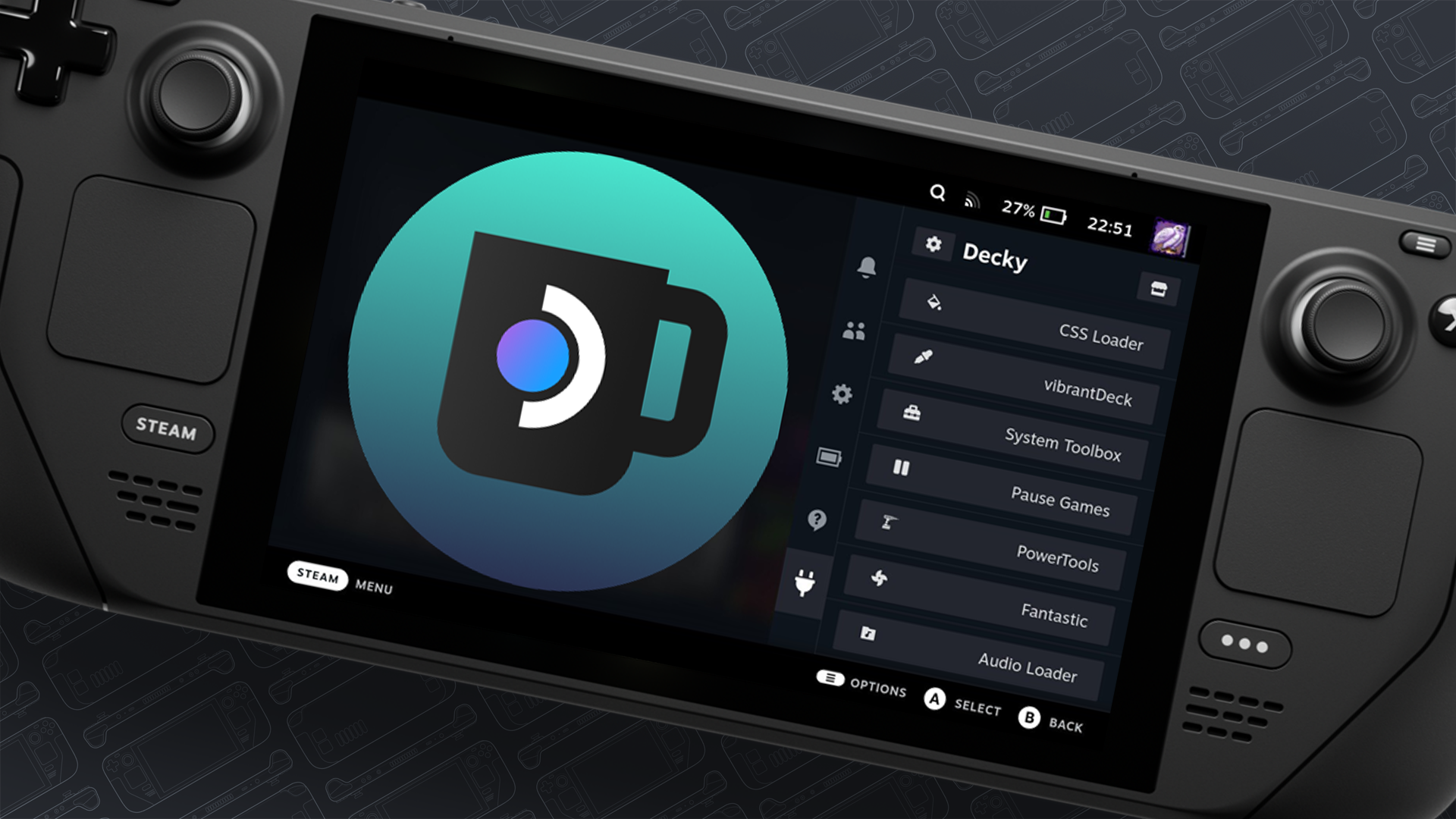
Decky Loader is a vibrant, community-driven project designed to extend the capabilities of your Steam Deck by allowing you to install and manage a wide array of plugins directly within Gaming Mode. These plugins can range from simple aesthetic tweaks like custom themes to powerful utilities that monitor performance, manage game installations, or integrate with external services. If you’re looking to push the boundaries of what your Steam Deck can do, gain more control over its settings, or simply make it truly your own, then learning how to install Decky Loader is your first crucial step. This comprehensive guide will walk you through everything you need to know, from understanding what Decky is and why it’s so popular, to a detailed step-by-step installation process, plugin management, and troubleshooting tips. Dive in to unlock the full potential of your Steam Deck and enhance your portable gaming experience like never before.
Understanding Decky Loader: Your Gateway to Steam Deck Customization
Before we delve into the installation process, it’s crucial to understand what Decky Loader is, why it has become an indispensable tool for many Steam Deck owners, and any associated considerations. This section will provide you with a clear picture of its functionality, benefits, and how it aligns with modern technology trends in software customization and digital security.
What is Decky Loader?
At its core, Decky Loader is an open-source plugin loader for the Steam Deck. It acts as a framework that allows users to install, manage, and run various third-party plugins directly within the Steam Deck’s Gaming Mode UI. Essentially, it takes the concept of “modding” and integrates it seamlessly into the handheld’s operating system, providing a user-friendly interface for advanced customizations. Without Decky, many of these enhancements would either be impossible to implement in Gaming Mode or would require far more complex manual interventions in Desktop Mode.
Decky effectively creates a dedicated ecosystem for community-developed tools that enhance everything from the user interface and system monitoring to game management and external service integration. Its design philosophy centers around accessibility and expanding the Steam Deck’s native capabilities, positioning it as a powerful utility for anyone looking to optimize their device beyond its factory settings.
Why Install Decky Loader? Benefits and Features
The reasons for installing Decky Loader are numerous, touching upon aspects of technology trends like personalized user experiences, enhanced productivity through better tools, and leveraging open-source innovation.
- Unparalleled Customization: This is perhaps the biggest draw. Decky Loader allows you to drastically alter the look and feel of your Steam Deck. Plugins like “CSS Loader” enable custom themes, fonts, and UI elements, making your device truly unique. This aligns with a significant tech trend where users expect not just functionality, but also aesthetic personalization of their devices.
- Enhanced Functionality and Productivity: Decky hosts a suite of plugins that add features Valve hasn’t implemented natively. Examples include:
- Performance Monitoring: Plugins that display real-time CPU/GPU usage, temperatures, frame rates, and battery statistics directly in an overlay, helping users optimize game settings.
- Storage Management: Tools to easily identify and clean up shader caches or compatibility files that consume significant disk space.
- Game Management: Utilities like “ProtonUp-Qt Decky” integration allow you to download and manage custom Proton versions directly from Gaming Mode, improving compatibility for a wider range of games.
- Quick Settings Access: Plugins that add more granular control over settings that are otherwise buried in menus or only accessible in Desktop Mode.
- Community-Driven Innovation: Decky Loader thrives on its vibrant community. Developers continuously create new plugins, addressing common pain points, adding novel features, and pushing the boundaries of what’s possible on the Steam Deck. This reflects the power of open-source development and collaborative problem-solving in the tech world.
- Seamless Integration: Once installed, Decky Loader feels like a native part of SteamOS. Its menu is accessible via the “…” button, integrating smoothly into the existing user interface. This commitment to a seamless experience is key to its widespread adoption.
- Future-Proofing and Adaptability: As SteamOS evolves, Decky Loader and its plugin ecosystem adapt. The open-source nature means it can quickly incorporate new features or workarounds as Valve updates the system, ensuring users always have access to the latest enhancements.
In essence, Decky Loader transforms your Steam Deck from a great gaming handheld into an incredibly versatile and deeply personal computing device, bridging the gap between a console experience and the flexibility of a desktop PC.
Is Decky Loader Safe? Addressing Security Concerns
When considering the installation of any third-party software, especially one that interacts deeply with your system, concerns about digital security are paramount. Decky Loader, being a plugin loader, naturally invites questions about its safety and potential risks.
- Open-Source Transparency: A significant factor contributing to Decky’s safety is its open-source nature. The code for Decky Loader itself, and many of its plugins, is publicly available on GitHub. This transparency allows security-conscious users and developers to inspect the code for malicious intent or vulnerabilities. The community vetting process provides a layer of trust that closed-source alternatives often lack.
- Community Oversight: The Decky Loader community is active and generally vigilant. Malicious or poorly coded plugins are usually identified and flagged quickly. The official Decky store (accessible through the loader) curates plugins, providing a degree of quality control and reducing the risk of encountering harmful software.
- Root Access and System Modification: It’s important to understand that installing Decky Loader involves running a script that modifies your system, specifically by installing a system service and files that require root privileges. While the installation script itself is well-vetted, any plugin you install through Decky Loader also runs with elevated privileges or interacts with system components. This means that if a malicious plugin were ever to bypass the community checks, it could potentially cause harm.
- Best Practices for Digital Security:
- Source from Official Channels: Always install Decky Loader using the official method provided by the developers (typically a one-liner script from GitHub).
- Install Reputable Plugins: Stick to plugins available through the official Decky store. Avoid side-loading plugins from unverified sources.
- Research Before Installing: If you’re unsure about a plugin, a quick search online for reviews or discussions can often reveal potential issues.
- Keep Your System Updated: Ensure your Steam Deck’s SteamOS is up to date, as Valve frequently releases security patches.
- Understand the Risks: While generally safe and widely used, remember that you are modifying your system outside of Valve’s direct support. In rare cases, a plugin conflict could cause instability, though this is usually reversible.
In conclusion, Decky Loader is considered safe by the vast majority of its users and the broader Steam Deck community due to its open-source nature and active community oversight. However, like any software that allows system modification, users should exercise caution and adhere to best practices for digital security to minimize any potential risks.
Preparing for Installation: Prerequisites and Best Practices
Before you embark on the installation of Decky Loader, a few preparatory steps and considerations will ensure a smooth and hassle-free process. Adhering to these prerequisites and best practices will save you time and potential headaches down the line.
Essential Requirements
To successfully install Decky Loader on your Steam Deck, you’ll need to meet these basic requirements:
- A Steam Deck: This might seem obvious, but it’s crucial to confirm you’re working with the correct device.
- Internet Connection: The installation script and subsequent plugin downloads require an active internet connection. Ensure your Steam Deck is connected to Wi-Fi or a wired network.
- Desktop Mode Access: The installation process must be performed in Steam Deck’s Desktop Mode, not Gaming Mode. To switch, press the Steam button, navigate to “Power,” and select “Switch to Desktop.”
- Basic Familiarity with Linux Commands (Optional but Helpful): While the installation is straightforward and typically involves copying and pasting a single command into a terminal, having a basic understanding of what a terminal is and how to copy/paste text can be beneficial for troubleshooting, if needed.
Pre-Installation Checks and Tips
A little foresight can go a long way in ensuring a successful installation and safeguarding your system.
- Ensure SteamOS is Up to Date: While Decky Loader generally works across various SteamOS versions, having the latest stable update installed is always a good practice. Updates often include bug fixes and performance improvements that can benefit overall system stability, including third-party software. To update:
- In Desktop Mode, open the “Discover” Software Center (blue shopping bag icon).
- Check for updates for SteamOS components.
- Alternatively, open Konsole (the terminal application) and run
sudo pacman -Syu(though Discover handles most system updates on Steam Deck).
- Charge Your Steam Deck: Ensure your device has sufficient battery life, or ideally, keep it plugged in during the installation process. Losing power during a system modification could potentially lead to issues.
- Close Running Applications: While not strictly necessary, closing any open games or applications in Desktop Mode can prevent potential conflicts and free up system resources, making the installation process smoother.
- Understand What You’re Doing: As discussed in the safety section, you are making system-level changes. Briefly review the steps and understand the purpose of the command you’re about to execute. This knowledge contributes to better “digital security” practices by making you an informed user.
- Backup (Optional but Recommended for Major Changes): For Decky Loader, a full system backup isn’t typically required as it’s a relatively non-invasive modification that includes an uninstallation script. However, if you’re planning more extensive system tweaks in the future, familiarizing yourself with SteamOS backup solutions (e.g., using tools like Clonezilla with an external drive) is a valuable skill for any tech enthusiast. For Decky, simply knowing how to reinstall SteamOS from a recovery image (if a worst-case scenario occurred, which is highly unlikely) is sufficient.
By taking these preparatory steps, you’re setting yourself up for an efficient and secure installation of Decky Loader, paving the way for a more customized and powerful Steam Deck experience.
Step-by-Step Guide: Installing Decky Loader
Installing Decky Loader is surprisingly straightforward, thanks to a simple script provided by the developers. This section will guide you through the recommended method, ensuring you get Decky up and running on your Steam Deck with minimal fuss.
The One-Liner Script (Recommended for Simplicity)
This method is the quickest and most commonly used approach. It involves running a single command in the Konsole terminal, which downloads and executes the installer script automatically.
-
Switch to Desktop Mode:
- Press the Steam button on your Steam Deck.
- Navigate to Power.
- Select Switch to Desktop.
- Wait for your Steam Deck to transition to the Linux desktop environment.
-
Open the Konsole Terminal:
- Look for the Konsole application icon (a black terminal window with a white
>symbol) on your desktop or in the application launcher (usually located in the bottom-left corner, resembling a “Start” button from Windows). - Click on it to open a terminal window.
- Look for the Konsole application icon (a black terminal window with a white
-
Copy the Installation Command:
-
The official installation command is typically a
curlcommand that fetches a script and pipes it toshfor execution. Always obtain the most current official command from the Decky Loader GitHub page or its official documentation to ensure you have the latest and correct version. -
As of my last update, the standard installation command looks something like this (though it’s subject to change, so verify!):
curl -L https://github.com/SteamDeckHomebrew/decky-loader/raw/main/dist/install_release.sh | shcurl -L: This command is used to transfer data from or to a server, and-Ltells it to follow redirects.https://github.com/SteamDeckHomebrew/decky-loader/raw/main/dist/install_release.sh: This is the URL to the raw installation script hosted on the official Decky Loader GitHub repository.| sh: The pipe symbol|takes the output of thecurlcommand (which is the script itself) and feeds it as input to theshcommand (the shell interpreter), which then executes the script.
-
How to copy: On your Steam Deck, you can open a web browser (like Firefox, pre-installed in Desktop Mode) and navigate to the official Decky Loader GitHub page. Locate the installation instructions and copy the command directly.
-
Alternatively, you can type the command manually, but copy-pasting minimizes errors. To paste into Konsole, right-click inside the terminal window and select “Paste,” or use
Ctrl + Shift + V.
-
-
Paste and Execute the Command:
- Paste the copied command into the Konsole window.
- Press Enter on your virtual or physical keyboard.
-
Enter Your Sudo Password:
- The script will prompt you for your
sudopassword. This is the password you set up for your Steam Deck when you first enabled Desktop Mode and/or set a password for thedeckuser. - Type your password and press Enter. Note that you will not see any characters (like asterisks) as you type, which is standard behavior for Linux terminals for security reasons.
- The script will prompt you for your
-
Follow On-Screen Prompts (if any):
- The script will run, displaying various messages about downloading files, setting up services, and completing the installation. It usually provides progress updates.
- Once finished, you should see a confirmation message indicating that Decky Loader has been successfully installed.
Post-Installation Verification
After the script completes, you’ll need to verify that Decky Loader is indeed installed and accessible.
-
Return to Gaming Mode:
- On your Steam Deck’s desktop, look for the “Return to Gaming Mode” shortcut, or click the application launcher (bottom-left) and select “Return to Gaming Mode.”
- Allow your Steam Deck to restart or switch back to the SteamOS gaming interface.
-
Access the Decky Loader Menu:
- Once back in Gaming Mode, press the “…” (Quick Access Menu) button on your Steam Deck (the one with three dots, usually below the right trackpad).
- Scroll down through the Quick Access Menu. You should now see a new icon: a plug icon (or a similar custom Decky icon) towards the bottom. This is the Decky Loader menu.
- Tap on the plug icon. If Decky Loader is correctly installed, it will open its interface, displaying options for “Store,” “Installed Plugins,” “Settings,” etc.
If you see the plug icon and can access the Decky Loader menu, congratulations! You have successfully installed Decky Loader on your Steam Deck. You’re now ready to explore the vast world of plugins and customize your gaming experience.
Leveraging Decky Loader: Managing and Installing Plugins
With Decky Loader successfully installed, the real fun begins: exploring and managing the extensive library of plugins that enhance your Steam Deck experience. This section will guide you on how to navigate the Decky interface, discover useful plugins, and keep them organized.
Accessing the Decky Menu
As mentioned in the verification step, the Decky Loader menu is integrated directly into the Quick Access Menu in Gaming Mode.
- Press the “…” Button: While in Gaming Mode, press the Quick Access Menu button (the physical button with three dots, typically below the right trackpad).
- Locate the Plug Icon: Scroll down the Quick Access Menu. You will find a new icon resembling an electrical plug, usually near the bottom. This is your gateway to Decky Loader.
- Tap the Plug Icon: Tapping this icon will open the Decky Loader interface, presenting you with several options: “Store,” “Installed Plugins,” “Settings,” and potentially others depending on your Decky version.
Browsing and Installing Plugins
The Decky Store is your primary hub for discovering and installing new functionalities. Think of it as an app store specifically for your Steam Deck’s Gaming Mode, but for enhancements.
- Navigate to the Store: From the Decky Loader menu, select “Store.”
- Browse and Discover: The store will display a list of available plugins. You can often sort them by “Trending,” “New,” or “Alphabetical,” and sometimes filter by category. Take your time to browse through the offerings.
- Explore Plugin Details: Tapping on a plugin will open its detail page, providing information such as:
- Description: Explaining what the plugin does.
- Screenshots/Videos: Showing the plugin in action.
- Developer Information: Who created it.
- Version and Compatibility: Details about its current status.
- Ratings/Reviews: Community feedback.
- Install a Plugin: Once you’ve found a plugin you like, tap the “Install” button on its detail page. Decky Loader will download and install the plugin automatically.
- Restart Steam (Often Required): Many plugins require a quick restart of the Steam client for them to fully integrate and function. Decky Loader will usually prompt you to “Restart Steam” after an installation. Always confirm this step when prompted.
Examples of Popular and Useful Plugins:
- CSS Loader: Allows for custom themes, fonts, and UI tweaks, significantly altering the Steam Deck’s aesthetic. This touches upon “Technology Trends” in personalization.
- ProtonUp-Qt Decky: Integrates the popular ProtonUp-Qt tool directly into Gaming Mode, making it easy to download and manage custom Proton versions for better game compatibility and performance. A prime example of extending “Software” capabilities.
- Storage Cleaner: Helps you identify and delete shader caches and compatibility data for games you no longer play, freeing up valuable storage space. A “Productivity” tool for disk management.
- Decky Recorder: Enables easy screen recording of your gameplay directly from Gaming Mode.
- Emudecky/SteamGridDB: Plugins that enhance emulation or improve the visual appeal of your game library with custom artwork. These extend the “Apps” ecosystem.
- Powertools: Provides advanced control over CPU/GPU frequencies, SMT toggles, and other system-level settings for fine-tuning performance. A powerful “AI Tools” (in the sense of advanced software control) or “Gadgets” enhancement.
Managing Your Plugins
Once plugins are installed, you’ll need to manage them – enabling, disabling, updating, or uninstalling as your needs change.
- Access Installed Plugins: From the Decky Loader menu, select “Installed Plugins.” This section lists all plugins you currently have on your Steam Deck.
- Enable/Disable Plugins: Each plugin listed usually has a toggle switch next to it. You can use this to quickly enable or disable a plugin without uninstalling it. This is useful for troubleshooting conflicts or temporarily deactivating a plugin you don’t frequently use.
- Update Plugins: Periodically, developers release updates for their plugins, bringing new features, bug fixes, or compatibility improvements.
- Check the “Installed Plugins” section for any indicators of available updates (often a small red dot or an “Update” button).
- You can usually update plugins individually or sometimes find an option within Decky’s settings to “Update All.”
- Remember to restart Steam after updating, if prompted.
- Uninstall Plugins: If you no longer need a plugin, or if it’s causing issues, you can easily uninstall it:
- Go to “Installed Plugins.”
- Select the plugin you wish to uninstall.
- Look for an “Uninstall” button (often found within the plugin’s details page or context menu).
- Confirm the uninstallation, and typically restart Steam.
By effectively utilizing the Decky Store and managing your installed plugins, you can continuously tailor your Steam Deck to your preferences, optimizing both its performance and user experience.
Troubleshooting Common Issues and Uninstallation
While Decky Loader is designed for ease of use, you might occasionally encounter minor issues during installation or operation. Additionally, knowing how to properly uninstall Decky Loader is crucial for maintenance or if you decide it’s not for you.
Common Installation Problems and Solutions
Most issues with Decky Loader are minor and easily resolved. Here are some of the most frequent problems and their fixes:
-
Problem: Decky Loader menu (plug icon) does not appear in Gaming Mode after installation.
- Solution 1: Restart Steam: This is the most common fix. After installing Decky, always return to Gaming Mode and give Steam a moment to fully restart and load all components. If you didn’t see a prompt to restart Steam during installation, or you ignored it, manually restarting Steam (or even the entire Deck) often resolves this.
- Solution 2: Re-run the installer: Sometimes the script might not have completed successfully due to a transient network issue or another minor glitch. Switch back to Desktop Mode, open Konsole, and re-run the one-liner installation command. It’s designed to be idempotent, meaning it can be run multiple times without causing issues and will simply re-verify or re-install missing components.
- Solution 3: Check for System Updates: Ensure your SteamOS is fully updated in Desktop Mode via the Discover store. Outdated system components can sometimes lead to compatibility problems.
-
Problem: Installation script fails with an error message in Konsole.
- Solution 1: Check Internet Connection: Verify that your Steam Deck has a stable internet connection in Desktop Mode.
- Solution 2: Typo in Command/Incorrect Command: Double-check that you copied and pasted the command exactly as provided by the official Decky Loader source. A single typo can break the command.
- Solution 3: Sudo Password Issue: Ensure you are entering the correct
sudopassword. Remember that characters are not displayed when typing. If you’ve forgotten it, you might need to look up how to reset your Steam Deck’ssudopassword (which typically involves booting into recovery mode). - Solution 4: GitHub Rate Limiting/Server Issues: On rare occasions, GitHub (where the script is hosted) might experience issues or temporary rate limiting. Wait a while and try again later.
-
Problem: A specific plugin isn’t working or is causing issues.
- Solution 1: Restart Steam: Again, a fundamental troubleshooting step.
- Solution 2: Disable/Enable Plugin: In the Decky Loader menu -> “Installed Plugins,” try toggling the problematic plugin off and then on again.
- Solution 3: Update Plugin: Check if there’s an update available for the plugin. Developers often release fixes.
- Solution 4: Uninstall/Reinstall Plugin: If updates don’t help, try uninstalling the plugin, restarting Steam, and then reinstalling it.
- Solution 5: Check Plugin’s GitHub/Community: Some plugins have their own GitHub pages or discussion forums. Check these for known issues, specific troubleshooting steps, or compatibility notes.
- Solution 6: Check for Conflicts: If you’ve recently installed multiple plugins, try disabling them one by one to identify if a conflict exists between two plugins.
How to Uninstall Decky Loader
If you decide Decky Loader isn’t for you, or if you need to perform a clean reinstallation, uninstalling it is as straightforward as installing it. The developers provide a dedicated uninstallation script.
- Switch to Desktop Mode: As with installation, you need to be in Desktop Mode.
- Open the Konsole Terminal: Launch Konsole from your desktop or application launcher.
- Copy the Uninstallation Command:
- Similar to the installation, always get the official uninstallation command from the Decky Loader GitHub page. It’s designed to safely remove Decky Loader components.
- The standard uninstallation command typically looks like this (verify against official sources for the latest version!):
bash

curl -L https://github.com/SteamDeckHomebrew/decky-loader/raw/main/dist/uninstall_release.sh | sh
- Copy this command.
- Paste and Execute the Command:
- Paste the copied command into the Konsole window.
- Press Enter.
- Enter Your Sudo Password:
- You will be prompted for your
sudopassword. Enter it and press Enter.
- You will be prompted for your
- Follow On-Screen Prompts:
- The script will run, removing Decky Loader files and services.
- Once complete, you should see a confirmation message.
- Restart Steam (or Steam Deck):
- Return to Gaming Mode. The plug icon for Decky Loader should now be gone from the Quick Access Menu. If it’s still present, a full Steam Deck restart will usually resolve it.
Uninstallation will remove Decky Loader and its core components, but generally, it leaves the individual plugin files in place. If you want to perform a truly clean sweep of all plugin data, you might need to manually delete the plugin folders (usually located in ~/.config/decky). However, for most users, simply uninstalling Decky Loader itself is sufficient to revert your system.
Conclusion
Installing Decky Loader on your Steam Deck is an empowering step that unlocks a world of customization, enhanced functionality, and community-driven innovation. From dynamic performance monitors and essential storage management tools to visually stunning custom themes and expanded game compatibility, Decky Loader transforms your already capable handheld into a deeply personal and even more versatile portable computing device. It aligns perfectly with modern technology trends, emphasizing user control, open-source development, and the continuous enhancement of software and gadgets.
By following this comprehensive guide, you’ve learned not only how to install Decky Loader with ease but also how to navigate its ecosystem, install and manage powerful plugins, and confidently troubleshoot any minor issues that may arise. We’ve also touched upon critical digital security considerations, underscoring the importance of responsible software practices even within an open-source environment.
The Steam Deck’s potential is vast, and Decky Loader helps bridge the gap between its out-of-the-box experience and the desires of the most avid users. As you delve deeper into the plugin store, you’ll discover countless ways to tailor your device to your specific needs and preferences. So go forth, experiment responsibly, and truly make your Steam Deck your own – a testament to the power of community, customization, and cutting-edge portable technology.
aViewFromTheCave is a participant in the Amazon Services LLC Associates Program, an affiliate advertising program designed to provide a means for sites to earn advertising fees by advertising and linking to Amazon.com. Amazon, the Amazon logo, AmazonSupply, and the AmazonSupply logo are trademarks of Amazon.com, Inc. or its affiliates. As an Amazon Associate we earn affiliate commissions from qualifying purchases.