
Ubuntu, a cornerstone of the Linux ecosystem, stands out for its user-friendliness, robust security, and extensive software availability. For many, it’s the gateway to the open-source world, powering everything from personal desktops to vast server farms. While Ubuntu’s official repositories offer a vast array of applications, there are frequent instances where users need to venture beyond these curated collections. This is where .deb files come into play – the native package format for Debian-based systems like Ubuntu, offering a direct pathway to installing software that might be newer, proprietary, or simply not yet included in the official channels.

Navigating the Linux command line and package management can seem daunting at first, especially for those accustomed to the simple “double-click and install” world of Windows or macOS. However, mastering the installation of .deb files is a fundamental skill that unlocks a new level of control and flexibility over your Ubuntu system, significantly enhancing your productivity and allowing you to leverage cutting-edge software and AI tools often distributed in this format. This guide will walk you through the various methods, best practices, and essential troubleshooting tips for installing .deb files on Ubuntu, empowering you to manage your software like a pro.
Understanding the .deb Package Ecosystem
Before diving into the “how,” it’s crucial to understand the “what” and “why.” A .deb file is essentially an archive containing all the necessary files, libraries, and metadata required to install a specific piece of software on a Debian-based distribution. Think of it as a .exe file for Windows or a .dmg file for macOS, but with a more structured and robust approach to package management.
What is a .deb File?
At its core, a .deb file is a standard Unix ar archive that bundles three primary components:
debian-binary: A text file indicating the version of the Debian binary package format.control.tar.xz: Contains metadata about the package, such as its name, version, dependencies (other packages it needs to function), architecture (e.g.,amd64for 64-bit systems), maintainer, description, and installation/uninstallation scripts. This control information is vital for the package manager to correctly integrate the software into your system.data.tar.xz: This is the actual payload, holding all the program binaries, libraries, documentation, configuration files, and other assets that make up the software. These files are extracted and placed in the appropriate directories across your file system (e.g.,/usr/binfor executables,/usr/sharefor data files,/etcfor configuration).
The compact and self-contained nature of .deb files makes them ideal for distributing software, especially when a developer wants to provide a specific version directly or when the software is proprietary and not suitable for open-source repositories.
The Role of Package Managers: dpkg, apt, and GDebi
Ubuntu, being a derivative of Debian, uses a sophisticated package management system to handle software installations, updates, and removals. Understanding the hierarchy and interaction of these tools is key to effective .deb file management.
-
dpkg(Debian Package): This is the low-level utility that directly interacts with.debfiles. It’s responsible for installing, removing, and querying individual.debpackages. While powerful,dpkgitself does not handle dependencies automatically. If a.debfile requires other packages to be installed,dpkgwill simply fail, leaving it up to the user to manually resolve those dependencies. This is why it’s often used in conjunction with higher-level tools. -
apt(Advanced Package Tool):aptis the command-line interface to a more comprehensive package management system. It works with a database of available packages from various software repositories (like Ubuntu’s official repositories) and is capable of automatically resolving and installing dependencies. When you runsudo apt install <package_name>,aptfetches the package, downloads its dependencies, and then usesdpkgbehind the scenes to perform the actual installation. Modern versions ofapt(Ubuntu 17.10 and later) can also directly install local.debfiles and automatically resolve their dependencies, bridging the gap thatdpkgtraditionally left. -
GDebi Package Installer: GDebi is a lightweight graphical tool specifically designed to install local
.debfiles. Its primary advantage is that it functions much likeaptfor local files: it inspects the.debfile, identifies its dependencies, and offers to install them from the repositories before proceeding with the main package installation. This makes GDebi an incredibly user-friendly option for those who prefer a graphical interface and want to avoid manual dependency resolution.
Why Install .deb Files Outside Repositories?
While apt and official repositories are the primary means of software distribution on Ubuntu, there are several compelling reasons to use .deb files:
- Newer Software Versions: Sometimes, the version of a particular application in the official repositories might be older than the latest release. Developers often provide
.debfiles for their cutting-edge versions before they make their way into stable repositories. This is particularly relevant for rapidly evolving AI tools or niche software where prompt access to new features is crucial. - Proprietary Software: Many commercial applications, like Zoom, Google Chrome, Microsoft Teams, or certain device drivers, are not open-source and thus not hosted in Ubuntu’s main repositories. These companies often distribute their Linux versions as
.debfiles. - Niche or Specialized Applications: For very specific tools or those with a smaller user base, maintaining an official repository might not be a priority. A direct
.debdownload is often the simplest distribution method. - Offline Installation: If you need to install software on a machine without internet access, downloading a
.debfile on another connected computer and transferring it is a viable solution. However, resolving dependencies offline can be challenging. - Testing and Development: Developers might distribute pre-release versions of their software via
.debfiles for testing purposes.
Given these scenarios, knowing how to confidently install .deb files is an essential skill for any Ubuntu user looking to maximize their system’s potential and leverage a wider array of technology trends and apps.
Methods for Installing .deb Files on Ubuntu
There are several ways to install .deb files on Ubuntu, ranging from user-friendly graphical interfaces to powerful command-line tools. Each method has its advantages and is suitable for different user preferences and situations.
Method 1: The Graphical Way with GDebi Package Installer (Recommended for Beginners)
GDebi is often the easiest and most recommended method for installing .deb files, especially if you prefer a graphical interface and want automatic dependency resolution.
Steps:
- Download the .deb file: First, obtain the
.debfile from a trusted source (e.g., the official website of the software vendor). Save it to a convenient location, such as yourDownloadsfolder. - Install GDebi (if not already present): GDebi might not be pre-installed on all Ubuntu versions. You can install it via the Ubuntu Software Center or, more quickly, via the terminal:
bash

sudo apt update

sudo apt install gdebi
This command will refresh your package lists and install GDebi, which is typically a small package. - Open the .deb file with GDebi: Navigate to the directory where you saved the
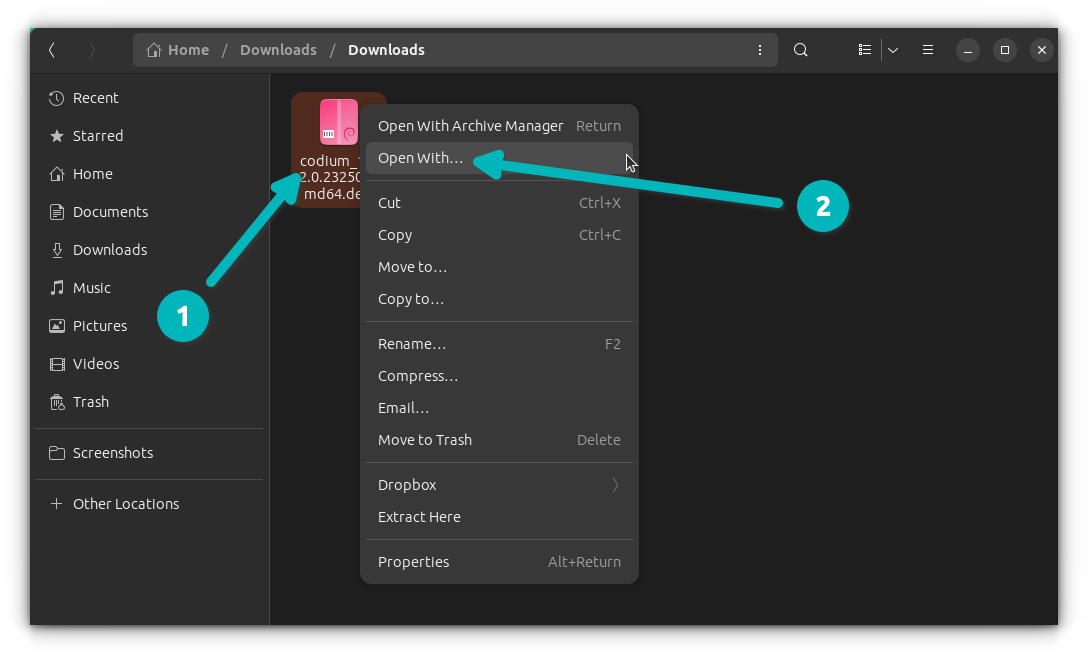
.debfile using your file manager. Right-click on the.debfile. From the context menu, select “Open With” and then choose “GDebi Package Installer.”- Alternative: If GDebi is set as the default, simply double-clicking the
.debfile might launch it directly.
- Alternative: If GDebi is set as the default, simply double-clicking the
- Review and Install: The GDebi window will open, displaying details about the package, including its name, version, size, description, and crucially, any required dependencies.
- If there are unmet dependencies, GDebi will list them and offer to install them from the Ubuntu repositories.
- If all dependencies are met or GDebi successfully resolves them, click the “Install Package” button.
- Authenticate: You will be prompted to enter your user password to authorize the installation, as installing software requires root privileges.
- Completion: GDebi will proceed with the installation, showing a progress bar. Once finished, the button will change to “Reinstall Package” or “Remove Package,” indicating success. You can then close GDebi and launch your newly installed application.
Advantages of GDebi:
- User-friendly graphical interface: Great for those new to Linux.
- Automatic dependency resolution: GDebi checks for and installs missing dependencies from official repositories, preventing common installation failures.
- Clear package information: Provides a summary of the package before installation.
Method 2: The Command Line Way with dpkg (Basic Installation, No Dependency Resolution)
The dpkg command is the foundational tool for managing .deb packages. While powerful, its main drawback is its inability to automatically resolve dependencies. This method is best used when you are certain all dependencies are already met, or you plan to resolve them manually afterward.
Steps:
- Open a terminal: You can usually do this by pressing
Ctrl + Alt + T. - Navigate to the .deb file’s directory: Use the
cdcommand to change to the directory where your.debfile is located. For example, if it’s in yourDownloadsfolder:
bash

cd ~/Downloads
- Install the .deb file: Use the
dpkg -icommand, followed by the filename of your.debpackage. You’ll needsudobecause it’s a system-wide installation.
bash

sudo dpkg -i package_name.deb
Replacepackage_name.debwith the actual name of your file (e.g.,google-chrome-stable_current_amd64.deb). - Handle Dependencies (if necessary):
- If
dpkgreports “unmet dependencies” or “dependency problems,” the installation will fail or be incomplete. - To resolve these, immediately run the following command, which tells
aptto fix broken installations by installing missing dependencies:
bash

sudo apt install -f
The-f(or--fix-broken) flag instructsaptto find and install any packages required by previously installed but incomplete.debfiles. This command often completes the installation of your.debpackage as well. - Sometimes, after
apt install -f, you might need to run thedpkg -icommand again ifaptonly installed dependencies and didn’t complete the main package.
- If
Advantages of dpkg:
- Fundamental control: Direct interaction with the package system.
- No GUI required: Ideal for server environments or scripting.
Disadvantages of dpkg:
- No automatic dependency resolution: This is its biggest hurdle for new users.
Method 3: The Hybrid Command Line Way with apt (Recommended for CLI Users)
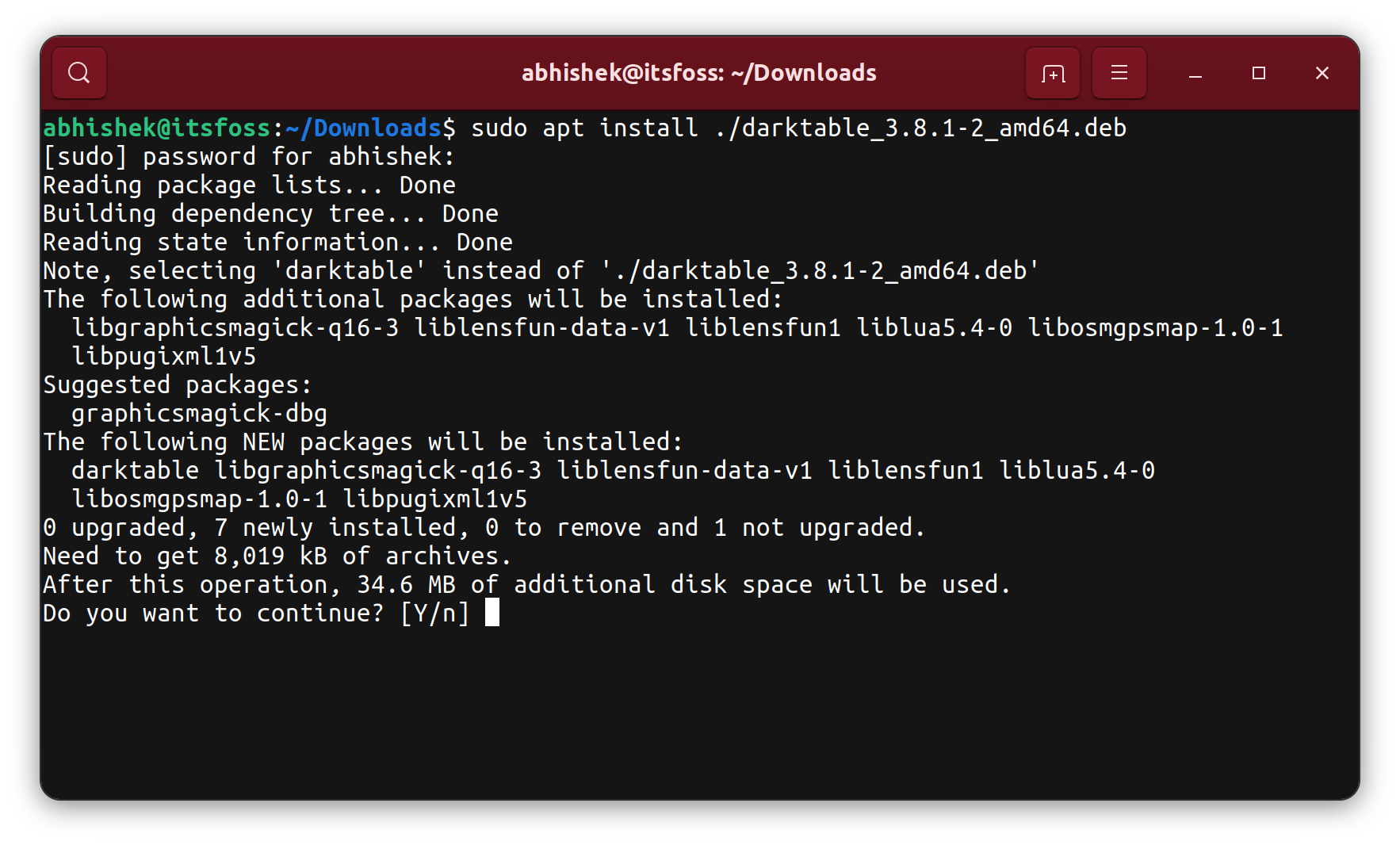
For Ubuntu versions 17.10 and newer, the apt command-line utility gained the ability to directly install local .deb files and automatically resolve their dependencies, much like GDebi does. This is often the preferred method for command-line enthusiasts as it combines the simplicity of dpkg with the power of apt‘s dependency handling.
Steps:
- Open a terminal.
- Navigate to the .deb file’s directory (or specify the full path).
- Install the .deb file using
apt:
bash

sudo apt install ./package_name.deb
The./beforepackage_name.debis crucial; it tellsaptthat you are referring to a local file in the current directory, rather than a package from a repository. If the file is in another location, provide the full path (e.g.,sudo apt install /home/user/Downloads/package_name.deb). - Confirm installation:
aptwill display a summary of the package and any dependencies it needs to install. TypeYand press Enter to proceed. - Authenticate: Enter your user password when prompted.
Advantages of apt install ./:
- Combines best of both worlds: Command-line efficiency with automatic dependency resolution.
- Simpler than
dpkg+apt install -f: One command does it all. - Modern approach: Recommended for recent Ubuntu versions.
Managing and Troubleshooting .deb Packages
Installing .deb files is just one part of the journey. Understanding how to manage them post-installation and troubleshoot common issues is equally important for maintaining a healthy and secure Ubuntu system.
Uninstalling .deb Packages
Whether you’ve installed a program via GDebi, dpkg, or apt install ./, the removal process is generally the same and uses apt.
- Identify the package name: The package name is often similar to the
.debfile name but might differ. You can find it by looking at the GDebi details, or by queryingdpkg:
bash

dpkg -l | grep package_name_fragment
For example,dpkg -l | grep chromewould show packages related to Chrome. The name will appear in the second column (e.g.,google-chrome-stable). - Remove the package (keep configurations):
bash

sudo apt remove package_name
This command uninstalls the application but retains its configuration files. This is useful if you plan to reinstall the software later and want to keep your settings. - Purge the package (remove configurations):
bash

sudo apt purge package_name
This command uninstalls the application and removes all its configuration files, leaving no trace. This is generally preferred for a clean removal. - Clean up unused dependencies: After removing packages, some of their dependencies might no longer be needed by any other software. You can remove these “orphaned” dependencies with:
bash

sudo apt autoremove
This helps keep your system tidy and free up disk space.
Common Issues and Solutions
Even with the best tools, you might encounter issues. Here are some common problems and their fixes:
- Unmet Dependencies: As discussed,
dpkgwill warn you about this. The solution issudo apt install -for using GDebi/apt install ./from the start. - “package_name.deb is not a Debian format archive”: This usually means the file is corrupted, incomplete, or not actually a
.debfile. Try redownloading it from the source. - Permission Denied Errors: Ensure you are using
sudofordpkgandaptcommands, as installing system-wide software requires elevated privileges. - Incorrect Architecture: If you download a
.debfile meant fori386(32-bit) on anamd64(64-bit) system (or vice versa), it will often fail. Always download the correct architecture for your system. You can check your architecture withdpkg --print-architecture. - Broken Packages: Sometimes an installation can get stuck or corrupted.
- Try
sudo apt updateandsudo apt upgradeto ensure your package lists are current and existing packages are up-to-date. sudo apt autoremoveandsudo apt cleancan help clear out old packages and cached.debfiles.- In extreme cases, if a specific package is causing persistent issues, you might need to manually remove its files (though this is risky and generally not recommended without expert knowledge).
- Try
- Signature Verification Failed: If you add a third-party repository and
apt updatethrows GPG signature errors, it means the repository’s signing key is missing or invalid. You’ll need to import the correct GPG key provided by the repository owner. This falls outside direct.debinstallation but is a common related issue.
Best Practices and Security Considerations
While installing .deb files offers great flexibility, it also carries responsibilities. Adhering to best practices, especially concerning digital security, is paramount.
- Always Download from Trusted Sources: This is the golden rule. Only download
.debfiles directly from the official websites of the software developers or reputable distributors. Avoid downloading from obscure or unofficial mirroring sites, as these could contain modified packages with malicious code. This ties into Brand Strategy for software providers – a strong, trustworthy brand provides secure, verifiable downloads. - Verify File Integrity (Checksums): Many reputable sources provide MD5 or SHA256 checksums alongside their
.debfiles. After downloading, you can generate the checksum of your downloaded file and compare it to the one provided by the source. If they don’t match, the file may be corrupted or tampered with.- To generate an MD5 checksum:
md5sum package_name.deb - To generate an SHA256 checksum:
sha256sum package_name.deb
This small step significantly enhances your digital security posture.
- To generate an MD5 checksum:
- Understand Dependencies: Before installing, if GDebi or
aptlists many unfamiliar dependencies, take a moment to understand what they are. While usually harmless, a suspicious list could indicate an issue. - Regular System Updates: Keep your Ubuntu system updated regularly (
sudo apt update && sudo apt upgrade). This ensures you have the latest security patches and library versions, which can prevent conflicts and vulnerabilities with newly installed.debpackages. - Backup Your System: Especially before installing critical or experimental software, consider creating a system backup or snapshot. Tools like Timeshift can be invaluable for rolling back your system if an installation goes awry. This is a vital productivity and recovery strategy.
- Read Documentation: While not always available for every
.debfile, if the software has official documentation, quickly reviewing installation notes or system requirements can save you headaches. - Consider Alternatives: Before resorting to
.debfiles, check if the software is available through:- Official Ubuntu Repositories: Safest and easiest via
apt. - PPAs (Personal Package Archives): Often maintained by developers, PPAs provide newer versions and additional software, integrated with
apt. While third-party, reputable PPAs are generally safe. - Snap or Flatpak: These are universal packaging formats that containerize applications, offering isolation and often easier installation of the latest versions. They are a modern alternative to
.debfor many applications.
- Official Ubuntu Repositories: Safest and easiest via
By adopting these practices, you transform the act of installing a .deb file from a potential risk into a controlled, secure, and empowering experience. You gain the ability to expand your software library beyond the default offerings, tapping into a wider world of apps, gadgets, and AI tools that can revolutionize your workflow and personal computing experience on Ubuntu.
Conclusion
Mastering the art of installing .deb files on Ubuntu is a fundamental step towards becoming a more proficient and independent Linux user. It bridges the gap between the curated world of official repositories and the expansive universe of software available directly from developers. Whether you opt for the simplicity of the GDebi graphical installer, the robust command-line efficiency of apt install ./, or the foundational control of dpkg followed by dependency resolution, each method empowers you with the flexibility to tailor your Ubuntu system precisely to your needs.
This knowledge not only enhances your productivity by granting access to a broader spectrum of software and AI tools, but it also deepens your understanding of Linux’s powerful package management system. Remember to always prioritize digital security by downloading .deb files from trusted sources, verifying their integrity, and keeping your system updated. With these skills in hand, you are well-equipped to unlock the full potential of your Ubuntu environment, ensuring it remains a dynamic, efficient, and secure platform for all your technological endeavors.