
In the vast and ever-evolving landscape of technology, programming languages serve as the bedrock upon which innovation is built. Among these, C stands as a venerable giant – a language that, despite its age, continues to power critical systems, inspire new languages, and offer unparalleled control over hardware. For anyone embarking on a journey into software development, understanding and utilizing C is an invaluable skill. However, to translate the human-readable instructions of your C code into executable programs, you need a crucial tool: a C compiler.
This guide will walk you through the essential steps of installing a C compiler on your Windows operating system. Whether you’re a student, a budding developer, or a seasoned professional looking to refresh your environment, having a robust and properly configured C compiler is non-negotiable. We’ll explore the best options, provide detailed installation instructions, and ensure you’re ready to compile your first lines of C code with confidence. This foundational step not only unlocks the world of C programming but also lays the groundwork for understanding deeper aspects of system architecture and software engineering – key areas within the broad spectrum of “Tech” that our platform covers.

The Foundation of Programming: Understanding C and Its Compiler
Before we dive into the nitty-gritty of installation, it’s beneficial to grasp why C remains such a pivotal language and what a compiler truly does. This context will underscore the importance of setting up your development environment correctly and efficiently.
Why C Remains Relevant in Modern Tech
In an era dominated by high-level languages like Python, JavaScript, and Java, one might wonder about the enduring appeal of C. Its relevance stems from several critical advantages:
- Performance: C offers unparalleled execution speed due to its low-level memory management and direct access to system resources. This makes it ideal for performance-critical applications like operating systems (Windows, Linux kernels are largely written in C), embedded systems, real-time applications, and game engines where every millisecond counts.
- System Programming: C is the language of choice for system-level programming. Device drivers, network protocols, and utility tools that interact closely with hardware are often developed in C. This deep interaction provides developers with a profound understanding of how computers actually work.
- Foundation for Other Languages: Many modern languages, including C++, Java, C#, PHP, Python, and even JavaScript interpreters, are either implemented in C or heavily influenced by its syntax and paradigms. Learning C provides a robust understanding of fundamental programming concepts that are transferable across almost any other language.
- Resource Efficiency: C programs generally have a smaller memory footprint and consume fewer system resources, making them suitable for constrained environments, which is particularly relevant in the expanding Internet of Things (IoT) and mobile development spheres.
- Educational Value: For students and aspiring developers, C serves as an excellent “gateway” language. It forces programmers to think about memory allocation, pointers, and data structures explicitly, building a strong mental model for how software interacts with hardware. This foundational knowledge is crucial for anyone serious about a career in “Tech.”
What Exactly is a C Compiler?
At its core, a computer understands only machine code – a series of binary instructions (0s and 1s). Human beings, however, find it incredibly difficult to write programs directly in machine code. This is where programming languages like C come into play, offering a more abstract, human-readable syntax.
A C compiler acts as a translator. When you write a program in C (often saved as a .c file), the compiler’s job is to convert that source code into an executable program that your computer’s processor can understand and run. This process typically involves several stages:
- Preprocessing: The preprocessor handles directives (like
#includefor libraries or#definefor macros) in your source code, essentially preparing it for compilation. - Compilation: The compiler then takes the preprocessed code and translates it into assembly language, an intermediate human-readable representation of machine code specific to your processor architecture.
- Assembly: An assembler converts the assembly code into object code, which is essentially machine code but not yet executable because it might contain unresolved references to functions or data located in other files or libraries.
- Linking: Finally, a linker takes all the object files (from your code and any libraries you’re using) and combines them into a single, executable file (e.g., a
.exefile on Windows). This executable file can then be run by the operating system.
Without a C compiler, your brilliantly written C code is just text. It’s the compiler that breathes life into your algorithms, transforming them into functional applications that drive “Technology” forward.
Choosing Your Compiler: Popular Options for Windows
While there are several C compilers available for Windows, each with its own advantages, we’ll focus on the most popular and accessible choices for general development:
- MinGW (Minimalist GNU for Windows): This is arguably the most common choice for Windows users who want to use the GNU Compiler Collection (GCC) toolchain. MinGW provides a set of open-source development tools for Windows, including the GCC compilers for C, C++, Ada, and Fortran. It’s lightweight, easy to install, and integrates well with many code editors. We’ll primarily focus on MinGW-w64 for this guide, which supports both 32-bit and 64-bit Windows applications.
- Microsoft Visual C++ (MSVC): This compiler is part of Microsoft Visual Studio, a comprehensive Integrated Development Environment (IDE). MSVC is excellent for developing Windows-specific applications, especially those with graphical user interfaces (GUIs), and integrates seamlessly with the Visual Studio ecosystem. While powerful, it can be a heavier installation for just C compilation.
- Windows Subsystem for Linux (WSL) with GCC: For developers who want a full Linux development environment on Windows, WSL allows you to run a Linux distribution (like Ubuntu) directly within Windows. You can then install the standard GCC compiler within WSL, offering a consistent experience with Linux-based development. This is a robust option but adds an extra layer of virtualization.
For most users starting with C on Windows, especially those who prefer a command-line approach without the full overhead of an IDE like Visual Studio, MinGW-w64 provides an optimal balance of functionality and simplicity. Therefore, our detailed installation steps will center around MinGW-w64.
Step-by-Step Installation: Setting Up MinGW-w64 on Windows
Installing MinGW-w64 might seem daunting at first, but by following these detailed instructions, you’ll have your C compiler up and running in no time. We will guide you through downloading, installing, and most importantly, configuring your system’s environment variables.
Downloading the MinGW-w64 Installer
The first step is to acquire the MinGW-w64 installation files. It’s crucial to download from a reputable source to ensure the integrity and security of your development tools, aligning with best practices in “Digital Security.”
- Visit the Official Source: Open your web browser and navigate to the official MinGW-w64 website. The most reliable source is typically through SourceForge, where the project is hosted: https://sourceforge.net/projects/mingw-w64/
- Locate the Downloads: On the SourceForge page, look for the “Files” tab or a direct download link. You’ll often find a list of different releases.
- Choose the Correct Architecture and Build: This is a critical step. You’ll typically want a build that matches your Windows system architecture (most modern systems are 64-bit). Look for a file name that includes
x86_64(for 64-bit systems) and oftenposixfor threading model andsehorsjljfor exception handling.- Architecture:
x86_64(for 64-bit Windows) ori686(for 32-bit Windows). If unsure, assume 64-bit for modern PCs. - Threading Model:
posixis generally recommended as it’s more compatible with multi-threading standards across platforms. - Exception Handling:
seh(Structured Exception Handling) is specific to 64-bit Windows, whilesjlj(setjmp/longjmp) is a more portable and older method, often used for 32-bit or whensehisn’t available. For 64-bit,sehis usually preferred. - Example: A common download might be named
x86_64-8.1.0-posix-seh-rt_v6-rev0.7zor similar, where8.1.0indicates the GCC version.
- Architecture:
- Download the Archive: Click on the appropriate file to download it. It will likely be a
.zipor.7zarchive.
Navigating the Installation Wizard
MinGW-w64 typically doesn’t come with a complex installer like many Windows applications. Instead, you usually extract the downloaded archive to a specific directory.
- Extract the Archive: Once downloaded, locate the compressed file (
.zipor.7z). Right-click on it and choose “Extract All…” (for.zip) or use an archiving tool like 7-Zip or WinRAR to extract its contents. - Choose an Installation Directory: This is very important. Extract the contents to a simple, short path without spaces. A highly recommended path is
C:MinGW. Avoid paths likeC:Program FilesMinGWbecause spaces in directory names can sometimes cause issues with command-line tools.- Create the
MinGWfolder directly in your C drive if it doesn’t exist:C:MinGW. - Extract the contents of the archive (which will likely contain a folder like
mingw64orx86_64-8.1.0-posix-seh-rt_v6-rev0) into thisC:MinGWfolder. - After extraction, you should have a structure similar to
C:MinGWmingw64binwherebincontainsgcc.exe,g++.exe, etc. If the extraction resulted inC:MinGWx86_64-8.1.0-posix-seh-rt_v6-rev0mingw64bin, then you might want to rename the intermediate folder or move themingw64folder directly intoC:MinGWto achieve theC:MinGWmingw64binstructure. The key is to find thebindirectory that containsgcc.exe.
- Create the
Configuring Your System’s Environment Variables
This is arguably the most crucial step. Without properly setting your PATH environment variable, Windows won’t know where to find the gcc command when you type it in the Command Prompt or PowerShell. This setup ensures that your operating system can locate and execute the C compiler from any directory, a fundamental aspect of “Productivity” in development.
- Open System Properties:
- Right-click on the “This PC” (or “My Computer”) icon on your desktop or in File Explorer.
- Select “Properties.”
- In the System window, click on “Advanced system settings” on the left-hand side.
- Access Environment Variables:
- In the “System Properties” dialog, click on the “Environment Variables…” button at the bottom.
- Edit the PATH Variable:
- In the “Environment Variables” dialog, you’ll see two sections: “User variables for [Your Username]” and “System variables.”
- Under “System variables” (this makes GCC available to all users on the computer), scroll down and find the
Pathvariable. - Select
Pathand click “Edit…”.
- Add MinGW-w64’s
binDirectory:- In the “Edit environment variable” dialog, click “New.”
- Type the full path to the
bindirectory within your MinGW-w64 installation. Based on our recommendation, this would beC:MinGWmingw64bin. - Make sure to verify this path by navigating to it in File Explorer. You should see
gcc.exe,g++.exe, etc., inside thisbinfolder. - Click “OK” on all open dialog boxes (Edit environment variable, Environment Variables, System Properties) to save the changes.
- Restart Your Command Prompt/PowerShell: For the changes to take effect, you must close any open Command Prompt or PowerShell windows and open new ones.
Verifying Your C Compiler Installation
After diligently following the installation and configuration steps, it’s time to confirm that everything is working as expected. This verification process involves a simple “Hello World” program, the traditional rite of passage for any new programming setup.
The “Hello World” Test Program
Let’s create a minimal C program to test our compiler.
- Open a Text Editor: Use any plain text editor like Notepad, Notepad++, Visual Studio Code, or Sublime Text. Avoid word processors (like Microsoft Word) as they add formatting that will interfere with the code.
- Write the C Code: Type or paste the following code into your text editor:

```c
#include <stdio.h>

int main() {
    printf("Hello, World! My C compiler is working on Windows.n");
    return 0;
}
```
- Save the File: Save the file with a
.cextension. For example, save it ashello.cin a convenient location, such asC:C_Projects.
Compiling and Running Your First C Program
Now, we’ll use the command line to compile and execute your hello.c program.
- Open Command Prompt or PowerShell: Open a new Command Prompt (search for
cmd) or PowerShell window. - Navigate to Your Project Directory: Use the
cd(change directory) command to go to the folder where you savedhello.c.- For example, if you saved it in
C:C_Projects, type:cd C:C_Projectsand press Enter.
- For example, if you saved it in
- Compile the Program: Use the
gcccommand to compile your source file into an executable.- Type:
gcc hello.c -o hello.exeand press Enter. gccis the command for the GNU C compiler.hello.cis your source code file.-o hello.exetells the compiler to name the output executable filehello.exe. If you omit-o, the default executable name on Windows isa.exe.- If the compilation is successful, you won’t see any output on the screen. A new file named
hello.exeshould appear in yourC:C_Projectsfolder. If there are errors,gccwill display them.
- Type:
- Run the Executable: Once compiled, run your program.
- Type:
hello.exeand press Enter. - You should see the output:
Hello, World! My C compiler is working on Windows.
- Type:
Congratulations! If you see this message, your C compiler is correctly installed and configured on your Windows machine. This small victory marks a significant step in your “Tech” journey.
Common Verification Pitfalls and Solutions
Even with careful steps, you might encounter issues. Here’s how to troubleshoot some common problems:
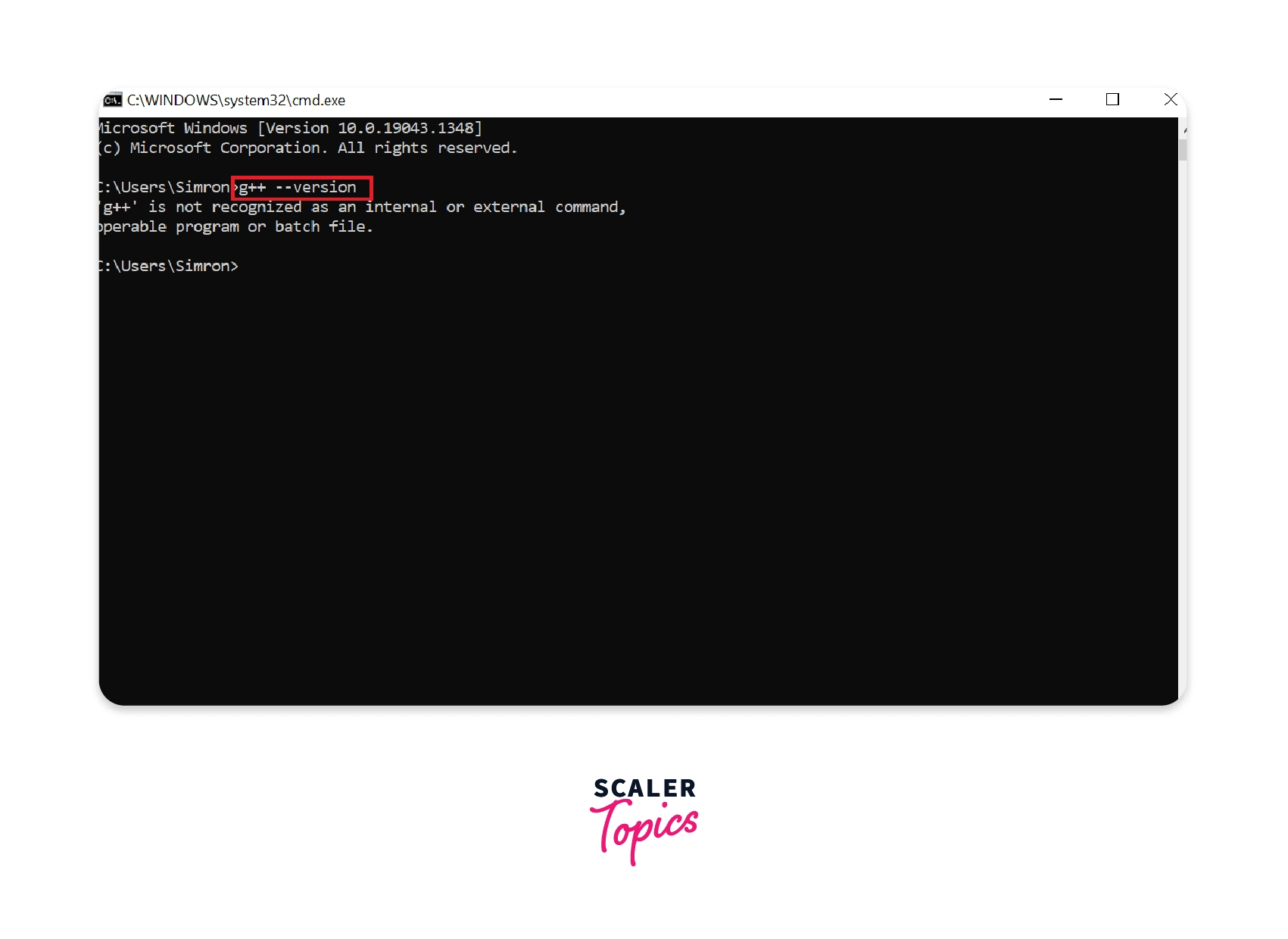
'gcc' is not recognized as an internal or external command, operable program or batch file.- Cause: The PATH environment variable is not set correctly, or you didn’t restart your Command Prompt/PowerShell after setting it.
- Solution: Double-check the PATH variable entry for
C:MinGWmingw64bin. Ensure there are no typos. Close and reopen all Command Prompt/PowerShell windows.
- Compilation errors (e.g.,
stdio.hnot found):- Cause: This is highly unlikely with a correct MinGW-w64 installation, but it could indicate a corrupted download or an incorrectly extracted
mingw64folder where its subdirectories are missing. - Solution: Re-download and re-extract MinGW-w64, ensuring the directory structure is as expected.
- Cause: This is highly unlikely with a correct MinGW-w64 installation, but it could indicate a corrupted download or an incorrectly extracted
- Executable not running or displaying errors:
- Cause: Could be an issue with antivirus software, or a fundamental problem with the MinGW-w64 installation.
- Solution: Temporarily disable your antivirus to test if it’s interfering. Ensure your
hello.ccode is exactly as provided, with no extra characters. If still failing, consider re-installing MinGW-w64.
Exploring Advanced Options and Best Practices
While MinGW-w64 provides a solid foundation for C development, the “Tech” landscape offers various tools and environments to enhance your productivity and workflow. Understanding these alternatives and best practices can significantly streamline your coding experience.
Alternative Compilers: Visual Studio and WSL/GCC
Depending on your specific needs and development goals, other compiler setups might be more suitable:
- Microsoft Visual Studio with MSVC:
- Pros: Visual Studio is a full-featured IDE that provides a powerful debugger, IntelliSense (smart code completion), project management, and seamless integration for developing Windows applications, especially those with graphical interfaces using frameworks like MFC or WinForms. It’s excellent for large-scale projects and corporate environments, aligning with “Corporate Identity” if your brand uses Microsoft technologies.
- Cons: It’s a very large download and installation, potentially consuming significant disk space and system resources. For simple command-line C development, it might be overkill.
- Installation: Download the “Visual Studio Community” edition (free for individuals and small teams) from Microsoft’s website. During installation, select the “Desktop development with C++” workload.
- Windows Subsystem for Linux (WSL) with GCC:
- Pros: WSL allows you to run a full Linux environment (like Ubuntu, Debian, etc.) directly on Windows. This means you can install the native GCC compiler within Linux, giving you a development setup almost identical to a native Linux machine. It’s ideal for cross-platform development, open-source contributions, or if you prefer a Unix-like command-line environment, tying into broader “Technology Trends.”
- Cons: Requires enabling WSL, installing a Linux distribution, and then installing GCC within that distribution. It’s an extra layer of complexity for beginners.
- Installation: Enable WSL in Windows Features, install a Linux distribution from the Microsoft Store, open the Linux terminal, and use
sudo apt update && sudo apt install build-essentialto install GCC and related tools.
Integrating with Popular IDEs and Code Editors
While you can compile C programs from the command line, using a sophisticated code editor or an Integrated Development Environment (IDE) can greatly enhance your “Productivity.” These tools offer features like syntax highlighting, code completion, debugging, and project management.
- Visual Studio Code (VS Code): A lightweight, powerful, and free code editor from Microsoft. It’s highly extensible with a vast marketplace of extensions.
- Integration: Install the “C/C++” extension pack. VS Code will automatically detect your MinGW-w64 GCC installation if it’s in your PATH. You can then configure tasks to compile and run your C programs directly within VS Code’s terminal.
- Code::Blocks: A free, open-source, and cross-platform IDE specifically designed for C, C++, and Fortran. It often comes bundled with a MinGW compiler.
- Integration: If you download the Code::Blocks installer that includes MinGW (e.g.,
codeblocks-xx.xxmingw-setup.exe), it often sets everything up for you. If not, you can point Code::Blocks to your existing MinGW-w64 installation through its settings (Settings -> Compiler -> Toolchain executables).
- Integration: If you download the Code::Blocks installer that includes MinGW (e.g.,
- Sublime Text / Atom / Notepad++: These are versatile text editors that can be configured to run external commands.
- Integration: You can often create “build systems” or custom commands within these editors to execute
gccfrom your MinGW-w64 installation, making compilation a one-click process.
- Integration: You can often create “build systems” or custom commands within these editors to execute
The choice of IDE or editor often comes down to personal preference and project requirements. Each offers a different balance of power, simplicity, and features, catering to various “Tech” workflows.
Keeping Your Compiler Up-to-Date and Secure
Like any software, your C compiler can benefit from updates. Newer versions of GCC often include performance improvements, bug fixes, better compliance with C standards, and support for newer processor architectures.
- Regular Updates: MinGW-w64 does not have an automatic update mechanism. You’ll generally need to manually check the SourceForge page for newer releases. If you decide to update, you can often replace your existing
mingw64directory with the new one, or install a new version in a separate directory and update your PATH variable. - Source of Downloads: Always download compiler tools from official and reputable sources (like SourceForge for MinGW-w64, Microsoft for Visual Studio, or your Linux distribution’s package manager for WSL/GCC). This minimizes the risk of downloading compromised software, which is a critical aspect of “Digital Security.”
- Digital Security Implications: Using outdated or untrusted compilers could expose your development environment to vulnerabilities or lead to unexpected compilation issues. Keeping your tools current is a professional practice that contributes to both secure and efficient development.
Beyond Installation: Embracing the C Development Journey
Installing your C compiler is just the first exciting step. The real journey begins now – learning to code, building projects, and exploring the vast capabilities of C. This journey connects directly to “Tech Trends,” “AI Tools,” and broader personal and professional growth.
Resources for Learning C Programming
The internet is replete with resources to help you master C:
- Online Courses: Platforms like Coursera, edX, Udemy, and freeCodeCamp offer structured C programming courses for all skill levels.
- Books: Classic texts like “The C Programming Language” by Kernighan and Ritchie (often called K&R) are timeless resources. More modern books offer updated perspectives and examples.
- Online Communities: Websites like Stack Overflow, Reddit (r/C_Programming, r/learnprogramming), and various forums provide excellent platforms to ask questions, share knowledge, and collaborate with other developers. Engaging with these communities can also foster “Personal Branding” as a knowledgeable developer.
- Documentation: Referencing the official GCC documentation or online C standard references can deepen your understanding of the language and compiler functionalities.
The Role of C in Professional Development and AI Tools
While C might not be the primary language for direct AI application development, it plays a critical, foundational role in the ecosystem of “AI Tools” and “Technology Trends”:
- Performance-Critical Libraries: Many underlying libraries that power machine learning frameworks (like TensorFlow, PyTorch) are written in C or C++ for maximum performance. Operations such as matrix multiplications, numerical computations, and low-level hardware interactions are often optimized using C.
- Embedded AI: For AI on edge devices, IoT, and embedded systems where resources are severely limited, C (and C++) are indispensable for developing efficient AI algorithms and deploying models.
- Operating Systems & Virtualization: C is crucial for the operating systems and hypervisors that host AI workloads, ensuring optimal resource allocation and performance.
Understanding C gives you insight into the very core of these advanced technologies, enabling a deeper appreciation and potentially a greater impact in the field.
Future-Proofing Your Development Environment
As technology evolves, so do programming practices and tools. Your C development environment is not static.
- Adaptability: Be open to trying new tools, compilers, and IDEs. What works best for one project might not be ideal for another.
- Cross-Platform Considerations: If you envision developing applications for Linux or macOS, consider familiarizing yourself with GCC on those platforms, or leveraging WSL on Windows for a consistent experience.
- Continuous Learning: The most crucial aspect of “Tech” is continuous learning. Keep exploring new features of the C standard, best coding practices, and ways to optimize your development workflow. This commitment to growth is essential for your “Personal Branding” and long-term success.
In conclusion, installing a C compiler on Windows is an indispensable step for anyone serious about programming. By carefully following the steps outlined, you’ve equipped yourself with a powerful tool capable of transforming your ideas into functional software. This foundational knowledge in C not only empowers you to build robust applications but also provides a unique perspective on the intricate workings of modern “Technology.” Embrace this journey, keep learning, and unleash your full potential as a developer.
aViewFromTheCave is a participant in the Amazon Services LLC Associates Program, an affiliate advertising program designed to provide a means for sites to earn advertising fees by advertising and linking to Amazon.com. Amazon, the Amazon logo, AmazonSupply, and the AmazonSupply logo are trademarks of Amazon.com, Inc. or its affiliates. As an Amazon Associate we earn affiliate commissions from qualifying purchases.