
In the modern digital landscape, the auditory experience is as critical as the visual one. Whether you are a professional video editor, a competitive gamer, or someone who relies on crystal-clear audio for remote business meetings, the functionality of your sound system is paramount. At the heart of this experience lies the audio driver—a specialized piece of software that acts as the translator between your computer’s operating system and its hardware components.
When audio drivers fail, the result is often frustrating: crackling sounds, distorted playback, or a complete lack of output. This guide provides an in-depth exploration of how to install, update, and manage audio drivers, ensuring your system maintains peak performance.
Understanding the Role of Audio Drivers in Modern Computing
Before diving into the technical steps of installation, it is essential to understand what an audio driver actually does. In the Tech niche, we view drivers as the “handshake” between hardware and software. Without a functional driver, Windows cannot communicate with your sound card, integrated motherboard audio, or external USB interfaces.
What is an Audio Driver?
An audio driver is a software component that allows the operating system (OS) to interact with audio devices. Every sound card or integrated audio chip has a specific set of instructions it needs to follow to convert digital data into sound waves. The driver provides these instructions. High-definition (HD) audio codecs, such as those produced by Realtek or Intel, require precise driver versions to support advanced features like spatial sound, noise cancellation, and high-sample-rate playback.
Signs Your Audio Driver Needs an Update or Reinstallation
How do you know when it is time to intervene? Technology isn’t always subtle about driver failure. Common symptoms include:
- The “No Audio Output Device is Installed” error: This usually signifies a missing or corrupted driver.
- Latency Issues: A delay between an action (like clicking a video) and the sound starting.
- Audio Stuttering: Frequent drops or “robotic” sounds during playback.
- Peripheral Failure: Your headphones or microphone work on other devices but remain unrecognized by your primary PC.
How to Install Audio Drivers: A Step-by-Step Walkthrough
Installing an audio driver can range from a fully automated process to a manual deep-dive into system files. Depending on your level of technical comfort and the specific needs of your hardware, you can choose from the following three methods.
Using Windows Update for Automatic Installation
For the vast majority of users, Microsoft’s built-in update service is the most efficient path. Windows Update maintains a massive repository of WHQL-certified (Windows Hardware Quality Labs) drivers.
- Press the Windows Key + I to open Settings.
- Navigate to Update & Security (or Windows Update on Windows 11).
- Click Check for updates.
- If a driver is found, Windows will download and install it automatically. Note that some driver updates are tucked away under “Optional updates.” Always check this section if your audio isn’t functioning correctly after a standard update.
Utilizing Device Manager for Manual Updates
When Windows Update fails to find a specific driver, the Device Manager is your next line of defense. This tool offers a more granular look at your system’s hardware hierarchy.
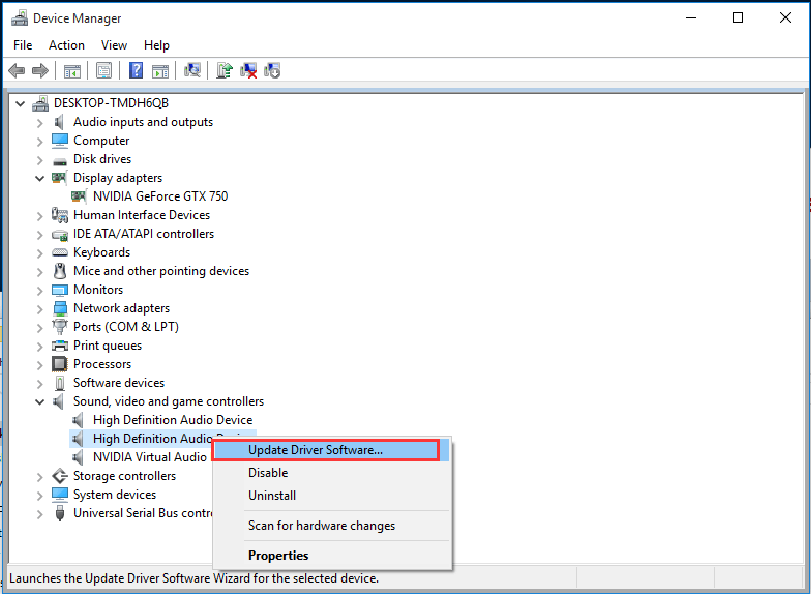
- Right-click the Start button and select Device Manager.
- Expand the section labeled Sound, video and game controllers.
- Locate your audio device (e.g., Realtek High Definition Audio).
- Right-click the device and select Update driver.
- Choose Search automatically for drivers. If Windows finds a newer version online, it will apply it. If not, you may need to proceed to the manufacturer’s website.
Installing Drivers Directly from Manufacturer Websites
For power users and those with specialized hardware (like external DACs or high-end gaming motherboards), the generic drivers provided by Microsoft often lack essential features. In these cases, downloading the installer directly from the source is the gold standard.
- For Laptops: Visit the support page of your laptop manufacturer (Dell, HP, Lenovo, ASUS, etc.). Enter your serial number or model name and look for the “Audio” section under Drivers and Downloads.
- For Custom PCs: Identify your motherboard model. Go to the manufacturer’s website (MSI, Gigabyte, ASRock) and download the specific Realtek or Nahimic driver package intended for your board.
- Installation: These usually come as an
.exeor.msifile. Run the installer, follow the prompts, and—most importantly—restart your computer when prompted.
Advanced Techniques for Fixing Stubborn Audio Issues
Sometimes, simply clicking “Update” isn’t enough. If a driver installation becomes corrupted or if a new update introduces bugs, you need to employ more advanced troubleshooting techniques to restore your digital security and system stability.
Rolling Back Drivers to a Previous Version
In the world of software updates, “newer” isn’t always “better.” A new driver version might be incompatible with your specific version of Windows or other hardware components.
- Open Device Manager and find your audio device.
- Right-click it and select Properties.
- Navigate to the Driver tab.
- If the option is available, click Roll Back Driver. This will revert the system to the previously installed, stable version.
Performing a Clean Reinstall (Uninstalling vs. Deleting)
If your audio is completely broken, a clean slate is often the only solution. This involves removing the driver entirely so that Windows is forced to reinstall it from scratch.
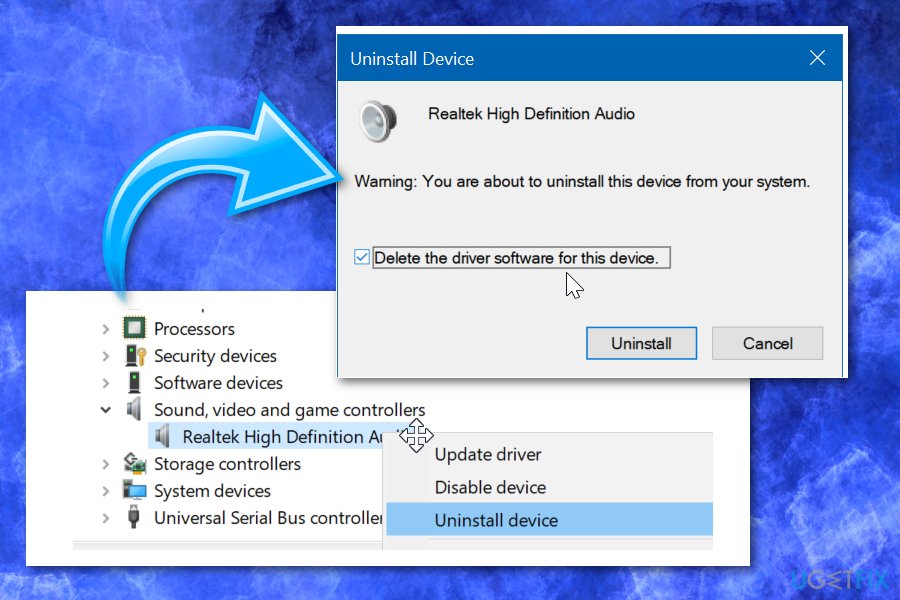
- In Device Manager, right-click your audio device and select Uninstall device.
- Critical Step: A checkbox will appear saying “Delete the driver software for this device.” Only check this if you have already downloaded a fresh driver from the manufacturer’s website. If you don’t have a backup, Windows will attempt to use a generic driver upon reboot.
- Restart your PC. Windows will detect the “new” hardware and attempt to reinstall the driver automatically.
Best Practices for Maintaining System Audio Health
Consistency is key in tech management. To avoid the sudden loss of sound during a crucial task, you should adopt a proactive approach to driver maintenance.
Using Third-Party Driver Update Tools
While Windows does a decent job, some users prefer third-party utilities like Driver Booster or Snappy Driver Installer. These tools scan your entire hardware profile and compare it against a cloud database of the latest drivers. However, exercise caution: only use reputable, well-reviewed software to avoid bloatware or security vulnerabilities. Always create a System Restore point before letting a third-party tool modify your drivers.
Managing High-Definition (HD) Audio vs. Generic Drivers
Windows often installs a “High Definition Audio Device” driver by default. While this provides basic sound, it often lacks support for multi-channel output (5.1 or 7.1 surround sound) or specialized software suites like Realtek Audio Console. To get the most out of your hardware, ensure you are using the vendor-specific driver (Realtek, IDT, or Conexant) rather than the generic Microsoft version. This allows for better power management and finer control over input/output gain.
Conclusion: Ensuring a Seamless Audio Experience
Installing an audio driver might seem like a mundane administrative task, but it is a fundamental pillar of a healthy computing environment. By understanding the nuances between automatic updates, manual Device Manager tweaks, and direct manufacturer installations, you empower yourself to solve technical hurdles quickly and efficiently.
The transition toward more integrated AI tools and complex software ecosystems means that hardware-software synchronization is more important than ever. Keeping your audio drivers updated not only ensures that you can hear your favorite music or join a Zoom call without issues, but it also protects your system from vulnerabilities and performance bottlenecks. Whether you are troubleshooting a silent PC or optimizing a high-end studio setup, the steps outlined above provide the technical foundation necessary for a flawless auditory experience. Keep your drivers updated, stay informed on hardware compatibility, and your system will continue to deliver the high-quality sound you expect.
aViewFromTheCave is a participant in the Amazon Services LLC Associates Program, an affiliate advertising program designed to provide a means for sites to earn advertising fees by advertising and linking to Amazon.com. Amazon, the Amazon logo, AmazonSupply, and the AmazonSupply logo are trademarks of Amazon.com, Inc. or its affiliates. As an Amazon Associate we earn affiliate commissions from qualifying purchases.