
In an increasingly digital world, our smartphones have become central to our daily lives, serving as communication hubs, entertainment centers, productivity tools, and much more. With an ever-growing ecosystem of applications, from resource-hungry games to essential productivity suites and social media platforms, it’s no surprise that internal storage often feels like a precious, finite resource. Many users find themselves constantly battling “storage full” notifications, leading to frustrating performance slowdowns, an inability to install new apps, or even preventing crucial system updates.
Fortunately, for a significant portion of Android smartphone users, there’s a widely available, cost-effective solution: the humble SD card. This small, removable storage device can dramatically expand your device’s capacity, offering a new lease on life for older phones or simply providing ample breathing room for power users. However, the process of migrating apps to an SD card isn’t always straightforward. It involves understanding various Android versions, device specificities, and the nuances of different app types.
This comprehensive guide will demystify the process, walking you through the “how-to” of installing and moving apps to an SD card. We’ll explore the compelling reasons behind this move, delve into the essential prerequisites, outline multiple methods to achieve your goal, and crucially, discuss the important considerations and potential drawbacks. Our aim is to equip you with the knowledge to make an informed decision and optimize your smartphone’s storage, ensuring a smoother, more expansive digital experience.
Why Consider Moving Apps to an SD Card? Expanding Your Digital Horizon
The decision to move apps to an SD card isn’t merely about convenience; it’s often a necessity driven by the insatiable demands of modern mobile software. Understanding the core benefits can help users appreciate the value of this often-underutilized feature.
Overcoming Internal Storage Limitations
The most immediate and obvious benefit of using an SD card for app storage is the sheer expansion of available space. Smartphones, especially budget or older models, often come with limited internal storage – sometimes as little as 16GB or 32GB. Even mid-range devices with 64GB or 128GB can quickly fill up once you factor in the operating system, pre-installed apps, high-resolution photos, 4K videos, and a handful of large games.
When internal storage approaches its limit, your phone’s performance can degrade significantly. The operating system needs free space for caching, temporary files, and smooth operation. A full internal drive can lead to slower app launches, sluggish multitasking, freezing, and even prevent essential system updates from being installed. An SD card effectively acts as an extension, offloading less critical apps and data, thereby preserving the internal storage for core system functions and performance-critical applications. This can save you the significant expense of upgrading to a new phone simply for more storage.
Enhancing Device Performance and Longevity
While an SD card is generally slower than internal flash storage, freeing up your phone’s primary storage can indirectly boost overall device performance. By alleviating the pressure on internal memory, you ensure that the system has ample space to operate efficiently. This can lead to:
- Faster System Updates: Software updates often require a substantial amount of free internal space. Moving apps to an SD card can create the necessary room, allowing you to keep your device secure and up-to-date with the latest features.
- Smoother Multitasking: With more internal storage available for active applications and system processes, your phone can manage multiple tasks more efficiently without constant data swapping or app closures.
- Extended Device Lifespan: By effectively managing storage, you reduce the strain on your phone’s internal components, potentially prolonging its useful life and delaying the need for an expensive upgrade. This aligns with a more sustainable approach to tech ownership, making your devices work harder and longer.
Data Portability and Management
For certain types of data, an SD card offers unparalleled portability. While app data specifically can be complex due to its integration with the operating system, using an SD card for large media files (photos, videos, music) that might otherwise reside alongside apps on internal storage can streamline data management. If you need to quickly transfer a large collection of photos or videos to another device, removing the SD card is often simpler than relying on cloud services or cable transfers, especially in areas with poor internet connectivity.
Essential Prerequisites: Preparing for a Smooth Transition
Before you embark on the journey of moving apps to an SD card, it’s crucial to understand the foundational elements that will determine your success. A little preparation goes a long way in preventing frustration and potential data loss.
Understanding Your Android Version and Device Compatibility
The ability to install or move apps to an SD card has evolved significantly across different Android versions and device manufacturers.
- Android 6.0 Marshmallow and Newer: This is a pivotal point. Android Marshmallow introduced a feature called “Adoptable Storage” (also known as “Flexible Storage”). This allows an SD card to be formatted and adopted as if it were a permanent part of the internal storage. Once adopted, the card is encrypted and effectively merged with the phone’s native storage, allowing almost any app to be installed or moved to it seamlessly. However, not all manufacturers enable adoptable storage, with some (like Samsung in certain regions or models) preferring to maintain separate internal and external storage due to potential performance impacts of slower SD cards.
- Older Android Versions (Lollipop and earlier): These versions typically have more limited support. Users could often move only portions of an app to an SD card, and only if the app developer explicitly enabled this feature. System apps, widgets, and many core utilities usually couldn’t be moved.
- Manufacturer Variations: Even if your phone runs a newer Android version, the manufacturer’s custom UI (e.g., Samsung’s One UI, Xiaomi’s MIUI, OnePlus’s OxygenOS) might alter or restrict the default Android behavior regarding SD card usage. Always check your device’s specific settings and documentation.
It’s also important to note that certain apps, particularly those with widgets, background services, or critical system integrations, are designed to run exclusively from internal storage for stability and performance reasons. Moving such apps to an SD card can lead to instability, crashes, or widgets disappearing.
Choosing the Right SD Card
The quality and speed of your SD card are paramount, especially if you plan to use adoptable storage for apps. A slow or unreliable card can significantly degrade your phone’s performance.
- Types: Look for microSDHC (for capacities up to 32GB) or microSDXC (for capacities 64GB and above). Ensure your phone supports the chosen type. Most modern phones support microSDXC.
- Speed Classes: This is critical for app performance.
- Speed Class (C2, C4, C6, C10): C10 (10 MB/s minimum write speed) is the absolute minimum for app usage.
- UHS Speed Class (U1, U3): U1 offers a minimum of 10 MB/s, U3 offers 30 MB/s. U3 is significantly better for apps.
- Video Speed Class (V6, V10, V30, V60, V90): V30 (30 MB/s minimum write speed) or higher is excellent.
- Application Performance Class (A1, A2): These classes are specifically designed for running applications. They guarantee minimum random read/write speeds (IOPS) which are vital for app performance, not just sequential speeds. An A1 or A2 rated card is highly recommended for moving apps, with A2 being superior.
- Capacity: Choose a capacity that meets your needs without being excessively large, as extremely large cards can sometimes introduce compatibility issues with older devices. For apps, 64GB, 128GB, or 256GB are common sweet spots.
- Authenticity: Always purchase SD cards from reputable brands (e.g., Samsung, SanDisk, Kingston, Lexar) and trusted retailers. Counterfeit SD cards are rampant; they often report fake high capacities but fail quickly or corrupt data.
Backing Up Your Data
Before making any significant changes to your phone’s storage, especially if you intend to format your SD card as adoptable storage, always back up your data. This includes photos, videos, documents, contacts, and any other critical information. While the process is generally safe, unforeseen issues like power interruptions or hardware failures can lead to data loss.
- Cloud Backups: Google Photos, Google Drive, Dropbox, or your phone manufacturer’s cloud service can back up media and device settings.
- PC Backups: Connect your phone to a computer and manually copy important files.
- Google Account Sync: Ensure your contacts, calendar, and app data are synced to your Google account.
Methods for Installing and Moving Apps to an SD Card
Now that you’re prepared, let’s explore the various ways to leverage your SD card for app storage. The method you choose will depend largely on your device’s Android version and your personal preferences regarding performance and convenience.
Method 1: Moving Apps Manually (Portable Storage)
This method is the most common for devices that do not use adoptable storage, or for users who prefer to keep their SD card as portable storage (i.e., removable and usable in other devices). This functionality has been available since earlier Android versions, but its effectiveness depends heavily on individual app support.
How to Do It:
- Insert Your SD Card: Ensure your SD card is properly inserted into your device.
- Open Settings: Go to your phone’s “Settings” app.
- Navigate to Apps: Find and tap on “Apps” or “Apps & Notifications” (wording may vary).
- Select an App: Scroll through your list of installed applications and tap on the one you wish to move.
- Access Storage: Tap on “Storage” or “Storage & Cache” within the app info screen.
- Change Storage Location: If the app supports it, you will see an option labeled “Change” next to “Storage used.” Tap on it.
- Select SD Card: Choose “SD Card” as the new storage location.
- Confirm Move: The phone will then move a portion of the app data to the SD card. This process might take a few moments.
Limitations:
- Partial Move: Often, only specific components of an app (e.g., the main app file and some data) are moved, while core elements or widgets remain on internal storage.
- App Developer Dependent: This option is only available for apps whose developers have explicitly enabled it. Many apps, especially system-critical ones or those requiring high performance, cannot be moved.
- SD Card Removal: If you remove the SD card, any apps moved to it will become unavailable until the card is reinserted.
- Updates: Sometimes, app updates can automatically move the app back to internal storage, requiring you to repeat the process.
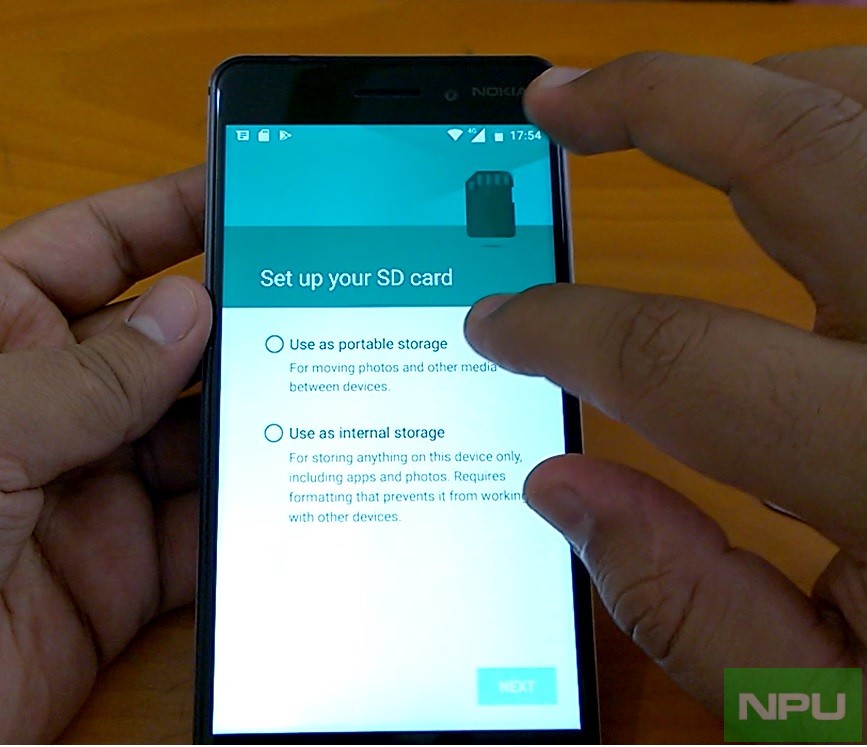
Method 2: Adopting Your SD Card as Internal Storage (Adoptable Storage)
Introduced with Android 6.0 Marshmallow, Adoptable Storage is a more robust solution that transforms your SD card into an extension of your phone’s internal memory. This makes the SD card an integral part of your system storage, allowing virtually any app to be installed or moved to it.
How to Do It:

- Insert Your SD Card: Ensure your SD card is properly inserted.
- Open Settings: Go to your phone’s “Settings” app.
- Navigate to Storage: Find and tap on “Storage” or “Storage & USB.”
- Select SD Card: Tap on your SD card from the list of storage devices.
- Format as Internal: You should see an option like “Format as internal,” “Use as internal storage,” or “Format” with an option to select internal/portable. Tap on this option.
- Confirm and Erase: You will receive a warning that formatting will erase all data on the SD card. Confirm and proceed.
- Data Migration (Optional): After formatting, your phone might ask if you want to migrate existing data (like photos and videos) from internal storage to the newly adopted SD card. This is optional but can free up internal space immediately.
- Restart (Recommended): After the process, it’s often good practice to restart your phone.
Benefits:
- Seamless Integration: The SD card acts like internal storage; the system automatically manages where apps are installed.
- Wider App Compatibility: More apps can utilize the SD card storage, as they perceive it as native internal space.
- Automatic Management: You typically don’t need to manually move individual apps after setup.
Drawbacks and Critical Considerations:
- SD Card Encryption: The SD card is encrypted and tied to that specific phone. It cannot be easily read by other devices (computers, other phones) unless formatted again, which erases its contents.
- Performance Dependency: The speed of your phone’s overall storage performance becomes bottlenecked by the speed of your SD card. A slow SD card will significantly degrade overall phone performance, leading to lag and slow app loading. An A1 or A2 rated card is non-negotiable for this method.
- Data Loss Risk: If the SD card fails or is physically damaged, all data stored on it (including apps) will be lost, and it could potentially destabilize your phone until a new card is adopted or the system is reset.
- Difficult to Revert: Reverting an adopted SD card back to portable storage typically involves formatting it, erasing all its contents.
Method 3: Setting Default Installation Location (If Available)
Some older Android versions or specific OEM custom ROMs offered an option within settings (sometimes in Developer Options) to set the default installation location for new apps to the SD card. This feature has become less common with the advent of Adoptable Storage. If available, it’s usually found under “Settings > Storage” or “Settings > Developer Options.”
Method 4: Advanced Options (Rooting and Third-Party Tools)
For users comfortable with advanced Android modifications, rooting their device opens up possibilities for greater control over app storage. Tools like Link2SD or FolderMount (for rooted devices) can create symbolic links, effectively tricking apps into thinking they are running from internal storage while their actual files reside on the SD card.
Warnings:
- Voiding Warranty: Rooting your device usually voids its warranty.
- Security Risks: Rooted devices can be more vulnerable to malware if not managed carefully.
- Complexity: This method is significantly more complex and recommended only for experienced users who understand the risks involved.
Important Considerations and Potential Drawbacks
While moving apps to an SD card offers significant advantages, it’s not a silver bullet without its own set of challenges. Being aware of these can help you make a more informed decision and manage expectations.
Performance Implications
Despite advancements in SD card technology (A1, A2 ratings), even the fastest SD cards are generally slower than a phone’s internal UFS or eMMC storage.
- Slower App Loading: Apps launched from an SD card, especially demanding games or resource-intensive applications, might take longer to load and might exhibit minor delays during operation compared to running them from internal storage.
- Lag and Stuttering: If an app frequently accesses small files or performs many read/write operations (common in database-heavy apps), it can introduce lag if running from a slow SD card.
- Impact on Overall Phone Speed: With adoptable storage, the entire system’s storage performance becomes dependent on the SD card. A sluggish card can make the entire phone feel slow.
SD Card Durability and Reliability
SD cards, like all flash memory, have a finite lifespan defined by the number of write cycles they can endure.
- Limited Write Cycles: Apps generate a lot of read/write activity (saving data, logs, caches). Running apps directly from an SD card means constant writing, which can accelerate wear and tear, shortening the card’s life.
- Risk of Failure: A failing SD card can lead to apps crashing, data corruption, or even make your phone unstable (especially if using adoptable storage). If the card fails, any data on it will be lost, and apps moved to it will become unusable.
- Environmental Factors: SD cards are small and can be susceptible to physical damage, static electricity, or extreme temperatures.
App Compatibility and Functionality
As mentioned earlier, not all apps are designed to be moved to external storage.
- Critical Apps: System apps, messaging apps, and apps with complex background processes or widgets are often hardcoded to run from internal storage. Moving them can lead to widgets disappearing, notifications failing, or the app simply not launching.
- Updates and Reversion: App updates can sometimes revert an app’s storage location back to internal memory, requiring users to manually move them again.
- In-App Purchases/DRM: Some apps with strong Digital Rights Management (DRM) or in-app purchase mechanisms might face issues if their core files are moved, as the system might perceive it as tampering.
Security Concerns (with Adoptable Storage)
While adoptable storage encrypts the SD card, making it unusable outside your device, this also introduces a specific security concern:
- Single Point of Failure: If the encrypted SD card is lost, damaged, or fails, the data on it is unrecoverable, and if the phone relies on it as internal storage, the device itself might become unstable or partially unusable.
- Data Recovery Challenges: Recovering data from an encrypted, failed SD card is significantly more difficult, often impossible, compared to a standard (portable) card.
Optimizing Your SD Card and Troubleshooting Tips
To maximize the benefits and minimize the drawbacks of using an SD card for apps, a proactive approach to optimization and troubleshooting is key.
Regular Maintenance for Your SD Card
- Monitor Health: While not always easy, keep an eye on your phone’s performance. If apps moved to the SD card start crashing more frequently or slowing down significantly, it might be a sign of a failing card.
- Avoid Constant Removal: If using the SD card as portable storage, avoid frequently removing and reinserting it, as this can wear out the connectors and potentially corrupt data. Always unmount it safely through phone settings before removal.
- Cleanliness: Keep the SD card slot and the card’s contacts clean and free of dust or debris.
- Backup Regularly: This cannot be stressed enough. Treat your SD card like any other storage device and back up critical data periodically.
Troubleshooting Common Issues
- “App Not Moving” or “Move to SD Card” Option Greyed Out:
- Check App Compatibility: The app might not support moving to SD card.
- Check Device Settings: Your phone manufacturer might have disabled the feature.
- Clear Cache: Sometimes, clearing the app’s cache (Settings > Apps > [App] > Storage > Clear Cache) before attempting to move can help.
- Adoptable Storage: If your phone supports it, consider formatting the card as adoptable storage.
- App Crashing or Slow Performance After Moving:
- Move Back to Internal: The app might perform poorly from the SD card. Move it back to internal storage.
- Upgrade SD Card: If using adoptable storage, consider upgrading to a faster A1 or A2 rated card from a reputable brand.
- Card Corruption: The SD card might be failing. Back up data, then try formatting or replacing it.
- “SD Card Missing” or “Corrupt” Errors:
- Reinsert and Restart: Safely remove the SD card, restart your phone, and then reinsert the card.
- Test on Another Device: If possible, test the SD card in another compatible device to rule out a phone hardware issue.
- Format: If all else fails and you’ve backed up your data, try formatting the SD card (either as portable or adoptable storage, depending on your preference).
- Replace: If formatting doesn’t work, the card is likely damaged and needs to be replaced.
- Adoptable Storage Issues:
- Speed: Ensure your SD card meets the A1/A2 performance standards. A slower card will inevitably lead to problems.
- Compatibility: Double-check if your specific phone model and Android version fully support adoptable storage.
- Reformat: As a last resort, back up everything, and reformat the card as portable storage, then re-adopt it if you wish.
Best Practices for SD Card App Management
- Reserve Internal Storage for Critical Apps: Keep high-performance apps, frequently used apps, communication tools, and apps with widgets on your internal storage.
- Use SD Card for Less Demanding Apps: Games with large install sizes but infrequent loading, streaming apps that cache data, or utility apps that don’t require constant, fast access are good candidates for SD card storage.
- Prioritize A1/A2 Rated Cards: Invest in quality. A cheap, slow SD card will be a source of constant frustration.
- Regular Backups: Make backing up your important data a routine, especially if you rely heavily on your SD card.
- Periodically Review Storage: Check your phone’s storage settings to identify which apps are consuming the most space and adjust their location as needed.
Conclusion
The challenge of limited smartphone storage is a persistent one for many users, but the intelligent use of an SD card offers a powerful and often cost-effective solution. Whether you opt for the simplicity of moving individual apps to portable storage or embrace the deeper integration of adoptable storage, understanding the nuances of each method is crucial for a successful outcome.
By carefully selecting a high-quality SD card, preparing your device appropriately, and being mindful of the potential performance and durability considerations, you can significantly expand your device’s capacity. This not only frees up internal storage for critical system functions but also allows you to install more applications, store more media, and ultimately, get more out of your smartphone.
Ultimately, the decision to install apps to an SD card should be an informed one, weighing the benefits of expanded storage against potential performance trade-offs and risks. By following the guidance in this article, you can make the right choice for your device and ensure an optimized, frustration-free smartphone experience, unlocking your device’s full potential and keeping you productive and connected in our ever-evolving digital landscape.
aViewFromTheCave is a participant in the Amazon Services LLC Associates Program, an affiliate advertising program designed to provide a means for sites to earn advertising fees by advertising and linking to Amazon.com. Amazon, the Amazon logo, AmazonSupply, and the AmazonSupply logo are trademarks of Amazon.com, Inc. or its affiliates. As an Amazon Associate we earn affiliate commissions from qualifying purchases.