
The Apple App Store is an iconic gateway to millions of applications, transforming our iPhones into indispensable tools for productivity, communication, entertainment, and creativity. For most iPhone users, the notion of “installing” the App Store is a curious one, as it comes pre-installed and is deeply integrated into the iOS operating system. It’s a foundational component, much like the Phone or Messages app, vital for accessing the vast ecosystem of software that defines the modern smartphone experience. However, beneath this surface of seamless integration, there can be situations where the App Store appears inaccessible, or users might be exploring the burgeoning landscape of alternative app marketplaces. This comprehensive guide will demystify the App Store’s presence on your iPhone, address common scenarios where it might seem “missing,” and delve into the evolving world of third-party app installations, particularly in light of recent regulatory changes that are reshaping the digital landscape.
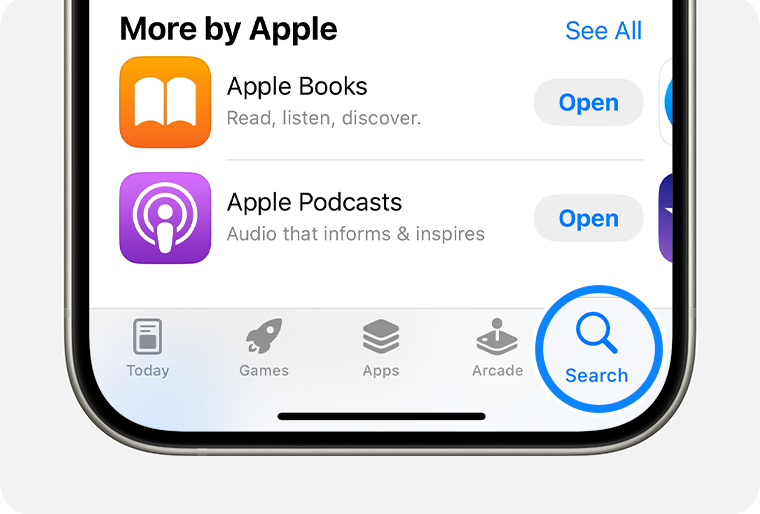
Our journey will cover everything from simple troubleshooting steps to re-enable access to the native App Store, to the more advanced and nuanced discussions surrounding sideloading and the implications of new legislation like the EU’s Digital Markets Act (DMA). For a device synonymous with security and user-friendliness, understanding how apps are acquired and managed is paramount. This exploration touches on critical aspects of technology trends, digital security, and user choice, offering a holistic view of app installation on the iPhone.
Understanding the Native App Store Experience
The App Store isn’t just an application; it’s the official, curated marketplace where Apple-approved apps reside. Its presence is fundamental to the iPhone’s functionality and security, ensuring that applications meet Apple’s stringent guidelines for performance, privacy, and content.
The App Store: An Integral Part of iOS
From the moment you unbox a new iPhone, the App Store icon sits prominently on your home screen. It’s an indispensable component of iOS, developed by Apple itself, and cannot be truly deleted like a third-party application. This deep integration is part of Apple’s walled-garden approach, designed to provide a consistent, secure, and high-quality user experience. Every app available through the official App Store undergoes a rigorous review process, which contributes significantly to the platform’s reputation for reliability and digital security. This careful curation reduces the risk of malware, privacy breaches, and poorly performing software, a core tenet of Apple’s brand strategy.
When we talk about “installing” the App Store in this context, it usually refers to situations where it seems to have vanished or become inaccessible. It’s never truly uninstalled; rather, it might be hidden, restricted, or experiencing a temporary software glitch.
What to Do if Your App Store App is “Missing”
It’s a common, albeit perplexing, scenario: you swipe through your home screens, search your app folders, and the familiar blue icon with the white ‘A’ is nowhere to be found. While the App Store can’t be deleted, it can certainly disappear from plain sight. Here’s a systematic approach to troubleshoot its apparent absence:
Checking Screen Time Restrictions
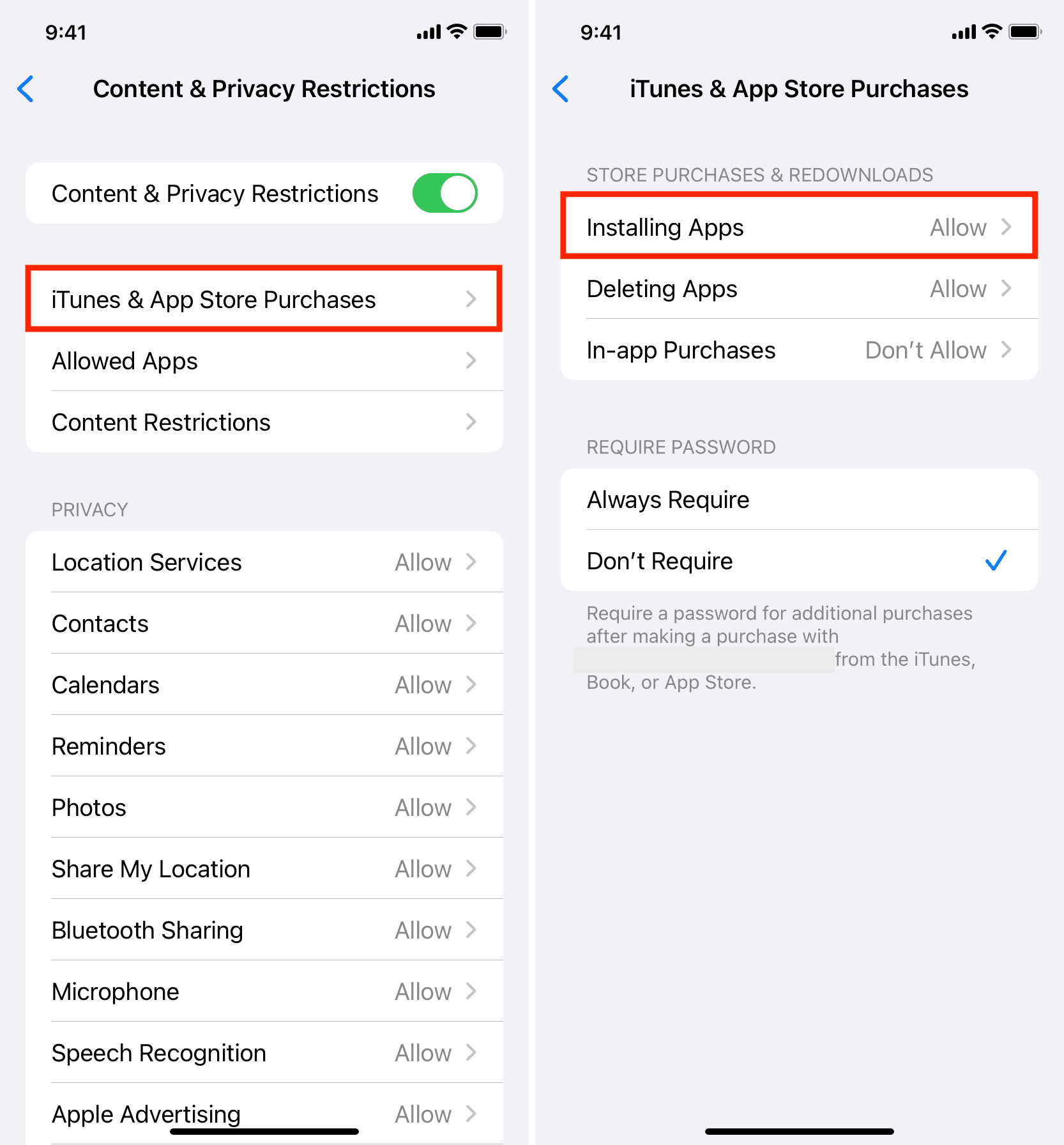
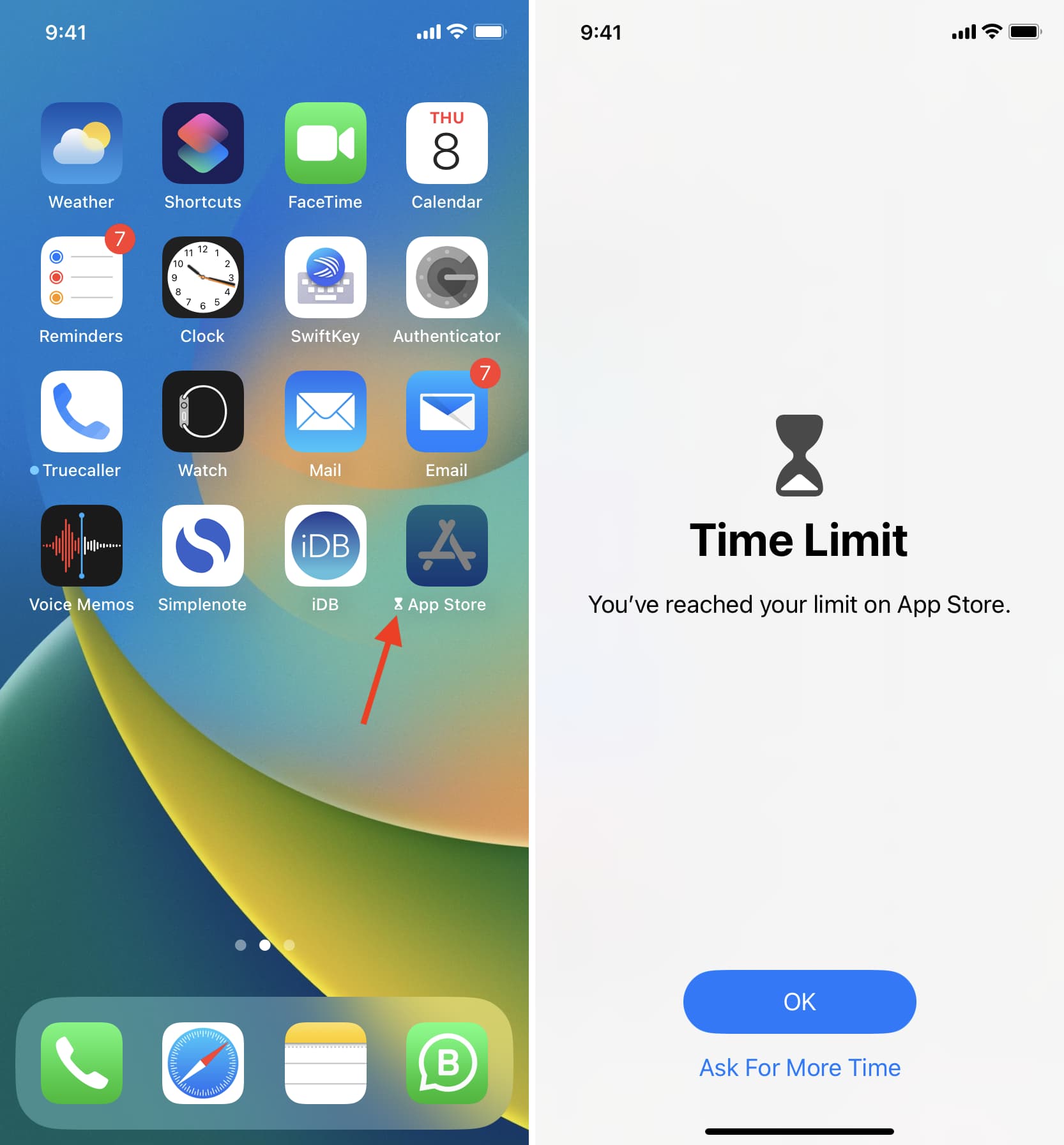
One of the most frequent reasons for a “missing” App Store is unintentional restrictions set within iOS’s Screen Time feature. Designed for parental controls or for users to manage their own digital well-being, Screen Time allows you to disable access to certain apps, including the App Store itself.
- Navigate to Settings: Open the “Settings” app on your iPhone.
- Access Screen Time: Tap on “Screen Time.” If you have Screen Time enabled, you might need to enter your Screen Time passcode.
- Content & Privacy Restrictions: Tap “Content & Privacy Restrictions.”
- iTunes & App Store Purchases: Tap “iTunes & App Store Purchases.”
- Installing Apps: Ensure “Installing Apps” is set to “Allow.” If it’s set to “Don’t Allow,” the App Store icon will be hidden, and you won’t be able to download new apps. Change this setting to “Allow,” and the App Store should reappear on your home screen.
- In-app Purchases: While less likely to hide the App Store itself, also check “In-app Purchases” and ensure it’s allowed if you wish to make purchases within apps.
Utilizing Spotlight Search
Sometimes, the App Store isn’t missing; it’s just buried deep within a folder or an obscure home screen page. Spotlight Search is your iPhone’s universal search tool and can quickly locate any app installed on your device.
- Swipe Down: From any home screen, swipe down from the middle of the screen to reveal the search bar.
- Type “App Store”: Begin typing “App Store” into the search bar.
- Locate and Tap: The App Store icon should appear in the search results. You can tap it to open the app. The search results will also indicate which folder it resides in, if applicable.
Resetting Home Screen Layout
If the App Store is found via Spotlight but you want it back on your main home screen, or if your home screen layout has become chaotic, you can reset it without affecting your data or app installations. This action will revert your home screen icons to their factory default arrangement, placing all native Apple apps (including the App Store) back in their original positions and arranging third-party apps alphabetically in folders.
- Go to Settings: Open the “Settings” app.
- Tap General: Scroll down and tap on “General.”
- Transfer or Reset iPhone: Tap “Transfer or Reset iPhone.”
- Reset: Tap “Reset.”
- Reset Home Screen Layout: Select “Reset Home Screen Layout.” Confirm the action.
Ensuring Your iOS is Up-to-Date
Software bugs can occasionally cause unexpected behavior, including apps seemingly disappearing or malfunctioning. Ensuring your iOS is running the latest version can resolve such issues.
- Go to Settings: Open the “Settings” app.
- Tap General: Scroll down and tap on “General.”
- Software Update: Tap “Software Update.”
- Download and Install: If an update is available, follow the on-screen instructions to download and install it. This can sometimes magically restore missing default apps or resolve underlying system glitches affecting app visibility.
Resetting All Settings (As a Last Resort)
If all else fails, a “Reset All Settings” operation can sometimes resolve persistent issues. This action resets all your iPhone’s settings (Wi-Fi passwords, notification preferences, display settings, etc.) to their factory defaults but does not erase any of your data, apps, photos, or media.
- Go to Settings > General > Transfer or Reset iPhone > Reset.
- Select “Reset All Settings.” You will need to enter your passcode.
Setting Up Your App Store for First Use
Once the App Store is visible and accessible, new iPhone users or those who have performed a factory reset will need to set it up. This primarily involves signing in with an Apple ID and configuring payment information.
- Open the App Store: Tap the App Store icon.
- Sign In with Apple ID: You will be prompted to sign in with your Apple ID. If you already have one, enter your Apple ID and password. If you don’t, you’ll have the option to “Create New Apple ID.” An Apple ID is essential for downloading any apps, free or paid.
- Review Terms and Conditions: You’ll likely need to agree to Apple’s Terms and Conditions.
- Verify Payment Information: For your first download (even if it’s a free app), you might be asked to verify or set up a payment method (credit/debit card, PayPal, carrier billing, etc.). You can select “None” if available and if you only plan to download free apps, though sometimes a payment method is still required for account verification based on your region.
- Country/Region Settings: Ensure your Apple ID’s country/region matches your physical location, as app availability and payment options are geo-restricted. This can be managed in your Apple ID settings within the App Store or Settings app.
With these steps complete, your App Store is fully functional, granting you access to millions of applications, bolstering your productivity, offering entertainment, and keeping you connected.
Exploring Beyond the Default: Alternative App Marketplaces
While the native App Store has been the sole official gateway for apps on iOS for over a decade, the landscape is now evolving. The concept of “installing” an alternative app store on an iPhone, once primarily associated with jailbreaking, is gaining legitimate traction due to regulatory pressures and technological advancements. This shift represents a significant evolution in technology trends and offers new dimensions to app distribution and user choice.
The Historical Context: Jailbreaking and Cydia
For many years, the only way to “install” an alternative app store on an iPhone was through a process known as jailbreaking. Jailbreaking involves exploiting software vulnerabilities to gain root access to the iOS operating system, bypassing Apple’s restrictions. Cydia was the most prominent unofficial app store for jailbroken devices, offering access to apps, tweaks, and system modifications not sanctioned by Apple.
While jailbreaking offered unparalleled customization and freedom, it came with significant drawbacks:
- Security Risks: Bypassing Apple’s security layers made devices more vulnerable to malware and privacy breaches, directly contradicting Apple’s digital security promises.
- Warranty Voidance: Apple generally voids the warranty of jailbroken devices.
- Instability: Jailbroken iPhones often experienced more crashes, battery drain, and compatibility issues with iOS updates.
- Complexity: The process itself was often technical and carried the risk of bricking the device.
Consequently, for the vast majority of users, jailbreaking was not a viable or desirable path, solidifying the App Store’s unchallenged monopoly.
Sideloading Apps: A Glimpse into Developer Flexibility
Sideloading refers to the installation of apps onto an iPhone without using the official App Store. Traditionally, this has been limited to developers testing their own apps or enterprises distributing proprietary internal tools.
- Developer Mode: iOS includes a “Developer Mode” primarily for testing purposes. Developers can compile their apps in Xcode and install them directly onto their registered iPhones for testing, bypassing the App Store review process. This is a controlled environment, however, typically requiring an Apple Developer Program membership.
- Enterprise Distribution: Companies can obtain enterprise certificates to distribute internal apps to their employees’ iPhones without going through the public App Store. This is strictly for internal use and requires specific trust configurations on the device.
- Third-Party Sideloading Tools: Tools like AltStore, Sideloadly, or Signulous have emerged, leveraging Apple’s developer provisioning system to allow users to “sideload” apps onto their devices using their personal Apple ID. This is not jailbreaking, but it’s a more convoluted process than using the App Store, often requiring regular re-signing of apps and is subject to Apple’s developer program limitations (e.g., app limits per Apple ID, expiration dates). These tools cater to specific niches, such as emulators or apps that Apple doesn’t permit in the official store.
While these methods offer a degree of flexibility, they have historically been niche solutions, often technical, and not a mainstream alternative to the App Store.
The Game Changer: EU’s Digital Markets Act and Third-Party App Stores
The most significant development in the realm of alternative app installation on iPhones comes from regulatory pressure, particularly the European Union’s Digital Markets Act (DMA). Effective in early 2024, the DMA aims to curb the power of “gatekeeper” tech companies, like Apple, by mandating that they allow third-party app stores and sideloading on their platforms within the EU. This legislation marks a seismic shift in Apple’s brand strategy and control over its ecosystem.
What the DMA Means for iPhone Users
For iPhone users within the European Union (the 27 EU member states), the DMA fundamentally alters how apps can be acquired:
- Alternative App Marketplaces: Apple is now required to permit and facilitate the operation of alternative app stores on iOS. This means companies like Epic Games (with its Epic Games Store), AltStore (which evolved from a sideloading tool to a full marketplace), and potentially others can launch their own app stores on iPhones in the EU.
- Direct Installation (Sideloading): The DMA also opens the door for direct installation of apps from websites, though Apple’s implementation of this is expected to involve specific user actions and acknowledgements to maintain some level of security.
- New Payment Options: Beyond app distribution, the DMA also mandates allowing alternative payment processing systems for in-app purchases, potentially leading to different pricing models and competition in app monetization, a significant aspect for “Money” topics related to online income for developers.
This change is currently limited to the EU, meaning users in other regions (e.g., North America, Asia, etc.) will not immediately have these options.
How to Access and Install Alternative App Stores (e.g., AltStore, Epic Games Store in EU)
For users in the EU, the process of installing a third-party app marketplace will be guided by Apple’s framework, which includes specific developer tools and user permissions. While the exact steps will vary slightly between marketplaces, the general principles involve:
- Updating iOS: Ensure your iPhone is running iOS 17.4 or later, as this update introduces the necessary framework for third-party app marketplaces and sideloading for EU users.
- Developer Mode: You might need to enable “Developer Mode” in your iPhone’s Settings (Settings > Privacy & Security > Developer Mode). This is a new toggle specific to the DMA changes.
- Download the Marketplace: Unlike installing apps from the App Store, you will likely download the installer for the alternative marketplace directly from its developer’s official website using Safari or another browser.
- Grant Permissions: iOS will prompt you to grant permission for the marketplace to be installed, similar to how enterprise apps are handled, requiring you to trust the developer’s certificate.
- Install Apps from the Marketplace: Once the alternative app marketplace is installed, you can browse and download apps from within it, just like you would with the native App Store. These apps will also adhere to certain Apple notarization checks for security, but their distribution and payment handling will be managed by the third-party store.
This evolving mechanism provides unprecedented choice, but it also introduces new considerations for users.
Navigating the Landscape of App Installation: Security, Productivity, and Choice
The advent of alternative app stores on iPhone ushers in a new era of possibilities, but it also necessitates a more informed approach from users. Balancing the benefits of increased choice and potential productivity gains with the inherent risks is crucial.
Security Implications of Third-Party App Stores
While Apple’s native App Store has been lauded for its robust digital security, the introduction of third-party marketplaces introduces new variables:
- Notarization vs. Full Review: Apple has stated that apps distributed through alternative marketplaces will still undergo a “notarization” process, which is a baseline check for malware and malicious code. However, this is distinct from the comprehensive human review process that apps in the native App Store undergo, which evaluates functionality, privacy practices, and content guidelines.
- Malware and Scams: With a broader range of distribution channels, the risk of encountering malware, fraudulent apps, or apps with questionable privacy practices could increase. Users must exercise greater vigilance, only downloading apps from reputable alternative marketplaces and developers.
- Data Privacy: Different marketplaces might have different standards for developer scrutiny regarding data privacy. Users should carefully review app permissions and privacy policies, especially for apps downloaded outside the official App Store. This is where user education on digital security becomes paramount.
- Updates and Maintenance: Updates for apps downloaded from third-party stores will be managed by those respective stores, not Apple. Ensuring these stores are diligent in providing timely security patches and bug fixes is important.
The responsibility for vetting apps now partially shifts to the user and the alternative marketplace provider, rather than solely resting with Apple. This emphasizes the need for strong brand reputation from any new marketplace.
Enhancing Productivity and App Diversity
Despite the security considerations, alternative app stores promise several benefits:
- Increased Competition: More marketplaces mean more competition among app distributors, potentially leading to lower developer fees, innovative monetization models, and competitive pricing for apps, which could benefit both developers and consumers.
- Broader App Availability: Certain apps, disallowed by Apple’s App Store guidelines (e.g., emulators, specific utility tools, or apps with different business models), can find a home in alternative marketplaces. This expands the range of tools available to iPhone users, potentially unlocking new levels of productivity and creativity.
- Developer Freedom: Developers gain more freedom in how they distribute their apps, manage updates, and handle payments, potentially fostering more innovation and diverse app experiences. This aligns with broader technology trends pushing for open ecosystems.
- Regional Relevance: Alternative app stores might cater more specifically to regional needs, content, or payment preferences, enhancing the relevance and user experience for specific demographics.
This increased choice empowers users to tailor their iPhone experience more precisely to their needs and preferences, moving towards a more open and dynamic app ecosystem.
The Future of App Ecosystems and User Control
The changes brought about by the DMA are merely the beginning of a potential paradigm shift. As regulatory bodies worldwide scrutinize platform control, the “walled garden” model of app distribution is being challenged. For iPhone users, this means:
- Greater User Agency: Users will have more control over where they source their applications, allowing them to choose platforms that align with their values regarding privacy, cost, or app variety.
- Evolving Brand Landscapes: New app marketplaces will emerge, each vying for user trust and developer adoption. Their brand strategy, digital security measures, and user experience will be critical differentiators.
- Continuous Evolution of iOS: Apple will continue to adapt iOS to balance user choice with its commitment to security and user experience. This delicate balance will define the future trajectory of the iPhone’s software ecosystem.
In conclusion, while the native App Store remains the primary and most secure channel for iPhone applications, the concept of “installing an app store” is no longer a fringe idea. Whether you’re troubleshooting a seemingly missing default App Store or exploring the new frontiers of third-party marketplaces, understanding the underlying mechanisms and implications is essential for any iPhone user in this rapidly evolving digital world. Staying informed about technology trends and prioritizing digital security will empower you to navigate this exciting, new landscape with confidence and make the most of your iPhone.
aViewFromTheCave is a participant in the Amazon Services LLC Associates Program, an affiliate advertising program designed to provide a means for sites to earn advertising fees by advertising and linking to Amazon.com. Amazon, the Amazon logo, AmazonSupply, and the AmazonSupply logo are trademarks of Amazon.com, Inc. or its affiliates. As an Amazon Associate we earn affiliate commissions from qualifying purchases.