
The Amazon Firestick has revolutionized how millions consume digital content, transforming any standard television into a smart entertainment hub. Its compact design, intuitive interface, and access to a vast ecosystem of apps make it an indispensable device for streamers worldwide. While the Firestick offers direct access to popular streaming giants like Netflix, Hulu, and Amazon Prime Video, its true power often lies in its flexibility to host third-party applications, broadening your content horizons significantly. One such application gaining considerable traction is Apollo Group TV, a service known for delivering an extensive library of live television channels, movies, and TV shows directly to your living room.
Apollo Group TV stands out in the crowded IPTV (Internet Protocol Television) market by offering a rich selection of content spanning various genres and regions. From international sports broadcasts and breaking news to blockbuster movies and classic TV series, it promises an unparalleled entertainment experience. However, unlike apps found in the Amazon Appstore, Apollo Group TV requires a slightly different installation method, often referred to as “sideloading.” This guide will walk you through every step of the process, ensuring you can seamlessly integrate Apollo Group TV onto your Firestick and unlock a world of diverse streaming possibilities. We’ll cover everything from preparing your device to troubleshooting common issues, empowering you to take full control of your entertainment.
Preparing Your Firestick for Third-Party Applications
Before you can dive into the exciting world of Apollo Group TV, your Amazon Firestick needs a little preparation. By default, Firesticks are configured to install applications exclusively from the Amazon Appstore, a security measure designed to protect users. To install apps like Apollo Group TV, which are not listed in the official store, you’ll need to adjust a couple of settings. This process, known as enabling “Apps from Unknown Sources,” is a standard procedure for sideloading and is perfectly safe when downloading from trusted sources.
Enabling “Apps from Unknown Sources”
The first crucial step is to grant your Firestick permission to install applications from outside the official app store. This setting is nestled within the developer options menu.
- Navigate to the Firestick Home Screen: From your Firestick’s main interface, use your remote to scroll right and select the Settings icon (it usually looks like a gear or cog).
- Access My Fire TV: Within the Settings menu, scroll down and select My Fire TV. This section contains device-specific options.
- Open Developer Options: In the My Fire TV menu, select Developer Options. If you don’t see Developer Options, don’t worry. On newer Fire TV OS versions, this menu is hidden. To reveal it, go to About (within My Fire TV), and then rapidly click on your Firestick device name (e.g., “Fire TV Stick 4K Max”) seven times. A message will appear confirming that “You are now a developer.” Once you see this, go back to My Fire TV, and Developer Options will now be visible.
- Enable Unknown Sources: Inside Developer Options, you will typically see two settings: “ADB debugging” and “Apps from Unknown Sources.” Toggle Apps from Unknown Sources to the ON position.
- Confirm Your Choice: A warning message will pop up, explaining the potential risks of installing apps from unknown sources. Read it carefully and then select Turn On to confirm. Remember, this is why it’s vital to only download APKs from reputable sources.
Installing the Downloader App
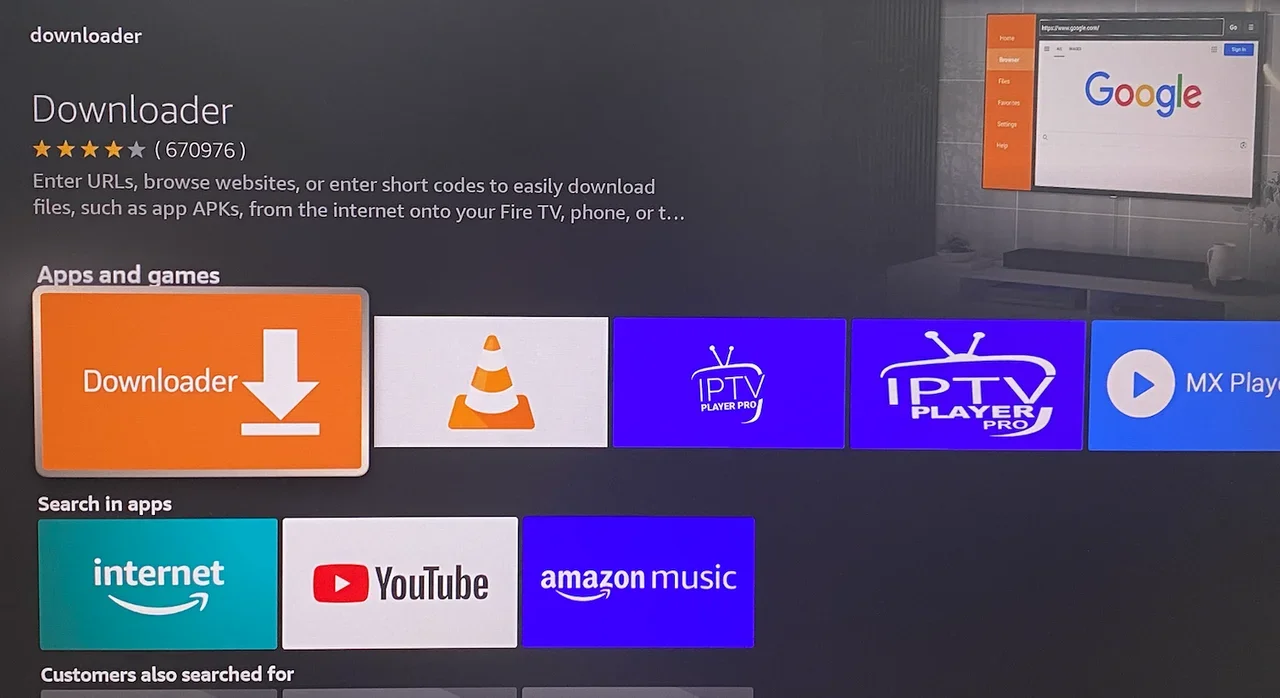
With “Apps from Unknown Sources” enabled, you’re now ready to acquire the tool that will allow you to download the Apollo Group TV APK directly onto your Firestick: the Downloader app. This free and incredibly versatile application is a favorite among Firestick users for sideloading.
- Return to the Home Screen: Press the Home button on your Firestick remote.
- Search for Downloader: Use the search icon (magnifying glass) on the far left of the home screen, or hold down the voice assistant button on your remote and say “Downloader.”
- Select Downloader from Search Results: The search results will display the Downloader app. It typically has an orange icon with a download arrow. Select it.
- Download and Install: On the app’s page, select Download or Get. The app will then download and install onto your Firestick.
- Open Downloader: Once the installation is complete, you can select Open to launch the app immediately, or find it later under “Your Apps & Channels.”
- Grant Permissions: The first time you open Downloader, it will ask for permission to access photos, media, and files on your device. Select Allow to proceed, as this is necessary for the app to download and store files. You may also get a quick start guide; dismiss it by selecting OK.
With Downloader installed and your Firestick configured for unknown sources, you’ve successfully completed the preparatory steps. You’re now poised to install Apollo Group TV itself.
Step-by-Step Installation of Apollo Group TV
Now that your Firestick is ready, the actual installation of Apollo Group TV is a straightforward process using the Downloader app. This involves entering a specific URL to download the application package (APK) and then initiating its installation.
Downloading the Apollo Group TV APK
The Downloader app’s primary function is to fetch files from the internet using a URL. You will use it to download the official Apollo Group TV APK.
- Launch Downloader: If you closed Downloader, navigate to “Your Apps & Channels” from the Firestick home screen and open it.
- Enter the APK URL: In the Downloader app, you’ll see a home screen with a URL input field. Carefully enter the exact URL for the Apollo Group TV APK file. (Note: For security and to ensure you always get the latest official version, it’s recommended to find the most current official APK URL from a reliable source or the Apollo Group TV website. As a placeholder for this guide, imagine you would type
https://example.com/apollo.apkbut substitute this with the actual official link you obtain.) - Click Go: After entering the URL, click the Go button. Downloader will then connect to the server and begin downloading the APK file.
- Wait for Download Completion: The download process may take a few moments, depending on your internet speed and the size of the APK. A progress bar will indicate the status.
- Initiate Installation: Once the download is complete, Downloader will automatically prompt you to install the application.
Installing the Application
After the APK file has been successfully downloaded, the Firestick’s operating system will take over to install the application.
- Select Install: When the installation prompt appears, you’ll see a screen showing the app permissions and an “Install” button at the bottom right. Use your remote to navigate down and select Install.
- Wait for Installation: The installation process will begin, indicated by a progress bar or a spinning icon. This usually takes less than a minute.
- App Installed Confirmation: Once the installation is finished, you will receive an “App Installed” notification. At this point, you have two options:
- Done: Selecting “Done” will close the installation window and return you to the Downloader app. This is the recommended option as it allows you to delete the APK file.
- Open: Selecting “Open” will launch Apollo Group TV immediately.
- Delete the APK File (Recommended): If you selected “Done,” Downloader will ask if you want to delete the APK file. It’s highly recommended to Delete it, as the APK is no longer needed after installation and simply takes up valuable storage space on your Firestick. Confirm the deletion when prompted.
Initial Setup and Login
Congratulations! Apollo Group TV is now installed on your Firestick. The final step is to launch the application and log in with your subscription details.
- Launch Apollo Group TV: Go to “Your Apps & Channels” from the Firestick home screen. If you’ve just installed it, Apollo Group TV might appear at the end of your app list. To move it for easier access, highlight the app, press the Options button (three horizontal lines) on your remote, and select “Move.”
- Enter Login Credentials: Upon launching Apollo Group TV for the first time, you will be prompted to enter your login credentials. This typically includes a username and password, which you would have received upon subscribing to the Apollo Group TV service.
- Explore the Interface: Once logged in, take some time to explore the application’s interface. You’ll find sections for Live TV, Movies, Series, EPG (Electronic Program Guide), and potentially other features like Catch Up TV or Favorites.
- Consider a VPN (Highly Recommended): For an optimal and secure streaming experience with any third-party IPTV service, using a Virtual Private Network (VPN) is strongly advised. A VPN encrypts your internet connection, protecting your online privacy and potentially helping bypass geo-restrictions or ISP throttling. There are many reliable VPN services available that offer dedicated Firestick apps. Install and connect to a VPN before launching Apollo Group TV for the best protection.
Why Choose Apollo Group TV? Benefits and Features
With the installation complete, you might wonder what makes Apollo Group TV a compelling choice among the plethora of streaming options. Its appeal lies in a combination of extensive content, superior streaming quality, and user-friendly features that cater to a wide audience.
Extensive Content Library
One of Apollo Group TV’s most significant advantages is its massive content library. Subscribers gain access to:
- Thousands of Live TV Channels: Covering an impressive array of categories including news, sports, entertainment, documentaries, and international channels from various countries. This global reach is a major draw for viewers interested in content beyond their local offerings.
- Vast Video-on-Demand (VOD) Selection: Beyond live broadcasts, Apollo Group TV often includes an on-demand library of movies and TV series, allowing you to watch what you want, when you want. This adds tremendous value, bridging the gap between traditional linear television and modern streaming services.
- Dedicated Sports Channels: For sports enthusiasts, Apollo Group TV typically offers a comprehensive selection of sports channels, ensuring you don’t miss major events from around the globe, be it football, basketball, cricket, racing, or more niche sports.
Superior Streaming Experience
Apollo Group TV is designed to deliver a high-quality viewing experience, leveraging modern streaming technology.
- High-Definition Streaming: Many channels and VOD titles are available in HD (720p and 1080p), providing crisp visuals and vibrant colors on your television. The quality can adapt based on your internet connection to minimize buffering.
- Electronic Program Guide (EPG): A well-integrated EPG is crucial for navigating live TV. Apollo Group TV often features a robust EPG that displays schedules for all channels, making it easy to see what’s currently playing and what’s coming up next, much like traditional cable TV guides.
- User-Friendly Interface: While third-party apps can sometimes be clunky, Apollo Group TV generally offers an intuitive and easy-to-navigate interface, making it simple for users to find their desired content without frustration. This is especially important for Firestick users who rely on remote control navigation.
Cost-Effectiveness and Device Compatibility
In an era of rising subscription costs, Apollo Group TV presents a compelling, cost-effective alternative to traditional cable packages.
- Affordable Subscription Plans: Compared to the high monthly fees of conventional cable or satellite TV, Apollo Group TV subscriptions are typically much more affordable, offering a rich content lineup at a fraction of the cost. This aligns with the “Money” aspect of our website topics, providing value to users looking to optimize their entertainment spending.
- Multi-Device Support: While this guide focuses on Firestick, Apollo Group TV services often support a wide range of devices, including Android boxes, smartphones, tablets, and smart TVs. This flexibility ensures you can enjoy your content wherever you go. The Firestick’s portability makes it an excellent companion for travel, allowing you to bring your Apollo Group TV subscription with you.
Troubleshooting Common Issues
While the installation process is generally smooth, you might encounter a few hiccups along the way. Here are some common issues and their practical solutions to ensure your Apollo Group TV experience remains seamless.
Installation Problems
Sometimes, the APK might not download or install correctly.
- “File Not Found” or Download Failed:
- Check the URL: Double-check the URL you entered into the Downloader app. Even a small typo can lead to this error. Ensure it’s the official and current APK link.
- Internet Connection: Verify your Firestick’s internet connection. A weak or unstable Wi-Fi signal can interrupt downloads.
- Server Issues: Occasionally, the server hosting the APK might be temporarily down or overloaded. Try again after some time.
- “App Not Installed” Error:
- Insufficient Storage: This is a common issue. Go to Firestick Settings > My Fire TV > About > Storage to check your available space. Uninstall unnecessary apps or clear cache for frequently used apps (Settings > Applications > Manage Installed Applications > [App Name] > Clear Cache/Clear Data).
- Corrupted APK: The downloaded APK file might be corrupted. Delete the file using Downloader’s “Files” section and try downloading it again.
- Old Version Conflict: If you had an older version installed, ensure it was completely uninstalled before attempting a new installation.
Streaming Performance Issues
Buffering, freezing, or poor video quality can detract from your viewing pleasure.
- Internet Speed: The most common culprit for buffering is a slow internet connection. Test your Firestick’s internet speed (many speed test apps are available in the Amazon Appstore or via a browser). A minimum of 20-30 Mbps is recommended for HD streaming, more for 4K.
- Wi-Fi Interference: Move your Firestick closer to your Wi-Fi router, or try repositioning your router. Other devices on your network can also consume bandwidth.
- Clear Cache: Over time, app caches can accumulate and slow performance. Go to Firestick Settings > Applications > Manage Installed Applications > Apollo Group TV > Clear Cache.
- VPN Connection: While a VPN is recommended for privacy, some VPN servers can introduce latency or reduce speed. Try switching to a different VPN server or temporarily disabling the VPN to see if performance improves. If it does, consider a faster VPN provider or a different server location.
- Server Load: IPTV servers can experience high load during peak viewing times, leading to buffering. There’s little you can do about this, but it often resolves itself after a while.
- Firestick Overheating: An overheated Firestick can throttle performance. Ensure it has proper ventilation and isn’t tucked away in a closed cabinet. Unplugging it for a few minutes can also help.
Login and Account Issues
Problems logging into the app are usually straightforward to resolve.
- Incorrect Credentials: Double-check your username and password. These are case-sensitive. It’s easy to make a typo.
- Expired or Inactive Subscription: Ensure your Apollo Group TV subscription is active and hasn’t expired. Contact Apollo Group TV support if you suspect an issue with your account status.
- Too Many Connections: Some subscriptions limit the number of simultaneous connections. Ensure you haven’t exceeded this limit by checking if Apollo Group TV is streaming on another device.
- Firewall/Router Blocking: In rare cases, your home router’s firewall settings might be blocking the connection to Apollo Group TV servers. Consult your router’s manual or ISP for guidance on adjusting firewall settings if you suspect this.
By systematically addressing these common issues, you can usually resolve most problems and get back to enjoying your Apollo Group TV content without significant interruptions.
Conclusion
Installing Apollo Group TV on your Amazon Firestick opens up a vast world of entertainment, transforming your standard streaming device into an even more versatile content powerhouse. By carefully following the steps outlined in this guide – from enabling unknown sources and installing the Downloader app to downloading the APK and completing the installation – you can effortlessly bring thousands of live channels, movies, and TV shows to your big screen.
The allure of Apollo Group TV lies not just in its extensive content library, but also in its potential to offer a cost-effective alternative to traditional cable and satellite services, aligning perfectly with contemporary trends in digital entertainment consumption and personal finance. Furthermore, by understanding the benefits of the service and knowing how to troubleshoot common issues, you’re well-equipped to enjoy a superior and uninterrupted streaming experience.
Remember to always prioritize your online security by using a reputable VPN service when streaming content from third-party applications. This not only protects your privacy but also ensures you can access content freely and securely. With Apollo Group TV now part of your Firestick ecosystem, you’re ready to explore a boundless universe of entertainment, tailored to your preferences, all from the comfort of your home. Happy streaming!
aViewFromTheCave is a participant in the Amazon Services LLC Associates Program, an affiliate advertising program designed to provide a means for sites to earn advertising fees by advertising and linking to Amazon.com. Amazon, the Amazon logo, AmazonSupply, and the AmazonSupply logo are trademarks of Amazon.com, Inc. or its affiliates. As an Amazon Associate we earn affiliate commissions from qualifying purchases.