
Chromebooks have evolved significantly from their humble beginnings as simple web-based machines. Today, they offer a robust platform capable of running a wide array of applications, blurring the lines between traditional laptops and more specialized devices. One area that has seen considerable interest is the ability to run Android applications, often distributed as APK (Android Package Kit) files. While the most common and widely supported method to install APKs on a Chromebook involves enabling Developer Mode, this process can be daunting for many users due to potential security implications and the reset of the device. Fortunately, for those seeking to expand their Chromebook’s app ecosystem without venturing into Developer Mode, several effective methods exist. This article will guide you through these alternative approaches, focusing on accessibility, security, and practicality.
The allure of installing APKs directly stems from the vast Android app market, which offers applications not always available through the Google Play Store or even as Chrome extensions. Whether it’s a niche productivity tool, a specialized gaming app, or a modified version of a popular application, the ability to sideload APKs opens up a world of possibilities. However, the Chromebook’s security-first design, which prioritizes stability and data protection, generally restricts direct APK installation. Developer Mode bypasses some of these safeguards, making it a less desirable option for the average user. Therefore, exploring methods that respect the Chromebook’s native security framework is paramount.
This guide will delve into the primary techniques for installing APKs on your Chromebook without the need to toggle Developer Mode. We’ll cover utilizing Linux (Beta) as a gateway, leveraging the power of Android app stores beyond the Play Store, and exploring web-based solutions that emulate the Android environment. Each method comes with its own set of advantages and considerations, and by understanding these, you can choose the approach that best suits your technical comfort level and your specific app needs.
Leveraging the Power of Linux (Beta)
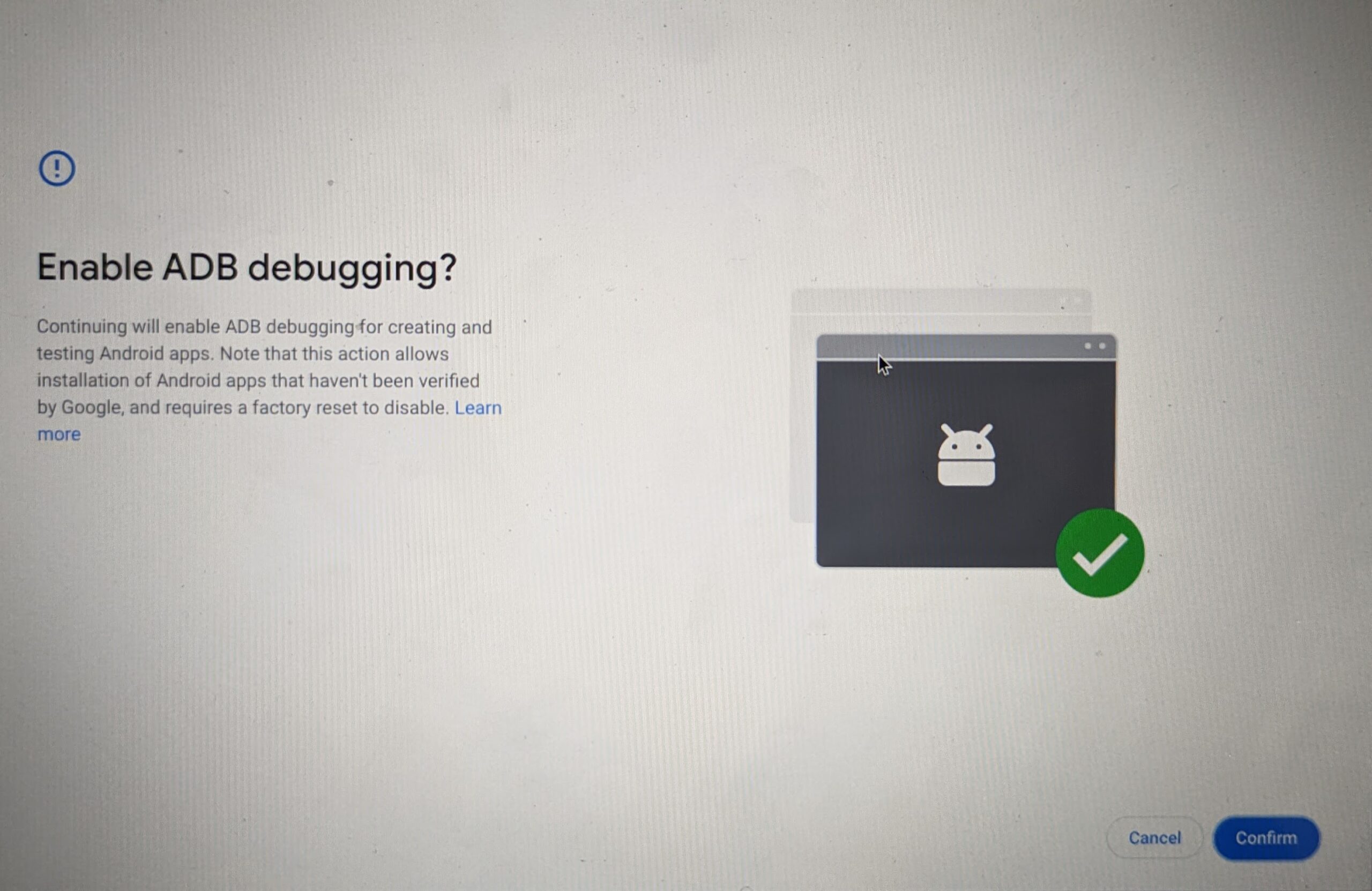
One of the most significant advancements for Chromebooks in recent years has been the integration of a Linux development environment, often referred to as “Linux (Beta)” or “Crostini.” This feature allows users to run a full Debian-based Linux distribution alongside Chrome OS, providing access to a vast ecosystem of Linux applications and, crucially, the tools necessary to install and run Android apps. This method offers a robust and relatively secure way to sideload APKs without compromising your Chromebook’s core security features.
The beauty of using Linux (Beta) for APK installation lies in its encapsulation. The Linux environment runs in a container, largely isolated from the main Chrome OS. This means that even if an APK is not entirely trustworthy, any potential issues are more likely to be contained within the Linux environment rather than affecting your entire system. Furthermore, it allows you to utilize powerful command-line tools and graphical interfaces designed for Android development and management.
Setting Up Linux (Beta)
Before you can install APKs through Linux, you need to ensure that Linux (Beta) is enabled on your Chromebook. This process is straightforward and integrated directly into Chrome OS settings.
- Open Settings: Click on the time in the bottom-right corner of your screen and then click on the gear icon to open the Settings menu.
- Navigate to Developers: In the left-hand sidebar, scroll down and click on “Advanced,” then expand it and click on “Developers.”
- Turn on Linux development environment: You’ll see an option for “Linux development environment (Beta).” Click the “Turn on” button.
- Follow the prompts: A setup wizard will appear. You’ll be asked to choose a username and disk size. The default settings are usually sufficient for most users, but you can adjust the disk size if you anticipate installing many large applications. Click “Install.”
- Wait for installation: Chrome OS will download and install the necessary components for the Linux environment. This may take a few minutes. Once complete, a Linux terminal window will automatically open.
Once Linux (Beta) is up and running, you’ll have a fully functional Debian terminal. This is where the magic for APK installation happens.
Installing ADB and an Android Emulator
To interact with Android applications and their packages (APKs), you’ll need to install Android Debug Bridge (ADB) and potentially an Android emulator within your Linux environment. ADB is a command-line tool that allows your computer to communicate with an Android device (or an Android emulator in this case).
-
Update Linux packages: It’s always a good practice to update your Linux system before installing new software. Open the Linux terminal and run the following commands:
sudo apt update
sudo apt upgrade -y
This will refresh the package lists and upgrade any existing software to their latest versions.
-
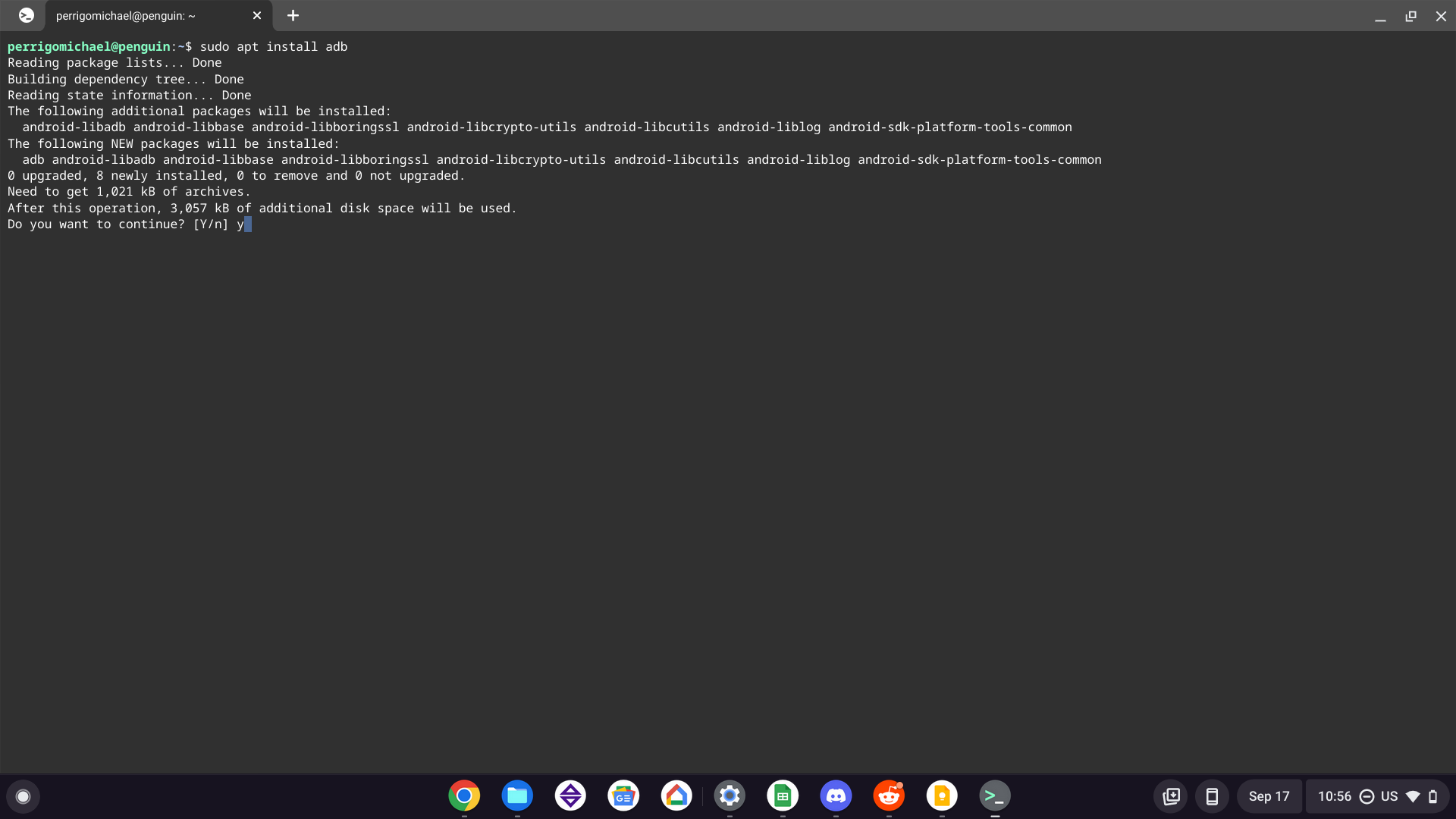
Install ADB: Next, install the ADB package.
sudo apt install adb -y -
Install an Android Emulator (Optional but Recommended): While ADB can sometimes install APKs directly onto your Chrome OS’s built-in Android container, using an emulator provides a more controlled and predictable environment. Genymotion is a popular choice, but setting it up can be complex. A simpler approach for installing APKs directly into Chrome OS’s Android container is often sufficient. However, if you need to test APKs or run apps that don’t integrate well, consider a lightweight emulator like
Anboxor explore options for running Android apps within a virtual machine if your Chromebook has sufficient resources. For the purpose of simply installing APKs, directly using ADB is often the most efficient.
Sideloading APKs using ADB
With ADB installed, you can now sideload APK files. This involves downloading the APK file to your Chromebook, transferring it to your Linux environment, and then using ADB commands to install it.
-
Download the APK: Find and download the APK file you wish to install. Save it to a location easily accessible on your Chrome OS, such as your “Downloads” folder.
-
Transfer the APK to Linux: Open your Linux terminal. You can easily access files stored in your Chrome OS Downloads folder by navigating to
/mnt/chromeos/GoogleDriveor similar paths. A common and easy method is to simply drag and drop the APK file from your Chrome OS Files app into the open Linux terminal window. This will copy the file into your Linux home directory. Alternatively, you can use thecpcommand:cp /mnt/chromeos/path/to/your/downloaded/app.apk .(Replace
/mnt/chromeos/path/to/your/downloaded/app.apkwith the actual path to your APK file. The.at the end signifies the current directory in the terminal, which is typically your Linux home directory.) -
Install the APK: Navigate to the directory where you transferred the APK file if you haven’t already. Then, use the ADB command to install it:
adb install app.apk(Replace
app.apkwith the actual name of your downloaded APK file.)If the installation is successful, you will see a “Success” message in the terminal. The app should then appear in your Chromebook’s app launcher, just like any other installed Android app.
Important Considerations for Linux (Beta) Method:
- Security Risks: While this method is generally safer than enabling Developer Mode, always download APKs from reputable sources. Unofficial APKs can contain malware that could compromise your data or the integrity of your Linux environment.
- Performance: Running Android apps via Linux (Beta) can sometimes have a slight performance overhead compared to native Android apps or apps installed directly through the Play Store.
- App Compatibility: Not all APKs are guaranteed to run flawlessly. Some apps are designed with specific Android versions or hardware in mind and may encounter compatibility issues.
Exploring Alternative App Stores and Repositories
Beyond the Google Play Store, the Android ecosystem is rich with alternative app stores and repositories that offer a vast selection of applications, including those not readily available on the official store. For Chromebook users who wish to avoid Developer Mode, these alternative sources can be a gateway to a wider array of apps, which can then be installed using the Linux (Beta) method described above or, in some cases, through web-based solutions.
These alternative stores often curate apps that might be older, less mainstream, or even apps that developers have chosen to distribute outside the Play Store’s more stringent policies. While this offers flexibility, it also necessitates a greater degree of caution regarding the safety and legitimacy of the applications you download.
Popular Alternative App Stores
Several prominent alternative app stores cater to Android users, and many of their APKs can be downloaded and installed on your Chromebook.
- APKPure: This is one of the most popular platforms for downloading APK files. It hosts a massive library of apps, including many that are not on the Play Store. APKPure also offers a desktop client that can help manage downloads.
- Aptoide: Aptoide is a decentralized app store where users can create and manage their own “shops.” This means there’s a wide variety of apps available, but it also means quality and safety can vary significantly between shops.
- F-Droid: For users interested in free and open-source software (FOSS), F-Droid is an excellent repository. It exclusively hosts FOSS Android apps, which are generally considered safer due to their open nature and community vetting.
- Amazon Appstore: While primarily for Amazon Fire devices, the Amazon Appstore also allows users to download APKs that can be installed on other Android-compatible devices, including Chromebooks.
Downloading and Installing from Alternative Stores
The process of acquiring and installing APKs from these alternative stores is generally the same as described in the Linux (Beta) section:
- Visit the Store’s Website: Navigate to the website of your chosen alternative app store using the Chrome browser on your Chromebook.
- Search for the App: Find the specific app you are looking for.
- Download the APK: Click the download button to save the APK file to your Chromebook’s “Downloads” folder.
- Install via Linux (Beta): Follow the steps outlined in the “Sideloading APKs using ADB” section of this article to install the downloaded APK through your Linux environment.
Caveats when using Alternative Stores:
- Trustworthiness: This is the most critical aspect. Always research the app and the store you are downloading from. Look for reviews, check the developer’s reputation, and be wary of apps that request excessive permissions or seem too good to be true.
- Malware: The risk of downloading malware is higher from unofficial sources. Antivirus software within your Linux environment or on your Chrome OS might offer some protection, but diligence is key.
- Updates: Apps installed from alternative sources may not receive automatic updates through the Play Store. You will need to manually download and install newer APK versions from the original source to keep them updated.
Web-Based Solutions and Emulators
For users who prefer to avoid the more involved process of setting up Linux (Beta) or who have less powerful Chromebooks, web-based solutions and emulators offer an alternative avenue to explore Android applications without resorting to Developer Mode. These methods often leverage cloud-based services or in-browser emulators to provide an Android-like experience.
While these options might not offer the same level of deep integration or performance as native Android apps or those installed via Linux, they can be incredibly convenient for specific use cases, such as testing an app quickly, running a single utility, or accessing an app that isn’t critical for day-to-day use.
Cloud-Based Android Emulators
Several online services provide cloud-hosted Android emulators. These platforms essentially run an Android operating system on their servers and stream the experience to your browser. This means you can interact with an Android environment directly from your Chromebook’s Chrome browser.
- BrowserStack: Primarily a testing platform for developers, BrowserStack offers access to a wide range of real and emulated mobile devices, including Android. While it’s a paid service, it can be invaluable for testing APKs in a controlled environment.
- Other Online Emulators: A quick search for “online Android emulator” will reveal various services. Some offer free tiers with limited functionality, while others are subscription-based. The quality and reliability of these services can vary significantly.
How to use them:
- Sign Up and Launch: Register for an account on the chosen platform and launch an Android emulator session.
- Upload APK: Most platforms provide an interface to upload your APK file directly into the emulator.
- Install and Run: Once uploaded, you can typically install and run the APK within the emulator interface.
Pros of Web-Based Solutions:
- No Installation Required: Everything runs in your browser, eliminating the need to install software on your Chromebook.
- Accessibility: Accessible from any device with a web browser and an internet connection.
- Low Resource Usage: Minimal strain on your Chromebook’s hardware.
Cons of Web-Based Solutions:
- Internet Dependency: Requires a stable and fast internet connection.
- Performance Limitations: Emulation can introduce lag and may not be suitable for graphically intensive apps or games.
- Limited Integration: Apps running in a cloud emulator typically cannot interact seamlessly with your Chrome OS environment or other installed apps.
- Cost: Many of the more robust services are paid.
Android Apps via Chrome Web Store (Limited)
It’s important to note that the Chrome Web Store itself does not directly host Android APKs. However, some applications in the Chrome Web Store are actually Android apps packaged in a way that Chrome OS can run them. These are typically developed specifically for Chrome OS or have been adapted for it. You will find these apps by searching the Chrome Web Store, and they will clearly indicate that they are Android apps and can be installed directly. This is the most integrated and officially supported way to get Android apps without Developer Mode, but it’s limited to apps that developers have specifically made available this way.
While not a method for sideloading any APK, it’s a worthwhile mention for users seeking a straightforward way to expand their app library through officially sanctioned channels.
Conclusion
The ability to install APKs on a Chromebook without enabling Developer Mode significantly enhances the versatility and utility of these devices. The Linux (Beta) environment stands out as the most powerful and flexible solution, offering a secure way to sideload applications using ADB. For those seeking simpler methods or specific use cases, alternative app stores provide a rich source of APKs, which can then be installed via Linux. Finally, web-based solutions and cloud emulators offer a convenient, albeit sometimes limited, option for quick access to Android apps without any local installation.
By understanding these methods and their respective pros and cons, Chromebook users can confidently expand their app ecosystem, unlocking new possibilities for productivity, entertainment, and more, all while maintaining the inherent security and stability of their Chrome OS device. Always remember to exercise caution when downloading and installing APKs from unofficial sources, prioritizing reputable providers and being mindful of the permissions requested by applications.
aViewFromTheCave is a participant in the Amazon Services LLC Associates Program, an affiliate advertising program designed to provide a means for sites to earn advertising fees by advertising and linking to Amazon.com. Amazon, the Amazon logo, AmazonSupply, and the AmazonSupply logo are trademarks of Amazon.com, Inc. or its affiliates. As an Amazon Associate we earn affiliate commissions from qualifying purchases.