
The Linux ecosystem is a vast and diverse landscape, offering unparalleled flexibility and control over your computing environment. A core component of managing software on many popular Linux distributions, particularly those derived from Red Hat Enterprise Linux (RHEL) such as Fedora, CentOS, AlmaLinux, and Rocky Linux, is the RPM package format. Understanding how to install, manage, and troubleshoot RPM packages is an indispensable skill for anyone navigating these systems, from new users to seasoned administrators. This comprehensive guide will demystify the process, equipping you with the knowledge to efficiently and securely handle software installations on your RHEL-based Linux machine, ultimately enhancing your productivity and system stability – key considerations in today’s fast-paced tech world.
In the realm of technology, where software evolves rapidly and digital security is paramount, knowing the correct procedures for deploying applications is not just a convenience, but a necessity. RPM, or Red Hat Package Manager, provides a standardized and robust framework for distributing and installing software. Unlike simply compiling from source code, RPM packages ensure that software is installed with its dependencies, configuration files, and documentation in a predictable manner, making system maintenance and upgrades significantly smoother. This tutorial delves into the practical aspects of RPM package management, covering everything from the fundamental rpm command to the more advanced capabilities of yum and dnf, ensuring you can confidently install any software an RPM package offers.
Understanding the World of RPM Packages
Before diving into the mechanics of installation, it’s crucial to grasp what an RPM package truly is and why it holds such significance in specific Linux distributions. This foundational understanding will illuminate the rationale behind different installation methods and help you troubleshoot issues more effectively.
What Exactly is an RPM Package?
At its heart, an RPM package is a specially formatted archive file, typically ending with the .rpm extension, designed for distributing software on Red Hat-based Linux systems. Think of it as a meticulously organized container that holds everything a piece of software needs to run correctly on your system. This includes:
- Compiled Software Binaries: The actual executable programs.
- Libraries: Shared code modules that the software depends on.
- Configuration Files: Settings for the application.
- Documentation: Man pages, READMEs, and other help files.
- Metadata: Crucial information about the package itself, such as its name, version number, architecture (e.g.,
x86_64), a description of its contents, and, most importantly, a list of its dependencies. These dependencies specify other packages or libraries that must be present on the system for the software to function correctly.
The structured nature of RPM packages brings several advantages. Each package is digitally signed, allowing for integrity checking and verification of the package’s authenticity. This is a critical security feature, ensuring that the software you install hasn’t been tampered with and comes from a trusted source. Furthermore, the metadata allows package managers to keep track of installed software, making upgrades, removals, and system audits far more straightforward than managing software installed from source code.
Why RPM? The Advantages and Ecosystem
The RPM format rose to prominence due to its ability to standardize software deployment across a wide range of systems. Its primary advantages include:
- Standardization: RPM provides a consistent method for software distribution, installation, and management across RHEL, Fedora, CentOS, AlmaLinux, Rocky Linux, and other compatible distributions. This reduces the complexity for both developers packaging their software and users installing it.
- Ease of Management: With RPM, installing, upgrading, and removing software becomes a streamlined process. Instead of manually copying files and resolving paths, the package manager handles these operations, ensuring all components are placed in their appropriate locations.
- Dependency Management (with higher-level tools): While the raw
rpmcommand doesn’t automatically handle dependencies, the existence of dependency information within the RPM package’s metadata enables sophisticated tools likeyumanddnfto automatically fetch and install all required prerequisite packages from online repositories. This feature is a massive productivity booster, preventing what’s colloquially known as “dependency hell.” - System Integrity and Reliability: By tracking installed files and their versions, RPM helps maintain system integrity. It prevents file conflicts between different packages and simplifies the process of reverting to previous versions if an update causes issues. The digital signing further bolsters security by allowing users to verify the origin and integrity of packages before installation.
In comparison to compiling software from source code, which offers ultimate customization but demands significant technical know-how and time, or using other package formats like .deb (Debian/Ubuntu), RPM holds its own as a robust, secure, and efficient solution for a significant portion of the Linux user base. It forms the backbone of software management for many enterprise-grade Linux systems, making proficiency in its use a valuable asset.
Essential Methods for Installing RPM Packages
Installing an RPM package can be approached in several ways, each with its own use cases and implications. While the fundamental rpm command provides direct control, modern package managers like yum and dnf offer significant enhancements, particularly in automating dependency resolution.
1. Direct Installation with the rpm Command
The rpm command is the foundational tool for managing RPM packages. It’s powerful and provides granular control, but it has a significant limitation: it does not automatically resolve dependencies. This means if the package you’re trying to install requires other packages that aren’t already on your system, rpm will simply fail and tell you what’s missing, leaving you to find and install those dependencies manually. Despite this, understanding the rpm command is crucial as it forms the basis of all RPM operations.
Syntax:
To install an RPM package using the rpm command, you’ll typically use:
sudo rpm -i package-name.rpm
Let’s break down the components:
sudo: Necessary because installing software usually requires superuser (root) privileges to write to system directories.rpm: The command-line tool for RPM package management.-i(or--install): The option to initiate an installation.package-name.rpm: The full file path to the RPM package you wish to install.
Key Options:
-v(or--verbose): Displays more information during the installation process.-h(or--hash): Shows a progress bar (hash marks) during the installation, which is useful for larger packages. You can combine it with-vas-ivh.--nodeps: Forces installation even if dependencies are not met. Use with extreme caution, as this can break your system if required libraries or programs are missing.--force: Forces installation even if the package is already installed or conflicts with existing files. Also use with extreme caution.
Example Walk-Through:
Let’s say you’ve downloaded an RPM package named my-custom-app-1.0-1.x86_64.rpm to your Downloads directory.
- Navigate to the directory where the
.rpmfile is located:
bash

cd ~/Downloads
- Install the package:
bash

sudo rpm -ivh my-custom-app-1.0-1.x86_64.rpm
If the installation is successful, you’ll see output indicating the package being installed.
Dealing with Common Errors (Dependency Failures):
If my-custom-app requires libfoo and libfoo isn’t installed, the rpm command would output something like:
error: Failed dependencies:
        libfoo is needed by my-custom-app-1.0-1.x86_64
In this scenario, you would have to manually find and install libfoo (either as another RPM or from a repository using dnf/yum) before attempting to install my-custom-app again. This manual dependency resolution is why rpm -i is generally less convenient for most users compared to dnf or yum. It’s often reserved for very specific scenarios where you want absolute control and are fully aware of all dependencies.
2. Leveraging Smart Package Managers: yum and dnf
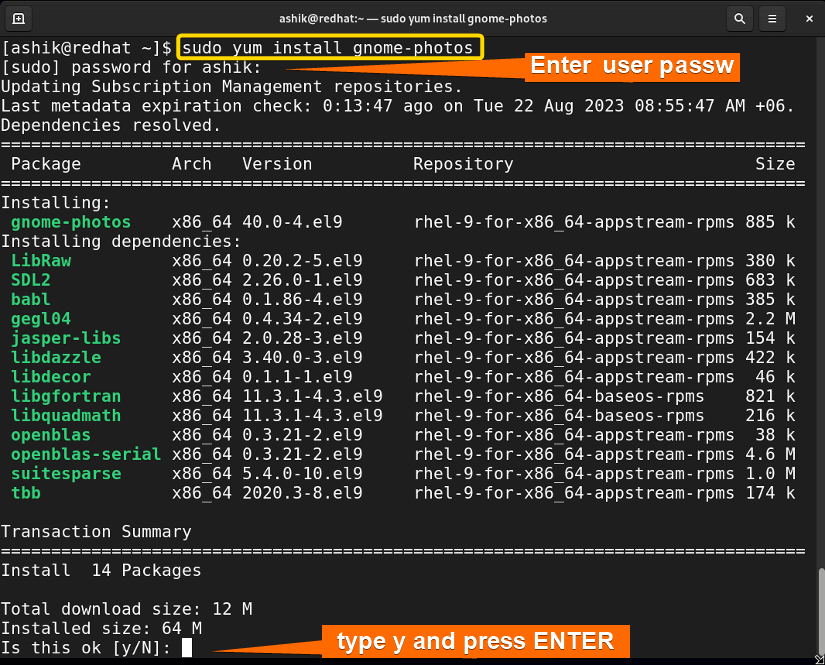
For most users and almost all server environments, yum (Yellowdog Updater, Modified) and its modern successor, dnf (Dandified YUM), are the preferred tools for installing RPM packages. Their primary advantage lies in their ability to automatically resolve and install all necessary dependencies from configured software repositories. This dramatically simplifies software management, saving immense time and preventing errors.
dnf vs. yum:
dnf is the default package manager for Fedora since version 22, and for RHEL 8/9, CentOS 8/9, AlmaLinux, and Rocky Linux. It’s essentially a next-generation version of yum that offers improved performance, better dependency resolution algorithms, and a cleaner API. While yum is still present and functional on older systems (RHEL 7, CentOS 7), it typically acts as an alias to dnf on newer distributions. For consistency, we will primarily refer to dnf as the go-to tool.
Key Advantage: Automatic Dependency Resolution:
When you use dnf install package-name, dnf performs the following steps:
- Searches its configured repositories for the specified package.
- Identifies all its dependencies.
- Checks if those dependencies are already installed.
- If not, it recursively finds and installs all missing dependencies, ensuring your requested package has everything it needs.
- It also alerts you to potential conflicts or existing packages that might be updated.
Basic Syntax with dnf:
-
Installing a package from repositories:
sudo dnf install package-name(e.g.,
sudo dnf install htopto install thehtopsystem monitor.) -
Searching for a package:
dnf search keyword(e.g.,
dnf search web serverto find web server related packages.) -
Installing a downloaded
.rpmfile with dependency resolution:
This is often the best way to install a standalone.rpmfile that you’ve downloaded from a website, asdnfwill automatically fetch any missing dependencies from your configured repositories.
bash

sudo dnf localinstall package-name.rpm
(On olderyumsystems, this would besudo yum localinstall package-name.rpm. Ondnfsystems,sudo dnf install ./package-name.rpmalso works and is often preferred as it’s more direct.)
- Updating all packages on your system:
bash

sudo dnf update
This command is crucial for digital security and system stability, ensuring all your installed software is up-to-date with the latest bug fixes and security patches.
How Repositories Work:
dnf and yum rely on software repositories, which are essentially online storage locations containing collections of RPM packages and their metadata. Your Linux system has a configuration file (typically in /etc/yum.repos.d/) that tells dnf which repositories to check. Common repositories include:
- BaseOS/AppStream: Core system components and applications from the OS vendor.
- EPEL (Extra Packages for Enterprise Linux): A popular third-party repository providing a large collection of high-quality additional packages.
- Vendor-specific repositories: Many software vendors provide their own
.repofiles for easy installation of their products (e.g., Google Chrome, Docker, Microsoft VS Code).
Using dnf or yum with well-maintained repositories is the most secure and efficient way to manage software on your RHEL-based Linux system, ensuring you benefit from automatic updates, dependency resolution, and trusted sources.
3. Graphical Package Management Tools
While the command line reigns supreme for server management and advanced users, desktop Linux environments offer user-friendly graphical interfaces for package management. Tools like GNOME Software (found in Fedora Workstation and RHEL with a desktop environment) or Discover (in KDE Plasma) provide an app store-like experience.
These tools simplify software installation significantly for new users:
- You can browse, search, and install applications with a few clicks.
- They abstract the underlying
dnforyumcommands, making the process intuitive. - They often integrate with Flatpak and Snap packages as well, offering a wider range of software.
While these graphical tools are excellent for productivity on a desktop, it’s important to remember that they are built on top of the command-line utilities. For tasks requiring precision, scripting, or remote server management, mastering dnf remains essential. They serve as a great entry point for beginners, making software installation as easy as on other operating systems.
Post-Installation Management and Troubleshooting
Installing an RPM package is just one part of the software lifecycle. After installation, you’ll want to verify it, perhaps uninstall it later, or troubleshoot issues that might arise. Proficient package management involves more than just the install command.
Verifying Installed Packages and Querying the RPM Database
The RPM database is a central repository on your system that keeps track of all installed RPM packages, their files, and metadata. You can query this database using the rpm command to gather information, verify package integrity, and understand your system’s software landscape.
-
Listing all installed RPM packages:
rpm -qaThis command lists every RPM package currently installed on your system, often piped to
grepfor searching (e.g.,rpm -qa | grep htop). -
Querying information about a specific installed package:
rpm -qi package-name(e.g.,
rpm -qi htop). This will show detailed information like version, release, architecture, install date, description, and vendor. -
Listing files owned by an installed package:
rpm -ql package-name(e.g.,
rpm -ql htop). This is incredibly useful for finding where an application’s executable, configuration files, or libraries are located. -
Verifying the integrity of an installed package:
bash

rpm -V package-name
(e.g.,rpm -V htop). This command compares the current state of the installed files with the information stored in the RPM database. It checks file sizes, MD5 sums, permissions, and ownership. Any discrepancies could indicate a corrupted file, a manual modification, or even a security compromise. This is a powerful tool for digital security and system integrity checks.
Uninstalling RPM Packages Cleanly
Removing software is as important as installing it. You have two primary methods, depending on whether you want to automatically handle reverse dependencies.
-
Using
rpm -e(erase):sudo rpm -e package-name(e.g.,
sudo rpm -e my-custom-app). This command will remove the specified package. However, likerpm -i, it does not automatically handle packages that might have been installed only as dependencies ofpackage-nameand are no longer needed (orphan packages). It will also warn you if other packages on your system still depend on the one you’re trying to remove. -
Using
dnf remove(preferred):
bash

sudo dnf remove package-name
(e.g.,sudo dnf remove my-custom-app). This is the recommended method.dnf removenot only removes the specified package but also intelligently identifies and offers to remove any packages that were installed solely as dependencies of the package being removed and are no longer required by any other installed software. This helps keep your system clean and reduces disk space usage.
Caution: Always exercise care when uninstalling packages, especially system libraries or core components, as this can potentially destabilize your system. dnf will usually warn you if you’re attempting to remove something critical.
Common Installation Issues and How to Resolve Them
Even with the sophistication of dnf, you might encounter issues. Knowing how to diagnose and resolve them is a crucial skill for productivity and system maintenance.
-
“Failed dependencies:” or “Nothing provides…” error:
This is the most common issue.- Resolution: Ensure all necessary repositories are enabled (
dnf repolist). If you’re installing a downloaded.rpmfile, usesudo dnf localinstall package-name.rpm(orsudo dnf install ./package-name.rpm) instead ofrpm -i, asdnfwill attempt to resolve dependencies from your configured repositories. If the dependency is for a package not available in any of your repositories, you might need to find an alternative repository or download the dependency RPM separately (though this can lead to complex dependency chains). - Avoid: Using
--nodepswithrpm -iunless you absolutely know what you’re doing, as it can lead to a broken system.
- Resolution: Ensure all necessary repositories are enabled (
-
“File conflicts” error:
This occurs when a package tries to install a file that already exists and is owned by another installed package.- Resolution: Identify the conflicting packages (
rpm -qf /path/to/conflicting/file). You may need to remove one of the conflicting packages or find a different version of the software that doesn’t conflict. This often happens when mixing official packages with third-party or manually installed ones.
- Resolution: Identify the conflicting packages (
-
“Package is already installed” error:
You’re trying to install a package that is already present on the system.- Resolution: If you want to downgrade or force a reinstall, you might use
sudo dnf reinstall package-name. If you simply want to update, usesudo dnf update package-nameorsudo dnf update.
- Resolution: If you want to downgrade or force a reinstall, you might use
-
Corrupt package or repository metadata:
Sometimes, downloaded packages or repository metadata can become corrupted.- Resolution: Clear
dnf/yumcache:sudo dnf clean all. Then try to install/update again. For a downloaded RPM, try re-downloading it. Ensure your internet connection is stable.
- Resolution: Clear
-
Permission issues:
“Permission denied” errors almost always mean you forgot to usesudo.- Resolution: Prefix your command with
sudo.
- Resolution: Prefix your command with
Understanding these common pitfalls and their solutions will significantly streamline your software management workflow and keep your Linux system running smoothly.
Best Practices for Secure and Efficient RPM Management
Effective RPM package management goes beyond just knowing the commands; it involves adopting best practices that ensure system stability, security, and long-term productivity.
- Prioritize Official and Trusted Repositories: Always prefer installing software from your distribution’s official repositories (BaseOS, AppStream) or widely trusted third-party repositories like EPEL. These sources are generally well-maintained, tested for compatibility, and offer security updates promptly. Using arbitrary or untrusted repositories can introduce instability or, worse, security vulnerabilities. This aligns directly with digital security best practices.
- Verify Package Authenticity (GPG Keys):
dnfandyumautomatically check GPG signatures for packages from configured repositories. For manually downloaded RPMs, it’s good practice to verify their GPG signatures if provided by the vendor. This confirms the package hasn’t been tampered with since it was signed, a crucial step in preventing supply chain attacks. - Understand Dependencies (Especially with
rpm -i): Before usingrpm -i, take a moment to understand what dependencies the package might have. For critical system components or complex applications, always defer todnforyumfor their automatic dependency resolution. - Regular System Updates: Make it a habit to regularly update your system using
sudo dnf update. This ensures you have the latest security patches, bug fixes, and performance enhancements, which are vital for maintaining a secure and productive computing environment. - Backup Critical Data: Before performing major system upgrades or installing complex software, especially from unverified sources, it’s always wise to back up your critical data. This mitigates risks and ensures business continuity in case of unforeseen issues.
- Document Custom Installations: If you install software from source, or use unconventional methods, document the steps. This will save you significant time and effort during future upgrades or troubleshooting.
- Consult Documentation: When in doubt, the
manpages forrpm,dnf, andyumare invaluable resources. A quickman dnfcan often answer specific questions about options and usage.
By adhering to these best practices, you not only ensure the smooth operation of your Linux system but also enhance your overall technical productivity and digital security posture. Efficient package management is a cornerstone of a well-maintained and reliable computing infrastructure.
Conclusion
Mastering the installation and management of RPM packages is an essential skill for anyone operating within the Red Hat-centric Linux ecosystem. From the fundamental rpm command that grants direct control to the intelligent automation provided by dnf (and yum), you now possess a comprehensive understanding of the tools and techniques required to confidently manage software on your system.
We’ve explored the structure and advantages of RPM packages, delved into the practical steps for installation using both direct and dependency-aware methods, and equipped you with strategies for verification, uninstallation, and troubleshooting common issues. By embracing best practices such as prioritizing trusted repositories, verifying package authenticity, and performing regular updates, you’re not just installing software; you’re actively contributing to the security, stability, and long-term productivity of your Linux environment.
Remember, while rpm -i offers precision, dnf install (or yum install on older systems) should be your go-to command for its superior dependency resolution and repository integration. Armed with this knowledge, you are well-prepared to navigate the dynamic world of Linux software management with efficiency and confidence, empowering your journey in the ever-evolving landscape of technology.