
In today’s digitally interconnected world, a stable and reliable internet connection is no longer a luxury; it’s a necessity. Whether you’re working from home, streaming your favorite shows, or keeping up with loved ones, your modem is the gateway to the online realm. If you’ve recently signed up for Comcast service or are looking to upgrade your equipment, knowing how to install your modem correctly is crucial for a seamless experience. This guide will walk you through the entire process, from unboxing to troubleshooting, ensuring you’re connected in no time.
Understanding Your Comcast Modem and its Role
Before we dive into the installation process, it’s important to understand what a modem is and why it’s essential. A modem, short for modulator-demodulator, is the device that translates the digital signals from your computer and other devices into analog signals that can be transmitted over Comcast’s cable lines, and vice-versa. It’s the bridge between your home network and the vast internet.
Choosing the Right Modem
Comcast offers a variety of modem options, and your choice can impact your internet speed and overall performance. While Comcast often provides a modem as part of their service package, you also have the option to purchase your own compatible modem. This can sometimes lead to cost savings in the long run by avoiding monthly rental fees.
When selecting a modem, pay attention to its specifications, particularly its DOCSIS (Data Over Cable Service Interface Specification) version. DOCSIS 3.0 and DOCSIS 3.1 are the current standards, with DOCSIS 3.1 offering significantly faster speeds. Ensure the modem you choose is on Comcast’s approved device list to guarantee compatibility and avoid any potential issues. You can usually find this list on Comcast’s official website.
Step-by-Step Modem Installation for Comcast Service
Installing a Comcast modem is a straightforward process, and with this guide, you’ll be up and running in no time. We’ll break it down into manageable steps to ensure accuracy and avoid common pitfalls.
1. Unboxing and Pre-Installation Checks
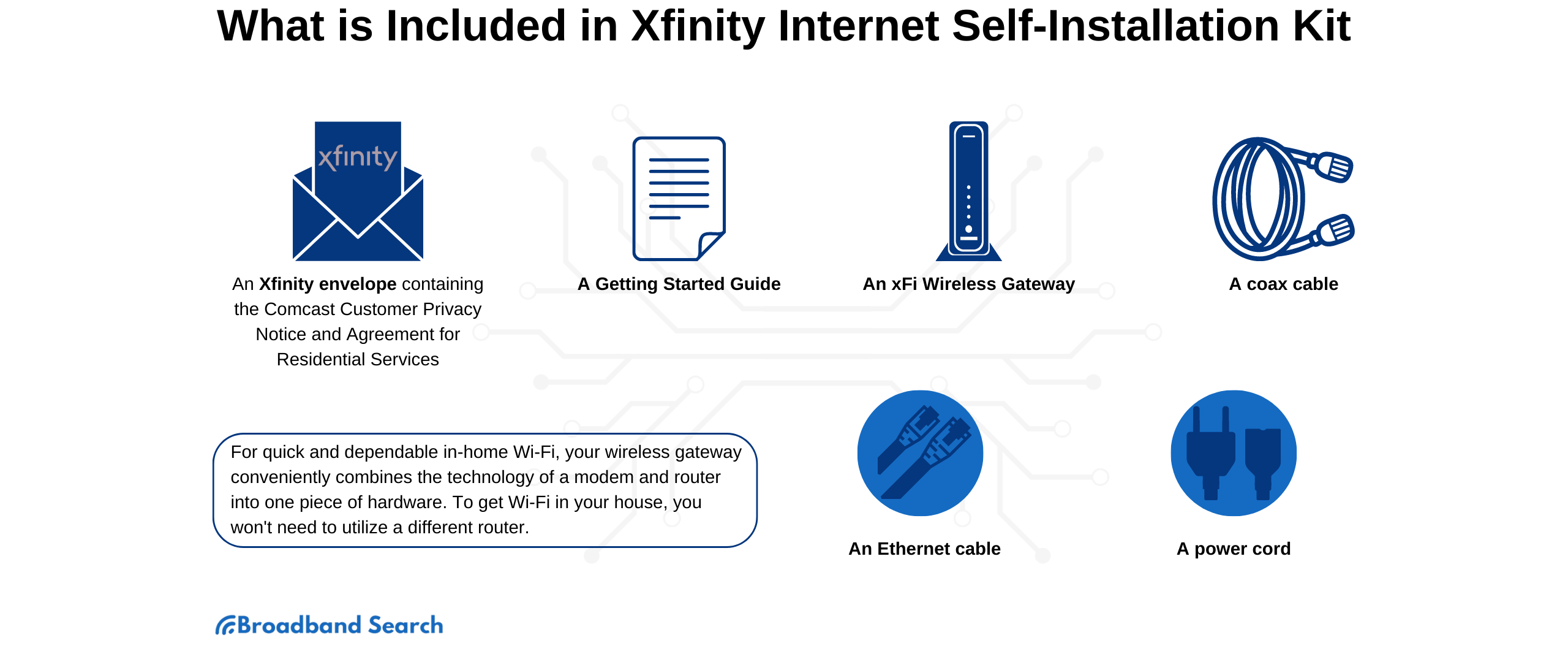
Once you have your Comcast modem, the first step is to unbox it carefully. Inside the box, you should find the modem itself, a power adapter, and an Ethernet cable. It’s also a good idea to locate a coaxial cable, which might be pre-attached to your modem or provided separately. If you’re using your own modem, ensure it comes with these essential components.
Before you begin connecting anything, take a moment to:
- Inspect the equipment: Check for any visible damage to the modem, power adapter, or cables. If anything looks amiss, contact Comcast immediately.
- Identify the coaxial cable connection: On the back of your modem, you’ll see a threaded port, usually labeled “Cable In” or similar. This is where the coaxial cable will connect.
- Locate the power port: This is where the power adapter will plug in to supply electricity to the modem.
- Find the Ethernet port(s): These ports are used to connect your modem to your router (if you have a separate router) or directly to a computer for initial setup.
2. Connecting the Coaxial Cable
The coaxial cable is the lifeline of your internet connection, carrying the signal from Comcast’s network to your home.
- Locate your cable outlet: In most homes, you’ll find a coaxial cable outlet on the wall. If you’re unsure where it is, check areas where your previous internet or cable TV was connected.
- Connect the coaxial cable: Take one end of the coaxial cable and screw it onto the cable outlet on the wall. Ensure it’s snug but don’t overtighten it. Then, take the other end of the coaxial cable and screw it onto the “Cable In” port on the back of your Comcast modem. Again, ensure a secure connection.
Important Note: If you are replacing an old modem, it’s a good practice to disconnect the old modem entirely before proceeding with the new installation. This prevents any signal interference or confusion during the activation process.
3. Powering Up and Initial Boot-Up
Now it’s time to bring your modem to life.
- Connect the power adapter: Plug the power adapter into the power port on the back of your modem and then plug the other end into a working electrical outlet.
- Observe the indicator lights: Your modem will begin to power on. You’ll notice a series of indicator lights on the front panel. These lights are crucial for monitoring the modem’s status. Typically, you’ll see lights for power, downstream (download) connection, upstream (upload) connection, and online status.
- Power light: Should be solid, indicating the modem is receiving power.
- Downstream and Upstream lights: These lights will likely blink as the modem searches for and locks onto Comcast’s signal. Eventually, they should become solid, indicating a stable connection.
- Online light: This is the most important indicator. Once it becomes solid, it signifies that your modem has successfully connected to Comcast’s network and is ready for activation.
This boot-up process can take anywhere from 2 to 10 minutes, so be patient.
4. Activating Your Comcast Modem
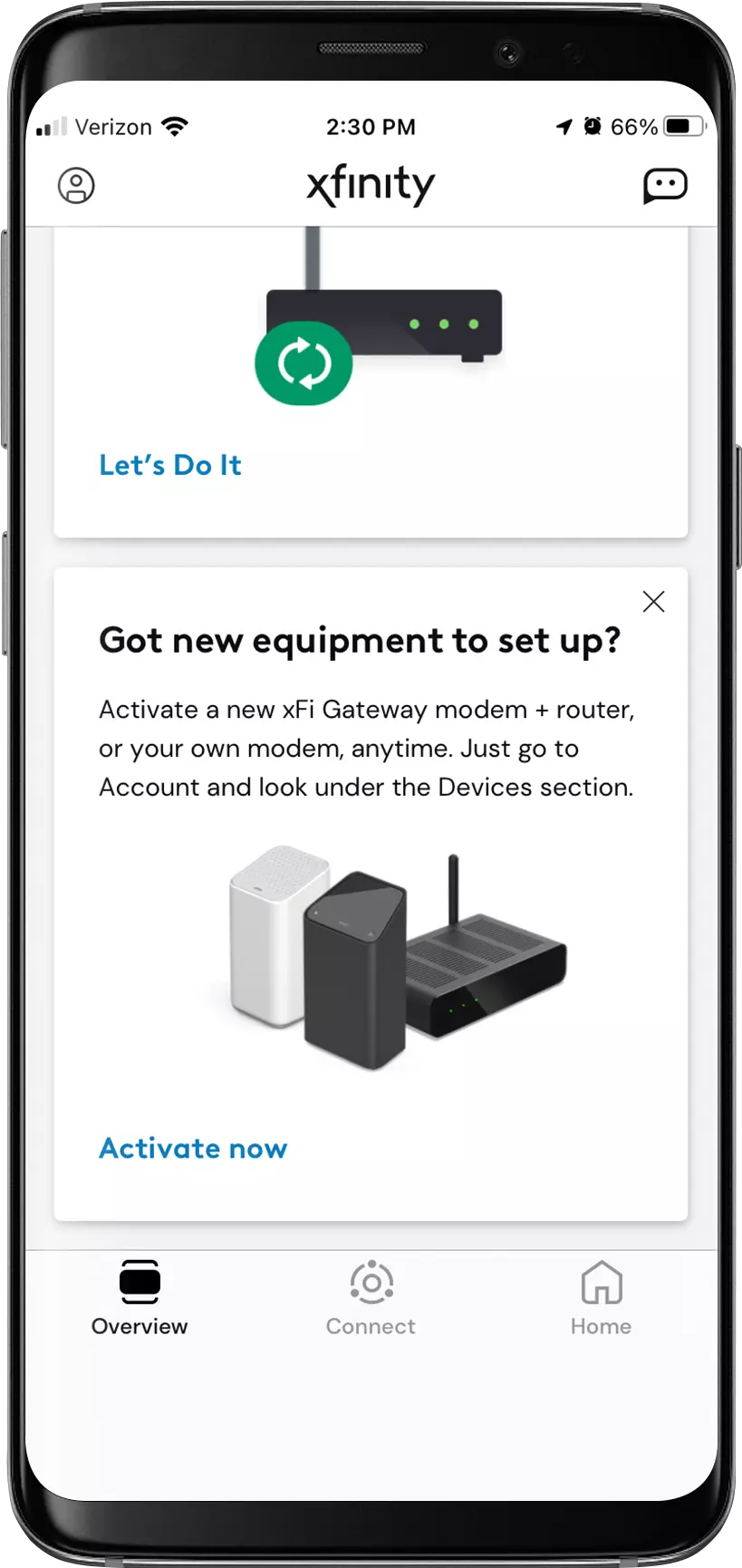
Once your modem has successfully booted up and the “Online” light is solid, it’s time to activate it with Comcast. This process registers your new modem with their network, allowing you to access the internet.
There are a couple of primary ways to activate your Comcast modem:
Method 1: Via the Comcast Website (Recommended)
This is generally the easiest and most common method.
- Connect a device: Use an Ethernet cable to connect your modem directly to a computer. Alternatively, if you’re using a Comcast-provided gateway (which combines a modem and router), you can connect wirelessly to its default Wi-Fi network (information is usually on a sticker on the device).
- Open a web browser: On the connected device, open any web browser (e.g., Chrome, Firefox, Safari, Edge).
- Navigate to the activation page: Type in one of the following URLs into the address bar:
xfinity.com/activate10.0.0.1(this is the modem’s local IP address)
- Follow the on-screen instructions: The Comcast activation page will guide you through the process. You’ll likely need to:
- Log in to your Xfinity account: If you already have an Xfinity account, enter your username and password.
- Verify your account information: Confirm your service address and other details.
- Identify your modem: The system may automatically detect your modem’s MAC address, or you might need to manually enter it. The MAC address is usually found on a sticker on the modem itself.
- Choose your equipment: If you purchased your own modem, you’ll select it from a list of approved devices. If you’re using a Comcast-provided modem, it will likely be pre-selected.
- Complete the activation: The page will guide you through the final steps. You might need to restart your modem at some point during this process.
Method 2: Via Phone Call
If you encounter issues with the online activation or prefer to speak with someone, you can call Comcast for assistance.
- Call the Comcast activation number: The number for modem activation is typically 1-855-652-4357.
- Follow the automated prompts or speak to a representative: You’ll be guided through the activation process. Have your account information and modem’s MAC address readily available.
5. Connecting Your Router and Devices
Once your modem is activated and online, you can connect your home network.
- Connect your router (if separate): If you have a separate router that you purchased or were provided by Comcast, connect an Ethernet cable from one of the LAN ports on your modem to the WAN (or Internet) port on your router.
- Power on your router: Plug in your router and allow it to boot up.
- Connect your devices:
- Wired connections: Use Ethernet cables to connect computers, gaming consoles, smart TVs, and other devices to the LAN ports on your router.
- Wireless connections: Connect your smartphones, tablets, laptops, and other Wi-Fi-enabled devices to the Wi-Fi network broadcast by your router. You’ll need to know your Wi-Fi network name (SSID) and password, which are usually found on a sticker on your router.
Troubleshooting Common Installation Issues
While the installation process is generally smooth, occasional hiccups can occur. Here are some common issues and their solutions:
No Internet Connectivity After Activation
- Check indicator lights: Ensure the “Online” light on your modem is solid. If it’s not, revisit the coaxial cable connection and power cycle the modem (unplug it for 30 seconds, then plug it back in).
- Reboot modem and router: A simple reboot can resolve many connectivity problems. Unplug both your modem and router, wait 30 seconds, then plug in the modem first. Once the modem is fully online, plug in the router.
- Verify activation: Double-check that you successfully completed the activation process on the Comcast website or by phone.
- Test with a direct connection: Connect a computer directly to the modem via Ethernet cable, bypassing the router. If you get internet this way, the issue likely lies with your router configuration.
- Contact Comcast: If none of the above steps work, there might be an issue with the signal coming to your home or a problem with your account. Contact Comcast support.
Slow Internet Speeds
- Check your internet plan: Ensure your current plan supports the speeds you’re expecting.
- Test speed directly from modem: Connect a computer directly to the modem via Ethernet to rule out router limitations.
- Update router firmware: If you’re using your own router, ensure its firmware is up to date.
- Minimize device usage: Too many devices streaming or downloading simultaneously can slow down your connection.
- Check for modem compatibility: If you’re using your own modem, ensure it supports the speeds offered by your Comcast plan. Older modems may not be capable of delivering the advertised speeds.
- Check for interference: Ensure your modem and router are not placed near other electronic devices that could cause interference.
Issues with Router Setup
- Consult your router’s manual: Each router has its own setup process. Refer to your router’s specific instruction manual for guidance.
- Reset your router: If you’re having trouble configuring your router, a factory reset can often resolve the issue.
Maintaining Your Comcast Modem and Network
Once your modem is installed and your network is up and running, it’s important to maintain it for optimal performance and security.
- Keep firmware updated: If you’re using a Comcast-provided gateway, Comcast typically handles firmware updates automatically. If you own your modem and router, check their manufacturer’s websites for firmware updates periodically.
- Secure your Wi-Fi network: Always use a strong, unique password for your Wi-Fi network. Consider using WPA3 encryption if your devices support it.
- Regularly restart your equipment: While not always necessary, restarting your modem and router once a month can help clear out temporary glitches and improve performance.
- Monitor your bandwidth usage: If you have data caps on your internet plan, keep an eye on your usage to avoid exceeding them.
By following these steps, you can confidently install your Comcast modem and ensure a robust and reliable internet connection for all your digital needs. Enjoy seamless browsing, streaming, and staying connected!
aViewFromTheCave is a participant in the Amazon Services LLC Associates Program, an affiliate advertising program designed to provide a means for sites to earn advertising fees by advertising and linking to Amazon.com. Amazon, the Amazon logo, AmazonSupply, and the AmazonSupply logo are trademarks of Amazon.com, Inc. or its affiliates. As an Amazon Associate we earn affiliate commissions from qualifying purchases.