
In the dynamic world of software development, efficiency and flexibility are paramount. Developers constantly leverage a vast ecosystem of open-source and proprietary packages to build robust applications. While most packages are readily available through public registries like npm, PyPI, or Maven Central, there are critical scenarios where working with “local packages” becomes not just beneficial, but essential. Understanding how to effectively install and manage these local dependencies is a fundamental skill that streamlines workflows, accelerates development cycles, and fosters better collaboration within teams.
This comprehensive guide delves deep into the concept of local packages, illuminating why they are indispensable and providing practical, step-by-step instructions for installing them across various popular programming ecosystems. Whether you’re debugging a custom library, developing a new component for a larger project, or sharing internal tools within your team, mastering local package installation will empower you to navigate complex development environments with greater ease and confidence. We’ll explore the underlying principles, walk through common methods for Node.js (npm/Yarn) and Python (pip), and offer best practices to help you avoid common pitfalls, ultimately enhancing your productivity and contributing to a smoother development experience.
Understanding Local Packages: Why and What Are They?
Before diving into the “how-to,” it’s crucial to grasp the fundamental nature of local packages and the compelling reasons behind their widespread use in modern software development. Unlike the publicly accessible packages that reside in global repositories, local packages are, as the name suggests, stored and managed within your local development environment or a private internal system.
What Defines a “Local Package”?
A “local package” can manifest in several forms, but its core characteristic is that it isn’t fetched from a public, remote registry. Instead, it’s a piece of reusable code that exists on your machine, a shared network drive, or a private version control repository, and that you want to integrate into another project.
Consider these scenarios:
- A project you’re actively developing: You might be building a utility library or a UI component in one directory, and you want to use it in another application you’re building simultaneously, without having to publish it to a public registry first.
- An internal library: Your company might have proprietary code that is shared across multiple internal applications. This code is not meant for public consumption but needs to be easily installable and updatable by team members.
- A fork of an existing package: You might have taken an open-source package, made some custom modifications, and now need to use your modified version in your project instead of the original.
- A package under review: Before officially publishing a new version of your package, you might want to test it thoroughly in a real-world application environment.
In essence, a local package is any module or library whose source code is directly accessible to your development environment, allowing you to bypass public registries for installation.
The Core Reasons for Local Package Installation
The ability to install local packages offers a multitude of benefits that significantly impact development workflows and team collaboration:
-
1. Iterative Development and Real-time Testing: This is perhaps the most common use case. When you’re developing a library or a module that will be consumed by another application, installing it locally allows for rapid iteration. You can make changes to the library’s source code, and these changes are immediately reflected in the consuming application, eliminating the need to constantly build, publish, and reinstall a new version to a registry. This “live-linking” capability is invaluable for debugging and refining new features.
-
2. Facilitating Monorepos and Component-Based Architectures: In a monorepo setup, where multiple projects and packages reside within a single repository, local linking is crucial. It enables different components (e.g., a shared UI library, a data service, and a frontend application) to depend on each other without needing to be published independently. This simplifies versioning, testing, and deployment across the entire codebase.
-
3. Sharing Internal Libraries and Private Code: Companies often develop proprietary libraries or frameworks that are specific to their business needs. These packages are not meant for public registries due to intellectual property concerns or their specialized nature. Local installation methods (or private package registries, which often build upon local concepts) allow development teams to easily share and consume these internal tools without exposing them to the public internet.
-
4. Offline Development and Restricted Environments: In scenarios where internet access is limited or nonexistent, or in highly secure environments where external network access is restricted, fetching packages from public registries can be challenging or impossible. Local packages, especially those pre-downloaded or developed in-house, ensure that development can continue uninterrupted.
-
5. Custom Modifications and Patches: If you need to make a quick fix, a temporary patch, or a custom modification to an existing package that hasn’t been officially released or accepted upstream, installing your modified version locally allows you to test and use it in your project without waiting for an official update.
-
6. Prototyping and Experimentation: When exploring new architectural patterns or integrating experimental features, installing packages locally provides a sandboxed environment. You can quickly pull in new dependencies or experimental versions of existing ones, test their compatibility and functionality, and iterate rapidly without cluttering your global package cache or committing to a public release.
By embracing local package installation, developers gain a powerful tool that enhances productivity, fosters collaboration, and provides greater control over their dependencies, ultimately leading to more robust and maintainable software.
Navigating Common Ecosystems: Practical Installation Methods
The methods for installing local packages vary significantly between programming language ecosystems, primarily due to how their package managers are designed. However, the underlying goal remains the same: to make a package developed in one location available for use in another, typically without relying on a remote registry. Let’s explore the practical approaches for two of the most popular ecosystems: Node.js (with npm and Yarn) and Python (with pip).
Node.js/JavaScript Ecosystem (npm/Yarn)
Node.js, with its robust package managers npm and Yarn, offers several flexible ways to handle local packages. The most powerful and frequently used methods involve linking or directly referencing local files.
1. npm link / yarn link: The Symbolic Link Powerhouse
npm link and yarn link are indispensable tools for developers working on multiple interdependent Node.js packages. They create a symbolic link (symlink) between your local package and your project’s node_modules directory, making the local package behave as if it were installed from a registry. This allows for real-time changes to the linked package to be immediately reflected in the consuming project, ideal for iterative development.
How it works:
-
Prepare the local package: Navigate to the root directory of the package you want to link (e.g., your custom library).
bash

cd /path/to/your/local-library
-
Create a global symlink: Execute the link command. This registers your local package globally on your system, making it discoverable by other projects.
npm link
# or
yarn link
This command effectively creates a symlink from a global
node_modulesdirectory (where npm/Yarn stores globally installed packages) to yourlocal-librarydirectory. -
Link into your consuming project: Navigate to the root directory of the project that will use the local package.
bash

cd /path/to/your/consuming-app
-
Install the global symlink into your project: Now, link the globally registered package into your project’s
node_modules.
bash

npm link local-library-name

# or

yarn link local-library-name
(Replacelocal-library-namewith thenamefield from yourlocal-library‘spackage.jsonfile).
This command creates another symlink from yourconsuming-app/node_modules/local-library-nameto the global symlink, which then points to your actual/path/to/your/local-library.
Benefits:
- Real-time updates: Changes in the
local-libraryare instantly available inconsuming-app. - Simulates published package: Your
consuming-appuseslocal-libraryas if it were installed from a registry, ensuring consistent import paths. - Easy setup for development.
Drawbacks:
- Requires manual unlinking: Don’t forget to
npm unlink local-library-name(oryarn unlink) in yourconsuming-appandnpm unlink(oryarn unlink) in yourlocal-librarywhen you’re done, especially before a production build or sharing the project. - Can lead to “phantom dependencies”: If not properly unlinked, CI/CD pipelines might fail as they won’t find the local package.
- Potential for peer dependency issues: Sometimes, linked packages might have their own
node_modulesand conflicting versions of shared dependencies, leading to unexpected behavior. Tools likenpm link --forceornpm dedupecan sometimes help, but it’s a known complexity.
2. Direct File Path in package.json
A simpler, more direct method for referencing local packages, especially for projects within the same repository or for sharing with a small team, is to specify a local file path in your package.json.
How it works:
-
Edit
package.json: In yourconsuming-app‘spackage.json, modify thedependenciesordevDependenciessection to point to the local package’s directory.{ "name": "consuming-app", "version": "1.0.0", "dependencies": { "local-library-name": "file:../local-library" // Or using an absolute path: // "local-library-name": "file:/path/to/your/local-library" } }Here,
file:../local-libraryassumeslocal-libraryis a sibling directory toconsuming-app. -
Install: Run your package manager’s install command.
bash

npm install

# or

yarn install
This will copy the entirelocal-librarydirectory into yourconsuming-app/node_modules/local-library-name.
Benefits:
- Simplicity: Straightforward to configure.
- Self-contained: The package is copied, so it’s less prone to external environmental issues than
npm link. - Works well for monorepos with relative paths.
Drawbacks:
- No real-time updates: Changes in the
local-libraryrequire you to re-runnpm install(oryarn install) inconsuming-appto copy the updated files. This can be cumbersome during active development. - Larger
node_modules: Copies the entire package, potentially increasing the size of yournode_modules.
3. npm install <folder_path> / yarn add <folder_path>
This command is a shortcut for the direct file path method described above. Instead of manually editing package.json, you can use the CLI to add the local dependency.
How it works:
- Navigate to consuming project:
bash

cd /path/to/your/consuming-app
- Install the local package:
bash

npm install ../local-library

# or

yarn add ../local-library
This will add an entry like"local-library-name": "file:../local-library"to yourpackage.jsonand then copy the package intonode_modules.
Benefits & Drawbacks: Same as direct file path, but with a more convenient CLI interface for adding the dependency.
Python Ecosystem (pip)
The Python ecosystem, primarily managed by pip, also provides robust mechanisms for handling local packages, especially useful for developing libraries, plugins, or applications within a monorepo structure.
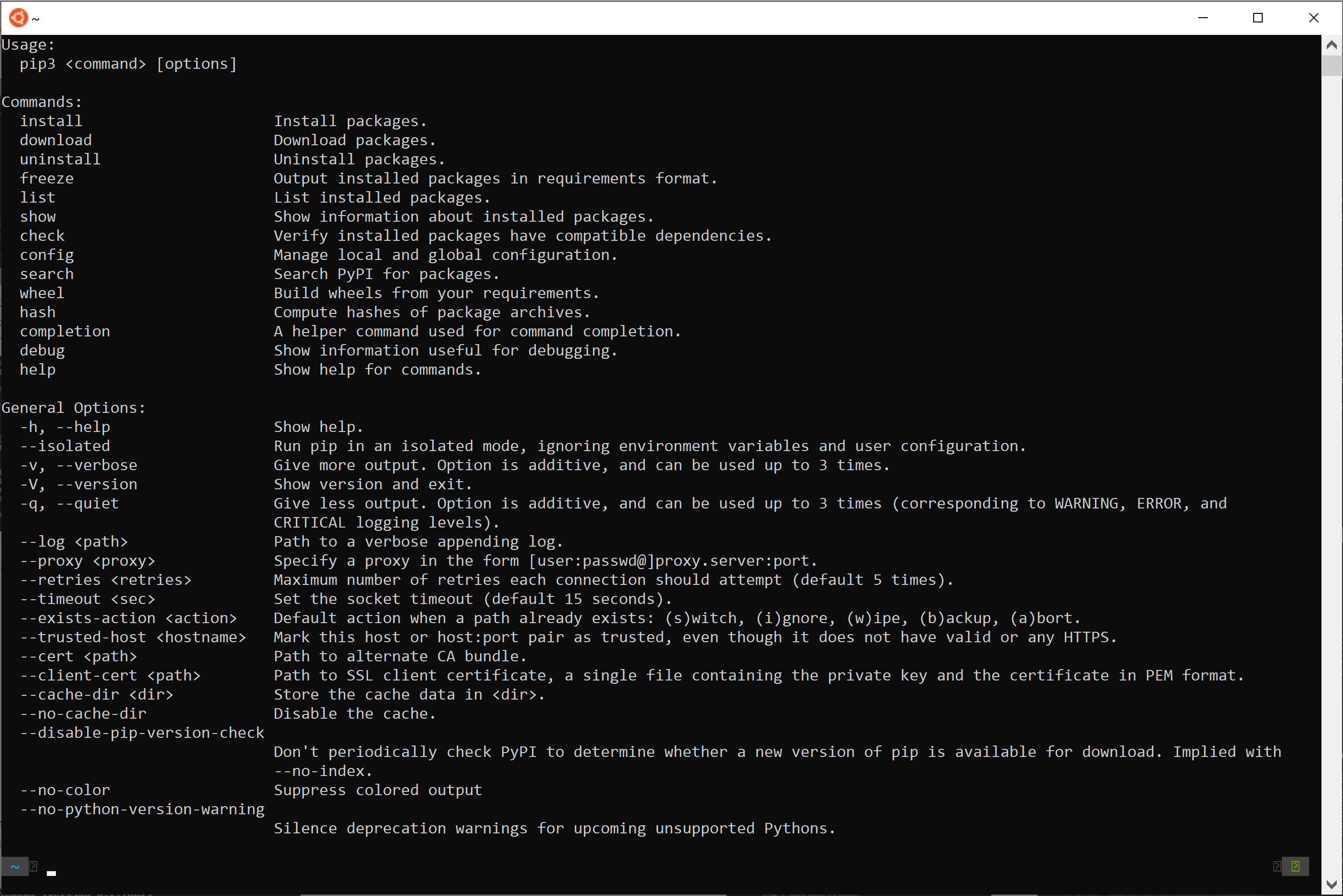
1. pip install ./path/to/package (Standard and Editable Installs)
This is the primary method for installing local Python packages. pip can install packages directly from a local directory containing a pyproject.toml (modern standard) or setup.py (legacy) file.

How it works (Standard Install):
- Navigate to your consuming project’s directory (optional but good practice for virtual environments).
bash

cd /path/to/your/consuming-app
- Install the local package:
bash

pip install /path/to/your/local-library
This command will build thelocal-librarypackage and install it into yourconsuming-app‘s active Python environment (e.g., its virtual environment). The package’s contents will be copied to thesite-packagesdirectory.
Benefits:
- Simple: Directly installs a package from a local source.
- Clean installation: Copies files, ensuring independence from the source directory once installed.
Drawbacks:
- No real-time updates: Like
npm install <folder_path>, changes inlocal-libraryrequire re-runningpip installto update the installed version.
Editable Installs (-e or --editable):
For active development, pip‘s editable install is the equivalent of npm link. It creates a link (often a symlink on POSIX systems or a .pth file on Windows) in the site-packages directory that points back to the source directory of your local package.
How it works (Editable Install):
- Navigate to your consuming project’s directory.
bash

cd /path/to/your/consuming-app
- Install the local package in editable mode:
bash

pip install -e /path/to/your/local-library
Or, if you are inside thelocal-librarydirectory:
bash

cd /path/to/your/local-library

pip install -e .
Then, from yourconsuming-app(assuminglocal-libraryis a sibling):
bash

cd /path/to/your/consuming-app

pip install -e ../local-library
Benefits:
- Real-time updates: Any changes made to the source files in
/path/to/your/local-libraryare immediately reflected when you run code inconsuming-appthat importslocal-library. This is crucial for rapid iteration and debugging. - Convenient for development.
Drawbacks:
- Dependency on source directory: If you move or delete
/path/to/your/local-library, the editable install inconsuming-appwill break. - Requires a
pyproject.tomlorsetup.pyfile: The local directory must be structured as a valid Python package.
2. Installing from a Local Wheel or Source Distribution (SDist)
For scenarios where you want to test a build artifact without publishing it, you can install directly from a local .whl (wheel) file or a .tar.gz (source distribution).
How it works:
-
Build the package: First, navigate to your
local-libraryand build the distribution files.cd /path/to/your/local-library python -m build --sdist --wheel .This will create
dist/local_library_name-X.Y.Z.tar.gzanddist/local_library_name-X.Y.Z-py3-none-any.whl(or similar) files. -
Install the local build artifact:
bash

cd /path/to/your/consuming-app

pip install /path/to/your/local-library/dist/local_library_name-X.Y.Z-py3-none-any.whl

# or for source distribution

pip install /path/to/your/local-library/dist/local_library_name-X.Y.Z.tar.gz
Benefits:
- Tests the actual build artifact: Ensures that the package will install and behave correctly as a final distribution.
- Independent of source code: Once installed, the
.whlor.tar.gzfile can be removed, and the source directory moved, without affecting the installed package.
Drawbacks:
- No real-time updates: Requires rebuilding and reinstalling for every change.
- More steps involved compared to editable installs.
Other Ecosystems (Brief Mention)
While Node.js and Python represent a large segment of development, other ecosystems have their own mechanisms for local package management:
- Go Modules: Go’s module system allows for direct path references using the
replacedirective in thego.modfile, which points a module import to a local directory or a different repository. - Java (Maven/Gradle): Java projects typically handle internal dependencies by installing them into a local Maven repository (usually
~/.m2/repository). This involves building the local library (mvn install) and then declaring it as a dependency in other projects. - Ruby (Bundler): Bundler allows you to specify local paths for gems in your
Gemfileusing the:pathoption, similar to Node.js’s file paths.
Each ecosystem has evolved its tools to address the fundamental need of integrating local code effectively, highlighting the universality of this development challenge.
Best Practices and Troubleshooting for Local Package Management
While installing local packages can significantly boost productivity, it also introduces complexities. Adhering to best practices and knowing how to troubleshoot common issues will ensure a smooth development experience.
Common Pitfalls and How to Avoid Them
Local package management, especially with linking methods, can sometimes lead to obscure errors. Awareness of these common pitfalls can save hours of debugging.
-
1. Forgetting to Unlink/Uninstall: This is perhaps the most frequent issue. If you use
npm linkorpip install -eand then commit or deploy your project without unlinking, your CI/CD pipeline or another developer’s setup will likely fail because it can’t find the local source.- Solution: Always remember to
npm unlinkorpip uninstallwhen you’re done developing with a linked package. For Node.js, runningnpm installafter removing local dependencies frompackage.jsoncan also help clean up. For Python,pip uninstall <package-name>is necessary. - Best Practice: Use environment-specific configurations or scripts that automatically link/unlink local packages for development environments, but ensure they are never committed to version control for production builds.
- Solution: Always remember to
-
2. Path Issues (Absolute vs. Relative): Incorrect paths are a classic source of errors. Relative paths (
../my-package) are great for monorepos but break if the project structure changes or if the consuming project is moved. Absolute paths (/Users/dev/projects/my-package) are less flexible when sharing the project across different machines.- Solution: For
file:dependencies inpackage.jsonorpip installcommands, ensure paths are correct relative to the consuming project. For shared projects, prefer usingnpm link/yarn linkor editablepipinstalls where possible, as they abstract the physical path after setup. For monorepos, carefully manage relative paths or consider monorepo tools.
- Solution: For
-
3. Version Conflicts and Duplicate Dependencies: Especially prevalent in Node.js,
npm linkcan sometimes cause issues where the linked package has its ownnode_modulesand its own version of a dependency that conflicts with a version in the consuming project. This can lead to “invalid hook call” errors in React or other unexpected runtime behavior.- Solution:
- Hoist dependencies: If using a monorepo tool like Lerna or Yarn Workspaces, configure it to hoist shared dependencies to the root
node_modules. - Dedupe: Try
npm dedupein both the linked package and the consuming project. - Peer dependencies: Ensure
peerDependenciesare correctly declared in your local library’spackage.jsonto signal expected versions of shared libraries. npm link --force: In some scenarios,--forcecan help resolve issues by allowing different dependency versions. Use with caution.
- Hoist dependencies: If using a monorepo tool like Lerna or Yarn Workspaces, configure it to hoist shared dependencies to the root
- Solution:
-
4. Caching Problems: Package managers heavily cache downloads and build artifacts. Sometimes, old cached versions of your local package can persist, even after you’ve updated the source.
- Solution: Clear the cache!
- npm:
npm cache clean --force - Yarn:
yarn cache clean - pip:
pip cache purge
- npm:
- Delete
node_modulesandpackage-lock.json/yarn.lock(for Node.js) or your virtual environment (for Python) and reinstall.
- Solution: Clear the cache!
-
5. Permissions Issues: On Linux/macOS, if you try to link or install a package from a directory where your user doesn’t have read/write permissions, the operation will fail.
- Solution: Ensure correct file permissions for the package directory and its contents. Use
chmodif necessary, or run commands withsudo(though generally discouraged for package managers unless absolutely necessary for global installs).
- Solution: Ensure correct file permissions for the package directory and its contents. Use
Strategies for Effective Local Development
Moving beyond troubleshooting, here are some proactive strategies to make local package management a seamless part of your development workflow:
-
1. Leverage Monorepo Tools (Node.js/JavaScript): For projects with multiple interdependent packages, tools like Lerna, Nx, or Yarn Workspaces are game-changers.
- They automate the linking process, manage shared dependencies, and provide commands for building, testing, and publishing multiple packages from a single repository. This reduces the cognitive load of manual linking and prevents many of the issues discussed above.
-
2. Document Internal Packages Thoroughly: If your team relies on internal, local packages, treat them with the same professionalism as public ones.
- Clear
README.md: Explain how to install, use, and contribute to the package. - Version control: Maintain proper versioning (
package.jsonorpyproject.toml) even if packages aren’t published. - Git repository: Host internal packages in a private Git repository for easy cloning and collaboration.
- Clear
-
3. Automate Local Setup with Scripts: For new team members or fresh development environments, the process of linking multiple local packages can be tedious.
- Shell scripts: Create simple shell scripts (e.g.,
setup-dev-env.sh) that run all necessarynpm link,yarn link,pip install -e, or other installation commands. - Pre-commit hooks: Consider using Git pre-commit hooks to remind developers to unlink specific packages before committing.
- Shell scripts: Create simple shell scripts (e.g.,
-
4. Utilize Virtual Environments (Python): Always use virtual environments (
venv,conda) for Python projects. This isolates dependencies, preventing conflicts between different projects and making local package installation much cleaner.- Install your local package into the project’s virtual environment, not globally.
-
5. Consistent Development Environment: Strive for consistency in development environments across your team. Tools like Docker or Vagrant can provide standardized environments where local package paths and settings are identical for everyone, minimizing “works on my machine” syndrome.
-
6. Automated Testing for Local Packages: Just because a package is local doesn’t mean it should bypass rigorous testing. Set up unit, integration, and end-to-end tests for your local libraries. This ensures that changes within the library don’t inadvertently break consuming applications, especially when working in an editable mode.
By integrating these best practices into your development routine, you can harness the full power of local package installation, turning potential roadblocks into stepping stones for more efficient and collaborative software development.
Conclusion
The ability to effectively install and manage local packages is a cornerstone of modern software development, offering unparalleled flexibility and efficiency. As we’ve explored, whether you’re building interdependent modules within a monorepo, developing a custom library for internal use, or simply iterating rapidly on a new feature, understanding these techniques is crucial for streamlining your workflow.
We’ve delved into the “why” behind local packages, highlighting their indispensable role in iterative development, team collaboration, and specialized use cases. Furthermore, we’ve provided practical, step-by-step guides for popular ecosystems like Node.js (with npm link and file: dependencies) and Python (with pip install -e for editable installs). Each method serves distinct purposes, and choosing the right one depends on your specific development needs—from real-time updates during active development to testing specific build artifacts.
Crucially, we’ve also emphasized the importance of best practices and troubleshooting. Avoiding common pitfalls like forgotten unlinks, path discrepancies, or version conflicts, and proactively adopting strategies like monorepo tools, clear documentation, and automation, will transform local package management from a potential headache into a smooth, productive aspect of your daily work.
Mastering local package installation empowers you to take greater control over your project dependencies, fostering a more agile and robust development environment. Embrace these techniques, experiment with the tools available in your ecosystem, and you’ll undoubtedly unlock new levels of productivity and collaboration in your software engineering journey.
aViewFromTheCave is a participant in the Amazon Services LLC Associates Program, an affiliate advertising program designed to provide a means for sites to earn advertising fees by advertising and linking to Amazon.com. Amazon, the Amazon logo, AmazonSupply, and the AmazonSupply logo are trademarks of Amazon.com, Inc. or its affiliates. As an Amazon Associate we earn affiliate commissions from qualifying purchases.