
In the dynamic world of technology, staying ahead means understanding the foundational elements that keep our digital infrastructure robust, secure, and performant. Whether you’re a seasoned IT professional, a budding developer, or a power user seeking deeper control over your Windows environment, encountering specific file formats and installation procedures is an inevitable part of the journey. Among these, the unassuming but crucial CAB file stands out. Short for “Cabinet” file, this Microsoft proprietary archive format plays a pivotal role in everything from system updates and driver installations to software deployment across Windows operating systems.
For businesses and individuals alike, the efficient and correct management of system files directly translates into operational reliability, security, and ultimately, financial stability. Improper installation of critical components can lead to system instability, security vulnerabilities, costly downtime, and a damaged brand reputation. This guide delves into the technical intricacies of installing CAB files, offering clear, step-by-step instructions and best practices. Beyond the “how-to,” we’ll explore why understanding these processes is vital for maintaining a healthy digital ecosystem, enhancing productivity, and protecting your valuable assets – all core tenets of our focus on Tech, Brand, and Money.
By mastering the installation of CAB files, you equip yourself with the knowledge to maintain a high-performing system, mitigate risks, and contribute to a resilient digital infrastructure. Let’s unlock the power of efficient Windows management.
Understanding CAB Files: The Foundation of Windows Component Management
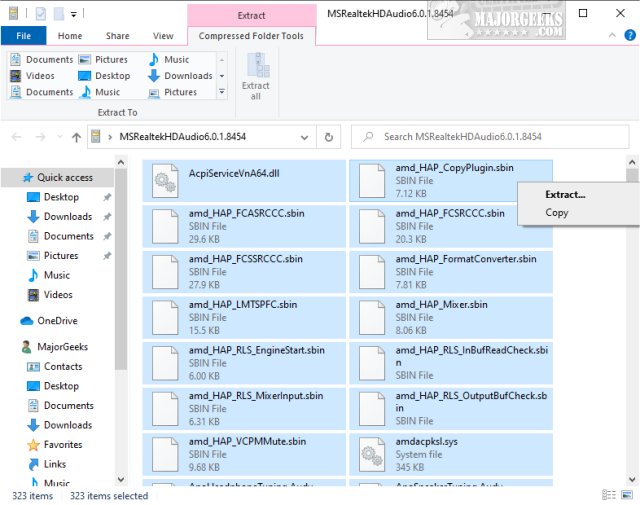
Before we dive into the practical steps, it’s essential to grasp what CAB files are and why they are so prevalent in the Windows ecosystem. A CAB file is a compression and archive format developed by Microsoft, specifically designed to package system files, device drivers, and various software components into a single, compact archive. Think of it as a meticulously organized digital toolbox, holding everything Windows needs to update, install, or repair itself.
The primary purpose of CAB files is efficient distribution. By compressing multiple files into one, they reduce download times and bandwidth usage, making system updates and software deployments smoother and faster. They are also integral to Windows Update, Service Packs, and individual hotfix installations. Unlike a typical ZIP file, CAB files often contain metadata that guides the Windows operating system on how and where to place the contained files, making them more than just simple archives; they are intelligent installation packages.
For technology enthusiasts, understanding CAB files offers a deeper insight into the inner workings of Windows. For professionals managing IT infrastructure, it’s a foundational piece of knowledge that informs strategic decisions regarding software deployment and system maintenance. The integrity and proper installation of files contained within CAB archives are directly linked to the stability and security of any Windows machine. Ignoring this foundational understanding can lead to myriad technical issues, which can ripple through an organization, affecting productivity, data security, and ultimately, a company’s financial bottom line.
Why is Proper CAB File Installation Critical?
The importance of correctly installing CAB files extends far beyond merely getting a piece of software to work. It touches upon several critical aspects:
- System Stability and Performance (Tech): Incorrectly installed CAB files can lead to missing dependencies, corrupted system files, blue screens of death (BSOD), and general system sluggishness. A stable system is the bedrock of productivity.
- Security (Tech & Brand): Many CAB files contain security updates and patches. Failing to install these, or installing them incorrectly from untrusted sources, leaves systems vulnerable to exploits, malware, and data breaches. A robust security posture is paramount for protecting sensitive information and maintaining customer trust.
- Software Compatibility (Tech): Drivers and components delivered via CAB files ensure hardware and software function harmoniously. Proper installation prevents compatibility issues, allowing applications to run smoothly.
- Operational Efficiency (Tech & Money): Streamlined and error-free installations minimize downtime and support requests, directly impacting operational efficiency and reducing IT overhead costs. Every minute saved in troubleshooting translates to improved financial performance.
- Brand Reputation (Brand): For businesses, a stable and secure IT environment reflects positively on the brand. Consistent system performance and robust security measures convey professionalism and reliability to clients and partners. Conversely, frequent system failures or security incidents can severely damage a brand’s reputation and lead to significant financial losses.
Core Installation Methods: Leveraging Windows’ Native Tools
Windows provides robust, built-in tools for handling CAB files, ensuring that installations are performed correctly and securely. The two primary methods involve using the Deployment Image Servicing and Management (DISM) tool via Command Prompt and the PowerShell environment. Both are powerful, command-line-based approaches that offer precision and control, making them indispensable for IT professionals and advanced users.
Before you begin:
- Administrator Privileges: Both methods require you to run the Command Prompt or PowerShell as an administrator. Right-click the application icon and select “Run as administrator.”
- File Path: Note the exact path to your CAB file (e.g.,
C:UpdatesMyUpdate.cab). - Trusted Source: Always download CAB files from official, trusted sources (e.g., Microsoft Update Catalog, hardware manufacturer websites) to avoid introducing malware or system instability. Installing files from unknown sources is a significant security risk.
- Backup: For critical system updates, consider creating a system restore point or a full system backup before proceeding. This provides a safety net if something goes wrong.
Method 1: Installing CAB Files Using DISM Command Prompt
DISM is a command-line tool used to service a Windows image or prepare a Windows Preinstallation Environment (Windows PE) image. It’s the most recommended and robust method for installing CAB files, especially when dealing with system components, drivers, or updates that affect the core Windows operating system.
Step-by-Step Guide:
-
Open Command Prompt as Administrator:
- Click the Start button.
- Type
cmdin the search bar. - Right-click on “Command Prompt” in the search results.
- Select “Run as administrator.”
- A User Account Control (UAC) prompt may appear; click “Yes” to grant permission.
-
Navigate to the CAB File Directory (Optional but Recommended):
While you can provide the full path in the command, navigating to the directory first can simplify the command and reduce potential errors.- If your CAB file is at
C:UpdatesMyUpdate.cab, you would type:
cd C:Updates
And press Enter.
- If your CAB file is at
-
Execute the DISM Command:
Once in the correct directory (or if providing the full path), type the following command and press Enter:
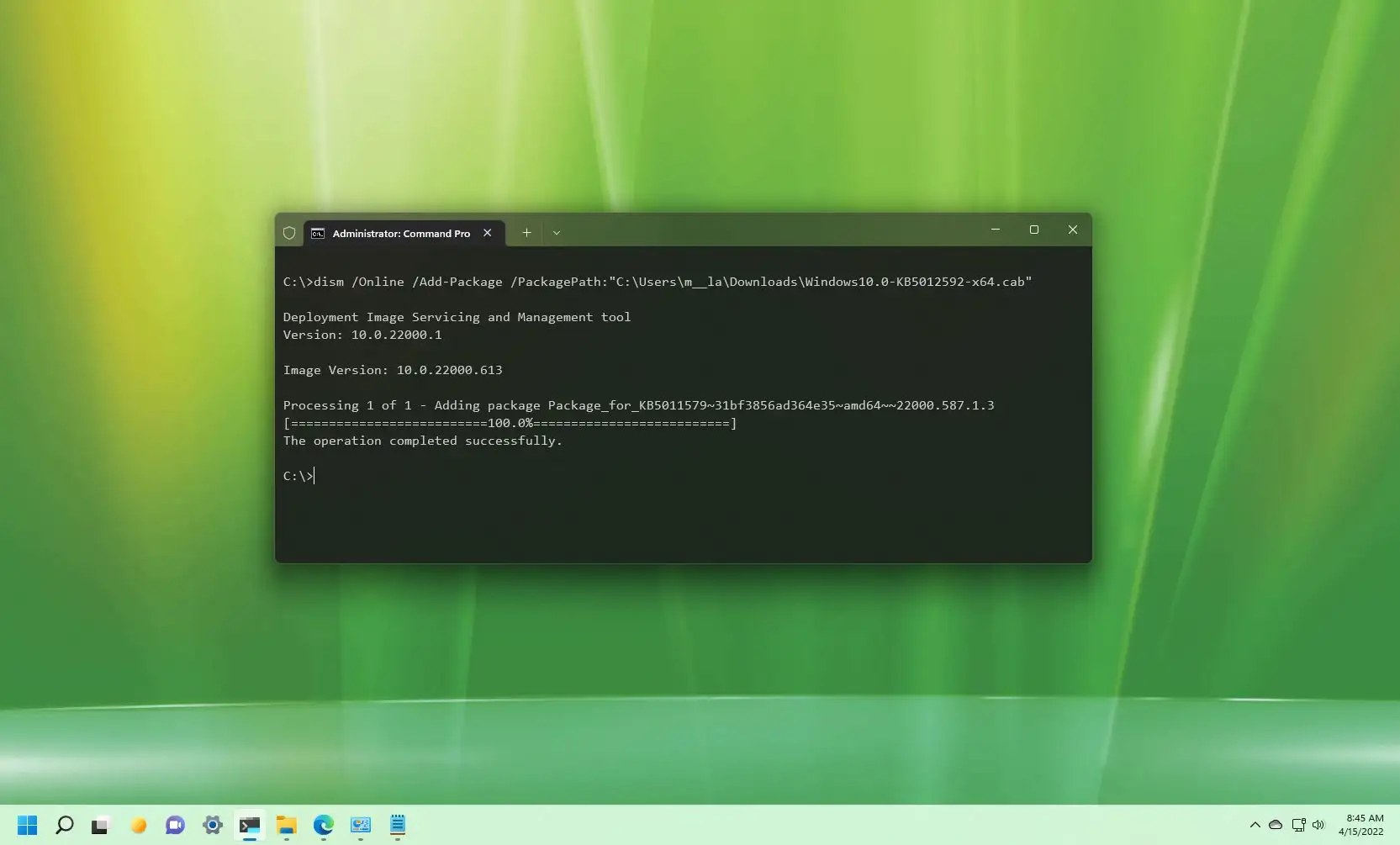
DISM /Online /Add-Package /PackagePath:"C:pathtoyourfile.cab"Explanation of the command:
DISM: Invokes the Deployment Image Servicing and Management tool./Online: Specifies that the operation should be performed on the currently running operating system (as opposed to an offline image)./Add-Package: Instructs DISM to add a package (which a CAB file essentially is) to the Windows image./PackagePath:"C:pathtoyourfile.cab": Specifies the full path to your CAB file. Crucially, enclose the path in double-quotes if it contains spaces.
Example:
If your CAB file is located atC:Windows UpdatesKB123456.cab, the command would be:
DISM /Online /Add-Package /PackagePath:"C:Windows UpdatesKB123456.cab" -
Monitor the Installation Process:
DISM will display progress messages. The installation can take several minutes, depending on the size and complexity of the CAB file.- You’ll typically see messages like “Deployment Image Servicing and Management tool,” “Version: [version number],” and then progress indicators.
- Upon successful completion, you should see a message stating “The operation completed successfully.”
-
Restart Your System (If Prompted):
Some CAB file installations, especially those involving critical system components or drivers, require a system restart for the changes to take full effect. If prompted, save your work and restart your computer immediately.
Method 2: Installing CAB Files Using PowerShell
PowerShell is a more advanced and powerful command-line shell and scripting language developed by Microsoft. It offers a more object-oriented approach and greater automation capabilities compared to the traditional Command Prompt. For system administrators and those who frequently manage Windows environments, PowerShell is often the preferred tool. It also integrates DISM functionalities through specific cmdlets (PowerShell commands).

Step-by-Step Guide:
-
Open PowerShell as Administrator:
- Click the Start button.
- Type
powershellin the search bar. - Right-click on “Windows PowerShell” (or “PowerShell” if on Windows 10/11) in the search results.
- Select “Run as administrator.”
- A UAC prompt may appear; click “Yes.”
-
Execute the PowerShell Command:
Type the following command and press Enter:
Add-WindowsPackage -Online -PackagePath "C:pathtoyourfile.cab"Explanation of the command:
Add-WindowsPackage: This is a PowerShell cmdlet that adds packages (including CAB files) to a Windows image. It essentially wraps the DISM functionality in a more PowerShell-native syntax.-Online: Similar to the DISM command, this parameter specifies that the operation should be performed on the currently running operating system.-PackagePath "C:pathtoyourfile.cab": Specifies the full path to your CAB file. Again, use double-quotes if the path contains spaces.
Example:
If your CAB file is located atD:DriversNewGPU.cab, the command would be:
Add-WindowsPackage -Online -PackagePath "D:DriversNewGPU.cab" -
Monitor the Installation Process:
PowerShell will display the installation progress. It typically provides less verbose output than DISM until completion.- Upon success, you’ll receive a message confirming the operation completed.
-
Restart Your System (If Necessary):
As with DISM, a restart might be required to finalize the installation. Follow any prompts accordingly.
Which Method to Choose?
Both DISM via Command Prompt and Add-WindowsPackage via PowerShell leverage the same underlying servicing engine for CAB file installation.
- Command Prompt (DISM): Ideal for quick, one-off installations, especially for users more comfortable with traditional command-line interfaces. It’s straightforward and effective.
- PowerShell: Preferred for scripting, automation, or when integrating CAB file installations into larger IT management workflows. Its object-oriented nature and extensive cmdlets make it superior for complex tasks and managing multiple systems. For large organizations, automating these installations via PowerShell can significantly reduce manual effort and improve deployment consistency, leading to substantial cost savings and a more resilient infrastructure.
Troubleshooting Common Issues and Best Practices
Even with the most precise instructions, technology can sometimes present challenges. Understanding how to troubleshoot common CAB file installation issues and adhering to best practices can save significant time, prevent data loss, and maintain system integrity. This section also ties into the broader themes of digital security, productivity, and responsible financial management of IT assets.
Common Troubleshooting Scenarios:
-
“The source files could not be found.” or “Error: 0x800f081f”
- File Path Error: This is the most frequent culprit. Double-check that the
PackagePathyou entered is absolutely correct. Even a minor typo, an incorrect drive letter, or missing quotation marks around a path with spaces can cause this. - File Does Not Exist: Ensure the CAB file is actually present at the specified location.
- Corrupted File: The downloaded CAB file might be corrupted. Try downloading it again from the official source.
- Missing Prerequisites: Sometimes, a CAB file requires other updates or components to be installed first. Windows Update might implicitly handle these. If you’re installing a specific patch, ensure your system is fully up-to-date with general Windows updates. For specialized components, check the documentation for any dependencies.
- Access Denied: Ensure you are running Command Prompt or PowerShell with administrator privileges.
- File Path Error: This is the most frequent culprit. Double-check that the
-
“The component store has been corrupted.” or “Error: 0x80073701”
- This indicates a deeper issue with your Windows component store (the repository of all system components).
- Run System File Checker (SFC): Open Command Prompt as Administrator and type
sfc /scannow. This will scan for and attempt to repair corrupted Windows system files. - Run DISM Health Check: If SFC doesn’t resolve it, use DISM to check and repair the component store.
DISM /Online /Cleanup-Image /CheckHealth(to check the health)DISM /Online /Cleanup-Image /ScanHealth(to scan for corruption)DISM /Online /Cleanup-Image /RestoreHealth(to repair corruption, requires internet access for repair sources)
- These steps are crucial for maintaining the underlying health of your Windows system, directly impacting long-term stability and security.
-
Installation Fails Without a Specific Error Message
- Log Files: DISM generates detailed log files (typically in
C:WindowsLogsDISMdism.log). Reviewing these logs can provide valuable clues about what went wrong. - Security Software Interference: Temporarily disable your antivirus or firewall to see if it’s interfering with the installation process. Remember to re-enable them immediately after troubleshooting.
- Insufficient Disk Space: Ensure you have enough free disk space on your system drive.
- Log Files: DISM generates detailed log files (typically in
Essential Best Practices:
-
Always Use Trusted Sources (Digital Security & Brand Reputation):
- Never download CAB files from unofficial websites or untrusted links. Malicious actors often disguise malware as legitimate updates.
- Stick to Microsoft’s official channels (Microsoft Update Catalog, Windows Update) or reputable hardware manufacturers’ websites. Using dubious sources compromises system security, can lead to data breaches, and severely damage a brand’s reputation for reliability.
-
Backup Before Critical Updates (Data Protection & Risk Mitigation):
- Before installing any system-critical CAB file, especially drivers or major updates, create a system restore point. For business-critical machines, perform a full system image backup. This is your ultimate safety net, allowing you to roll back to a stable state if something goes wrong. Investing in regular backup solutions is a cornerstone of responsible IT financial management, preventing costly downtime and data recovery expenses.
-
Stay Updated (Proactive Security & Performance):
- While manually installing CAB files is important for specific scenarios, ensure your general Windows Update settings are configured to receive automatic updates. This ensures your system is regularly patched against new vulnerabilities and benefits from performance enhancements. Proactive patching is far more cost-effective than reactive crisis management after a security incident.
-
Understand the Purpose of the CAB File (Informed Decision Making):
- Before installing, know what the CAB file is intended to do. Is it a driver, a security patch, or a new feature? This context helps in troubleshooting and understanding potential impacts. Don’t install blindly.
-
Document Changes (IT Management & Audit Trail):
- For IT professionals, especially in corporate environments, document every manual CAB file installation, including the file name, date, reason, and results. This creates an audit trail that is invaluable for troubleshooting, compliance, and maintaining a well-managed infrastructure. Good documentation contributes to operational efficiency and reduces tribal knowledge dependency, which can be a significant cost-saver.
-
Regular System Maintenance (Long-Term Health & Money):
- Periodically run
sfc /scannowandDISM /Online /Cleanup-Image /RestoreHealthto ensure the integrity of your Windows component store. A healthy system requires less reactive intervention, leading to greater productivity and lower IT maintenance costs in the long run.
- Periodically run
Conclusion: Empowering Your Digital Journey with Mastered System Management
The seemingly simple act of installing a CAB file is a microcosm of effective technology management. It underscores the importance of precision, security, and a foundational understanding of your operating system. In an era where digital tools are central to innovation, productivity, and profitability, neglecting these fundamental aspects can have far-reaching consequences – from system crashes that halt productivity to security vulnerabilities that erode trust and inflict financial damage.
By mastering the methods outlined in this guide – whether through the robust DISM utility or the versatile PowerShell environment – you’re not just learning a technical skill; you’re investing in the stability, security, and efficiency of your digital landscape. For individual users, this translates to a smoother, more reliable computing experience. For businesses, it means safeguarding data, maintaining operational continuity, and bolstering your brand’s reputation for reliability and forward-thinking technological stewardship.
In the fast-evolving tech world, where AI tools streamline workflows and new gadgets redefine possibilities, the bedrock remains a well-maintained, secure, and optimized system. Understanding CAB file installation is a testament to this principle. It’s about empowering yourself to take control, make informed decisions, and proactively manage the health of your Windows devices. This knowledge protects your investments, enhances your capabilities, and ultimately contributes to a more secure and productive digital future, perfectly aligning with our commitment to guide you through the intersections of Tech, Brand, and Money. Continue exploring, continue learning, and continue building a more resilient digital world.
aViewFromTheCave is a participant in the Amazon Services LLC Associates Program, an affiliate advertising program designed to provide a means for sites to earn advertising fees by advertising and linking to Amazon.com. Amazon, the Amazon logo, AmazonSupply, and the AmazonSupply logo are trademarks of Amazon.com, Inc. or its affiliates. As an Amazon Associate we earn affiliate commissions from qualifying purchases.