
In an increasingly interconnected world, communication tools are not just conveniences; they are necessities. Among the myriad of messaging applications available today, WhatsApp stands out as a global powerhouse, facilitating billions of conversations daily. For iPhone users, integrating this versatile platform into their digital lives is a straightforward process that unlocks a world of instant messaging, high-quality voice and video calls, and seamless media sharing. Whether you’re a seasoned iPhone enthusiast or new to the Apple ecosystem, this comprehensive guide will walk you through every step of installing WhatsApp on your device, ensuring you’re connected to friends, family, and colleagues with unparalleled ease.

This article delves into the technical prerequisites, a detailed installation walkthrough, and essential tips for maximizing your WhatsApp experience. From the initial download to setting up your profile and exploring its rich features, we’ll cover everything you need to know to get started. By the end of this guide, you’ll not only have WhatsApp successfully installed but also a firm understanding of how to leverage its capabilities for enhanced digital communication, aligning perfectly with the digital security and productivity aspects of modern technology trends.
Understanding WhatsApp: More Than Just a Messaging App
Before diving into the installation process, it’s beneficial to understand why WhatsApp has become such an indispensable tool for millions worldwide. Its global reach and robust feature set make it a cornerstone of digital communication, especially for those seeking reliable, secure, and cost-effective ways to stay in touch.
The Rise of WhatsApp: A Global Phenomenon
Launched in 2009, WhatsApp quickly distinguished itself by offering a free alternative to SMS messaging, leveraging internet data rather than traditional carrier services. Its simple interface, cross-platform compatibility, and the absence of advertising rapidly propelled its growth. Acquired by Facebook (now Meta Platforms) in 2014, WhatsApp continued its trajectory, evolving from a simple messaging app into a multifaceted communication hub. Today, it boasts over two billion active users globally, solidifying its status as one of the most widely used messaging applications. Its success stems from its commitment to user experience and its continuous innovation in features that cater to both personal and professional communication needs.
Key Features and Benefits for iPhone Users
For iPhone users, WhatsApp offers a host of features that seamlessly integrate with the iOS ecosystem, providing a powerful communication experience:
- End-to-End Encryption: At the core of WhatsApp’s appeal is its robust security. All messages, calls, photos, videos, and documents are secured with end-to-end encryption by default. This means that only the sender and recipient can read or listen to their conversations, ensuring a high level of privacy and digital security—a critical concern in today’s digital landscape.
- Cross-Platform Messaging: Connect with anyone, regardless of whether they use an iPhone, Android, or another supported device. This universal compatibility breaks down communication barriers.
- High-Quality Voice and Video Calls: Enjoy clear voice and video calls over Wi-Fi or cellular data, allowing you to connect face-to-face or voice-to-voice with individuals or groups worldwide, often at no additional cost beyond your internet plan.
- Group Chats: Create and participate in group chats with up to 1024 participants, perfect for family communication, project teams, social clubs, or community organizing. Features like group polls and announcements further enhance collaboration.
- Media and Document Sharing: Easily send photos, videos, voice notes, and documents (PDFs, spreadsheets, presentations) up to 2 GB in size. This makes sharing memories or work-related files incredibly convenient.
- Status Updates: Share ephemeral updates—text, photos, videos, and GIFs—that disappear after 24 hours, similar to Instagram or Facebook Stories.
- WhatsApp Web and Desktop: Extend your conversations from your iPhone to your computer. WhatsApp Web and the desktop app mirror your phone’s conversations, enhancing productivity by allowing you to type on a full keyboard.
- WhatsApp Business: While primarily a personal communication tool, WhatsApp also offers a Business API and app, demonstrating its utility in brand strategy and customer engagement for businesses. This highlights its versatility beyond simple peer-to-peer messaging.
These features, combined with its user-friendly interface, make WhatsApp an indispensable app for modern digital communication, whether for personal connections or light professional interaction.
Prerequisites for a Smooth WhatsApp Installation
Before you begin the installation process, ensuring your iPhone is ready will prevent potential hiccups and make for a seamless experience. A few simple checks can save you time and frustration.
Essential System Requirements
To run WhatsApp smoothly on your iPhone, your device needs to meet specific criteria:
- Compatible iPhone Model: WhatsApp supports iPhones running iOS 12.0 or later. Most recent iPhone models will easily meet this requirement. If you have an older iPhone, you might need to update its operating system. To check your iOS version, go to
Settings > General > About > iOS Version. - Stable Internet Connection: A reliable Wi-Fi connection is highly recommended for downloading the app, as it ensures a faster download and avoids consuming your cellular data allowance. If Wi-Fi isn’t available, a strong cellular data connection (4G/LTE or 5G) will suffice.
- Apple ID: You will need an active Apple ID to download apps from the App Store. If you don’t have one, you can easily create one during the App Store download process or by visiting Apple’s website.
- Active Phone Number: WhatsApp requires an active phone number for account verification. This number must be capable of receiving SMS messages or phone calls to complete the registration process. This is the primary identifier for your WhatsApp account.
Preparing Your iPhone for WhatsApp
A little preparation goes a long way in ensuring a trouble-free installation:
- Check Storage Space: The WhatsApp Messenger app itself requires approximately 200MB of storage. However, as you use the app, it will store chat histories, shared media, and other data, which can accumulate over time. Before installing, ensure you have sufficient free space on your iPhone. You can check your storage by going to
Settings > General > iPhone Storage. If you’re low on space, consider offloading unused apps, deleting old photos or videos, or clearing cached data. - Backup Your iPhone (Optional but Recommended): While installing WhatsApp usually doesn’t affect your existing data, it’s always good practice to back up your iPhone to iCloud or your computer before making any significant changes. This safeguards your precious data in case of unforeseen issues.
- Update iOS (If Necessary): If your iPhone is running an older version of iOS than 12.0, you will need to update it. Go to
Settings > General > Software Updateto check for and install any available updates. Ensure your device is connected to Wi-Fi and has sufficient battery charge or is plugged into power during the update. - Ensure Apple ID is Logged In: Make sure you are signed in with your Apple ID on the App Store. You can check this by opening the App Store app and tapping your profile picture in the top right corner.
By taking these preparatory steps, you’ll be well-equipped to proceed with the WhatsApp installation without encountering common obstacles.
Step-by-Step Guide: Installing WhatsApp on Your iPhone
With your iPhone prepared, you’re now ready to embark on the straightforward journey of installing WhatsApp. The process is designed to be user-friendly, guiding you through each stage from download to initial setup.
Downloading WhatsApp from the App Store
The App Store is the official and most secure gateway for downloading applications on your iPhone.
- Open the App Store: Locate the blue App Store icon with a white “A” on your iPhone’s home screen and tap to open it.
- Search for WhatsApp: Tap the “Search” tab located at the bottom right corner of the screen. In the search bar at the top, type “WhatsApp Messenger” and then tap the blue “Search” button on the keyboard.
- Locate the Official App: In the search results, look for “WhatsApp Messenger” published by “WhatsApp Inc.” It will usually be the top result and feature WhatsApp’s distinctive green icon. Be wary of look-alike apps to ensure you’re downloading the legitimate application for digital security.
- Initiate Download: Tap the “GET” button next to the “WhatsApp Messenger” app. If you’ve previously downloaded WhatsApp on your Apple ID, you might see a cloud icon with an arrow pointing downwards instead of “GET”. Tapping this will redownload the app without requiring further payment or authentication.
- Authenticate Your Download: For security purposes, your iPhone will prompt you to authenticate the download. This typically involves:
- Face ID: Double-click the side button, then look at your iPhone.
- Touch ID: Place your finger on the Home button.
- Apple ID Password: Enter your Apple ID password when prompted.
Once authenticated, the download will begin.
- Wait for Installation: The app icon will appear on your home screen with a progress circle. Once the download is complete, the app will automatically install. This usually takes a few moments, depending on your internet speed.
Setting Up Your Account: Verification and Profile Creation
Once WhatsApp is installed, you’ll need to set up your account for the first time.
- Open WhatsApp: Tap the WhatsApp icon on your home screen to launch the app.
- Agree to Terms & Conditions: Read the “Terms of Service & Privacy Policy” and tap “Agree & Continue” to proceed.
- Enter Your Phone Number: WhatsApp will request access to your phone number. Select your country code from the list and then enter your active phone number in the designated field. Double-check the number for accuracy.
- Verify Your Phone Number: Tap “Done” or “Next”. WhatsApp will send an SMS with a 6-digit verification code to the number you provided.
- Automatic Verification: In many cases, WhatsApp can automatically detect the SMS code and verify your number without manual input.
- Manual Input: If not, open your Messages app, retrieve the code, and enter it into WhatsApp.
- Troubleshooting Verification: If you don’t receive the SMS within a minute or two, tap “Resend SMS”. If that also fails, tap “Call Me” to receive an automated call that will read out the code. Ensure your phone number is correct and has good cellular reception.
- Restore Chat History (Optional): If you’ve previously used WhatsApp on an iPhone and have an iCloud backup of your chats, WhatsApp will detect it and ask if you’d like to restore your chat history. Tap “Restore Chat History” if you wish to retrieve your old conversations and media. This is a crucial step for continuity and data management.
- Create Your Profile: Enter your desired display name. This is the name contacts will see in your chats. You can also tap the camera icon to add a profile picture from your photo library or take a new one. Tap “Done” or “Next” to finalize your profile.

Granting Necessary Permissions
For WhatsApp to function correctly and provide its full range of features, it requires certain permissions to access specific aspects of your iPhone.
- Contacts Access: This is perhaps the most critical permission. WhatsApp will ask to access your contacts. Tap “OK” or “Allow” when prompted. This allows WhatsApp to automatically populate your contact list within the app, showing you who among your phone contacts is also on WhatsApp. Without this, you’d have to manually add everyone, which is cumbersome.
- Notifications: WhatsApp will ask to send you notifications. Tap “Allow” to receive alerts for new messages, calls, and other updates, ensuring you stay promptly informed. You can always manage notification settings later in your iPhone’s
Settings > Notifications > WhatsApp. - Microphone and Camera Access: For voice and video calls, as well as sending voice notes and taking photos/videos directly within the app, WhatsApp will request access to your microphone and camera. Grant these permissions to utilize these communication features.
- Photos and Media Library Access: To send existing photos and videos from your camera roll or save media received on WhatsApp, you’ll need to grant access to your Photos.
Once these permissions are granted, you’re all set! Your WhatsApp account is active, and you can now start messaging and calling your contacts.
Maximizing Your WhatsApp Experience: Tips and Best Practices
Installing WhatsApp is just the beginning. To truly leverage its potential and enhance your digital communication, understanding its core functionalities and best practices is essential.
Integrating WhatsApp with Your Contacts
One of WhatsApp’s most convenient features is its seamless integration with your iPhone’s contact list.
- Automatic Sync: Once you grant WhatsApp permission to access your contacts, it automatically scans your phone book and populates your WhatsApp contact list with anyone who also uses the app. They will appear under the “Chats” tab when you tap the “New Chat” icon (pencil and paper icon in the top right).
- Adding New Contacts: If you add a new contact to your iPhone’s phone book, and they have WhatsApp, they will automatically appear in your WhatsApp contact list after you refresh it (pull down on the chats screen) or restart the app.
- Starting a New Chat: To initiate a conversation, tap the “New Chat” icon, then select a contact from the list or search for their name.
Exploring Core Features: Messaging, Calls, and Media
WhatsApp offers a rich array of communication tools beyond simple text messages.
- Text Messaging: The foundation of WhatsApp. Type messages, send emojis, stickers, and GIFs to express yourself.
- Voice Messages: Tap and hold the microphone icon in the chat to record and send voice notes – perfect for quick thoughts or when typing is inconvenient.
- Photo and Video Sharing: Tap the “+” icon in the chat, then choose “Photo & Video Library” to send existing media or “Camera” to snap a new photo/video. You can also add captions and even edit media before sending.
- Document Sharing: Tap the “+” icon, then “Document” to share files from iCloud Drive, Google Drive, or other cloud services connected to your iPhone.
- Voice and Video Calls: From any chat, tap the phone icon for a voice call or the camera icon for a video call. These calls are encrypted and offer excellent quality over a good internet connection.
- Group Chats and Calls: Create new groups by tapping “New Chat” then “New Group”. Once in a group, you can initiate group voice or video calls with multiple participants.
- Status Updates: Found under the “Status” tab, these allow you to share text, photos, videos, or GIFs that disappear after 24 hours, similar to social media stories.
Enhancing Privacy and Security
Given the increasing importance of digital security, WhatsApp provides several features to protect your privacy.
- Two-Step Verification: Activate this feature (found in
Settings > Account > Two-Step Verification) to add an extra layer of security. It requires a PIN when you register your phone number with WhatsApp again, preventing unauthorized access even if someone gets hold of your SIM card. - Privacy Settings: Customize who can see your “Last Seen,” “Profile Photo,” “About,” and “Status” updates (
Settings > Privacy). You can set these to “Everyone,” “My Contacts,” or “Nobody.” - Blocked Contacts: If you receive unwanted messages, you can easily block contacts directly from their chat window or through
Settings > Privacy > Blocked Contacts. - Disappearing Messages: For sensitive conversations, you can enable disappearing messages for individual or group chats, where messages automatically delete after 24 hours, 7 days, or 90 days.
- Chat Lock: For an extra layer of privacy for specific chats, you can lock them with Face ID or Touch ID, accessible from the chat info screen.
By actively utilizing these features, you can tailor your WhatsApp experience to be both powerful and secure, fostering confidence in your digital communications.
Troubleshooting Common Installation Issues
While installing WhatsApp is generally smooth, you might occasionally encounter minor issues. Knowing how to troubleshoot these common problems can help you quickly get back on track.
App Store Download Problems
- “Unable to Download App” or “Could not Connect to iTunes Store”:
- Check Internet Connection: Ensure your Wi-Fi or cellular data is active and stable. Try opening a webpage or another app that requires internet to confirm.
- Restart iPhone: A simple restart can often resolve temporary network glitches.
- Check Apple ID: Ensure you are correctly logged in to the App Store with your Apple ID. Go to the App Store, tap your profile icon, and verify your details.
- App Store Server Status: Occasionally, Apple’s App Store servers might be experiencing issues. Check Apple’s System Status page online.
- Insufficient Storage: If you receive an error about low storage, go to
Settings > General > iPhone Storageand free up space by deleting old photos, videos, or unused apps. Then, retry the download. - Stuck Downloading: If the app icon on your home screen shows “Waiting” or “Loading” indefinitely, try pausing and resuming the download by tapping the icon. If that doesn’t work, press and hold the app icon, then select “Pause Download” and then “Resume Download.” As a last resort, delete the app (if it partially downloaded) and restart the download from the App Store.
Verification Code Delays or Errors
- Code Not Received:
- Check Phone Number: Double-check that you entered the correct phone number, including the country code.
- Network Signal: Ensure your iPhone has a strong cellular signal capable of receiving SMS messages.
- SMS Blocking: Check if you have any SMS blocking or filtering apps enabled that might be preventing the verification code from coming through.
- “Resend SMS” or “Call Me”: After the timer runs out, WhatsApp will offer options to “Resend SMS” or “Call Me.” The “Call Me” option will trigger an automated call that reads the verification code aloud.
- Wait and Retry: Sometimes, network congestion can cause delays. Wait a few minutes and try again.
- “Invalid Code” Error:
- Typos: Ensure you are accurately typing the 6-digit code.
- Expired Code: Verification codes usually have a limited validity period. If you waited too long, request a new code.
- “Could not Register Phone Number”: This might happen if the number is already associated with another WhatsApp account that hasn’t been properly deregistered, or if there’s an issue with WhatsApp’s servers. Contact WhatsApp Support if repeated attempts fail.
Compatibility and Storage Concerns
- Outdated iOS: If your iPhone is running an iOS version older than 12.0, WhatsApp will not install or function correctly. Update your iPhone via
Settings > General > Software Update. - App Crashing/Not Opening: If WhatsApp installs but crashes upon opening or doesn’t launch, try these steps:
- Force Quit and Relaunch: Swipe up from the bottom of your screen (or double-press the Home button on older iPhones) to open the App Switcher, find WhatsApp, and swipe it up to force quit. Then relaunch.
- Restart iPhone: A full device restart can clear temporary software glitches.
- Reinstall WhatsApp: If all else fails, delete WhatsApp from your iPhone (press and hold the app icon, then tap “Remove App” -> “Delete App”) and reinstall it from the App Store. Remember to back up your chats to iCloud before deleting if you want to restore them.
By following these troubleshooting tips, most installation issues can be resolved quickly, allowing you to enjoy uninterrupted communication through WhatsApp. For persistent problems, WhatsApp’s official support website is an excellent resource for detailed FAQs and direct assistance.
Conclusion: Connecting the World, One Message at a Time
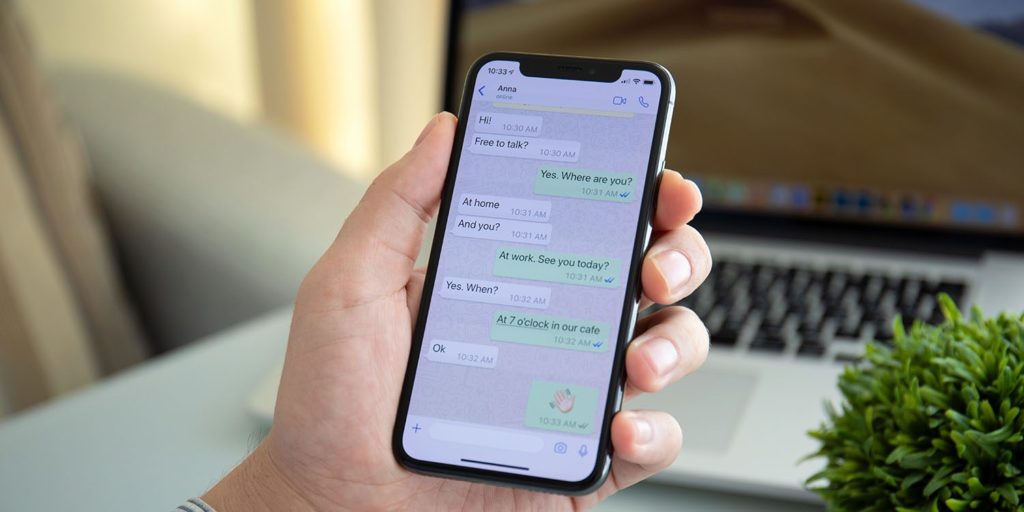
Installing WhatsApp on your iPhone is more than just adding another app to your device; it’s opening a gateway to a world of seamless and secure communication. From keeping in touch with loved ones across continents to coordinating projects with colleagues, WhatsApp has proven itself to be an indispensable tool in our hyper-connected age. Its commitment to end-to-end encryption ensures your privacy, while its rich feature set, from group chats to high-quality voice and video calls, enhances every interaction.
By following this comprehensive guide, you’ve not only learned how to navigate the technical steps of downloading and setting up WhatsApp but also gained insight into optimizing your experience and troubleshooting potential issues. As technology continues to evolve, platforms like WhatsApp remain at the forefront, bridging distances and fostering connections. So go ahead, explore its functionalities, customize your settings, and dive into the vibrant world of instant communication. Your iPhone, now equipped with WhatsApp, is more powerful than ever in keeping you connected to what truly matters.
aViewFromTheCave is a participant in the Amazon Services LLC Associates Program, an affiliate advertising program designed to provide a means for sites to earn advertising fees by advertising and linking to Amazon.com. Amazon, the Amazon logo, AmazonSupply, and the AmazonSupply logo are trademarks of Amazon.com, Inc. or its affiliates. As an Amazon Associate we earn affiliate commissions from qualifying purchases.