
SanDisk, a name synonymous with reliable and high-performance storage solutions, offers a diverse range of products from USB flash drives and SD cards to portable SSDs and internal hard drives. As a user of these devices, a common question that arises is whether installing SanDisk’s proprietary software is a mandatory step to unlock their full potential or even to use them effectively. This inquiry sits at the intersection of practical technology usage and understanding the value proposition of specific brand-ecosystem software. Navigating this question requires a nuanced understanding of what SanDisk software actually does, its benefits, and in what scenarios it might be genuinely useful, or conversely, entirely superfluous.
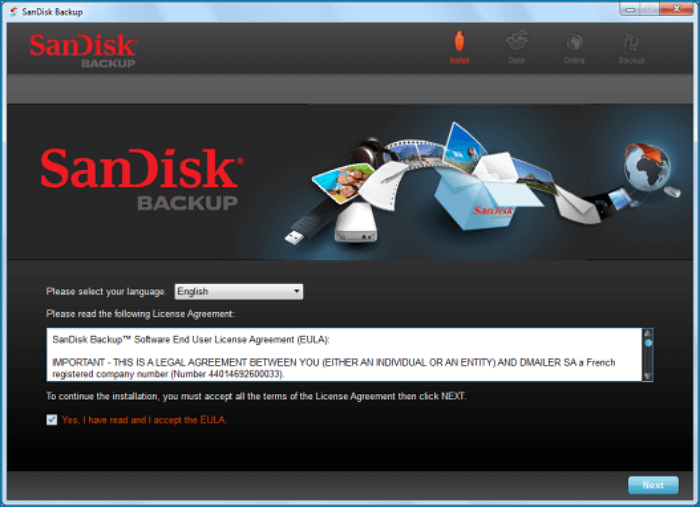
Our exploration will delve into the core functionalities of SanDisk’s software offerings, examining their relevance across different product lines and user needs. We’ll consider the fundamental requirement for using SanDisk devices, distinguishing between essential operations and optional enhancements. Furthermore, we’ll explore the broader implications for your digital security, productivity, and even the longevity of your storage media. By the end of this comprehensive guide, you’ll have a clear understanding of whether diving into SanDisk’s software suite is a necessary investment of your time and system resources, or if your SanDisk devices are perfectly capable of standing alone.
Understanding SanDisk’s Software Ecosystem: Beyond Basic Functionality
SanDisk, like many major hardware manufacturers, has developed a suite of software designed to complement and enhance the user experience with their storage products. This software typically falls into a few key categories, each serving a distinct purpose. It’s crucial to differentiate between software that is absolutely essential for basic operation and software that offers added value or advanced features.
SanDisk RescuePRO and RescuePRO Deluxe: Data Recovery Solutions
One of the most well-known pieces of software associated with SanDisk is their data recovery suite, SanDisk RescuePRO® and SanDisk RescuePRO® Deluxe. These applications are specifically designed to recover accidentally deleted files, formatted drives, or data lost due to corruption from SanDisk memory cards, USB drives, and other storage media.
- Core Functionality: At its heart, RescuePRO works by scanning the storage media for remnants of deleted files. When files are deleted, the data isn’t immediately erased from the drive; instead, the space they occupied is marked as available for new data. RescuePRO can often find and reconstruct these “deleted” files before they are overwritten.
- Deluxe vs. Standard: The Deluxe version typically offers enhanced features such as advanced media support, the ability to recover high-definition video, and sometimes even the option for data recovery from CDs/DVDs and hard drives. For users dealing with critical data loss from SanDisk-branded media, these tools can be invaluable.
- When is it Needed? If you’ve accidentally deleted important photos from your camera’s SD card, lost crucial documents from a USB drive, or experienced data corruption on a SanDisk drive, RescuePRO can be a lifesaver. Many SanDisk products, especially professional-grade memory cards, might even come with a trial or a bundled license for RescuePRO, indicating its intended use case.
- Is it Mandatory for Everyday Use? Absolutely not. RescuePRO is a specialized tool for data recovery. You do not need to have it installed or running for your SanDisk USB drive to function as a storage device for everyday file transfers, or for your SD card to store photos and videos. Its utility is purely reactive, invoked only when data loss occurs.
SanDisk SecureAccess: Encryption and File Protection
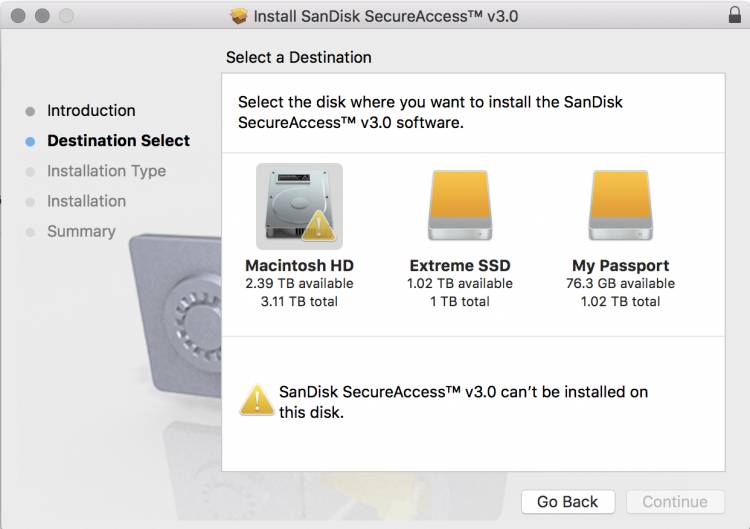
Another significant piece of SanDisk’s software offering is SanDisk SecureAccess. This utility provides password protection and file encryption for your SanDisk USB flash drives.
- Core Functionality: SecureAccess creates a private vault on your USB drive. You set a password, and any files you drag into this vault are encrypted using AES 128-bit encryption. This ensures that even if your USB drive falls into the wrong hands, your sensitive data remains inaccessible without the correct password.
- Benefits: For individuals carrying confidential documents, personal information, or proprietary business data on portable drives, SecureAccess offers a vital layer of digital security. It’s a proactive measure against unauthorized access.
- Product Specificity: SecureAccess is typically pre-loaded or available for download for specific SanDisk USB flash drive models, particularly those designed with security features in mind (e.g., SanDisk Ultra, Extreme, and specific professional series drives).
- Is it Mandatory for Everyday Use? Similar to RescuePRO, SanDisk SecureAccess is not required for the basic functionality of a USB flash drive. You can use the drive to store and transfer files without ever setting up a SecureAccess vault. However, if you intend to protect sensitive files with encryption, then installing and using SecureAccess becomes a necessary step to leverage that specific security feature. If your SanDisk drive doesn’t come with SecureAccess or you don’t plan on encrypting files, you can safely ignore it.
SanDisk SSD Dashboard: Managing Your Solid State Drives
For users of SanDisk’s Solid State Drives (SSDs), the SanDisk SSD Dashboard is a more system-level utility. This software is designed to help users monitor the health and performance of their SanDisk SSDs.
- Core Functionality: The SSD Dashboard provides crucial information such as:
- Drive Health Monitoring: It displays the overall health status of the SSD, often using metrics like “SMART” (Self-Monitoring, Analysis, and Reporting Technology) attributes, which can predict potential drive failures.
- Performance Monitoring: Users can track read and write speeds, latency, and other performance indicators to ensure their SSD is operating optimally.
- Firmware Updates: A key function is the ability to check for and install firmware updates for the SSD. Firmware updates can improve performance, fix bugs, and enhance compatibility.
- Optimization Tools: Some dashboards include tools for TRIM optimization, which helps maintain SSD performance over time by reclaiming blocks of data that are no longer in use.
- Capacity Monitoring: It shows how much storage space is available and used.
- When is it Needed? If you have a SanDisk SSD installed in your computer (either as a primary boot drive or a secondary storage drive), the SSD Dashboard offers valuable insights into its condition and can help you proactively manage its performance and longevity. For critical systems or for users who want to get the most out of their SSD, this tool is highly recommended.
- Is it Mandatory for Everyday Use? No, your SanDisk SSD will function perfectly fine without the SSD Dashboard installed. The operating system will recognize and use the SSD for storage and performance. However, without the dashboard, you lose the ability to easily monitor its health, receive crucial firmware updates, and potentially perform optimizations that can extend its lifespan and maintain its speed. For advanced users or those concerned about data integrity and performance, installing the SSD Dashboard is a wise decision.
The Crucial Distinction: Essential Functionality vs. Enhanced Features
It’s paramount to understand that the vast majority of SanDisk products are designed to be plug-and-play devices. This means that for their primary purpose – storing and retrieving data – no special software installation is required.
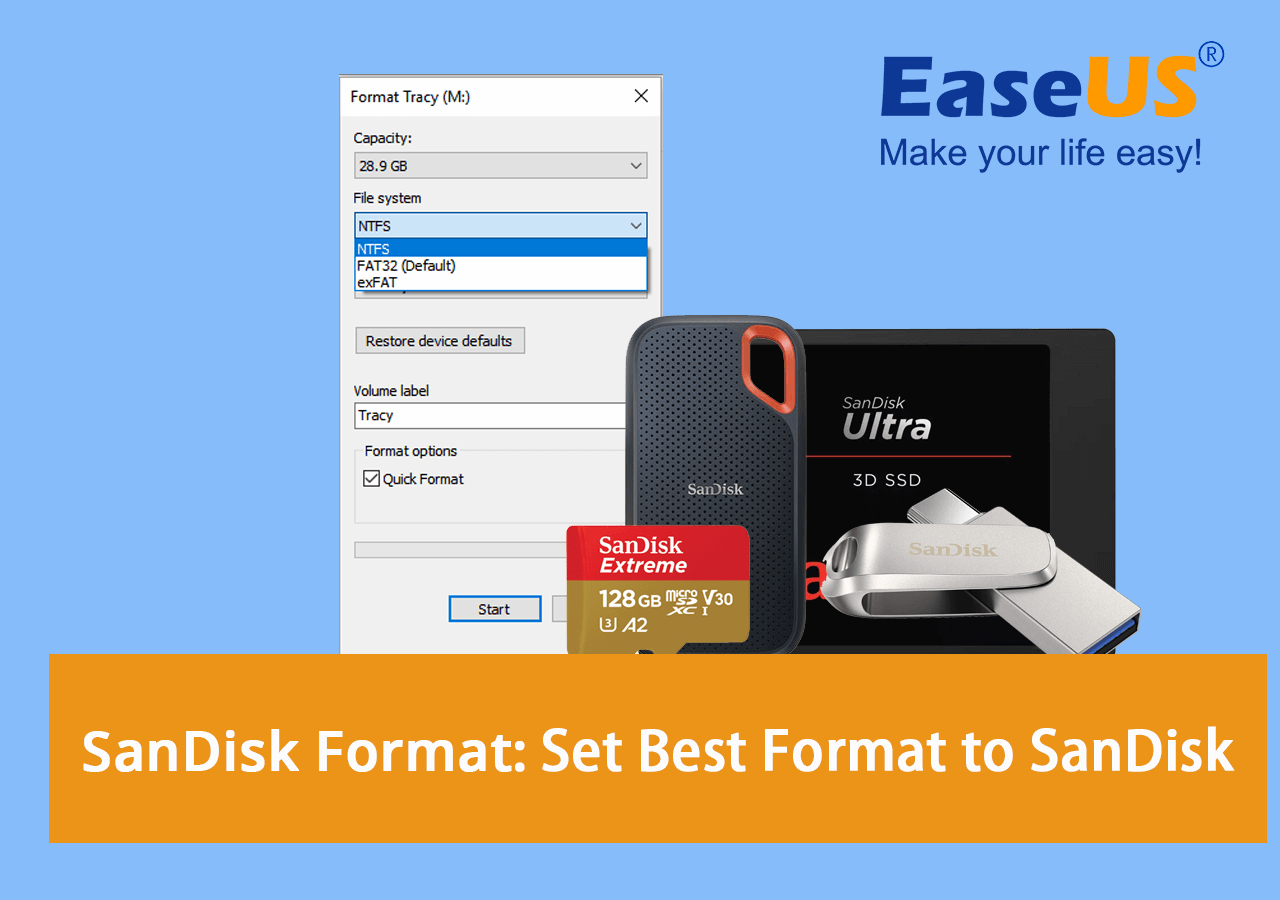
Plug-and-Play: The Standard for Most SanDisk Products
- USB Flash Drives: When you plug a SanDisk USB flash drive into your computer, your operating system (Windows, macOS, Linux) will automatically detect it. It will appear as a removable drive in File Explorer or Finder, ready for you to copy files to and from. You can format it, create folders, and manage your data just like any other drive.
- SD Cards and microSD Cards: Similarly, inserting a SanDisk SD or microSD card into a compatible reader or device (camera, smartphone, tablet, computer) will make it instantly accessible. Your device will recognize it as storage media, allowing you to capture photos and videos, or transfer existing data.
- Portable SSDs and External Hard Drives: These devices also typically function as plug-and-play storage. Connect them via USB, and they will mount as external drives, ready for use.
The takeaway here is that if your primary need is to simply store and transfer files, you can confidently use your SanDisk device without installing any additional software. The device’s core functionality is built into its hardware and the standard drivers present in your operating system.
When Software Becomes Relevant: Advanced Use Cases and Benefits
The scenarios where SanDisk software becomes beneficial, or even necessary, typically revolve around enhancing specific features or addressing potential issues:
- Data Recovery: As discussed, RescuePRO is only relevant if you encounter data loss. It’s a tool to fix a problem, not a prerequisite for normal operation.
- Security and Encryption: SanDisk SecureAccess is only needed if you want to encrypt your data and create a secure vault on your USB drive. If you don’t handle sensitive information or prefer other encryption methods, you can skip this.
- SSD Health and Performance: The SanDisk SSD Dashboard is the most compelling example of software that enhances the user experience for a specific product type (SSDs). It provides proactive maintenance and diagnostic capabilities that go beyond the operating system’s native functions. For SSD users, this is where installing software offers the most tangible benefits for the long-term health and performance of their storage.
- Firmware Updates: While not always user-initiated, some SanDisk devices, particularly SSDs, may benefit from firmware updates. These updates are often delivered through dedicated software or utilities. Keeping firmware up-to-date is a good practice for optimal performance and security.
Making an Informed Decision: Weighing the Pros and Cons
Deciding whether to install SanDisk software boils down to your specific needs, the type of SanDisk product you’re using, and your comfort level with managing system utilities.
Potential Benefits of Installing SanDisk Software:
- Enhanced Data Security: Tools like SecureAccess offer robust encryption for sensitive data on portable drives.
- Data Recovery Capabilities: RescuePRO can be a lifesaver in situations of accidental data deletion or corruption.
- Optimized SSD Performance and Longevity: The SSD Dashboard provides critical insights into drive health, facilitates firmware updates, and can help maintain peak performance for SanDisk SSDs.
- Peace of Mind: For some users, having dedicated software that manages and protects their storage devices provides a greater sense of security and control.
- Access to Specific Features: Certain advanced features of SanDisk products might only be accessible or fully configurable through their dedicated software.
Potential Downsides or Reasons to Skip Installation:
- System Resource Usage: Any installed software consumes system resources (CPU, RAM, storage space). For users with limited system resources or those who prefer a minimalist setup, adding unnecessary software can be a drawback.
- Complexity: For casual users, navigating and managing multiple software utilities can be daunting. If your needs are simple, sticking to plug-and-play is often easier.
- Redundancy: In many cases, operating systems have built-in tools that can perform similar basic functions. For example, you can encrypt files using Windows BitLocker or macOS FileVault without SanDisk-specific software.
- No Immediate Need: If you haven’t experienced data loss, don’t handle highly sensitive data on portable drives, or are content with your SSD’s current performance, there’s no immediate imperative to install SanDisk software.
Conclusion: Use SanDisk Software When It Serves a Purpose
In conclusion, the answer to “Do I need to install SanDisk software?” is nuanced: Generally, no, you do not need to install SanDisk software for their devices to function as basic storage. However, installing it can provide significant benefits depending on the product and your specific requirements.
- For USB flash drives and SD cards, unless you specifically want the encryption features of SanDisk SecureAccess or anticipate the need for data recovery with SanDisk RescuePRO, you can happily use them straight out of the box.
- For SanDisk SSDs, installing the SanDisk SSD Dashboard is highly recommended. It offers valuable tools for monitoring health, optimizing performance, and keeping firmware up-to-date, which can contribute to the longevity and reliability of your drive.
Ultimately, the decision rests on your personal usage patterns and priorities. If you value enhanced security, have a greater risk of data loss, or want to meticulously manage your SSD, then SanDisk’s software offerings are worth exploring. If your needs are straightforward – simply storing files – then embrace the plug-and-play convenience and save your system resources. Always check the specific product documentation or SanDisk’s website to understand what software is available and relevant for your particular SanDisk device.
aViewFromTheCave is a participant in the Amazon Services LLC Associates Program, an affiliate advertising program designed to provide a means for sites to earn advertising fees by advertising and linking to Amazon.com. Amazon, the Amazon logo, AmazonSupply, and the AmazonSupply logo are trademarks of Amazon.com, Inc. or its affiliates. As an Amazon Associate we earn affiliate commissions from qualifying purchases.