
Chromebooks have undeniably carved out a significant and well-deserved niche in the personal computing landscape. Celebrated for their simplicity, robust security, rapid boot times, and often remarkably affordable price points, they offer a streamlined, cloud-centric experience that excels at web browsing, collaborative document editing, and a host of light productivity tasks. Powered by Google’s ChromeOS, these devices have become a go-to for students, casual users, and anyone seeking a low-maintenance digital companion. However, for a growing segment of users – including tech enthusiasts, developers, and professionals with specific software requirements – the inherent limitations of ChromeOS can, at times, feel restrictive. The inability to natively run traditional desktop applications, for instance, can be a significant hurdle.
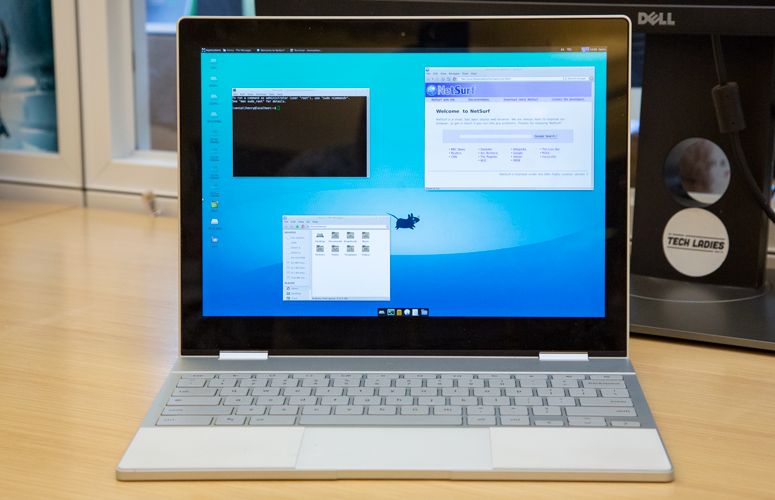
This leads directly to a crucial and frequently asked question within the tech community: can these sleek, often budget-friendly devices be transformed into more versatile machines by installing Linux? The short answer is a resounding yes, but the journey to integrate Linux with a Chromebook is multifaceted, offering various approaches tailored to different needs, technical proficiencies, and desired levels of integration. This comprehensive guide aims to demystify the process, exploring the possibilities, methodologies, and practical implications of bringing the immense power and flexibility of Linux to your Chromebook, thereby unlocking a world of software, development tools, and customization previously out of reach within the ChromeOS ecosystem.
Why Consider Installing Linux on a Chromebook?
The decision to install Linux on a Chromebook isn’t merely about technical curiosity; it’s often driven by a genuine need to expand the device’s capabilities beyond its native ChromeOS confines. While ChromeOS is excellent for what it does, its web-centric nature can be a bottleneck for specific use cases.
Unlocking a Universe of Software
Perhaps the most compelling reason to install Linux is access to a vast and diverse software ecosystem. ChromeOS primarily supports web apps, Android apps (on most modern Chromebooks), and a limited selection of Linux apps via Crostini. While this covers many needs, it falls short for:
- Professional Software: Applications like GIMP (advanced image editing), Inkscape (vector graphics), Blender (3D modeling), or various CAD software have no direct ChromeOS counterparts. Linux offers robust, free, and open-source alternatives to many commercial desktop applications.
- Specialized Tools: For academics, researchers, or specific industry professionals, unique software tools are often available only on traditional desktop operating systems like Linux.
- Gaming: While not a primary gaming platform, Linux provides access to a growing library of native Linux games and compatibility layers like Wine for some Windows titles, expanding options beyond browser-based or Android games.
Empowering Developers and Power Users
For software developers, system administrators, and anyone who delves deeper into computing, Linux is an invaluable asset.
- Development Environments: Linux is the de facto standard for many programming languages and frameworks. Installing Linux on a Chromebook allows developers to use popular IDEs (e.g., VS Code, IntelliJ IDEA), compilers, version control systems (Git), and containers (Docker) directly on their device, transforming it into a capable development workstation.
- Command-Line Power: The Linux command line is an incredibly powerful tool for automation, scripting, and system management. Access to a full-fledged Linux terminal environment offers unparalleled control and flexibility that ChromeOS’s limited shell cannot match.
- Learning and Experimentation: For those keen on learning about operating systems, networking, or cybersecurity, a Linux environment on a Chromebook provides a safe and accessible sandbox for experimentation and skill development without needing dedicated hardware.
Greater Customization and Control
ChromeOS is designed for simplicity and security, which means it offers limited customization options for the end-user. Linux, by contrast, is renowned for its unparalleled flexibility.
- Desktop Environments: Users can choose from a myriad of desktop environments (GNOME, KDE Plasma, XFCE, LXDE, etc.), each offering a distinct look, feel, and workflow. This allows for a truly personalized computing experience.
- System Configuration: Linux grants users deep control over system settings, services, and core functionalities, enabling fine-tuning for performance, security, or specific workflows.
- Open Source Philosophy: Embracing Linux aligns with the open-source philosophy, giving users transparency, community support, and the freedom to modify their software.
Bridging Hardware and Software Gaps
While Chromebook hardware has significantly improved, the software capabilities of ChromeOS sometimes don’t fully leverage the underlying power, especially in higher-end models. Running Linux can allow users to push their hardware further with demanding applications that might not be available on ChromeOS. Furthermore, for older Chromebooks nearing their end-of-life for ChromeOS updates, installing a lightweight Linux distribution can give them a new lease on life, turning potentially obsolete hardware into a perfectly functional, secure, and updated machine.
Navigating the Methods: Your Options for Linux on ChromeOS
The landscape of installing Linux on a Chromebook has evolved considerably. What once required significant technical prowess and a willingness to void warranties now often involves straightforward, officially supported methods. Each approach comes with its own set of advantages, limitations, and technical requirements.
Method 1: Crostini (Linux (Beta)) – The Official, Integrated Approach
Crostini, officially known as “Linux (Beta)” in ChromeOS settings, is Google’s integrated solution for running Linux applications. Introduced in 2018, it leverages virtualization technology to run a Debian-based Linux container directly within ChromeOS, offering a seamless and secure experience.
- How It Works and Its Advantages: Crostini creates a lightweight virtual machine that runs a Linux distribution (usually Debian). This VM runs in parallel with ChromeOS, and Linux applications launched from it appear in the ChromeOS app launcher alongside native apps. This integration is a huge selling point:
- Security: As a containerized solution, Crostini is isolated from the core ChromeOS, enhancing security.
- Ease of Use: Enabling Crostini is a simple toggle in settings on supported Chromebooks, requiring no developer mode or complex command-line operations initially.
- Seamless Integration: File sharing between ChromeOS and the Linux container is straightforward, and Linux apps can access peripherals like webcams and USB devices.
- Updates: The Linux environment updates alongside ChromeOS, maintaining compatibility and security.
- Limitations and Considerations: While incredibly convenient, Crostini isn’t without its drawbacks:
- Performance: Being a virtualized environment, Crostini might not offer bare-metal performance, especially on lower-end Chromebooks.
- Hardware Acceleration: Graphics acceleration can be limited, affecting demanding applications or games.
- Distribution Choice: Users are generally limited to Debian or derivatives, though advanced users can change this.
- Storage: The Linux container consumes storage space, which can be an issue on Chromebooks with limited eMMC storage.
- Getting Started: A General Overview:
- Ensure your Chromebook supports Crostini (most models from 2018 onwards do).
- Go to ChromeOS Settings -> “Linux (Beta)” -> “Turn on.”
- Follow the on-screen prompts to set up the Linux container.
- Open the Terminal app (from the ChromeOS launcher) to access your Linux environment.
- Use
sudo apt updateandsudo apt upgradeto update packages, thensudo apt install <package-name>to install desired software.
Method 2: Crouton – The Chroot Compromise
Before Crostini, Crouton (Chromium OS Universal Chroot Environment) was the most popular method for running Linux on a Chromebook. It’s a set of scripts that allow you to install a full Linux distribution (like Ubuntu, Debian, or Kali) in a chroot environment alongside ChromeOS.
- Understanding the Chroot Environment: A chroot (change root) essentially creates an isolated directory structure within ChromeOS that acts as a separate Linux installation. Both ChromeOS and the Linux chroot share the same kernel, but run their own userland.
- Pros and Cons of Crouton:
- Advantages:
- Near-Native Performance: Since it shares the kernel and doesn’t involve full virtualization, Crouton often offers better performance than Crostini, especially for graphics.
- Flexibility: Supports a wider range of Linux distributions and desktop environments.
- Full Access: Provides full root access and greater control over the Linux system.
- Disadvantages:
- Requires Developer Mode: Entering developer mode wipes your Chromebook and slightly reduces security by disabling verified boot.
- Security: Less isolated than Crostini; a vulnerability in the chroot could potentially impact ChromeOS.
- Complexity: Installation is more involved, requiring command-line usage.
- Maintenance: No automatic updates from ChromeOS; users must manually update the chroot.
- Advantages:
- Installation Insights: Crouton installation typically involves:
- Enabling Developer Mode (WARNING: This will wipe your device).
- Downloading the Crouton script.
- Opening a ChromeOS shell (Ctrl+Alt+T, then
shell). - Running the Crouton script with parameters specifying the desired Linux distribution and desktop environment.
- Switching between ChromeOS and Linux with keyboard shortcuts (e.g., Ctrl+Alt+Shift+Back/Forward).
Method 3: Full Linux Installation – Replacing or Dual-Booting ChromeOS
For those who want a completely uncompromised Linux experience or wish to fully reclaim their hardware, installing a full-fledged Linux distribution as the primary OS or in a dual-boot configuration is the ultimate solution. This often means removing or significantly altering ChromeOS.

- The Lure of a Dedicated Linux Experience:
- Bare-Metal Performance: Maximum performance without the overhead of virtualization or a chroot.
- Complete Control: Full control over the entire operating system, including the bootloader and kernel.
- Any Distribution: Freedom to install virtually any Linux distribution (Ubuntu, Fedora, Arch Linux, Linux Mint, etc.).
- Exploring GalliumOS and chrx:
- GalliumOS: This was a Linux distribution specifically optimized for Chromebook hardware. It aimed to provide excellent performance, battery life, and hardware support (touchpads, special function keys) out-of-the-box. While officially discontinued, its principles and methods are still influential.
- chrx: A script that facilitates dual-booting a standard Linux distribution alongside ChromeOS on compatible Chromebooks. It manages partitioning and bootloader setup, simplifying what would otherwise be a complex manual process.
- Hardware Compatibility and Risks:
- Firmware: Many Chromebooks require flashing a custom UEFI firmware (e.g., from MrChromebox) to enable booting arbitrary operating systems. This is a more advanced procedure.
- Hardware Support: While community efforts are strong, certain hardware components (Wi-Fi, Bluetooth, touchscreens, sound) might not work perfectly or require manual driver installation on all Linux distributions.
- Irreversible Changes: Flashing custom firmware or modifying partitions carries a risk of “bricking” your device if not done carefully.
- Warranty: This method almost certainly voids your warranty.
- Device Specificity: Compatibility varies wildly between Chromebook models, especially concerning ARM-based vs. Intel/AMD-based processors. Intel/AMD devices generally offer better compatibility.
Choosing the Right Path: Factors to Consider
Deciding which method is best for you depends on a combination of your technical skills, performance expectations, and the specific reasons you want Linux on your Chromebook.
Technical Proficiency and Comfort Level
- Crostini (Linux (Beta)): Ideal for beginners or those who want minimal fuss. It’s user-friendly, officially supported, and doesn’t require advanced technical knowledge beyond basic Linux commands.
- Crouton: Requires a moderate level of technical comfort. Users should be comfortable with the command line and understand the implications of Developer Mode.
- Full Linux Installation: Best suited for advanced users with a good understanding of Linux, partitioning, bootloaders, and firmware flashing. This path demands a higher tolerance for troubleshooting.
Performance Needs and Device Specifications
- Low-End Chromebooks (older/minimal RAM/storage): Crostini might struggle with anything beyond light applications. Crouton might offer better performance, but still limited by hardware. Full Linux (especially a lightweight distro like Lubuntu or XFCE-based options) could be the best way to extract maximum performance from limited hardware, provided compatibility.
- Mid-to-High-End Chromebooks (recent CPU, 8GB+ RAM, ample storage): Crostini performs admirably for most tasks. Crouton would offer excellent performance. Full Linux would turn it into a powerful portable workstation.
Data Security and Stability Concerns
- Crostini: Offers the highest level of security and stability, as it’s isolated and maintained by Google.
- Crouton: Less secure than Crostini due to Developer Mode and shared kernel. Stability is generally good, but system updates require manual intervention.
- Full Linux: Security depends entirely on how well you configure and maintain your Linux installation. Stability is also dependent on the chosen distribution and your customization. Reverting to ChromeOS (if dual-booting) is possible but less straightforward.
The Ecosystem of Software You Require
- Just a few Linux apps/development tools: Crostini is likely sufficient and the easiest choice.
- Need more native performance or specific distributions (e.g., Kali Linux): Crouton is a strong contender, offering flexibility without completely abandoning ChromeOS.
- Want a complete Linux desktop replacement, specific kernel modules, or full hardware control: A full Linux installation is the only way to achieve this, but it comes with the highest technical barrier and risk.
Preparing Your Chromebook and Post-Installation Tips
Regardless of the method you choose, a few preparatory steps and post-installation considerations can make your Linux journey smoother and more secure.
Backup Your Data: A Non-Negotiable Step
Before embarking on any major system alteration, especially if entering Developer Mode or flashing firmware, back up all your important data. For ChromeOS, this typically means ensuring everything is synced to Google Drive or another cloud service. For local files, transfer them to an external drive. Developer Mode resets your Chromebook, wiping all local data.
Developer Mode: A Gateway (and a Warning)
For methods like Crouton or a full Linux installation, enabling Developer Mode is often a prerequisite. Understand its implications:
- Data Wipe: Your device will be powerwashed.
- Reduced Security: Verified boot is disabled, meaning ChromeOS won’t check its integrity at startup. You’ll see a warning screen every time you boot, which you must manually bypass (usually by pressing Ctrl+D).
- Warranty: May void your warranty.
Essential Linux Configuration and Software
Once Linux is installed, some initial steps are crucial:
- Update and Upgrade: Always run
sudo apt update && sudo apt upgrade(for Debian-based systems) or equivalent commands for your distro to ensure all packages are up to date. - Install Essential Software: Web browser (Firefox, Chrome), office suite (LibreOffice), media player (VLC), file manager, and any development tools you need.
- Familiarize Yourself with the Package Manager:
apt(Debian/Ubuntu),dnf(Fedora),pacman(Arch) are your gateways to software. - Customize: Explore different desktop environments, themes, and extensions to personalize your experience.
Optimizing Performance and Battery Life
- Choose a Lightweight Desktop Environment: If performance is critical, opt for XFCE, LXDE, or MATE over heavier options like GNOME or KDE Plasma.
- Disable Unnecessary Services: Review and disable any background services you don’t need to save RAM and CPU cycles.
- Monitor Resources: Use tools like
htoporgnome-system-monitorto keep an eye on CPU, RAM, and disk usage. - Power Management: Configure power settings to optimize battery life, especially if you’re using a full Linux installation. Chromebook hardware can be efficient, but Linux may need some tuning.
The Verdict: Is Linux on a Chromebook Right for You?
The journey to install Linux on a Chromebook is a compelling one, offering a spectrum of possibilities that range from a casually integrated containerized environment to a complete desktop transformation. For many, it’s an opportunity to revitalize existing hardware, expand productivity, or simply delve deeper into the fascinating world of open-source computing.
If you’re looking for a simple way to run a few Linux applications without sacrificing ChromeOS’s security and simplicity, Crostini (Linux (Beta)) is undoubtedly the best and safest choice. It’s Google’s official answer and works remarkably well for development tasks and many desktop applications.
If you require more performance, greater control, or specific Linux distributions and are willing to navigate the complexities of Developer Mode, Crouton offers a powerful middle ground, blurring the lines between ChromeOS and a full Linux experience.
For the intrepid tinkerer or the dedicated Linux user who demands bare-metal performance, full customization, and is comfortable with advanced procedures and potential risks, a full Linux installation, perhaps leveraging tools like chrx or specific firmware, will deliver the ultimate freedom.
Ultimately, installing Linux on a Chromebook is a testament to the versatility of these devices and the enduring power of the open-source community. It transforms a simple, web-focused machine into a potent, flexible computing platform capable of handling a much wider array of tasks, making it a truly globalized tool in a rapidly evolving tech landscape. Whether for coding, graphic design, advanced analytics, or simply exploring a new operating system, your Chromebook can indeed become a Linux powerhouse.
aViewFromTheCave is a participant in the Amazon Services LLC Associates Program, an affiliate advertising program designed to provide a means for sites to earn advertising fees by advertising and linking to Amazon.com. Amazon, the Amazon logo, AmazonSupply, and the AmazonSupply logo are trademarks of Amazon.com, Inc. or its affiliates. As an Amazon Associate we earn affiliate commissions from qualifying purchases.