
The advent of Windows 11 brought with it a wave of excitement and, for many, a pressing question: “Can I install Windows 11 on my current computer?” Microsoft’s latest operating system promises a refined user interface, enhanced productivity features, and a significant boost in security, making the upgrade alluring for millions worldwide. However, unlike previous Windows upgrades, Windows 11 introduced a stricter set of hardware requirements, leading to confusion and frustration for users whose systems were perfectly capable of running Windows 10. This comprehensive guide will demystify the installation process, help you determine your PC’s compatibility, and walk you through the steps to successfully upgrade, or understand why you might need to wait.
In an era where technology trends dictate the pace of digital life, understanding your hardware’s readiness for new software is paramount. Windows 11 is not just an aesthetic overhaul; it’s a foundational shift towards a more secure and efficient computing experience. For anyone reliant on their PC for work, creative pursuits, or daily tasks, the decision to upgrade (or the inability to do so) can have implications for productivity, digital security, and even long-term financial planning regarding technology investments. Let’s delve into the specifics to ensure you’re making an informed decision.
Understanding Windows 11 System Requirements
Before even contemplating an upgrade, the absolute first step is to familiarize yourself with Microsoft’s official system requirements. These aren’t merely suggestions; they are non-negotiable prerequisites for a stable and officially supported Windows 11 experience. Bypassing these requirements, while technically possible in some scenarios, comes with significant risks that we’ll discuss later.
The Core Necessities: Processor, RAM, Storage
At the heart of any modern operating system are the core components that dictate its performance. Windows 11 is no exception:
- Processor (CPU): You need a 1 GHz or faster processor with two or more cores on a compatible 64-bit processor or System on a Chip (SoC). This is a critical requirement, as older 32-bit processors or even some 64-bit CPUs that aren’t on Microsoft’s official compatibility list will be excluded. The focus here is on modern architectures, ensuring the OS can leverage contemporary processing power efficiently. This directly impacts overall system responsiveness and the ability to run demanding applications.
- RAM (Memory): A minimum of 4 gigabytes (GB) of RAM is required. While 4GB might get you by for basic tasks, it’s widely recommended to have 8GB or more for a smooth multitasking experience, especially if you juggle multiple applications, browser tabs, or engage in memory-intensive tasks like video editing or gaming. Insufficient RAM is a common bottleneck that leads to slowdowns and system instability.
- Storage: Windows 11 demands 64 GB or more of available storage space. This is a significant jump from Windows 10’s base requirement, reflecting the larger footprint of the new OS and its features. While an SSD (Solid State Drive) is not strictly required, it is highly recommended for vastly superior boot times, application loading speeds, and overall system responsiveness. The performance difference between an HDD and an SSD on Windows 11 is palpable, directly impacting your daily productivity.
Security Fundamentals: TPM 2.0 and Secure Boot
These two requirements are perhaps the most talked-about and often misunderstood aspects of Windows 11 compatibility. They represent Microsoft’s strong push towards enhanced digital security.
- TPM 2.0 (Trusted Platform Module): This is a cryptographic processor that provides hardware-level security functions. It helps protect your data, encrypt drives, and ensure the integrity of your system at startup. TPM 2.0 is a relatively modern standard; many older motherboards (even those supporting compatible CPUs) might only have TPM 1.2 or lack a TPM module entirely. For businesses and individuals concerned with data protection and cyber threats – a growing concern in our interconnected world – TPM 2.0 is a vital layer of defense. It’s often disabled by default in BIOS/UEFI settings, so even if your hardware supports it, you might need to manually enable it.
- Secure Boot: This is a feature of UEFI (Unified Extensible Firmware Interface) firmware that ensures your PC boots using only software that is trusted by the PC manufacturer. It prevents malicious software from loading during the startup process, safeguarding your operating system from rootkits and other low-level threats. Like TPM, Secure Boot is a cornerstone of Windows 11’s enhanced security posture and must be enabled in your system’s UEFI settings.
Display, Graphics, and Internet Connectivity
While less complex than the above, these requirements are still essential for a complete Windows 11 experience:
- Graphics Card: Your graphics card must be compatible with DirectX 12 or later, with a WDDM 2.0 driver. Most modern integrated graphics (Intel UHD, AMD Radeon Vega) and discrete GPUs will meet this criterion, but very old graphics hardware might fall short.
- Display: You need a high-definition (720p) display that is greater than 9 inches diagonally, with 8 bits per color channel. This ensures a usable and clear visual experience for the new user interface.
- Internet Connection and Microsoft Account: For Windows 11 Home edition, an internet connection and a Microsoft account are required to complete device setup on first use. For other editions, an internet connection is required for updates and some features. This emphasizes the connected nature of modern operating systems and their reliance on cloud services.
How to Check Your PC’s Compatibility
Once you understand the requirements, the next logical step is to determine if your current PC measures up. Microsoft offers tools and methods to simplify this process, saving you from tedious manual checks.
Utilizing Microsoft’s PC Health Check App
The easiest and most official way to check compatibility is by using Microsoft’s PC Health Check app. This free utility scans your system and provides a clear “yes” or “no” answer regarding Windows 11 readiness, along with specific reasons if your PC isn’t compatible.
- Download the App: Visit Microsoft’s official Windows 11 page and download the PC Health Check app.
- Run the Scan: Install and launch the application. Click on the “Check now” button in the “Introducing Windows 11” section.
- Review Results: The app will quickly analyze your system. If your PC is compatible, it will inform you that it meets the requirements. If not, it will detail which specific components (e.g., “TPM 2.0 must be supported and enabled on this PC,” or “The processor isn’t currently supported for Windows 11”) are holding you back. This clarity is invaluable for troubleshooting or deciding your next steps.
Manual System Requirement Verification
While the PC Health Check app is convenient, it’s not always foolproof, and sometimes users prefer a more hands-on approach or need to double-check specific details.
- Processor: To check your CPU, right-click the Start button, select “System,” and look under “Device specifications.” Then, compare your processor model with Microsoft’s official list of supported CPUs for Windows 11.
- RAM and Storage: These can also be found in the “System” information window.
- TPM 2.0: Press
Win + R, typetpm.msc, and hit Enter. The “Trusted Platform Module (TPM) Management” window will open. Look under “TPM Manufacturer Information” to see the “Specification Version.” If it says 2.0, you’re good. If it’s 1.2 or absent, you might need to enable it in your BIOS/UEFI settings, or your motherboard might not support it. - Secure Boot: This requires accessing your PC’s UEFI/BIOS settings during startup (usually by pressing Del, F2, F10, or F12 repeatedly after powering on). Navigate to the “Boot” or “Security” section and look for “Secure Boot.” Ensure it’s enabled. If your system is still using legacy BIOS instead of UEFI, you’ll need to convert your drive to GPT and enable UEFI first, which is a more advanced procedure.
Deciphering the Results: Compatible vs. Incompatible
If the PC Health Check app or your manual verification confirms compatibility, congratulations! You’re ready to proceed with the upgrade. If your PC falls short on one or more requirements, don’t despair immediately.
- Enableable Features: For TPM 2.0 and Secure Boot, often the issue isn’t a lack of hardware support but rather that they are disabled in your BIOS/UEFI settings. Consult your motherboard manual or the manufacturer’s support website for instructions on how to enable these features.
- Upgradeable Components: RAM and storage are typically user-upgradeable on most desktop PCs and many laptops. If you have less than 4GB RAM or insufficient storage, consider upgrading these components. This can be a cost-effective way to meet the requirements and also boost your PC’s overall performance.
- Incompatible CPU/Motherboard: This is the most challenging hurdle. If your processor is not on the supported list, or your motherboard simply doesn’t support TPM 2.0 (even after a firmware update), then an official, supported upgrade to Windows 11 is not possible without replacing core hardware.
Installation Pathways for Windows 11
Assuming your PC is compatible, you have a few primary methods for installing Windows 11. Each has its advantages depending on your situation and technical comfort level.

Upgrading Through Windows Update
This is the simplest and most recommended method for most users, especially if you’re upgrading from an officially supported Windows 10 system.
- Check for Updates: On your Windows 10 PC, go to
Settings > Update & Security > Windows Update. - Download and Install: If your PC meets the requirements, you should see an option to download and install Windows 11. Follow the on-screen prompts. The process will download the necessary files, prepare the installation, and then initiate a series of reboots. Your files, applications, and settings are typically preserved during this process. This method ensures a smooth transition with minimal manual intervention.
Clean Installation Using an ISO or USB
A clean installation involves wiping your primary drive and installing Windows 11 from scratch. This is ideal for resolving persistent system issues, improving performance, or simply starting fresh. It also requires more preparation.
- Create Installation Media:
- Media Creation Tool: Download the Windows 11 Media Creation Tool from Microsoft’s website. This tool allows you to create a bootable USB flash drive (minimum 8GB) or download an ISO file to burn to a DVD or mount virtually.
- ISO Download: Alternatively, you can directly download the Windows 11 ISO file from Microsoft, then use a tool like Rufus to create a bootable USB drive.
- Back Up Data: Crucially, perform a complete backup of all your important files before a clean installation, as this process will erase everything on your chosen drive.
- Boot from Media: Insert your bootable USB drive or DVD, then restart your PC. You’ll need to access your BIOS/UEFI settings (often by pressing a key like F2, F10, or Del during startup) to change the boot order, prioritizing your installation media.
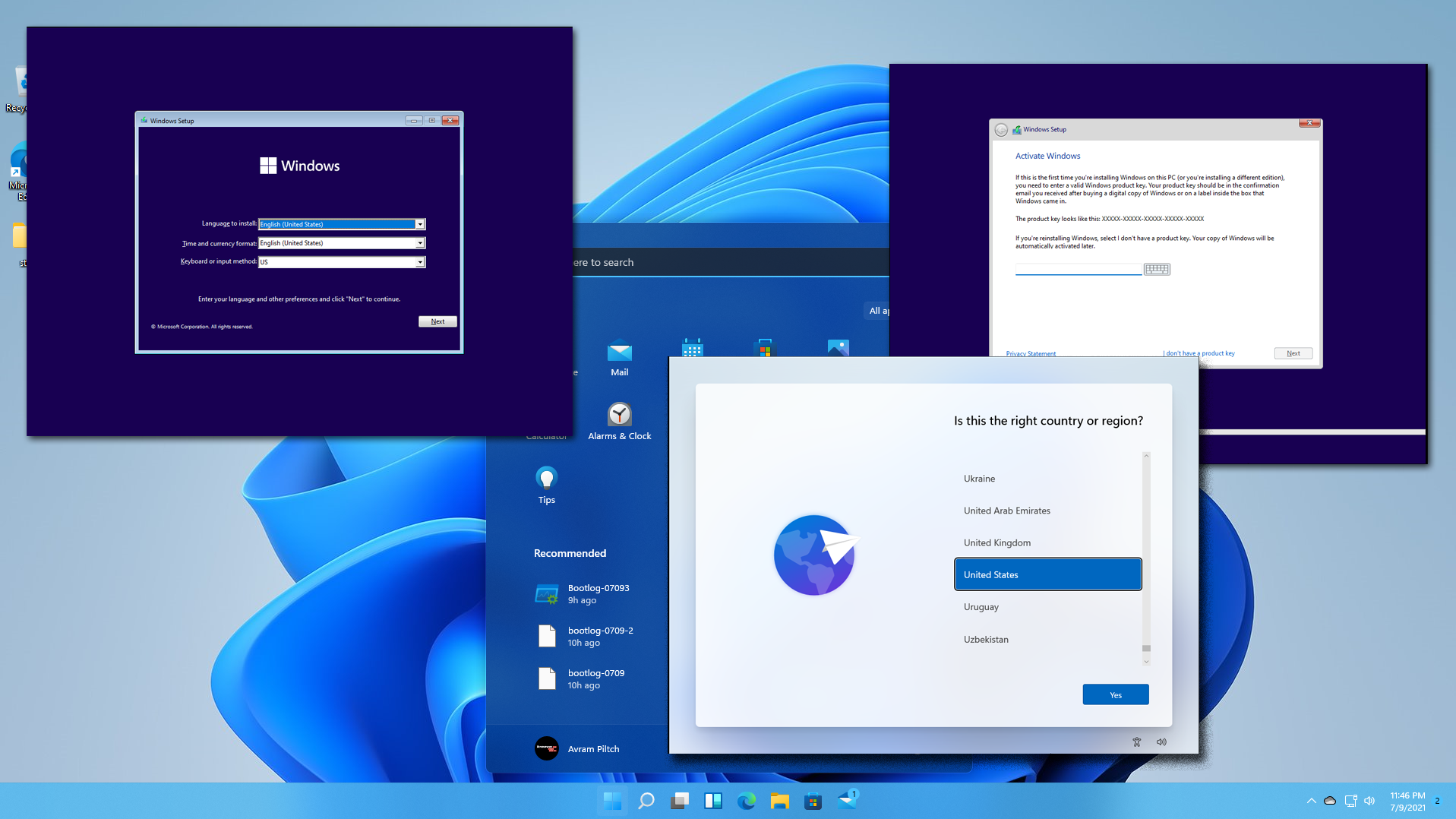
- Follow On-Screen Prompts: The Windows 11 setup wizard will guide you through partitioning your drive, selecting the installation location, and initial setup.
Considerations for Incompatible Hardware (and why it’s generally not recommended)
There are community-driven workarounds that allow users with technically incompatible hardware (specifically concerning TPM 2.0 or CPU age) to install Windows 11. These often involve registry edits or modified installation media. However, Microsoft officially states that running Windows 11 on unsupported hardware is not recommended and comes with significant caveats:
- Lack of Updates: Microsoft explicitly warns that such systems “may not be entitled to receive updates,” including critical security updates. In today’s threat landscape, this alone is a major deterrent, posing serious digital security risks.
- Stability Issues: Unofficial installations might experience instability, driver conflicts, and performance problems.
- No Support: If you encounter issues, Microsoft support will not assist you.
- Potential Future Lockouts: While currently possible, there’s no guarantee that future Windows 11 updates won’t actively block or brick unsupported systems.
Given these substantial risks, for the sake of digital security, long-term stability, and your overall productivity, it is strongly advised to adhere to Microsoft’s official requirements. If your hardware is truly incompatible, consider sticking with Windows 10 (which is supported until October 2025) or investing in a new PC. From a financial perspective, a new, compatible device offers a more secure and stable return on investment than a risky, unsupported upgrade that could lead to data loss or costly troubleshooting down the line.
Preparing Your System for the Upgrade
Regardless of your chosen installation method, a little preparation goes a long way in ensuring a smooth and successful transition to Windows 11.
Backing Up Your Data: A Crucial First Step
This cannot be stressed enough: back up your data. Even when performing an in-place upgrade, unforeseen issues can occur. A clean installation will wipe your drive.
- Cloud Services: Utilize services like OneDrive, Google Drive, or Dropbox to sync your important documents, photos, and files.
- External Drive: A dedicated external hard drive is excellent for full system backups or simply copying your “Documents,” “Pictures,” and “Downloads” folders. Windows 10’s “File History” or third-party backup software can automate this.
- System Image: For advanced users, creating a full system image allows you to restore your entire drive to its previous state if anything goes wrong.
Freeing Up Disk Space
While Windows 11 requires 64GB, having ample free space during the installation process is beneficial for temporary files and a smoother experience.
- Disk Cleanup: Use Windows’ built-in Disk Cleanup tool to remove temporary files, old Windows update files, and recycle bin contents.
- Uninstall Unused Apps: Go to
Settings > Apps > Apps & featuresand remove any programs you no longer use. - Move Large Files: Transfer large media files or games to an external drive if they’re not immediately needed.
Updating Drivers and Windows 10
Ensuring your current system is up-to-date can prevent many post-upgrade headaches.
- Windows 10 Updates: Make sure your Windows 10 installation is fully updated to the latest version. Go to
Settings > Update & Security > Windows Updateand click “Check for updates.” - Device Drivers: While Windows 11 will attempt to install its own drivers, having the latest drivers for your crucial components (graphics card, chipset, network adapter) from your hardware manufacturer’s website can prevent compatibility issues. This is especially important for proprietary components that might not have generic Windows drivers.
Post-Installation Tips and Optimization
Congratulations, you’ve successfully installed Windows 11! Now, it’s time to get acquainted with your new operating system and optimize it for your needs.
Exploring New Features and UI
Take some time to explore the redesigned user interface.
- Start Menu and Taskbar: Familiarize yourself with the centered Start menu and taskbar. Experiment with pinning apps, creating app folders, and customizing the taskbar’s behavior.
- Widgets: Discover the new Widgets panel for quick access to news, weather, calendar events, and more.
- Snap Layouts and Groups: Leverage the enhanced window snapping features to efficiently organize your workspace, boosting productivity whether you have a single monitor or multiple displays.
- Settings App: The Settings app has been revamped. Spend some time navigating it to customize privacy settings, notifications, display options, and more.
Driver Management and Updates
Even after a successful installation, ensuring all your drivers are current is vital for stability and performance.
- Windows Update: Regularly check Windows Update for driver updates released by Microsoft or your hardware manufacturers.
- Manufacturer Websites: For critical components like graphics cards, motherboards, and specific peripherals, periodically visit the manufacturer’s official website to download the very latest drivers. Out-of-date drivers can lead to performance issues, crashes, or feature limitations.
Performance Tweaks and Digital Security Considerations
To get the most out of Windows 11 and maintain a secure environment:
- Performance Mode: Go to
Settings > System > Power & battery > Power modeand select “Best performance” if you prioritize speed over battery life (for laptops). - Startup Apps: Disable unnecessary programs from launching with Windows to speed up boot times. Go to
Settings > Apps > Startup. - Privacy Settings: Review
Settings > Privacy & securityto control app permissions, location services, diagnostics, and other data-sharing options. - Antivirus and Firewall: Ensure Windows Security (which includes Defender Antivirus and Firewall) is active and up-to-date. Consider additional internet security solutions if your digital activities warrant them. Staying secure is not just a tech concern but a financial one; data breaches can be incredibly costly.
- Regular Backups: Continue your disciplined approach to data backup. Cloud services and external drives remain your best friends for safeguarding your digital assets.
- System Restore Points: Windows 11 automatically creates restore points, but you can manually create one before making significant system changes. This allows you to roll back to a stable state if problems arise.
Installing Windows 11 can be a straightforward process if your system is compatible and you follow the recommended steps. By understanding the requirements, utilizing Microsoft’s tools, and preparing your system, you can unlock a refreshed, secure, and productive computing experience. For those whose hardware doesn’t make the cut, Windows 10 remains a viable and supported option, reminding us that sometimes the best tech decision is to stick with what works, or to carefully plan for a future hardware investment that aligns with evolving technological standards and security imperatives.
aViewFromTheCave is a participant in the Amazon Services LLC Associates Program, an affiliate advertising program designed to provide a means for sites to earn advertising fees by advertising and linking to Amazon.com. Amazon, the Amazon logo, AmazonSupply, and the AmazonSupply logo are trademarks of Amazon.com, Inc. or its affiliates. As an Amazon Associate we earn affiliate commissions from qualifying purchases.