
In the modern era of high-fidelity gaming, the Xbox One remains a cornerstone of digital entertainment for millions. However, the sophistication of its software architecture and its reliance on robust network infrastructure means that users occasionally encounter the frustrating “Installation Stopped” error. This technical glitch can occur whether you are installing a game from a physical disc or downloading a digital title from the Microsoft Store.
Understanding why these interruptions occur requires a deep dive into the intersection of hardware performance, software stability, and network integrity. This guide provides a professional analysis of the technical bottlenecks that cause installation failures and offers a structured approach to resolving them, ensuring your gaming ecosystem remains functional and efficient.
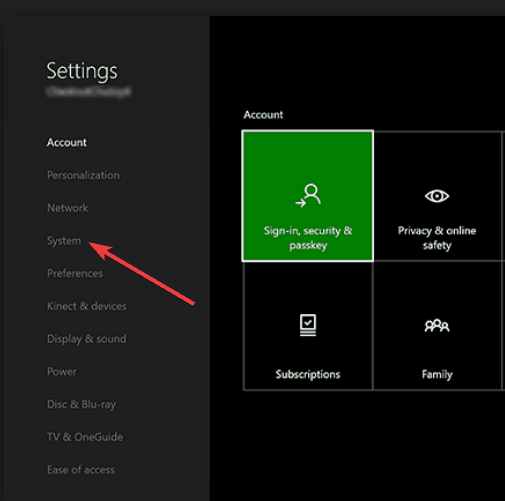
Understanding the Infrastructure Behind Xbox One Installations
To solve the mystery of interrupted installations, one must first understand how the Xbox One processes data. Unlike older consoles that played games directly from a disc with minimal buffering, the Xbox One utilizes a mandatory installation process. This ensures that the high-speed demands of modern game engines are met by the console’s internal SATA II/III hard drive rather than the significantly slower optical drive.
The Role of the Xbox Network (Xbox Live)
Even when installing from a disc, the Xbox One often attempts to fetch the latest patches and updates simultaneously. This creates a dual-stream process where the console is reading data from the disc while downloading gigabytes of data from the Xbox servers. If the servers experience a momentary “handshake” failure or if your local network fluctuates, the console’s operating system may trigger a safety pause to prevent data corruption. This is a protective software mechanism, though it manifests as a nuisance to the user.
Local Storage and Cache Management
The Xbox One’s operating system allocates specific sectors of the hard drive for “active” installations. If the drive’s file system is fragmented or if the cache is cluttered with temporary files from previous sessions, the write speed can drop below the required threshold. When the hardware cannot keep up with the incoming data stream, the installation service often times out, leading to the “Installation Stopped” message. Regular maintenance of your console’s digital environment is essential for preventing these bottlenecks.
Diagnosing Connectivity and Network Interference
A significant portion of installation errors are rooted in the network layer. Digital delivery of games involves massive data packets that must be verified in real-time. Any disruption in this flow can lead to a complete halt of the installation process.
Identifying Bandwidth Throttling and Latency
Most household internet connections are asymmetrical, meaning download speeds are prioritized over upload speeds. However, during an Xbox installation, the console must constantly send “acknowledgment” packets back to the server to confirm successful receipt of data. If your network is congested—perhaps due to other devices streaming 4K video or a high number of active background applications—latency (ping) can spike. High latency causes the Xbox to lose synchronization with the download server. Monitoring your “Detailed Network Statistics” in the Xbox settings menu can reveal if packet loss is the culprit behind your installation woes.
Wired vs. Wireless: Optimizing Your Data Pipeline
While Wi-Fi technology has advanced significantly with the advent of Wi-Fi 6, the Xbox One’s internal wireless card is often susceptible to signal interference from other household electronics like microwaves or baby monitors. A professional-grade gaming setup should ideally utilize a Cat6 Ethernet connection. A wired connection eliminates the variability of radio frequency interference and provides a stable, full-duplex communication channel. If you must use Wi-Fi, ensure your console is on the 5GHz band to minimize congestion, though keep in mind that 5GHz has a shorter range and less wall penetration than 2.4GHz.
Hardware Limitations and System Corruption
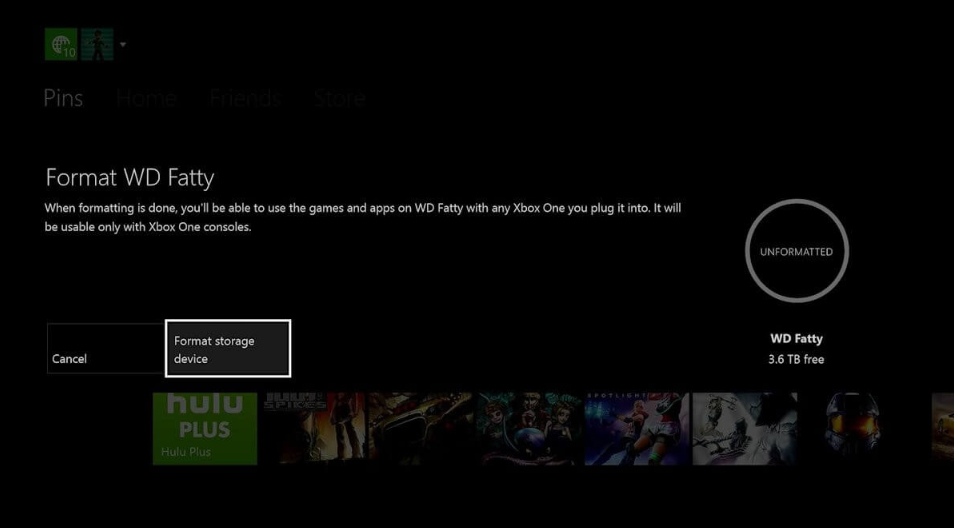
If your network is stable but the installation continues to fail, the focus must shift to the physical components and the integrity of the data stored on the console.
The Impact of Hard Drive Integrity
Hard disk drives (HDDs) are mechanical devices subject to wear and tear. Over time, “bad sectors” can develop where data can no longer be written or read reliably. If an installation attempts to write a critical game file to one of these failing sectors, the OS will abort the process.
Furthermore, if you are using an external hard drive, the USB 3.0 connection might be the weak link. A faulty cable or a loose port can cause the drive to momentarily disconnect, which immediately kills any active installation. Testing the installation on the internal drive versus the external drive is a standard diagnostic step to isolate hardware failure.
Corrupted Local Saved Data and System Updates
Sometimes, the issue isn’t with the game you are trying to install, but with a corrupted system update or “Ghost Data” left behind by a previous failed attempt. If a partial file remains in the system’s “Reserved Space,” the new installation might attempt to overwrite it and fail due to a file permission error within the Xbox OS. Clearing local saved games (which are backed up to the cloud) can often reset the file directory, allowing the new installation to proceed on a “clean slate.”
Advanced Software Solutions and Preventative Maintenance
When basic restarts fail, a more technical intervention is required to reset the console’s logic and clear hardware-level obstructions.
Clearing the Persistent Storage and MAC Address
One of the most effective “deep cleans” for an Xbox One is clearing the persistent storage associated with the Blu-ray player and resetting the MAC address.
- Persistent Storage: For disc-based installs, go to Settings > Devices & Streaming > Blu-ray > Persistent Storage. Clearing this removes the cached data the console uses to remember where it left off on a disc.
- Alternate MAC Address: Go to Settings > General > Network Settings > Advanced Settings > Alternate MAC Address > Clear. This forces the console to reboot and refresh its identity on your local network, which can bypass IP conflicts or router-side blocks that might be stalling your download.
The “Offline” Installation Strategy
For users struggling with disc-based installations that keep stopping, the “Offline Method” is a highly successful workaround. By taking the console offline (Settings > General > Network Settings > Go Offline), you force the Xbox to ignore the internet entirely. This prevents the console from trying to download updates and the disc data simultaneously. Once the base game is fully installed from the disc, you can reconnect to the internet to download the necessary patches. This isolates the installation process and removes the network variable from the equation.
Factory Resets and OS Reinstallation
As a final resort, if the “Installation Stopped” error occurs across multiple games and various network conditions, the console’s operating system may be compromised. A “Soft Factory Reset” (Reset and keep my games & apps) re-installs the Xbox OS while leaving your library intact. This fixes deep-seated registry errors or corrupted system files that might be interfering with the Windows-based kernel that runs the Xbox One.
Conclusion: Future-Proofing Your Gaming Setup
The Xbox One is a sophisticated piece of technology that operates on a complex interplay of hardware and cloud-based software. While the “Installation Stopped” error is a common pain point, it is almost always solvable through systematic troubleshooting. By maintaining a wired network connection, managing your hard drive space effectively, and understanding when to use the offline installation strategy, you can minimize downtime and maximize your gaming experience.
In the rapidly evolving landscape of digital tech, staying informed about the underlying mechanics of your gadgets is the best way to ensure they continue to perform at their peak. Whether it’s a simple cache clear or a strategic network reconfiguration, the power to fix your installation issues lies in understanding the technology beneath the plastic shell.
aViewFromTheCave is a participant in the Amazon Services LLC Associates Program, an affiliate advertising program designed to provide a means for sites to earn advertising fees by advertising and linking to Amazon.com. Amazon, the Amazon logo, AmazonSupply, and the AmazonSupply logo are trademarks of Amazon.com, Inc. or its affiliates. As an Amazon Associate we earn affiliate commissions from qualifying purchases.