
In the increasingly collaborative digital landscape, communication platforms like Microsoft Teams have become indispensable for businesses, educational institutions, and various organizations worldwide. While most individual users are familiar with installing applications directly onto their personal devices, the deployment of such critical software within large, managed environments presents unique challenges. This is where the concept of a “Teams Machine-Wide Installer” comes into play – a specialized deployment mechanism designed to streamline the provisioning and management of Microsoft Teams across numerous devices, ensuring consistency, efficiency, and control for IT administrators. It’s a crucial component for organizations aiming to standardize their communication infrastructure and optimize productivity, touching on core aspects of modern IT management and enterprise technology strategies.
Understanding the Core Concept: What Exactly is It?
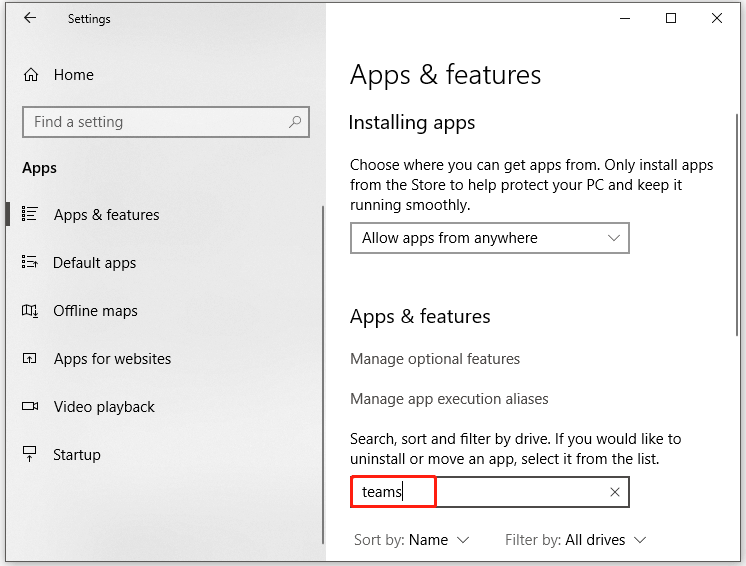
At its heart, the Teams Machine-Wide Installer is a distinct installation package for Microsoft Teams that targets the operating system itself, rather than a specific user profile. Unlike the standard user-based installation, which typically places application files within a user’s AppData directory and requires re-installation for each new user on a shared machine, the machine-wide version installs the core application files to a common location accessible by all users on that computer. This fundamental difference underpins its utility and makes it a powerful tool for large-scale deployments.
Defining the Machine-Wide Approach
The machine-wide installer, often referred to as the Teams MSI (Microsoft Software Installer) package, acts as a setup bootstrap. When an administrator installs Teams using this method, it places the necessary program files in a shared folder, typically within Program Files or Program Files (x86). This means that the primary executable files and core components of Microsoft Teams are available system-wide. When a user logs into the machine for the first time, or if Teams is launched, a small per-user component is installed to their AppData directory, creating shortcuts and ensuring the application is tailored to their specific profile without needing a full re-installation of the entire application suite. This two-stage process — a shared base and a user-specific stub — is key to its efficiency.
Differentiating from Per-User Installations
The distinction between machine-wide and per-user installations is critical for understanding their respective use cases. A per-user installation, which is the default for most individual downloads of Teams, installs the entire application stack directly into the user’s local profile (%USERPROFILE%AppDataLocalMicrosoftTeams). This means every user who logs into a machine and installs Teams will have their own complete copy of the application, consuming disk space for each user and potentially leading to disparate versions if not managed carefully. Updates are also handled on a per-user basis, often initiated by the user themselves.
In contrast, the machine-wide installer ensures that the core application files are stored once. This significantly reduces disk space consumption on multi-user systems and centralizes the management of the core application version. While user-specific configurations and cache data are still stored in individual user profiles, the heavy lifting of the application’s binaries is done once for the entire machine.
The “Why”: Addressing Organizational Needs
Organizations, particularly those with hundreds or thousands of employees, face unique challenges in software deployment. Manual per-user installations are impractical, inconsistent, and resource-intensive for IT departments. Furthermore, environments like virtual desktop infrastructure (VDI), shared workstations (e.g., in call centers, libraries, classrooms), or temporary user setups demand a robust and scalable deployment solution. The Teams Machine-Wide Installer directly addresses these needs by offering:
- Standardization: Ensures all users on a given machine utilize the same core version of Teams.
- Efficiency: Reduces the effort and time required for IT teams to deploy and maintain Teams across a large fleet of devices.
- Resource Optimization: Minimizes storage footprint and bandwidth usage, especially in VDI environments.
- Consistency: Provides a uniform user experience, irrespective of who logs into the machine.
These benefits make the machine-wide installer an indispensable tool for efficient IT operations, contributing to overall productivity and resource management within an enterprise setting.
The Mechanics Behind the Machine-Wide Deployment
Understanding how the Teams Machine-Wide Installer functions under the hood is crucial for effective deployment and troubleshooting. Its unique architecture is designed to balance centralized management with individual user experience, leveraging the strengths of both system-wide and user-specific components.
How the Installer Works
When the Teams Machine-Wide Installer (typically an MSI file) is executed, it first installs the core Teams application files to a common location on the system, such as C:Program FilesWindowsAppsMicrosoft.Teams. This initial installation doesn’t immediately run Teams for any user. Instead, it sets up the foundation.
The magic happens when a user first logs into the machine or explicitly tries to launch Teams. At this point, a small executable, often referred to as an “updater stub” or “bootstrapper,” located in the machine-wide installation directory, detects that the user does not have a per-user Teams installation. It then proceeds to deploy a minimal set of user-specific files and configurations into the user’s AppDataLocalMicrosoftTeams directory. This includes user settings, cached data, and shortcuts. This process is remarkably fast because the core application binaries are already present on the machine. Each subsequent launch for that user will then utilize their per-user installation, which is linked to the shared machine-wide core.
File Locations and Directory Structure
The machine-wide installation fundamentally changes where Teams’ core files reside.
- Machine-Wide Location: The primary application binaries, executables, and supporting files are typically found in a system-wide directory, such as
C:Program Files (x86)MicrosoftTeams Installeror similar, depending on the installer version and operating system. This is the common repository for the application’s core logic. - Per-User Location: For each user who signs in and launches Teams, a separate set of user-specific files, including user configurations, cache, logs, and a small launcher/updater, will be created in
C:Users<username>AppDataLocalMicrosoftTeamsandC:Users<username>AppDataRoamingMicrosoftTeams. This ensures that user-specific data and personalized settings are isolated and managed per individual, preventing conflicts and maintaining privacy.
This dual-directory structure is key to the machine-wide installer’s effectiveness, allowing for a shared core application while preserving individual user environments.
User Profile Integration and Data Storage
Despite the machine-wide installation of the core application, user-specific data remains isolated. When a user launches Teams, their personal settings, chat history, downloaded files, and other user-specific data are stored within their respective user profiles. This ensures that:
- Personalization: Each user retains their unique settings and preferences.
- Data Isolation: Data from one user does not inadvertently mix with another’s, which is crucial for privacy and security.
- Roaming Profiles (Limited): While the core application isn’t meant for full roaming profiles, user-specific data can, to some extent, be managed with profile management solutions in VDI environments, though this requires careful configuration.
It’s important to note that while the machine-wide installer handles the application deployment, robust user profile management solutions are still necessary in complex shared environments to handle user data effectively, especially for consistent user experience across different machines or sessions.
Update Mechanisms and Management
One of the most frequently asked questions about the machine-wide installer concerns updates. By default, the Teams client has an auto-update mechanism. When installed per-user, this mechanism updates the client within that user’s profile. With the machine-wide installer, the auto-update behavior is slightly nuanced:
- Core Application Updates: The machine-wide installer itself is not automatically updated. IT administrators are responsible for deploying newer versions of the Teams MSI to update the core application files on the system. This allows for controlled rollout of major updates.
- User-Specific Updates: Once a user launches Teams, the per-user component still checks for updates. In most scenarios, it will attempt to update itself within the user’s profile if a newer version of the per-user client is available. However, in environments with strict update policies or where the machine-wide installer aggressively manages versions, this per-user update might be suppressed or managed by the central deployment tool. Microsoft generally recommends regular re-deployment of the updated MSI to keep the machine-wide core up-to-date, especially in shared computing environments where per-user updates might be less reliable or undesirable.
Effective update management ensures that users always have access to the latest features and security patches, minimizing vulnerabilities and maximizing productivity.
Key Benefits and Ideal Scenarios for Adoption
The Teams Machine-Wide Installer is not just an alternative installation method; it’s a strategic tool that offers significant advantages for specific organizational needs, particularly in large-scale and managed IT environments.
Streamlined Deployment and Centralized Control
For IT administrators, the most compelling benefit is the ability to deploy Microsoft Teams across hundreds or thousands of machines with unparalleled ease. Instead of managing individual installations, they can use centralized deployment tools (like Group Policy, Microsoft Endpoint Configuration Manager, or Microsoft Intune) to push the MSI package to all target devices. This automation:
- Reduces Manual Effort: Eliminates the need for IT staff to physically install Teams on each machine or guide users through the process.
- Ensures Consistency: Guarantees that all machines in the fleet are running the approved version of the Teams client.
- Speeds Up Onboarding: New users or machines can quickly gain access to Teams without extensive setup.
- Simplified Rollbacks/Uninstalls: Centralized management makes it easier to remove or revert Teams if needed.
This level of control is invaluable for maintaining a stable and secure IT environment, freeing up IT resources for more strategic initiatives.
Optimizing Multi-User Environments (VDI, Shared PCs)
The machine-wide installer truly shines in environments where multiple users share a single physical or virtual machine. These scenarios include:
- Virtual Desktop Infrastructure (VDI): In VDI setups (e.g., Azure Virtual Desktop, Citrix, VMware Horizon), users connect to virtual machines rather than physical ones. The machine-wide installer prevents the unnecessary duplication of Teams binaries across numerous user profiles within the same virtual image, significantly reducing storage consumption and improving image management. It ensures a consistent, pre-installed Teams experience from the moment a user logs into their virtual desktop.
- Shared Workstations: In settings like libraries, classrooms, kiosks, call centers, or public access computers, different users log in throughout the day. A per-user installation would either require each user to install Teams or lead to inefficient disk space usage if pre-installed for every potential user. The machine-wide installer ensures Teams is available for any user, leveraging the single core installation.
- Temporary Users: For contractors, interns, or temporary staff, quick access to essential tools like Teams is vital. The machine-wide installation streamlines their access without the overhead of individual software deployments.
In these contexts, the machine-wide installer is not just convenient but often essential for operational efficiency and performance.
Enhanced Productivity and User Experience
While primarily an IT-centric solution, the machine-wide installer indirectly enhances user productivity and experience:
- Instant Access: Users don’t have to wait for an installation process; Teams is ready the moment they log in.
- Consistent Performance: By managing the core application centrally, IT can ensure better performance and fewer conflicts, as all users are running the same, tested version.
- Reduced Friction: Eliminates common user frustrations associated with software installation, updates, or compatibility issues.
- Focus on Collaboration: With the underlying technology seamlessly managed, users can focus entirely on communication and collaboration within Teams, leveraging its features like chat, video conferencing, and file sharing without technical distractions.
This reliability fosters a more productive work environment, where technology supports rather than hinders daily operations.
Reducing IT Overhead and Costs (Money aspect)
From a financial perspective, the machine-wide installer offers tangible benefits that align with sound business finance principles:
- Lower Management Costs: Automating deployments reduces the labor hours IT staff spend on manual installations, troubleshooting, and individual updates. This translates directly into cost savings for IT operations.
- Optimized Resource Utilization: In VDI environments, reduced disk space per virtual machine can lead to lower storage costs and improved server performance, extending the lifespan of hardware or reducing the need for additional infrastructure.
- Improved Uptime: Centralized control and standardized deployments lead to fewer software-related issues, minimizing downtime for employees and preventing productivity losses.
- Efficient Licensing: While Teams licensing is typically per-user, the efficient deployment strategy ensures that resources are not wasted on redundant installations, allowing organizations to maximize their software investments.
These efficiencies contribute to a healthier bottom line, making the machine-wide installer a smart investment for large organizations.
Security and Compliance Considerations (Digital Security aspect)
Digital security is paramount for any organization. The machine-wide installer indirectly supports a stronger security posture:
- Version Control: IT can ensure all users are running an approved, secure version of Teams, facilitating quicker patching of vulnerabilities.
- Reduced Attack Surface: By controlling the installation process and location, IT can minimize the chances of users installing unauthorized or compromised versions of the software.
- Compliance: In regulated industries, maintaining strict control over software deployments and versions is often a compliance requirement. The machine-wide installer simplifies this by providing a standardized and auditable deployment method.
Integrating the machine-wide installer into an organization’s digital security framework helps maintain a secure and compliant IT environment.
Implementation Strategies and Best Practices
Deploying the Teams Machine-Wide Installer effectively requires careful planning and adherence to best practices. A well-executed strategy ensures smooth operation, minimizes disruption, and maximizes the benefits for both IT and end-users.
Deployment Methods: From Group Policy to Modern Management
Organizations have several robust methods for deploying the Teams MSI package, catering to different infrastructure setups and management philosophies:
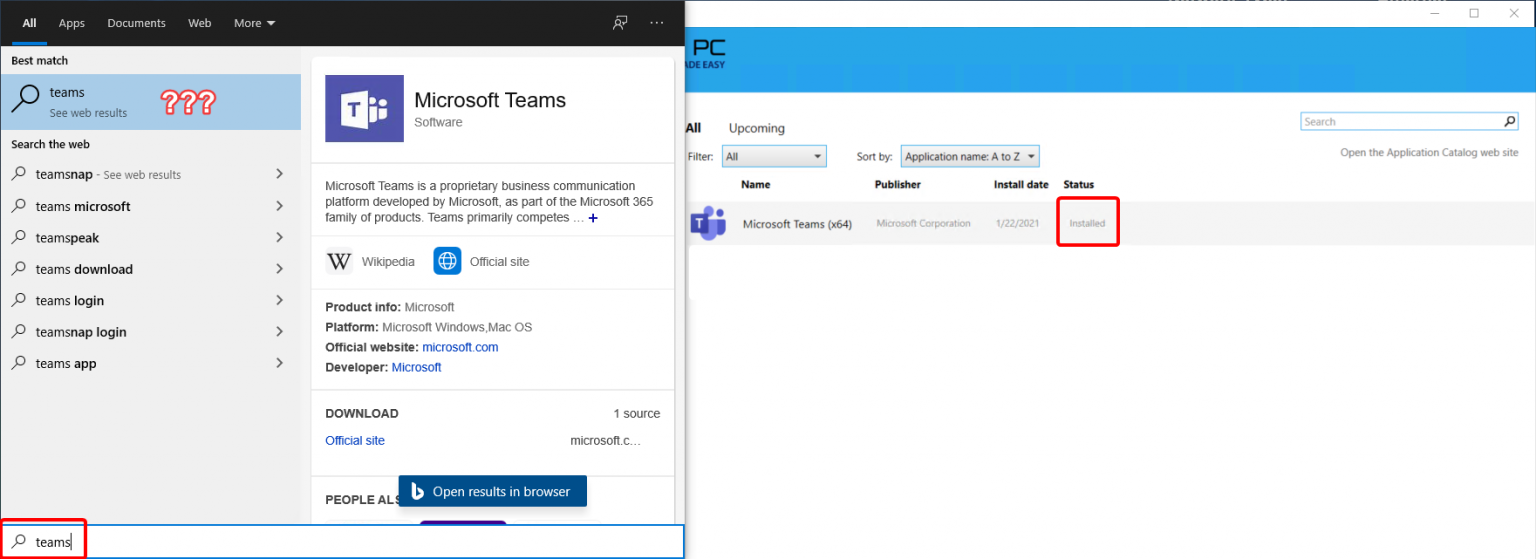
- Group Policy (GPO): For Windows Server Active Directory environments, Group Policy is a traditional and highly effective method. IT administrators can create a GPO to assign or publish the Teams MSI to target computers. This ensures that the installer runs automatically on specified machines upon startup or a defined schedule. It’s a reliable method for on-premises deployments.
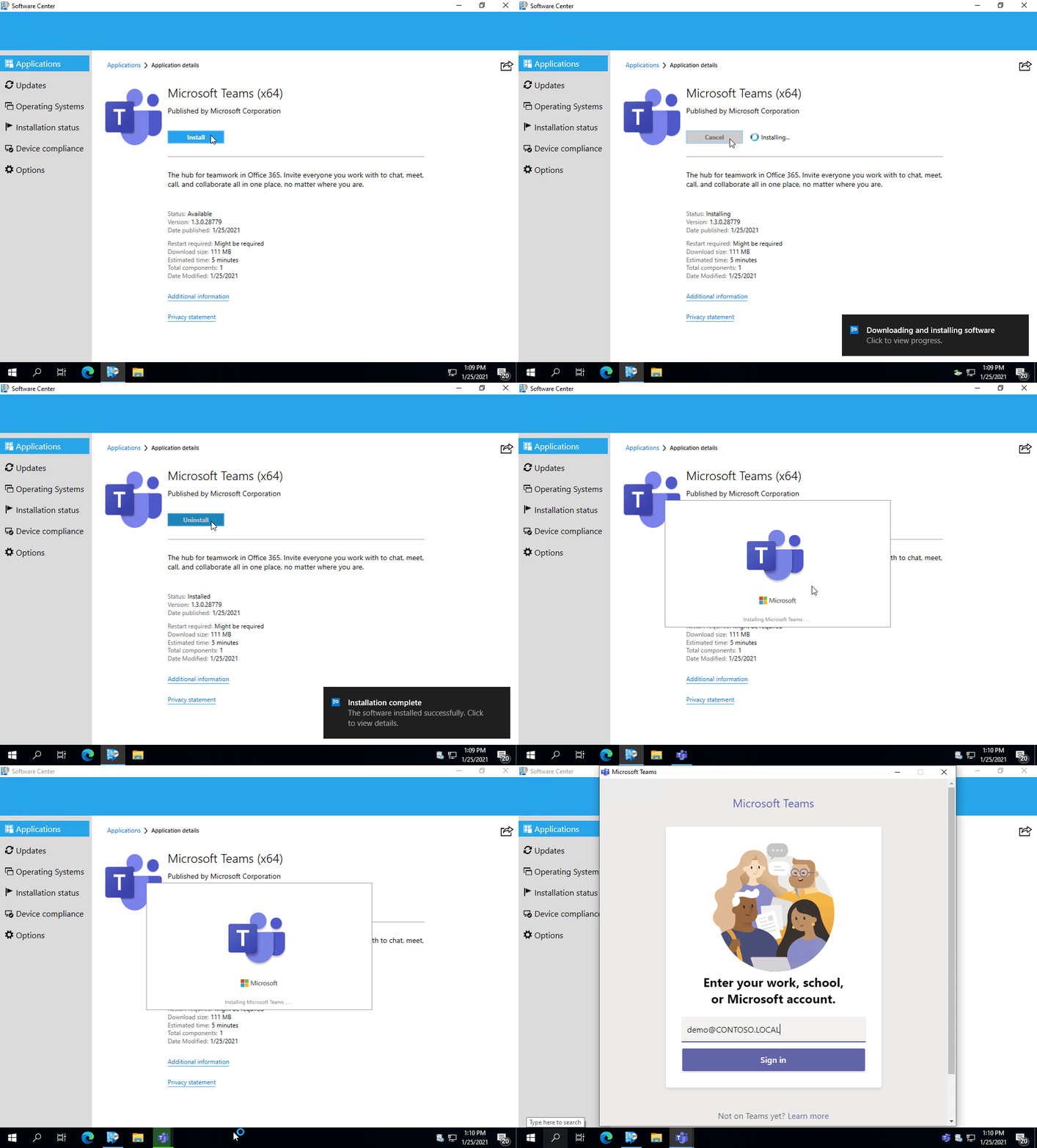
- Microsoft Endpoint Configuration Manager (MECM/SCCM): In larger, more complex environments, MECM (formerly SCCM) provides comprehensive software deployment, patching, and asset management capabilities. Administrators can create an application package for the Teams MSI, defining installation parameters, detection methods, and deployment schedules to target specific collections of devices. MECM offers detailed reporting and control over the deployment lifecycle.
- Microsoft Intune (Endpoint Manager): For cloud-first or hybrid environments, Microsoft Intune (part of Microsoft Endpoint Manager) is the preferred solution for modern device management. Intune allows for deploying the Teams MSI as a Line-of-Business (LOB) app or a Win32 app to managed Windows devices, offering flexibility for remote and hybrid workforces. It integrates seamlessly with Azure Active Directory and provides robust reporting and compliance features.
- Third-Party Tools: Other third-party software deployment tools (e.g., PDQ Deploy, Ivanti, Workspace ONE) can also be used to push the Teams MSI, offering flexibility depending on an organization’s existing IT infrastructure.
- Manual Installation: While not ideal for large scale, manual execution of the MSI package is possible for testing, small deployments, or specific problematic machines.
Choosing the right deployment method depends on the organization’s size, infrastructure, existing tools, and IT expertise.
Pre-Deployment Considerations
Before initiating a broad deployment, several factors should be thoroughly considered:
- System Requirements: Ensure target machines meet the minimum hardware and software requirements for Microsoft Teams.
- Network Bandwidth: Plan for the initial download of the MSI package and subsequent updates. Large-scale deployments can consume significant bandwidth.
- Existing Teams Installations: Determine how to handle existing per-user Teams installations. The machine-wide installer can coexist, but in some cases, it might be preferable to uninstall existing versions first for a cleaner deployment, especially if managing updates centrally.
- User Profiles: Understand how user profiles are managed in your environment, especially for VDI or shared PC scenarios. Tools for profile management (e.g., FSLogix) can enhance the user experience.
- Testing: Always conduct pilot deployments on a small group of test machines and users before a full rollout. This helps identify potential issues, test update mechanisms, and gather feedback.
- Security Policies: Review any existing security policies (e.g., antivirus, firewall, application whitelisting) that might interfere with the installation or operation of Teams.
Careful pre-deployment planning minimizes risks and ensures a smoother transition.
Troubleshooting Common Issues
Despite best efforts, issues can arise during deployment or operation. Common problems include:
- Installation Failures: Check logs (e.g., MSI logs, Windows Event Viewer) for specific error codes. Ensure sufficient disk space and user permissions.
- Teams Not Launching: Verify that the per-user components are correctly installed when a user logs in. Check for conflicting software or antivirus interventions.
- Update Issues: If per-user updates are not occurring, verify network connectivity to Microsoft update servers and check any Group Policies or configuration settings that might suppress updates. If using the MSI to update, ensure the old version is uninstalled or upgraded correctly.
- Performance Problems: In VDI environments, performance issues can arise. Optimize the virtual desktop image, especially for persistent storage for user profiles and cache.
- Conflicting Installations: Ensure that only the desired version (machine-wide or per-user) is running. Sometimes remnants of old installations can cause conflicts.
Having a clear troubleshooting methodology and access to relevant logs is crucial for rapid issue resolution.
Coexistence with Per-User Installations
The Teams Machine-Wide Installer is designed to coexist with per-user installations. If a user already has a per-user version of Teams installed, the machine-wide installer typically installs its core components without interfering with the existing user-specific installation. When that user logs in, their existing per-user installation will generally take precedence or continue to operate.
However, for consistency and simplified management, many organizations prefer to standardize on one method. If transitioning to machine-wide, IT might choose to uninstall existing per-user installations before deploying the MSI, especially in scenarios where strict version control is paramount. For new machines or users, the machine-wide approach ensures that the first installation is the controlled, system-wide one.
When to Choose Machine-Wide vs. Per-User Installation
The decision between a machine-wide and a per-user installation of Microsoft Teams hinges on an organization’s specific needs, IT infrastructure, and user environment. Both have distinct advantages and disadvantages.
Advantages of Machine-Wide Installation
The machine-wide installer is particularly advantageous for:
- Managed Environments: Large enterprises, educational institutions, or any organization with a centralized IT department that needs to control software deployment and updates.
- Shared Computing: VDI environments, shared workstations, labs, and kiosks where multiple users access the same machine.
- Resource Optimization: Reduces disk space, particularly in VDI golden images, and streamlines network bandwidth for initial deployments.
- Consistency and Compliance: Ensures a standardized version of Teams across the fleet, aiding in compliance audits and providing a predictable user experience.
- Automation: Integrates seamlessly with enterprise deployment tools like Group Policy, SCCM, and Intune for automated, large-scale rollouts.
- Security: Provides a more controlled environment for software deployment, reducing the risk of users installing unauthorized or outdated versions.
Essentially, if you are an organization looking for control, efficiency, and consistency across a fleet of devices, the machine-wide installer is the superior choice.
Disadvantages and Limitations
While powerful, the machine-wide installer is not without its considerations:
- Update Management: The core machine-wide installer itself does not auto-update. IT administrators must periodically re-deploy newer MSI packages to keep the core application up-to-date. This requires a proactive update strategy.
- Larger Initial Deployment: While efficient in the long run, the initial deployment of the MSI package needs to be managed through central tools.
- Less User Control: Users have less direct control over their Teams installation and updates, which might be a preference for some advanced users in less restrictive environments.
- Potential for Coexistence Confusion: If not managed properly, having both per-user and machine-wide installations can sometimes lead to confusion or unexpected behavior, though this is rare.
These limitations are generally manageable within a well-structured IT environment but require awareness and planning.
The Case for Per-User Installation
The per-user installation still holds value in specific scenarios:
- Individual Users/Small Businesses: For individuals or very small businesses without extensive IT infrastructure, the default per-user installation downloaded directly from Microsoft is simpler and sufficient.
- Unmanaged Devices: On personal devices that are not managed by an organization’s IT department, per-user is the only practical installation method.
- Rapid Updates: The per-user client typically auto-updates very frequently, ensuring users always have the absolute latest features and patches without IT intervention. This can be an advantage where agility is prioritized over strict control.
- Full User Control: Users have complete control over their installation, including uninstalling, troubleshooting, and managing settings within their profile.
Making the Right Choice for Your Organization
The decision boils down to balancing control, efficiency, and user experience against the specific demands of your IT environment.
- Choose Machine-Wide Installer if: You are a large organization, manage a significant number of devices, use VDI or shared PCs, need centralized control over software versions, prioritize standardized deployments, and have the IT resources to manage the update cycle.
- Choose Per-User Installation if: You are an individual user, a very small business, or primarily manage personal/unmanaged devices, where convenience and immediate access to the latest updates without IT overhead are paramount.
For most businesses looking to leverage Microsoft Teams effectively across their workforce, the machine-wide installer provides the robust, scalable, and manageable solution required for modern enterprise communication and collaboration. It’s a fundamental tool for any IT professional navigating the complexities of enterprise software deployment, ensuring productivity while maintaining security and efficiency.
aViewFromTheCave is a participant in the Amazon Services LLC Associates Program, an affiliate advertising program designed to provide a means for sites to earn advertising fees by advertising and linking to Amazon.com. Amazon, the Amazon logo, AmazonSupply, and the AmazonSupply logo are trademarks of Amazon.com, Inc. or its affiliates. As an Amazon Associate we earn affiliate commissions from qualifying purchases.