
For millions of players worldwide, Minecraft isn’t just a game; it’s a creative outlet, a social hub, and an entire digital universe waiting to be explored. However, the gateway to this blocky paradise often lies in the smooth functioning of the Minecraft Launcher. Encountering a message like “Waiting on Install” can be a frustrating roadblock, transforming anticipation into annoyance. This guide delves deep into what this message signifies, why it appears, and comprehensive strategies to get you back to building, exploring, and surviving in your favorite sandbox game. As a topic deeply rooted in ‘Tech,’ understanding these nuances not only solves an immediate problem but also enhances your overall digital literacy and troubleshooting prowess.
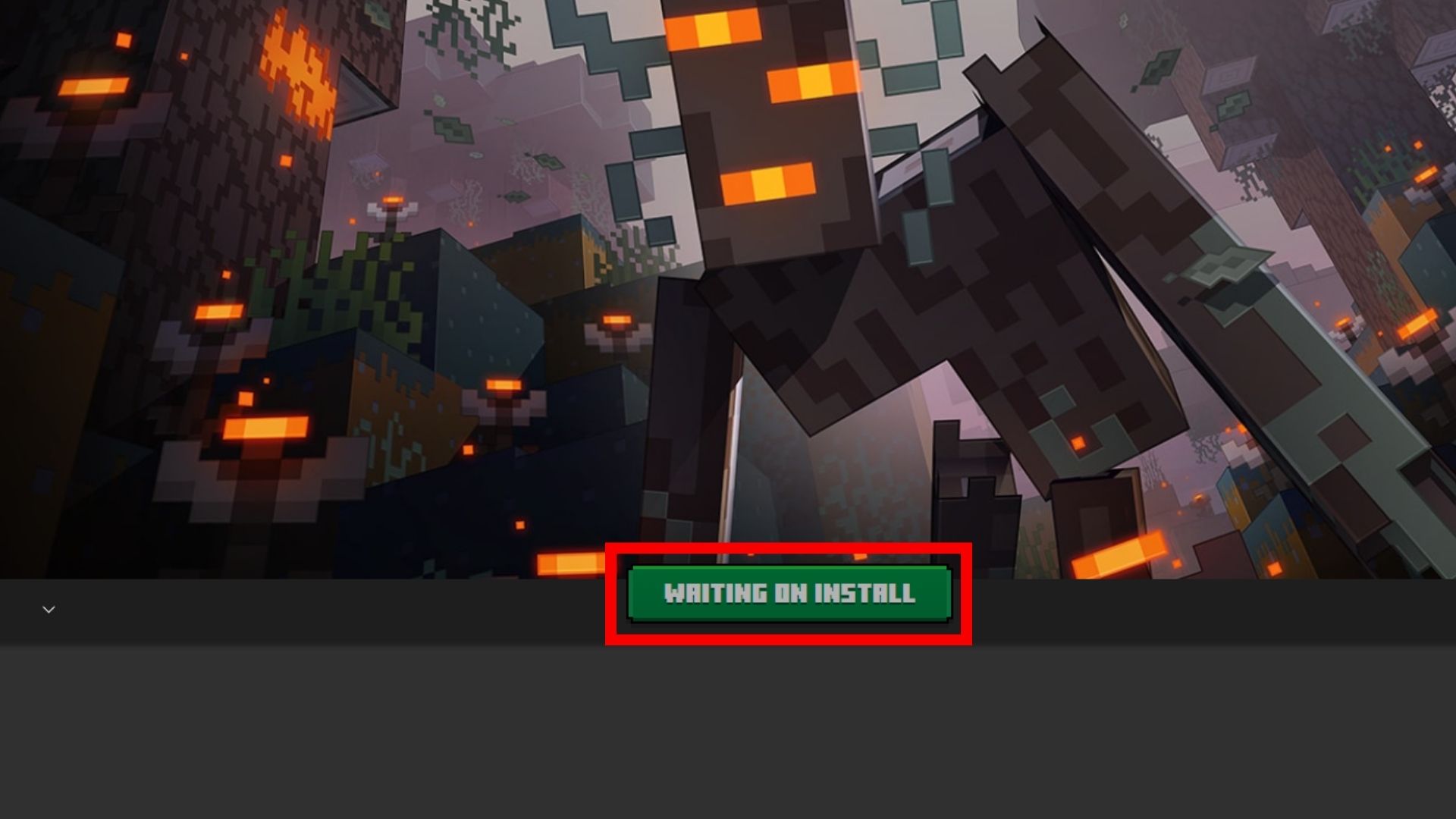
Understanding the ‘Waiting on Install’ Message
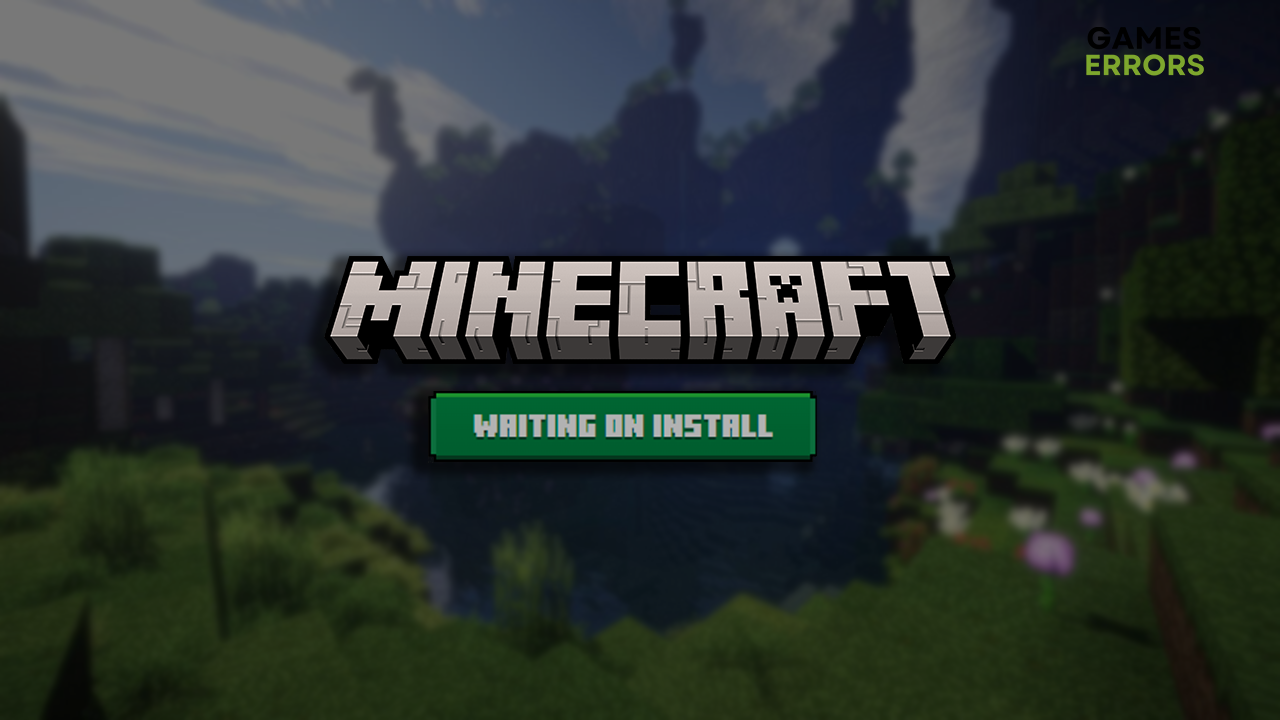
When your Minecraft Launcher displays “Waiting on Install,” it essentially means that the application is attempting to download, verify, or prepare necessary game files, but for some reason, the process is stalled or experiencing a significant delay. This isn’t necessarily an error in the traditional sense, but rather an indication that a required operation — whether it’s downloading an update, installing a new version, or repairing corrupted files — cannot proceed as expected. The launcher is waiting for a dependency to be met or an obstacle to be cleared before it can complete its task.
The core function of the Minecraft Launcher is to manage your game installations. It checks for updates, allows you to switch between different versions (including snapshots and modded instances), and launches the game executable. When it’s “waiting,” it’s actively trying to fulfill one of these responsibilities, but something in your system, network, or even the game’s servers is preventing it from doing so. Understanding the underlying mechanisms behind software installation and networking protocols is key to effective troubleshooting, a skill invaluable in our technology-driven world, transcending just gaming.
What Causes This Delay?
The reasons behind the “Waiting on Install” message can be multifaceted, ranging from simple network hiccups to more complex software conflicts. Pinpointing the exact cause is often the most challenging part of resolving the issue. Here’s a breakdown of the most common culprits:
- Internet Connectivity Issues: This is perhaps the most frequent reason. A slow, unstable, or interrupted internet connection can prevent the launcher from downloading necessary files. If the connection drops mid-download, the process can hang indefinitely. Similarly, a restrictive network (like those in schools or workplaces) might block access to Mojang’s servers.
- Mojang Server Status: Sometimes, the problem isn’t on your end. Minecraft’s servers, which host game files and authentication services, can experience downtime, maintenance, or high traffic. If the servers are down, your launcher will simply wait, unable to fetch the required data.
- Antivirus or Firewall Interference: Security software, while essential for digital security, can sometimes be overly aggressive. Your antivirus or Windows Firewall might mistakenly identify the Minecraft Launcher or its download processes as a threat, blocking its access to the internet or preventing it from writing files to your disk.
- Corrupted Game Files or Launcher Cache: Over time, game files can become corrupted due to unexpected shutdowns, disk errors, or incomplete installations. The launcher itself also maintains a cache of temporary files. If this cache gets corrupted or grows too large, it can interfere with new installations or updates.
- Insufficient Disk Space: Minecraft, especially with updates and multiple versions, can take up a considerable amount of space. If your hard drive is nearly full, the launcher might be unable to download or extract new files, leading to a stall.
- Outdated Launcher or Operating System: While less common, an outdated launcher version or an old operating system might have compatibility issues with newer game updates or server protocols, causing the installation process to hang.
- Background Processes and Resource Contention: Other demanding applications running in the background can consume significant system resources (CPU, RAM, network bandwidth), leaving insufficient resources for the Minecraft Launcher to complete its tasks efficiently.
- VPN or Proxy Services: While useful for privacy or bypassing geo-restrictions, VPNs and proxy servers can sometimes introduce latency or routing issues that disrupt the launcher’s connection to game servers.
Recognizing these potential causes is the first step toward effective troubleshooting. It transforms a seemingly arbitrary error into a solvable technical challenge, a skill highly valued in any modern digital environment.
Troubleshooting Common ‘Waiting on Install’ Issues
Addressing the “Waiting on Install” message requires a systematic approach, moving from the simplest checks to more advanced solutions. This section provides a comprehensive guide to resolve the issue and ensure a smooth return to your Minecraft adventures. For those keen on productivity, understanding these troubleshooting steps can save immense time and frustration in the long run.
Basic Checks and Quick Fixes
Before diving into complex solutions, it’s always wise to start with the most straightforward steps. These often resolve the problem quickly without requiring extensive technical knowledge.
-
Check Your Internet Connection:
- Restart your router/modem: Unplug it for 30 seconds, then plug it back in. This can often resolve temporary network glitches.
- Test your internet speed: Use an online speed test (e.g., Speedtest.net) to ensure you have a stable and sufficient connection.
- Try a different connection: If possible, switch from Wi-Fi to a wired Ethernet connection, or try connecting to a mobile hotspot to rule out issues with your primary network.
- Disable VPN/Proxy: If you’re using a VPN or proxy service, temporarily disable it and try the installation again.
-
Restart the Minecraft Launcher and Your PC:
- Close the launcher completely: Ensure it’s not just minimized but fully exited, including checking your system tray.
- Restart your computer: A full system restart can clear temporary glitches, free up resources, and reset network connections. It’s often surprisingly effective.
-
Check Mojang/Minecraft Server Status:
- Visit official Mojang/Minecraft status pages or third-party server status websites (e.g., downdetector.com) to see if there are any reported outages or maintenance affecting the game servers. If so, patience is the only solution.
-
Run the Launcher as Administrator:
- Right-click on the Minecraft Launcher shortcut or executable file.
- Select “Run as administrator.” This grants the launcher elevated permissions, which can resolve issues related to file access or writing to protected directories.
-
Check for Available Disk Space:
- Open “This PC” or “My Computer” and check the available space on the drive where Minecraft is installed (usually your C: drive). If it’s critically low, delete unnecessary files or uninstall old programs to free up space.
Advanced Solutions for Persistent Problems
If the basic checks don’t resolve the issue, it’s time to delve into more advanced troubleshooting. These steps might require a bit more technical comfort but are often crucial for stubborn problems.
-
Temporarily Disable Antivirus/Firewall:
- Caution: Only do this temporarily and ensure you re-enable your security software immediately after testing.
- Access your antivirus software’s settings and temporarily disable real-time protection.
- For Windows Firewall, go to
Control Panel > System and Security > Windows Defender Firewall > Turn Windows Defender Firewall on or offand temporarily turn it off. - Attempt the installation. If it works, you’ll need to add an exception for the Minecraft Launcher in your security software.
- To add an exception: Search for “Allow an app through Windows Firewall” or check your specific antivirus software’s documentation for adding exclusions for
javaw.exe(Minecraft’s Java executable) and the Minecraft Launcher application.
- To add an exception: Search for “Allow an app through Windows Firewall” or check your specific antivirus software’s documentation for adding exclusions for
-
Clear Launcher Cache and Data:
- For the new unified Minecraft Launcher (since 2021):
- Press
Windows Key + R, type%appdata%, and press Enter. - Navigate to the
.minecraftfolder. - You can try deleting the
launcher_profiles.jsonfile (this will reset your profiles, so back it up if you have custom setups) or thecachefolder within.minecraft. - Also, check
C:Program Files (x86)Minecraft LauncherorC:Program FilesMinecraft Launcherfor any cache folders specific to the launcher application itself.
- Press
- For older launchers or specific issues:
- Go to
C:Users[YourUsername]AppDataRoaming.minecraftlauncher_profiles.jsonand delete it. - You might also delete the
updaterfolder if present in the.minecraftdirectory.
- Go to
- Restart the launcher. It will rebuild these files from scratch.
- For the new unified Minecraft Launcher (since 2021):
-
Update Graphics Drivers and Operating System:
- Graphics Drivers: Outdated drivers can sometimes cause unexpected issues. Visit your graphics card manufacturer’s website (NVIDIA, AMD, Intel) and download the latest drivers for your specific model. Perform a clean installation if possible.
- Windows Updates: Ensure your operating system is fully up to date. Go to
Settings > Update & Security > Windows Updateand check for updates.
-
Reinstall Minecraft Launcher (and Game, if necessary):
- This is a more drastic step but often resolves deeply rooted issues.
- Uninstall the Launcher:
- Go to
Settings > Apps > Apps & Features. - Find “Minecraft Launcher,” click on it, and select “Uninstall.”
- Go to
- Delete remaining files:
- After uninstalling, press
Windows Key + R, type%appdata%, and press Enter. Delete the.minecraftfolder (back up your saves and worlds first!). - Also, check
C:Program Files (x86)Minecraft LauncherandC:Program FilesMinecraft Launcherand delete any residual folders.
- After uninstalling, press
- Download and Reinstall: Download the latest launcher from the official Minecraft website (minecraft.net/download). Install it and then try installing the game.
-
Change DNS Servers:
- Sometimes, your Internet Service Provider’s (ISP) DNS servers might be slow or unreliable.
- Go to
Control Panel > Network and Internet > Network and Sharing Center > Change adapter settings. - Right-click on your active network adapter (Ethernet or Wi-Fi) and select
Properties. - Select “Internet Protocol Version 4 (TCP/IPv4)” and click
Properties. - Choose “Use the following DNS server addresses” and enter:
- Google DNS: Primary:
8.8.8.8, Secondary:8.8.4.4 - Cloudflare DNS: Primary:
1.1.1.1, Secondary:1.0.0.1
- Google DNS: Primary:
- Click
OKand thenOKagain. Restart your computer.
These advanced steps cover a broad spectrum of technical issues and are designed to systematically eliminate potential causes. Successfully navigating these troubleshooting processes not only fixes the immediate problem but also builds a valuable skill set applicable to a wide range of software and connectivity challenges.
Optimizing Your Minecraft Experience
Beyond merely fixing the “Waiting on Install” message, understanding the underlying principles allows for a more optimized and resilient Minecraft experience. This proactive approach ensures smoother gameplay, faster updates, and fewer technical frustrations, aligning perfectly with the productivity focus of modern tech users.
Preventing Future Installation Headaches
An ounce of prevention is worth a pound of cure, especially when it comes to software installations. Adopting good digital hygiene practices can significantly reduce the likelihood of encountering future “Waiting on Install” issues.
- Maintain a Stable Internet Connection: Prioritize a wired Ethernet connection over Wi-Fi when possible, especially for large downloads. Ensure your router is up-to-date and configured for optimal performance. If living in a busy household, consider scheduling large downloads during off-peak hours to avoid bandwidth contention.
- Regular System Maintenance: Periodically clear temporary files, run disk cleanup utilities, and defragment your hard drive (for HDDs, not SSDs) to keep your system lean and efficient. Ensure you have ample free disk space at all times, not just when an installation is pending.
- Keep Software Updated: Regularly update your operating system, graphics drivers, and the Minecraft Launcher itself. Developers often release patches that fix bugs, improve compatibility, and enhance performance, which can prevent installation issues.
- Smart Antivirus Configuration: Instead of fully disabling your antivirus, learn how to properly add exceptions for trusted applications like the Minecraft Launcher. This balances security with functionality, preventing conflicts without compromising your digital security.
- Monitor Mojang Status: Before attempting a large update or installation, quickly check the official Minecraft server status. If there’s ongoing maintenance, waiting a few hours can save you the frustration of troubleshooting a non-existent problem on your end.
- Backup Your Worlds: While not directly related to installation, regularly backing up your Minecraft worlds (
.minecraft/savesfolder) is a crucial safety net. It ensures that even if you have to perform a drastic reinstallation, your precious creations remain safe, preventing potential data loss.
The Importance of System Maintenance
System maintenance extends beyond just preventing game-specific issues; it’s a fundamental aspect of managing any modern computer system. A well-maintained system runs faster, more reliably, and is less prone to a myriad of software problems. This principle is crucial for general tech productivity, whether you’re gaming, working, or simply browsing.
For example, regular disk checks can identify and repair file system errors before they lead to corruption that could affect game installations. Keeping your drivers updated ensures that your hardware communicates effectively with your software, leading to optimal performance not just in Minecraft but across all applications. Managing background processes means your computer’s resources are allocated efficiently, reducing lag and improving responsiveness. These practices reflect a broader understanding of how technology functions, empowering users to be more self-sufficient in troubleshooting and optimization, which is a core tenet of modern ‘Tech’ literacy.
Beyond the Installation: A Glimpse into Minecraft’s Ecosystem
While resolving installation issues is crucial for immediate gratification, it’s also worth appreciating the broader context of Minecraft’s technological and brand ecosystem. The seamless operation of a game launcher is often taken for granted, yet it represents significant backend infrastructure and a commitment to user experience, which impacts the overall ‘Brand’ perception.
The Value of a Smooth Gaming Experience
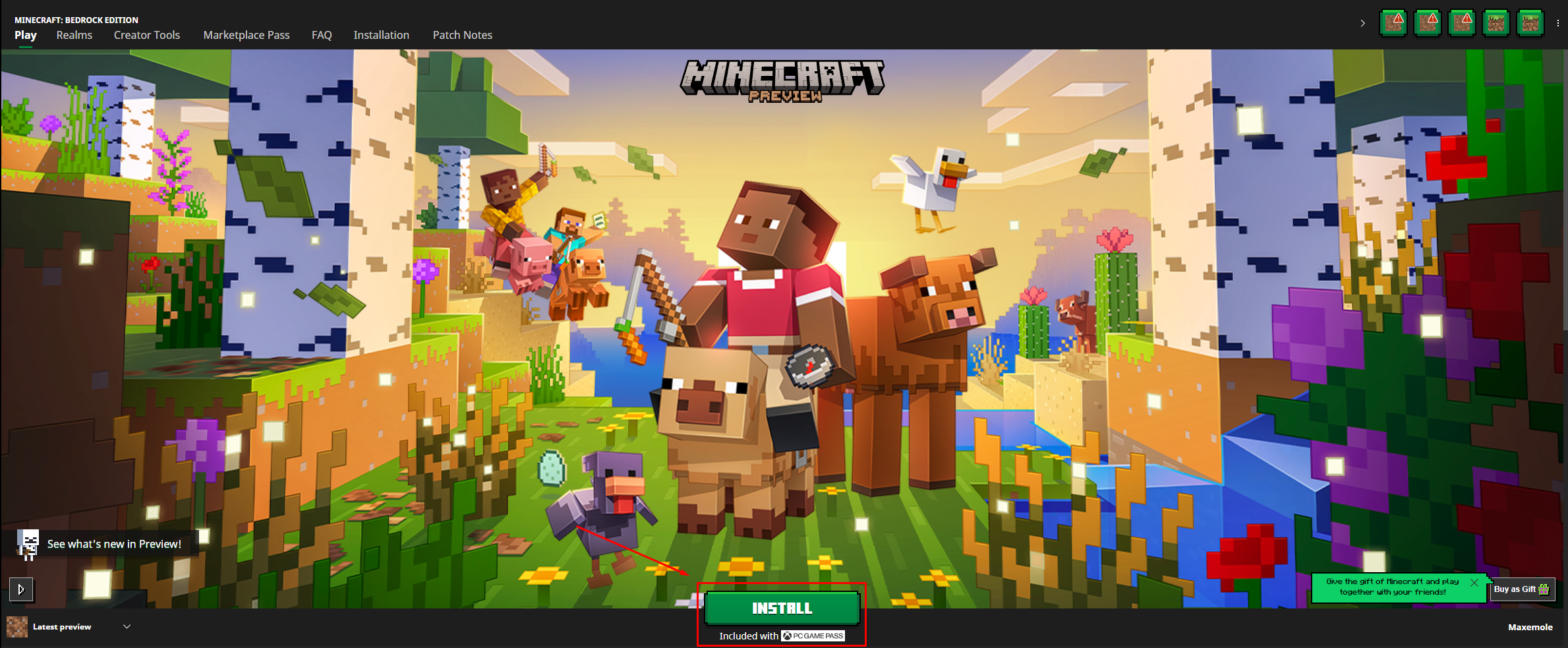
A smooth, hassle-free gaming experience is paramount to player retention and community satisfaction. For a brand like Minecraft, which thrives on its vast and active player base, ensuring that players can easily access and update the game is not just a technical requirement but a strategic imperative. When installations are smooth, players are more likely to engage, explore new content, and participate in the community. Conversely, persistent technical issues can lead to player frustration, negative reviews, and a diminished brand reputation.
From a ‘Brand’ perspective, every interaction a user has with a product, even a seemingly minor one like a launcher, contributes to their overall perception. A launcher that consistently works, provides clear communication, and offers straightforward troubleshooting pathways reinforces reliability and user-centric design. This focus on user experience is what transforms a good tech product into a beloved brand. Furthermore, for content creators who rely on Minecraft for ‘Online Income’ through streaming or video creation, a stable game client is non-negotiable for maintaining their livelihood and audience engagement. Delays due to installation issues can directly impact their productivity and earnings.
The “Waiting on Install” message, therefore, is more than just a momentary glitch; it’s a window into the complex interplay of software, hardware, networks, and user experience that defines our digital lives. By understanding and resolving such issues, players not only get back to their game but also gain valuable insights into the broader technological landscape, equipping them with skills that extend far beyond the blocky realms of Minecraft. This comprehensive approach to problem-solving and system optimization underscores the continuous learning curve inherent in navigating the ever-evolving world of technology.
aViewFromTheCave is a participant in the Amazon Services LLC Associates Program, an affiliate advertising program designed to provide a means for sites to earn advertising fees by advertising and linking to Amazon.com. Amazon, the Amazon logo, AmazonSupply, and the AmazonSupply logo are trademarks of Amazon.com, Inc. or its affiliates. As an Amazon Associate we earn affiliate commissions from qualifying purchases.