
In our rapidly evolving digital world, where software updates for operating systems, applications, and even smart devices often happen seamlessly in the background, a fundamental question persists for many computer users: “Is my BIOS automatically installed and updated?” This seemingly simple query delves into the critical, yet often misunderstood, realm of a computer’s foundational software, its firmware. Understanding how BIOS (or its modern successor, UEFI) updates, or more often, doesn’t automatically update, is crucial not just for tech enthusiasts but for anyone concerned with system stability, security, and even the broader implications for personal and corporate digital health.

This article aims to unravel the complexities surrounding BIOS/UEFI firmware, distinguish fact from fiction regarding automatic updates, explore the profound reasons why these updates matter, and guide you through the implications for technology, branding, and financial well-being.
Understanding the Core: What is BIOS (and UEFI)?
Before we tackle the question of automatic updates, it’s essential to grasp what BIOS and UEFI actually are. They are the bedrock upon which your entire computer system operates, the first piece of software that runs when you press the power button.
The Legacy of BIOS
BIOS, an acronym for Basic Input/Output System, has been the traditional firmware interface for IBM PC compatible computers since the 1980s. Its primary role is to initialize and test system hardware components (CPU, memory, storage devices, graphics card) before the operating system (like Windows, macOS, or Linux) takes over. This self-test is known as the Power-On Self-Test (POST). Once the POST is complete and basic hardware is recognized, the BIOS then locates and loads the bootloader from your designated storage drive, passing control to your operating system.
However, BIOS has its limitations. It operates in 16-bit mode, has a limited amount of addressable memory, and can only boot from drives smaller than 2TB due to its reliance on the Master Boot Record (MBR) partitioning scheme. Its text-based interface and somewhat clunky navigation are also hallmarks of an older era of computing.
The Modern Era of UEFI
The Unified Extensible Firmware Interface (UEFI) emerged as the modern successor to BIOS, addressing many of its limitations and bringing a host of new capabilities. Most modern computers manufactured in the last decade utilize UEFI instead of traditional BIOS.
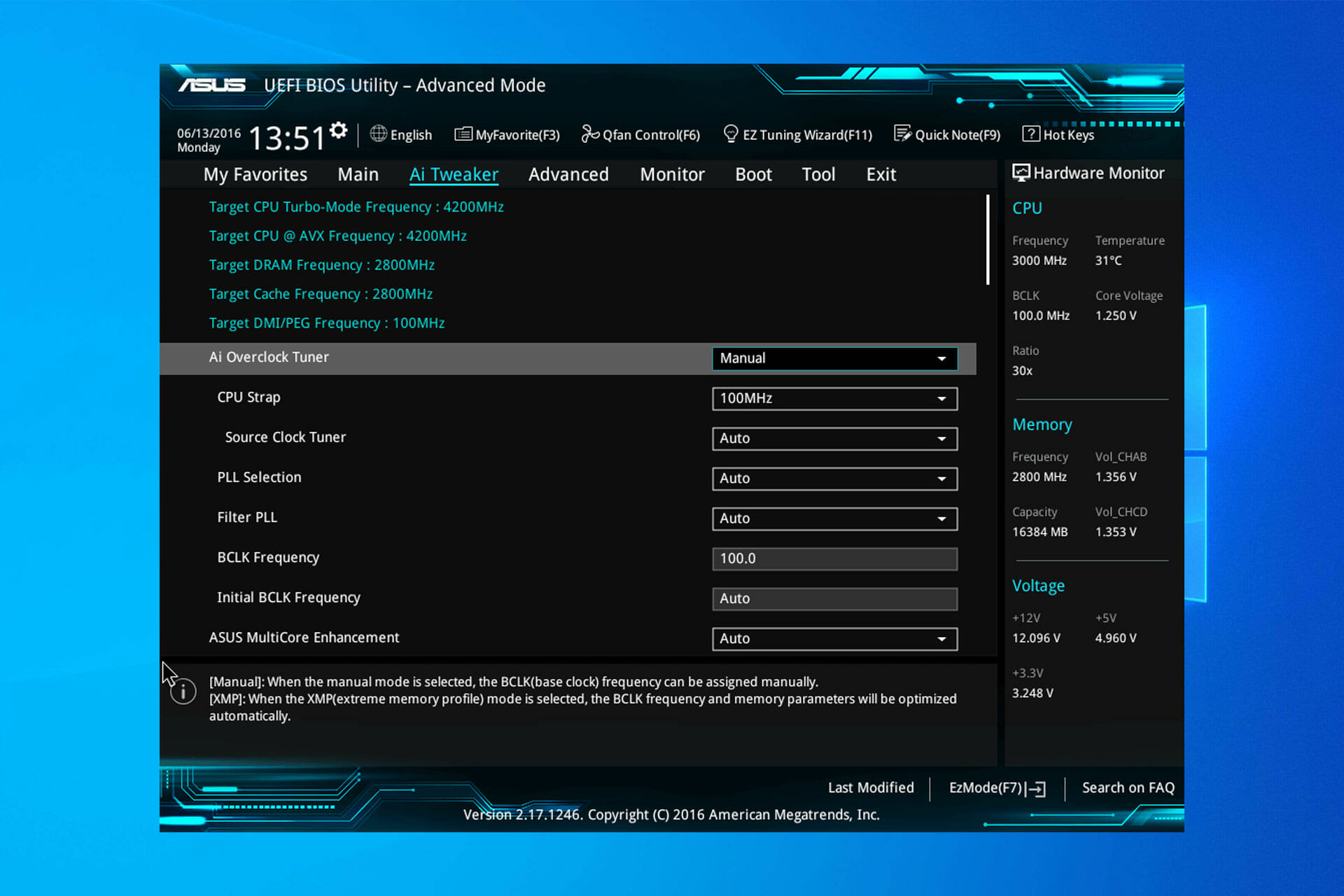
UEFI operates in 32-bit or 64-bit mode, allowing it to leverage more system memory during the boot process. It supports larger hard drives (beyond 2TB) by utilizing the GUID Partition Table (GPT) scheme, offers faster boot times, and provides a more user-friendly graphical interface (often mouse-supported) for configuration. Furthermore, UEFI includes features like “Secure Boot,” which helps prevent malicious software from loading during the startup process, adding a crucial layer of security. While distinct, the term “BIOS” is still often colloquially used to refer to any motherboard firmware, including UEFI, due to its historical prevalence. For the purpose of this article, when we refer to “BIOS updates,” we are generally encompassing both traditional BIOS and modern UEFI firmware updates.
The Myth of Automatic BIOS Updates
Now, to directly answer the titular question: Is your BIOS automatically installed and updated? The unequivocal answer, for the vast majority of consumer and even professional systems, is no. Unlike your operating system, web browser, or countless applications that regularly receive and apply updates automatically, your computer’s core firmware typically requires manual intervention.
Why Firmware Isn’t Always Plug-and-Play
There are several compelling reasons why motherboard manufacturers generally shy away from automatic BIOS/UEFI updates:
- Risk of Bricking: The most significant reason is the inherent risk. A failed or interrupted BIOS update can “brick” your motherboard, rendering it completely inoperable. This could happen due to a power outage during the update process, using the wrong firmware file, or a corrupted download. Since the BIOS/UEFI is the very first software that runs, if it’s corrupted, the system cannot even begin to boot the operating system. This catastrophic failure means a completely dead computer, often requiring a motherboard replacement.
- Stability Preference: Firmware updates, while beneficial, can sometimes introduce new bugs or compatibility issues. Manufacturers prefer users to be intentional about applying updates, especially if their current system is stable and performing well. This minimizes potential support calls arising from unexpected issues post-update.
- Vendor Control and User Choice: BIOS updates are highly specific to motherboard models and revisions. Manufacturers want to ensure users are downloading the correct firmware directly from their official channels, preventing rogue or incorrect files from being installed. Requiring a manual process puts the responsibility and choice squarely on the user.
- Less Frequent Need: While critical, BIOS updates are generally far less frequent than OS or application updates. They are typically released to address specific hardware compatibility issues, critical security vulnerabilities, or support new CPU generations, rather than weekly bug fixes or feature additions.
Vendor Approaches to Updates
While truly automatic updates are rare, some manufacturers offer utilities that assist with the update process, making it less manual. For instance, some motherboard brands provide Windows-based software that can check for available firmware updates and guide you through the flashing process. Even with these tools, the user still typically needs to initiate the check, confirm the download, and approve the installation process. This is a far cry from an update that downloads and installs without any user interaction, perhaps even rebooting your system unexpectedly. These utilities streamline the process but don’t eliminate the fundamental manual decision-making step.
Why BIOS/UEFI Updates Matter: Benefits and Risks
Despite the manual nature and inherent risks, knowing when and why to update your BIOS/UEFI is crucial. These updates aren’t just for advanced users; they impact system performance, compatibility, and, most importantly, digital security, with significant implications for your brand and financial well-being.
Enhancing Performance and Compatibility (Tech)
One of the primary technical reasons for a BIOS/UEFI update is to improve the functionality and compatibility of your hardware.
- New CPU Support: A common scenario is when a new generation of processors is released that uses the same socket as existing motherboards. Often, an updated BIOS/UEFI is required for the motherboard to correctly recognize and utilize the new CPU.
- Bug Fixes and Stability: Like any software, firmware can have bugs. Updates often include fixes for system instability, memory compatibility issues, fan control problems, or other quirks that might be affecting your system’s reliability.
- Improved Hardware Compatibility: Updates can expand support for newer hardware components, such as faster RAM modules, larger storage drives, or specific peripheral devices, ensuring your system can integrate with the latest technologies.
- Performance Optimizations: Occasionally, firmware updates might include microcode updates for the CPU or optimizations that can slightly improve system performance, boot times, or power efficiency.
Fortifying Digital Security (Tech, Brand, Money)
Perhaps the most critical reason to consider BIOS/UEFI updates, and one that directly links to Brand and Money, is digital security. Firmware vulnerabilities are incredibly dangerous because they operate at a layer below the operating system, making them difficult to detect and remove.
- Patching Critical Vulnerabilities: Security researchers continuously discover vulnerabilities in firmware that could allow attackers to gain deep control over a system, bypass security measures, or even persist malicious code that re-infects the OS every time you boot. Major vulnerabilities like Specter and Meltdown, or specific flaws in a motherboard’s firmware implementation, often require BIOS/UEFI updates to patch. Neglecting these patches leaves a gaping hole in your system’s defenses.
- Protecting Your Digital Brand: For individuals and businesses alike, a robust security posture is paramount to maintaining a strong digital brand. A data breach, often initiated through an unpatched vulnerability, can severely tarnish a personal brand (e.g., identity theft, loss of trust) or devastate a corporate identity (e.g., reputational damage, customer exodus, legal liabilities). Proactively applying firmware security updates is a fundamental step in protecting your digital presence.
- Safeguarding Financial Assets: The financial implications of security vulnerabilities are immense. A compromised system can lead to stolen financial information, unauthorized transactions, ransomware attacks that demand payment, or the costly recovery from data loss. For businesses, downtime due to a security incident can translate directly into lost revenue, compliance fines, and expensive forensic investigations. Investing a little time in firmware updates can be a critical defense against significant financial losses.
Mitigating Risks: The Perils of a Bad Update
While beneficial, the risks of a poorly executed or corrupted BIOS/UEFI update are severe. As mentioned, a “bricked” motherboard is the worst-case scenario, requiring hardware replacement. This not only costs money (for a new motherboard) but also time and productivity. Imagine a critical work project halted because your primary machine is down for days. This risk is precisely why users must proceed with caution and follow manufacturer instructions meticulously. The balance between benefits and risks is what necessitates a deliberate, manual approach to these updates.
When and How to Update Your Firmware
Given the delicate nature of BIOS/UEFI updates, knowing when to update and how to do it safely is paramount. It’s not a routine maintenance task you perform every week, but it’s not something to ignore entirely either.
Identifying the Need for an Update
There are specific scenarios that warrant a BIOS/UEFI update:
- New Hardware Installation: If you’re upgrading your CPU, especially to a newer generation compatible with your existing socket, a firmware update is often mandatory. Check your motherboard’s CPU support list on the manufacturer’s website.
- System Instability or Specific Bugs: If you’re experiencing persistent, unexplained system crashes, compatibility issues with specific hardware components (e.g., RAM, NVMe drives), or other documented bugs that your motherboard manufacturer has released a fix for, an update might be necessary. Always check the release notes for the new firmware version.
- Critical Security Vulnerabilities: When major security flaws affecting firmware are discovered and publicly announced, manufacturers will release patches. These are non-negotiable updates for protecting your system. Keep an eye on reputable tech news sources and your motherboard manufacturer’s support page.
- No Specific Reason (Rarely Recommended): If your system is stable, performs well, and you’re not planning any hardware upgrades or facing critical security alerts, some experts recommend against updating purely for minor performance gains. The risk of bricking often outweighs the marginal benefits.
Step-by-Step: The Manual Update Process
The exact steps vary slightly by motherboard manufacturer (e.g., ASUS, MSI, Gigabyte, ASRock, Dell, HP, Lenovo), but the general procedure is as follows:
- Identify Your Motherboard Model: This is crucial. Use tools like CPU-Z, HWInfo, or simply check your system information in Windows (Start > Run > “msinfo32”). Note down the exact model number and revision.
- Visit Manufacturer’s Support Website: Go to the official website of your motherboard manufacturer. Navigate to the “Support” or “Download” section, then find your specific motherboard model.
- Locate the Latest BIOS/UEFI File: Look for the BIOS/UEFI download section. You’ll see a list of available firmware versions, often with release dates and changelogs. Download the latest stable version. Always read the release notes carefully; sometimes, an intermediate update is required before flashing the very latest version.
- Prepare the Update Media:
- USB Flash Drive (Most Common): Format a USB drive (FAT32 is generally recommended). Extract the downloaded firmware file(s) to the root directory of the USB drive. Some manufacturers require specific filenames (e.g.,
MBFLASH.CAP). - Manufacturer Utility (Less Common for Desktops): Some manufacturers provide a Windows-based utility (e.g., ASUS EZ Update, MSI Live Update) that can download and flash the BIOS from within the OS. While convenient, this method carries a slightly higher risk as the OS itself can interfere.
- USB Flash Drive (Most Common): Format a USB drive (FAT32 is generally recommended). Extract the downloaded firmware file(s) to the root directory of the USB drive. Some manufacturers require specific filenames (e.g.,
- Access the BIOS/UEFI Interface: Reboot your computer. As it starts up, repeatedly press the designated key (commonly DEL, F2, F10, or F12) to enter the BIOS/UEFI setup.
- Use the Flashing Utility: Within the BIOS/UEFI menu, look for a utility named something like “EZ Flash,” “Q-Flash,” “M-Flash,” or “Instant Flash.” Select your USB drive as the source and choose the firmware file you downloaded.
- Initiate the Flash: Confirm the update. The process will take a few minutes. DO NOT INTERRUPT THE POWER OR REBOOT THE SYSTEM during this time. Your computer will likely restart multiple times automatically.
- Verify and Configure: Once the update is complete, the system should boot into Windows. Re-enter the BIOS/UEFI setup to verify the new version number and load “Optimized Defaults” or “Default Settings” to ensure proper configuration. Reapply any custom settings you had (e.g., XMP for RAM, boot order).
Best Practices for a Smooth Update (Tech, Productivity)
- Stable Power Supply: Use a UPS (Uninterruptible Power Supply) if possible, or ensure you’re in an environment where power outages are highly unlikely. This is your strongest defense against bricking.
- Correct File: Double-check that you’ve downloaded the exact BIOS/UEFI file for your specific motherboard model and revision.
- Read Instructions: Every manufacturer has slightly different instructions. Read them thoroughly before starting.
- Backup (Optional but Recommended): Some advanced BIOS utilities allow you to back up your current BIOS. This is a good safety measure if available.
- Minimal Peripherals: Disconnect non-essential peripherals (external drives, specialized cards) during the update process to minimize potential conflicts.
- Allocate Time: Don’t attempt a BIOS update when you’re in a rush or need your computer immediately. Set aside ample time (30-60 minutes) to complete the process without interruption. This ensures your productivity isn’t negatively impacted by a rushed or failed update.
Beyond the Technical: The Broader Implications
The seemingly mundane act of updating firmware has repercussions that extend far beyond technical specifications, impacting your brand and financial health.
Protecting Your Digital Brand and Reputation
In today’s interconnected world, an individual’s or company’s digital brand is a priceless asset. A system compromised due to outdated or vulnerable firmware can lead to data breaches, unauthorized access, or the deployment of malware.
- For Individuals: Imagine your personal data (photos, documents, financial details) falling into the wrong hands. The loss of privacy, potential identity theft, and emotional distress can severely damage your personal brand and sense of security.
- For Businesses: The reputational damage from a data breach is often more devastating than the direct financial cost. Customers lose trust, partners become hesitant, and the brand image can suffer for years. Proactive cybersecurity, including diligent firmware management, is a testament to a company’s commitment to protecting its stakeholders’ data and upholding its integrity. It reinforces a brand’s image as secure, reliable, and trustworthy, which is invaluable in a competitive marketplace.
The Financial Cost of Neglect and Proactive Maintenance
While manual BIOS/UEFI updates require time and careful execution, the financial cost of neglecting them can be far greater.
- Downtime and Lost Productivity: A bricked motherboard means a computer out of commission. For a business, this can mean an employee unable to work, project delays, and lost revenue. Even for individuals, the inability to access essential tools or entertainment can lead to frustration and lost leisure time, which also has a “cost.”
- Repair and Replacement Costs: Replacing a motherboard is not cheap, particularly for custom-built or high-end systems. Diagnostic fees, repair labor, and the cost of new components add up quickly.
- Data Recovery Expenses: If a system crash due to a faulty BIOS/UEFI or a security breach leads to data loss, recovery services can be extremely expensive, often without guarantee of full recovery.
- Cybersecurity Incident Response: For businesses, responding to a security breach involves forensic investigations, legal fees, notification costs, and potential regulatory fines. These expenses can be crippling, especially for small and medium-sized enterprises.
- ROI of Proactive Maintenance: Viewing firmware updates as a form of proactive maintenance demonstrates foresight. The time invested in a cautious, manual update is an insurance policy against potentially catastrophic failures, security breaches, and their associated financial and reputational fallout. It’s a small investment for long-term operational stability and security.

Conclusion
The question “Is your BIOS automatically updated?” leads us down a path of critical technical understanding, highlighting the deliberate manual nature of firmware management. While the convenience of automatic updates is tempting, the inherent risks and the profound impact of firmware integrity on system stability, security, and ultimately, your digital brand and financial well-being necessitate a more cautious approach.
Regularly checking for, and selectively applying, BIOS/UEFI updates, particularly those addressing critical security vulnerabilities or essential hardware compatibility, is a fundamental practice for any conscientious computer user or IT professional. It’s a testament to the fact that while technology strives for automation, some core aspects still demand human diligence, precision, and a clear understanding of the benefits and risks involved. By embracing this manual responsibility, you empower your system to remain robust, secure, and ready to meet the demands of an ever-changing digital landscape.
aViewFromTheCave is a participant in the Amazon Services LLC Associates Program, an affiliate advertising program designed to provide a means for sites to earn advertising fees by advertising and linking to Amazon.com. Amazon, the Amazon logo, AmazonSupply, and the AmazonSupply logo are trademarks of Amazon.com, Inc. or its affiliates. As an Amazon Associate we earn affiliate commissions from qualifying purchases.