
In the vast and ever-evolving universe of Minecraft, players constantly seek new ways to customize their experience, push boundaries, and gain an edge. Among the myriad tools available, “hacked clients” like the Wurst Client have carved out a significant niche. These clients offer a suite of features designed to automate tasks, reveal hidden elements, and generally alter gameplay in ways not intended by the game’s creators, Mojang Studios. While the allure of such power is undeniable, navigating the installation process, understanding the ethical considerations, and acknowledging the potential risks are crucial for any player contemplating its use.
This guide provides a detailed, step-by-step walkthrough for installing the Wurst Client, tailored for various Minecraft versions and scenarios. Beyond the technical specifics, we’ll delve into the broader implications of using such software, connecting it to the core themes of technology, personal branding within digital communities, and even the financial aspects of digital security and account ownership. Whether you’re a curious player, a content creator exploring the edges of Minecraft, or simply interested in the technical underpinnings of game modification, this article aims to equip you with a holistic understanding.
Understanding the Wurst Client: Features, Ethics, and Technical Foundations
Before diving into the installation process, it’s essential to grasp what the Wurst Client is, why players might choose to use it, and the underlying technical requirements. This section also explores the often-debated ethical landscape surrounding hacked clients, a discussion that touches upon fair play, community standards, and even the “brand” of a player within the gaming world.
What is the Wurst Client? Unpacking its Core Features
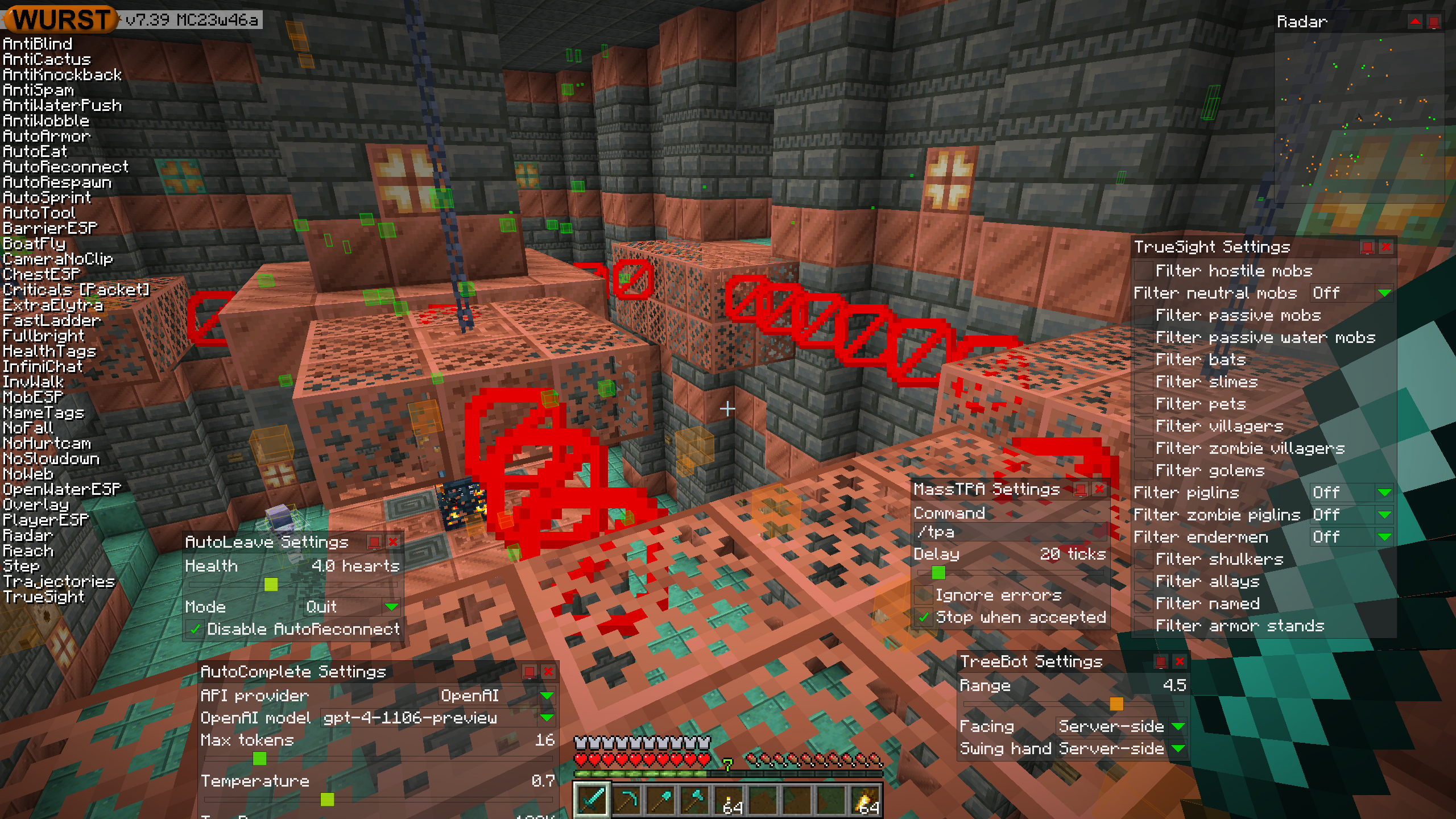
The Wurst Client is a popular, free, open-source hacked client specifically designed for Minecraft: Java Edition. It comes packed with a wide array of “hacks” or “cheats” that fundamentally change the gameplay experience. These features, often referred to as modules, can range from quality-of-life improvements to game-breaking abilities.
Some of the most prominent features include:
- Combat Modules:
- Killaura: Automatically attacks nearby entities, making combat effortless.
- Criticals: Ensures every attack is a critical hit, maximizing damage.
- Auto-Totem: Automatically equips a Totem of Undying when health is low, preventing death.
- Anti-Knockback: Reduces or eliminates the knockback effect from attacks, allowing aggressive play.
- Movement Modules:
- Fly: Allows players to fly in survival mode, offering unparalleled mobility.
- Speed: Increases player movement speed beyond normal limits.
- Blink: Teleports the player short distances, effectively bypassing obstacles or evading enemies.
- World & Player Modules:
- X-Ray: Makes certain blocks (like stone, dirt) transparent, revealing valuable ores, strongholds, and other structures. This is a classic example of altering the game’s visual information to gain an advantage.
- ESP (Extra Sensory Perception): Outlines entities (players, mobs, items) through walls, making them easy to track.
- Nuker: Destroys blocks rapidly in an area around the player, ideal for griefing or fast resource gathering.
- Scaffold: Automatically places blocks beneath the player, making it easy to build across gaps or ascend quickly.
- Automation Modules:
- Auto-Farm: Automates farming tasks.
- Auto-Fish: Automatically fishes for the player.
- Auto-Build: Helps with building complex structures.
From a technological perspective, these features are implemented by intercepting and modifying the game’s client-side code, altering how the game processes inputs, renders visuals, and interacts with the server (though server-side verification limits many truly game-breaking exploits). Understanding these mechanisms highlights the sophisticated software engineering involved in developing such clients, even if their application ventures into ethically grey areas.
The Ethical Quandary: Fair Play, Community, and Brand Reputation
The use of hacked clients like Wurst immediately raises significant ethical questions. For many players and server administrators, using such tools is considered cheating. It undermines fair play, disrupts the competitive balance, and can ruin the experience for others.
- Fair Play and Community Integrity: Minecraft, at its heart, is a game of creativity, exploration, and often, skill-based survival or combat. Hacked clients circumvent these core tenets, providing an unfair advantage that can lead to frustration and attrition among legitimate players. This erodes the trust and camaraderie that form the bedrock of healthy online gaming communities.
- Server Rules and Corporate Identity: Almost every public Minecraft server has strict rules against the use of hacked clients. Mojang and Microsoft, the stewards of the Minecraft brand, actively discourage such behavior, viewing it as a violation of their terms of service and a threat to the integrity of their product. Using Wurst client on a server means you are directly contradicting the server’s and the game’s corporate identity and values, which prioritize a fair and enjoyable experience for all.
- Personal Branding: Beyond the server rules, using a hacked client can severely impact a player’s personal brand within the gaming community. A player known for using cheats might be ostracized, banned from reputable servers, and lose respect among their peers. Conversely, a player who achieves success through legitimate skill and effort builds a positive reputation, fostering trust and opportunities for collaboration. For streamers or content creators, being caught using a hacked client can be catastrophic for their reputation and, by extension, their online income and “brand” as a creator. The short-term gain of a cheat can lead to long-term damage to one’s digital identity.
Given these considerations, potential users must weigh the immediate benefits of Wurst’s features against the potential damage to their reputation, the community, and the risk of permanent account bans.
Technical Prerequisites: Preparing Your Minecraft Environment
Installing the Wurst Client, like most Minecraft mods, requires a few technical prerequisites to ensure a smooth process. These are standard for anyone looking to modify their Minecraft experience.
-
Java Development Kit (JDK): Minecraft: Java Edition, as its name suggests, runs on Java. While a Java Runtime Environment (JRE) is typically bundled or automatically installed with the Minecraft Launcher, some modding activities might benefit from having a full JDK installed. Ensure you have a compatible Java version (usually Java 8 or newer, depending on the Minecraft version). You can download the latest JDK from Oracle or adoptium.net (Eclipse Adoptium provides open-source OpenJDK builds).
-
Minecraft: Java Edition: This might seem obvious, but you need an official, purchased copy of Minecraft: Java Edition. The Wurst Client is not compatible with Minecraft: Bedrock Edition (Windows 10, consoles, mobile). Ensure you have launched the desired Minecraft version at least once through the official launcher to generate its necessary game files.
-
Wurst Client Download: The most crucial component is the Wurst Client itself. Crucially, always download Wurst from its official website (wurst.wiki) or trusted repositories. Downloading from unofficial or suspicious sources is a major digital security risk, potentially exposing your system to malware, viruses, or ransomware, which can have significant financial and data privacy consequences. Always verify the source and, if possible, check file hashes for integrity.
-
Mod Loader (Optional but Recommended for Newer Versions): For newer versions of Minecraft (typically 1.14+), many hacked clients, including Wurst, are designed to work with a mod loader. The two most common are:
- Fabric Loader: A lightweight and modular modding toolchain. Wurst often releases specific Fabric-compatible versions.
- Forge Mod Loader: A more established, but sometimes heavier, modding API. While Wurst traditionally supported Forge, Fabric has become more prevalent for clients in recent years.
Using a mod loader creates a separate “profile” within your Minecraft Launcher, allowing you to easily switch between vanilla Minecraft, Wurst-enabled Minecraft, or other modded instances without conflict. This is a key aspect of modern software management in gaming environments.
Ensuring these prerequisites are met will set the stage for a successful and secure installation of the Wurst Client.
Step-by-Step Installation Guides for Wurst Client
The installation method for Wurst Client can vary slightly depending on the Minecraft version you intend to use and whether you opt for a mod loader. Below, we outline the most common scenarios. Remember to backup your .minecraft folder before proceeding, especially if you’re experimenting with different clients or mods – a wise digital security and data recovery practice.
Method 1: Direct Installation for Older Versions (Typically 1.12.2 and Below)
For some older versions of Minecraft, Wurst may offer a standalone .jar file that can be directly installed into your Minecraft Launcher. This method is generally simpler but less flexible than using a mod loader.
- Download the Wurst Client: Visit the official Wurst website (wurst.wiki) and navigate to the download section. Select the Wurst version that matches your desired Minecraft version. Look for the “Standalone” or “Installer” download option.
- Run the Wurst Installer (if provided): If you downloaded an executable installer (
.jaror.exe), simply double-click it. Follow the on-screen prompts. These installers typically detect your Minecraft installation and add a new “Wurst” profile to your launcher automatically. - Manual Installation (if no installer): If you downloaded a
.jarfile that isn’t an installer (often labeled as a “client JAR” or similar), you’ll need to install it manually:- Locate your
.minecraftfolder. On Windows, this is usually%appdata%.minecraft. On macOS, it’s~/Library/Application Support/minecraft. On Linux,~/.minecraft. - Inside the
.minecraftfolder, locate theversionsfolder. - Create a new folder inside
versionswith a distinctive name, e.g.,Wurst-MC<version>. - Inside this new folder, place the downloaded Wurst
.jarfile. - Copy the
.jsonfile from the corresponding vanilla Minecraft version folder (e.g.,1.12.2folder) into your new Wurst folder. - Rename both the Wurst
.jarfile and the copied.jsonfile to match your new folder’s name (e.g.,Wurst-MC1.12.2.jarandWurst-MC1.12.2.json). - Open the renamed
.jsonfile with a text editor. Find the line"id": "1.12.2"(or whatever version it is) and change"1.12.2"to"Wurst-MC1.12.2"(matching your folder name). Save and close the file.
- Locate your
- Launch Minecraft Launcher: Open your official Minecraft Launcher.
- Select the Wurst Profile: Click on the “Installations” tab at the top. You should see a new profile named “Wurst” or “Wurst-MC
.” If not, click “New installation,” give it a name (e.g., “Wurst Client”), and in the “Version” dropdown, select the Wurst profile you just created (it will appear as a version option). - Launch the Game: Select the Wurst profile and click “Play.” The game will launch with the Wurst Client enabled.
Method 2: Utilizing Mod Loaders (Fabric/Forge) for Modern Minecraft (Typically 1.13+)
For newer Minecraft versions, Wurst is often released as a mod for Fabric or Forge. This is the recommended and most common method for modern modding, offering better compatibility and easier management of multiple mods.
- Install the Mod Loader:
- Fabric: Go to fabricmc.net and download the Fabric Installer. Run the installer, select your desired Minecraft version, and click “Install.” This will create a new “fabric-loader-
” profile in your Minecraft Launcher. - Forge: Go to files.minecraftforge.net and download the recommended installer for your desired Minecraft version. Run the installer, select “Install client,” and click “OK.” This will create a new “forge-
” profile in your Minecraft Launcher.
- Fabric: Go to fabricmc.net and download the Fabric Installer. Run the installer, select your desired Minecraft version, and click “Install.” This will create a new “fabric-loader-
- Download the Wurst Client (Mod Version): Visit the official Wurst website (wurst.wiki) and download the version specifically labeled for Fabric or Forge (depending on which loader you installed) and your Minecraft version. This will be a
.jarfile. - Place the Wurst Mod File:
- Locate your
.minecraftfolder (as described in Method 1). - Inside
.minecraft, there should be amodsfolder. If not, create one. - Drag and drop the downloaded Wurst
.jarfile (the mod file, not an installer) into themodsfolder.
- Locate your
- Launch Minecraft Launcher: Open your official Minecraft Launcher.
- Select the Mod Loader Profile: In the “Installations” tab, select the Fabric or Forge profile you installed (e.g., “fabric-loader-1.20.1” or “forge-1.19.4”).
- Launch the Game: Click “Play.” Minecraft will launch with the chosen mod loader, which will then load the Wurst Client from the
modsfolder.
Verifying Your Installation and Initial Launch
Once Minecraft launches, you should immediately see signs that Wurst is active:
- Splash Screen/Logo: Wurst often adds its own splash screen or logo during startup.
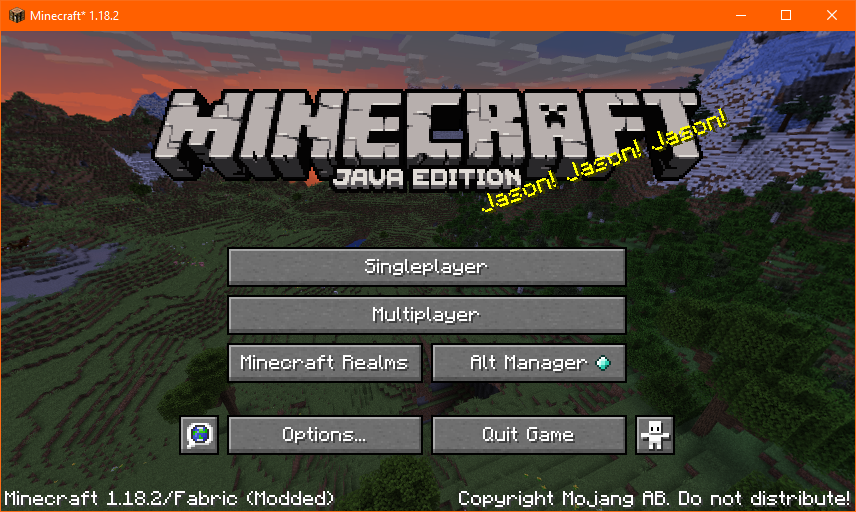
- Main Menu Indicator: A “Wurst” indicator or version number might appear in the main menu’s bottom-left corner, next to the vanilla Minecraft version.
- In-Game HUD: Once in a world, press the default Wurst GUI key (usually Right Shift or RShift). A graphical user interface (GUI) will appear, allowing you to enable and configure various modules. If the GUI appears and modules can be toggled, your installation is successful.

Take time to explore the Wurst GUI. Each module has different settings, and understanding them is key to leveraging the client effectively. Be mindful that enabling certain features, especially those that drastically alter movement or interaction, can make your actions very obvious to server anti-cheat systems.
Navigating the Risks: Security, Bans, and Financial Implications
The decision to install and use a hacked client like Wurst is not without significant risks. These extend beyond simple gameplay consequences to encompass digital security, the integrity of your online accounts, and even potential financial losses. Understanding these dangers is paramount for responsible digital citizenship.
Digital Security Best Practices: Avoiding Malware and Scams
The most immediate and severe risk associated with hacked clients comes from the download source. Because these clients operate outside the official Mojang ecosystem, they are often distributed via third-party websites, forums, or download mirrors. This environment is ripe for malicious actors.
- Malware and Viruses: Unofficial download sites are frequently used to distribute malware, including viruses, trojans, spyware, and ransomware, disguised as the Wurst Client. Downloading such a file could compromise your entire system, leading to:
- Data Theft: Passwords, banking information, personal documents, and other sensitive data could be stolen.
- Account Compromise: Your Minecraft account, email, social media, and other online accounts could be hijacked.
- System Damage: Files could be corrupted or encrypted (ransomware), making your computer unusable without paying a ransom.
- Adware and Unwanted Software: Even less malicious downloads might bundle adware or other unwanted programs that slow down your computer and compromise your privacy.
- Phishing and Social Engineering: Websites claiming to offer exclusive versions or “undetectable” cheats might be phishing sites designed to trick you into giving away your login credentials.
To mitigate these risks:
- Always use the Official Source: As reiterated, download Wurst ONLY from its official website (wurst.wiki). Do not trust random forum posts, YouTube links, or suspicious file-sharing sites.
- Use Reputable Antivirus Software: Keep your antivirus software up-to-date and run scans on any downloaded files before opening them.
- Be Skeptical of “Too Good to Be True” Offers: If a download promises something extraordinary or seems fishy, it likely is.
- Regular Backups: Regularly back up important data. In case of ransomware or data corruption, this can be a lifesaver.
- Strong, Unique Passwords and 2FA: Use strong, unique passwords for all your online accounts and enable two-factor authentication (2FA) wherever possible, especially for your Minecraft account and email. This adds a crucial layer of defense against account compromise.
These are fundamental digital security practices that extend far beyond installing a game client, safeguarding your digital assets and, by extension, your financial well-being in an increasingly online world.
The Consequences of Detection: Account Bans and Community Backlash
Minecraft servers actively employ anti-cheat systems and vigilant moderators to detect and punish players using hacked clients. The consequences of being caught can range from temporary suspensions to permanent account bans.
- Server Bans: Most commonly, if detected, you will be permanently banned from the server you were playing on. This means you lose access to any progress, items, or community connections you had on that specific server. For players who have invested significant time and effort into building a reputation or an in-game economy on a server, this can be a devastating loss.
- Mojang/Hypixel-level Bans: Some sophisticated anti-cheat systems, like Hypixel’s Watchdog, can lead to global bans that affect your ability to play on any server with that specific account. While full Mojang account bans are rarer for client use alone (they typically target severe exploits or account sharing), they are not impossible, especially if combined with other violations.
- Community Backlash and Reputation Damage: As discussed under “Personal Branding,” being labeled a “cheater” can have lasting effects on your reputation. Other players may refuse to engage with you, stream teams might exclude you, and content creation opportunities could vanish. In the digital age, a tarnished reputation can be difficult to shake off, impacting not just your gaming experience but potentially broader online interactions.
The cost of a ban isn’t just loss of access; it’s the loss of time, effort, and social capital invested in the game and its communities.
Protecting Your Investment: Game Accounts and Digital Assets
While Minecraft itself is a relatively inexpensive game, a player’s account often represents a significant investment of time, effort, and sometimes, real money.
- Loss of Purchased Game/Account: A permanent account ban means you lose access to the game you legitimately purchased. While not necessarily a financial loss in the traditional sense (you still own the license), you lose the ability to use it as intended, effectively devaluing your original investment.
- In-Game Purchases and Currencies: Many servers offer cosmetic items, ranks, or in-game currency that players purchase with real money. A ban can mean the forfeiture of all these digital assets, representing a direct financial loss.
- Opportunity Cost (Online Income): For streamers, YouTubers, or professional gamers who monetize their Minecraft gameplay, a ban can be catastrophic. Loss of access to popular servers means loss of content opportunities, viewer engagement, and ultimately, a reduction in potential online income. The “side hustle” of gaming can quickly collapse if one’s access to the game is revoked. The time spent setting up and using a client might have a negative return on investment if it leads to a ban.
- Digital Wallet Security: If your account is compromised due to downloading malware, attackers might gain access to linked payment methods or other financial accounts, leading to direct monetary theft.
In summary, the convenience or power offered by the Wurst Client comes with a non-trivial risk profile that spans technical vulnerabilities, social consequences, and potential financial drawbacks. A thoughtful approach to these risks is essential for any player.
Maintaining and Managing Your Wurst Client Experience
Successfully installing Wurst Client is only the first step. To ensure a smooth and continuous experience, especially in a game that receives frequent updates like Minecraft, ongoing maintenance and management are necessary. This includes updating the client, troubleshooting common issues, and making informed decisions about its long-term use.
Updating Wurst for the Latest Minecraft Versions
Minecraft receives regular updates, bringing new features, bug fixes, and significant changes to the game’s code. These updates often break compatibility with older mod versions, including hacked clients.
- Version Specificity: Wurst Client, like most mods, is highly version-specific. A Wurst client designed for Minecraft 1.16 will not work with 1.17, 1.18, or newer versions. Each major Minecraft update necessitates a corresponding update to the Wurst Client.
- Checking for Updates: Regularly visit the official Wurst website (wurst.wiki) to check for new releases that support the latest Minecraft versions. The developers typically release updates shortly after a new Minecraft version is stable.
- Installation Process for Updates: The update process usually involves:
- Downloading the new version: Always from the official source.
- Removing the old version: If using the direct installation method, delete the old Wurst profile and its associated files from your
versionsfolder. If using a mod loader, remove the old Wurst.jarfile from yourmodsfolder. - Installing the new version: Follow the same installation steps (Method 1 or Method 2) as you did for the initial installation.
- Mod Loader Updates: If you are using Fabric or Forge, remember that these loaders also receive updates. Ensure your mod loader is compatible with both your Minecraft version and the Wurst Client version you intend to use. Sometimes, an issue might be due to an outdated loader rather than the client itself.
Staying current with Wurst updates is crucial for access to new features, bug fixes, and maintaining compatibility with your desired Minecraft gameplay environment.
Troubleshooting Common Installation and Usage Issues
Despite following instructions carefully, users may encounter issues. Here are some common problems and their solutions:
- Game Crash on Launch:
- Mismatched Versions: Ensure your Wurst Client (and mod loader, if applicable) matches your Minecraft version exactly.
- Java Issues: Verify you have a compatible Java version installed and that the Minecraft Launcher is using it.
- Corrupted Download: Re-download Wurst from the official site to rule out a corrupted file.
- Conflicting Mods: If using other mods with a mod loader, one of them might be conflicting with Wurst. Try launching with only Wurst in the
modsfolder to isolate the issue. - Corrupted
.minecraftFolder: As a last resort, try backing up and then deleting your.minecraftfolder (excluding yoursavesandresourcepacksif desired), then letting Minecraft re-download fresh game files. Then, reinstall Wurst.
- Wurst Menu Not Appearing In-Game:
- Incorrect Keybind: The default key is usually Right Shift (RShift). Ensure you are pressing the correct key. Check Wurst’s documentation for potential alternative keybinds or if your keyboard layout affects it.
- Client Not Loaded: Verify that the Wurst profile was selected in the launcher and that you see the Wurst indicator on the main menu.
- Lag or Performance Issues:
- Too Many Modules: Some Wurst modules, especially visual ones like X-Ray or ESP with extensive range, can impact performance. Try disabling non-essential modules.
- System Resources: Ensure your computer meets the minimum requirements for Minecraft, especially with mods. Allocate more RAM to Minecraft through the launcher settings if necessary.
- Graphics Drivers: Update your graphics card drivers.
Troubleshooting is an essential skill in the tech world. It involves systematic problem-solving, identifying variables, and isolating the root cause – a valuable lesson for any digital user.
Deciding When to Uninstall: Reverting to Vanilla or Other Clients
There may come a time when you decide that the Wurst Client is no longer serving your needs, or perhaps the risks outweigh the benefits. Uninstalling Wurst is a straightforward process.
- Uninstalling Direct Installation:
- Open your Minecraft Launcher and go to the “Installations” tab.
- Locate the Wurst profile, click the three dots, and select “Delete.”
- Go to your
.minecraft/versionsfolder and delete theWurst-MC<version>folder you created earlier.
- Uninstalling Mod Loader Version:
- Go to your
.minecraft/modsfolder. - Delete the Wurst
.jarfile from this folder. - You can keep the Fabric or Forge loader installed if you plan to use other mods. If you wish to remove the mod loader entirely, delete its corresponding profile from the Minecraft Launcher and remove any residual files from your
versionsfolder.
- Go to your
- Reverting to Vanilla: After uninstalling, simply select a standard vanilla Minecraft version profile in your launcher, and the game will launch without Wurst.
- Ethical Considerations Revisited: Deciding to uninstall Wurst might stem from a renewed commitment to fair play, a desire to avoid bans, or simply a realization that the enhanced features detract from the intended Minecraft experience. This decision reflects an individual’s evolving understanding of personal branding, community engagement, and digital ethics.
In conclusion, installing and using the Wurst Client is a technical endeavor with far-reaching implications. While it offers a powerful suite of tools to modify your Minecraft experience, it also demands an awareness of digital security, ethical responsibility, and the potential impact on your gaming future and digital presence. By approaching this guide with caution and a comprehensive understanding of the associated risks and rewards, players can make informed choices about how they navigate the dynamic world of Minecraft modification.
aViewFromTheCave is a participant in the Amazon Services LLC Associates Program, an affiliate advertising program designed to provide a means for sites to earn advertising fees by advertising and linking to Amazon.com. Amazon, the Amazon logo, AmazonSupply, and the AmazonSupply logo are trademarks of Amazon.com, Inc. or its affiliates. As an Amazon Associate we earn affiliate commissions from qualifying purchases.